Can't sign in? Common problems and fixes
Why Private.Ki gives one deliberately vague sign-in error, and what to check — username, password, two-factor code, passphrase, sessions and rate limits.
Private.Ki cannot look up your password to tell you what went wrong — it does not have it. That, plus a policy of never revealing whether a username exists, means most sign-in failures show a single message.
"We couldn't log you in"
The full text is: We couldn't log you in. Something you entered was incorrect, but we can't say what — it's part of how we protect your privacy. It is shown whether the username is wrong, the password is wrong, or the account does not exist; an unknown username even goes through the same timing as a real one so the two cannot be told apart.
Check, in this order:
- The username. The field is labelled Email address but takes only the part before
@privateki.net. Usernames are lower-case letters, digits and dots; capitals typed on a phone keyboard are the most common slip. Your display name (Your name at sign-up) is not your username. - The password. Passwords are case-sensitive. If a password manager fills the field, make sure it filled this site's entry and not one for another service. Try typing it by hand once.
- Which account. If you have more than one, the one you paired to your phone may not be the one you are typing.
- Reset, if you can. Click Forgot password? — it only works if you added a recovery address earlier. Without one there is no reset; we cannot verify you and do not know your password. See Reset your password.
If you are still signed in on any other device, use Sign in with a QR code — it needs no password at all and gets you in immediately. Then set a new password from Settings › Security and Privacy.
The two-factor code is refused
Invalid TOTP code means the six digits did not match the current time window.
- Wait for the next code and type it promptly; each one is valid for 30 seconds.
- Check the phone's clock is set automatically. Authenticator apps depend on the time being right.
- Make sure you are reading the entry for this Private.Ki account and not another service.
- After 5 wrong codes you see Too many incorrect codes. Try again later. and the account refuses codes for 15 minutes. Each further wrong code restarts the wait, so stop and let it pass.
- If you have lost the authenticator entirely, see Two-factor authentication. There are no backup codes; recovery needs another device that is still signed in.
"Authentication session expired"
Authentication session expired or not found. Please restart the login flow. The sign-in handshake has a time limit and was left open too long — usually while looking for an authenticator code. Reload the page and start again from the username.
The passphrase is not accepted
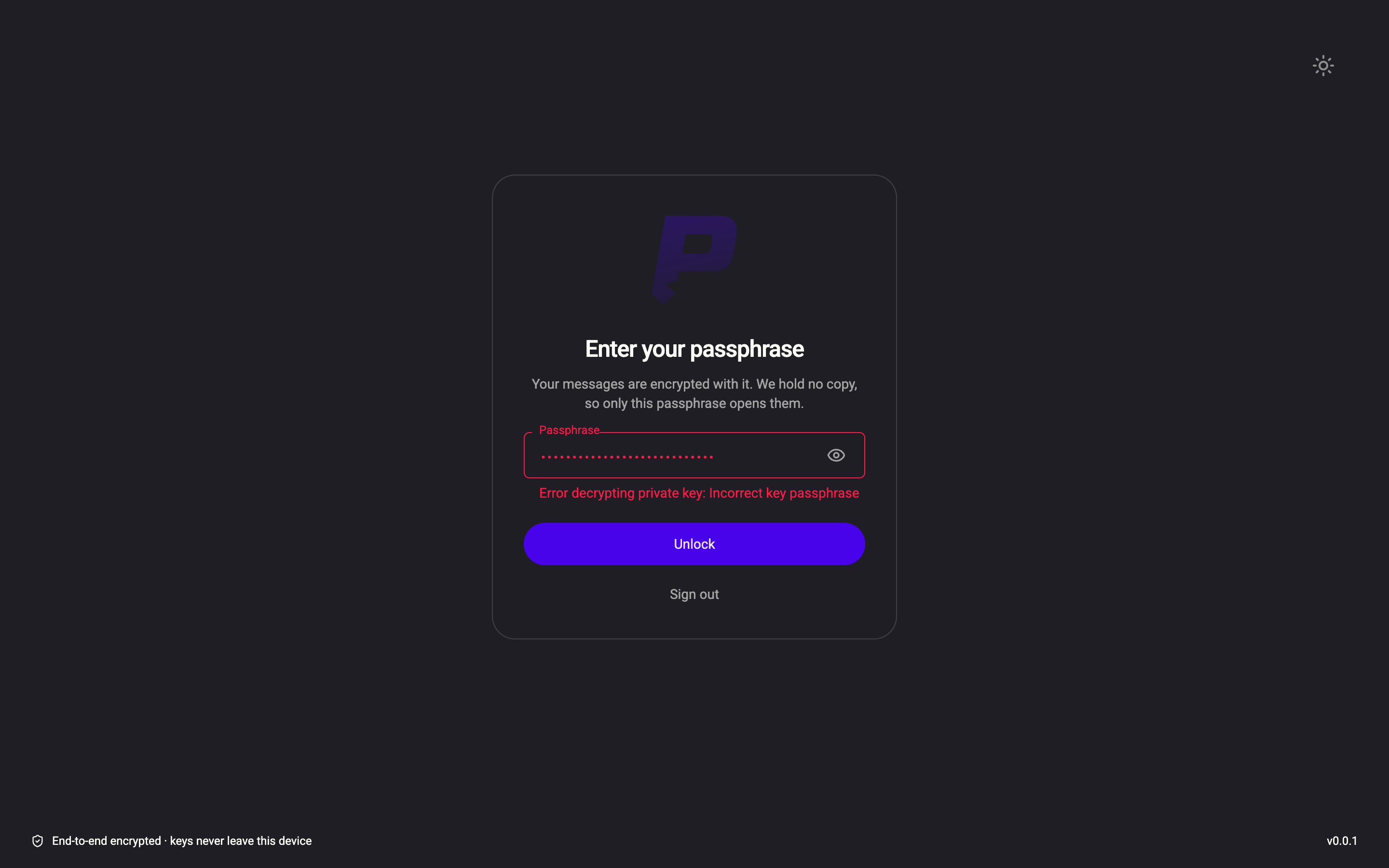
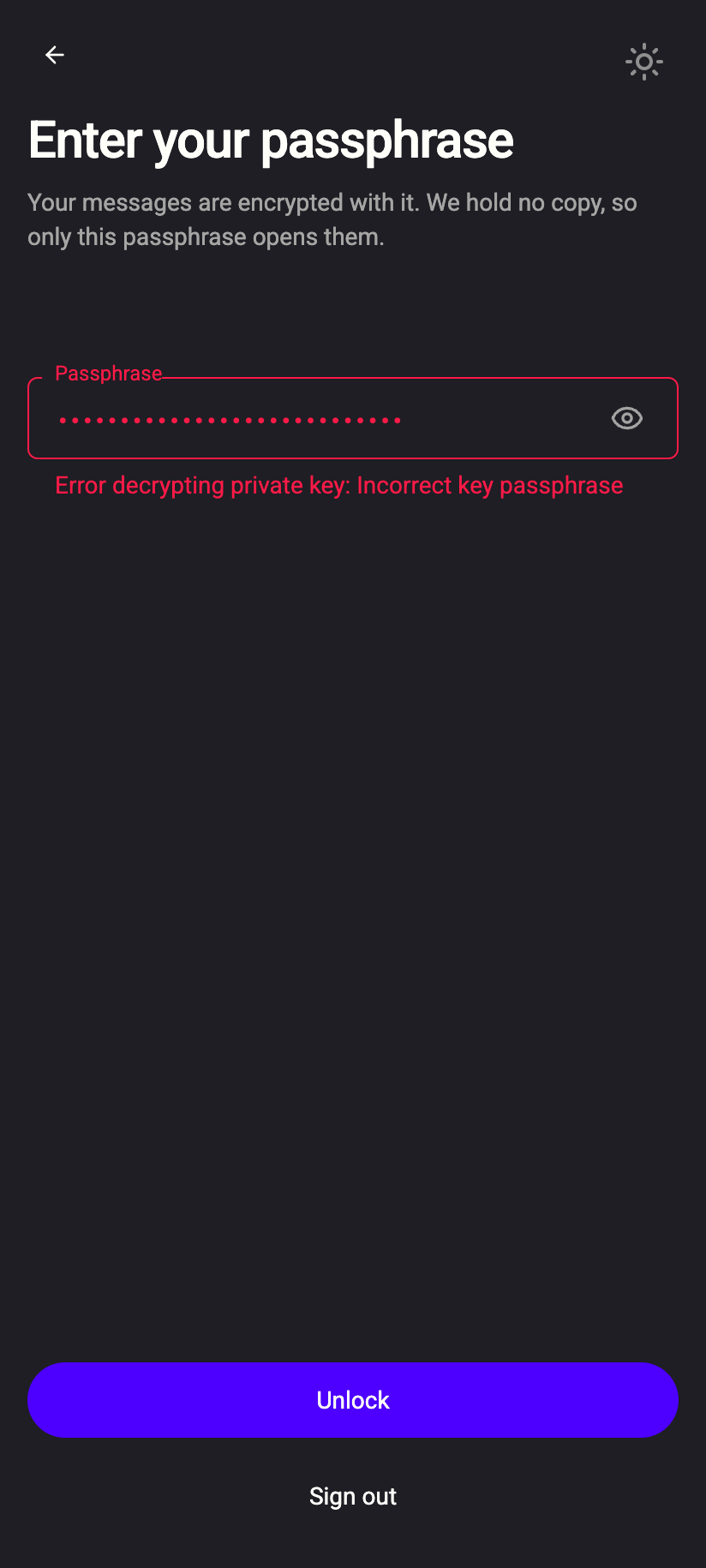
You signed in, but the Enter your passphrase screen shows Error decrypting private key: Incorrect key passphrase.
 123123
- The passphrase is separate from your password and is case- and space-sensitive. If you generated it, it is six words separated by single spaces.
- We hold no copy and cannot reset it. If you have another device that is still unlocked, pair from it — the paired device receives the key itself, so the passphrase is not needed on it. Then you can change your passphrase from the paired device.
- Without a copy and without another device, the mail encrypted with that key is unreadable. See Protect your passphrase.
"Session is no longer valid. Please sign in again."
Your sign-in was ended from somewhere else: you clicked Log out on another device or revoked a session under Active sessions (both apply to Password only accounts), or support ended your sessions at your request. Sign in again with your password. This is expected behaviour — it is how a lost device gets shut out.
Requests are being refused as too frequent
Sign-in, code and password-reset requests are limited per network address — five per minute is typical — and the username check at sign-up says Too many checks from this connection. Please try again later. Wait a minute and try again. A shared office or VPN address counts everyone behind it together. See Rate limits.
No code arrives for email-code sign-in
The screen always says We sent a 6-digit code, even for an address with no account. Codes only go to accounts created from a chat invitation, at the external address the invitation went to. If you have a password, use it. See Sign in with an email code.
"Active Session Detected"
An email-code account with no password is already open on another device. Use that device, or log out there first. Setting a password removes this restriction.
The page just spins
- Check the connection indicator: an offline banner means the app cannot reach the server. See Offline and reconnecting.
- Sign-in requires a small proof-of-work calculation before each request; on a very slow device this can take a few seconds. See Why sign-in does a proof-of-work.
- If you use Tor or a strict VPN, see Tor and VPN.
Still stuck?
Your account may be locked or suspended — both have their own screens rather than the generic error. Otherwise contact support and tell us what the screen says. We can see whether sign-ins are reaching us and being refused; we cannot see or reset your password or passphrase.