Password only or passphrase — choose how you unlock
Signing in gets you to your account; unlocking opens your keys. At sign-up you choose whether one password does both or a passphrase protects your key.
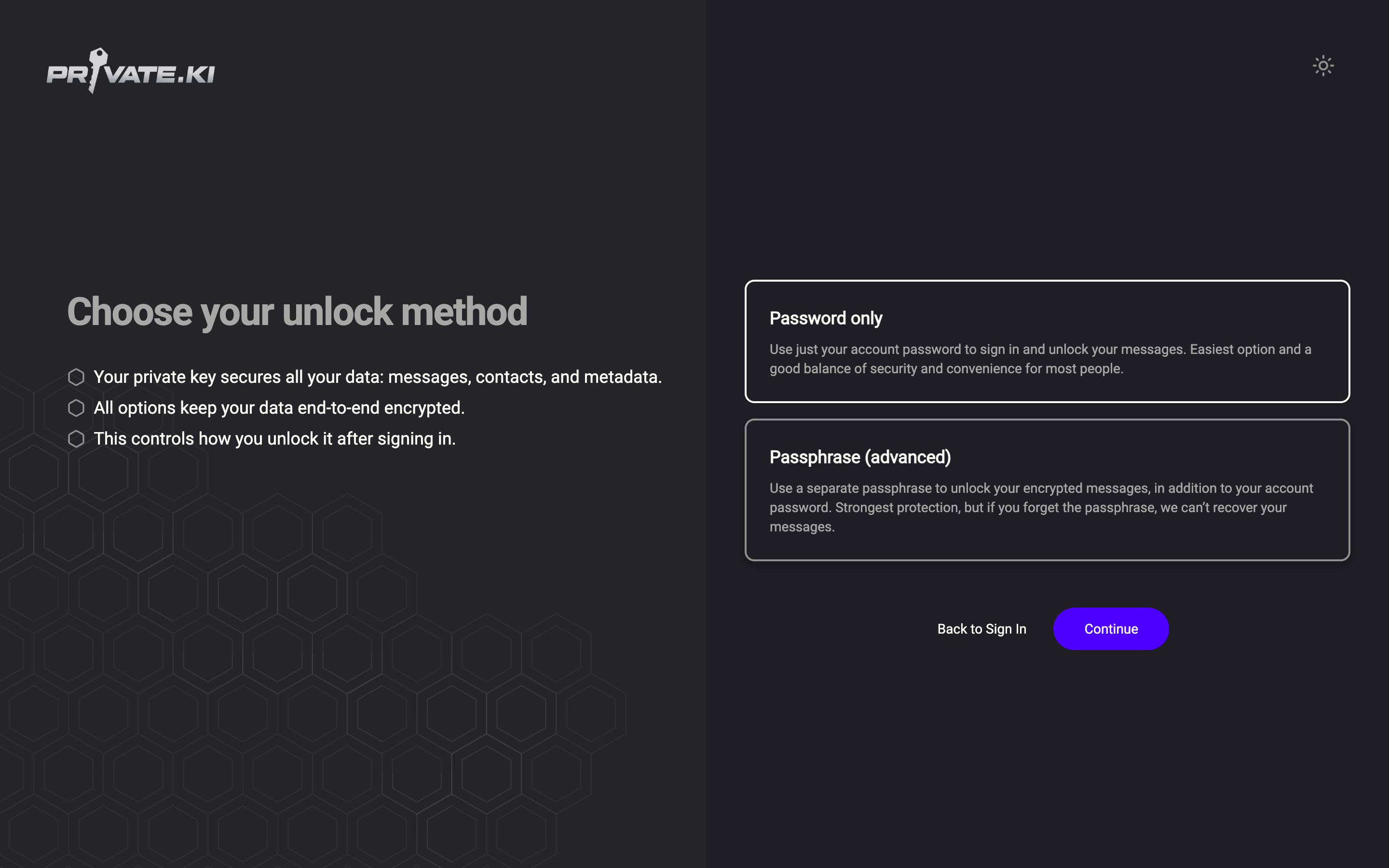
Every Private.Ki account has two locks. Signing in proves to our server that you are the account owner — that is what your password does, over OPAQUE, so the password itself never reaches us. Unlocking decrypts your private key on your device so your mail and chats can be read. Right after you create your account, the Choose your unlock method screen asks what should protect that key.
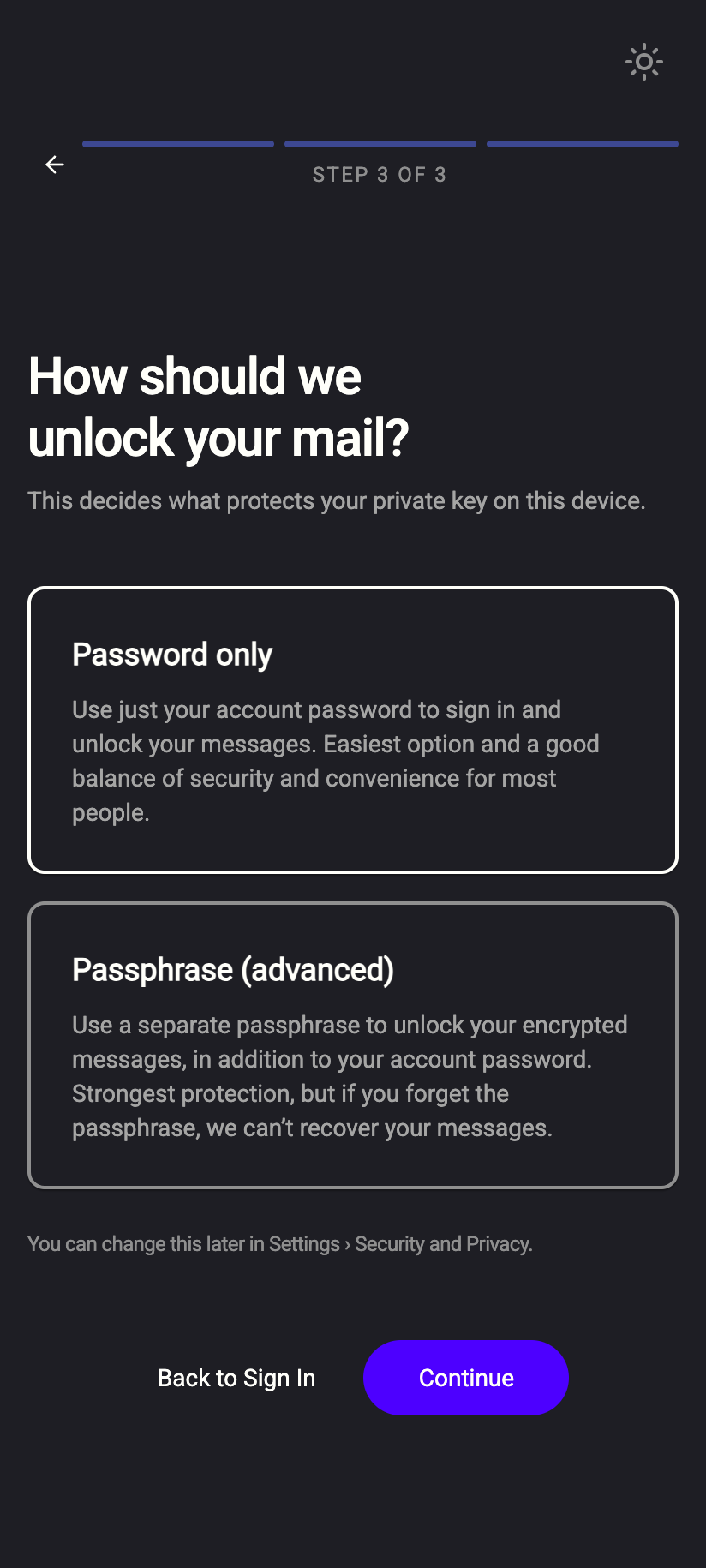
There are exactly two choices: Password only and Passphrase (advanced). A security key or passkey is not one of them — that is a second step at sign-in, not a way to open your keys.
 12341234
Password only
Your account password does both jobs. On your device, the app derives a strong key from your password plus a random salt, and encrypts your private key with it. When you sign in, the same derivation happens again and your mail unlocks without another prompt.
- Convenient. One secret to remember; no extra step after sign-in.
- Devices stay unlocked. Each device you sign in on keeps an encrypted session so it can reopen your mail without re-deriving anything. You can see them and sign one out under Signed-in devices.
- The trade-off. Anyone who learns your password can both sign in and read your mail. Turn on two-step verification to make sign-in alone insufficient.
- Recoverable sign-in. If you forget the password and have a recovery address, you can reset it — but read that article carefully: a reset changes the key that protects your mail.
Passphrase (advanced)
A second secret, separate from your password, encrypts your private key. After every sign-in — and every time the app locks — you type the passphrase.
- Strongest protection. Someone who steals your password can sign in but sees only ciphertext.
- Unrecoverable by design. We never receive the passphrase, so we cannot reset it, email it or recover it. If you forget it, every message, contact and attachment stays encrypted for good — for you and for us.
- More typing. You enter it on each unlock. On iPhone the app stores it in the device keychain after a successful unlock so later launches open without retyping; on Android and the web you type it each time.
Pick your method
- On Choose your unlock method, tap the card you want. The selected card gets a bold border.
- Click Continue.
- Password only: your key pair is generated and encrypted immediately, and your inbox opens.
- Passphrase (advanced): you move to the Extra security layer screen.
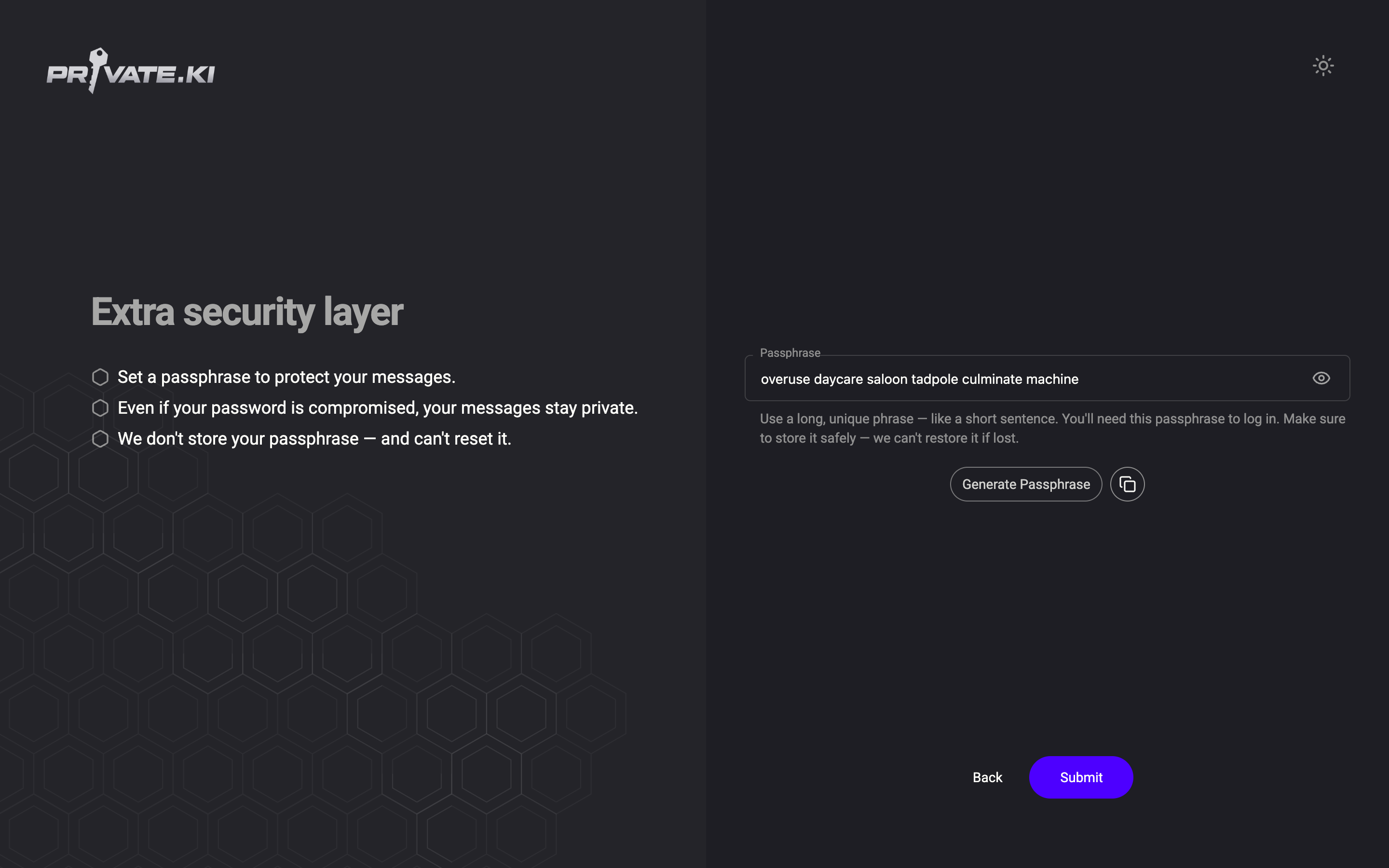
- Passphrase only — enter or generate one. Type a long, unique phrase into Passphrase (at least 8 characters, and not a single dictionary word), or click Generate Passphrase to get six random words. Use the copy button next to it to put the phrase in your password manager.
1Your passphrase2Show / hide3Generate Passphrase4Copy5SubmitWeb & desktop 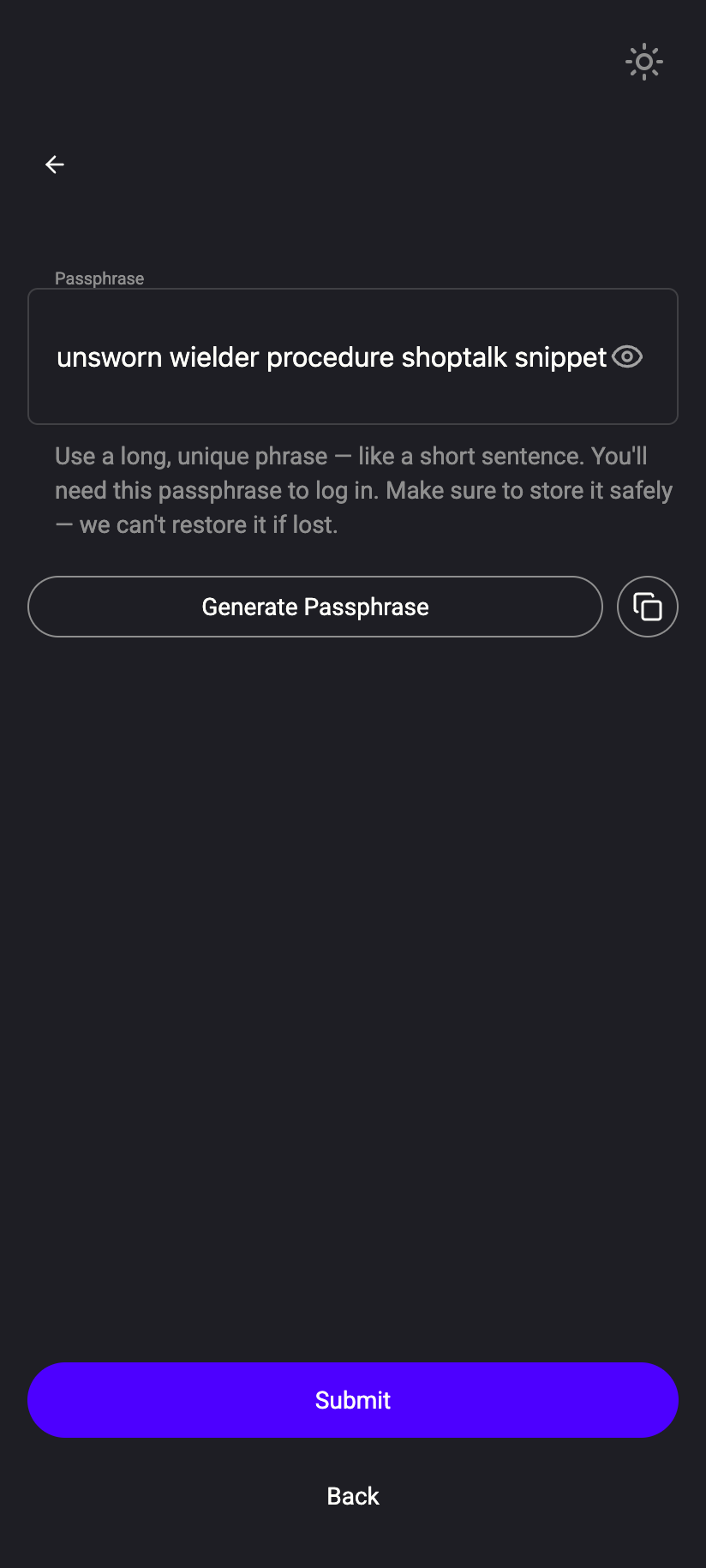 12345
123451Your passphrase2Show / hide3Generate Passphrase4Copy5SubmitiPhone 123451Your passphrase2Show / hide3Generate Passphrase4Copy5SubmitAndroid - Click Submit. A dialog asks Have you saved your passphrase? Tick I have saved my passphrase somewhere safe and understand it cannot be recovered, then click Confirm and create account.
1If you forget it, your messages are gone2Ticked3Confirm and create accountWeb & desktop 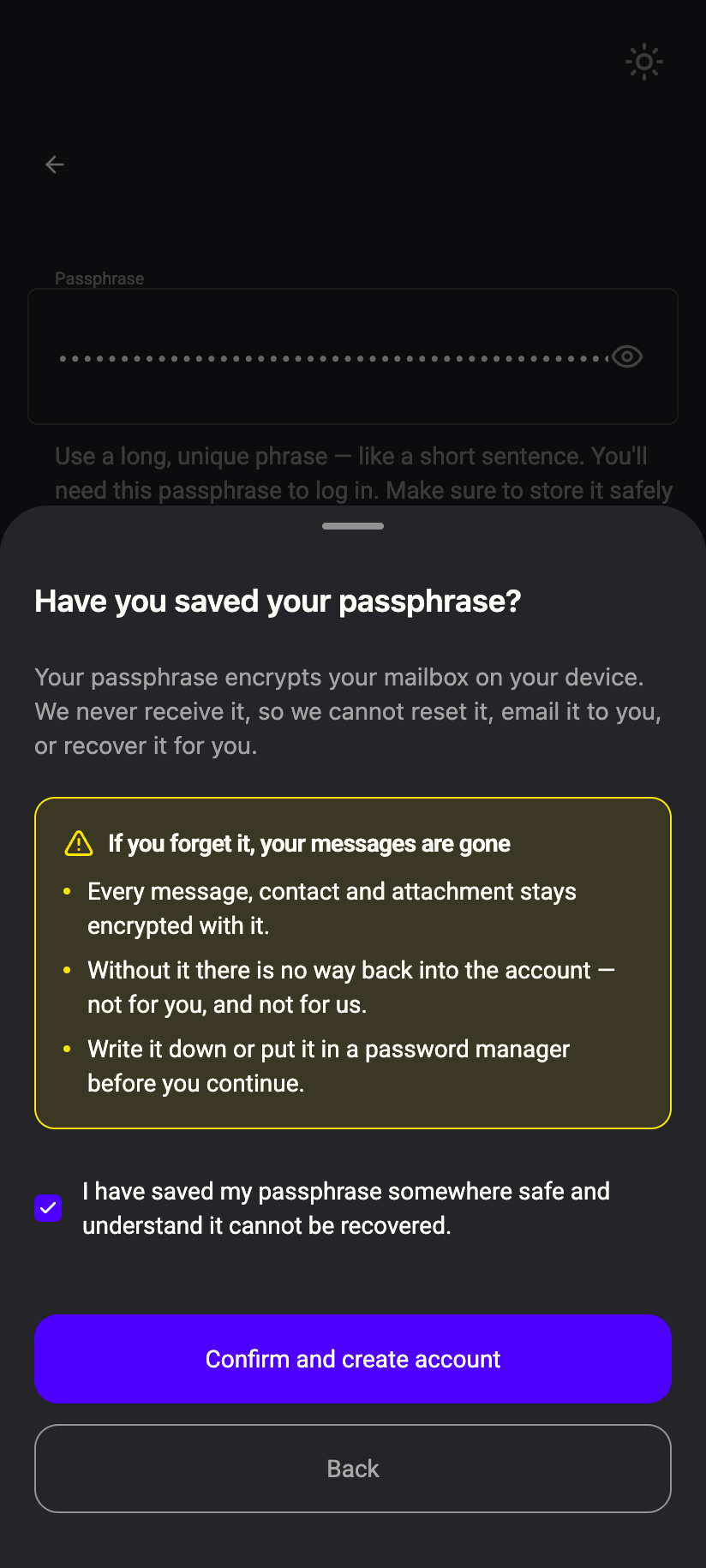 123
1231If you forget it, your messages are gone2Ticked3Confirm and create accountiPhone 1231If you forget it, your messages are gone2Ticked3Confirm and create accountAndroid
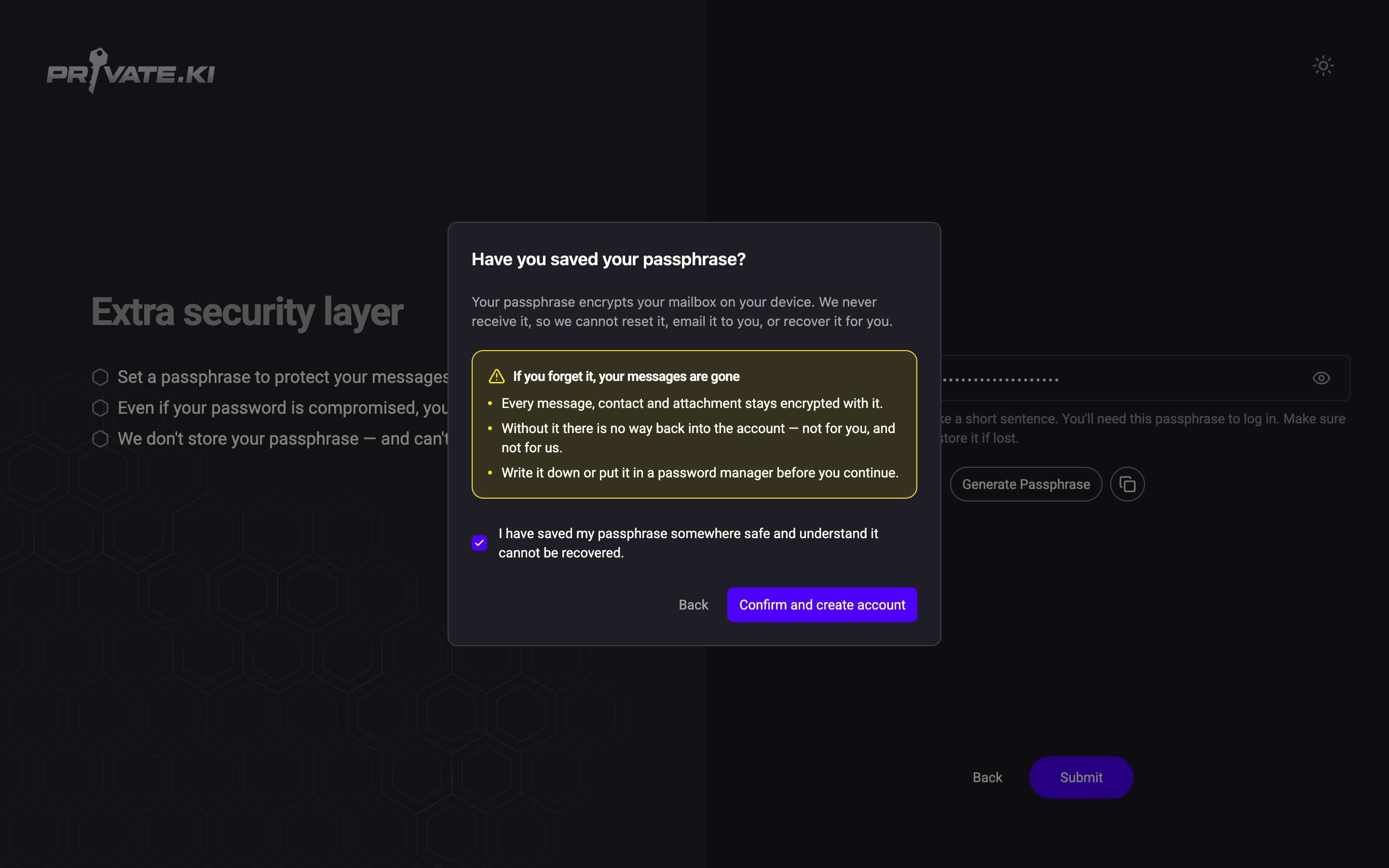
Write it down or store it in a password manager before pressing Confirm and create account. From that moment the passphrase is the only thing that can open your mailbox.
Change your mind later
You can switch methods at any time in Settings › Security and privacy › Signing in › How your mailbox unlocks. The row's second line tells you where you stand today — Password · opens on its own after sign-in or Passphrase · asked for after you sign in — and inside, the control shows Password and Passphrase with (current) after the one in force.
- Passphrase → Password: enter your current passphrase and click Verify first. Then select Password, type your password twice and click Save.
- Password → Passphrase: select Passphrase, enter a new passphrase twice and click Save. Your existing sessions are cleared, so other devices will ask for the passphrase.
Changing a passphrase you already have is covered in Change your passphrase.
What our server sees
Cannot see
- Your password or your passphrase
- The key derived from your password, or your private key in readable form
Can see
- Which method you use — with Password only we store a random salt; with Passphrase there is none
- Your encrypted private key and encrypted master key, so any of your devices can download them
With either method your private key is encrypted on your device before it is uploaded, and decryption happens only on your device. OPAQUE means we never hold the password that could derive the key. The difference is where the risk sits: with Password only a leaked password is enough to read your mail; with a passphrase it is not.
Common questions
Should I skip the passphrase?
If you are likely to forget a second secret, or you share the account across many devices, Password only plus two-step verification is a reasonable choice for most people. Choose a passphrase if you want your mail to stay unreadable even after a password leak and you are disciplined about storing it.
Can I unlock without a passphrase once I have one?
Only by switching to Password only in Settings, which requires the passphrase one last time. There is no bypass — that is the point of the method.
Can I use Face ID, Touch ID or a security key instead?
Not instead — the two methods above are the only things that can open your keys. What fingerprints and keys do is sit beside them:
- A security key or passkey is a second step at sign-in, equal to an authenticator app. It never signs you in on its own and it never unlocks your mailbox.
- In the web app, with Password only, the same screen offers one extra switch, Fingerprint or face unlock: Also ask for your fingerprint or face (Face ID, Touch ID, Windows Hello) before your mailbox opens on this device. Your password alone is then not enough here. It is per device and needs a browser that supports it — otherwise it reads This browser cannot use fingerprint or face unlock.
- In the Android app, App lock puts the phone's own fingerprint, face or device PIN in front of the app. There is no Private.Ki PIN any more, and App lock does not replace your password or passphrase either.