Sign in with username and password
Enter your address and password, add your two-factor code if you have one, then your mail unlocks — automatically with Password only, or with a passphrase.
Signing in to Private.Ki has up to three stages: your username and password, your two-factor code if you have turned that on, and unlocking your keys. The password stage uses OPAQUE, so what leaves your device is a proof that you know the password — never the password itself. Unlocking always happens on your device.
Step 1 — username and password
- Open the sign-in page (the web app, or the phone app's first screen).
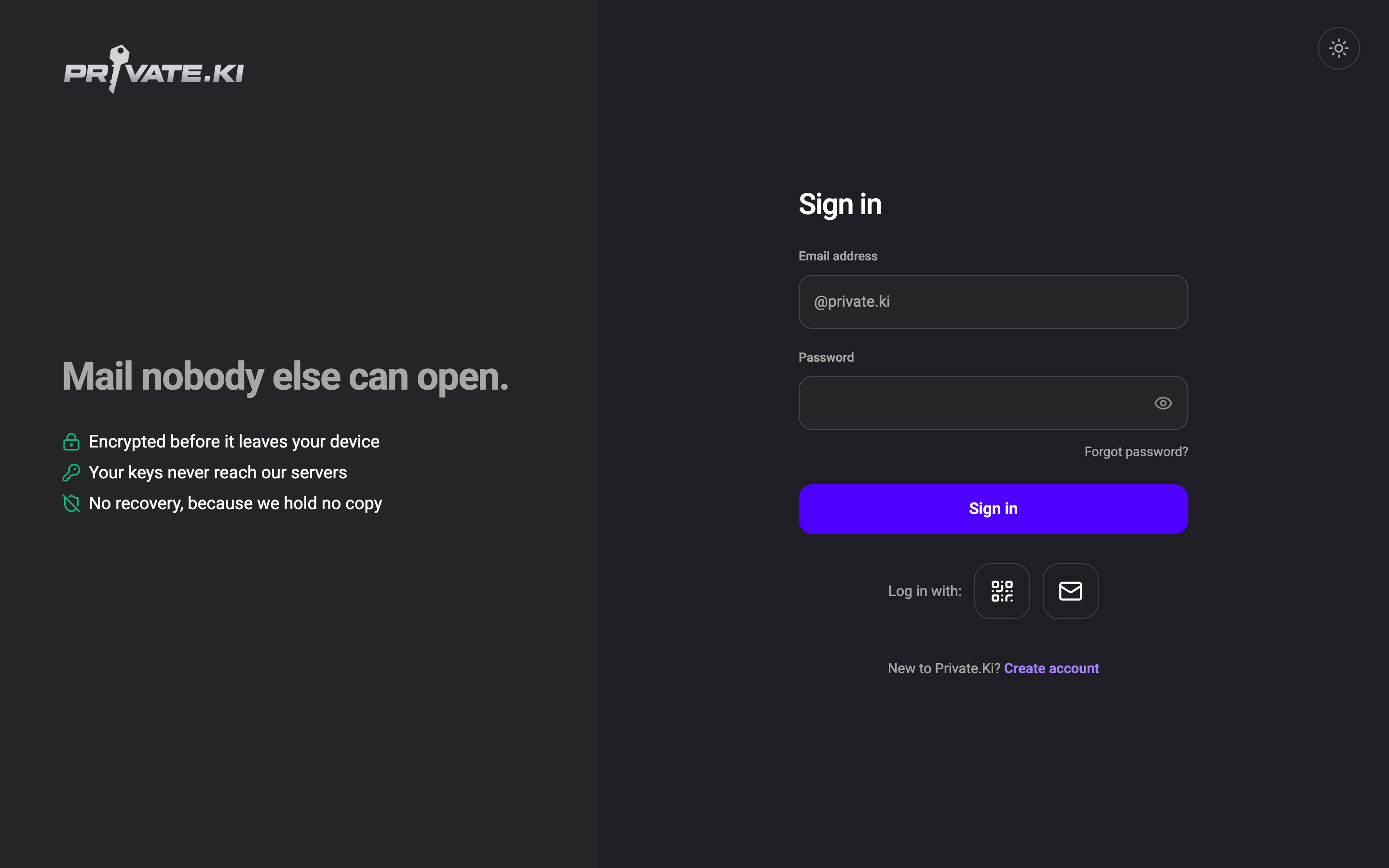
1Email address — just the username2Password3Forgot password?4Sign in5QR code6Email codeWeb & desktop 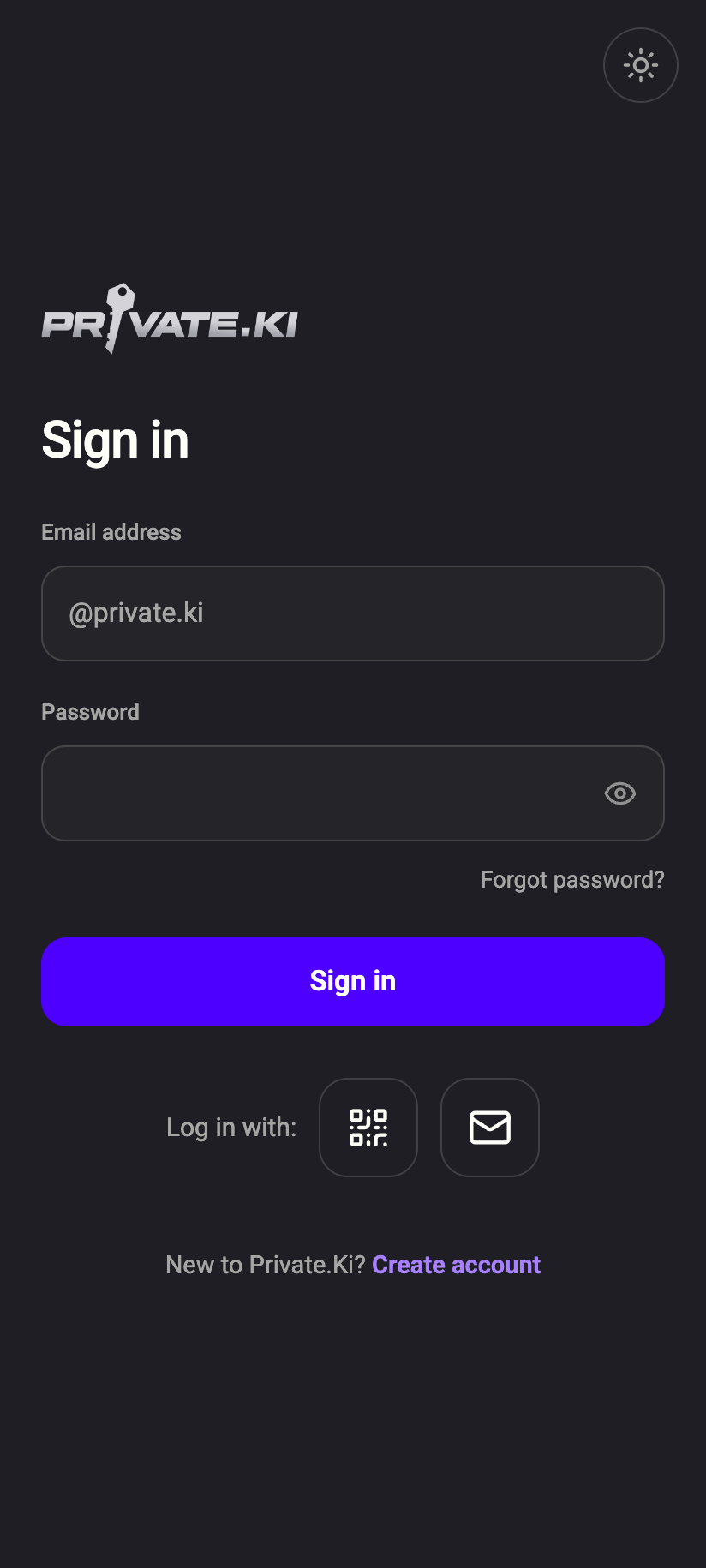 123456
1Email address — just the username2Password3Forgot password?4Sign in5QR code6Email codeiPhone 1234561Email address — just the username2Password3Forgot password?4Sign in5QR code6Email codeAndroid - In Email address, type your username. The
@privateki.netpart is shown for you; if your password manager fills in the full address, that is fine too. - Type your password in Password and click Sign in.
If something is wrong you see one message: We couldn't log you in. Something you entered was incorrect, but we can't say what — it's part of how we protect your privacy. The app deliberately does not say whether the username exists. See Common sign-in problems.
Forgot your password? Click Forgot password? — it works if you have set a recovery address. See Reset your password.
Step 2 — two-factor code (if enabled)
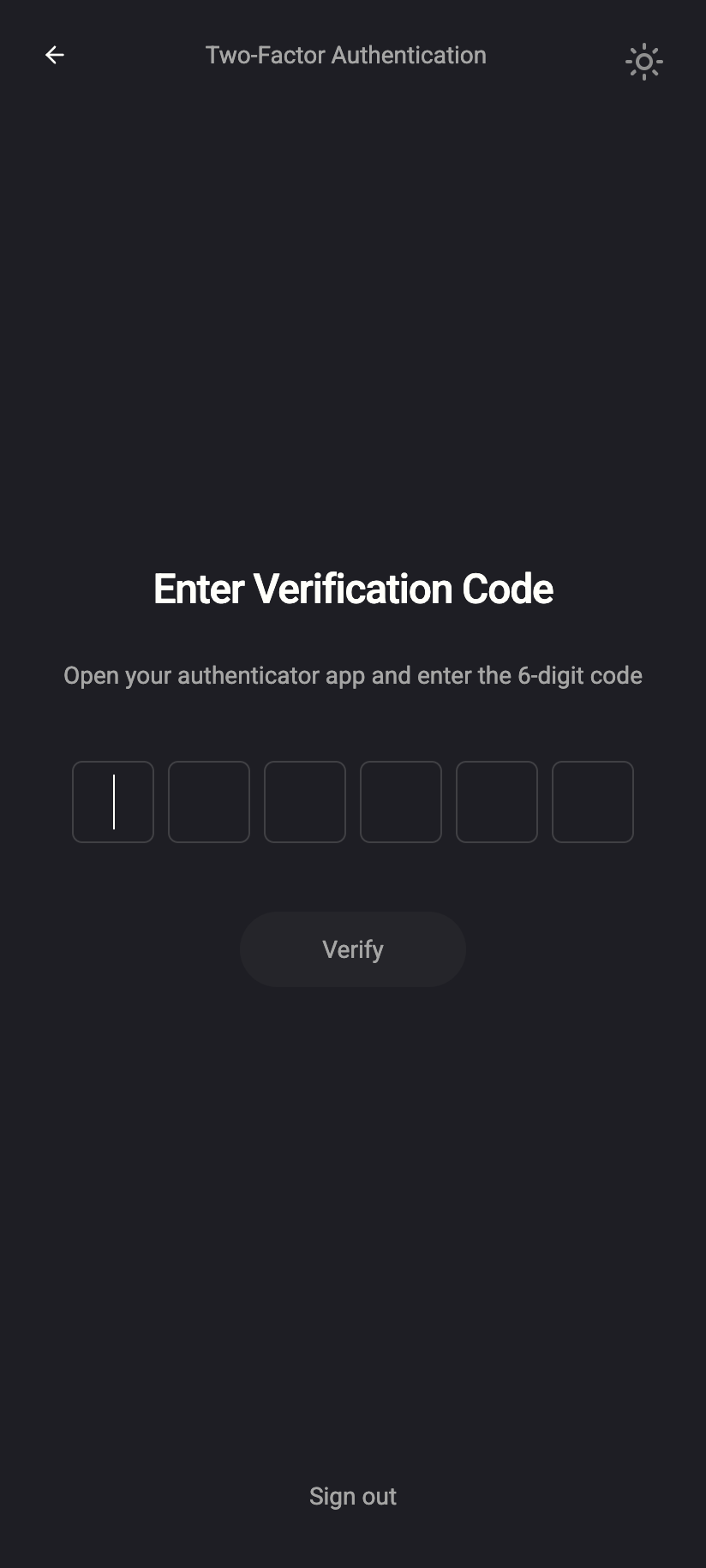
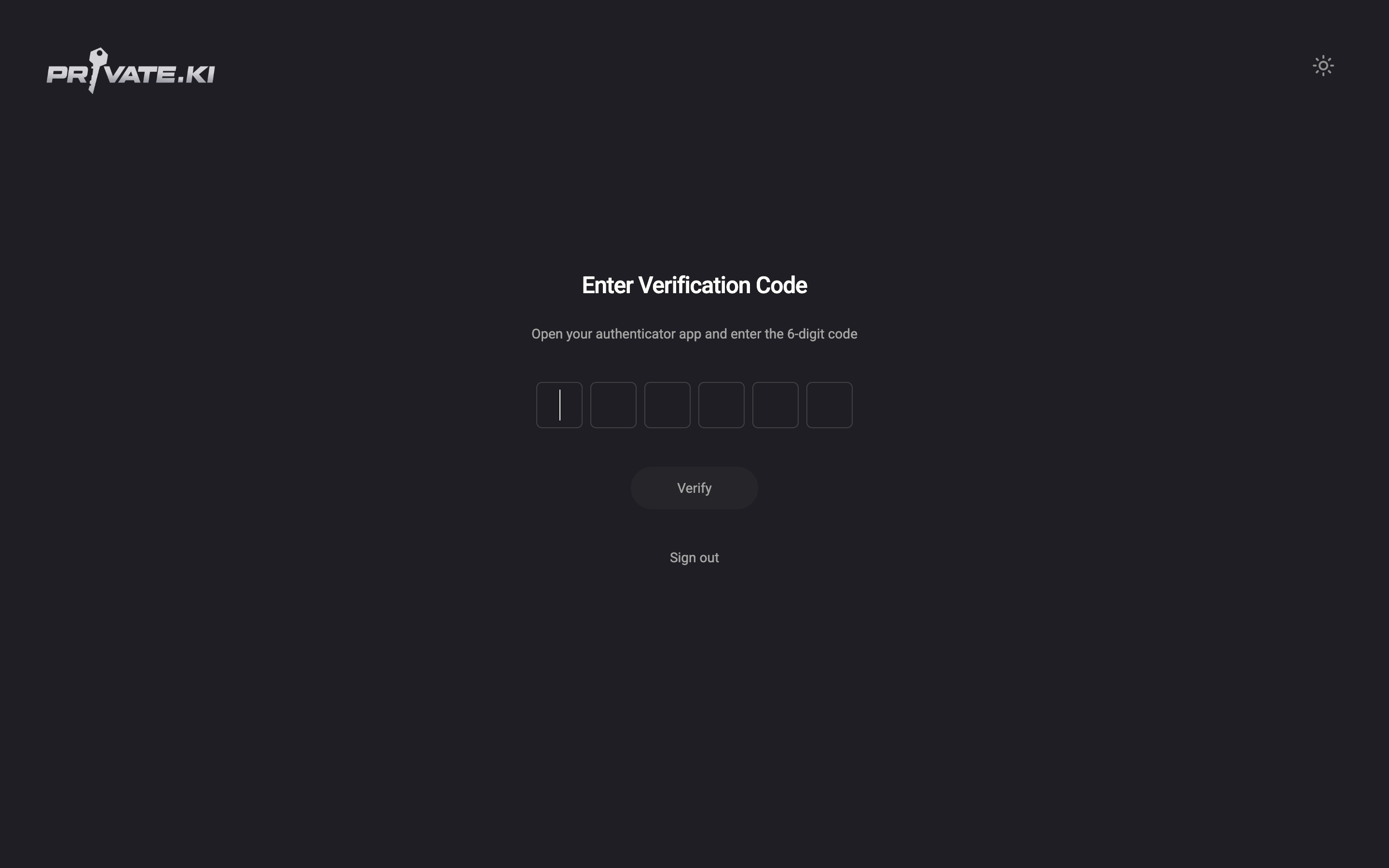
If two-factor authentication is on, the next screen is Enter Verification Code. Open your authenticator app, type the six digits and click Verify. Codes change every 30 seconds; if one is rejected, wait for the next.
Step 3 — unlock your keys
What happens now depends on the unlock method you chose.
- Password only. Your device derives the unlock key from the password you just typed and opens your mailbox. You briefly see Unlocking Private.Ki, then your inbox. On this device an encrypted session is kept so the next launch opens without re-entering anything — see Active sessions.
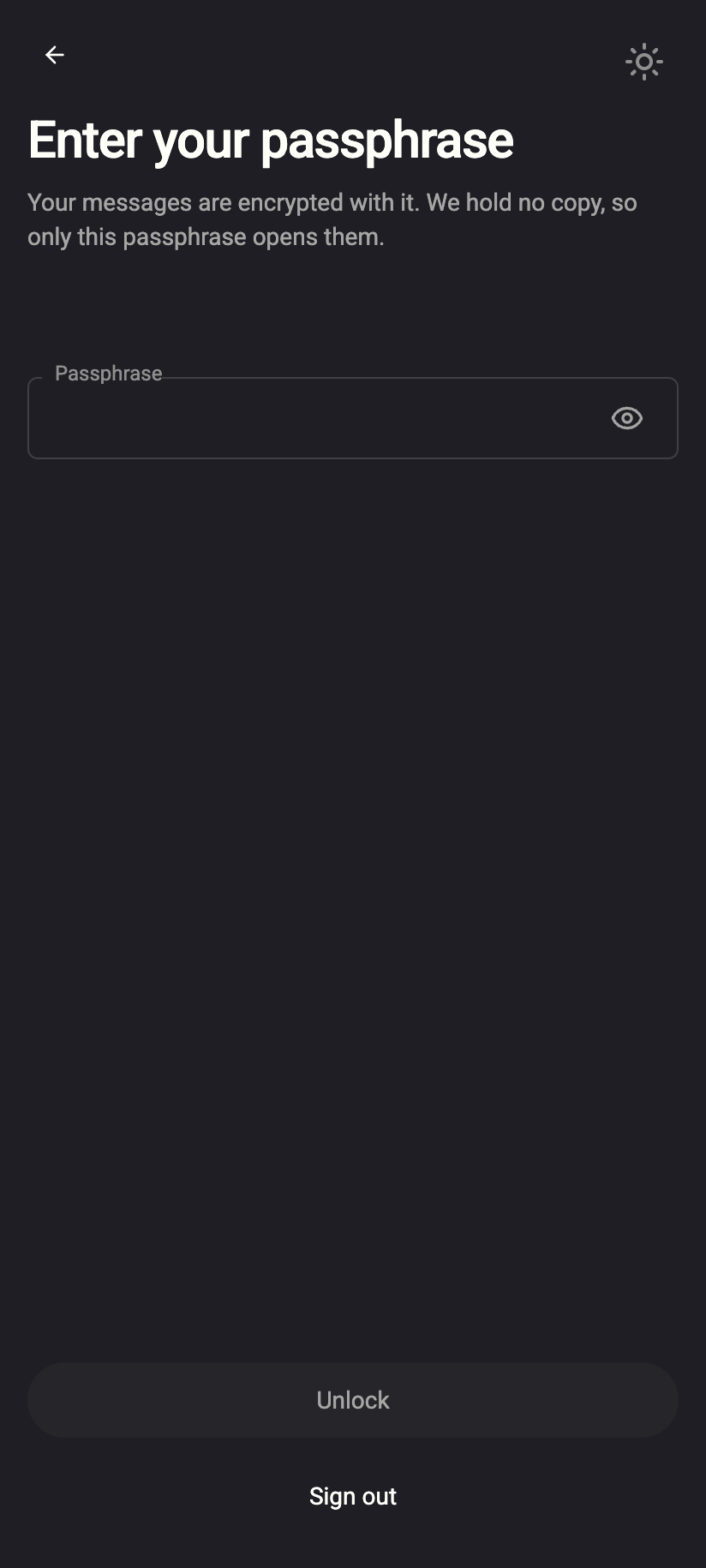
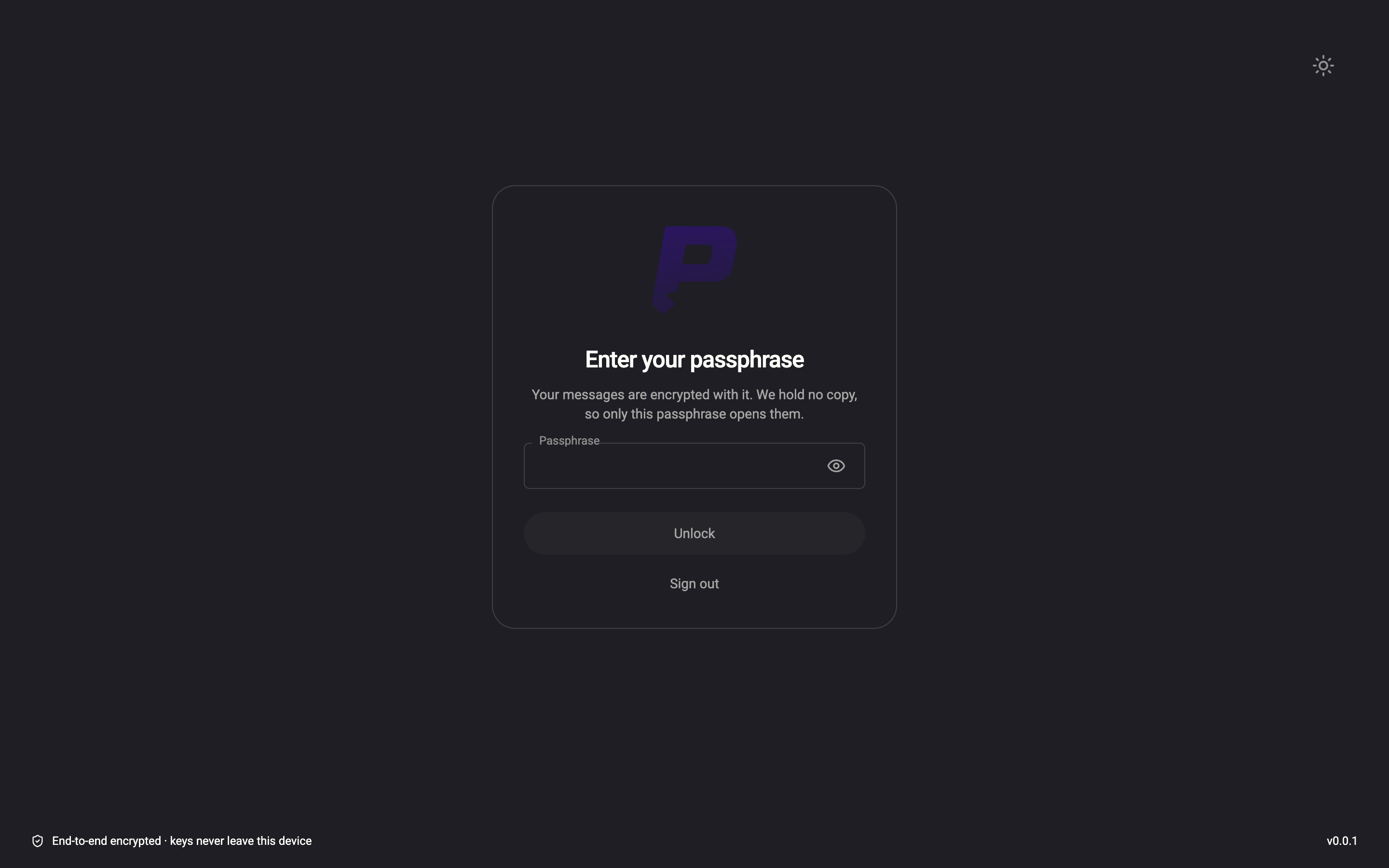
- Passphrase. You see Enter your passphrase — Your messages are encrypted with it. We hold no copy, so only this passphrase opens them. Type it and click Unlock.
In the phone apps you are also asked for your 6-digit PIN, Face ID or fingerprint before the mailbox opens. The first time you sign in on a phone, the app asks you to create that PIN.
Other ways in
Under the Sign in button, Log in with: offers two alternatives. The QR icon starts signing in with a QR code from a device where you are already signed in. The envelope icon is signing in with an email code, for accounts created through a chat invitation.
What our server sees
Cannot see
- Your password — OPAQUE exchanges a proof, not the password
- Your passphrase or your decrypted private key
Can see
- Your username, and that a sign-in succeeded or failed
- Your network address and the time — this is what rate limits are based on
- Whether a two-factor code was accepted
Common questions
Do I have to sign in every time?
No. A sign-in lasts up to 90 days as long as you keep using the app; the app refreshes its access in the background. Using Lock account keeps you signed in but locks your keys; Log out ends the sign-in — see Lock the app or log out.
I clicked "Forgot password?" but cannot reset
The link is always there, but a reset is only possible if you added a recovery address earlier. Without one, we have no way to verify you — we do not know your password and cannot reset it on request.
My account was created by accepting a chat invitation. Do I have a password?
Not until you set one under Settings › Security and Privacy › Set Password. Until then, sign in with an email code.