Reset a forgotten password
Forgot your password? With a recovery email or a recovery key, you can choose a new one from the sign-in screen. What a reset does and does not do to your mail.
Private.Ki does not store your password, so nobody can look it up or send it to you. What you can do is set a new password — if, and only if, you set up one of the two ways back in while you still had access: a recovery email address, or a recovery key of 12 or 24 written-down words. The reset happens on the sign-in screen; the first thing it asks is which of the two you are using.
A password reset changes how you sign in. It does not touch the encrypted copy of your private key. What that means for your mail depends on your unlock method:
- Passphrase. Your key is protected by your passphrase, not your password. After the reset you sign in with the new password, enter your passphrase as usual, and everything is there.
- Password only. Your key is protected by a secret derived from your old password. The reset does not re-encrypt it with the new one, so a device that is not already unlocked cannot open your mailbox after the reset — the unlock step fails. See Password-only accounts below before you reset.
Nothing here can recover a forgotten passphrase. See Your passphrase.
Reset with your recovery email
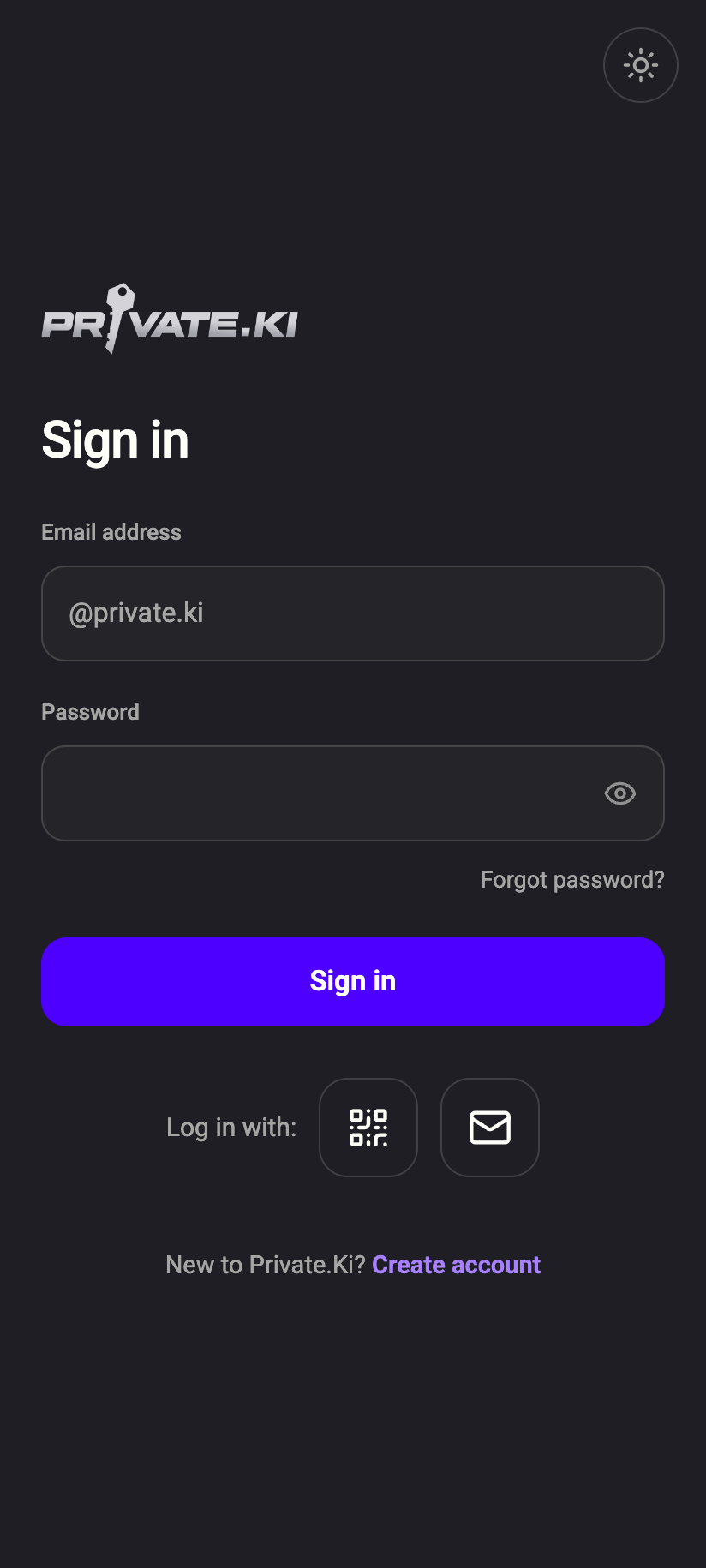
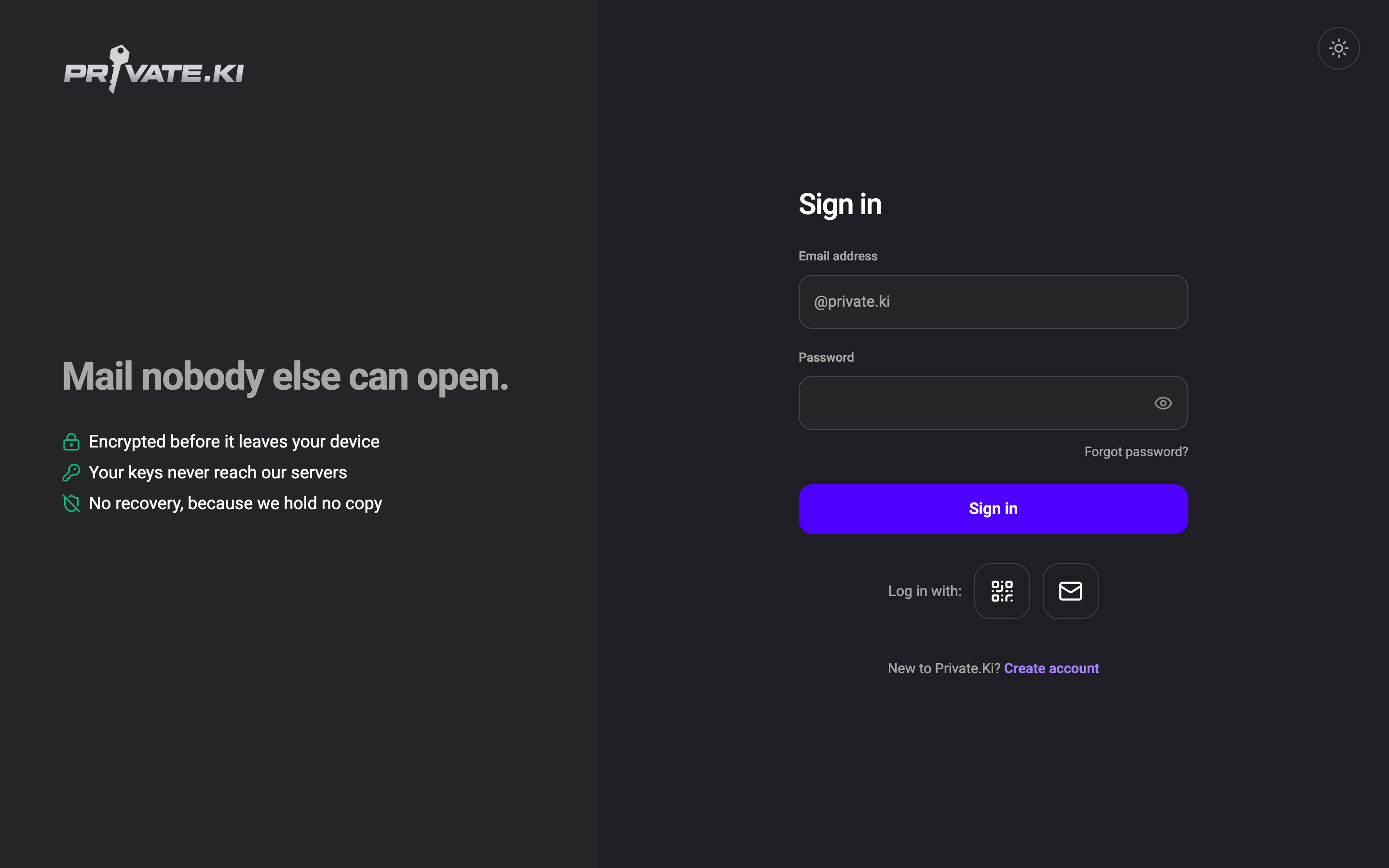
- On the sign-in screen, click Forgot password? under the password field.
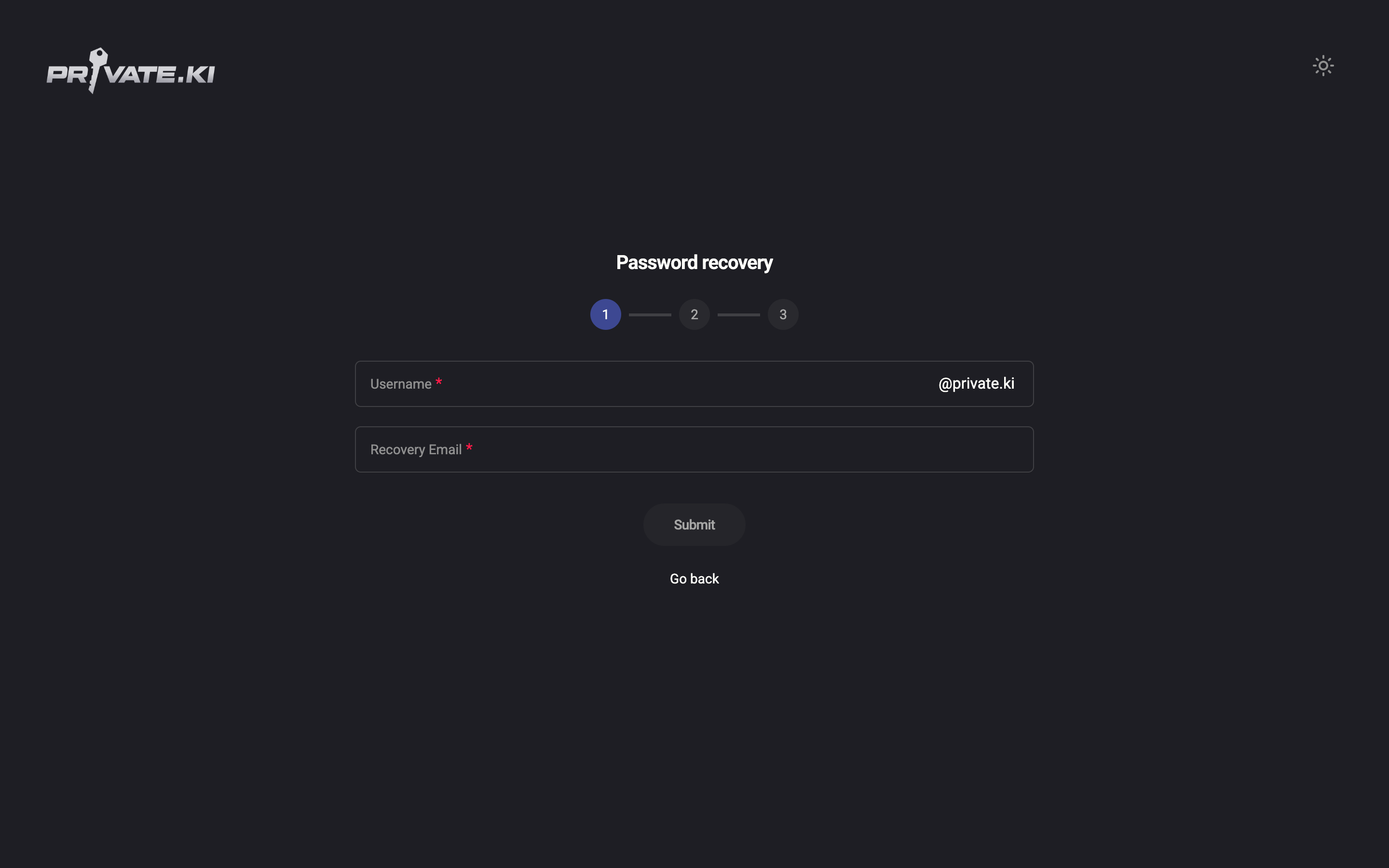
- Step 1 of 3 — Password recovery. Leave Get back in with on Recovery email. Enter your Username and the Recovery Email you set earlier, then click Submit. Because we store only a hash of the address, you have to type it; we cannot fill it in.
1Step 1 of 32Username3Recovery Email4SubmitWeb & desktop 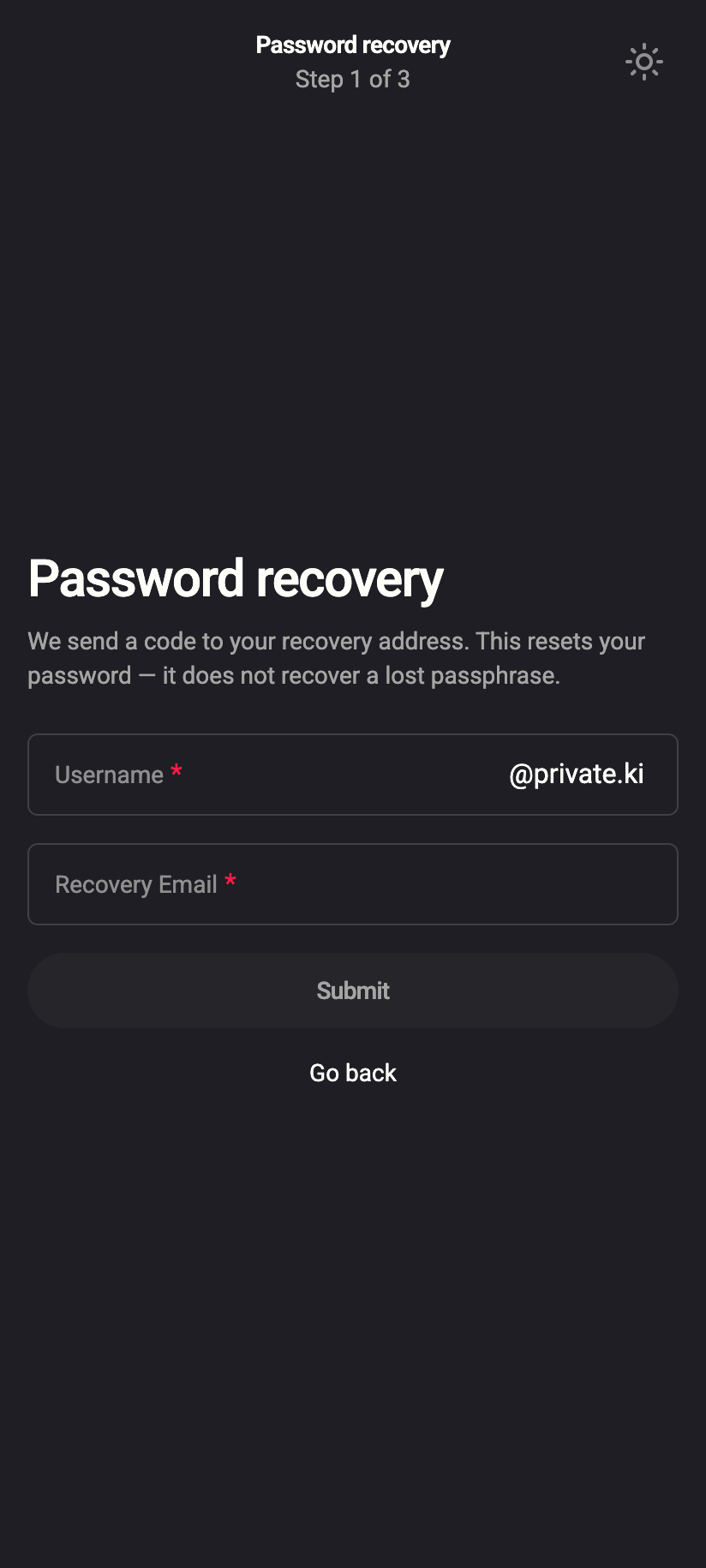 12345
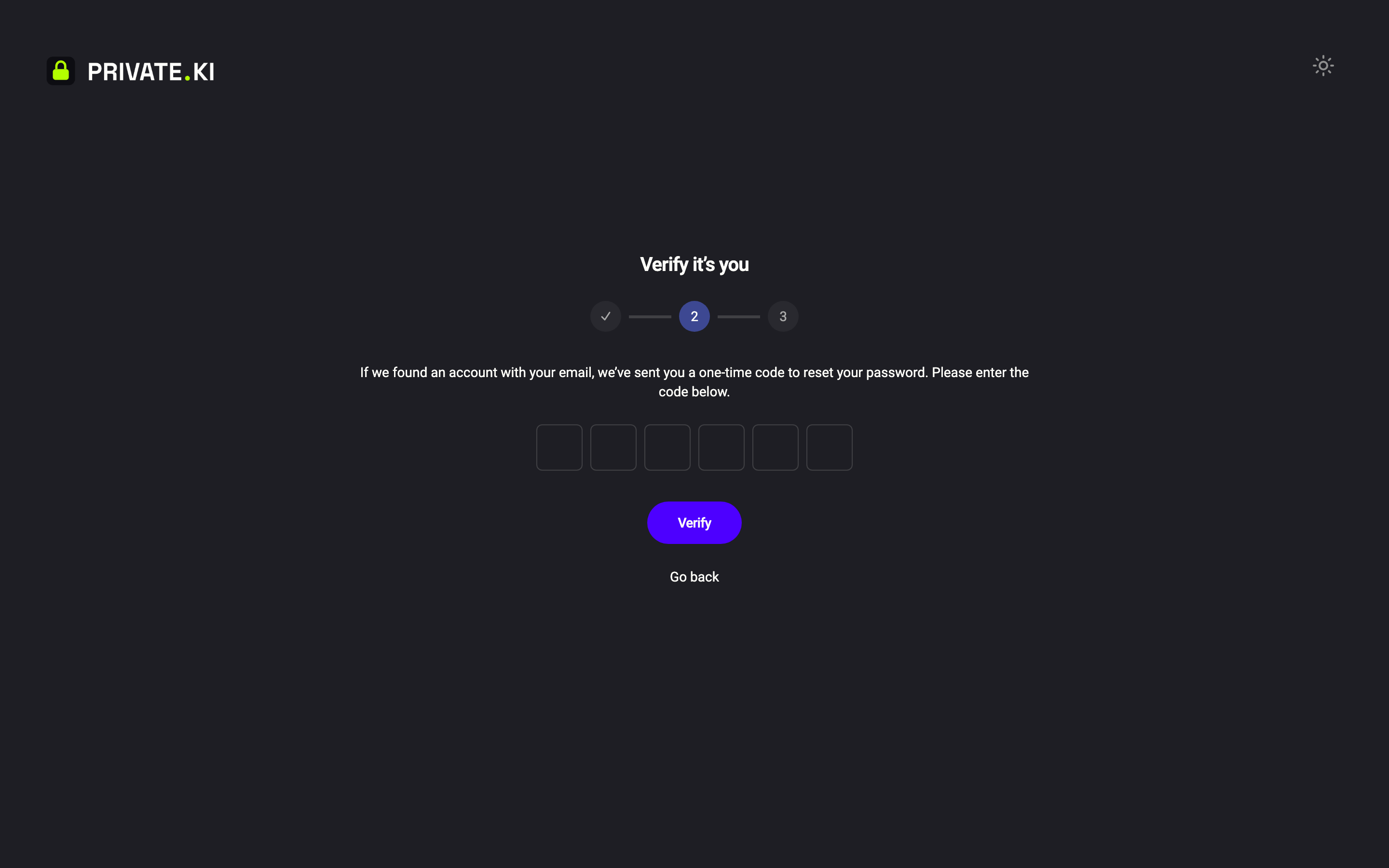
123451Step 1 of 32It does not recover a lost passphrase3Username4Recovery Email5SubmitiPhone 123451Step 1 of 32It does not recover a lost passphrase3Username4Recovery Email5SubmitAndroid - Step 2 of 3 — Verify it's you. If the username and address match an account, a six-digit code arrives at that mailbox. Enter it and click Verify. The screen says If we found an account with that email, a one-time code is on its way whether or not there was a match — that wording is deliberate, so the form cannot be used to test which usernames exist.
1Step 2 of 32If we found an account…3Six-box code4VerifyWeb & desktop 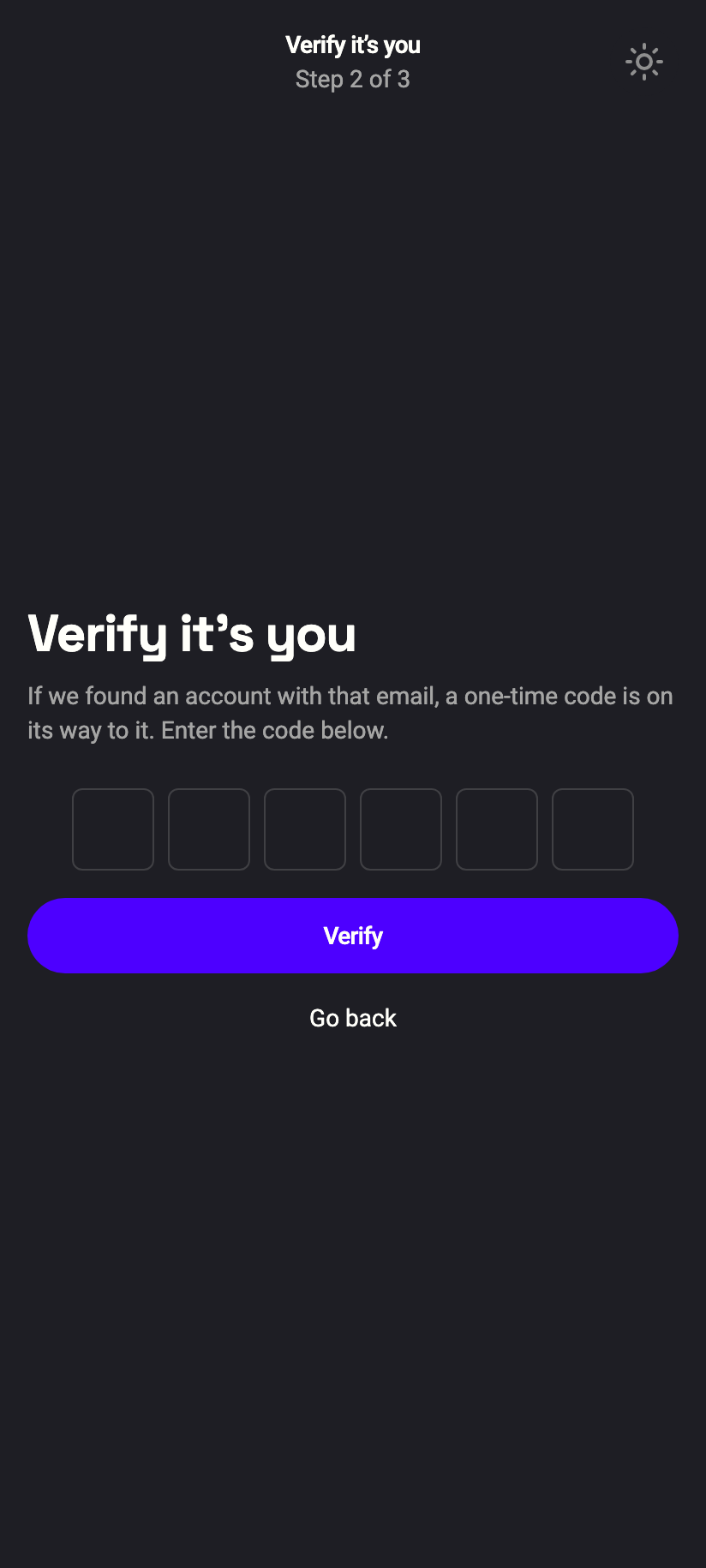 12
121Six-box code2VerifyiPhone 121Six-box code2VerifyAndroid - Step 3 of 3 — Set new password. Choose a New Password (at least 8 characters with an upper-case letter, a lower-case letter and a digit), repeat it in Confirm New Password and click Submit.
- You see Password updated successfully and are sent back to sign-in after a few seconds. Sign in with the new password.
Go back under the button returns to the previous step at any point. The code is valid for 15 minutes; five wrong codes destroy it, after which you start again at step 2.
Reset with your recovery key
If you wrote down a recovery key, you do not need a mailbox and there is no code to wait for.
- Click Forgot password?, then switch Get back in with from Recovery email to Recovery key.
1Recovery email2Recovery key312 or 24 wordsWeb & desktop 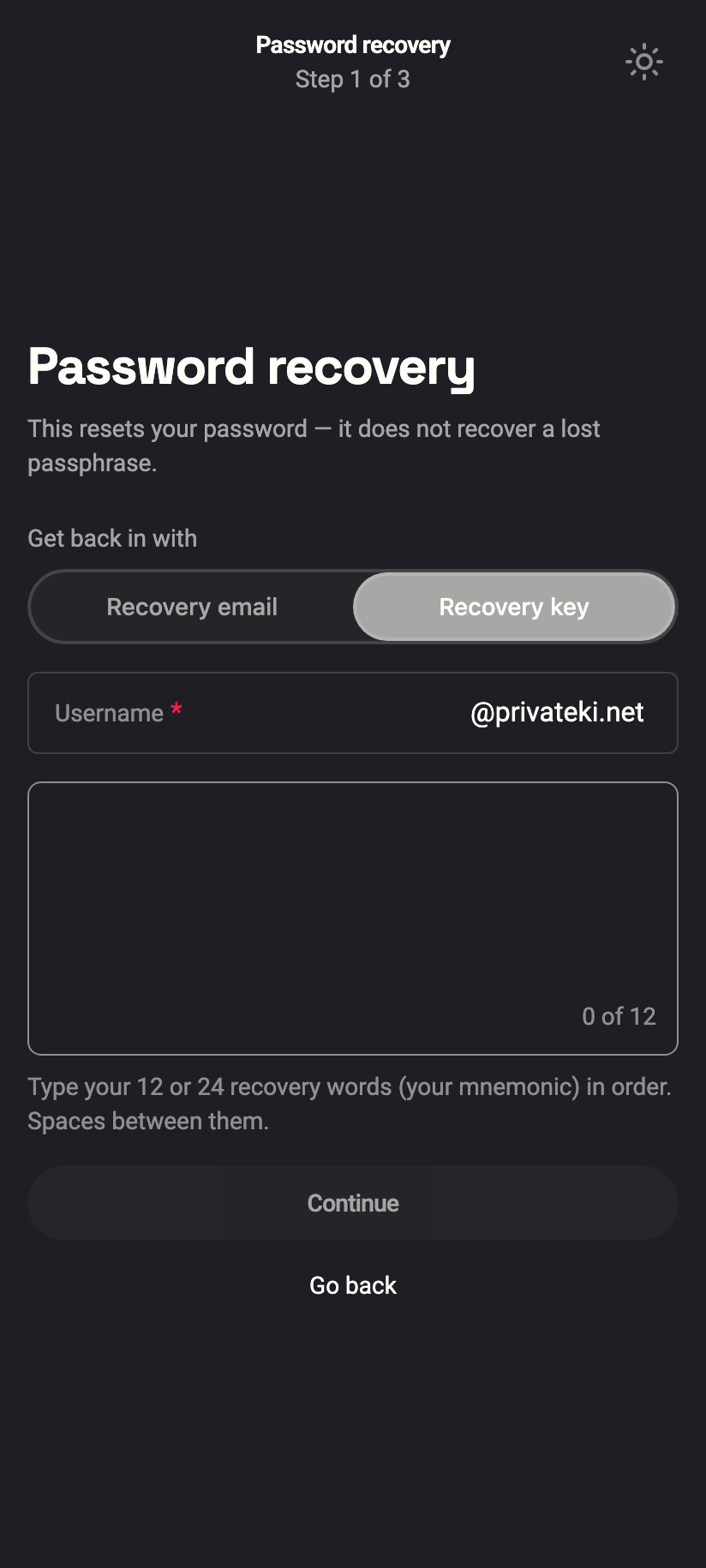 123
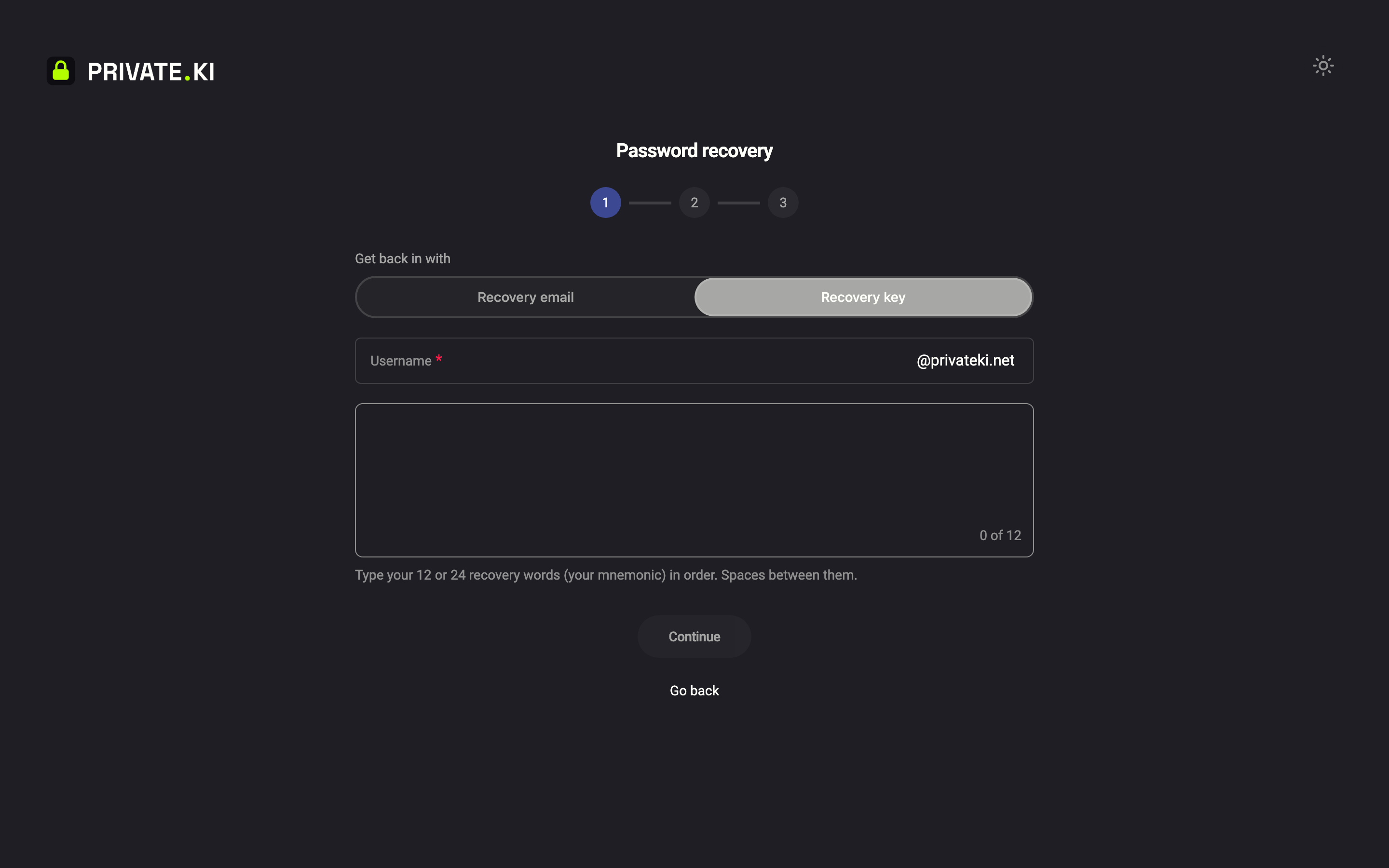
1231Recovery email2Recovery key312 or 24 wordsiPhone 1231Recovery email2Recovery key312 or 24 wordsAndroid - Enter your Username and type the words into Recovery words — in order, small letters, single spaces. Click Submit.
- A match skips the code step entirely and takes you straight to Set new password, with Your recovery key was accepted for [email protected]. above the fields. Choose the new password and confirm it.
- A note under the fields says Your recovery key has now been used. You will be asked to make a new one after you sign in. Sign in, then make a fresh key.
The key is one use only and burns on success; five wrong attempts lock the address for 15 minutes. Every refusal is the same neutral sentence, whether or not the account exists.
Create the key at app.privateki.net. Once it exists it belongs to the account, whichever device you sign in on.
Password-only accounts: what happens after the reset
Read this if your unlock method is Password (the default when you did not choose a passphrase at sign-up).
- Still signed in somewhere? Do not sign out of that device. On it, go to Settings › Security and Privacy › Password and change your password once more, entering the password you just set as Current Password. On an unlocked device, changing the password also re-encrypts your key for the new password. After that, every device can sign in and unlock normally.
- Signed out everywhere? Signing in with the new password succeeds, but the unlock step cannot open your key and stops at the lock screen. Your encrypted data is intact on our server, but no one — including us — holds anything that can open it. Contact support to talk through the options; there is no self-service path today.
The server's own reply at the end of the reset says it plainly: If you remember your encryption passphrase, your old messages will remain accessible. For password-only accounts, the "passphrase" was derived from your old password.
What our server sees
Cannot see
- Your old or new password — both are handled by OPAQUE, which lets us check a password without ever receiving it
- Your recovery address in readable form (only its hash, plus the readable copy for the 15 minutes a code is live)
- Your mail, your private key or anything that could open your mailbox
Can see
- That a reset was requested for your username and completed
- The IP-derived proof-of-work each step solves — see CAPTCHA and proof of work
Common questions
I never set a recovery email or a recovery key. Can support reset my password?
No. Without one of the two there is no way to prove the account is yours, and we do not have your password to give back. This is deliberate — see Does Private.Ki store my password? If you still have a signed-in device, add a recovery address or a recovery key now.
The code does not arrive.
Check the spam folder of the recovery mailbox and make sure the address is exactly the one you registered — a different address gets the same neutral message and no code. After 15 minutes the code expires; click Go back and submit the form again.
Do I have to set up two-step verification again?
No. It stays as it was. After the reset you sign in with the new password and are then asked for your authenticator code, security key or passkey as usual.
Does a reset sign out my other devices?
No. Other devices stay signed in. If you reset because you think someone else knows your password, also review Signed-in devices and sign out of anything you do not recognise.
I remember my password after all — should I still reset?
No. Sign in normally. If you only want a different password, change it in Settings — that path re-encrypts your key correctly on password-only accounts, which a reset does not.