Your passphrase — and why we cannot reset it
What the passphrase protects, how you get one at sign-up, when you are asked for it, and what happens if it is lost (nothing on our side can bring it back).
Your passphrase is the secret that encrypts your private key. Your private key, in turn, is what decrypts every email, chat, attachment and imported key in your account. The passphrase is separate from your password: the password gets you signed in; the passphrase gets your mailbox unlocked. Only people who chose Passphrase (advanced) as their unlock method have one — in Password only mode the same job is done by a secret derived from your password (see What is OPAQUE?).
We never receive the passphrase. It is used on your device, and only there. That is why it cannot be reset.
Where the passphrase comes from
You set it during sign-up, on the Extra security layer step, right after choosing your unlock method.
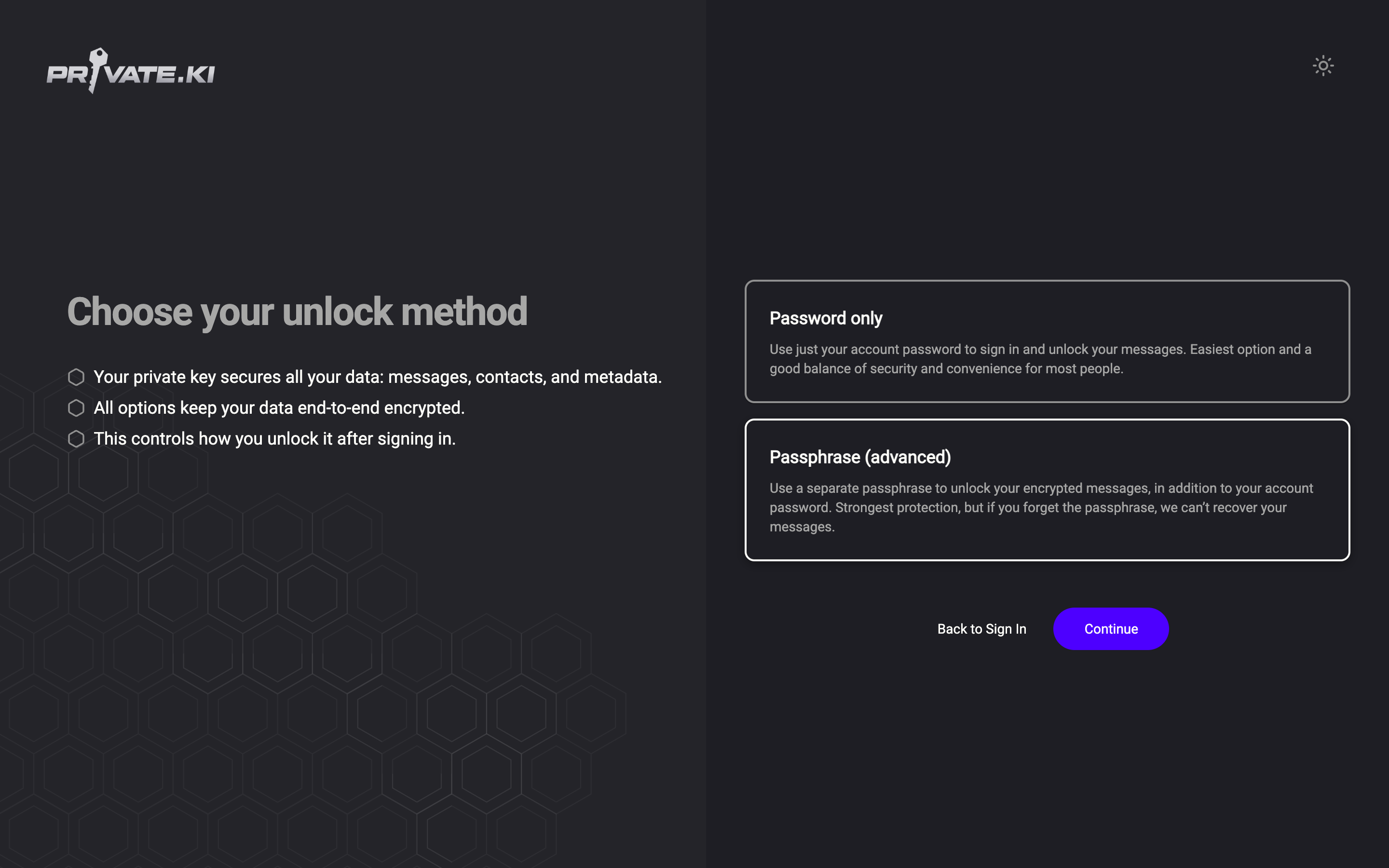
On Choose your unlock method, pick Passphrase (advanced) and click Continue.
1Password only2Passphrase (advanced) — selected3ContinueWeb & desktop 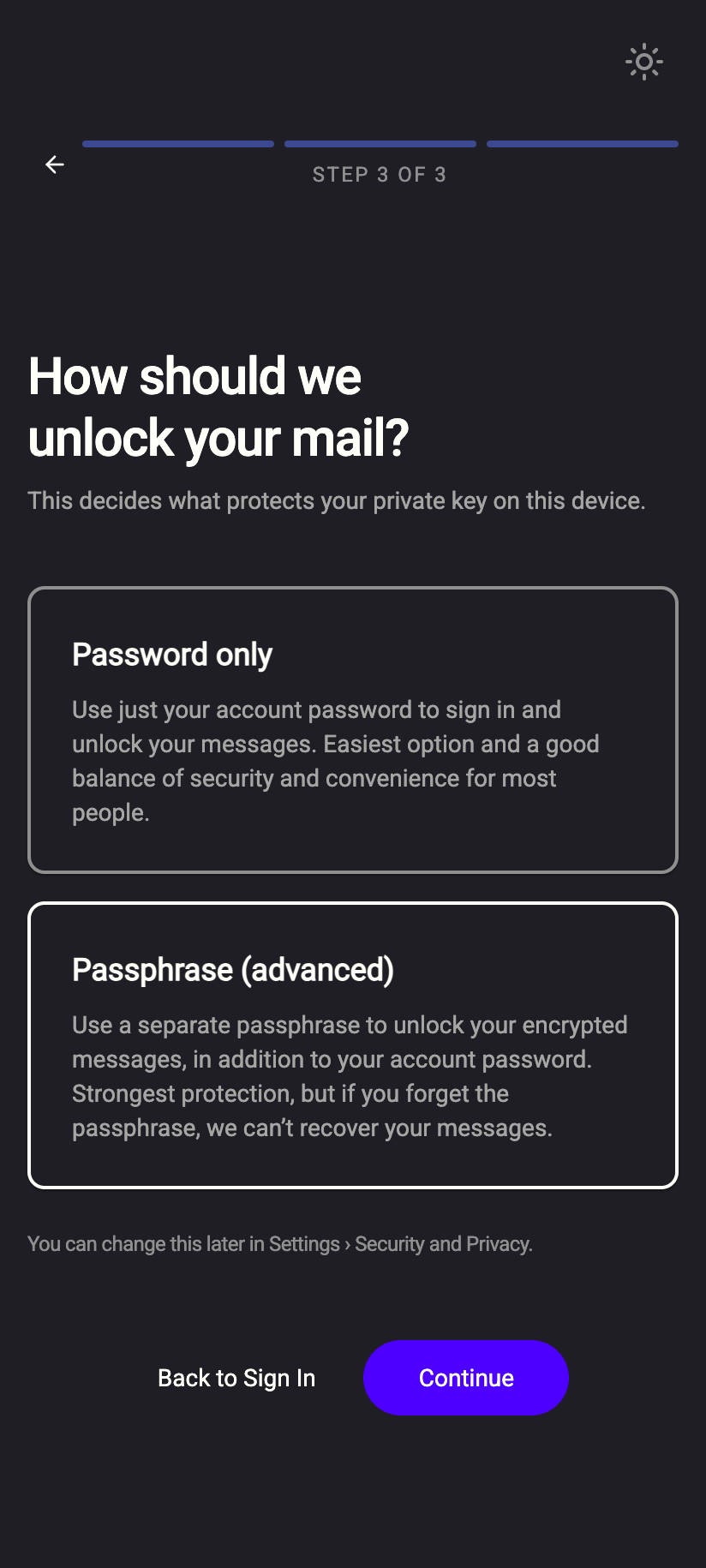 123
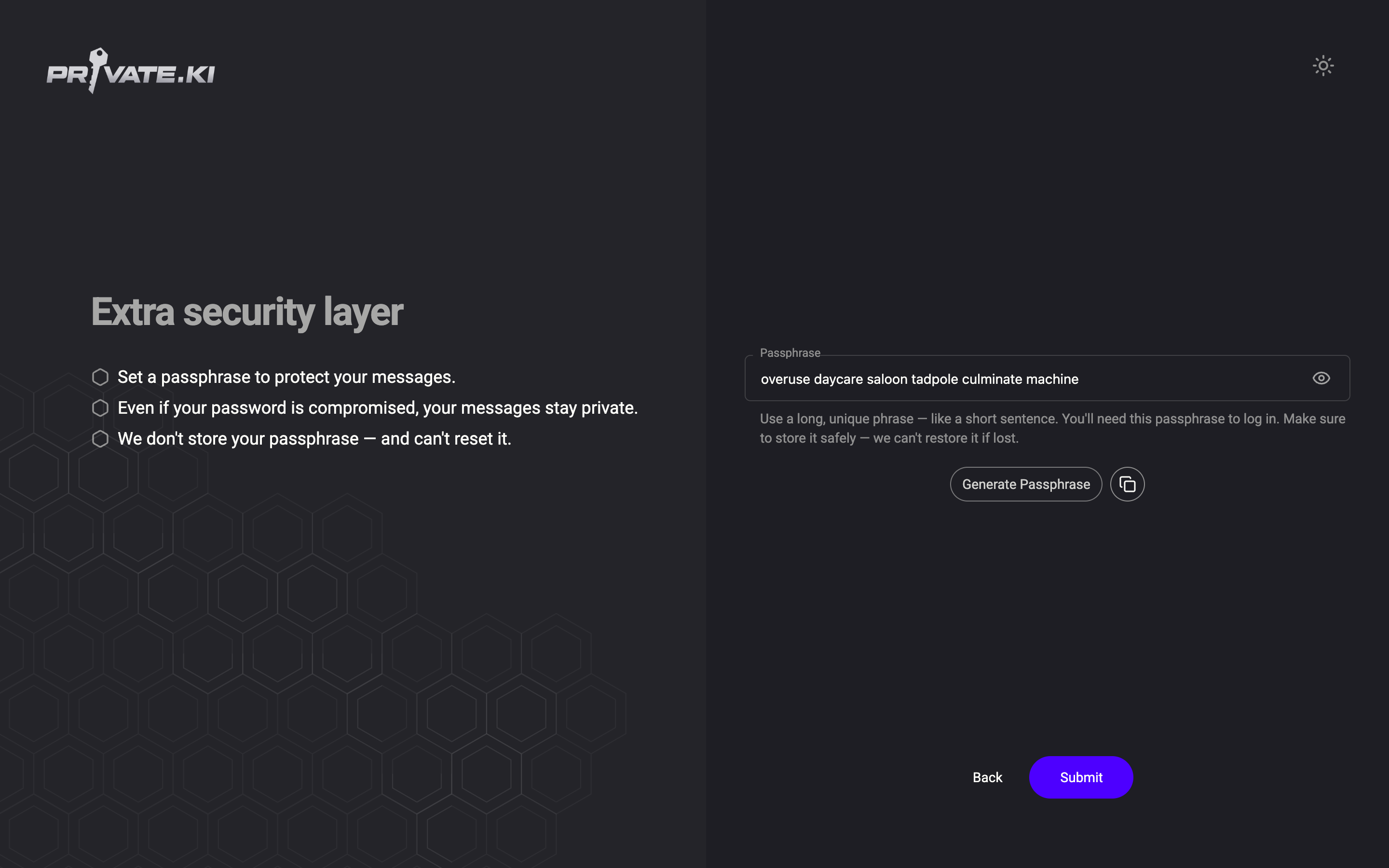
1231Password only2Passphrase (advanced) — selected3ContinueiPhone 1231Password only2Passphrase (advanced) — selected3ContinueAndroid Type a passphrase into the Passphrase field, or click Generate Passphrase to have the app pick six random words for you. The copy button next to it puts the passphrase on your clipboard.
1Your passphrase2Generate Passphrase3CopyWeb & desktop 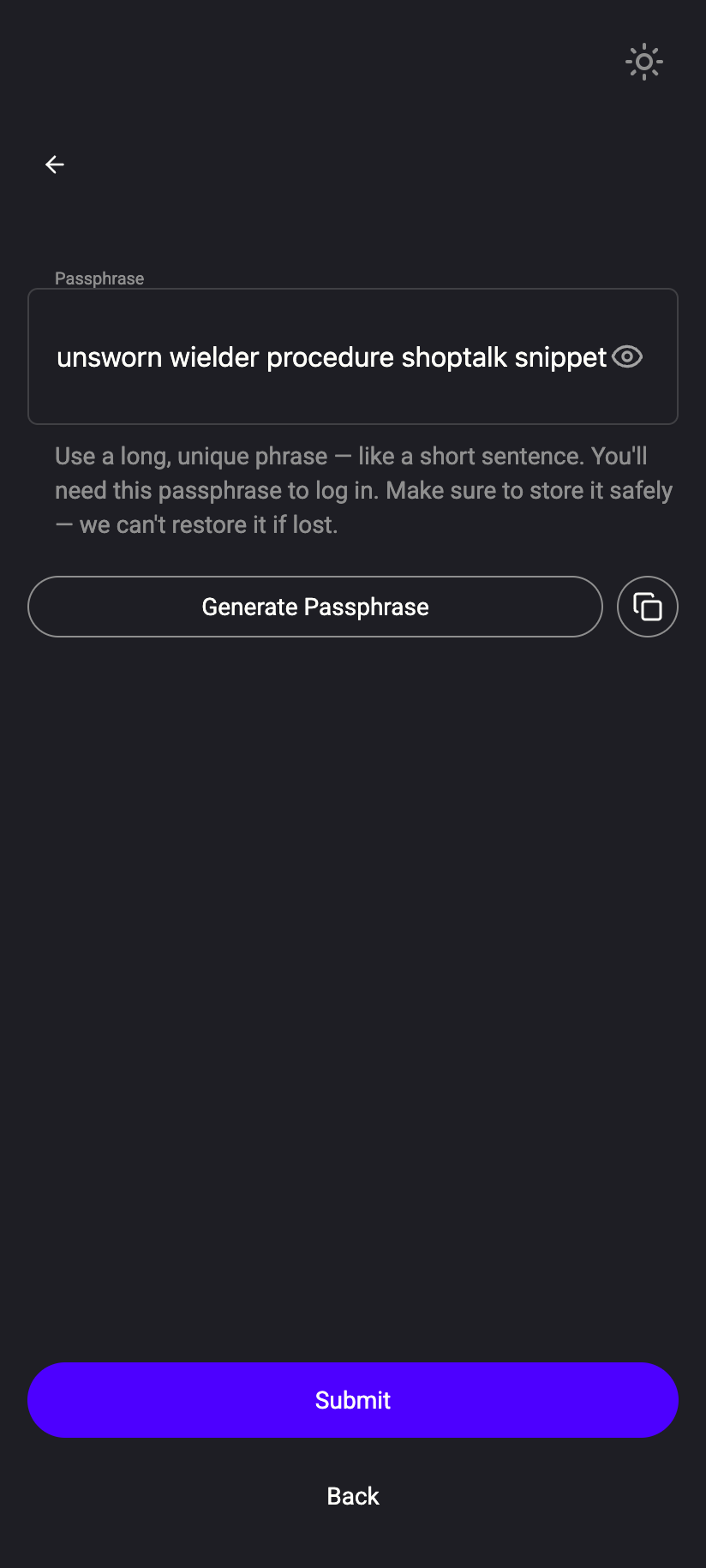 123
1231Your passphrase2Generate Passphrase3CopyiPhone 1231Your passphrase2Generate Passphrase3CopyAndroid Generated or your own?Both are accepted. A generated six-word passphrase is long, random and easy to type. If you write your own, it must be at least 8 characters and cannot be a single dictionary word — the app rejects that as Passphrase is too simple. A short sentence works well.
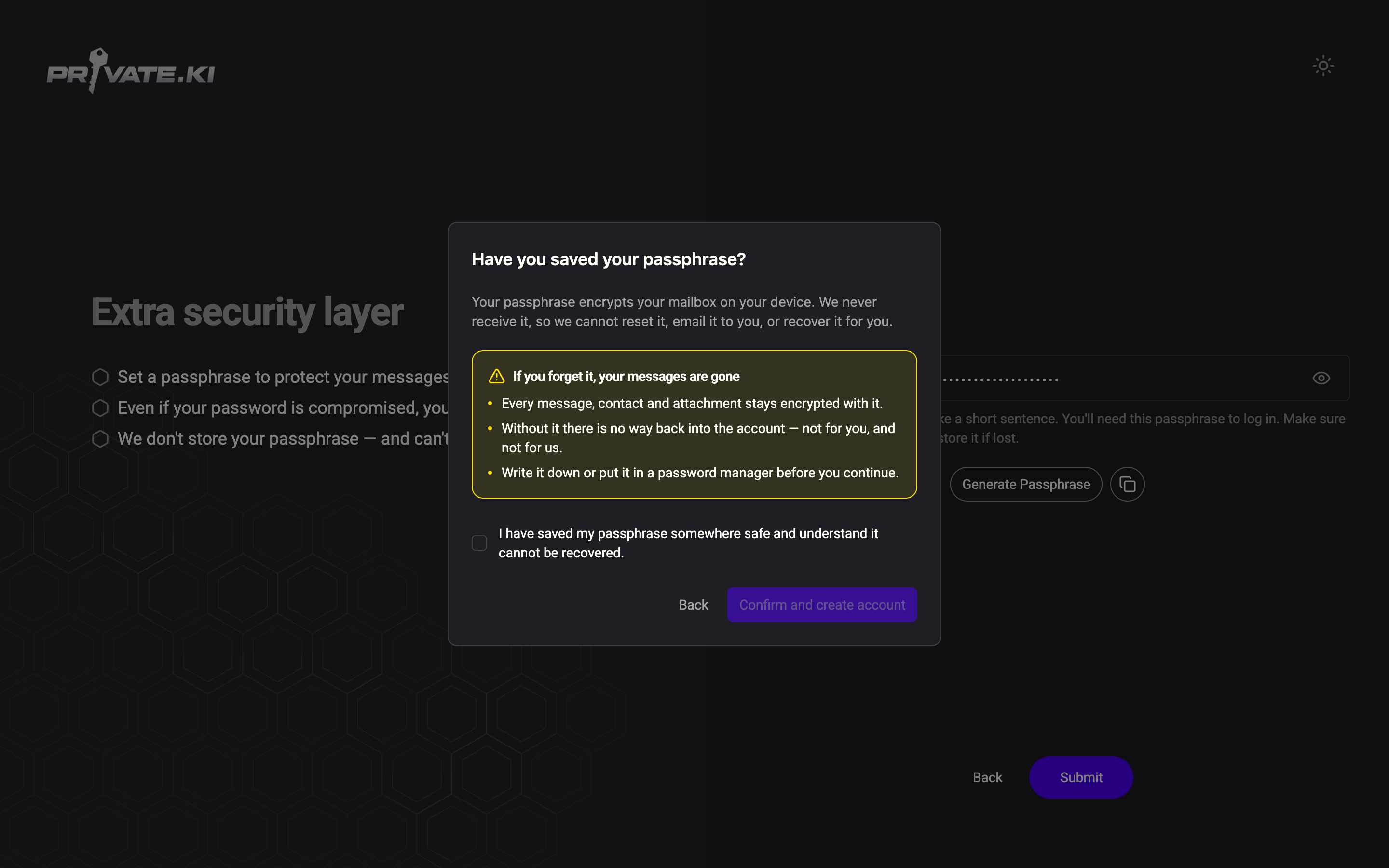
Click Submit. A dialog asks Have you saved your passphrase? Store it now — in a password manager or on paper — then tick I have saved my passphrase somewhere safe and understand it cannot be recovered and click Confirm and create account.
1If you forget it, your messages are gone2Tick to confirm3Confirm and create accountWeb & desktop 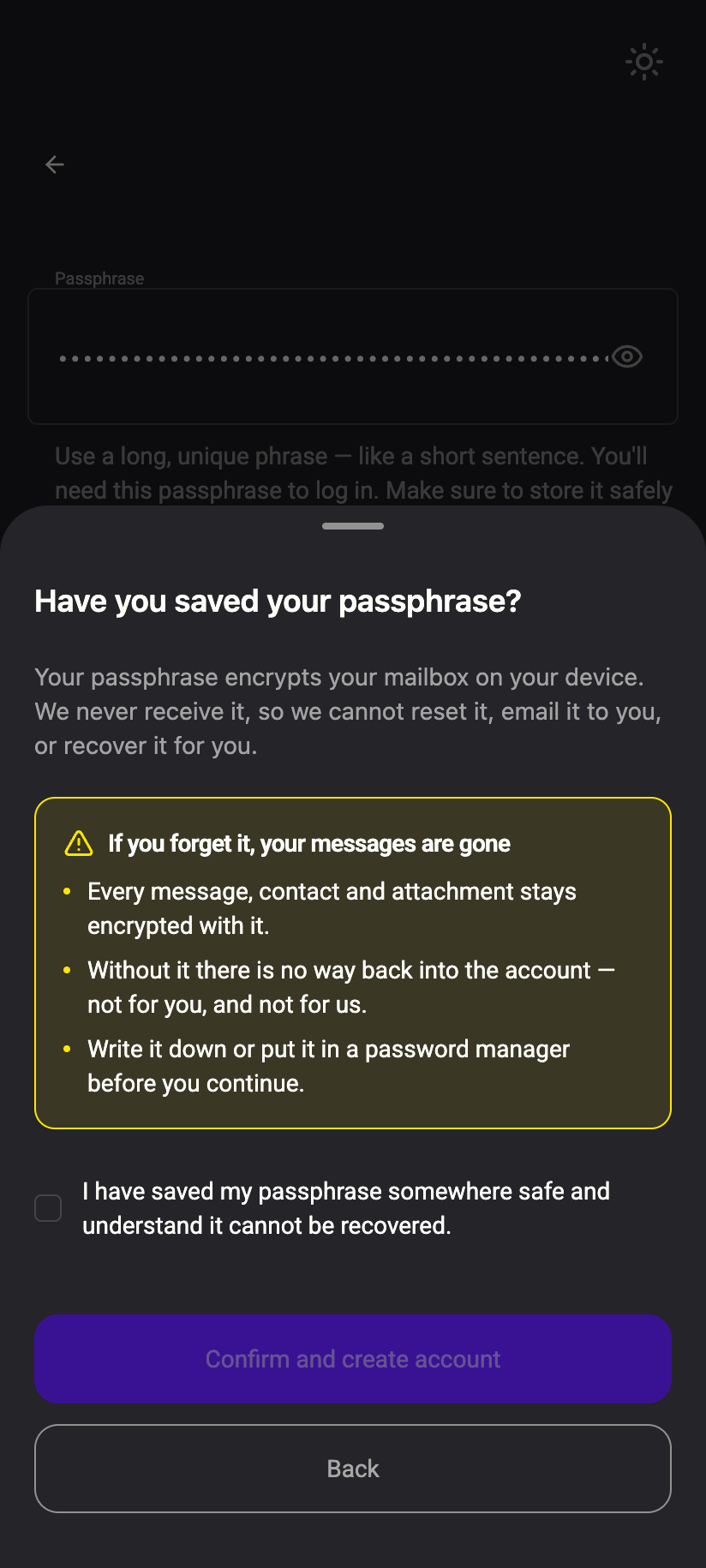 123
1231If you forget it, your messages are gone2Tick to confirm3Confirm and create accountiPhone 1231If you forget it, your messages are gone2Tick to confirm3Confirm and create accountAndroid Your key pair is generated on your device, wrapped with the passphrase, and the wrapped copy is saved to your account. The passphrase itself is discarded.
When you are asked for it
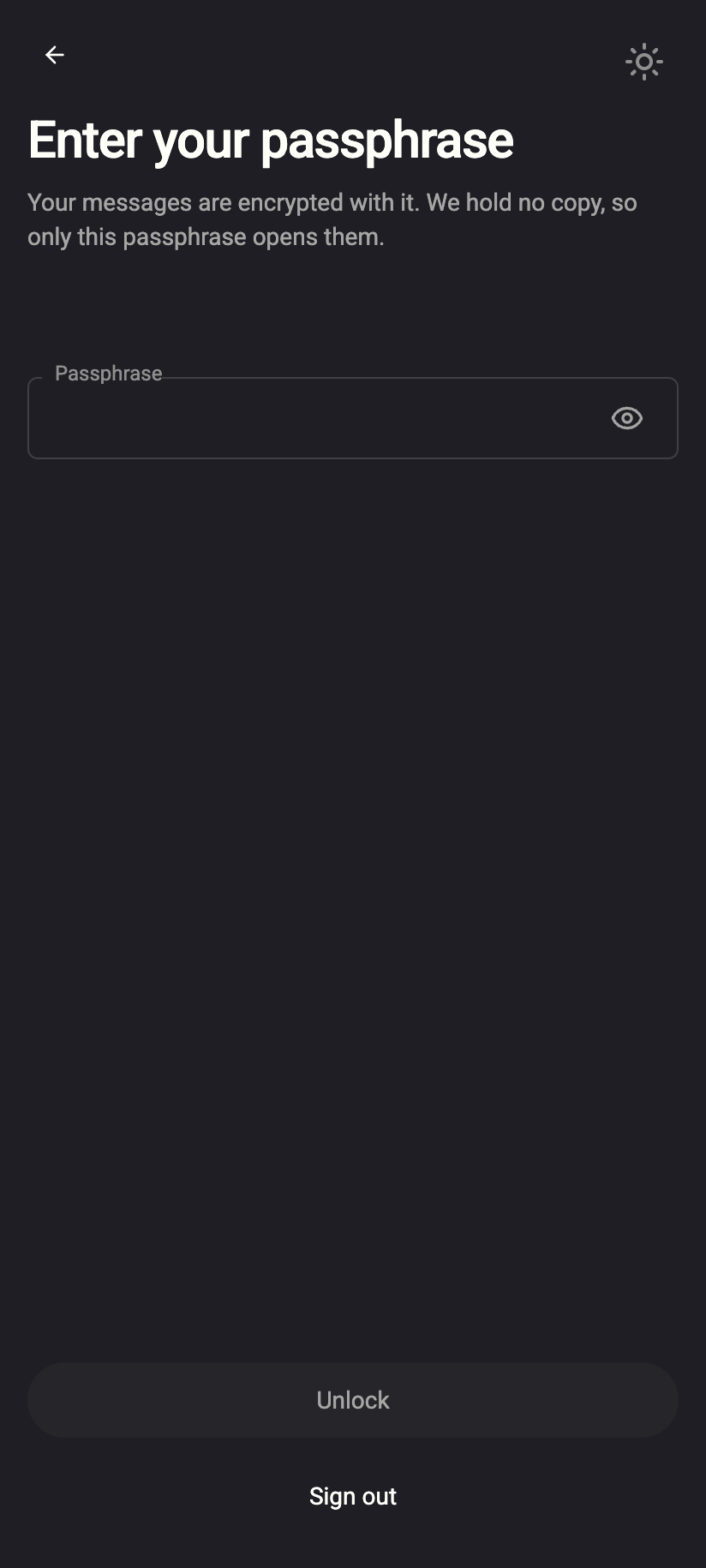
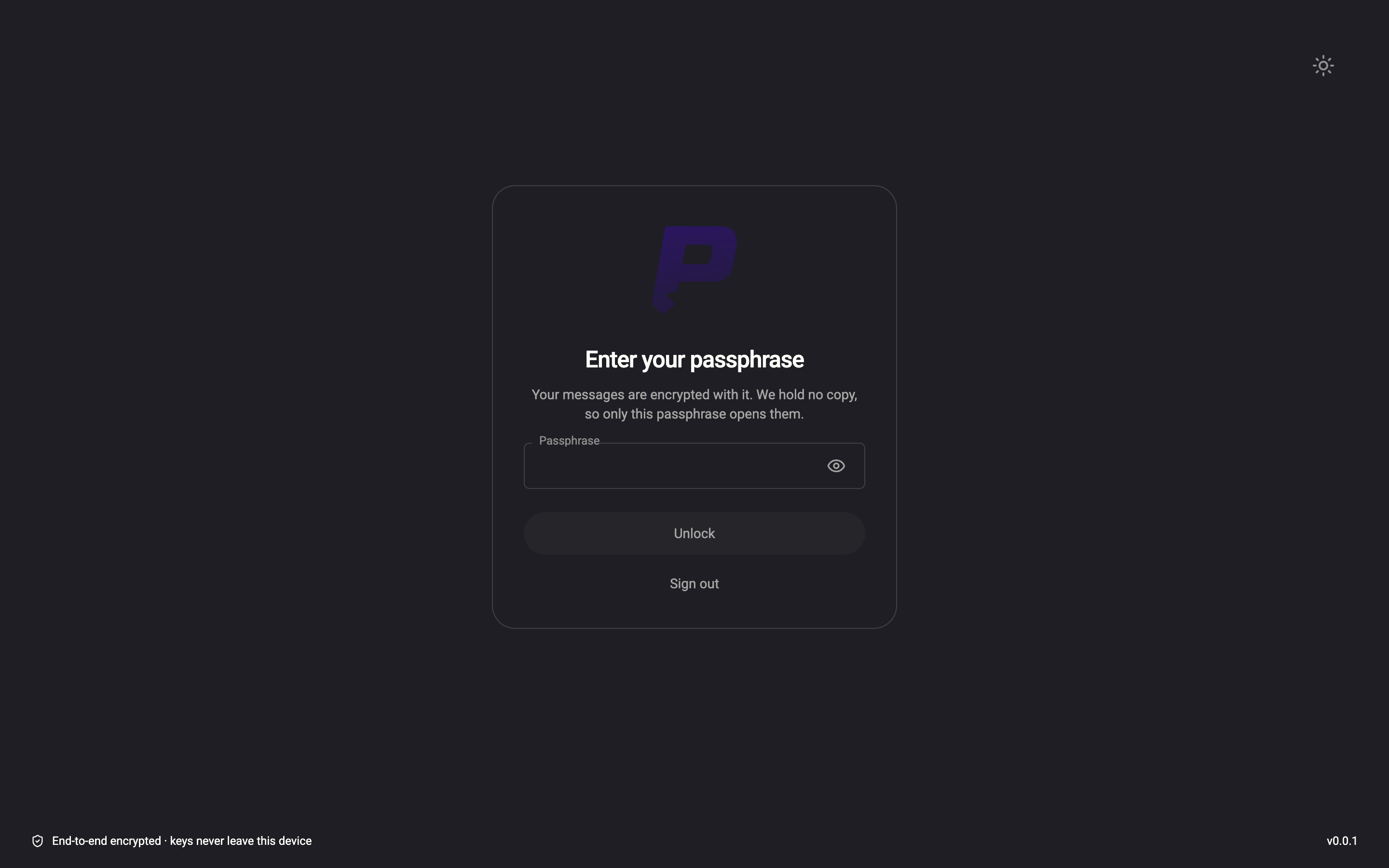
After every sign-in, and whenever your account is locked, you see Enter your passphrase. Type it and click Unlock. A wrong passphrase shows Error decrypting private key: Incorrect key passphrase; there is no lockout, just try again. The only other way off this screen is Sign out.
The phone apps add a PIN (and optionally Face ID / fingerprint) in front of the app. That protects the app on your device; it does not replace the passphrase, which protects the key itself. See PIN and biometric unlock.
What happens if it is lost
Nothing on our side can help. The private key is stored wrapped with your passphrase, and we hold no copy of the passphrase and no other key that opens it. Concretely:
- You can still sign in with your password, but you will stop at the unlock screen. Everything in the account — email, chats, attachments, imported keys — stays encrypted.
- Support cannot reset the passphrase, remove it, or decrypt anything. There is no recovery code, no security question, no back door.
- Switching to Password only is not a way out: changing the unlock method requires the current passphrase first.
- A recovery address resets your password, not your passphrase.
The practical outcome is a new account. Existing mail in the old account is not readable by anyone, including us.
If you forget your passphrase, your messages are gone. The dialog at sign-up says the same thing, and it means it.
What our server sees
Cannot see
- Your passphrase, ever
- Your unlocked private key
- Whether your passphrase was generated or typed
Can see
- Your private key in wrapped (encrypted) form
- Which unlock method your account uses
Common questions
Can I change my passphrase?
Yes, as long as you know the current one. Go to Settings › Security and Privacy › Unlock Method. See Change your passphrase.
Can I switch to Password only later?
Yes. In Security and Privacy › Unlock Method, verify your current passphrase, then choose Password. Your key is re-wrapped with a secret derived from your password; nothing is regenerated. See Choose your unlock method.
Does two-factor or a strong password protect me if the passphrase is weak?
No. Two-factor and your password protect sign-in. Someone who obtains the wrapped key some other way would only have to guess the passphrase. Make it long. See Protect your passphrase.
Is the passphrase the same on all my devices?
Yes. There is one key and one passphrase for the account. Each device asks for it separately after sign-in.