Check the encryption status of a message
Where to look, on desktop and phone, to see whether a message was end-to-end encrypted and whether its signature checks out — and what each icon means.
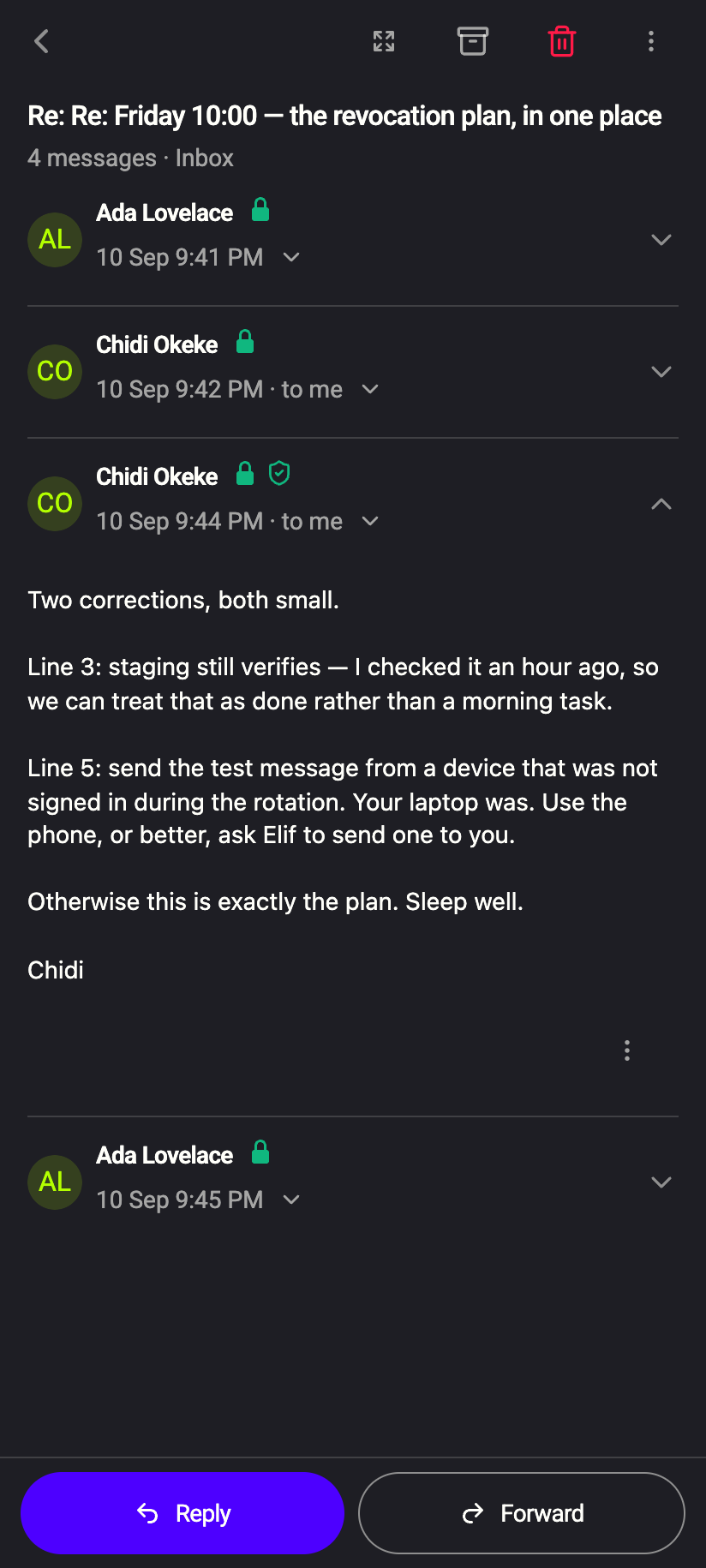
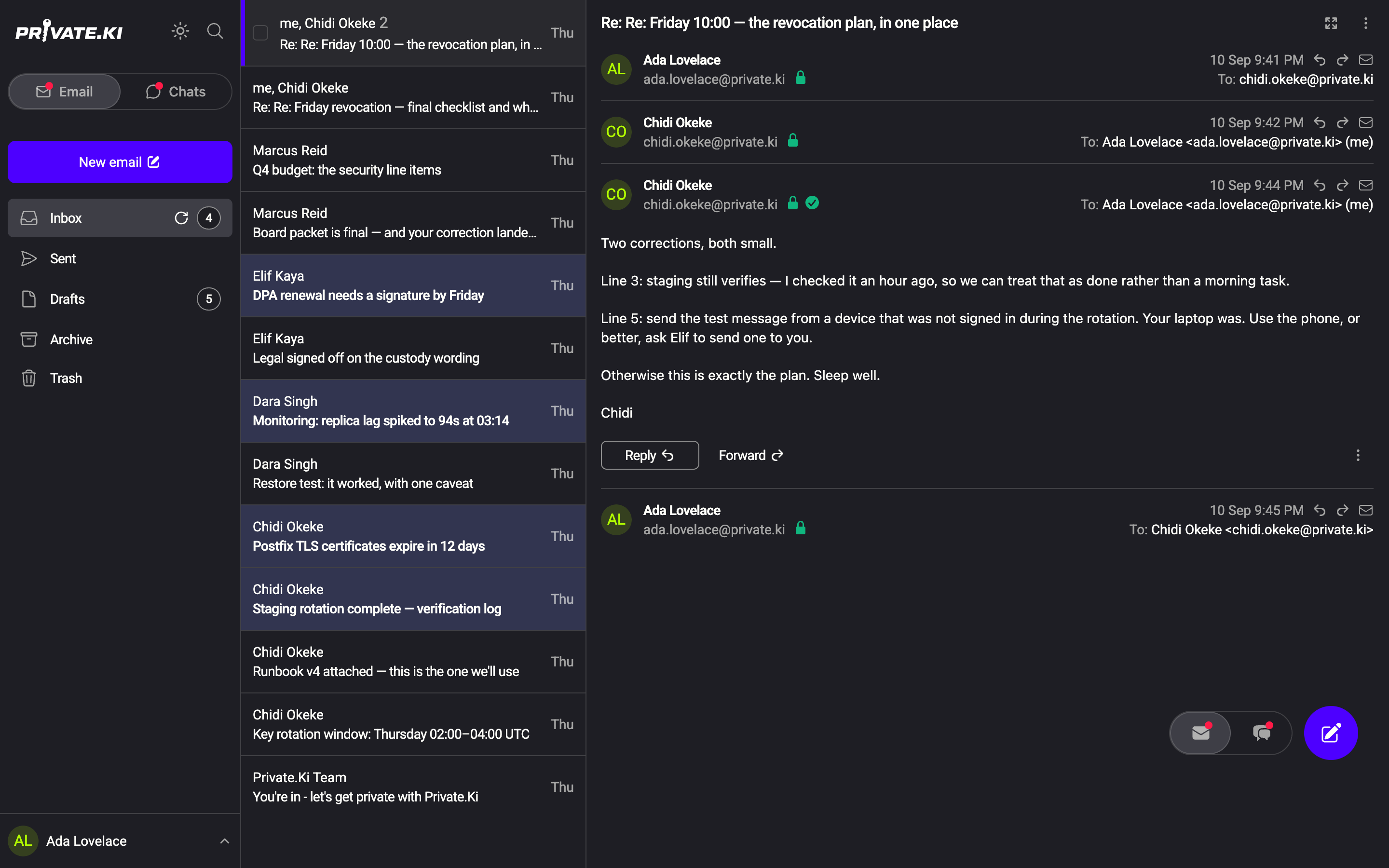
Every opened message carries its security status as small icons beside the sender's address: a padlock for encryption and, next to it, a signature icon. They are computed on your device from the message itself, not from anything the sender claims.
Where to look
- Open the conversation and click the message so it expands. Collapsed messages do not show the icons.
- Look immediately to the right of the sender's address (on the phone: right of the sender's name).
- Hover an icon to read its tooltip. On the phone, press and hold the icon for half a second.
The padlock: was it encrypted?
| Icon | Tooltip | Meaning |
|---|---|---|
| Green closed padlock | PGP-encrypted message | The content was PGP-encrypted end to end — by the sender's device for Private.Ki mail, or by the external sender's PGP client. Our server never held it readable |
| Red open padlock | Message is not encrypted | The content arrived (or was sent) as ordinary email. It is stored encrypted for you now, but was readable in transit and, briefly, on our server |
An unencrypted message also opens with a dismissible banner above the text: External message: Not end-to-end encrypted, but stored in an encrypted form.
Mail between Private.Ki users is always green. External mail is green only when the other side used PGP — see Encrypted email with external contacts and, for how incoming mail is stored, Double-layer encryption.
The signature icon: who sent it?
A spinner appears for a moment while your device checks, then:
| Icon | Tooltip |
|---|---|
| Green check (green shield on the phone) | Signature verified |
| Yellow triangle | Signature exists, but cannot check because public key of sender is missing |
| Red triangle | Invalid signature |
| Grey triangle | Email does not contain signature |
What each state implies, and what to do about a yellow or red one, is covered in Signing and verifying messages. The complete icon reference for the mail view, including icons that are not about encryption, is Security glyphs.
Green padlock + green check: mail from another Private.Ki user, or from an external PGP contact whose key you imported. Red padlock + grey triangle: an ordinary email from a non-PGP sender — a newsletter, a shop, most people. Green padlock + yellow triangle: an external contact encrypted to you and signed, but you have not imported their key yet.
The icons sit in the message header next to the sender's name. Tooltips open on a long press and close when you let go.
The phone's mail list gives a preview: a small padlock in front of each correspondent's name — green closed for encrypted, amber open for not encrypted — and a key icon when the message carries the sender's public key. The list never shows a signature state; that needs the message opened.
Your own sent messages
Open a message in Sent and the same icons appear. The padlock reflects how that message went out: green for all-Private.Ki mail and for external mail sent with Encrypt on, red for an external message sent without encryption.
Common questions
The message list on my computer shows no padlocks
Correct — on the desktop the status is only shown on an expanded message. The phone list shows the padlock (but not the signature), because encryption is recorded in the message headers while a signature can only be checked after the message is decrypted.
The padlock is green but the recipient's provider is Gmail
Green means the content was PGP-encrypted when it travelled. A Gmail user with a PGP client (Thunderbird, Mailvelope, FlowCrypt) can do that; the padlock reports the message, not the provider.
The signature icon is a spinner
Your device is still fetching the sender's key or checking the signature. It normally takes under a second; if it does not settle, collapse and reopen the message.