Change your passphrase
Re-wrap your private key with a new passphrase in Settings › Security and Privacy. You need the current passphrase; the key itself does not change.
Your private key is stored wrapped with your passphrase. Changing the passphrase changes only that wrapping: your device unwraps the key with the old passphrase, wraps the same key with the new one, and saves the result. Your public key, your fingerprint and every message you have stay exactly as they were. This applies to accounts using the Passphrase unlock method; in Password only mode there is no separate passphrase to change — see Change your password.
You need your current passphrase. Without it the key cannot be unwrapped, and there is no other way to set a new one — see Your passphrase.
Change it
Open Settings. Click your name at the bottom-left, then Settings.
1Settings2Your name opens this menuWeb & desktop 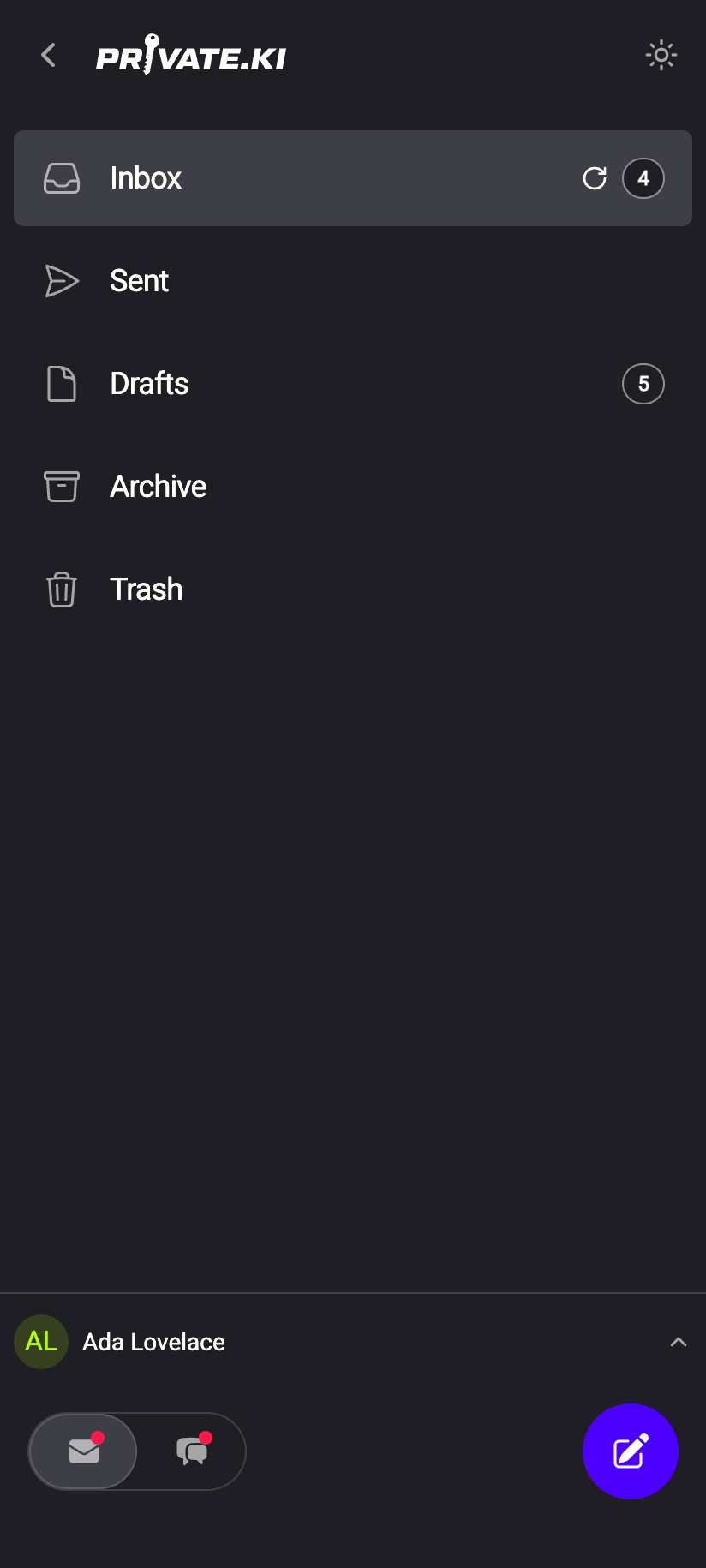 1
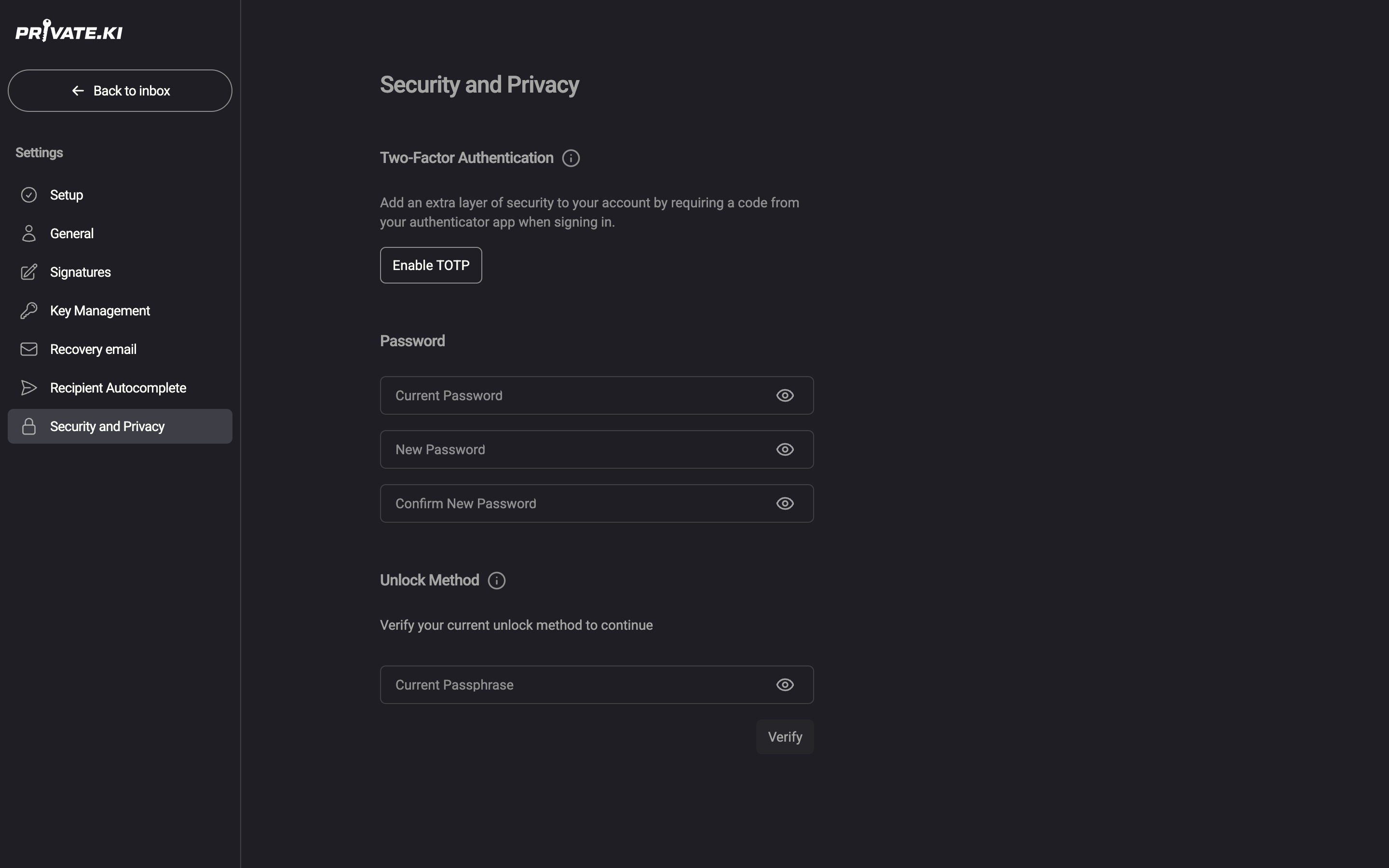
11Tap your name, then SettingsiPhone 11Tap your name, then SettingsAndroid Go to Security and Privacy. Under Unlock Method the app first asks you to Verify your current unlock method to continue: type your passphrase into Current Passphrase and click Verify. You see Verified successfully.
1Current Passphrase2VerifyWeb & desktop 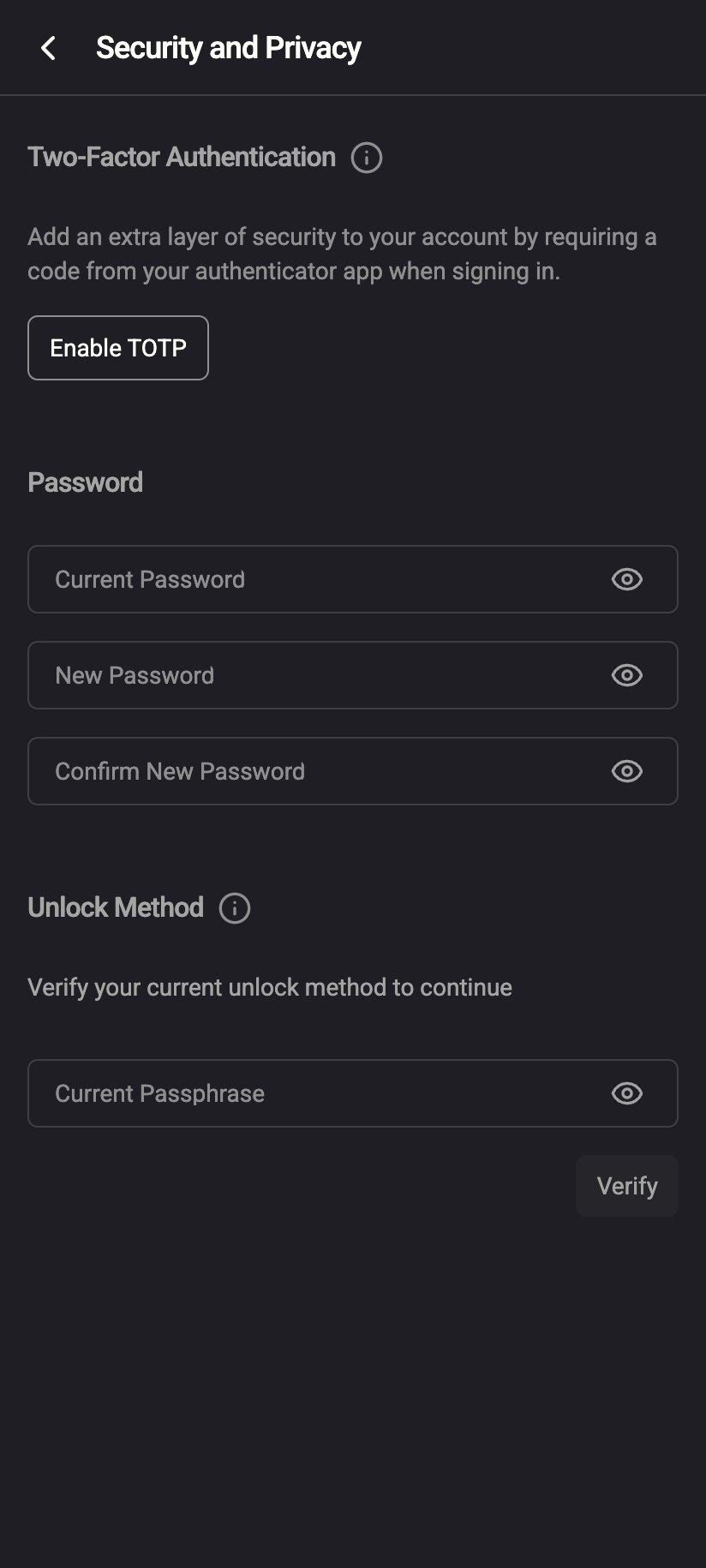 12
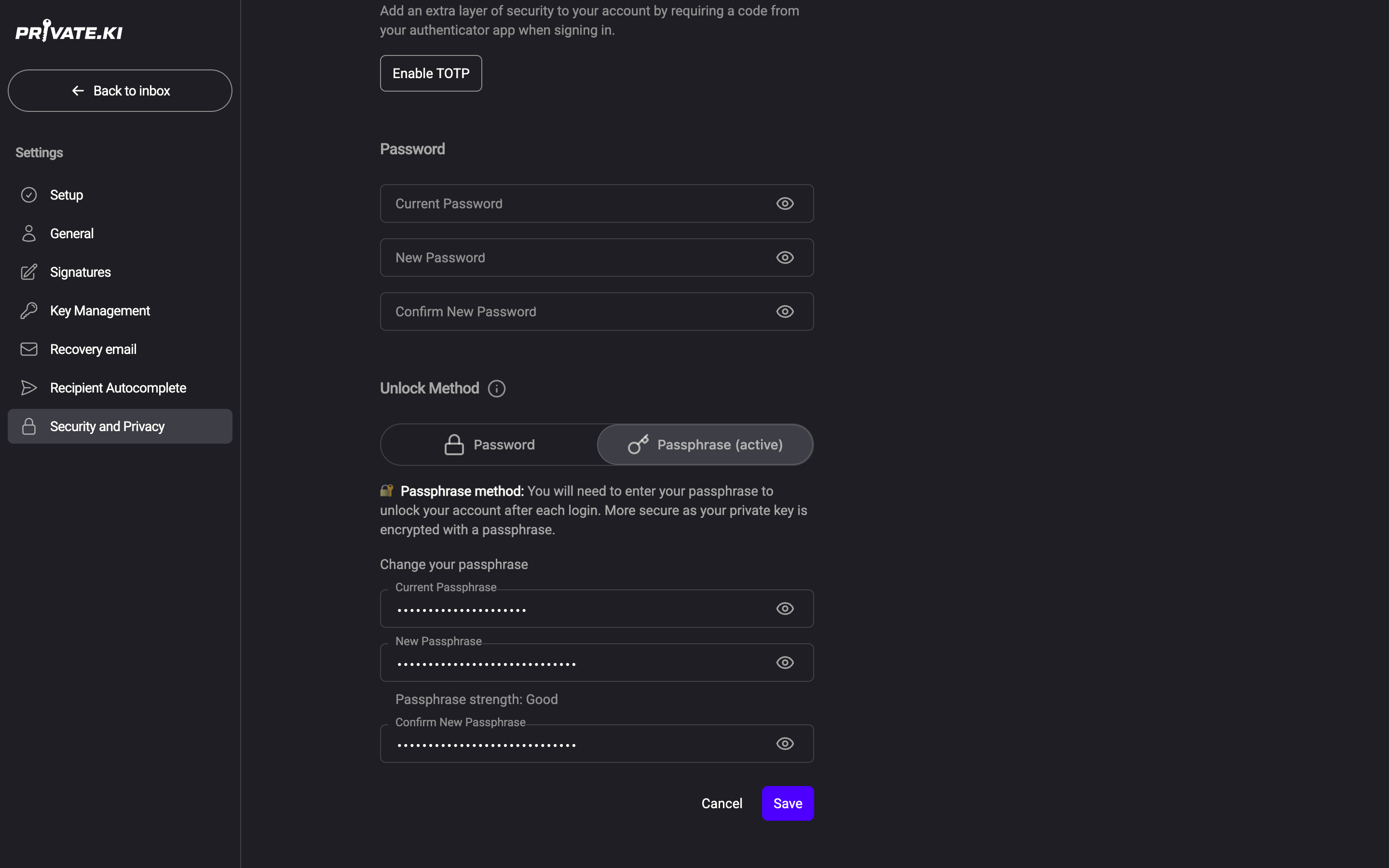
121Current Passphrase2VerifyiPhone 121Current Passphrase2VerifyAndroid The unlock-method switch now shows Passphrase (active). Below it, under Change your passphrase, fill in Current Passphrase, New Passphrase and Confirm New Passphrase.
1Passphrase (active)2Current Passphrase3New Passphrase4Confirm New Passphrase5SaveWeb & desktop 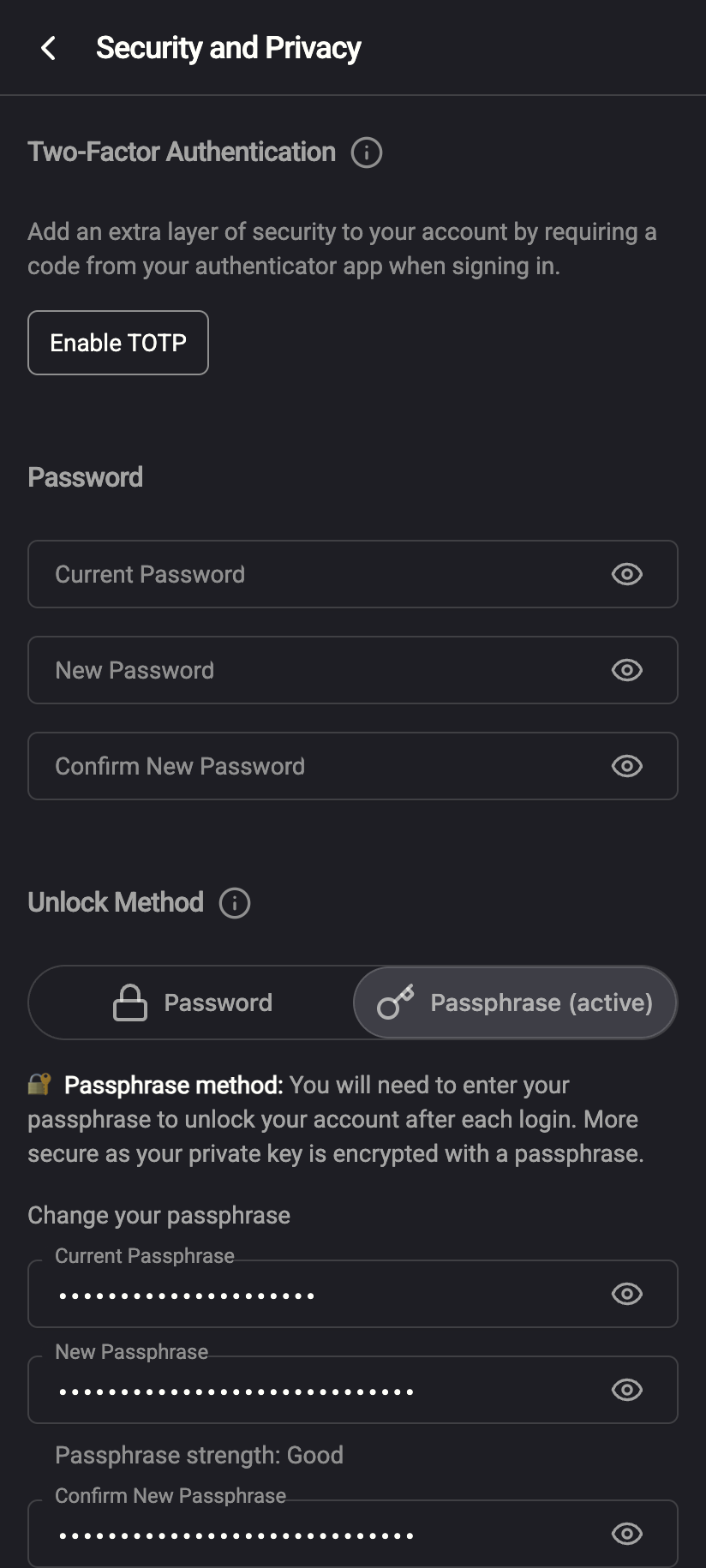 1234
12341Passphrase (active)2Current Passphrase3New Passphrase4Confirm New PassphraseiPhone 12341Passphrase (active)2Current Passphrase3New Passphrase4Confirm New PassphraseAndroid Rules for the new passphraseAt least 8 characters, and different from the current one. The field shows Passphrase strength: Good once it is long enough — treat that as the minimum, not a target. Six random words or a short sentence is better. See Protect your passphrase.
Click Save. A toast confirms Passphrase changed successfully. Store the new passphrase now, in the same place you kept the old one.
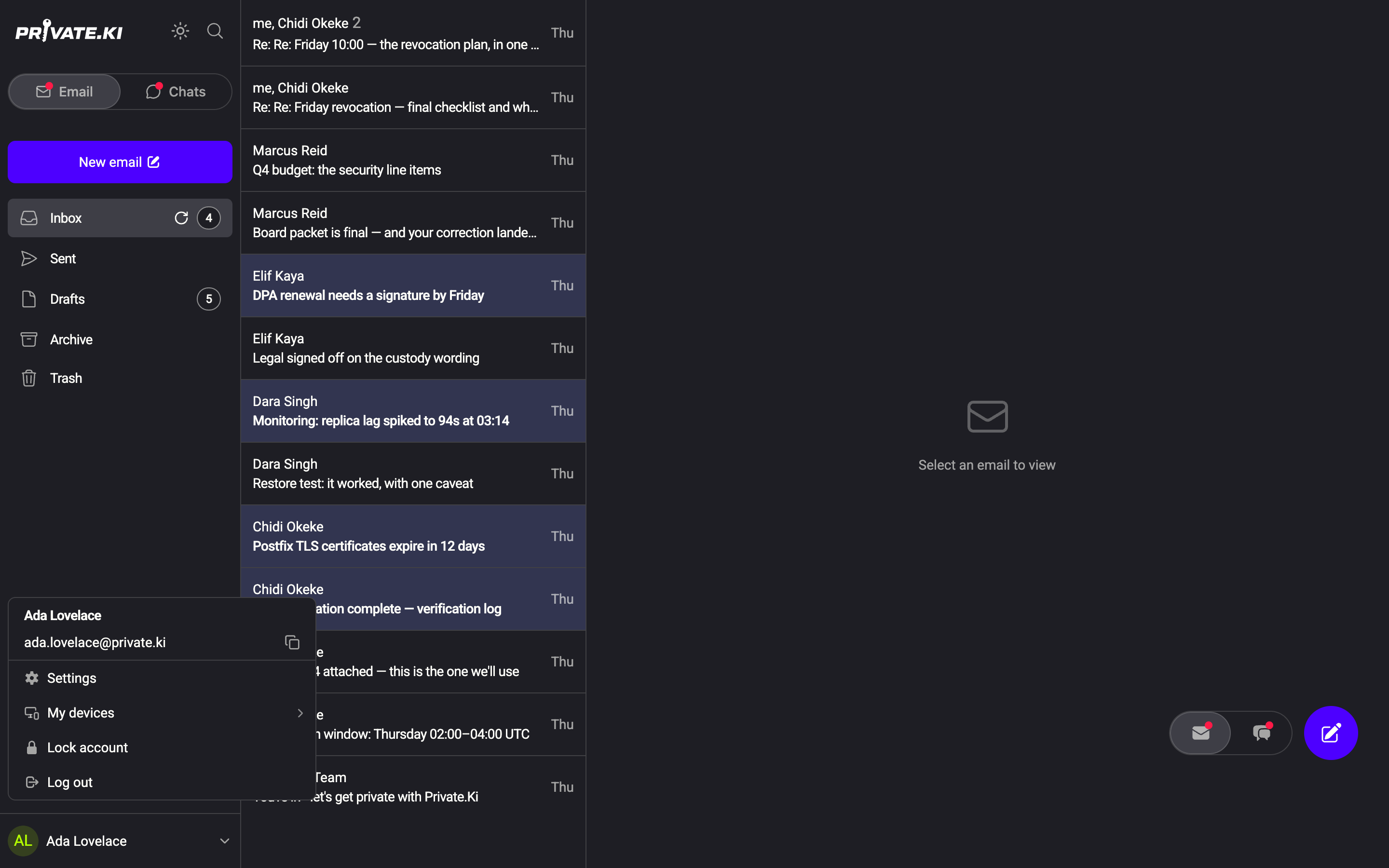
Open the menu ☰, tap your name at the bottom of the drawer, then Settings › Security and Privacy. The rest is the same, in a single column.
What changes, and what does not
- Changes: the wrapped copy of your private key stored in your account. Only the new passphrase opens it from now on.
- Does not change: your key pair, your public key and fingerprint, your master key, your messages, your imported keys, your password. Nothing is re-encrypted except the key wrapping — so the change is instant, however large your mailbox.
- Other devices: the next time another device asks for your passphrase, use the new one. Devices that are currently unlocked stay unlocked until they lock.
What our server sees
Cannot see
- Your old or new passphrase
- Your unlocked private key
Can see
- The re-wrapped private key, which replaces the previous wrapped copy
- That your key wrapping was updated, and when
Common questions
Does changing the passphrase change my password?
No. They are separate. The password is changed under Password on the same screen — see Change your password.
I want to stop using a passphrase altogether
Verify your passphrase as in step 2, then choose Password on the Unlock Method switch and confirm your password. Your key is re-wrapped with a secret derived from the password instead. See Choose your unlock method.
The Verify step says my passphrase is wrong
Check for a leading or trailing space and for capital letters — the passphrase is case-sensitive. If you generated it, it is six lowercase words separated by single spaces. If it will not verify, the passphrase cannot be changed: there is nothing to unwrap the key with.