Install Private.Ki on Android, iPhone or the web
The Android app is on Google Play, iPhone is still to come, and the web app works in any modern browser. How to check you have the right listing.
There are two ways to run Private.Ki on a phone: the Android app from Google Play, and the web app in the phone's browser. Both use the same account and the same encryption. On iPhone, use the web app in Safari while the iPhone app is on its way.
On Android, install the app: it is the only way to get notifications and the only place with App lock. Everywhere else — iPhone, iPad, Windows, Mac, Linux, Chromebook — open the web app at https://app.privateki.net in your browser. See Web app vs native apps.
Install on Android
- Open Google Play and search for Private.Ki, or open the listing directly: play.google.com/store/apps/details?id=com.privateki.app.
- Check you have the right listing before you tap Install. Three things must match: the app name is Private.Ki, the developer shown under the name is Private.Ki, and the app ID is
com.privateki.app. The app ID is not on the listing page itself — it is theid=part of the Play URL, and you can see it after installing under Settings → Apps → Private.Ki → App details. Anything else with a similar name is not us. - Install, then open the app. It starts on the sign-in screen. Sign in with your address and password, or create an account here — everything you can do in the browser you can also do in the app. The fastest way in, if you are already signed in on a computer, is step 5 below.
- Allow notifications when Android asks. The prompt appears once, the first time the app registers this phone. If you refuse, the only way back is the phone's settings — see Push notifications.
- Or sign in by QR from a computer. On the computer, click your name at the bottom-left of the sidebar, choose My devices, then Show a code; read the warning, tick the box and click Show QR code. The code lasts 30 seconds. On the phone, tap Sign in with a QR code → Scan their code and point the camera at the computer screen. Compare the short codes both devices show and approve on the computer. Full steps: Sign in with a QR code.
The app needs Android 7.0 or newer — see System requirements.
iPhone and iPad
On iPhone and iPad, open Private.Ki in Safari. You get the same single-column layout as the Android app. The iPhone app is coming to the App Store.
Use the web app on a phone
- Open
https://app.privateki.netin the phone's browser. Safari, Chrome, Firefox and Samsung Internet all work; JavaScript must be on — see System requirements.1Search2Email / Chats switchWeb & desktop 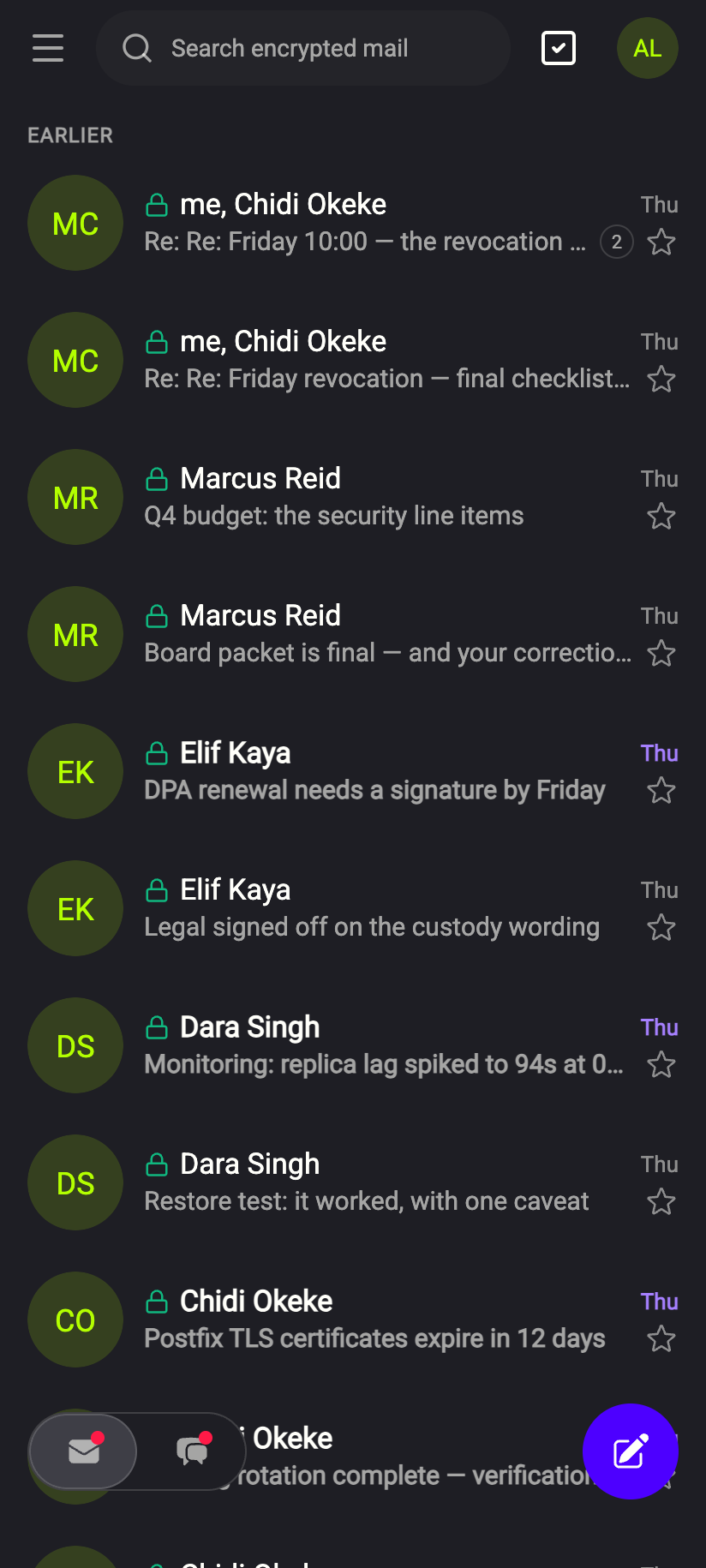 12
121Search2Email / Chats switchiPhone 121Search2Email / Chats switchAndroid - Sign in. Tap Sign In and enter your address and password, or use the QR method described above — it works in the browser too.
1Scan their code2Ignore codes you did not ask forWeb & desktop 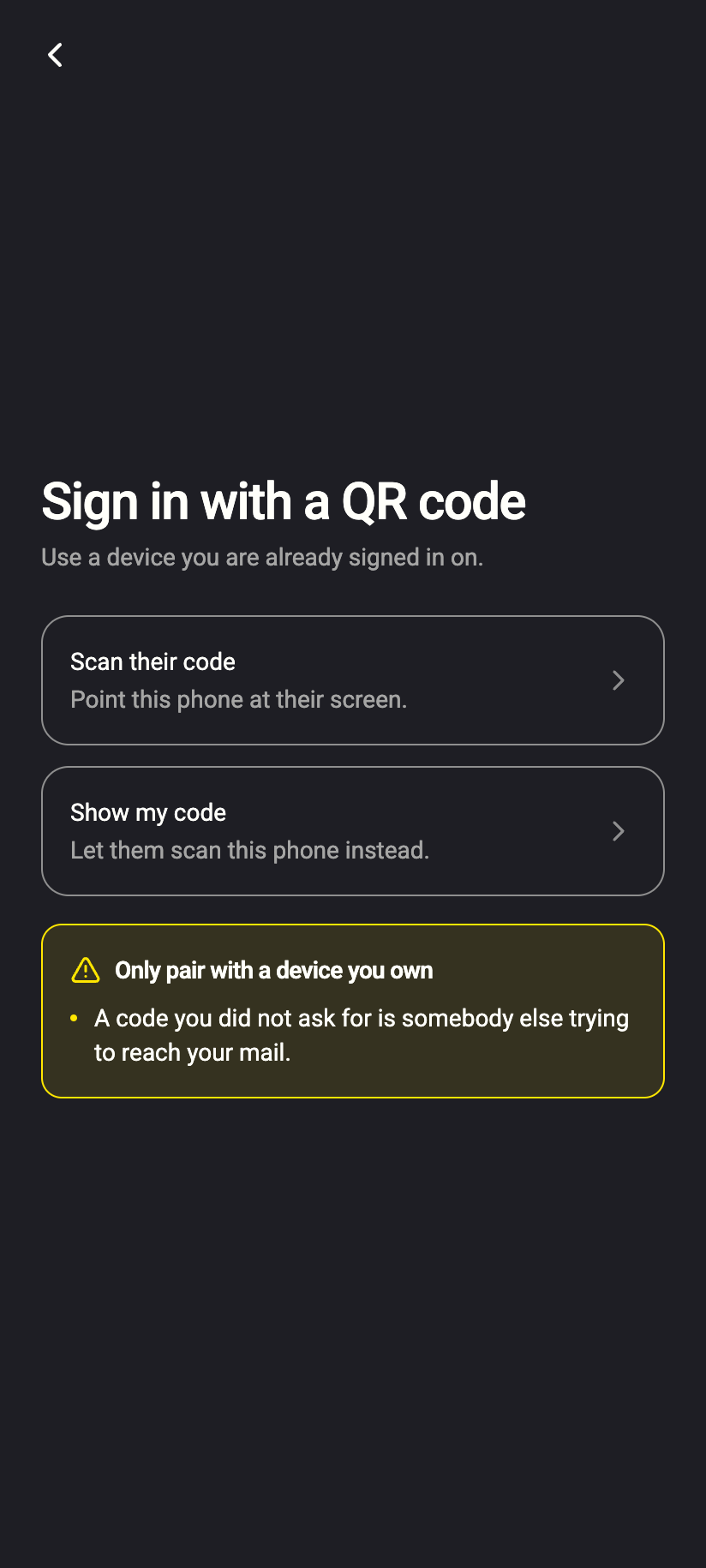 12
121Scan their code2Ignore codes you did not ask foriPhone 121Scan their code2Ignore codes you did not ask forAndroid - Add a shortcut to your home screen (optional). In Safari tap the Share icon, then Add to Home Screen. In Chrome tap the ⋮ menu, then Add to Home screen. The shortcut opens Private.Ki in your browser; it is not a separate app.
What the Android app adds
- Push notifications when mail or a chat message arrives while the app is closed. The notice says only New email or New chat message — never who wrote or what they wrote. See Push notifications.
- App lock — lock Private.Ki behind your fingerprint, face or the phone's screen lock, with an option to hide the app's contents in the Android app switcher. It is the first row of Settings in the app.
Everything else — mail, chats, groups, calls, stickers, attachments, keys — is the same in the app and in the browser. The full list of differences is in Web app vs native apps.
What our server sees
Cannot see
- Your mail or chats — the phone decrypts them locally, exactly like the computer
Can see
- That a second device was paired to your account (this completes the Connect your phone step in Setup)
- In the Android app, a push token and the device's name, so notifications can be delivered
Common questions
Is the phone version less secure than the computer version?
No. The same code runs on both. The web app in a phone browser uses the browser's built-in cryptography; the Android app runs the same cryptography in a bundled WebView. Your keys are unlocked on the device and never sent anywhere.
The Play listing asks for permissions. Which ones does the app use?
Camera (to scan a pairing QR code and to take photos for attachments), microphone (voice messages and calls), notifications, and vibration. You can see the full list under Settings → Apps → Private.Ki → Permissions on the phone.
I signed in on my phone and now my computer asks me to unlock again. Why?
Pairing by QR hands the signed-in session to the phone. The computer stays signed in but may ask you to unlock. See Pair a second device.
Will my drafts and read state sync between phone and computer?
Yes. Both devices talk to the same account. Open messages, stars, folders and drafts appear on every device you are signed in on.
Can I get notified on my phone when using the web app?
No. Notifications need the Android app.
Is there a Windows, Mac or Linux desktop app?
No. The web app is the desktop app.