Switch between Email and Chats
Where the Email / Chats switch lives on the web and on the phone, what the red dots mean, and the swipe and keyboard shortcuts that do the same thing.
Private.Ki has two workspaces in one account: Email — your mailbox with its folders — and Chats — your conversations and groups. You are always in one or the other, and a single switch moves you between them. After you sign in or unlock, the app opens in Email.
On the web (wide window)
The switch is the Email / Chats toggle at the top of the left sidebar, directly under the logo. Click the half you want. The sidebar changes with it:
- In Email you see New email and the folders Inbox, Sent, Drafts, Archive, Trash, each with a count of unread or contained items.
- In Chats you see New chat and the filters All, Unread, Invitations.
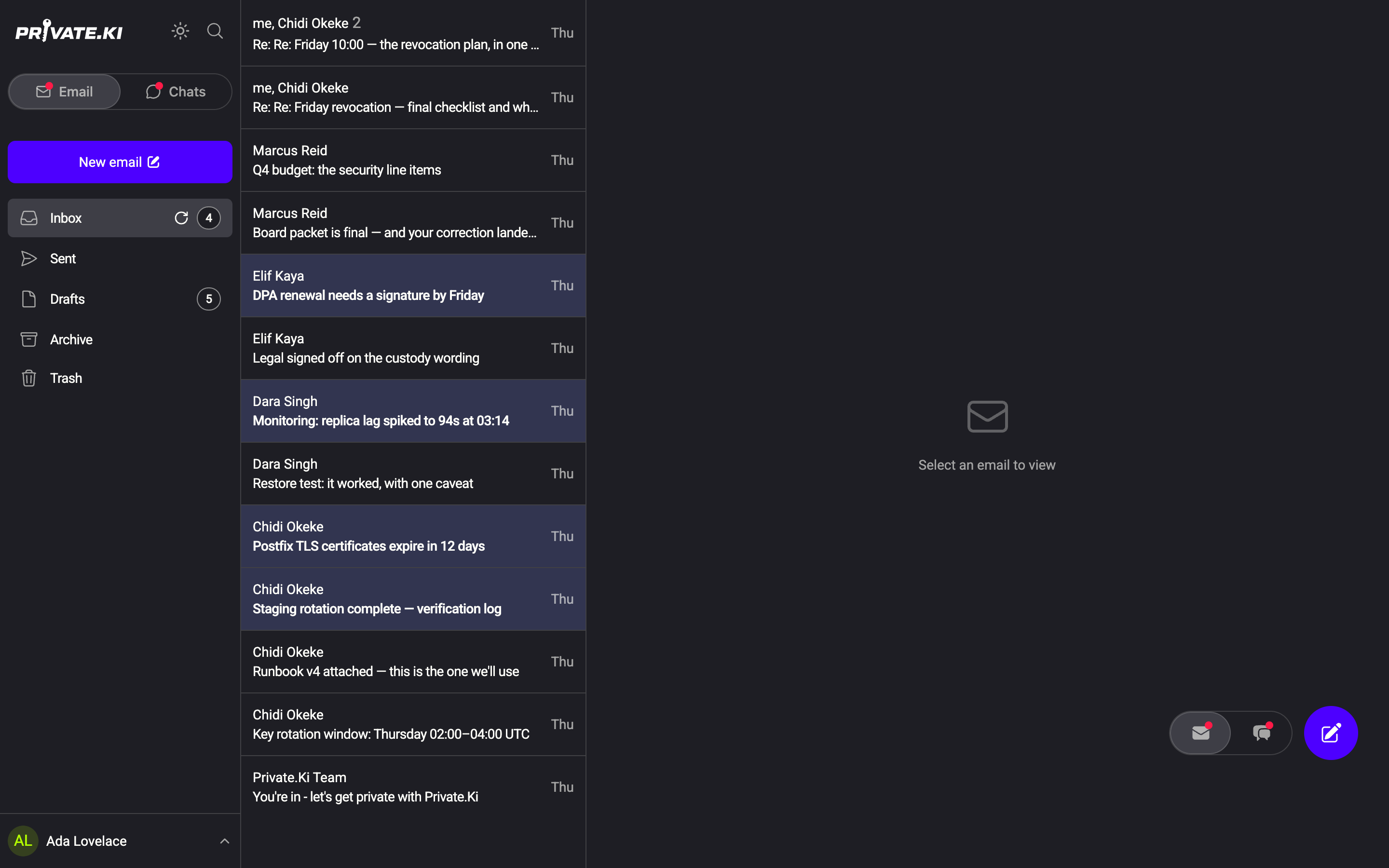
A second copy of the switch floats in the bottom-right corner of the reading pane as a pill with an envelope and a speech-bubble icon, next to the round new item button. You can drag this group anywhere; the position is remembered. Both copies do the same thing.
Keyboard: hold g and press e for Email, g and h for Chats. See Keyboard shortcuts.
On the phone (and narrow windows)
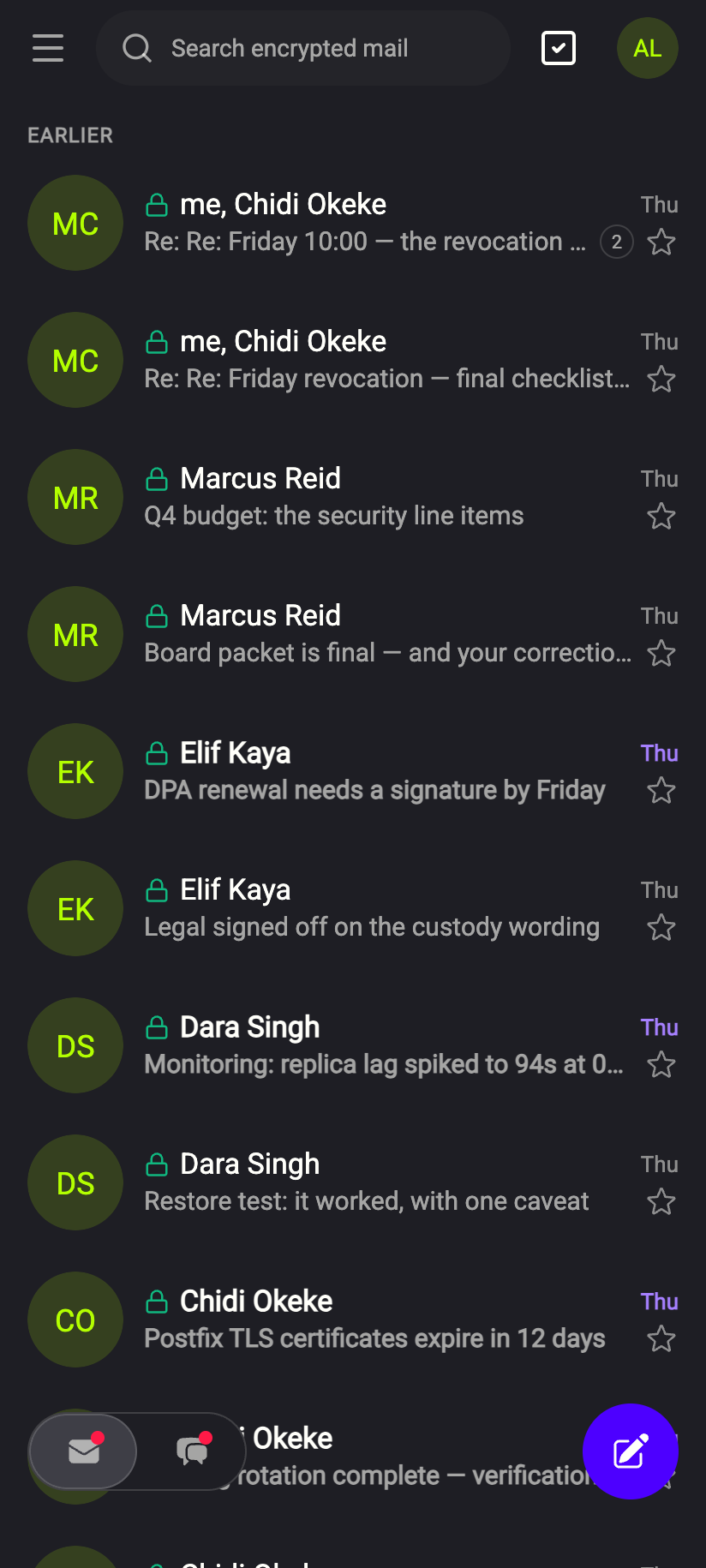
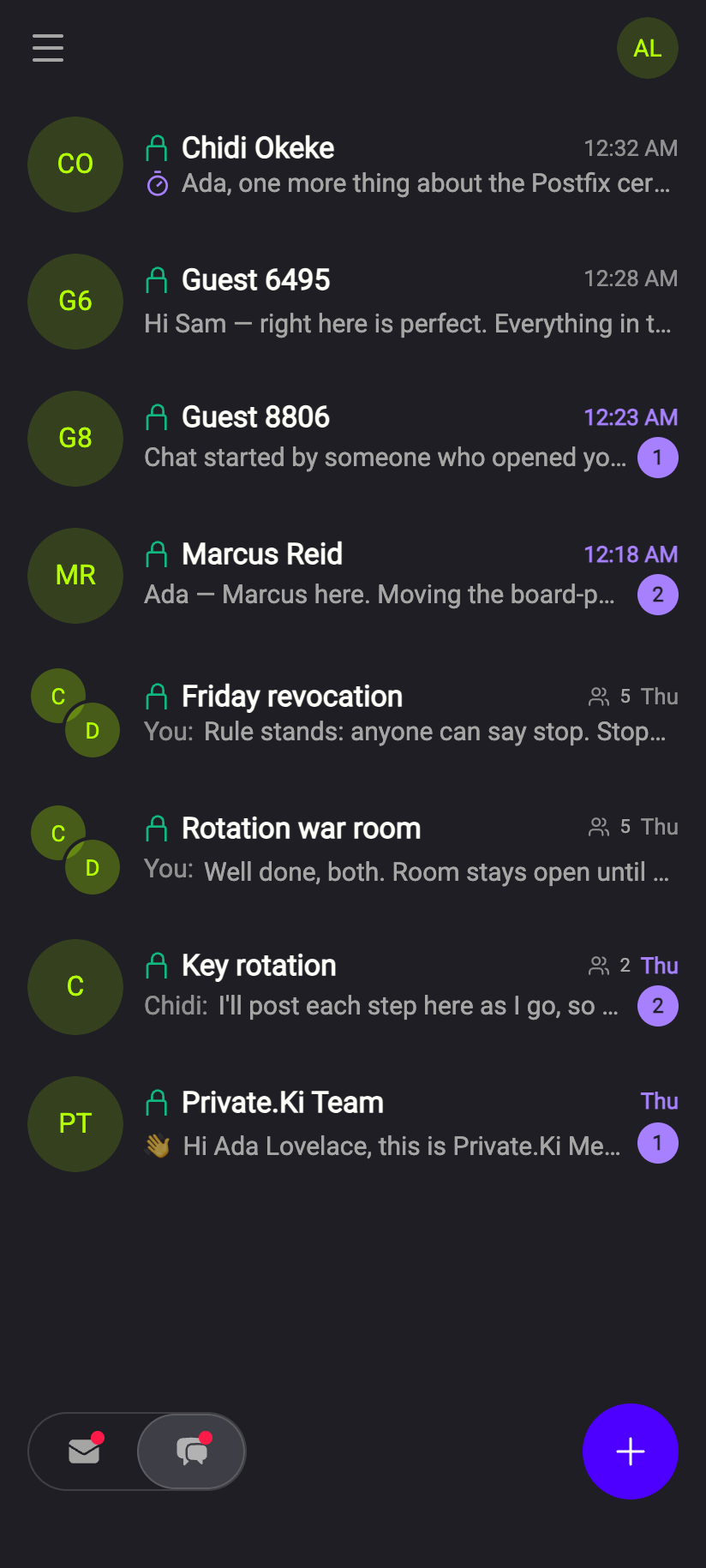
The floating pill at the bottom of the screen is the switch: envelope = Email, speech bubble = Chats. Tap the half you want. The round button beside it starts a new email (pencil) or a new chat (plus), depending on which workspace you are in.
 123123
A sideways drag across the list does the same job. Either direction toggles between Email and Chats, and it works anywhere on the list — on a row exactly as on the space below the last row. About a finger's width of travel, or a quick flick, commits; a shorter drag springs back. A finger that moves mostly up or down is a scroll, so reading a long list never switches by accident, and pull-to-refresh still works.
This used to work only on the blank space below the last row, because a mail row owned an archive-or-bin swipe and a chat row a delete swipe. Those were removed in October 2026, so the whole list is now yours to drag — see Bulk selection, and what a swipe does now for what replaced them.
The folder drawer opens from the ☰ button at the top-left, and from nothing else. No swipe opens it. It shows the folders of the workspace you are in — Inbox, Sent, Drafts, Archive, Trash and any folders you made yourself for Email — and your name at the bottom, which opens Settings. Once it is open, a right-to-left drag across its empty middle closes it again; so does tapping the page behind it.
The same applies in the native iPhone and Android apps and in a phone browser. The layout switches to the single-column version whenever the window is narrower than about 750 px, so a small desktop window behaves like a phone.
Unread badges
A red dot on either half of the switch means there is something unread in that workspace. The counts themselves are on the folder rows in Email (the Inbox count) and on the chat rows in Chats. On the web, the browser tab title also shows the count for the workspace you are in — (3) Mail - Private.Ki or (2) Messenger - Private.Ki — so you can see new arrivals from another tab.
When a message arrives in the workspace you are not looking at, only the red dot changes; nothing pulls you out of what you are doing. Tapping a push notification on the phone opens the right workspace directly.
What our server sees
Cannot see
- Which workspace you have open, or how you switch between them — this is local to your device
Can see
- Unread counts, as numbers — the server keeps a per-mailbox count so the badge is correct on every device
Common questions
Can I see email and chats in one combined list?
No. They are separate lists with separate folders and filters. The switch and the badges are the link between them.
The switch disappeared while I scrolled
It should not. The pill stays fixed at the bottom of the screen on the phone and in the corner on the desktop regardless of scrolling. If you cannot see it, a dialog or the drawer is probably open above it; close that first.
Can I collapse the sidebar on the web?
In Chats, yes — the collapse button at the top of the sidebar hides it so the chat list and the conversation get the width. Bring it back with the same button. The floating pill stays available while the sidebar is hidden.