Bulk selection, and what a swipe does now
Row swipes were removed in October 2026. A sideways drag now switches Email and Chats; archiving, filing and deleting are the long-press menu's job.
If you used to swipe a row to archive or bin it: that gesture is gone. In October 2026 the per-row swipes were removed from both lists. A sideways drag now means one thing everywhere on a list — show me the other workspace — and the moves it used to make live in the row's long-press menu, which has always held them. Nothing was lost; it moved one press away.
| You used to | You now |
|---|---|
| Swipe a mail row one way to archive | Press and hold the row → Archive |
| Swipe a mail row the other way to bin | Press and hold the row → Move to trash |
| Swipe a chat row to delete | Press and hold the row → Delete chat |
| Swipe the empty space to switch workspace | Swipe anywhere on the list, either direction |
A sideways drag switches Email and Chats
On a phone — and in any narrow window — dragging sideways across the list toggles between the two workspaces. In Email it takes you to Chats; in Chats it brings you back to Email.
How the gesture behaves:
- Anywhere counts. On a row, between rows, on the space below the last row, on an empty list. It used to work only on the blank space, because rows owned a gesture of their own; they no longer do.
- Either direction does the same thing. It is a toggle, not a carousel: both ways in Email lead to Chats, and both ways in Chats lead back.
- It is a phone gesture only. In the wide desktop layout there is nothing to swipe — the sidebar's Email / Chats toggle is always on screen.
A short drag springs back. About a finger's width of travel, or a quick flick, commits. There is no label, tint or arrow to drag against: the screen simply changes. See Switch between Email and Chats for the pill and the keyboard shortcuts that do the same.
Scrolling is untouched. A finger that moves mostly up or down is a scroll, ties go to the scroll, and pull-to-refresh at the top of the list still works. A tap still opens the conversation and a press-and-hold still opens the menu — neither travels far enough sideways to be read as a drag.
Act on one conversation
Press and hold a row (right-click on the web) for its menu. Depending on the folder it offers Star / Remove star, Mark as read / Mark as unread, Reply, Forward, Archive, Move to, Move to trash, and in Archive and Trash Restore — in Trash also Delete permanently, behind a confirmation. In Drafts, Discard draft deletes the unsent text without passing through Trash.
Move to is the one to learn: it lists every place the conversation may legally go — Archive, Trash, and any folder you made yourself. On a phone it is the only route into your own folders, since there is no drag gesture there.
Select several conversations
- Tap the select icon (a ticked square) at the top right of the list. Checkboxes replace the avatars.
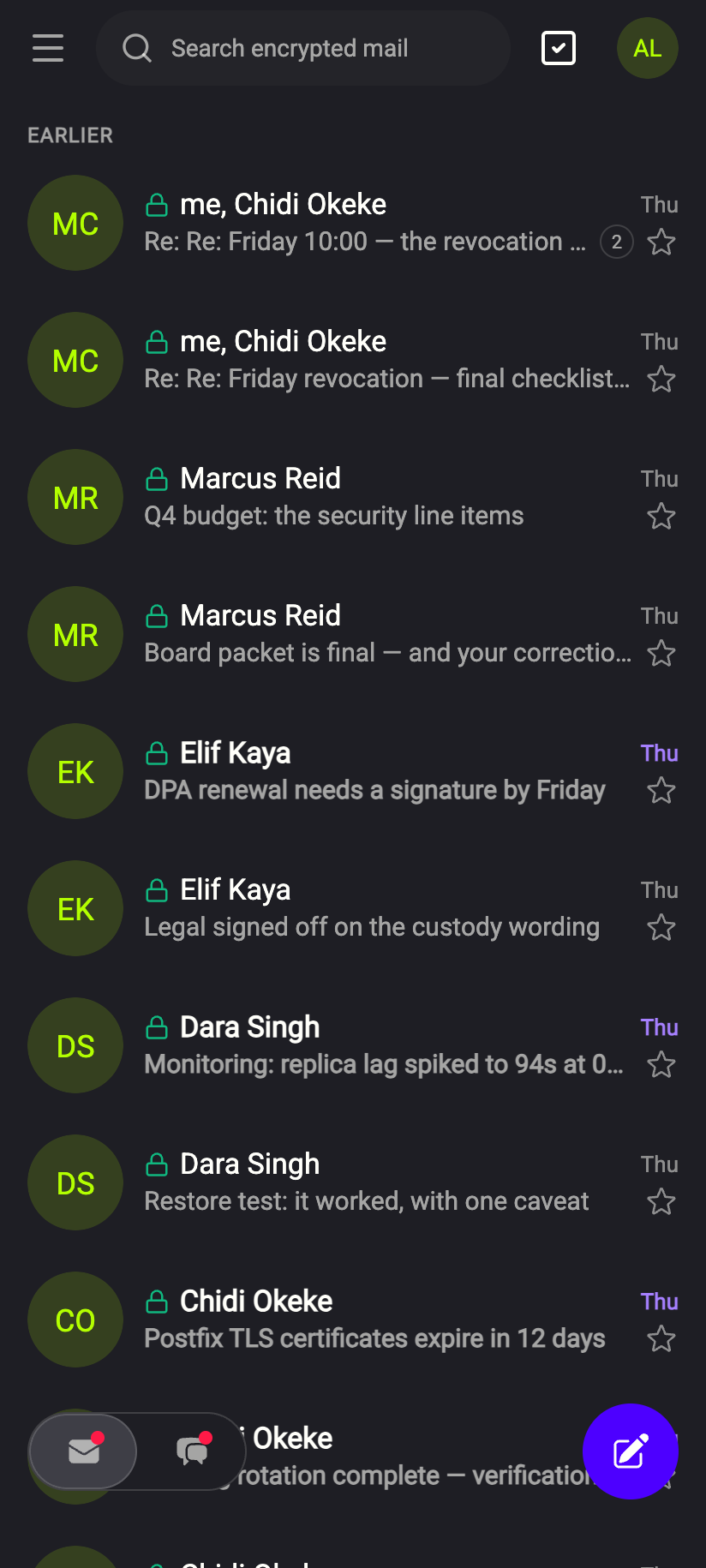 1
11SelectiPhone 11SelectAndroid - Tap rows to tick them. Select all ticks every loaded row, and the count of selected rows is shown in the bar.
- Use the toolbar buttons. Which appear depends on the folder: Star / Remove star, Mark as read / Mark as unread, Archive, Move to, Delete — and in Archive and Trash Restore, in Trash also Delete permanently with a confirmation.
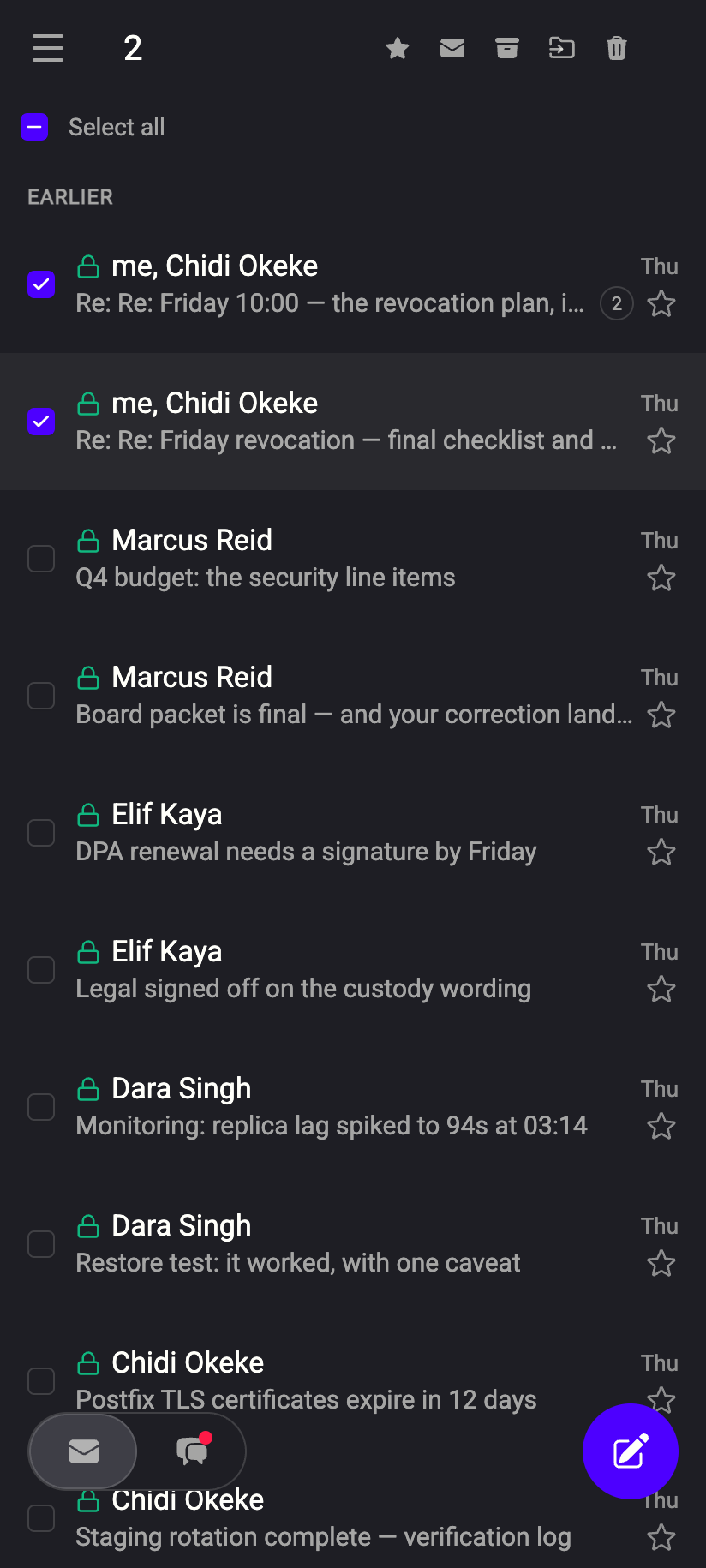 1234567
12 selected2Star3Mark as read4Archive5Move to6Delete7Select alliPhone 123456712 selected2Star3Mark as read4Archive5Move to6Delete7Select allAndroid - After an action the selection clears. To leave selection mode without acting, untick the rows — in a phone browser the Back button leaves the selection rather than the folder.
Press-and-hold does not start a selection. It opens that one row's menu. The select icon in the top bar is the way into selection mode on a phone, and it is there because there is no pointer to hover a row's checkbox with.
On a desktop, hovering a row shows its checkbox. Tick one, then shift-click another to take the range between them; ⌘ + A selects every loaded row and Esc clears the selection.
What our server sees
Cannot see
- The content of anything you select, file or delete
- Which workspace you are looking at, or that you swiped to get there
Can see
- The folder change itself, and the star or read flag you set — the same as when you use the menu
Common questions
I swiped a row and it switched to Chats instead of archiving
That is the current behaviour. The archive swipe was removed in October 2026; press and hold the row and choose Archive. A single drag back returns you to Email, and nothing was filed.
The list only scrolls, it will not switch
Start with a clearly sideways motion — a finger that is mostly going up or down is treated as a scroll, deliberately, so that reading a mailbox can never change what you are looking at. A drag beginning at the very left edge of the screen may also be claimed by your phone's own back gesture; start a little further in.
Is there still six seconds to undo?
For chats, yes: Delete chat shows a Conversation deleted toast and nothing is sent to the server until it runs out. See Delete a chat. For mail there is nothing to undo — Archive and Move to trash are moves you can reverse at any time with Restore.
Can I delete permanently from a gesture?
No, and that has not changed: permanent deletion is only offered inside Trash, only from the menu or the selection toolbar, and only behind a confirmation. See Delete emails and restore from Trash.
Why were the row swipes removed?
Two gestures were competing for one touch. A row that owned a horizontal swipe meant the list could not, so switching workspace worked only on the blank space below the last row — which a full list does not have. Giving the drag to the whole list made it reliable everywhere, at the cost of a shortcut that the menu already duplicated.