View headers and the original message
Show original displays an external email exactly as our server received it — every header and the raw body. How to open it, copy it or save it as .eml.
When you need to know what an email looked like on the wire — which servers handled it, whether it passed the sender's authentication checks, what the HTML really contained — open its original. Private.Ki keeps the complete message as it arrived, encrypted to your key, and Show original decrypts and displays it on your device.
The option is on every mail except a draft or a note, in every folder — Inbox, Sent, Archive and Trash. What it can show you depends on how the message travelled, and the window says which of the three you are looking at:
- Mail that reached you from outside Private.Ki — the stored SMTP source, exactly as our server received it, every delivery header included.
- Mail between Private.Ki users — a document rebuilt on your device from the decrypted message, under the line Reconstructed from the encrypted message — this mail never travelled as SMTP mail, so it has no transport headers.
- Mail you sent to an outside recipient — the same kind of reconstruction, from your stored sent copy, under the line Reconstructed from your stored sent copy — the copy delivered to outside recipients travelled as SMTP mail and carried transport headers that are not stored here.
A reconstruction contains only what is really known. No Received trail, no DKIM-Signature and no Return-Path are invented to fill the gaps, and a date appears only if the message was actually mailed.
Open the original
- Open the message. In a conversation with several messages, expand the one you want.
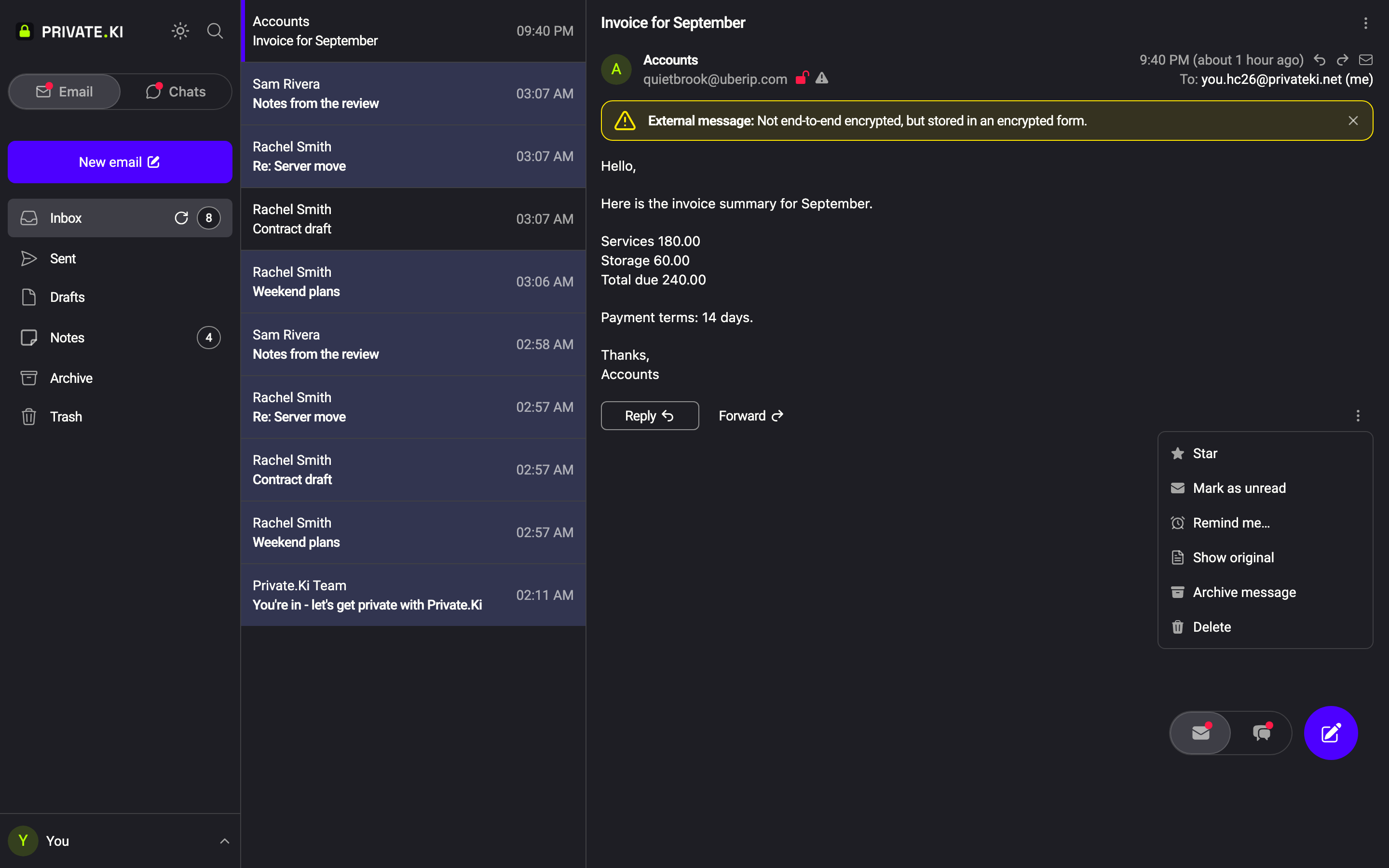
- Scroll to the end of that message and click the ⋮ button next to Reply, Reply all and Forward.
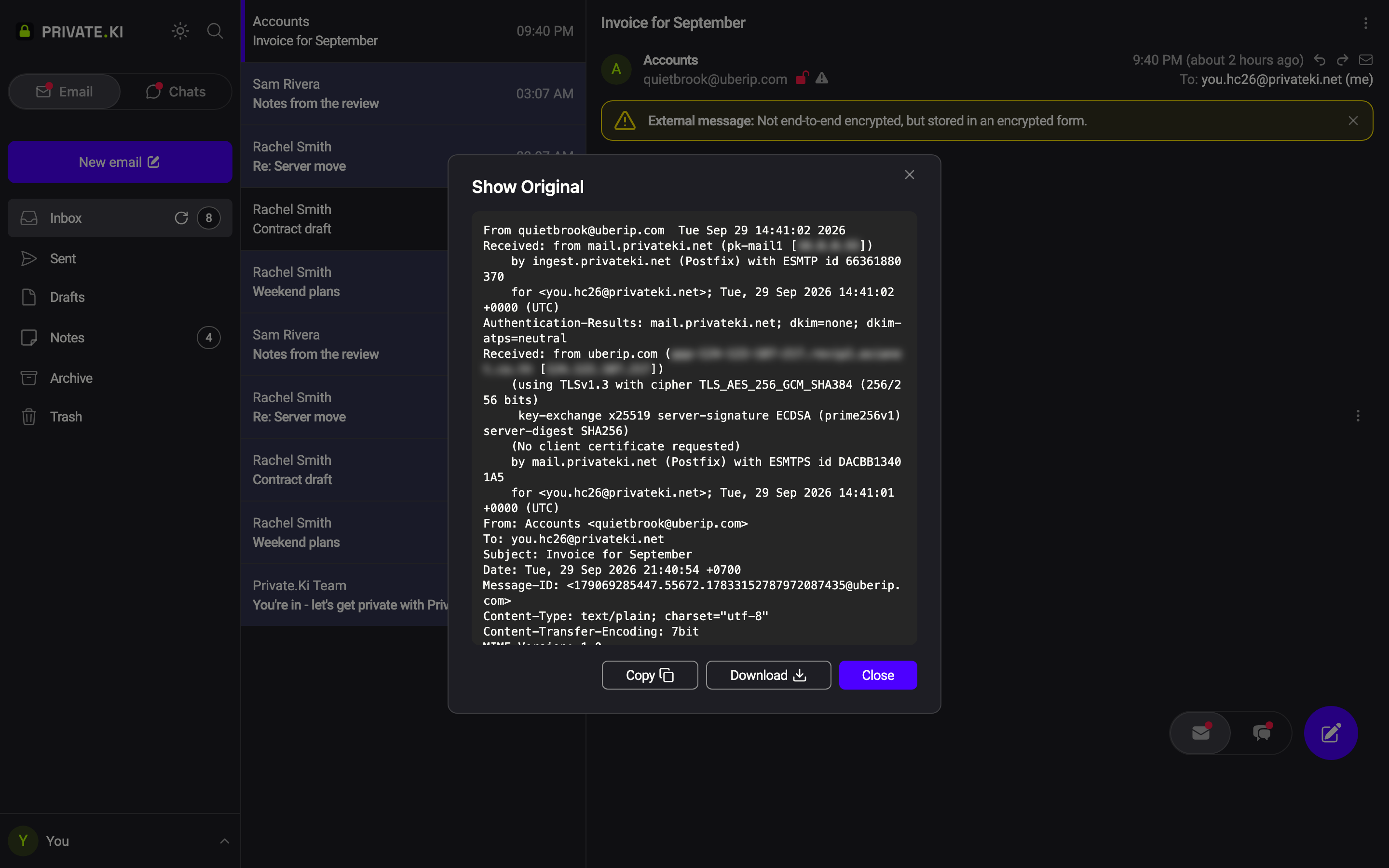
- Choose Show original. A window titled Show Original opens with the raw source in a fixed-width font.
- Copy or save it. Copy puts the whole text on the clipboard (Copied to clipboard); Download saves it as
message-xxxxxxxx.eml, a standard file any mail program or analysis tool can open — with one added header,X-PKI-Export, naming which of the three documents above it is. Close returns to the message.
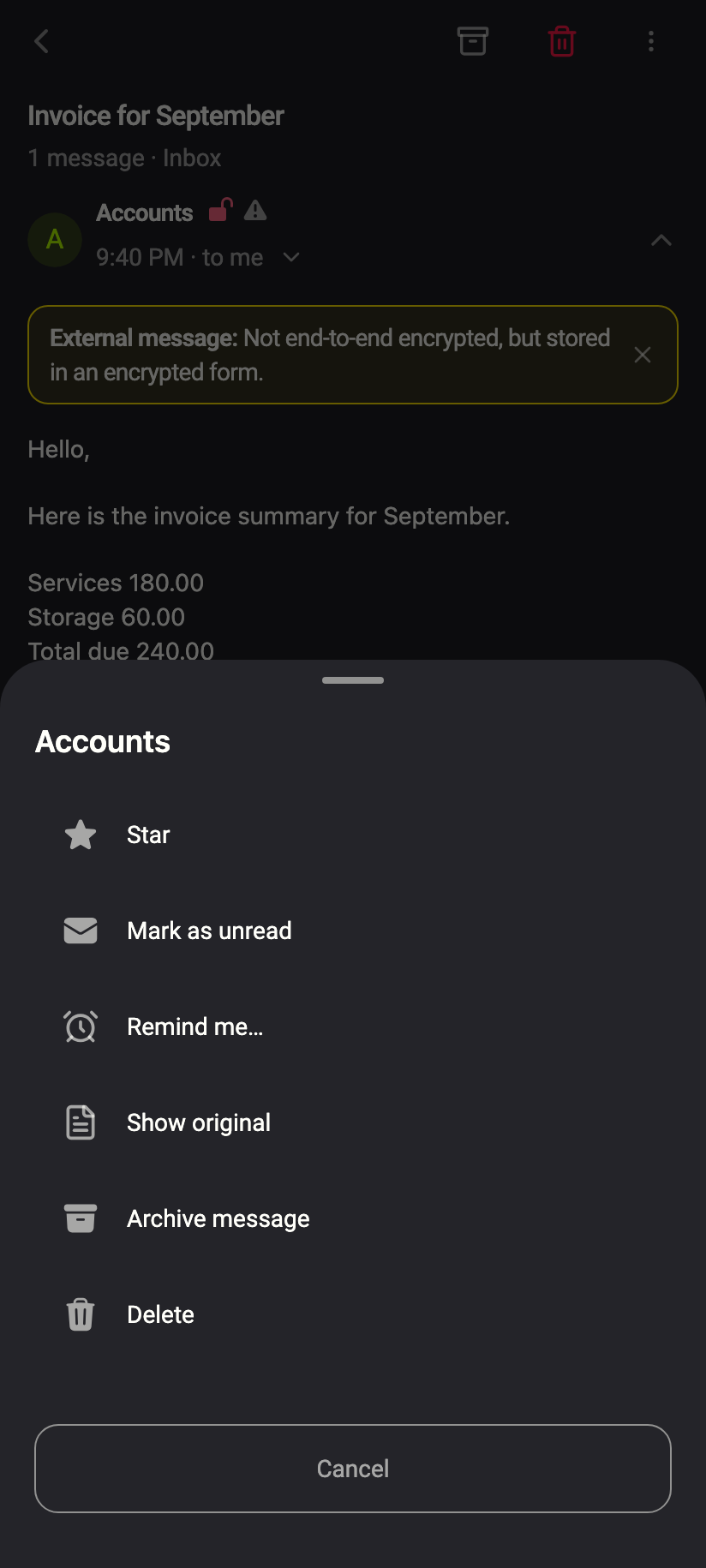
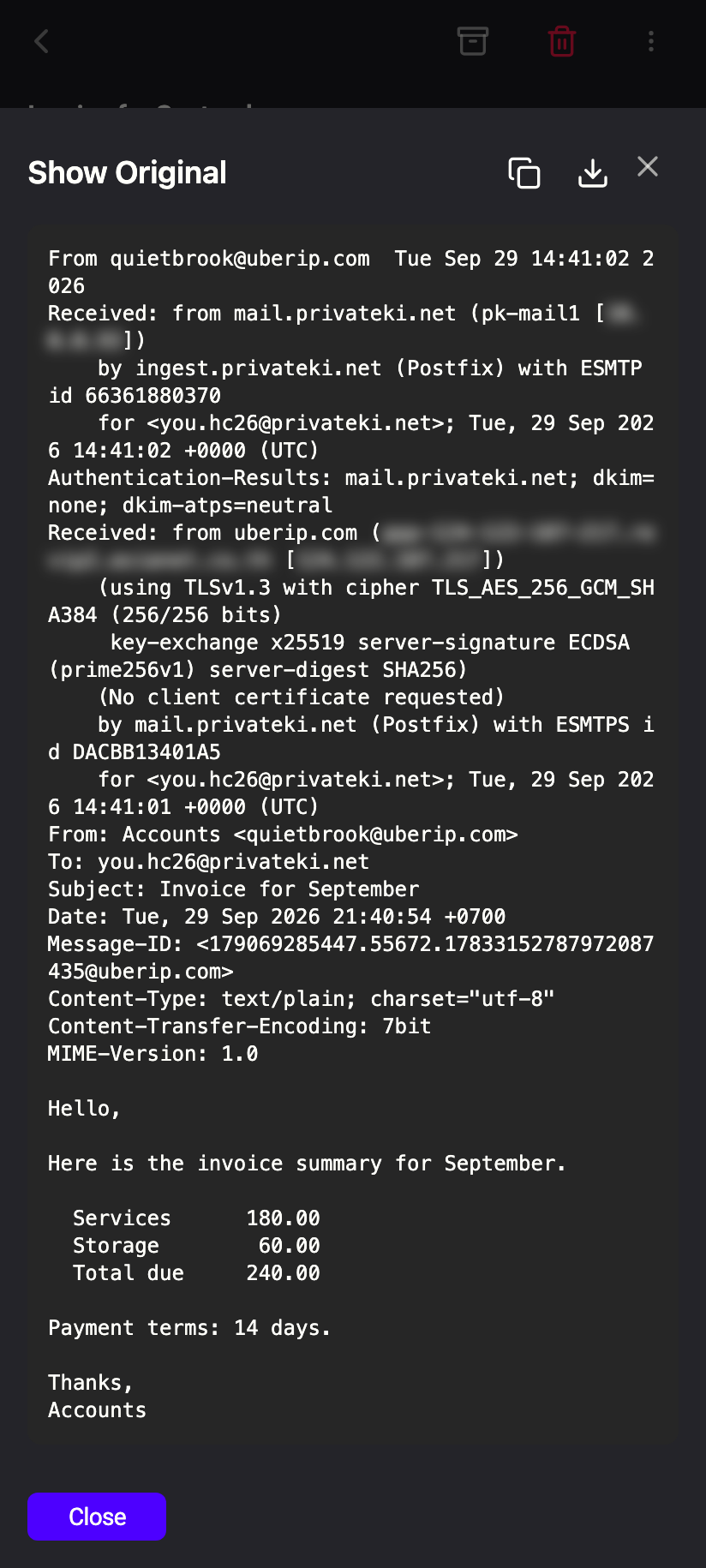
Tap the ⋮ button under the message (the Message actions button) and choose Show original. The source fills the screen; the copy and download icons are in the top bar. On the phone the file is offered through the system share sheet.
What you are looking at
The view has two parts, in the order the message was transmitted:
Headers — one per line, until the first blank line. Beyond the familiar From, To, Subject, Date and Message-ID you will see the technical trail: Received lines added by each server on the way (read them bottom-up to follow the route), Authentication-Results and DKIM-Signature from the sender's domain checks, Content-Type and MIME-Version, and whatever the sending software added. A tracking pixel or hidden sender identifier often shows up here first.
Body — the raw MIME body. For an HTML email this is the complete HTML source, for a message with attachments each part in turn, usually as base64 text. Nothing is rendered, scripts are not run and no image is fetched from this view, which is what makes it safe for inspecting suspicious mail.
The view is read-only. If it says No original message available, the message has not finished loading or decrypting; close and reopen it.
When it is useful
- A message looks like phishing. Compare the
Fromheader with theReturn-Pathand the firstReceivedline; a mismatch is a strong hint. Attach the downloaded.emlwhen you report abuse. - A message arrived late or oddly formatted. The
Receivedtimestamps show where it waited; theContent-Typeshows what the sender actually produced. - You want to read the HTML without loading anything. Everything the sender embedded, including tracking pixels, is visible as text.
What our server sees
Cannot see
- That you opened the original — decryption and display happen on your device
Can see
- Nothing new. The headers you are reading are the same bytes the server received and stored encrypted for you
Common questions
Why does a message from another Private.Ki user have no delivery headers?
Because it never had any. Internal mail is handed from mailbox to mailbox inside Private.Ki as an encrypted object, with no SMTP transit, so there are no Received, DKIM or authentication headers in existence. The window says so in a line above the source rather than inventing them.
Can I see the original of a message I sent?
Yes, from the Sent folder. What you get is rebuilt from your own stored copy, so it shows the message as you sent it. If the mail went to an outside recipient, their copy picked up transport headers on the way that are not kept here, and the window says that too.
Does the original include the attachments?
Yes, exactly as they were transmitted — as base64-encoded MIME parts inside the body. To save an attachment as a file, use the attachment card in the normal message view instead.