Email signatures
Create up to ten signatures, choose the default that the composer inserts, edit or delete one, and how signatures are stored encrypted.
A signature is a block of text — name, role, phone — that the composer adds to the end of every new message for you. You can keep up to 10 signatures and mark one as the default; that is the one that is inserted. Signatures are stored encrypted, like everything else you write.
Create a signature
- Open Settings and choose Signatures.
1Signatures2Create3Default switch4Edit5DeleteWeb & desktop 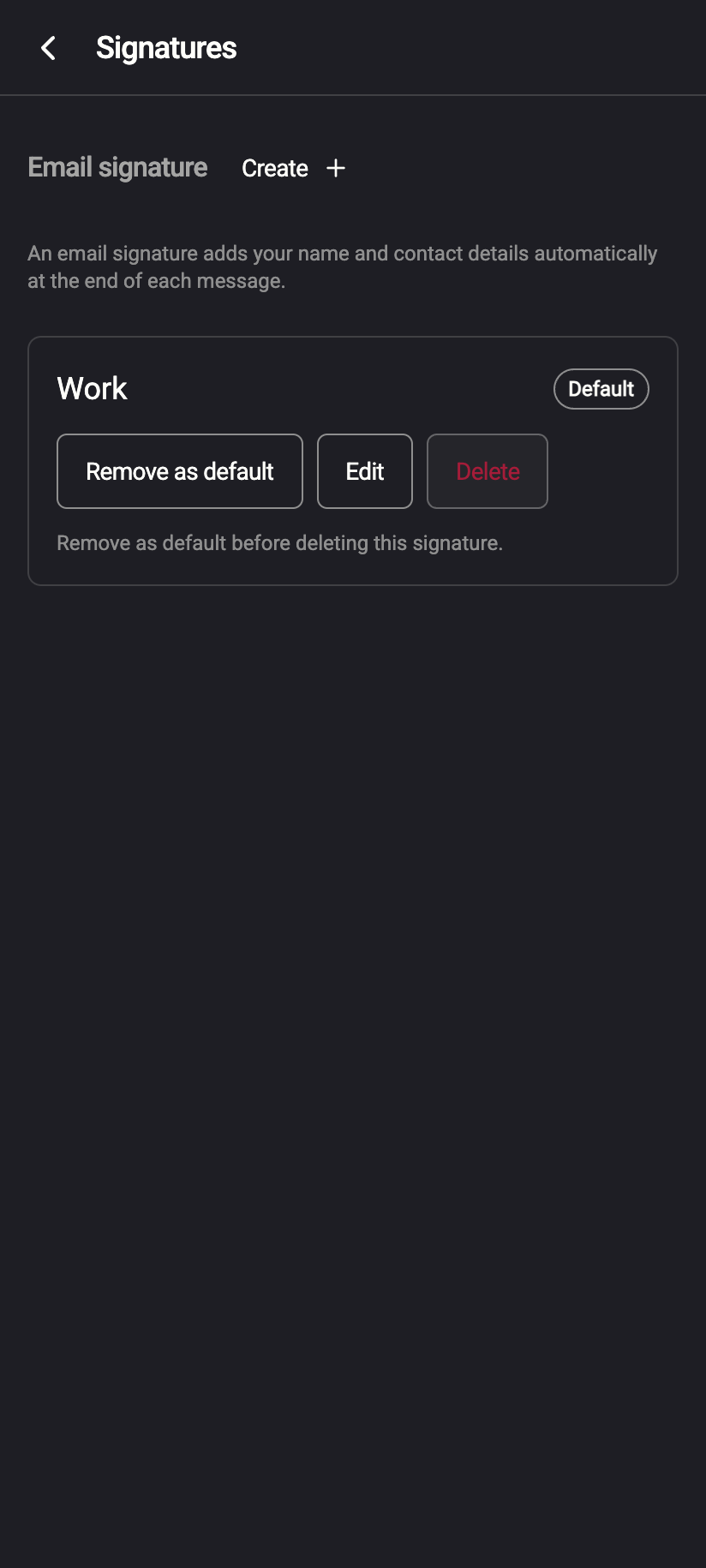 1234
12341Create2Set as default3Edit4DeleteiPhone 12341Create2Set as default3Edit4DeleteAndroid - Click Create. The New email signature dialog opens.
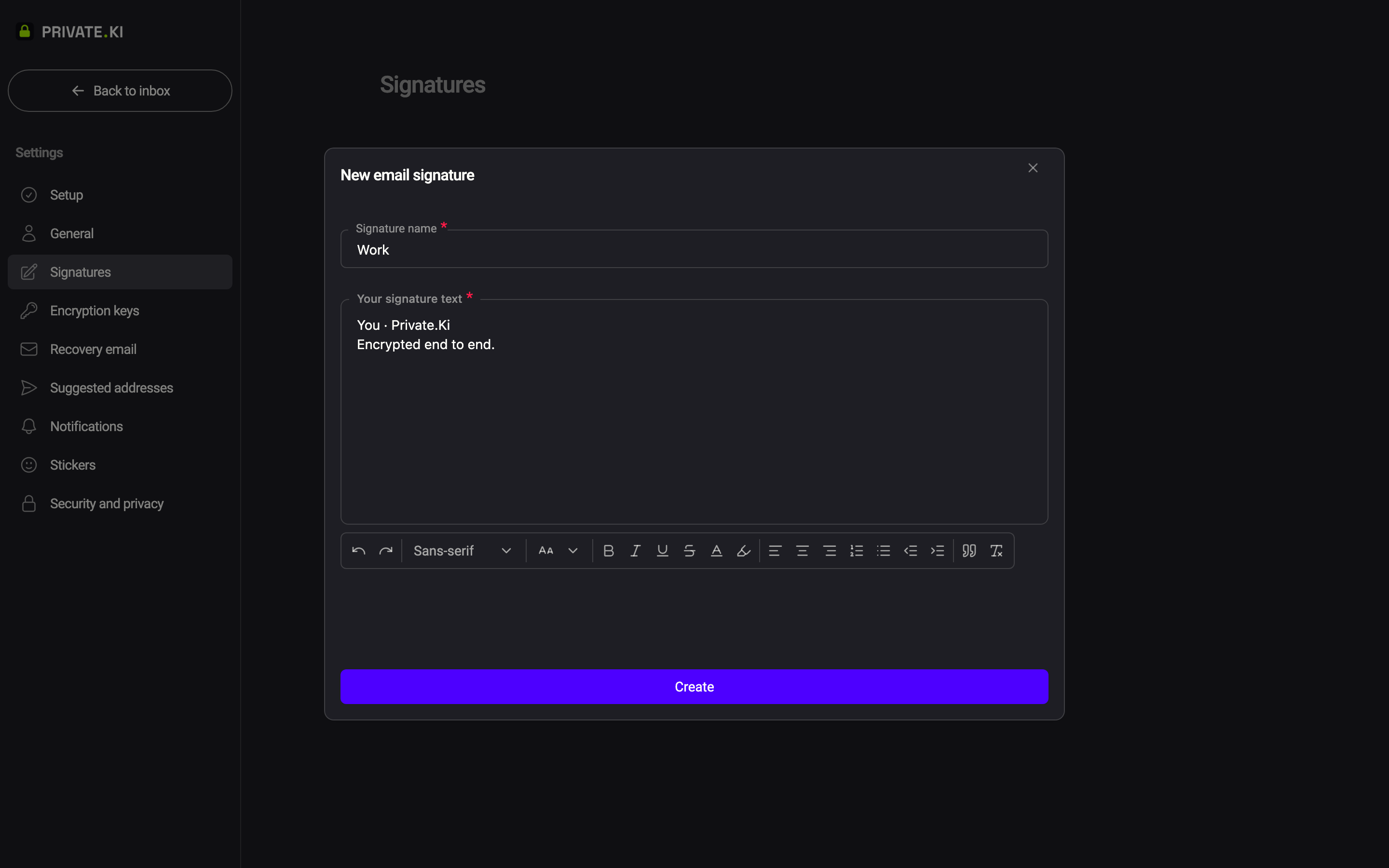
- Enter a Signature name (for your own reference — it is not sent) and write the signature under Your signature text. The formatting toolbar offers fonts, bold, colours and lists; links are stripped.
1Signature name2Your signature text3Formatting toolbar4CreateWeb & desktop 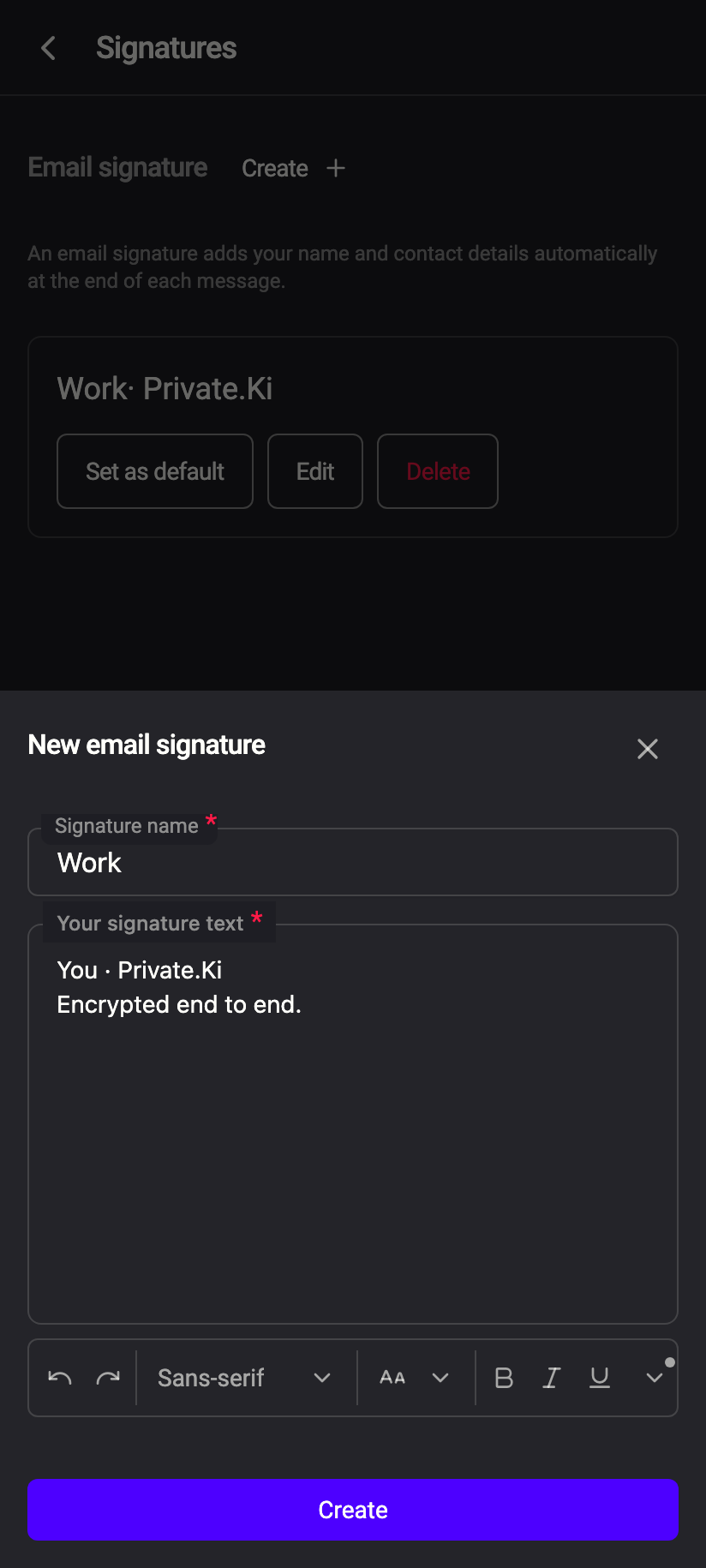 1234
12341Signature name2Your signature text3Formatting toolbar4CreateiPhone 12341Signature name2Your signature text3Formatting toolbar4CreateAndroid - Click Create. The signature appears in the list; turn on its switch to make it the default (next section).
When you reach ten, the button is replaced by Limit reached. 10 signatures maximum. Delete one to make room.
Choose the default
On the Signatures page each row has a switch. Turn it on for the signature you want in new messages; the previous default turns off, since only one can be the default at a time. Turn the switch off to have no signature inserted at all.
Signatures are cards. The default one carries a Default badge; tap Set as default on another card to switch, or Remove as default to have none.
How the signature appears in a message
The composer inserts the default signature when the message is created:
- New message: two blank lines, a line containing
--, then your signature. The--separator is the email convention that lets mail clients recognise (and, when quoting, trim) a signature. - Reply and forward: the signature is placed after the quoted message, so your text goes above the quote and the signature closes the mail.
The signature is ordinary text in the body: you can edit or delete it in any message, and changing a signature later does not alter messages already written or sent.
Edit or delete
| Action | Desktop | Phone |
|---|---|---|
| Edit | pencil icon on the row → Email signature dialog → Save | Edit on the card |
| Delete | trash icon on the row | Delete on the card |
Deleting asks Are you absolutely sure? — Signature called: "Name" will be permanently deleted. This action cannot be undone. Confirm with Delete.
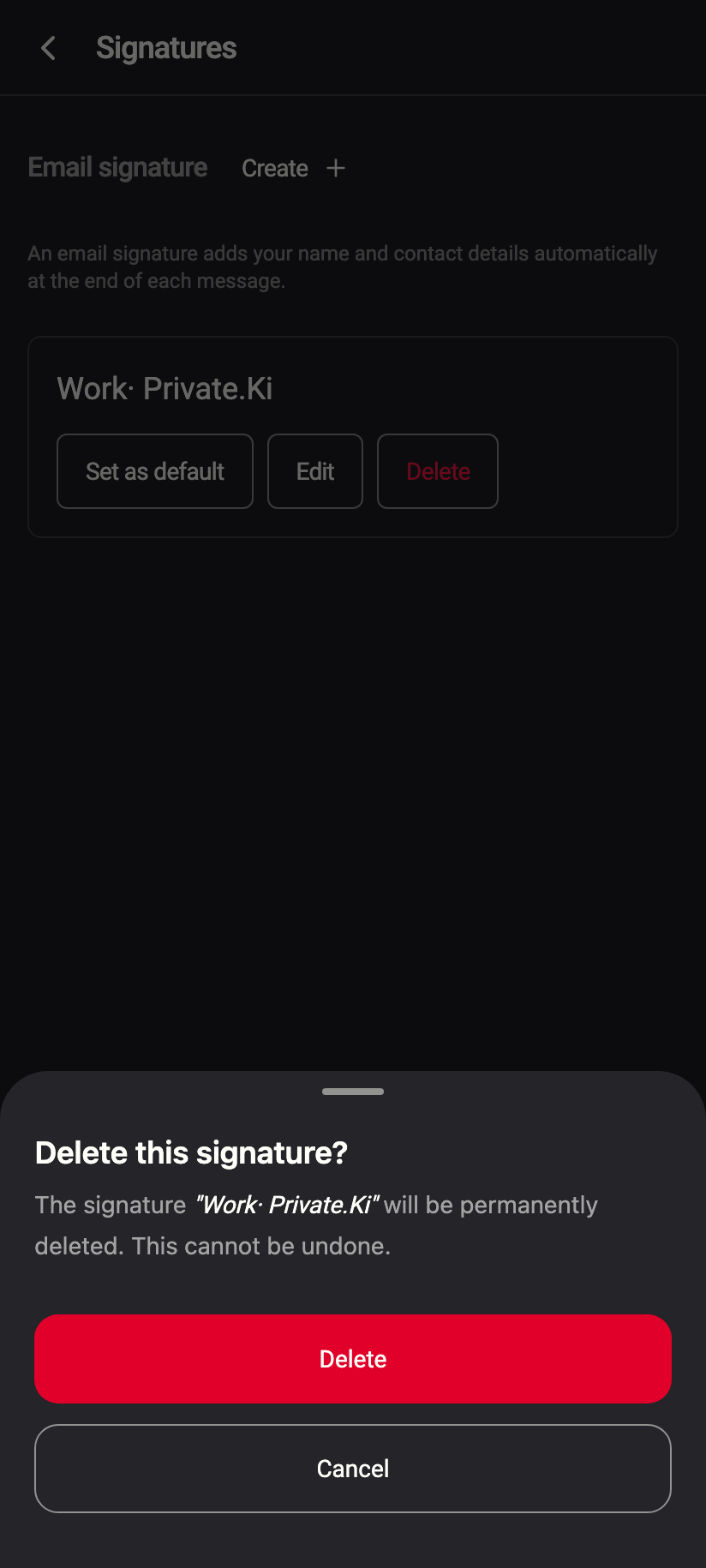
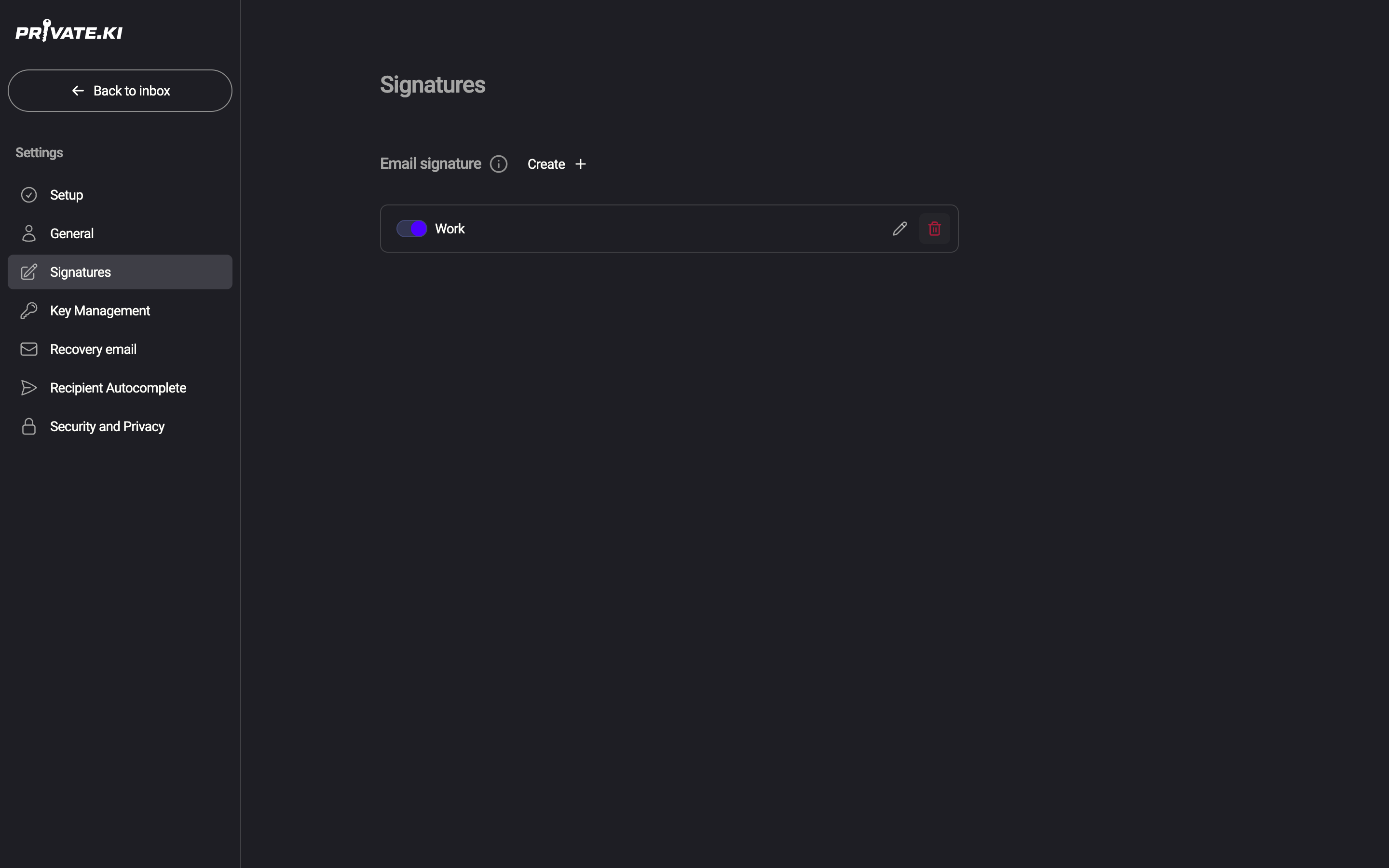
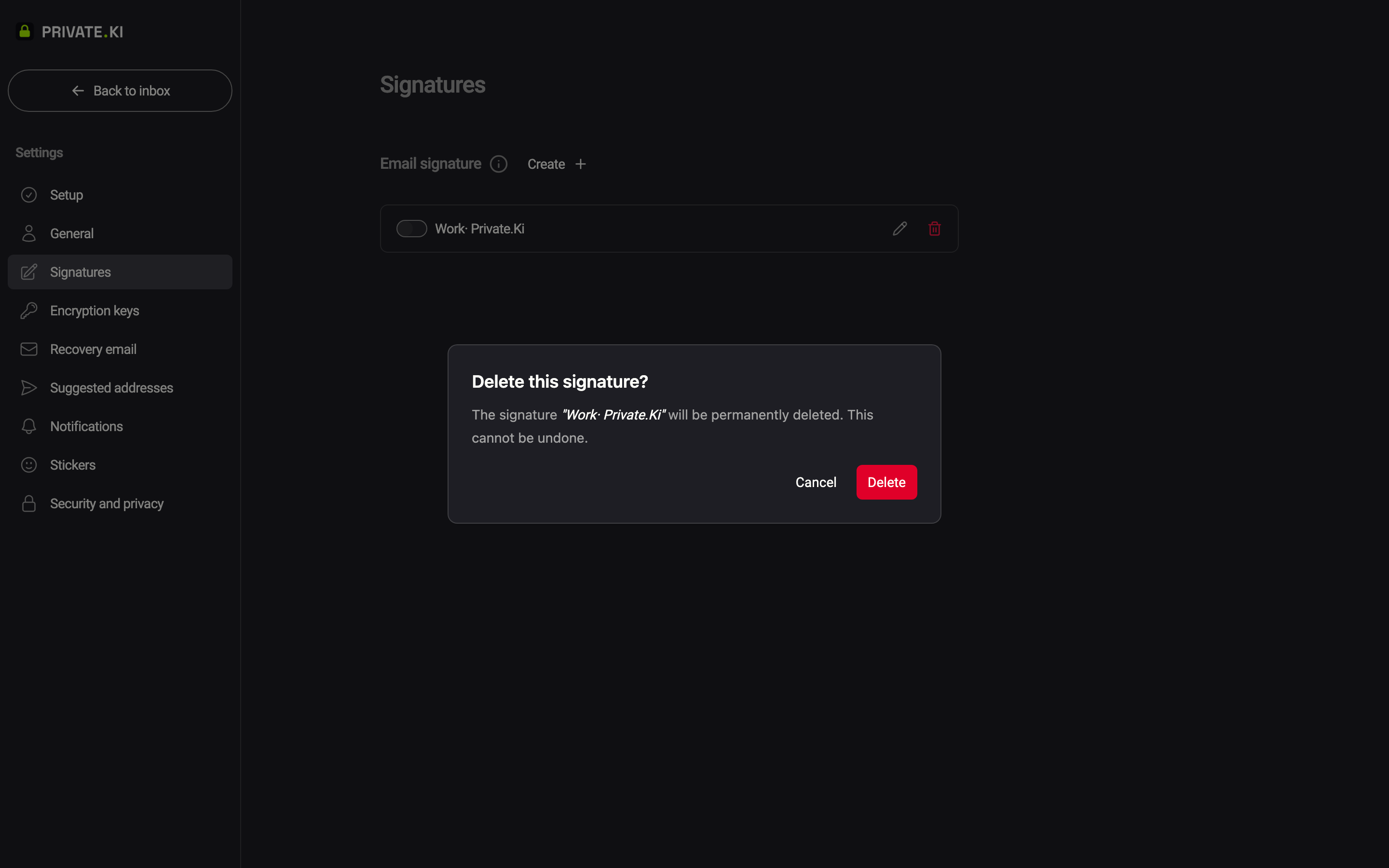
The trash icon is disabled on the current default (Remove as default before deleting this signature. on the phone). Make another signature the default, or switch the default off, and then delete.
To leave the editor without keeping your changes, click Discard changes.
How signatures are stored
The signature text is AES-encrypted on your device before it is saved, with a key that only exists after you have unlocked the app. The server stores the name-tagged ciphertext, which signature is the default and when it changed; it cannot read the text. Because the key comes from your master key, the same signatures are available on every device where you unlock your account.
Common questions
Can I put an image or logo in the signature?
The signature editor has no image button. Text formatting, colours and lists are available.
Can I add a link to my website?
Links are removed from signatures when you save. Write the address as plain text.
I changed the default but the composer still shows the old one.
Windows that were already open keep the signature they were created with. Close and reopen the composer.
Do signatures apply to chat?
No. Signatures are inserted only in email.