Drag emails between folders
In a desktop browser you can drag one conversation — or a selection — onto a folder in the sidebar. Which folders light up, what happens on drop, and undo.
On a desktop browser the folder list is always visible, so the quickest way to file mail is to drag it there. Drag-and-drop is available only in the wide layout (a window wider than about 750 px); on a phone the same moves are made from the row's long-press menu, where Move to lists every folder — see Bulk selection, and what a swipe does now. A sideways drag on a phone list switches workspace and never files anything.
Drag a conversation
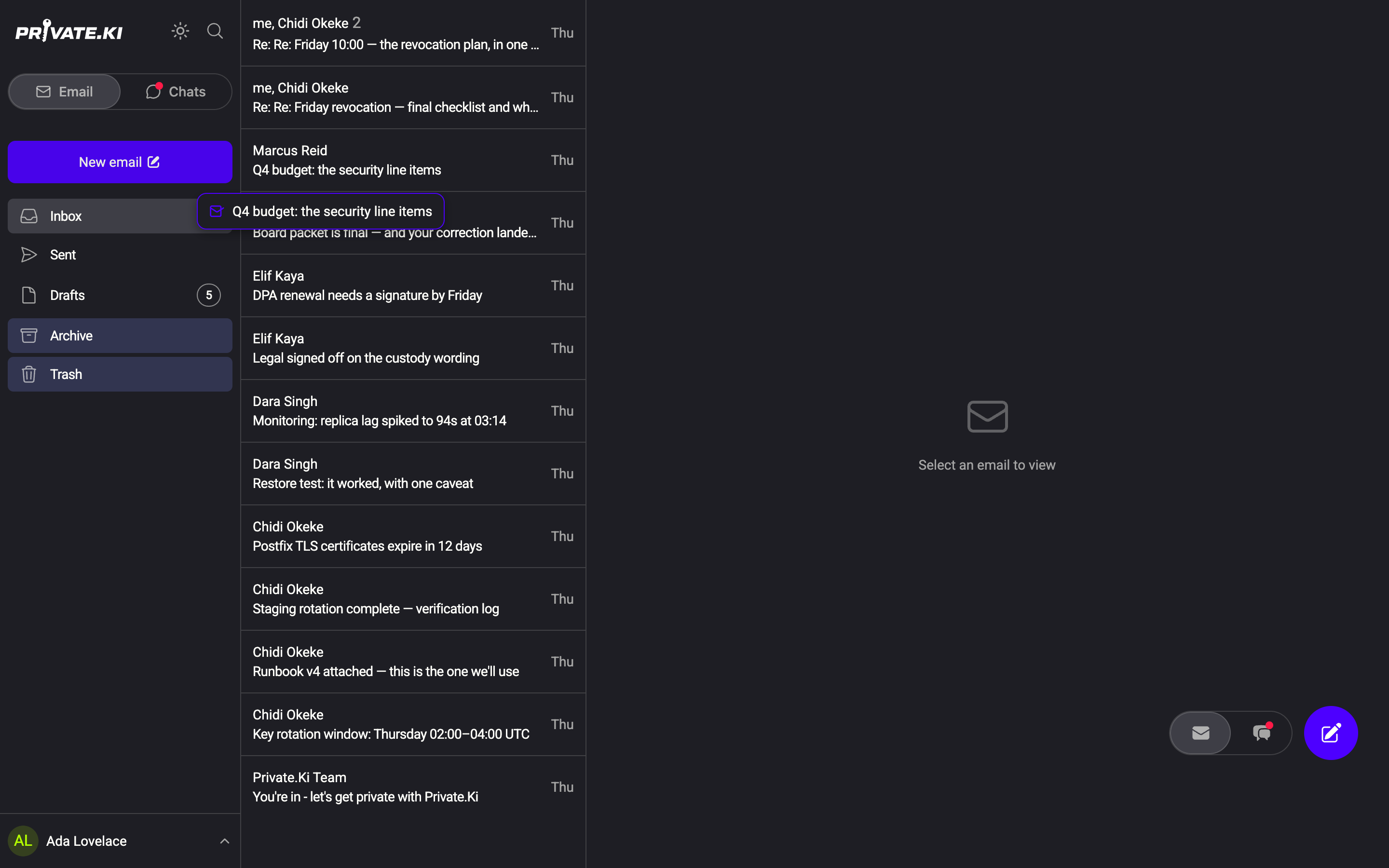
- Press and move. Click a row with the left mouse button and move the pointer a few pixels. A small preview with the subject follows the pointer, and the folders you may drop on are tinted in the sidebar.
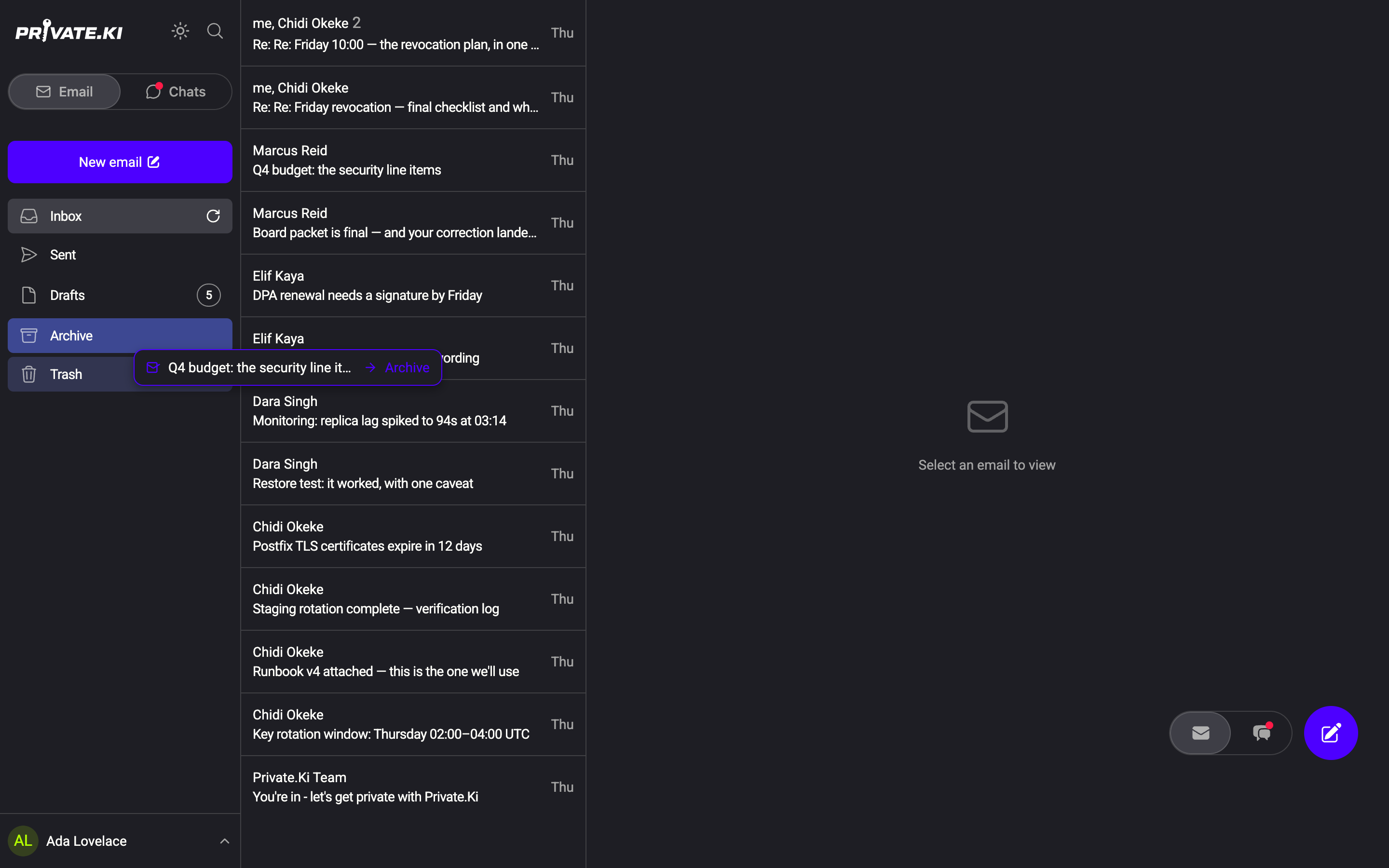
1Preview under the pointer2Archive — accepts the drop3Trash — accepts the dropWeb & desktop - Drop on a folder. The folder under the pointer highlights more strongly. Release to move. A toast confirms Conversation moved to Archive (or the folder you chose).
1Archive — highlighted2Preview names the destinationWeb & desktop - Change your mind mid-drag. Press Esc or release anywhere that is not a folder — nothing happens.
Rows that were dragged disappear from the list at once. If the server refuses the move, the rows come back and a toast says Could not move to … Nothing was changed.
Drag several at once
Tick the checkboxes that appear when you hover over rows (or hold Shift and click to select a range), then drag any ticked row. The whole selection travels together; the preview reads 3 conversations. The selection clears after the drop.
Where a conversation can go
Only sensible destinations accept a drop, and the others stay unlit:
- Archive and Trash take anything that is not already there.
- Inbox, Sent and Drafts only accept mail that belongs there by nature — dropping an archived received message on Inbox puts it back in Inbox; dropping it on Sent is refused. A mixed selection of received and sent mail can therefore only go to Archive or Trash.
- Dropping on the folder you are looking at does nothing.
Chats are not mail and cannot be dragged.
Undo a drop
There is no undo toast for a drag. Open the folder you dropped on, right-click the conversation and choose Restore (from Archive or Trash) or drag it back.
What our server sees
Cannot see
- What the dragged conversations contain
Can see
- The folder change — the same request the row menu's Archive or Move to trash sends
Common questions
Nothing happens when I drag
Check that the window is wide enough to show the folder list permanently. If the sidebar opens as an overlay from the ☰ button, you are in the compact layout, where dragging is not offered — use the row menu's Move to instead.
Can I drag with a touch screen on a laptop or tablet browser?
Yes, in the wide layout: press and hold the row for a moment until the preview appears, then move. Moving before the preview appears scrolls the list instead.
Can I drag a message out of a conversation?
No. Dragging always moves the row — the whole conversation as it appears in that folder. To move a single message, open it and use its ⋮ menu.