Search your mail (subject and people — never the body)
Mail search runs on your device over subjects and participants. Why the body is not searchable, how to open search on each device, and how results appear.
Search finds mail by subject and by who was involved — sender, To, Cc and Bcc, by name or address. It does not search message bodies or attachments, and it never will in its current form: bodies are encrypted with your key, decrypted only when you open a message, and there is no server-side index of what they say. Everything about search happens on your device. Your query is not sent anywhere — unless you deliberately save it, and then it is stored encrypted with your key (see Save a search).
Open search
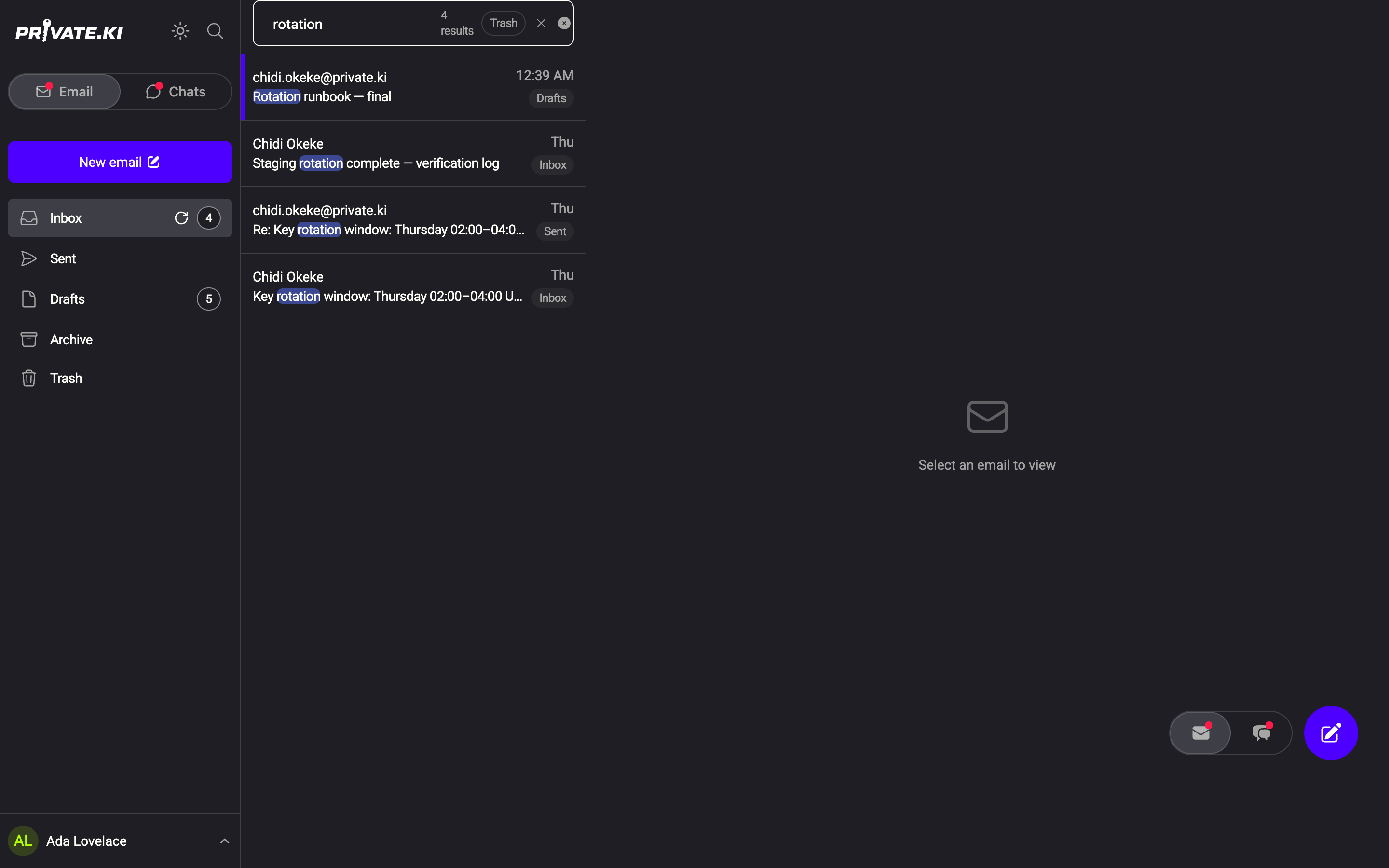
- Web: click the magnifying glass at the top of the sidebar, or press / or ⌘K (Ctrl+K on Windows and Linux). A field labelled Search mail by subject or people slides in above the list.
1Type here — subject or people2Trash chip3Result countWeb & desktop 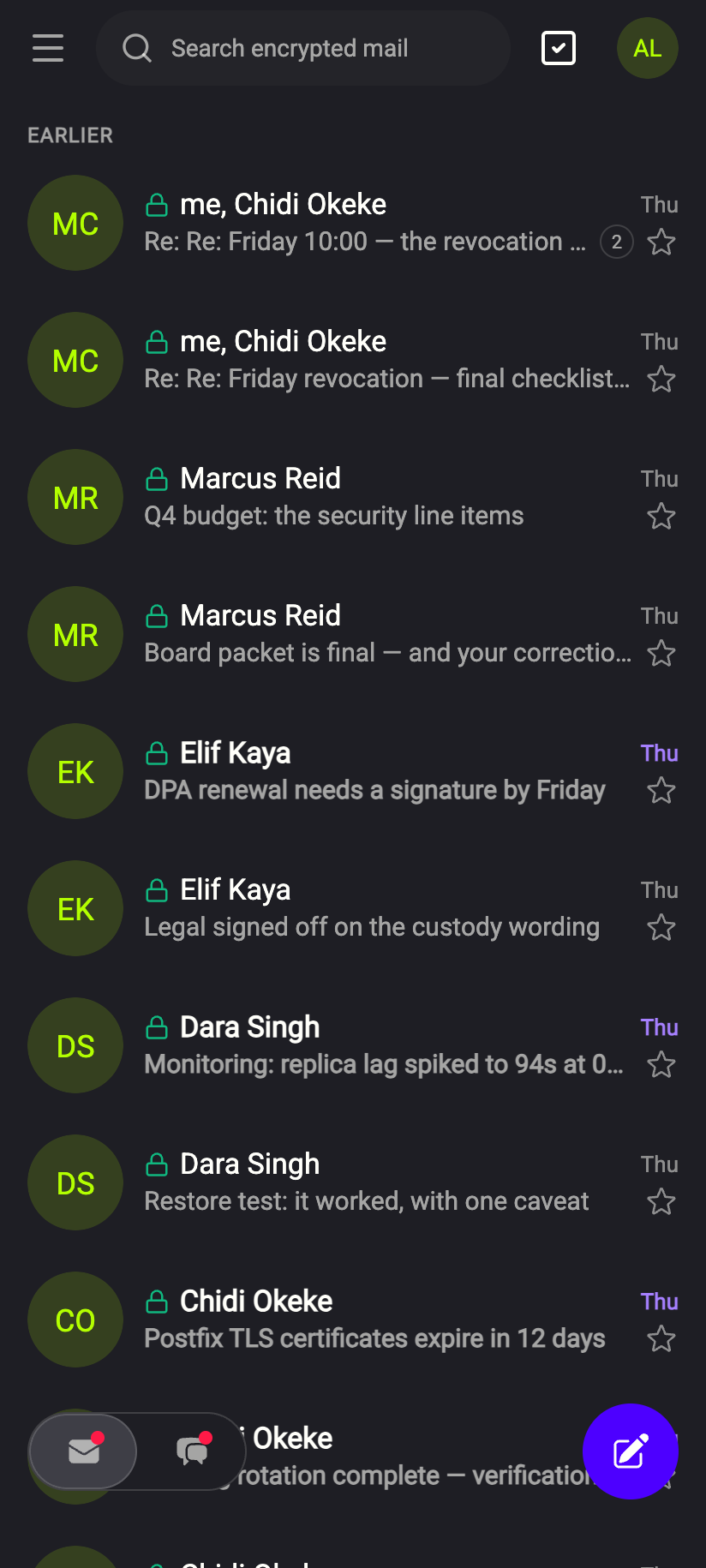 1
11Search encrypted mailiPhone 11Search encrypted mailAndroid - Type. Results replace the list as you type. Each result shows the correspondent, the subject with the matching words highlighted, the date and a chip naming the folder it lives in — results come from all folders at once.
1Matching words highlighted2Folder chipWeb & desktop 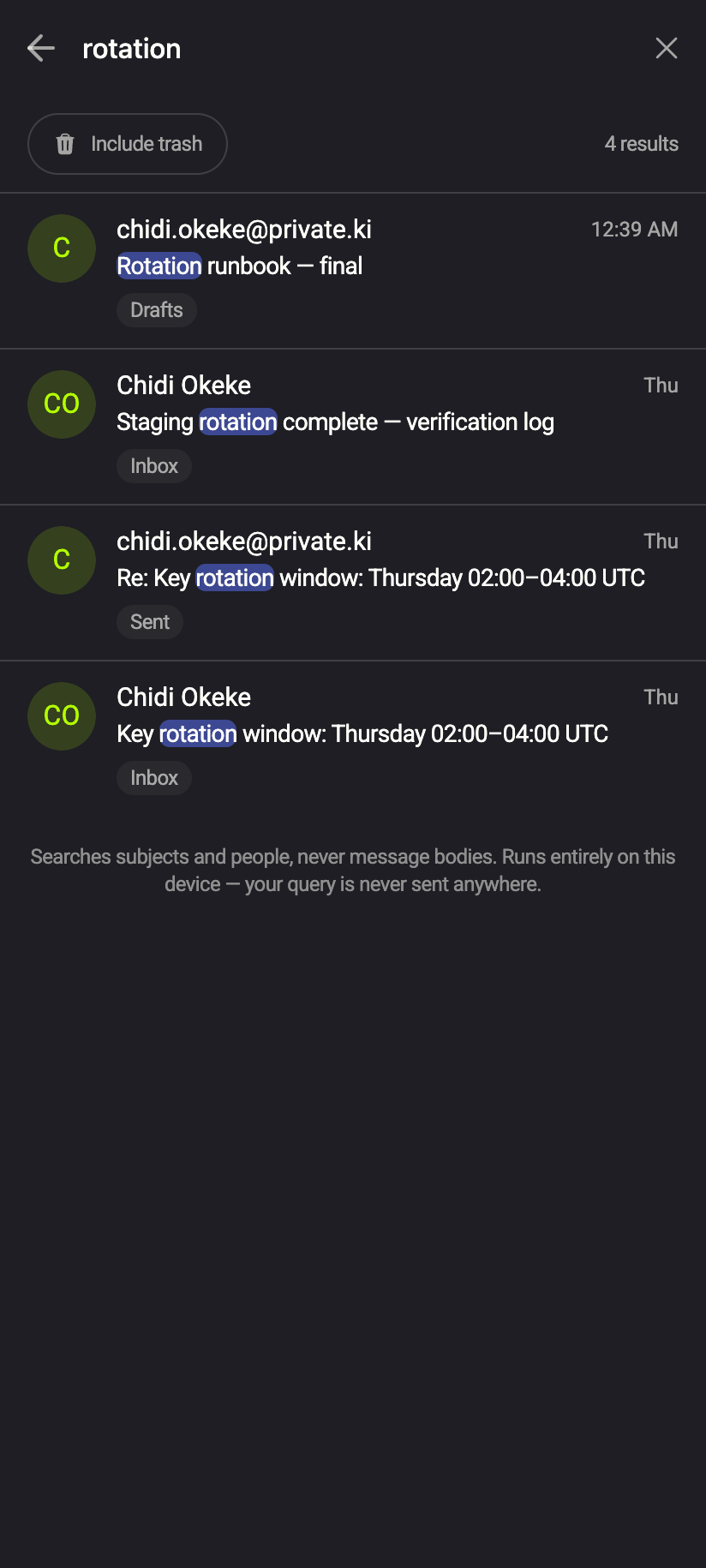 123
1231Include trash2Folder chip3The privacy noteiPhone 1231Include trash2Folder chip3The privacy noteAndroid - Include Trash if you need to. Trash is left out by default; click the Trash chip in the field to include it.
- Open a result by clicking it. Press Esc or click outside the field to leave search.
The search field sits in the bar above the list — Search encrypted mail. Tapping it opens a full-screen search with its own back arrow. Use the Include trash chip to widen the search, tap a result to open it, and the arrow or the Android back button to return to the results.
Save a search
While a query is typed, a Save chip sits beside the Trash chip. With a Plus subscription you can keep up to 10 named searches: they appear under SAVED SEARCHES in the sidebar and re-run with one click, and the chip reads Saved while the search in front of you is one of them. The chip is there on the free plan too, and pressing it opens the Plus panel instead of saving.
A saved search is the one part of search that is stored rather than computed: the name, the words and the Trash switch are encrypted with your key before they leave the device, so they sync between your devices and stay unreadable to us. See Saved searches.
How matching works
- Words are matched at the start of a word, so
invfinds invoice andsmithfinds[email protected]. Accents and case are ignored. - Several words must all match, in any order, in the subject or among the participants. Up to eight words are used.
- Results are one row per conversation per folder, ranked by how many words hit the subject, then by date. At most 100 are listed; the count in the field tells you the true total.
- Searching from Sent still finds mail from someone, because every participant is indexed regardless of which side the folder shows.
The index is built on your device
The first time you open search in a session, the app reads the headers of your mailbox and decrypts them locally, folder by folder. A thin progress bar and a notice tell you while this is still running, so a short result list is never silently incomplete. The index lives only in memory: it is dropped when you lock the app or sign out, and it is never written to disk or sent to the server.
What our server sees
Cannot see
- What you searched for — the query never leaves your device
- Subjects or names in clear — the server only holds them encrypted, and your device decrypts them to build the index
- The name or the words of a saved search — they are encrypted with your key before they are stored
Can see
- That your device fetched the header pages of your folders, which it does for the normal mail list anyway
Common questions
Why can't I search for a word that is in the message text?
Because the text is encrypted and is only decrypted when you open that message. Indexing every body would mean decrypting your whole mailbox on every device, and storing the result somewhere — we chose not to. Search by subject or by the person instead.
What can I type into the search field?
Words from the subject, or a person's name or address — sender, To, Cc or Bcc. The one filter is the Trash switch, which adds Trash to the folders searched.
Does search cover chats?
No. Mail search covers Inbox, Sent, Drafts, Archive and Trash. Chat search is not available.
Search shows fewer results than I expect
Check the notice above the results: the index may still be building. If a message is very old and its folder has not finished loading, it appears once indexing completes.