Folders: Inbox, Sent, Drafts, Notes, Archive, Trash
What each of the six built-in mail folders holds, what the counts next to them mean, how to move a conversation — and where your own folders fit in.
Private.Ki Mail has six built-in folders, and they are the same on the web, on iPhone and on Android: Inbox, Sent, Drafts, Notes, Archive and Trash. These six cannot be renamed, reordered or removed. Beside them you can make folders of your own, with names our server cannot read — see Your own mail folders. To find mail across all of them, use search.
What each folder holds
| Folder | What is in it |
|---|---|
| Inbox | Every message sent to you. The badge next to it is the number of unread conversations. |
| Sent | A copy of every message you sent. Stored encrypted so only you can read it — even when the message went to an external address without encryption. |
| Drafts | Messages you started and have not sent. Saved automatically; the badge is the number of drafts. Once a draft is sent it moves to Sent. |
| Notes | Pages you write for yourself. A note has no recipient and can never be sent — see Secure notes. |
| Archive | Conversations you want to keep but not see in Inbox or Sent. Nothing in Archive is ever deleted automatically. |
| Trash | Conversations you deleted. They stay here until you delete them permanently or empty the folder — there is no automatic clean-up. |
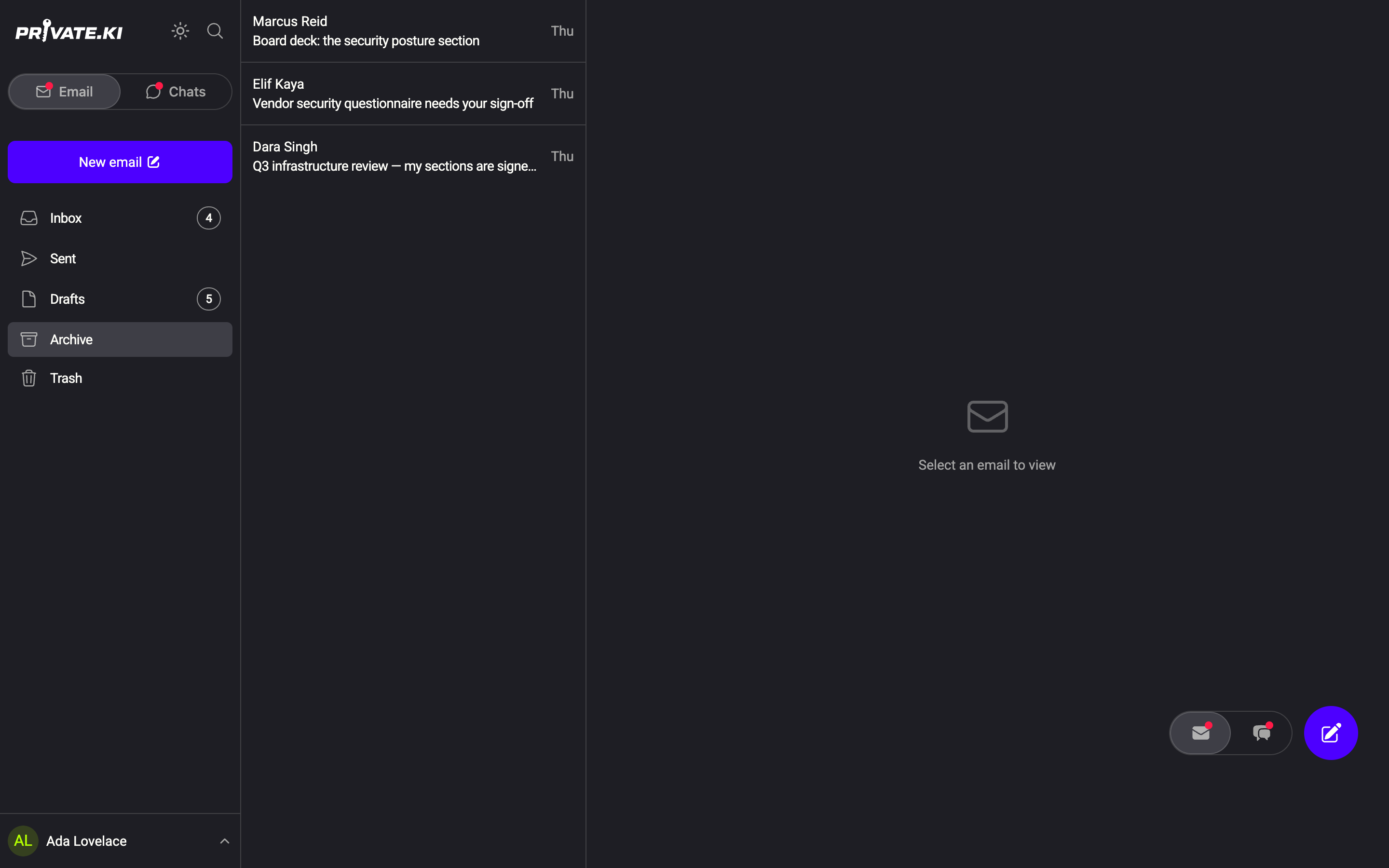
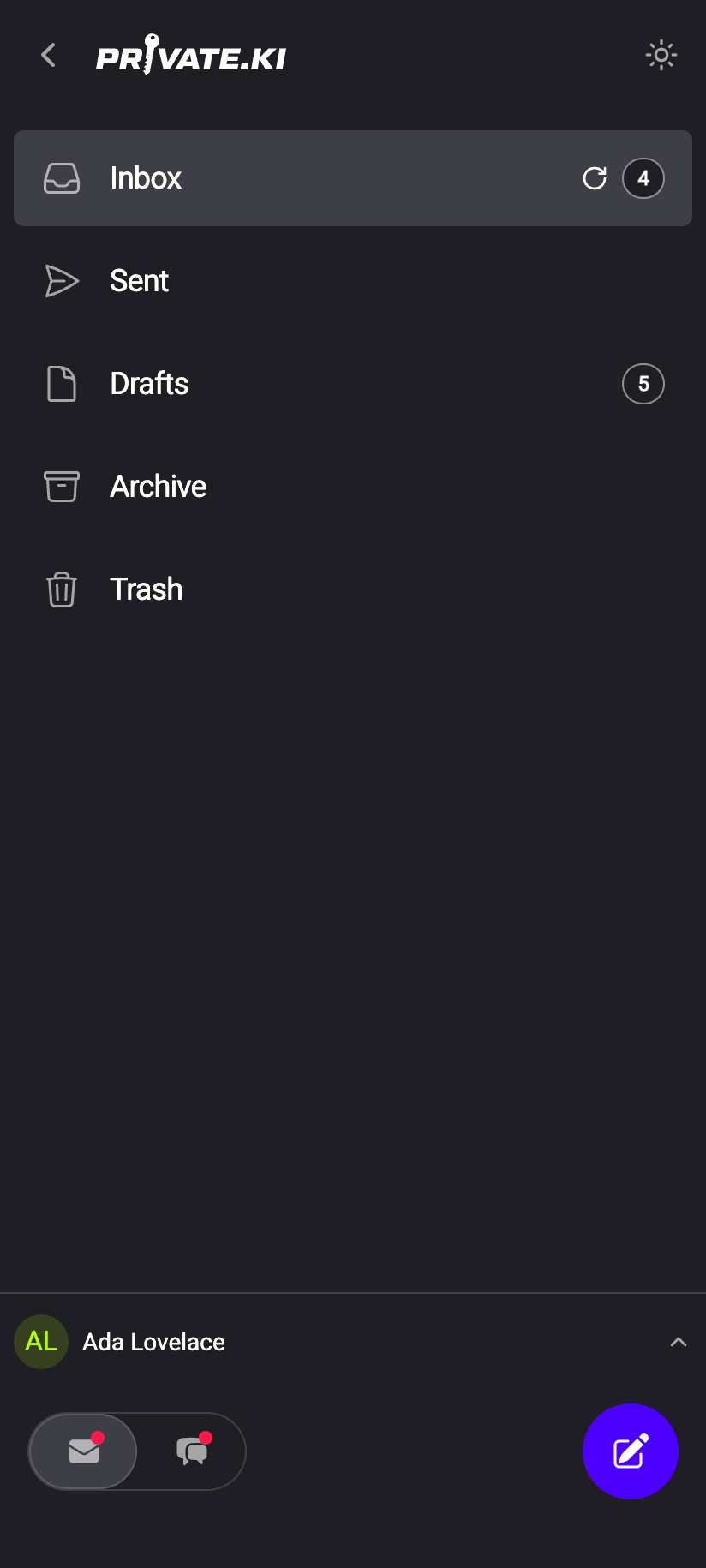 12341234
Inbox, Sent, Drafts and Notes are decided by what a message is — received, sent, unsent, or a note. Archive, Trash and a folder of your own are places you put a conversation, and they are exclusive: a conversation is in exactly one of them at a time. That is also why restoring something from Archive or Trash sends it back to the folder it came from: a received message goes back to Inbox, a sent one back to Sent.
Move a conversation
The row menu offers the same moves everywhere; only how you open it differs.
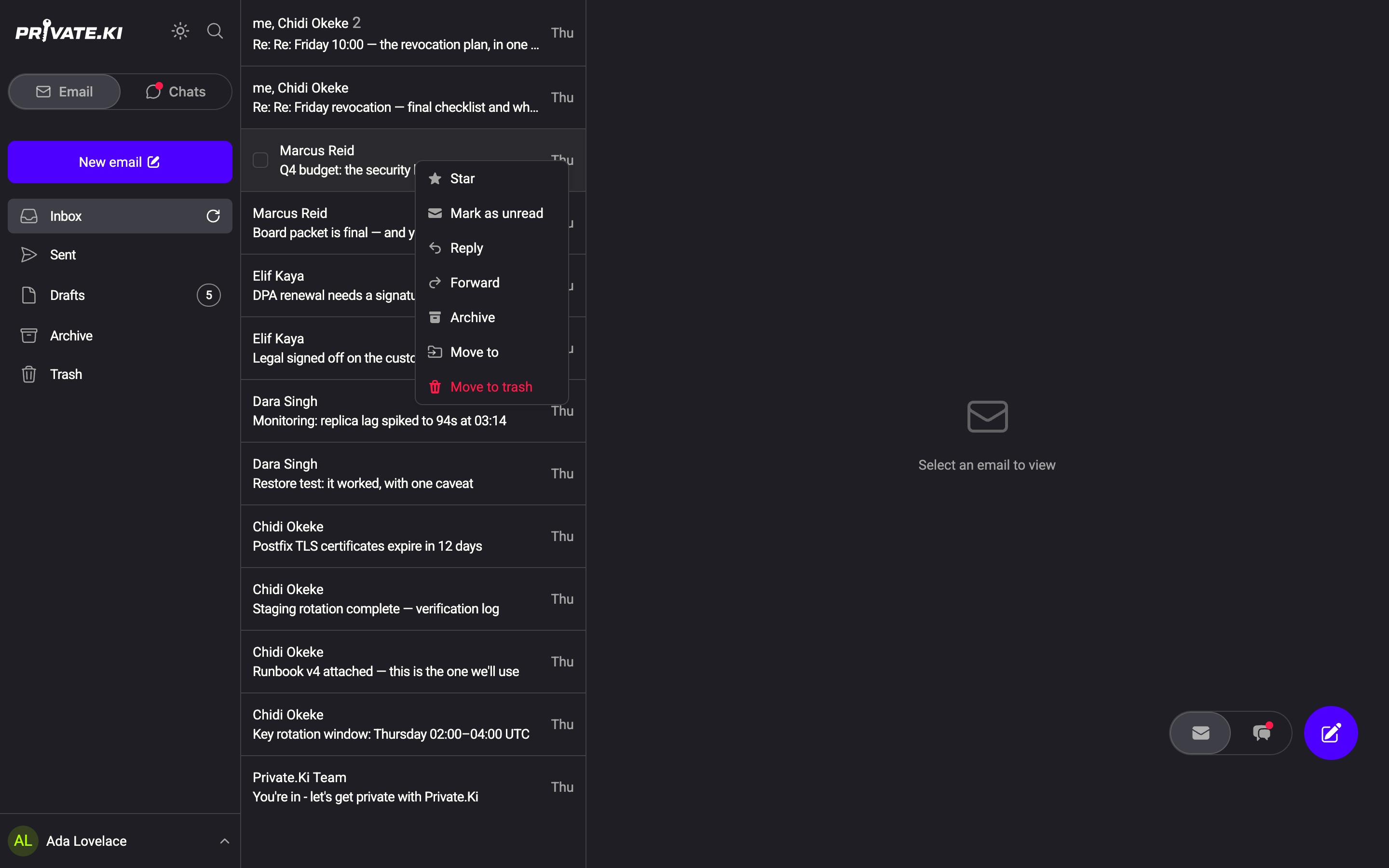
- Open the row menu. On the web, right-click the conversation in the list. On the phone, press and hold it.
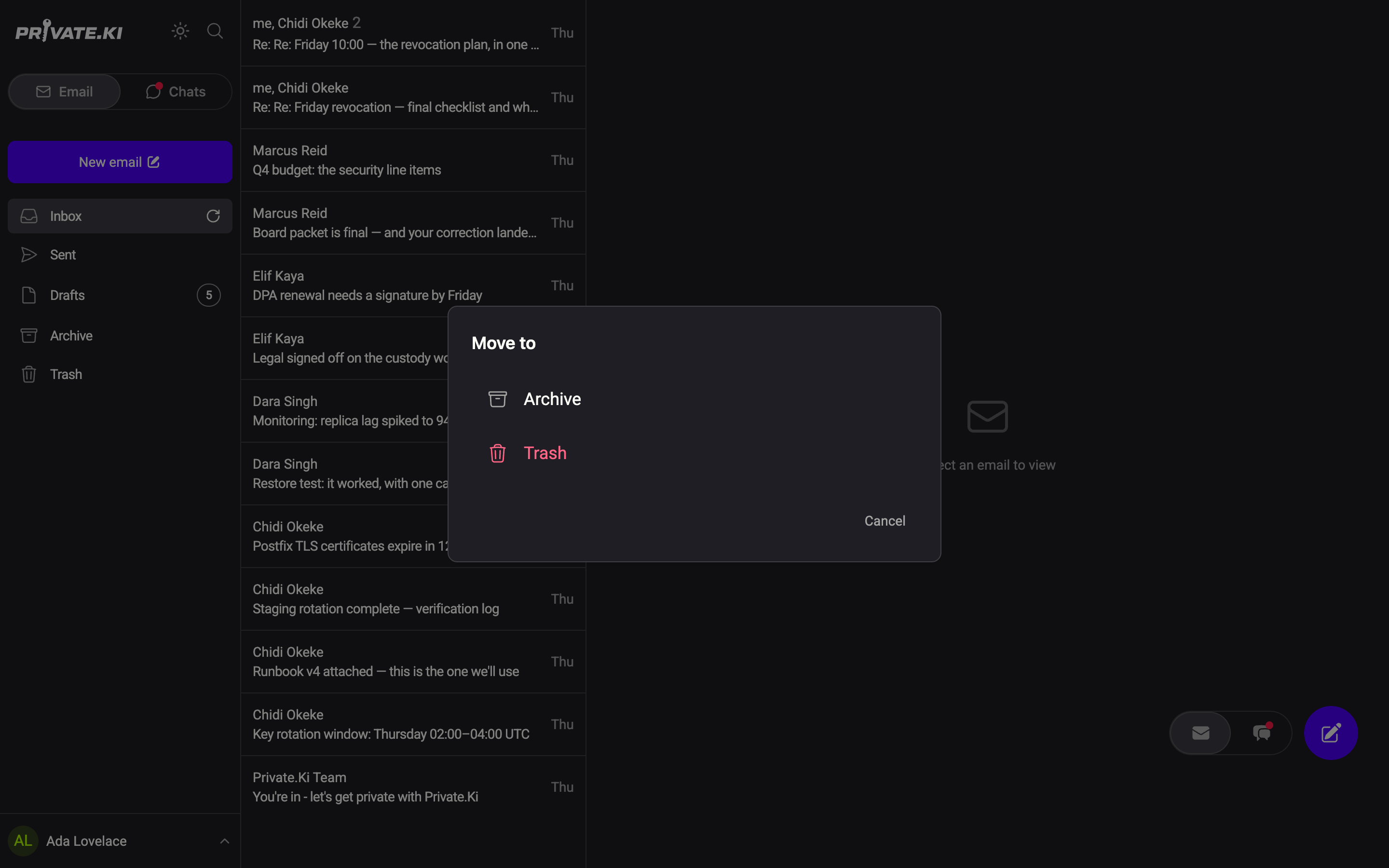
1Archive2Move to3Move to trashWeb & desktop - Choose a destination: Archive, Move to trash, or Move to for the full list of places the conversation may go to — Archive, Trash and any folder you have made. The list only shows destinations that make sense — a conversation already in Archive is not offered Archive again.
1Archive2Trash3CancelWeb & desktop - The row leaves the list at once. To put it back, open the row menu in Archive or Trash and choose Restore.
You can also archive or delete a single message inside a conversation: open the message, click its ⋮ menu below the body and choose Archive message or Delete. To act on the whole conversation from the reading pane, use the ⋮ menu at the top right — Archive thread, Delete thread or Restore thread.
On a desktop browser you can also drag one or more rows onto a folder in the sidebar. See Drag emails between folders.
Open the folder list with the menu ☰ at the top left. The Move to entry in the long-press menu is the way to reach Archive, Trash and your own folders — see Bulk selection, and what a swipe does now for acting on several conversations at once. Inside a conversation, the archive and trash icons at the top of the screen act on the whole thread.
What the counts mean
Only two of the built-in folders show a number. Next to Inbox it is the count of unread conversations; next to Drafts it is the number of drafts. Sent, Notes, Archive and Trash show no count. A small number inside a row (for example 2) is the number of messages in that conversation, not an unread count.
What our server sees
Cannot see
- The subject, body or attachments of anything you file — all of it is encrypted
- The name of any folder you made yourself — it is encrypted on your device
Can see
- Which folder each conversation is in — the server needs this to list the right folder
- When a conversation was archived, filed or moved to Trash
Common questions
Can I create my own folders or labels?
Folders, yes — up to two levels, with names our server cannot read. See Your own mail folders. Labels and tags do not exist: a conversation is in one place, not in several at once. Use stars to mark what matters and search to find mail by subject or person.
Is Archive safe for long-term storage?
Yes. Archived conversations are kept until you move or delete them, and they stay encrypted like everything else in your account.
A conversation appears in both Inbox and Sent
That is normal: a conversation you replied to has received messages (Inbox) and sent ones (Sent). Archiving or deleting the thread from either folder moves all of it.
Where is the Spam folder?
There is none. See How to avoid spam.