Skip to content
Products
Encrypted Email Messenger Group Chat For teams
Security
How encryption works What our servers can and cannot see Account security Private.Ki over Tor Private.Ki and VPNs
Company
Pricing About Careers Statement Help center Contact
Language
EnglishEN DeutschDE · soon EspañolES · soon FrançaisFR · soon
Create a free account Sign in
For companies and teams

Encrypted mail and messenger for the whole organisation

Every message your organisation sends inside Private.Ki — every mail, every chat, every group — is fully encrypted on the sender's device, and nobody can read it: not us, not the hosting provider, not anyone. There is no way to send an unencrypted message inside Private.Ki. One address per person, mail and messenger in one app, keys that never leave the device.

Encryption first. Everything between colleagues — mail with its subject and attachments, one‑to‑one chats, groups, reactions, voice messages — is encrypted on the device before it leaves and can be read only on the recipient's device. No one else can read it, including us. Mail to outside providers is encrypted when the recipient has a key and clearly flagged when it is not. How the encryption works →

100%
Of internal mail, chats and groups encrypted end to end
0
People who can read them — not us, not the hosting provider
0
Passwords we receive at sign‑in
7
Self‑destruct timers, 30 s to a month
3
Platforms: web, iOS, Android
How it fits a company

Every device holds its own key. The server holds ciphertext and a delivery log.

Each colleague signs up once and gets an address. Their key pair is created on their laptop or phone during signup; additional devices are paired by QR code and receive the key directly, not via us. Mail and chat between colleagues is encrypted to each recipient's key before it leaves the sender's device.

  • Inside the company — mail, chat and groups fully encrypted, subject included. Every group message is encrypted once per member, to that member's own key.
  • Partners on Private.Ki — the same encryption. People without an account come in by single‑use link or QR code.
  • Partners on other providers — encrypted when you have imported their PGP key; otherwise sent as ordinary mail and marked so.
  • On our side — ciphertext, public keys, and the routing metadata any mail provider needs: who wrote to whom, when, how large.

How the encryption works, in detail →

Finance [email protected] · laptop Key made here, never uploaded Sales [email protected] · phone Paired by QR · biometric lock Legal [email protected] · two devices TOTP two‑factor · lock screen Private.Ki server stores: ciphertext only sees: who → whom, when sizes · public keys no private keys no passphrases no passwords Client · guest Single‑use link or QR invite Own key on their device Partner · other provider PGP key imported by you Mail to them is encrypted Recipient without a key Sent as ordinary mail Flagged: not end‑to‑end end‑to‑end encrypted not end‑to‑end encrypted, flagged in the app

Green lines carry ciphertext that only the recipient's device can open. The amber line is ordinary internet mail, and the app says so on the message.

Encrypted mail for the company

A verdict on every message, so nobody has to guess

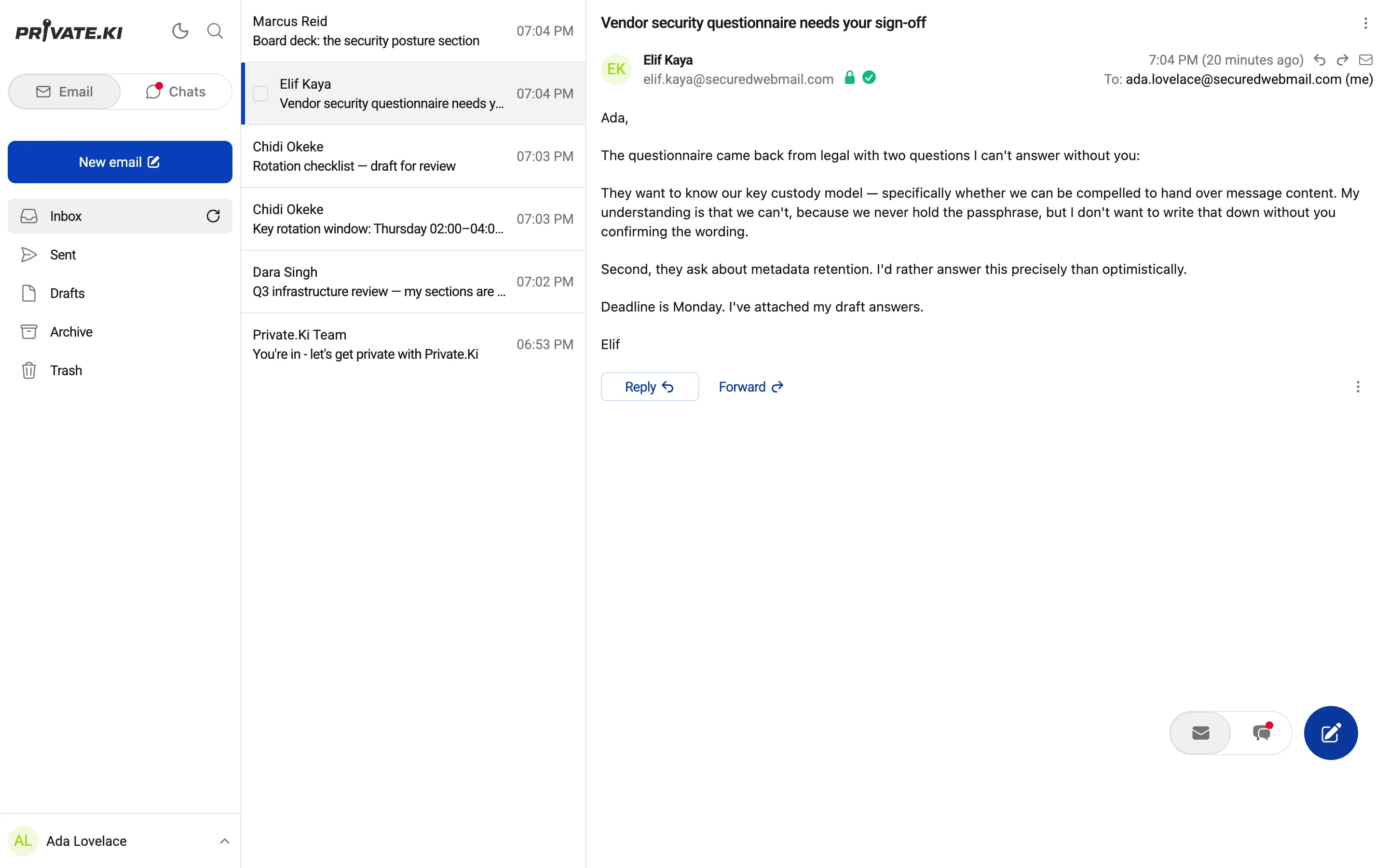
Internal mail is encrypted end to end, subject line included, and signed. Each message shows on its face whether it was encrypted to the reader's key and whether the signature verified — a padlock and a shield, checked on the device, not a policy page.
Everything about Encrypted Email →

An open message showing the encryption padlock and verified-signature shield
Detail — 3×
1Encrypted to the reader's keyThe padlock means the body was decrypted on this device. Between colleagues, the subject is encrypted as well.
2Signature verifiedThe shield appears only when the signature checks out against the sender's public key. A failed check turns red instead of disappearing.
3Replies stay encryptedEncrypt and Sign remain on in a reply, so a thread between colleagues cannot quietly turn into plain mail halfway down.
End‑to‑end Colleague to colleague Body, attachments and subject encrypted to the recipient's key on the sender's device. Signed. Stored as ciphertext. This is every message between two Private.Ki addresses.
PGP Partner with a public key Import their key once (Settings → Keys) and mail you send them is encrypted with it, even though they use another provider. Your own public key can be exported and sent to them.
Flagged Recipient without a key The padlock next to their address goes grey before you press send. The mail leaves as ordinary internet mail, and mail that arrives from outside is marked “not end‑to‑end encrypted” on the message.
Encrypt and Sign, visibleBoth switches sit under the body and are on by default. Nobody in the company needs to find a setting to send encrypted mail.
Import a partner's keyPaste the armoured public key of an external contact. From then on, mail to that address is encrypted.
Listed with its addressImported keys appear under your own. Each colleague manages their own list; there is no central key store on our server to compromise.
Messenger for the team

Chat and groups in the same app, encrypted once per person

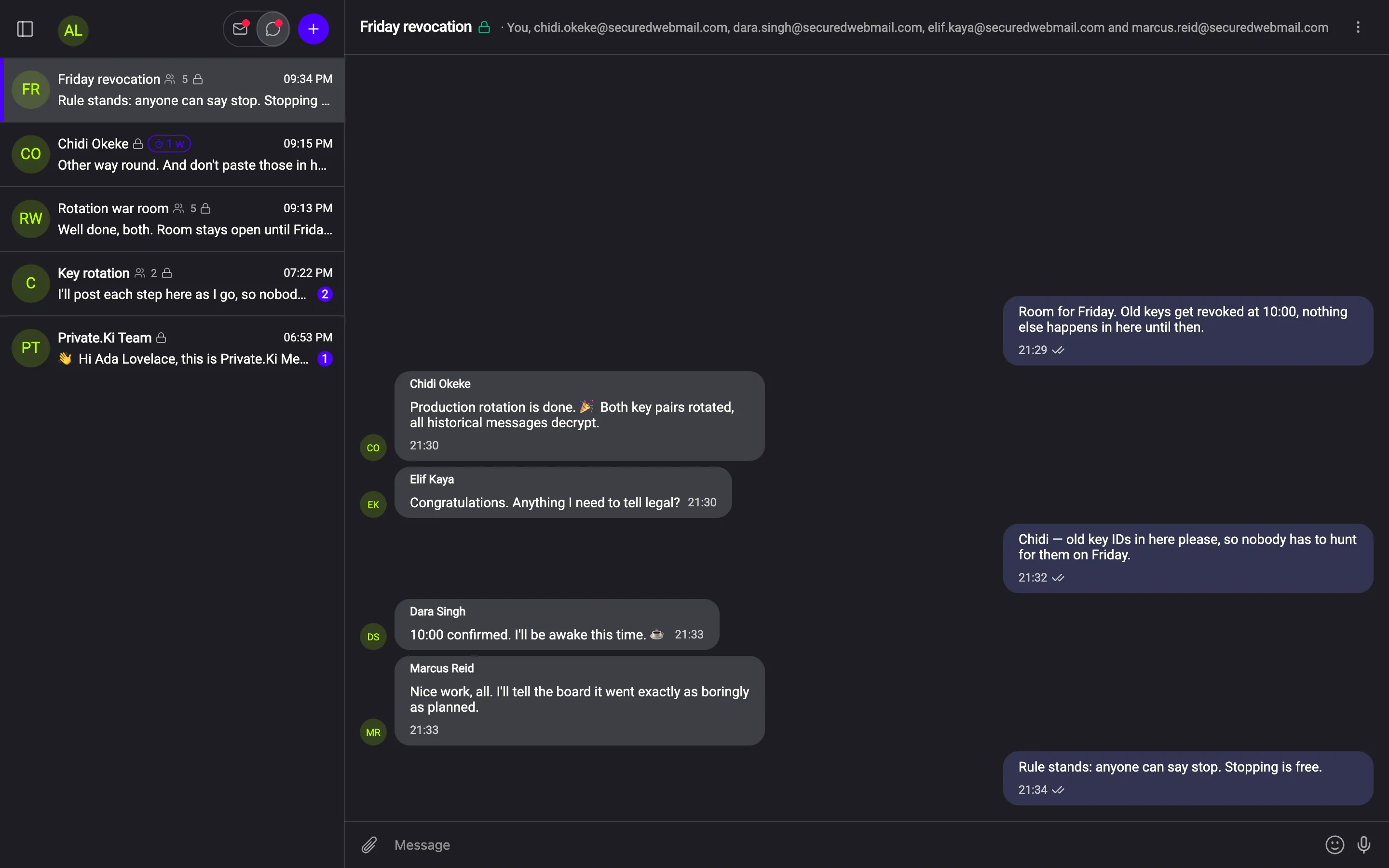
One‑to‑one chats and groups, fully encrypted, in the same account as the mail. Every group message is encrypted separately to each member's key, which is why a group can only hold people who already have one — and why nobody added later can read what was said before.
Everything about Group Chat →

A five-person encrypted group conversation
Detail — 2.6×
1Every member, namedThe header lists all recipients. There is no server‑side member list that could differ from what the sender's device encrypted to.
2Named, coloured sendersEach bubble here was encrypted five times, once to each member's key.
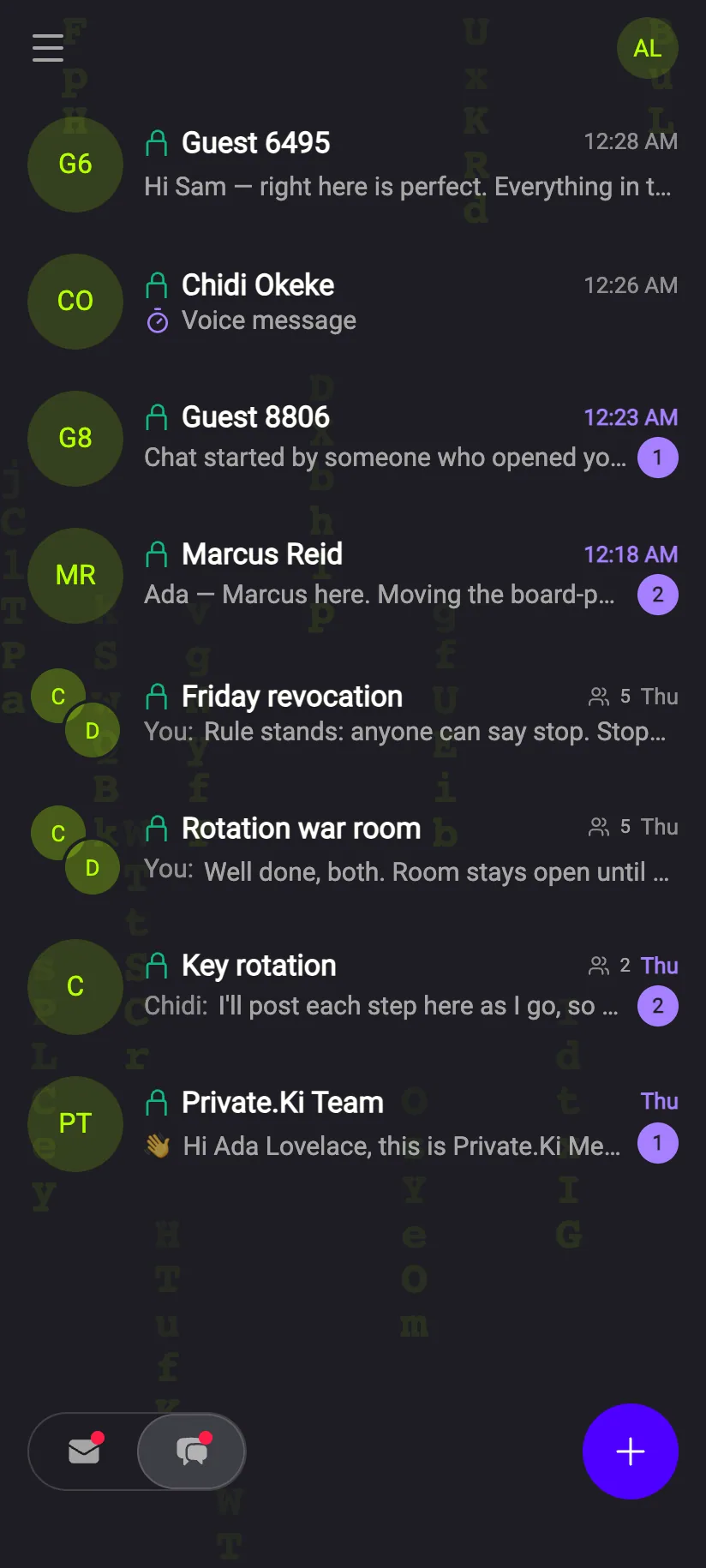
3Size and lock, up frontThe chat list shows the member count and a lock per row, so encryption state is visible before you open anything.
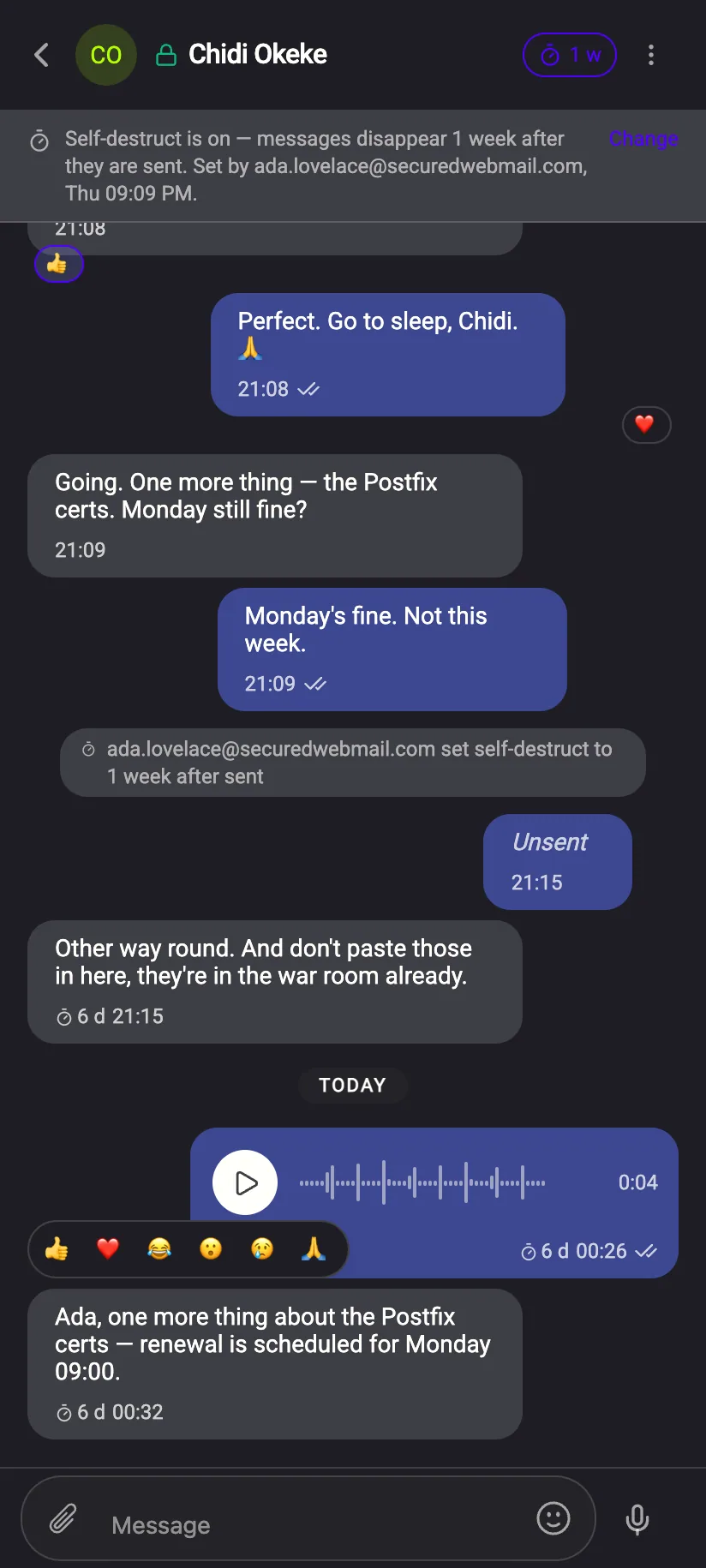
Self‑destruct per conversationAfter read or after sent; Off, 30 s up to 1 month. Either side can change it, and the change is announced in the chat.
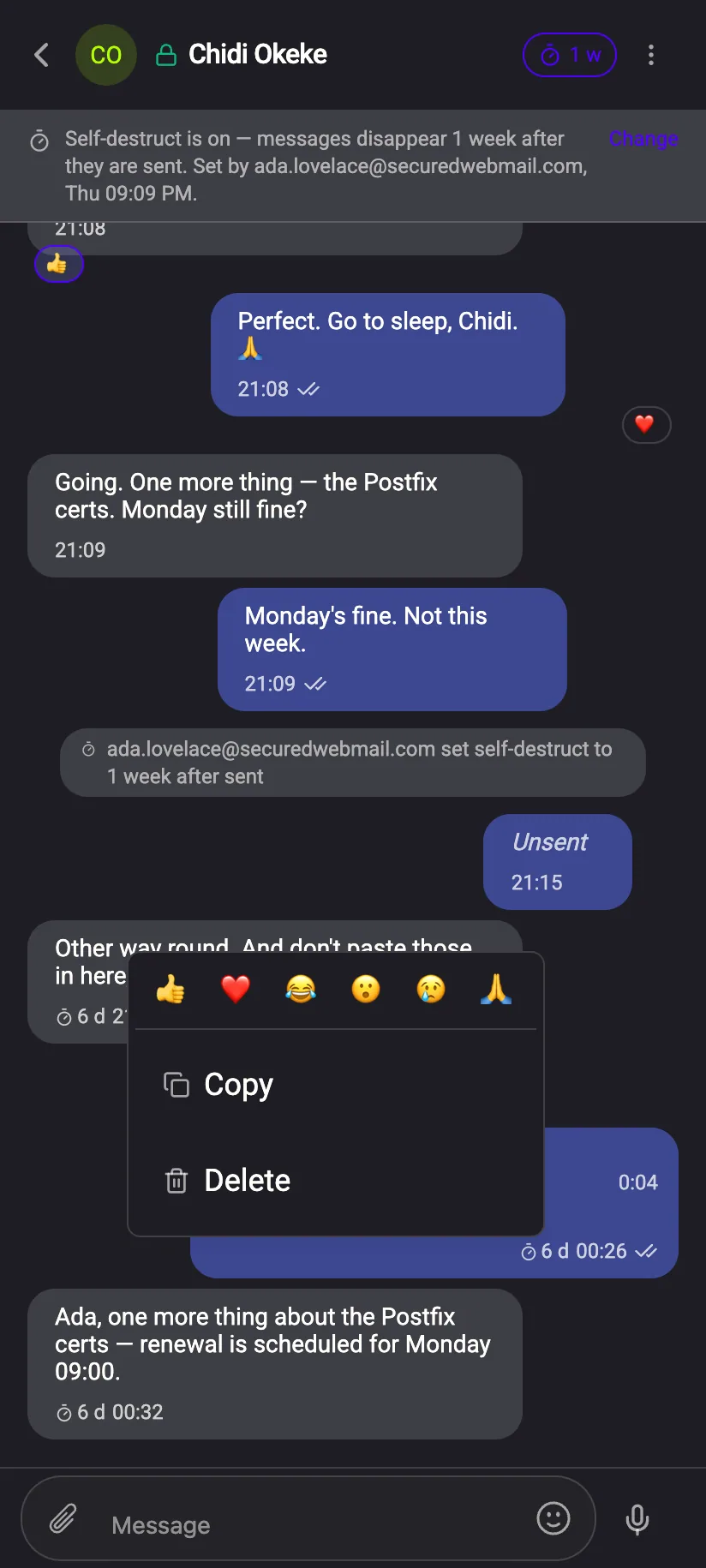
Unsend and reactionsYour own message in a one‑to‑one chat can be unsent within an hour. The six reactions share the menu and travel encrypted.
What the other side sees“Unsent” where the message was — not the text. The instruction to remove it is itself an encrypted message.
Voice messagesRecorded in the chat, sent as an encrypted attachment, played back on the recipient's device.
After readAfter sentSet per conversation · visible to both sides
Offdefault
30 s
1 min
10 min
1 h
1 day
1 week
1 month

Messages with a timer are removed from both devices when it runs out — not hidden on one. A shared policy that sets defaults for the whole organisation is part of the planned Teams tier; today each conversation is set by its participants.
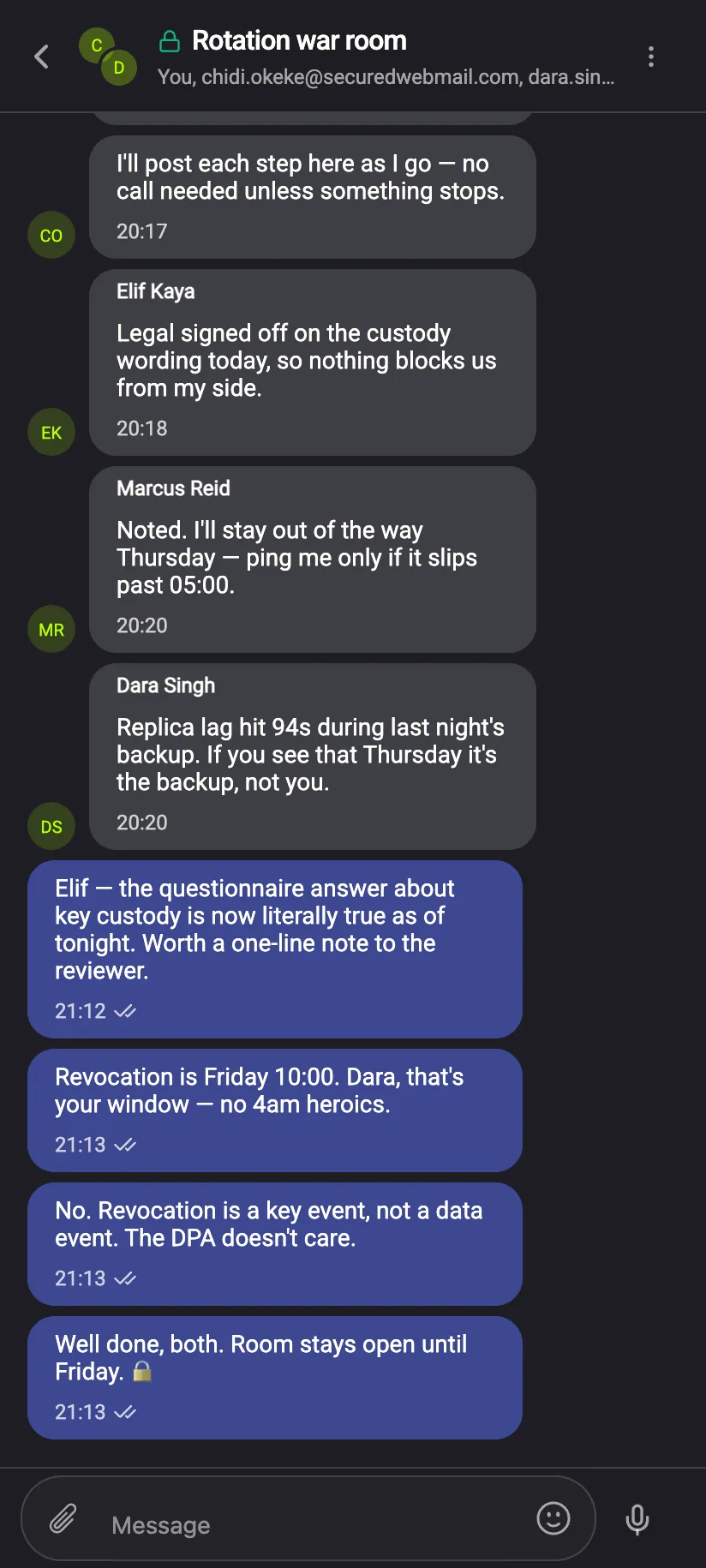
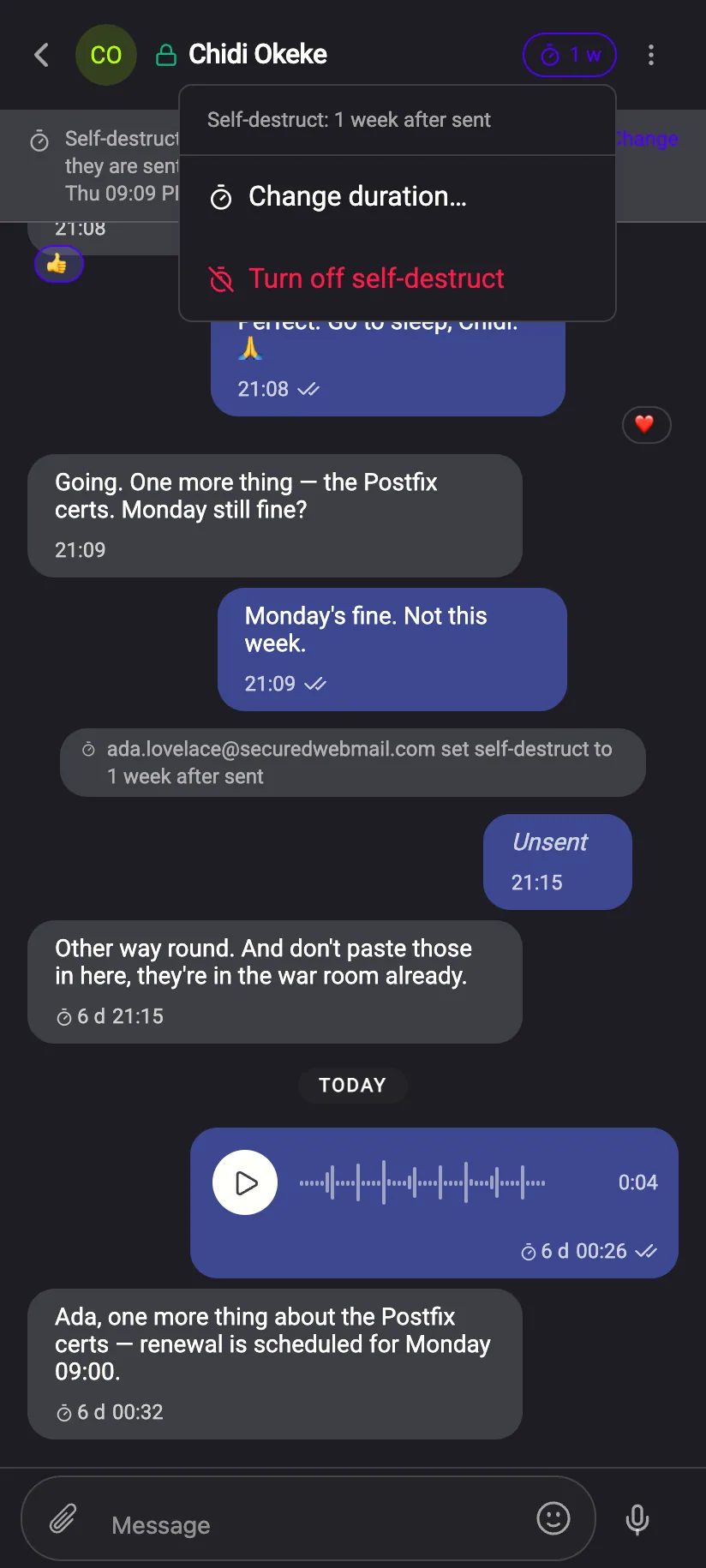
Phone: an encrypted group chat with named, coloured senders
A group on the phoneThe same group, decrypted with the same key on a paired device.
Phone: self-destruct picker with Off, 30 s, 1 min, 10 min, 1 h, 1 day, 1 week, 1 month
Timer pickerThe eight steps, counted after read or after sent.
Phone: long-press menu on a message with six reactions and Unsend
Long‑press menuSix reactions and Unsend, within the hour, on your own messages.
Clients, suppliers, counsel

Bring outside people into an encrypted chat with a single‑use link

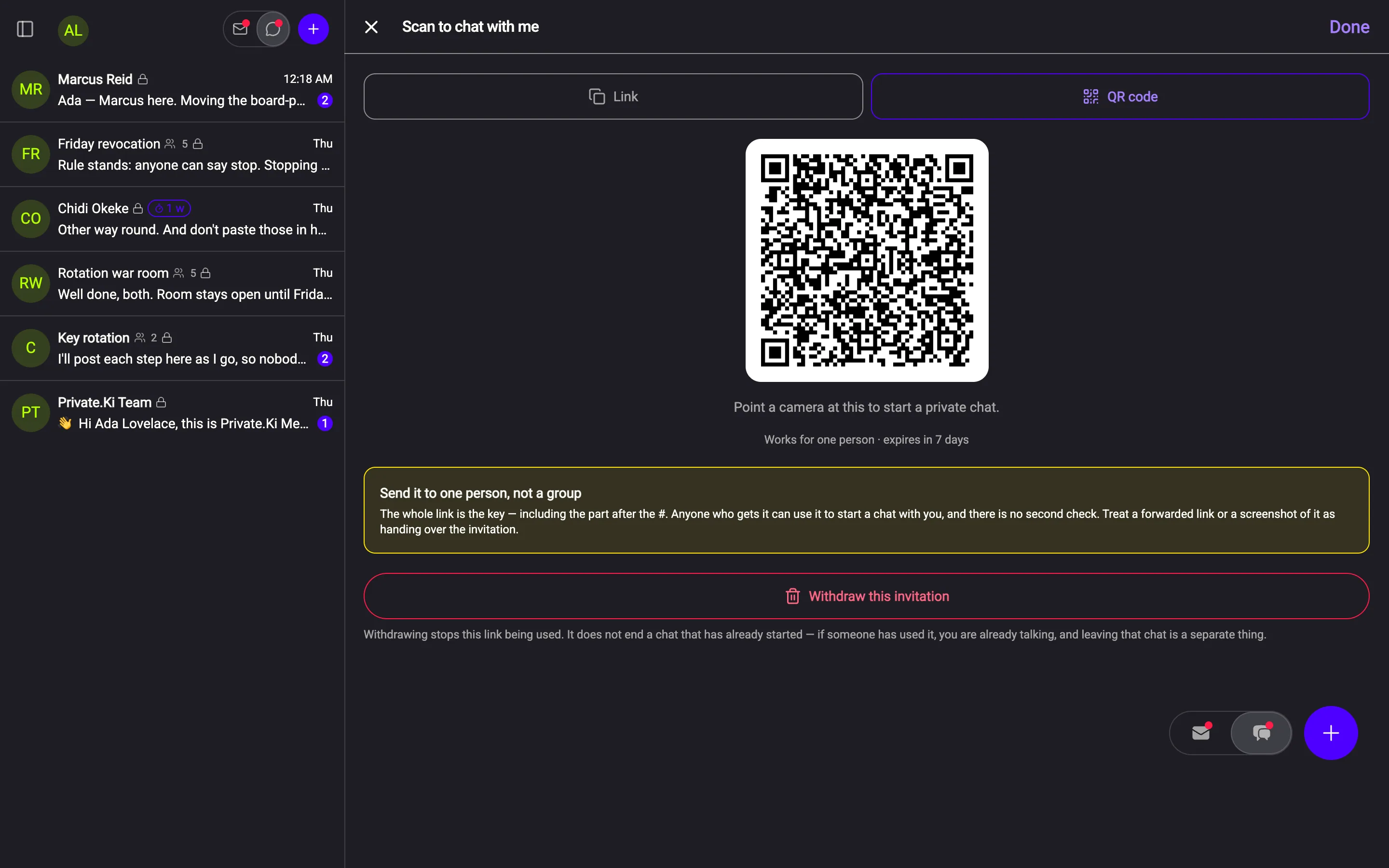
A colleague creates an invitation — as a link or as a QR code — with a validity they choose. It works for one person, once. The guest creates an account and a key on their own device, and the chat with the colleague opens encrypted. Nothing about the invitation lets us read what follows.
How invitations work →

An invitation shown as a QR code: works for one person, expires in 7 days, with a Withdraw button
Detail — 3×
1Link or QR, one invitationShow the code across a meeting table or send the link. Either opens a chat with the person who made it.
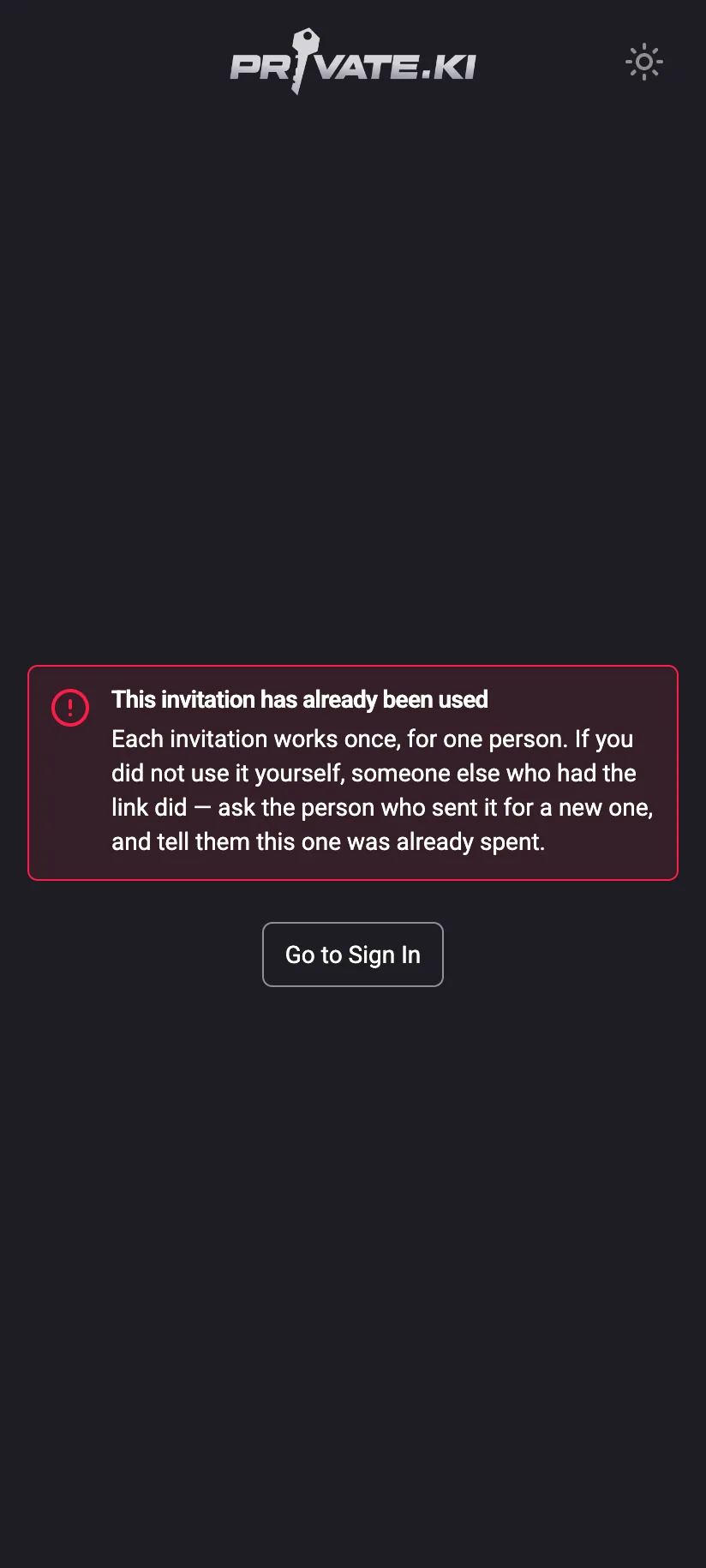
2One person, then spent“Works for one person · expires in 7 days.” A second use is refused, and the app says so.
3The link is the secretForwarding the link hands over the invitation. The app tells the sender before they copy it.
4WithdrawStops the invitation. A chat that has already started is unaffected — leaving it is a separate step.
Choose the validityHow long the invitation stays open is decided before it exists.
Pending invitationsEach colleague sees the invitations they have out, and can withdraw any of them.
The chat with a guestOnce the guest has a key, this is an ordinary encrypted chat: timers, reactions and voice all apply.
Sign‑in and devices

Passwords that never reach us, a second factor, and devices that vouch for each other

At sign‑in the password itself is never transmitted: the device proves it knows the password without sending it, so we never receive it. A time‑based code from any authenticator app can be required on top. New devices are brought in by QR code from one that is already unlocked, and both screens show the same short code before anyone presses approve.

Two‑factor and devices, in detail →

Your colleague's device Password entered here and stays here OPAQUE, on device proof → ← challenge Private.Ki server Verifies the exchange. Never receives the password, hashed or otherwise. then: TOTP code, if on Second factor Six‑digit code from any authenticator app, asked for at every sign‑in. Set up once by QR or secret.

The second factor is a TOTP code. New devices are added by QR pairing from a device that is already unlocked, not by typing the password again somewhere new.

  • Password never sent — it is used on the device to prove itself; it is not transmitted, not even hashed.
  • TOTP two‑factor — any authenticator app. Asked for at every sign‑in once switched on.
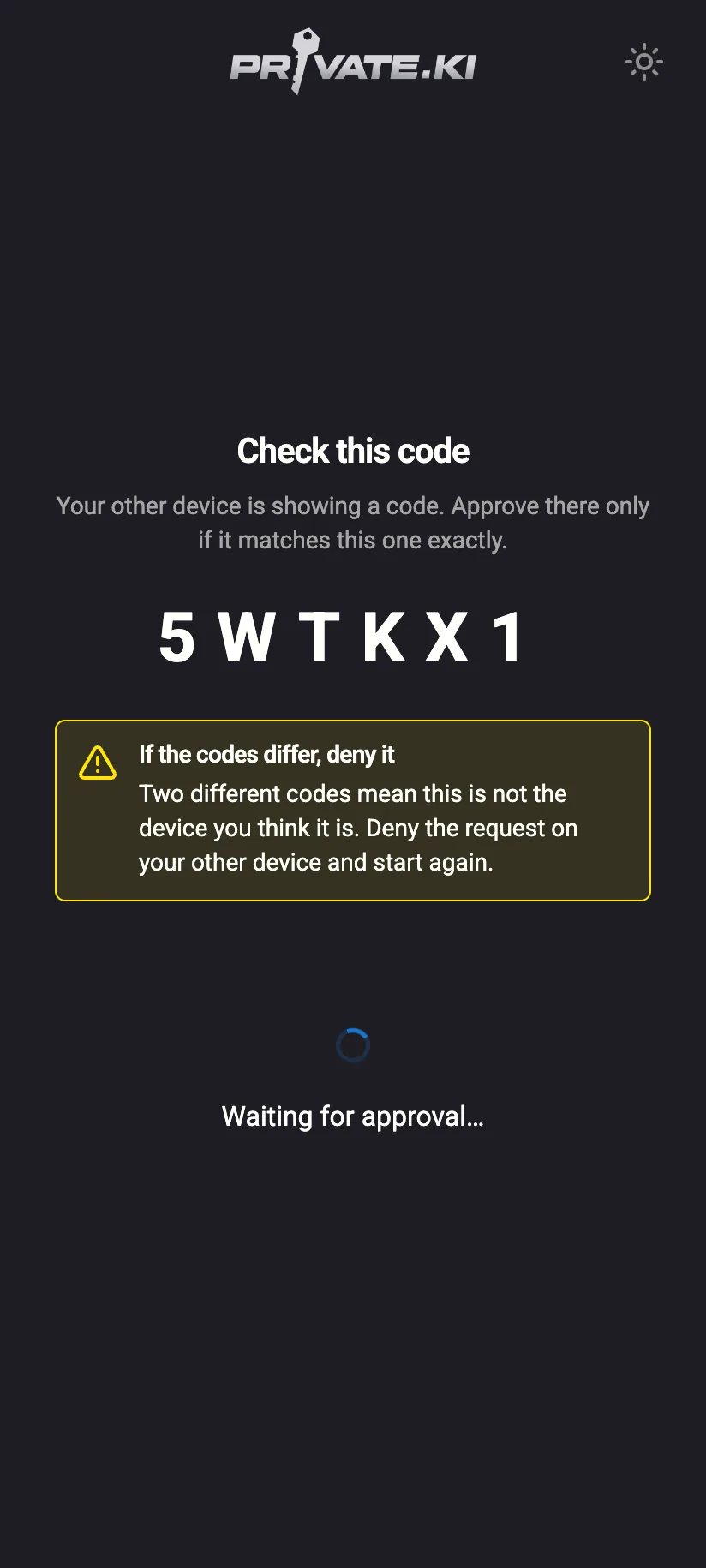
  • QR device pairing — a phone scans the desktop; both show the same code; the desktop approves. The dialog says plainly that approving hands over the mailbox.
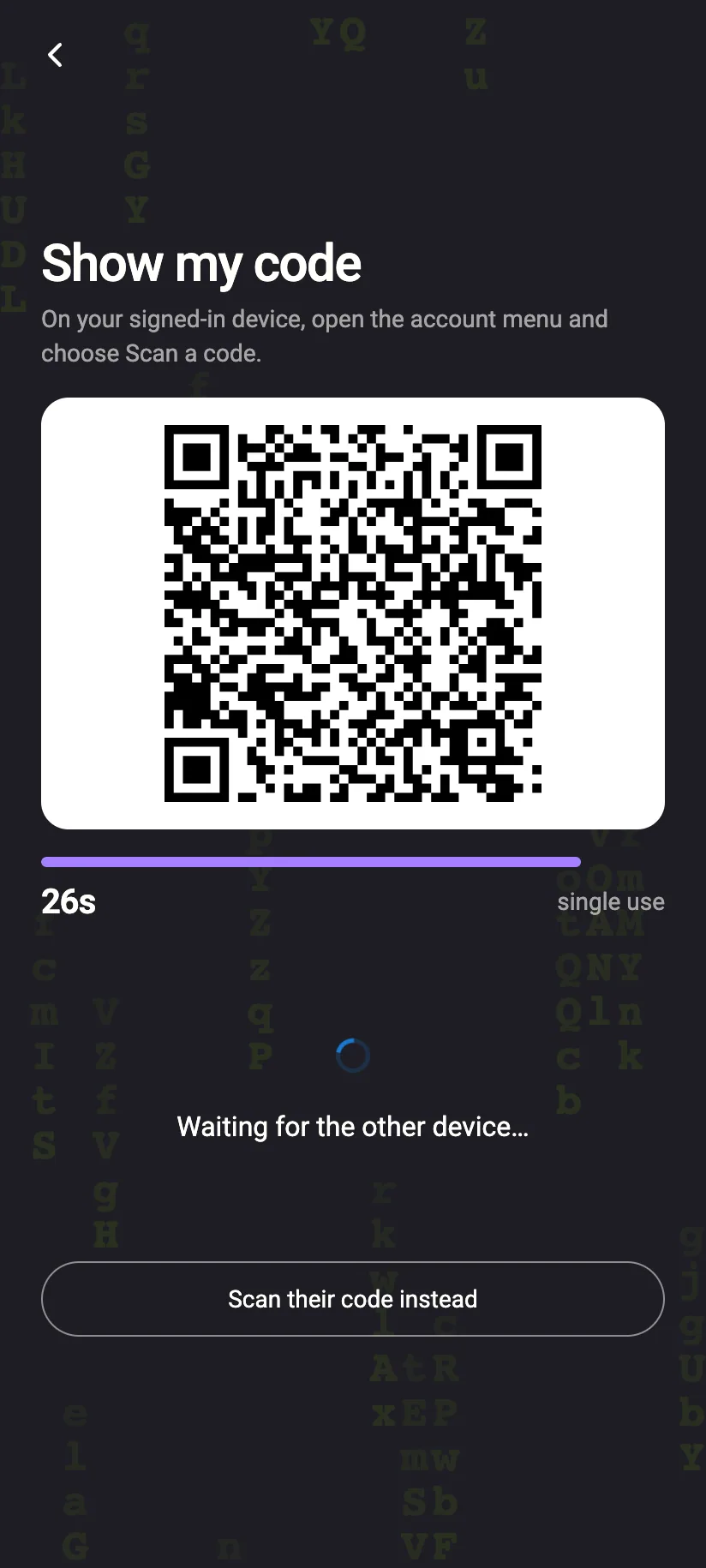
  • QR sign‑in — a device on the sign‑in screen shows a single‑use code that expires in seconds; a signed‑in device scans it.
  • Lock screen — lock from the account menu at any moment. Unlock with the passphrase, or with a PIN or fingerprint / face recognition on iOS and Android.
Security settingsTwo‑factor, password and unlock method on one screen, per account.
TOTP set‑upScan once with any authenticator app, or copy the secret.
Pair a deviceThe desktop shows a QR code; the new phone scans it. Both then display a code to compare.
Approve only on a match“A phone is asking to sign in.” The desktop shows the code the phone should be showing; if it differs, someone else scanned the QR — deny.
The lock screenNothing is shown until the passphrase is entered. There is no “forgot it” button, because we cannot know it.
Phone showing the pairing code and waiting for approval
Pairing, on the phone“Check this code.” It waits for the desktop to approve.
Phone showing a single-use QR sign-in code with a countdown
QR sign‑inA single‑use code with a countdown, scanned by a signed‑in device.
Phone: account menu with Settings and Lock
LockOne tap in the account menu. On phones, unlock by PIN or biometrics.
Day to day

The ordinary parts of office mail, kept ordinary

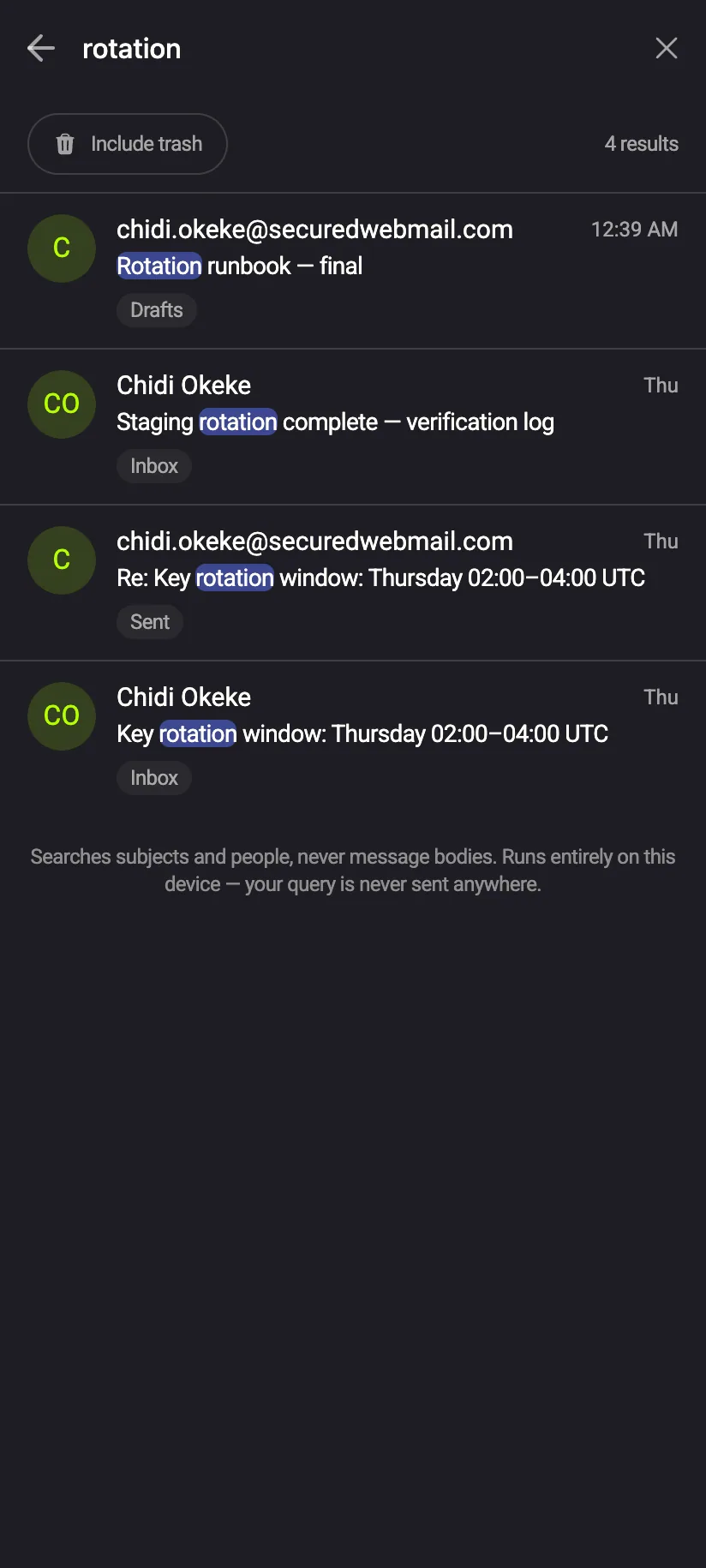
Undo send with a window each person sets. Signatures with a default. Attachments to 25 MB, encrypted like the message. Search across every folder for senders, subjects and addresses — never message bodies, because they are not indexed anywhere. Archive, Trash, and swipe actions on phones.

Undo send, 5–30 sOff, 5, 10, 20 or 30 seconds. Press Undo and the mail comes back as a draft.
SignaturesSeveral per person, one default, appended below the body and encrypted with it. Shared signatures are planned for Teams.
Attachments to 25 MBEncrypted on the device before upload. The server stores a size and a count, not a file it can open.
Recipient autocompleteAddresses already written to are suggested as you type. They are kept on the device; there is no contacts screen and no address book on our server.
SearchSenders, subjects and addresses across Inbox, Sent, Drafts — and Trash when switched on. Bodies are never indexed.
Archive and TrashStandard folders in the sidebar. Restore from Trash is a right‑click.
Row menuThe common actions on a message without opening it.
Setup checklistTwo‑factor, recovery address and what is still to do — useful when onboarding a whole team.
Phone inbox with a row swiped to reveal Archive
Swipe to archiveOne direction archives without opening.
Phone inbox with a row swiped to reveal Trash
Swipe to trashThe other direction sends it to Trash.
Phone search results tagged by folder
Search on the phoneThe same search, on the device.
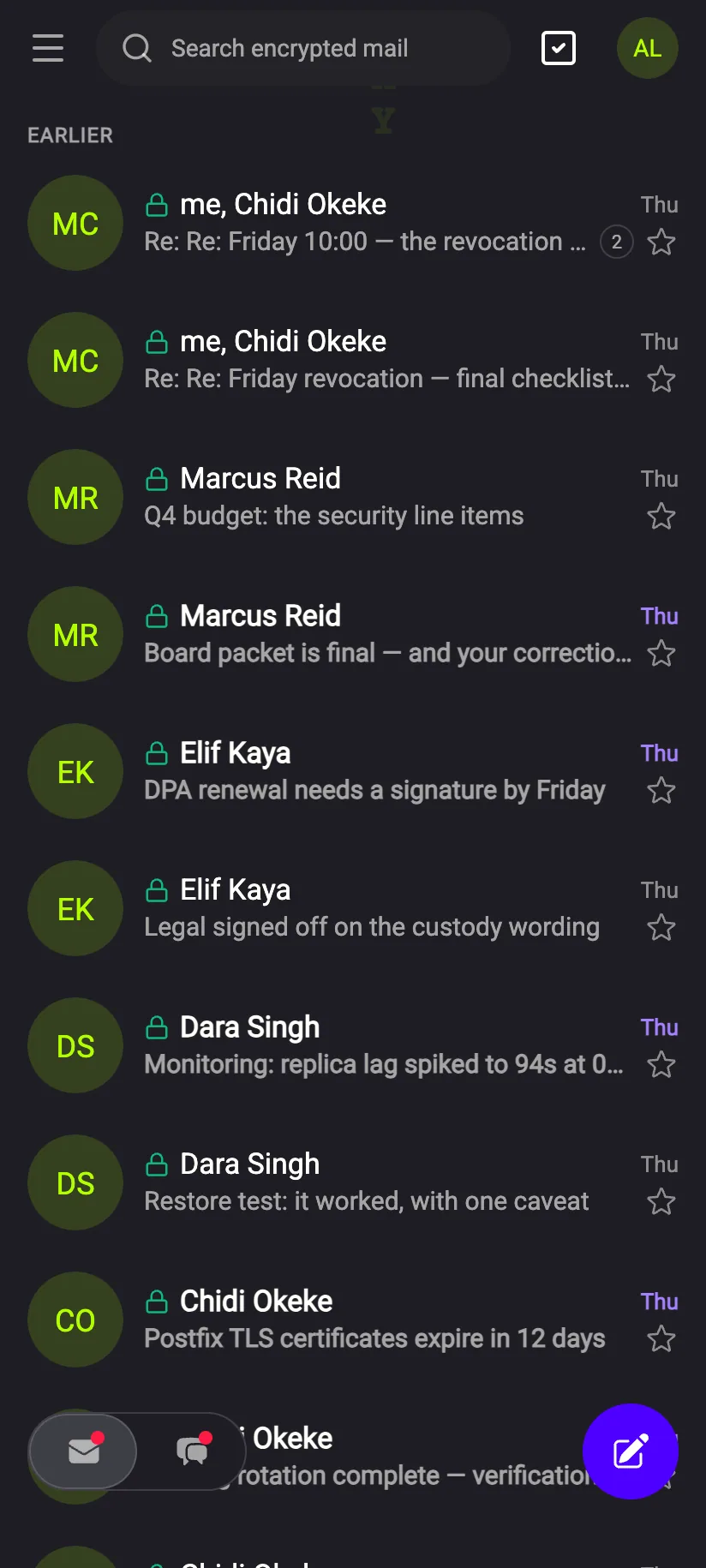
Phone inbox with unread counts and a lock per message
InboxUnread counts and a lock per message.
Your own domain

[email protected], with the keys still on your devices Coming soon

Today every account has an address on private.ki. Own‑domain addresses are planned for the Plus and Teams tiers: your domain's mail records would point at Private.Ki, mail to [email protected] would be delivered to the same encrypted mailbox, and nothing would change about where keys live. This is not available yet; the diagram shows the intended design.

Coming soon [email protected] One address per person, on the company's domain. Same app, same keys, same encryption. 1 · Your DNS yourcompany.com MX → Private.Ki One record change, made by you, so mail for the domain reaches us. 2 · Private.Ki Accepts mail for your domain and delivers it to the right mailbox. stores ciphertext, as today Routing metadata, as today. 3 · Your devices Keys created and kept here, unchanged by the domain. Mail from colleagues: end‑to‑end. External mail: stored encrypted, flagged as not end‑to‑end.

Planned for Plus (up to 10 addresses and aliases on one account) and Teams (per seat). Outbound mail from your domain would follow the same rules as today: PGP when the recipient has a key, flagged when not. Not available yet; details may change before it ships.

Until own domains ship, teams use one address per person on private.ki. Nothing described in the sections above depends on the domain. See the planned tiers →

The Teams tier

One roster, one bill, shared policies Coming soon

Everything above is in the free account today, per person. Teams is the planned tier for organisations that need to manage seats centrally. Every item below is planned, not shipped; the free product is what exists now.

Groups for whole departmentsLarger encrypted groups, still encrypted once per member. Today: every group encrypted, one key per member.
Admin rosterAdd, remove and hand over accounts from one place. No administrator can read mail or reset a passphrase; that does not change. Today: each person creates their own account.
Central billingOne invoice for all seats. Today: the account is free.
Shared signaturesCompany signatures maintained once and available to every seat. Today: signatures per person, one default.
Shared self‑destruct policiesDefault timers for the organisation, applied to conversations instead of set one by one. Today: timers per conversation, set by its participants.
50 GB per seat, 10 devices per seatEncrypted storage and paired devices per person. Today: storage and devices included, without stated caps.
Full mailbox exportEncrypted export and backup of a whole mailbox. Today: public key export and import.
Onboarding and a named contactHelp getting a whole team set up, and one person to write to for questions and incidents. Today: documentation, and the contact address below.
Coming soon
Pricing published at launch

Teams includes everything planned for Plus (from $5 a month, planned), for every seat. Paid tiers will never gate encryption, two‑factor or timers behind a price. Compare the plans →

Talk to us
What we hold

What our server can and cannot see — the short version

Identical for every account and every plan. The full list, kept in sync with the backend, is on its own page.

Cannot see

Ciphertext only, or never transmitted
  • Message bodies, mail and chat
  • Attachments, including voice messages
  • Private keys and passphrases
  • Passwords — never sent to us
  • Subject lines of internal mail
  • Recovery addresses — a hash only

Can see

Needed to route and deliver
  • Who messaged whom, and when
  • Message sizes and attachment counts
  • Public keys, group membership and size
  • IP addresses at connection time
  • Headers of external mail

If we were compelled to hand over a team's conversations, we would be handing over encrypted blobs and this delivery log. Read the full page →

Retention and review

Built for data minimisation — with tools, not certificates

We publish no certifications and no third‑party audit yet, and we will not claim one until it exists. What we offer a compliance review instead is a precise description of what we hold, and controls that let a team keep less of it.

Retention
Self‑destruct timers, per conversation Messages removed from every device after read or after sent — 30 seconds to a month. Useful where a policy says a conversation should not outlive its purpose.
Correction
Unsend, destroy, undo send A misdirected chat message can be unsent within an hour; a message received can be destroyed on both sides; outgoing mail can be held for up to 30 seconds and pulled back.
Access
No administrator can read mail Not on your side, not on ours. Keys are on devices; the server has ciphertext. A lost passphrase cannot be reset by anyone.
Indexing
No body index anywhere Search covers senders, subjects and addresses on the device. Message bodies are never indexed, so there is no searchable copy to protect or disclose.
Address data
No server‑side address book Recipient suggestions come from addresses stored on the device. The recovery address, if set, is kept as a hash.
Visibility
Encryption state on every message Padlock and shield per message, a grey padlock before sending to someone without a key, a red flag on mail from outside. Staff can see the state without asking anyone.
Not offered today Compliance archiving and legal hold are not offered and are not part of the tiers announced so far. Own domains and an admin roster are planned for Teams but not available yet. If your review needs any of these, we would rather say so now.
Lost passphrases cannot be reset There is no administrator who can recover a colleague's key, including us. The app says so before the key is created. A team should agree on how passphrases are kept before anyone signs up.
Getting started

How a team gets started today

No phone number, no invitation, no contract. Four steps, and the fourth is done per conversation.
Create accountsEach colleague signs up in the browser. A key pair is generated on their device; they save the passphrase. Switch on TOTP two‑factor and a recovery address from the setup checklist.
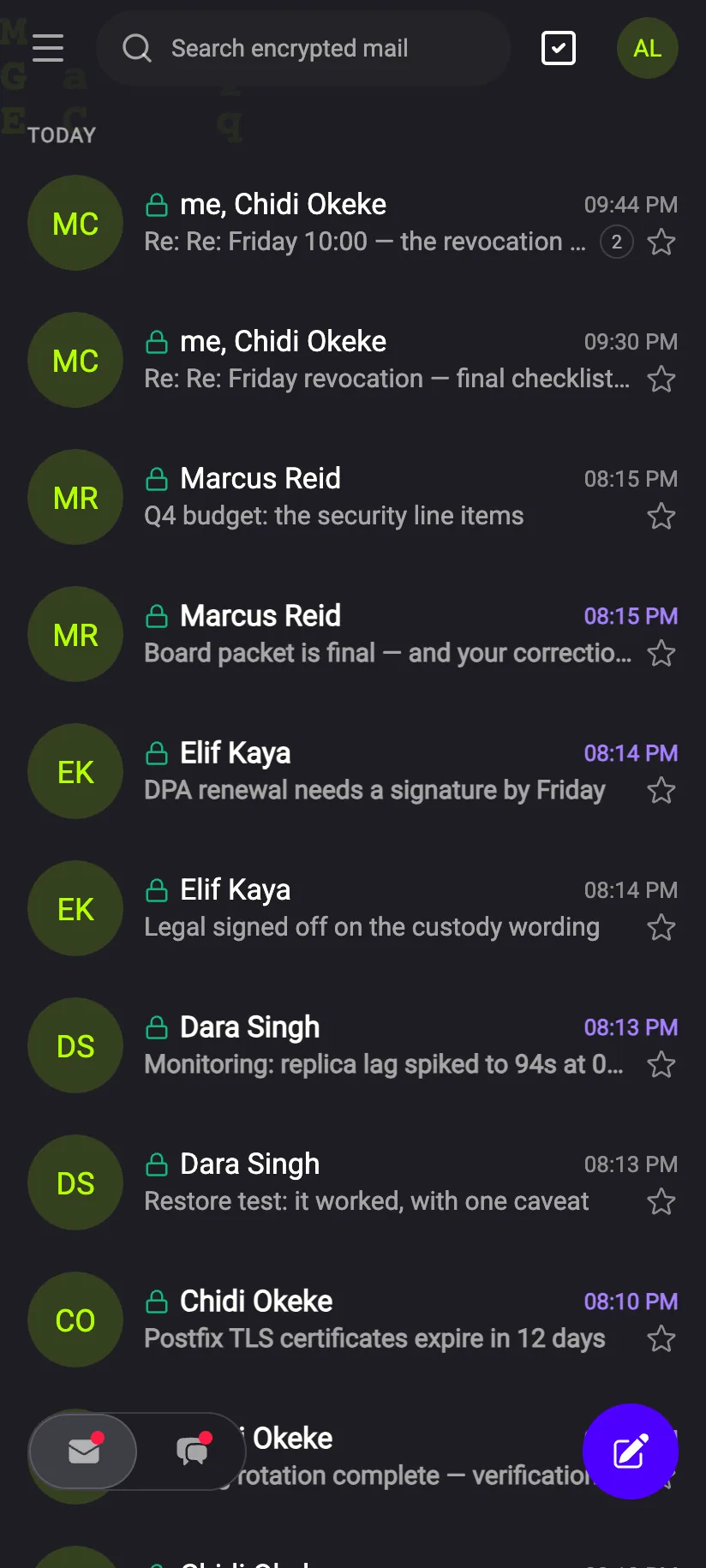
Pair devices by QRPhones and second laptops are added from an unlocked device. Compare the code on both screens, approve, and the mailbox is available on the new device.
Invite external partnersCreate a single‑use link or QR code with a validity. The client or supplier gets an account and a key of their own; the chat opens encrypted.
Set timers per conversationDecide, per chat or group, whether messages should disappear after read or after sent, and how long they should live. Both sides see the setting.
Phone unlocked after pairing, showing the inbox
Step 2, doneThe phone shows the same inbox, decrypted with the same key.
Phone: the guest welcome screen opened from an invitation
Step 3, from the guest's sideThe invitation opens on a welcome screen; then an account and a key.
Phone: the chat list with locks and member counts
Step 4, visibleA lock on every row, member counts in the list.

Web today; iOS and Android apps are built and will be listed. The badges notify you when they are.

Start with the free account. Tell us what the Teams tier should do.

Everything on this page that is not marked coming soon is in the free account now. Everything that is, we are building — and we would rather hear what your organisation needs before it ships.

No phone number required. Keys are created on your device during signup.