Who can open your account.
Sign‑in, two‑factor, added devices, the lock screen and the recovery address decide who gets to your keys. What happens to your messages once the door is open is a different question — that is encryption, and it has its own page.
Your password never reaches us.
Ordinary sign‑in sends your password to a server, which hashes it and compares. Ours does not. Your device and our server run a short exchange in which your device proves it knows the password — and the password itself stays on your side of the line.
What we store is a record built from that exchange. It cannot be turned back into your password, and it cannot be used to sign in as you. Someone who copies our database gets a record they can neither reverse nor replay.
Protocol: OPAQUE, on the web and in the apps.Sessions are bound to a key on your device (DPoP): a session token copied to another machine does not work there.Two‑factor, if on, is asked after this exchange, not instead of it.
Two‑factor, in three steps.
Standard TOTP, the kind every authenticator app speaks. Set it up once; from then on a stolen password stops at the code.
Every sign‑in with a password asks for the code, on every device. A device you add by QR code takes over a session that already passed the check, so it is not asked.
Needs one more valid code, from a session that itself passed two‑factor. Someone who only knows your password cannot remove the second factor. Five wrong codes in a row lock code entry for 15 minutes.
There are no backup codes. A device that is still signed in can turn two‑factor off — with one last code. Signed out everywhere, support verifies you through your recovery address, and never on your word alone.
Add a device by scanning.
Your signed‑in computer shows a QR code. Your phone scans it. Both screens show the same six characters; you compare them and approve on the computer. The phone opens your inbox — no password, no passphrase typed on it.
-
1
Computer shows the codeAccount menu › Show my QR code. Single use, valid for 30 seconds. -
2
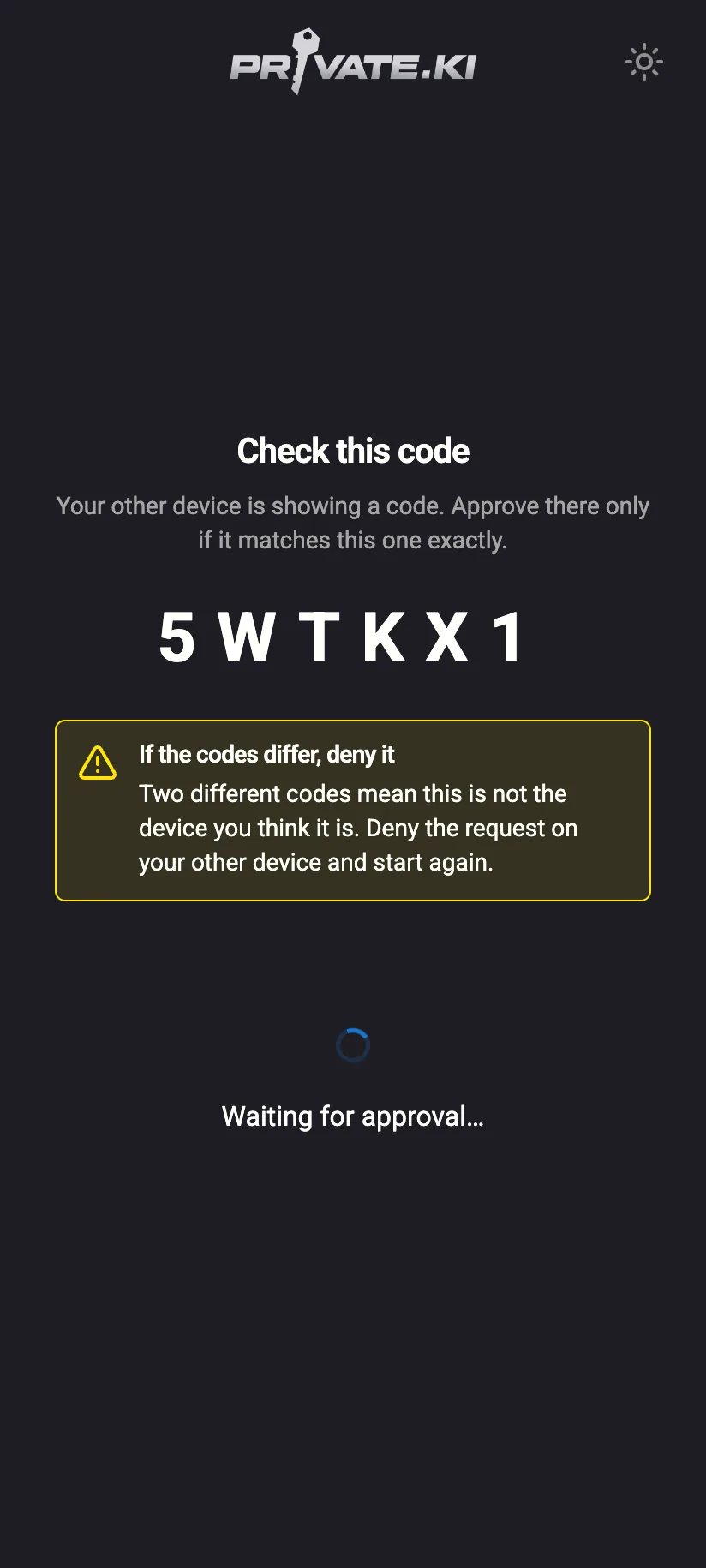
Phone scans, shows six characters“Approve on the device that showed the QR code. Only approve if this code matches.” -
3
Computer shows the same six“A phone is asking to sign in.” Compare. Codes match — approve, or Deny. You have 90 seconds. -
4
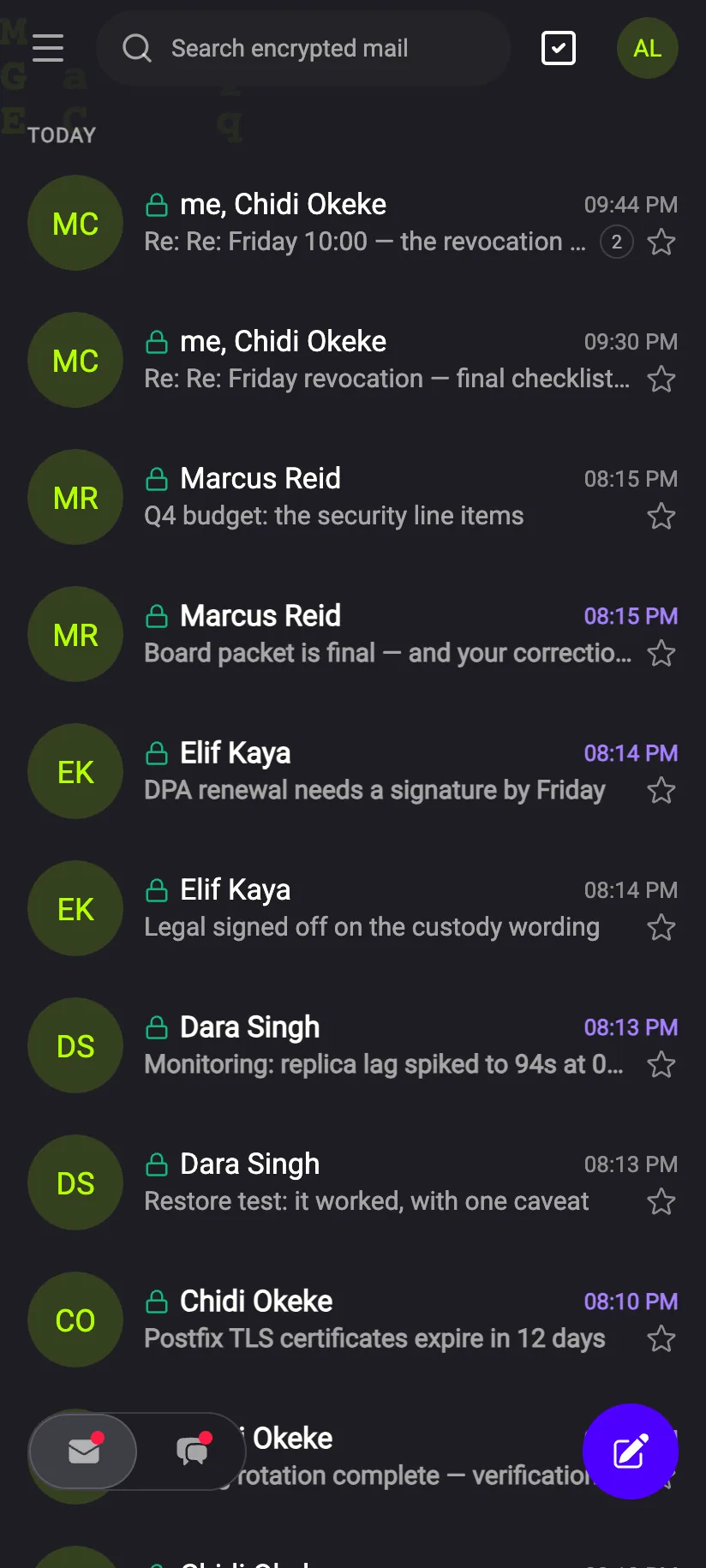
Phone opens your inboxSame mailbox, same key. In the apps you then set a six‑digit PIN.
Your unlocked private key — once, encrypted with a secret only the two devices derive from the scan. Not your password, not your passphrase, not your two‑factor secret.
Relays ciphertext it cannot open. The meeting point is a Redis key that lives 30 seconds while the QR code is shown and 90 seconds once a phone has claimed it — then it is gone.
If they differ, something sat between the two devices or the phone scanned somebody else's code. Deny, and nothing has been transferred.
Sign in with your phone.
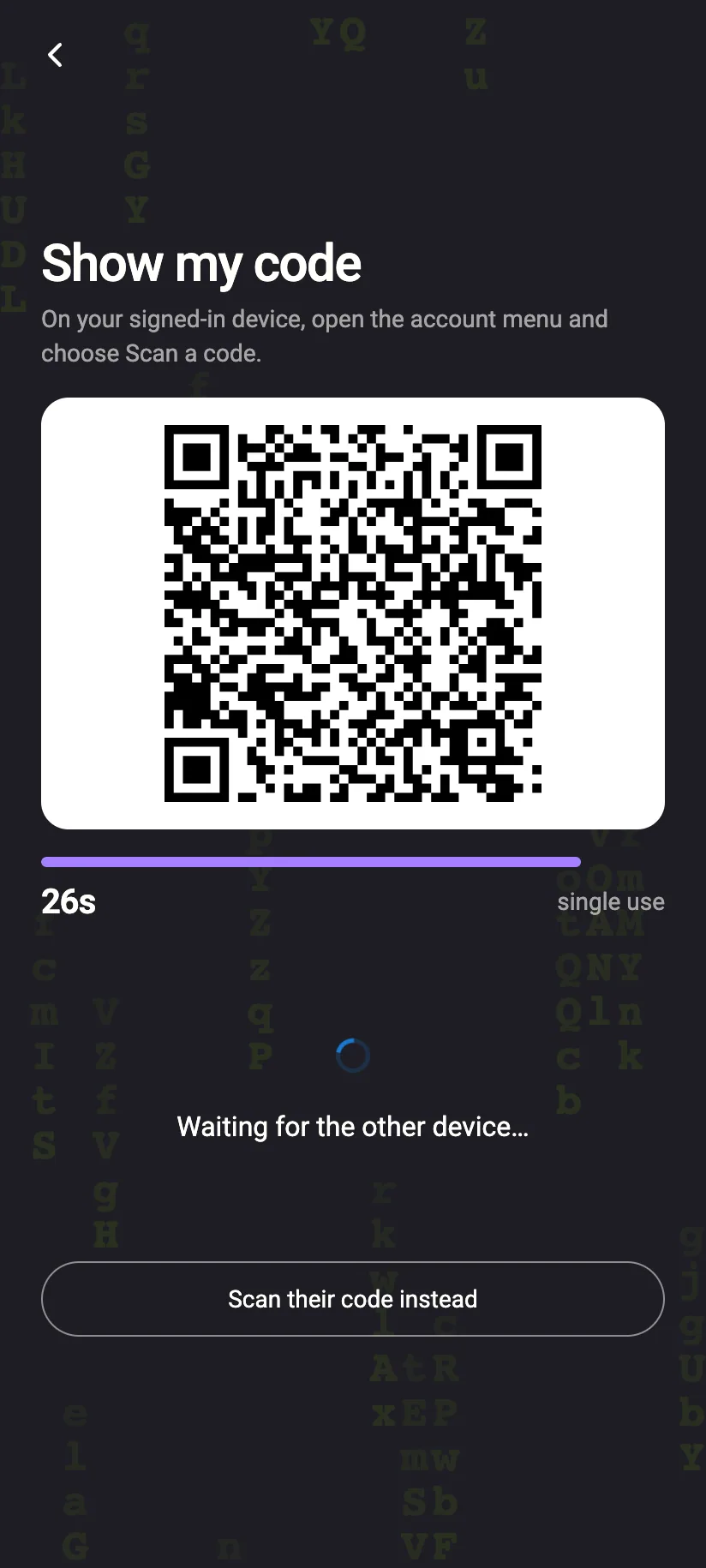
The other way round, for when the new device is the one with a screen and your phone is the one with a camera. On the sign‑in page choose Sign in with a QR code › Show a code here. On your signed‑in phone, open the account menu and choose Scan a code. Same six‑character comparison, same result: the new device opens your mailbox without a password.
The new device scans it.
Your signed‑in device scans it.
In pairing the code comes from the device that already has your keys; in QR sign‑in it comes from the device that wants them. Both hand over the key, never the password.
Locked when you walk away.
Lock account sits in the account menu; on the web, pressing Escape twice does the same. Your mail disappears and the decrypted key is wiped from memory. Locking is entirely local — nothing is sent to us, and there is no recovery link on the lock screen, because there is nothing we could send.
The lock screen asks for your passphrase — or, if you chose Password only at sign‑up, your password unlocks the keys instead. There is no third way in.
A six‑digit PIN, or Face ID, Touch ID or a fingerprint in its place. The PIN lives only on the phone and is a gate in front of the app, not a replacement for your password or passphrase.
Recovery address — for proving the account is yours. Not for passphrases.
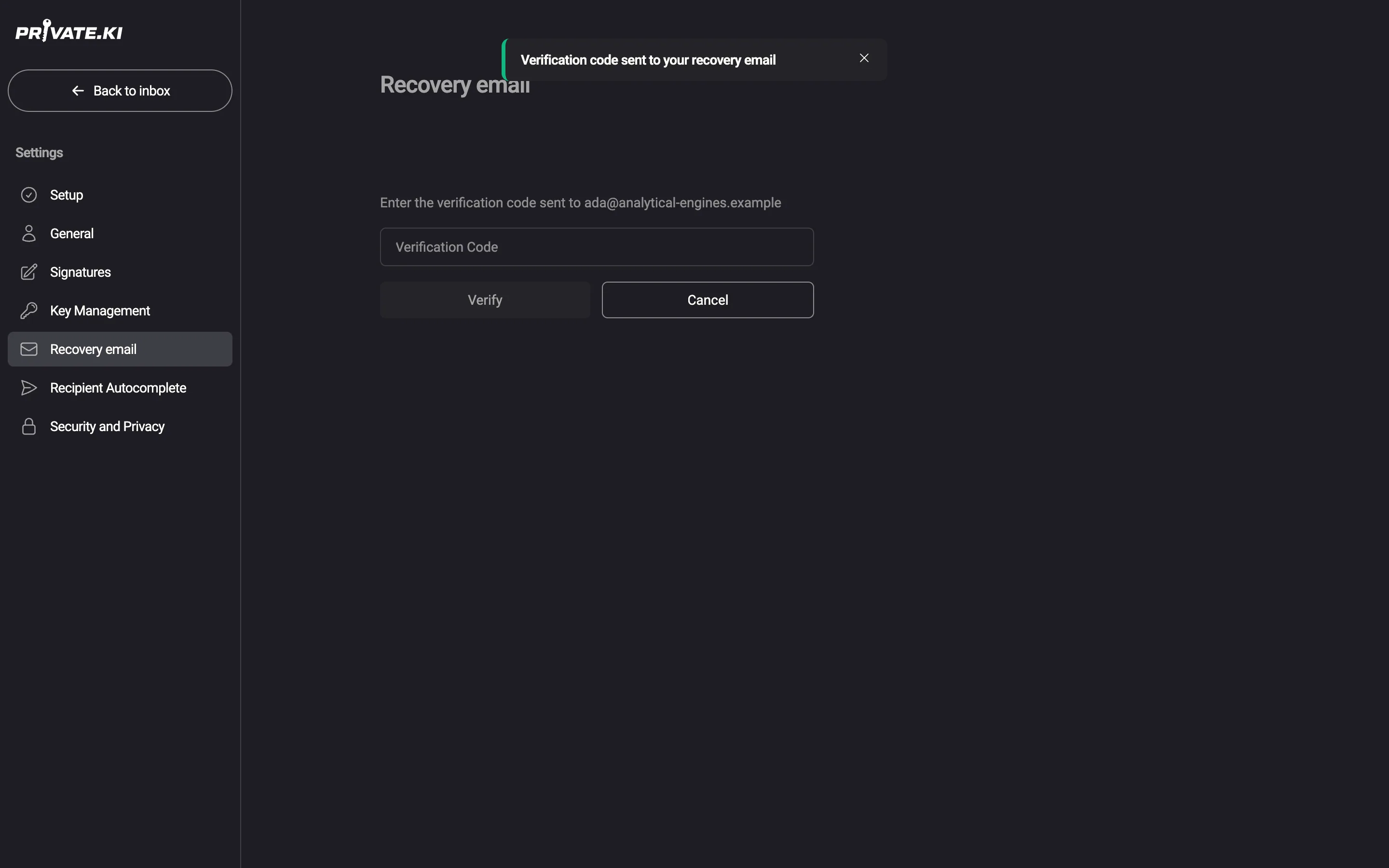
You can add an address you control in Settings — any provider, or another Private.Ki address. We send a six‑digit code to it, you type the code back, and from then on the address is stored only as a salted hash. We cannot read it, cannot mail it unprompted, and could not tell you what it was. When you need it, you type it again and we compare it with the hash.
What it does: prove the account is yours if you forget your password, or when support needs to know it is you. What it cannot do: recover a passphrase. The passphrase never reaches us, so there is nothing to send back — zero ways, for us or for anyone. Why that is, on the encryption page →
What an attacker needs — and what each thing buys them.
-
Your password, leaked or guessedNothingwith two‑factor on
Sign‑in stops at the six‑digit code. Without two‑factor, a password alone opens the account — and with Password‑only unlock, your mail. That is what two‑factor is for; turn it on.
-
Your password and a current two‑factor codeSign‑independs on unlock method
They are in. With a passphrase your messages stay locked until it is typed, and it was never on any server. With Password‑only unlock they can read your mail — revoke the session from another device (Active Sessions) and change your password.
-
Your phone, lockedNothingwithout the phone's passcode
The phone's own lock first; when the app starts, its six‑digit PIN or your face or fingerprint. Nothing in the app is readable without them.
-
Your phone, unlocked and in the appYour mailboxon that phone, until you cut it off
Password‑only accounts: on any other device, Settings › Security and Privacy › Active Sessions › Revoke — every device but the one you are holding is signed out at once; then change your password. Passphrase accounts hold no server‑side session to revoke: change your passphrase, and the lost device's copy stops working.
-
A copy of our databaseLocked boxesnothing readable
Encrypted messages, public keys, your private key in encrypted form, an OPAQUE record that cannot be reversed or replayed, and a hash of your recovery address. No password, no passphrase, no plaintext. The full list, item by item →
The door is yours to guard. The messages are locked either way.
Two‑factor, device pairing, QR sign‑in and the lock screen are all in the free account.