Star messages and mark read or unread
Where the star lives on each device, how a starred conversation looks, and every way to mark mail read or unread — one message, a conversation, or a selection.
A star marks a conversation you want to come back to. Read and unread work the way you expect from any mail app, with one Private.Ki detail: the unread count on Inbox counts conversations, not messages. There is no "Starred" folder or filter — the star is a mark on the row, in whatever folder the row is in.
Star a conversation
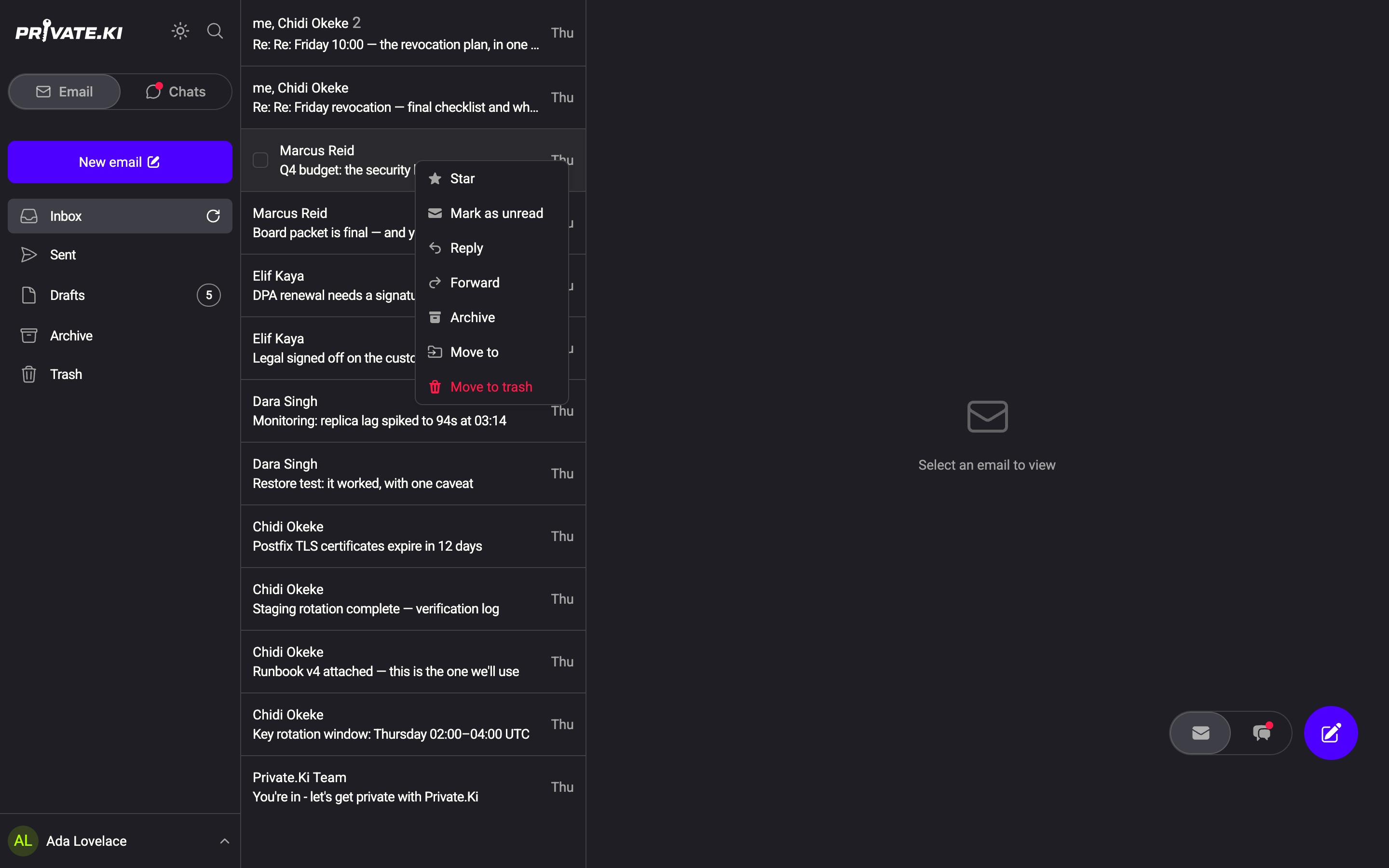
- On the web, right-click the row and choose Star. The entry becomes Remove star once the row is starred.
1Star2Mark as unreadWeb & desktop 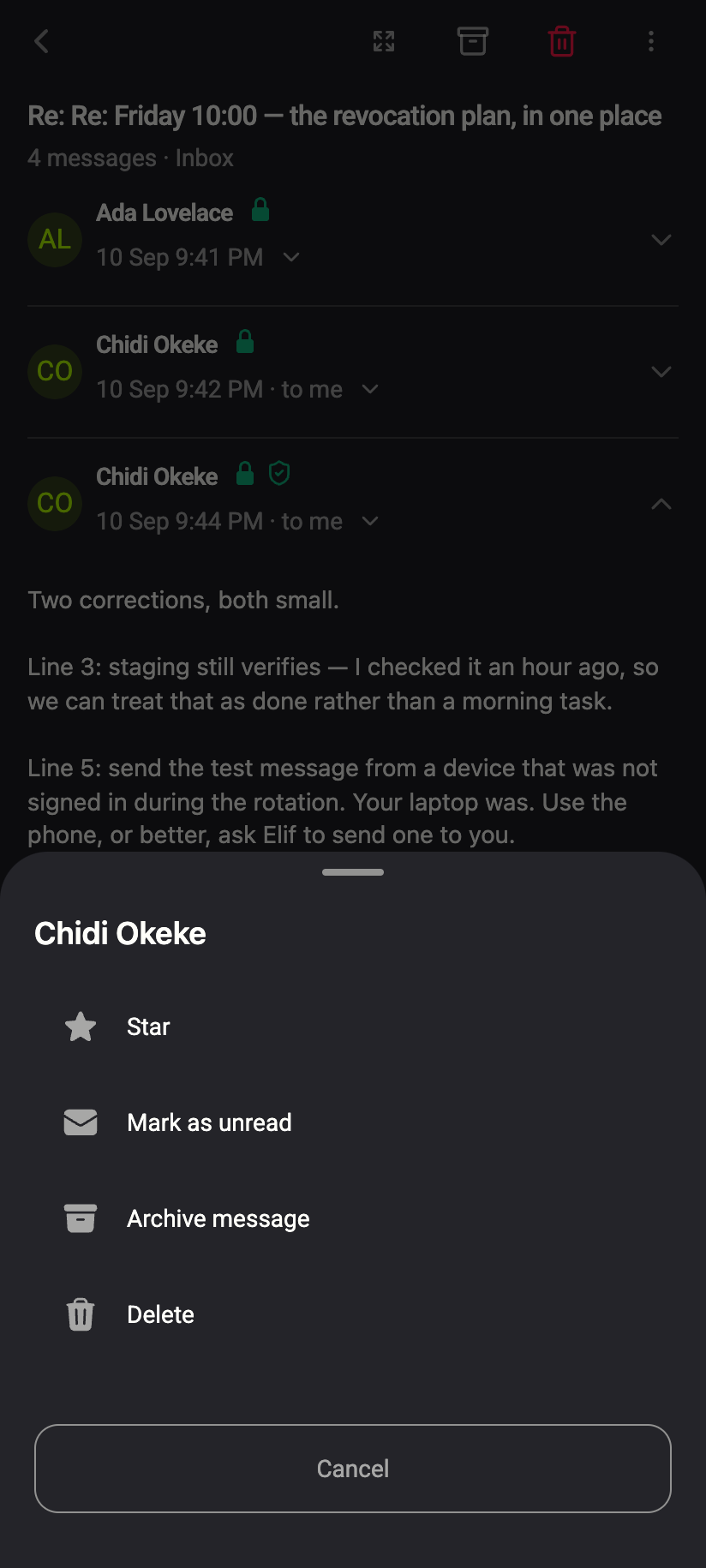 12
121Star2Mark as unreadiPhone 121Star2Mark as unreadAndroid - On the phone, every row carries an outline star on its second line, next to the subject. Tap it to star; tap the filled star to remove it.
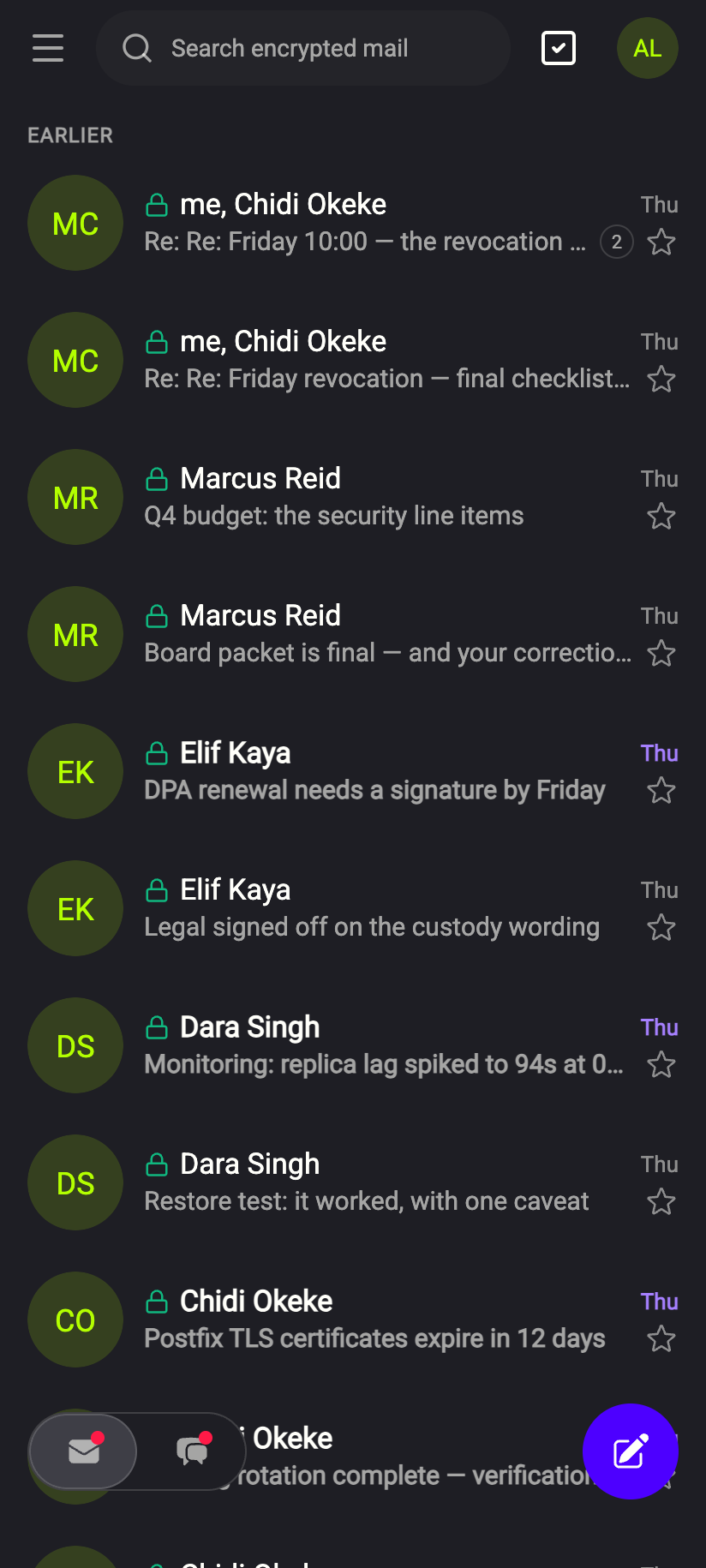 1
11Tap to stariPhone 11Tap to starAndroid - Inside a conversation, the ⋮ menu below any message has Star / Remove star for that single message. A conversation shows as starred if any message in it is starred.
A starred row shows a small filled amber star: on the desktop just before the time, on the phone at the right end of the second line. In a selection, the toolbar's star button stars everything selected — or, if every selected row is already starred, removes the stars.
Stars are set per folder scope: starring a conversation in Inbox stars its received messages; starring it in Sent stars the sent ones. In Drafts each draft is starred on its own.
Mark as read or unread
Opening a message marks it read. To change the state by hand:
- One conversation: right-click (or long-press) the row → Mark as unread or Mark as read. The entry always shows the state you would switch to.
- One message: its ⋮ menu below the body → Mark as unread / Mark as read. On the desktop, an envelope icon in the message header does the same (Mark as unread).
- Whole conversation: the ⋮ menu at the top right of the reading pane → Mark as read while anything is unread, otherwise Mark as unread.
- A selection: tick rows, then the envelope button in the toolbar. If every selected row is read, it marks them unread; otherwise it marks them read.
Marking a message unread also collapses it, so that it does not immediately count as read again.
How unread looks
On the desktop an unread conversation has a tinted row background. On the phone the sender and subject are bold and the time is highlighted. The badge next to Inbox in the folder list is the number of unread conversations — it disappears when it reaches zero.
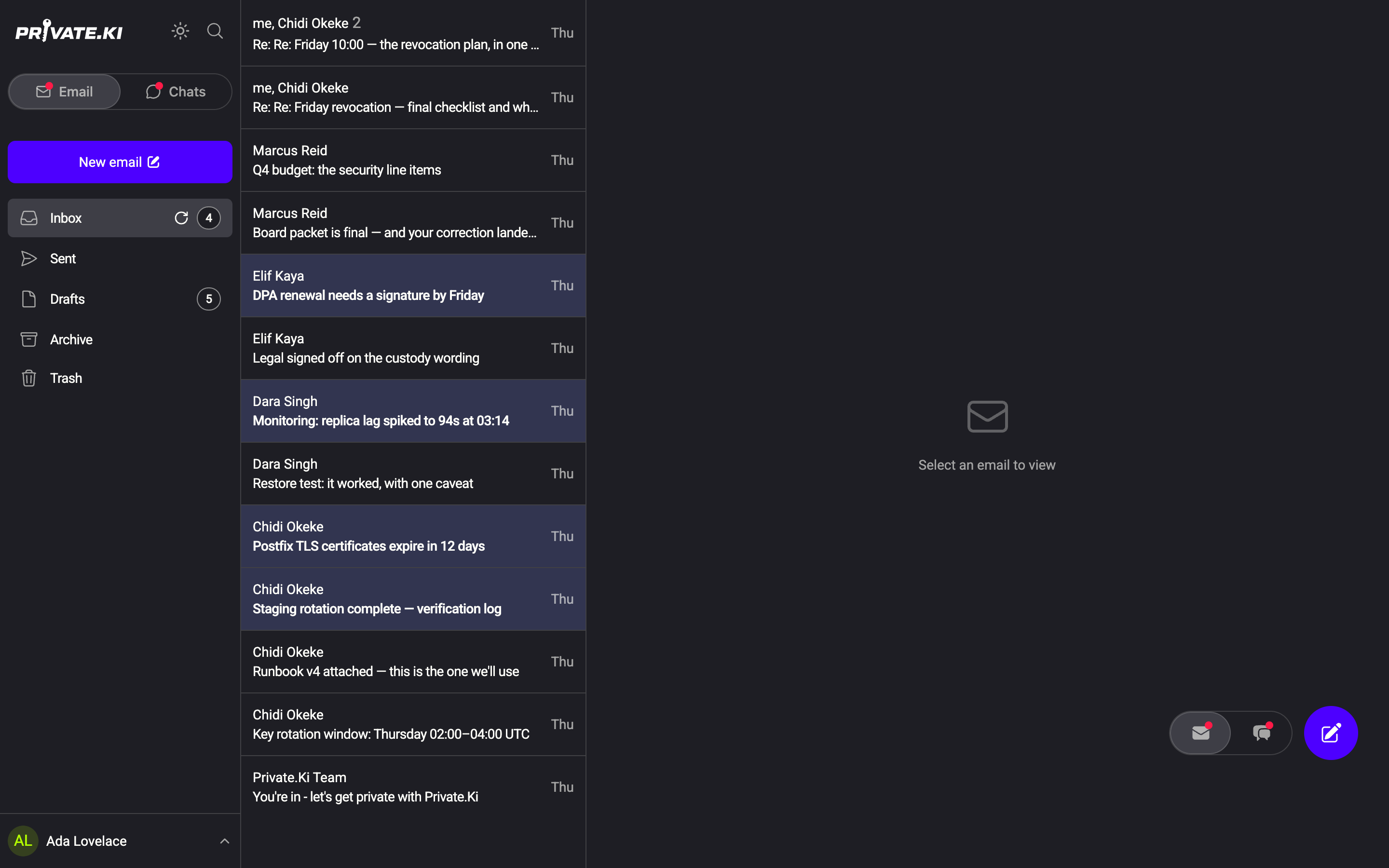 1212
1212Long-press a row for the menu with Star and Mark as unread. To act on several rows, tap the select icon at the top right of the list, tick the rows, then use the star and envelope buttons in the toolbar.
What our server sees
Cannot see
- Why you starred something, or what the message says
Can see
- The star and the read flag on each message — the server stores them so every device shows the same state
Common questions
Where do I see what I have starred?
On the rows themselves. The star shows in every folder list, so a starred conversation is recognisable wherever it sits, and the server keeps the flag so every device shows the same stars.
Does starring notify the sender?
No. Stars and read state are private to your account.
Does Private.Ki send read receipts?
No. Marking a message read changes nothing on the sender's side, and Private.Ki never answers read-receipt requests.