Formatting, rich text and inline images
Show the formatting toolbar, what it can do, the keyboard shortcuts, and how to place an image inside the text of an email.
Emails are written in rich text (HTML). The formatting tools are hidden until you ask for them, so the composer opens as a plain writing area. Formatting is part of the message body and is encrypted together with it.
Show the toolbar
- Click the A icon (Show toolbar) among the action icons under the body. Click it again to hide the toolbar.
1Show toolbar2Attach file3Add inline imageWeb & desktop 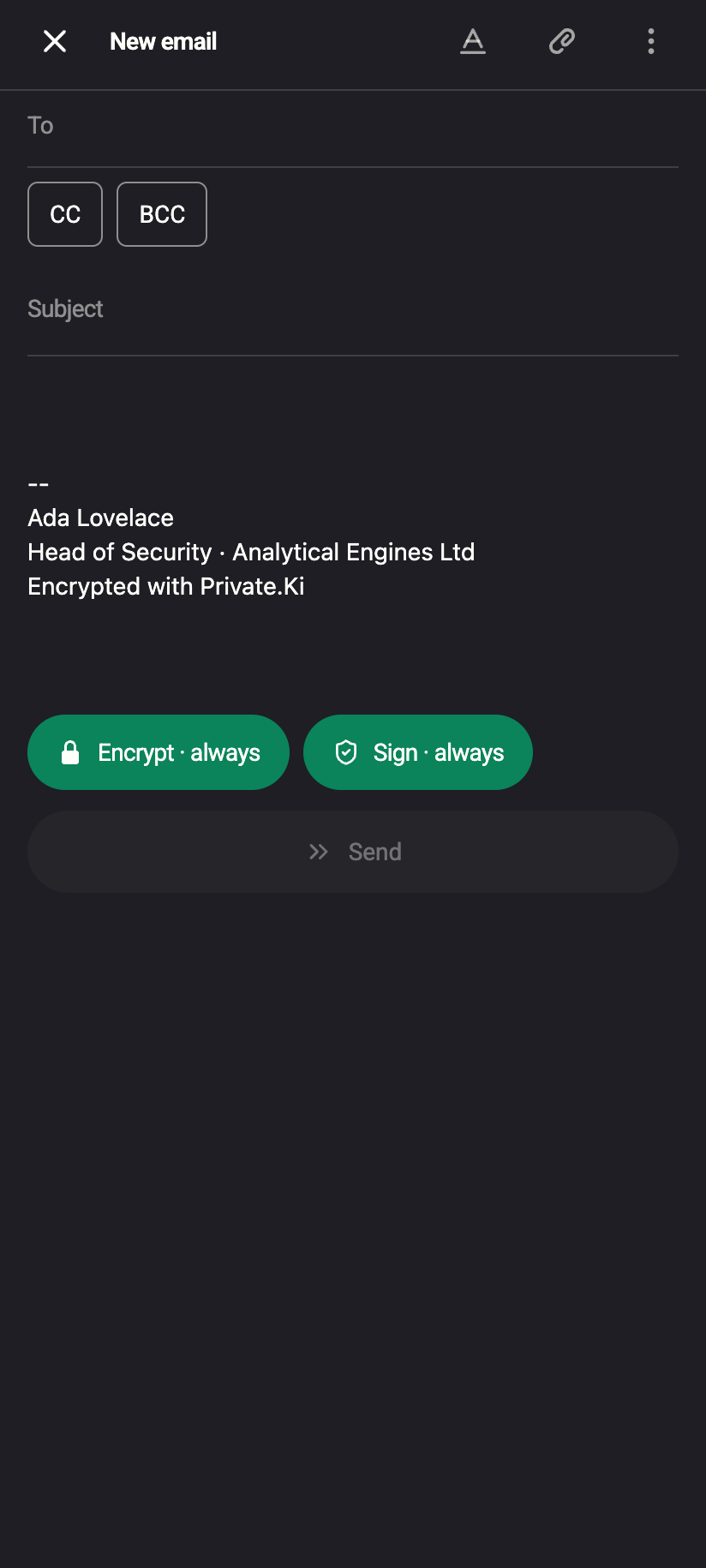 12
121Show formatting2Attach fileiPhone 121Show formatting2Attach fileAndroid - The toolbar appears in the composer. If the composer window is narrow, the tools that do not fit are moved behind a chevron (More tools).
1Font family2Size3Bold, italic, underline, strikethrough4Text colour and highlight5Alignment6More tools: lists, indent, quote, remove formatting7Show toolbar toggleWeb & desktop 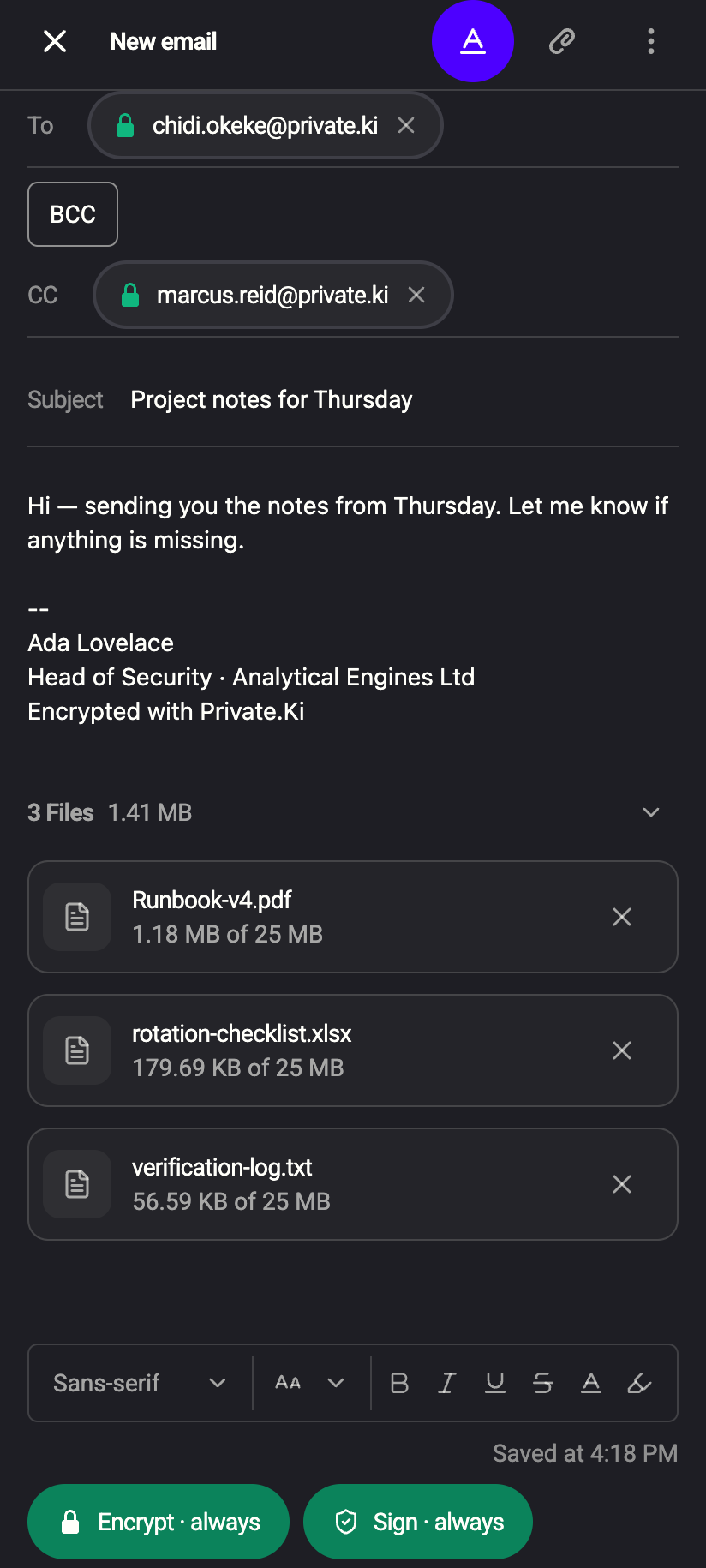 12345
123451Font family2Size3Bold, italic, underline, strikethrough4More tools5Show toolbar toggleiPhone 123451Font family2Size3Bold, italic, underline, strikethrough4More tools5Show toolbar toggleAndroid - Select text and click a tool, or click a tool first and then type.
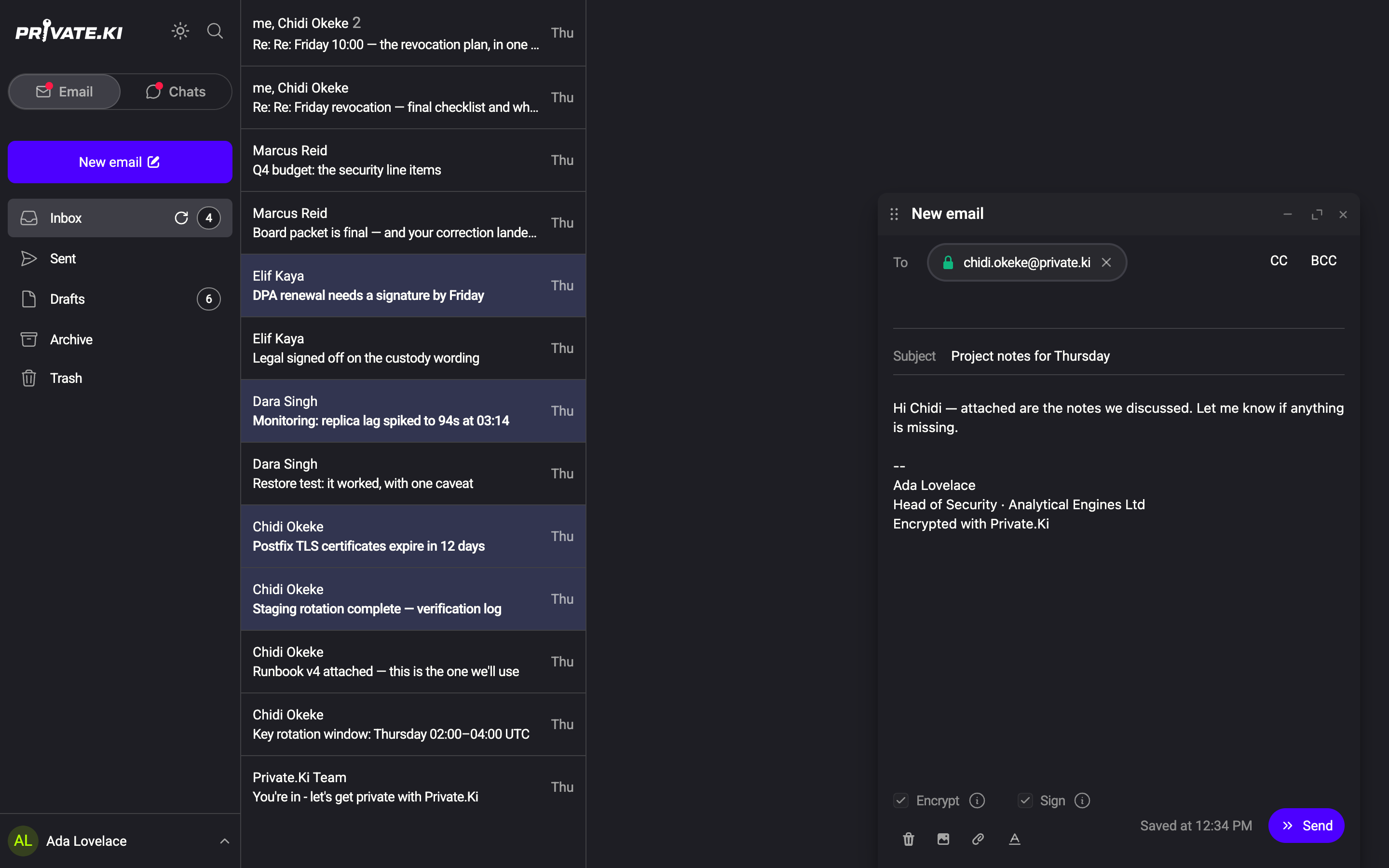
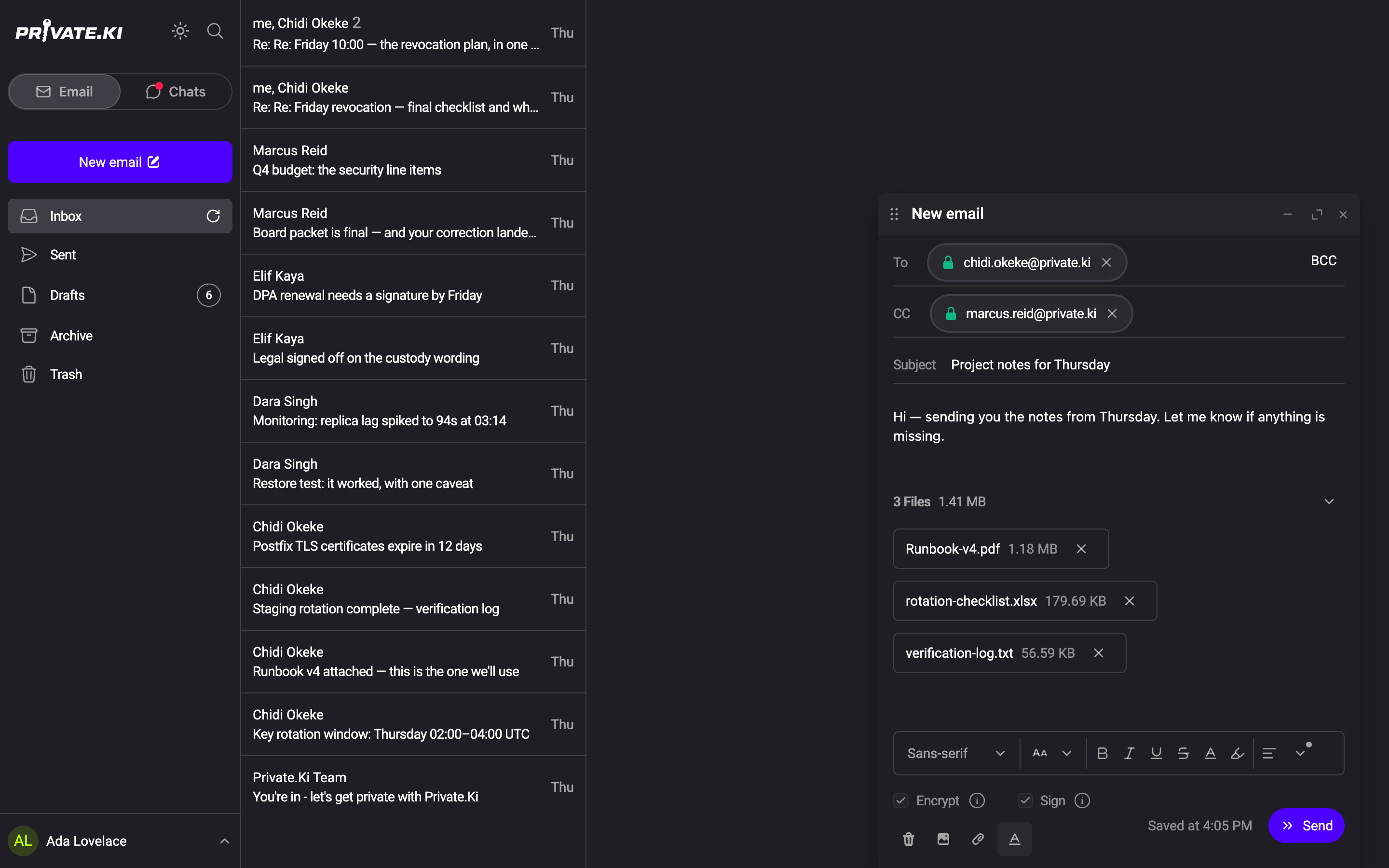
Tap the A icon (Show formatting) in the composer's top bar. The toolbar attaches itself above the keyboard while the body has focus and disappears when you leave the body. Tap the icon again (Hide formatting) to put it away.
What the toolbar offers
| Group | Tools |
|---|---|
| Typeface | Font family (Sans-serif, Serif, Monospace, Roboto, Arial, Helvetica, Times New Roman, Courier New, Verdana) and Font size (10 px to 32 px in steps of 2; default 14 px) |
| Style | Bold, Italic, Underline, Strike through |
| Colour | Text color, Background color |
| Paragraph | Align left, Align center, Align right |
| Lists | Ordered list, Unordered list, Indent decrease, Indent increase |
| Blocks | Quote |
| Reset | Remove formatting — strips styling from the selection |
There is no link button in the toolbar.
Keyboard shortcuts in the body
On a Mac use ⌘ where Ctrl is written.
| Shortcut | Effect |
|---|---|
| Ctrl+B / Ctrl+I / Ctrl+U | Bold / italic / underline |
| Ctrl+Shift+7 | Strike through |
| Ctrl+Shift+8 | Bulleted list on/off |
| Ctrl+Shift+9 | Numbered list on/off |
Ctrl + ] / Ctrl + [ |
Increase / decrease indent (list level or quote level) |
| Ctrl+D | Monospace (code) on/off |
| Ctrl+Z / Ctrl+Shift+Z | Undo / redo |
| Shift+Enter | Line break without a new paragraph |
App-wide shortcuts such as C for a new message are listed in Keyboard shortcuts.
Put an image inside the text
Inline images sit in the body at the cursor position, as in a document, instead of appearing as a separate attachment.
- Place the cursor where the picture should go.
- Click the image icon (Add inline image) under the body and choose an image file (any image type; the 25 MB per-file limit applies).
1Image in the body2Add inline image3Attached files — the image is not among themWeb & desktop 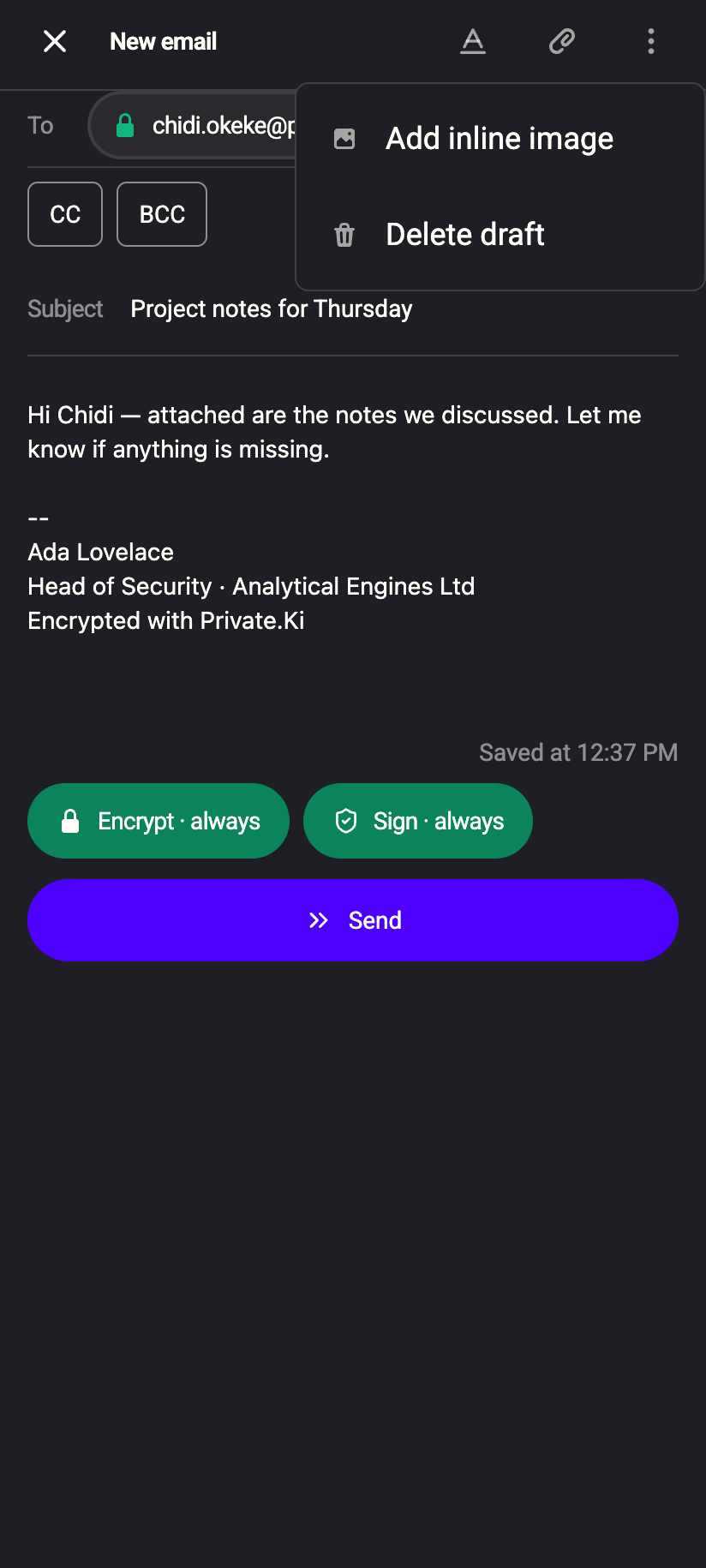 12
121Add inline image2Delete draftiPhone 121Add inline image2Delete draftAndroid - The picture appears in the text. Delete it like a character to remove it — the file is dropped from the message as well.
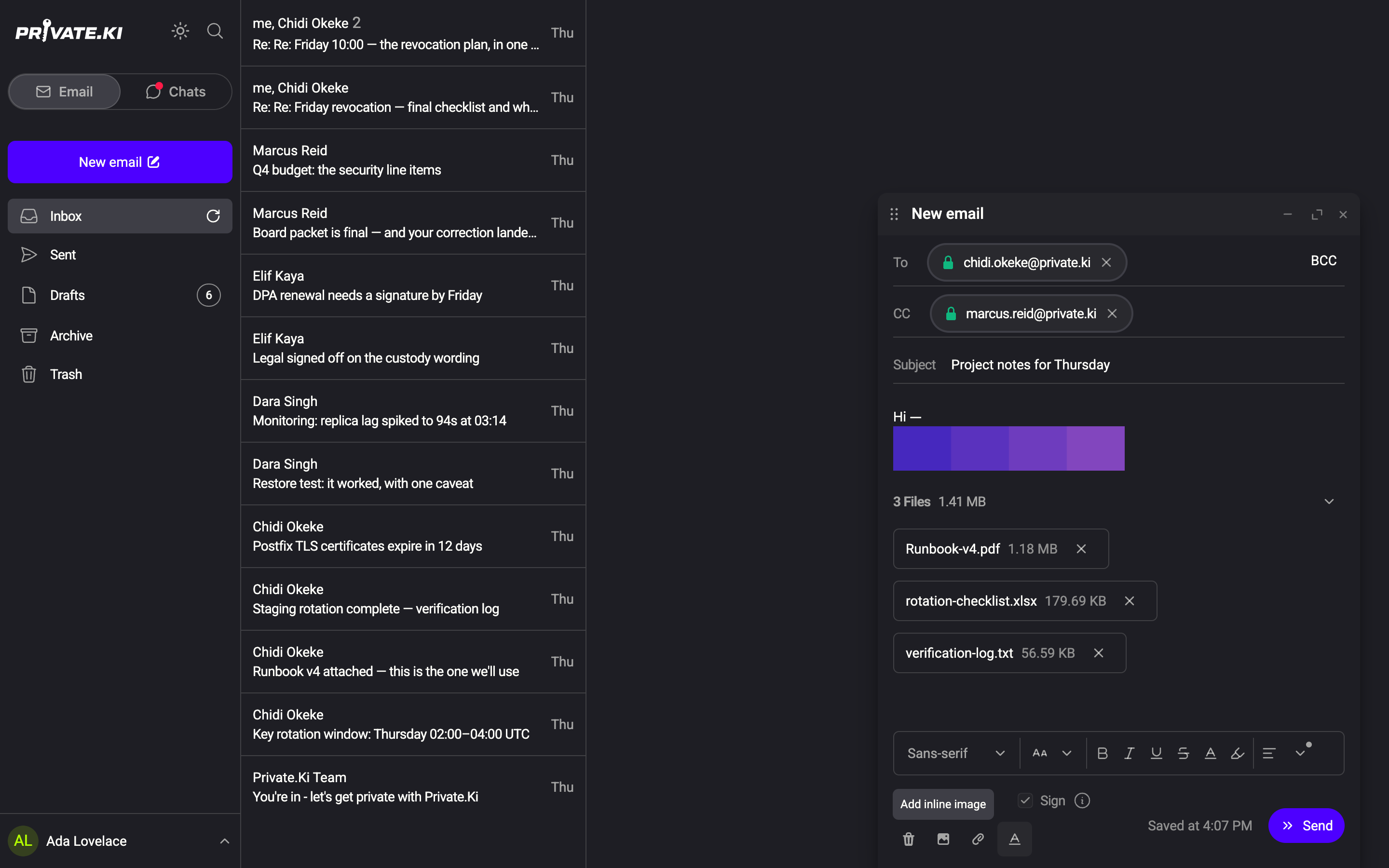
Open the ⋮ menu in the top bar and choose Add inline image. The photo library opens; the first time, the app asks for permission (Camera roll access is required to select images appears if you decline).
Files dragged onto the composer are always added as attachments, even if they are images. Use Add inline image to place a picture in the text.
Inline images are sent as parts of the same message (Content-Disposition: inline, referenced by a Content-ID), which is what other mail clients expect. The recipient can save them with Download inline attachments on the message.
Private.Ki renders HTML mail, so another Private.Ki user sees your message as you wrote it. An external mail client may apply its own font and colour rules, and some strip background colours. Keep to bold, lists and quotes if the layout matters.
Common questions
The toolbar disappeared.
On the web, it hides when you click Show toolbar again. On the phone it is attached to the keyboard and only shows while the cursor is in the body.
Can I write plain-text email?
No. Messages are always sent as HTML. Leave the toolbar hidden and do not apply styles if you want the visual equivalent.
Where did Undo and Redo go?
They are not in the composer toolbar; use Ctrl+Z and Ctrl+Shift+Z instead.
Do signatures support formatting?
Yes, the same toolbar is available when you write a signature, except that links are stripped there. See Email signatures.