Drafts: autosave, edit, delete
How the composer saves as you type, where to find drafts, how to continue, delete or restore one, and why a draft is encrypted before reaching the server.
You never have to save a draft by hand. Every change in the composer — a recipient, a word, an attachment — is written to the server half a second after you stop typing, encrypted so that only you can read it. Close the window, switch device, come back a week later: the draft is where you left it.
Autosave, and the status line
The composer's status is shown at the bottom of the window:
- Saving while a save is in progress (starts 500 ms after your last change).
- Saved at 14:32 once the draft is stored, with the time of that save.
- ⚠ Failed to save draft if the server could not be reached. Keep the composer open and the next change retries; nothing is lost while the window is open.
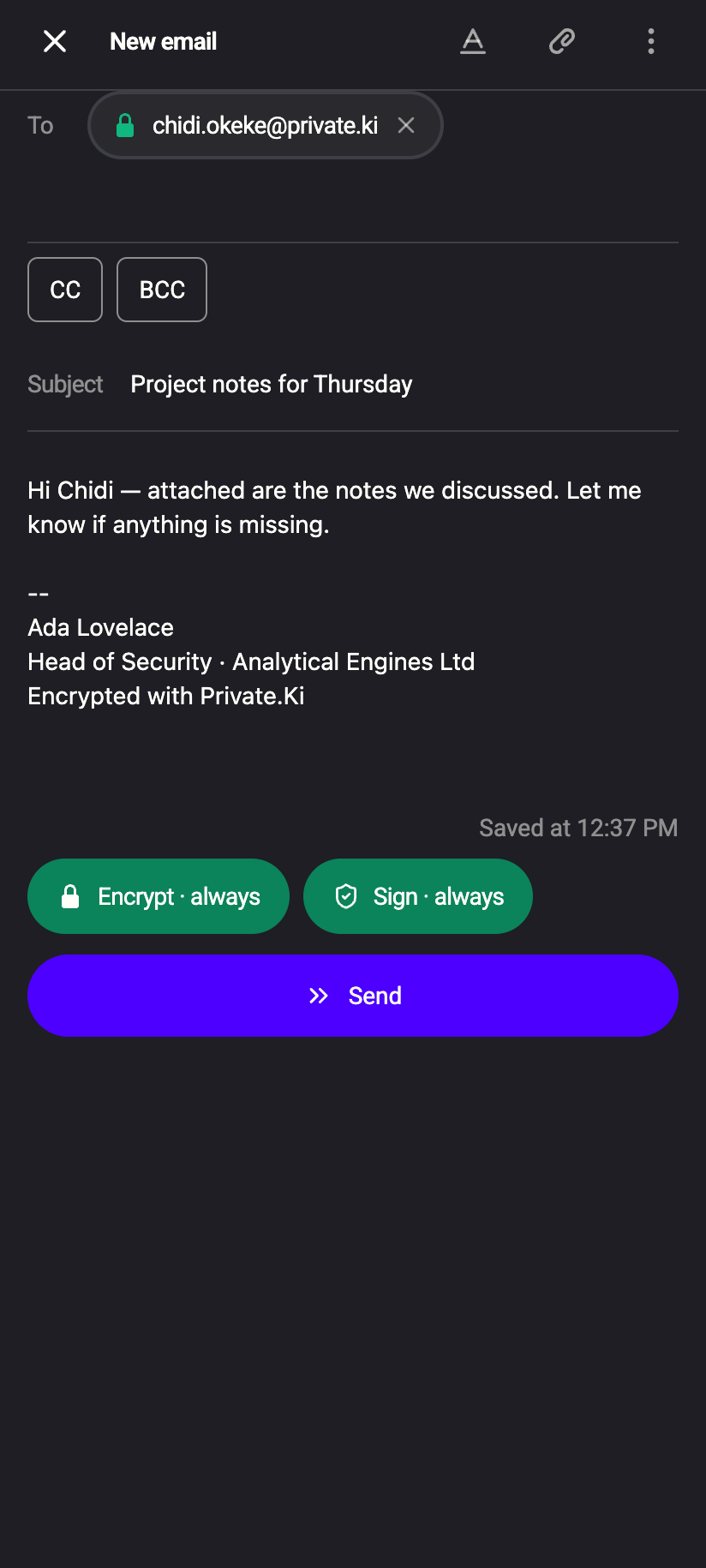
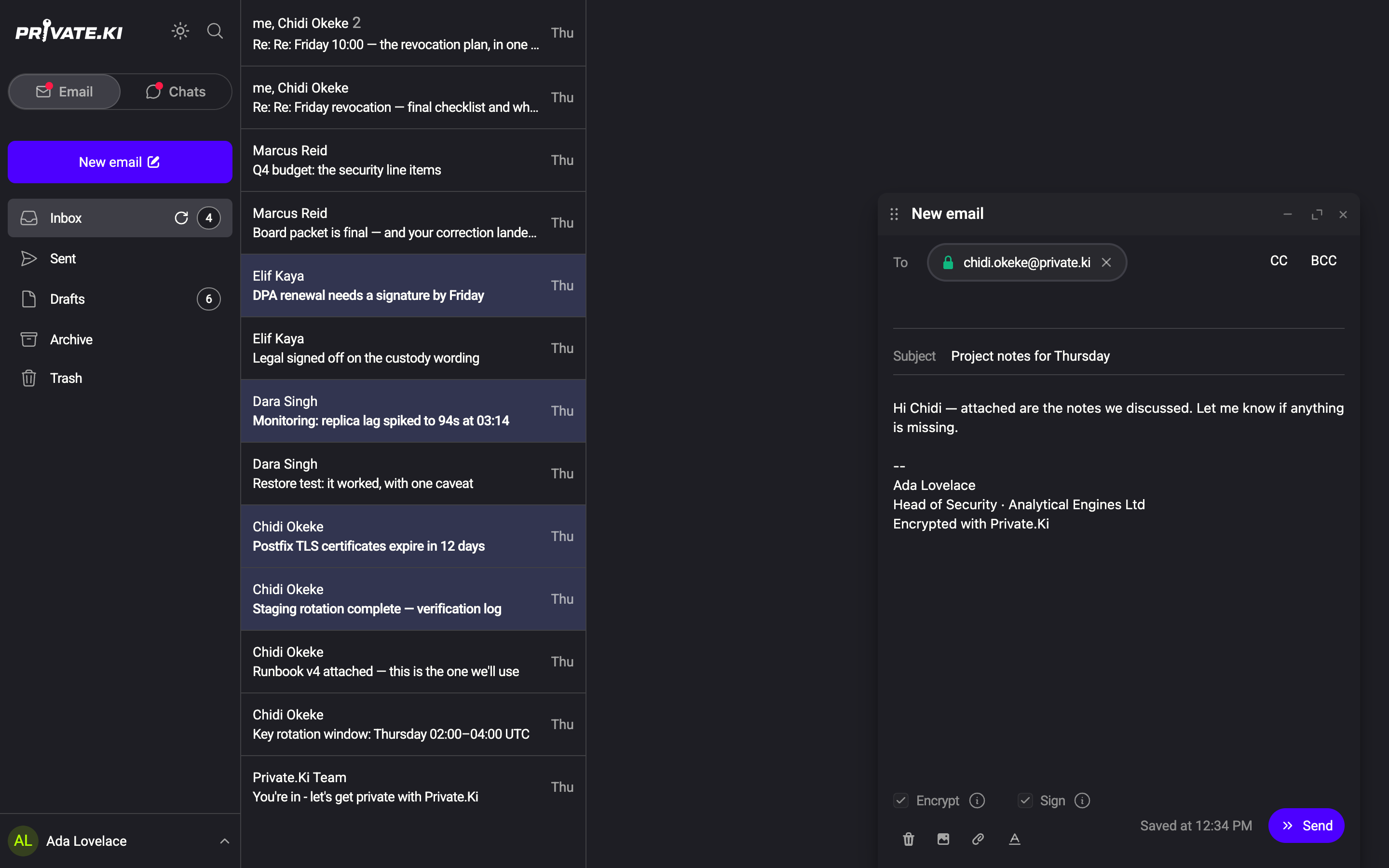
A brand-new message becomes a draft the moment you change anything. Until then, nothing is created — opening and closing an empty composer leaves no trace. Clicking Send waits for any pending save to finish first, so what you see is what goes out.
The subject is used as the window title on the web, and No subject stands in for an empty one in the Drafts list.
Find and continue a draft
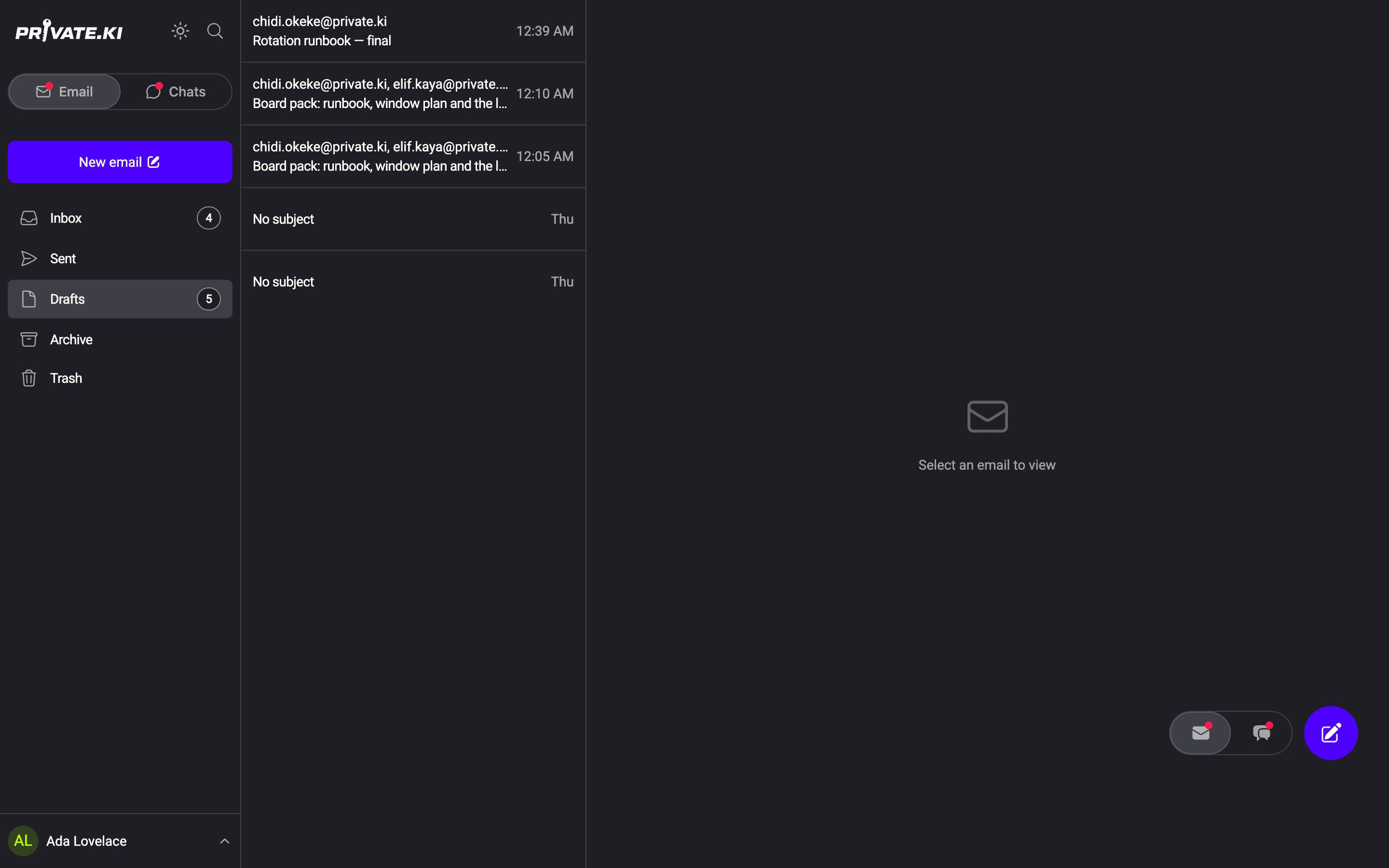
- Open Drafts in the folder list.
1Drafts2A draft with no subjectWeb & desktop 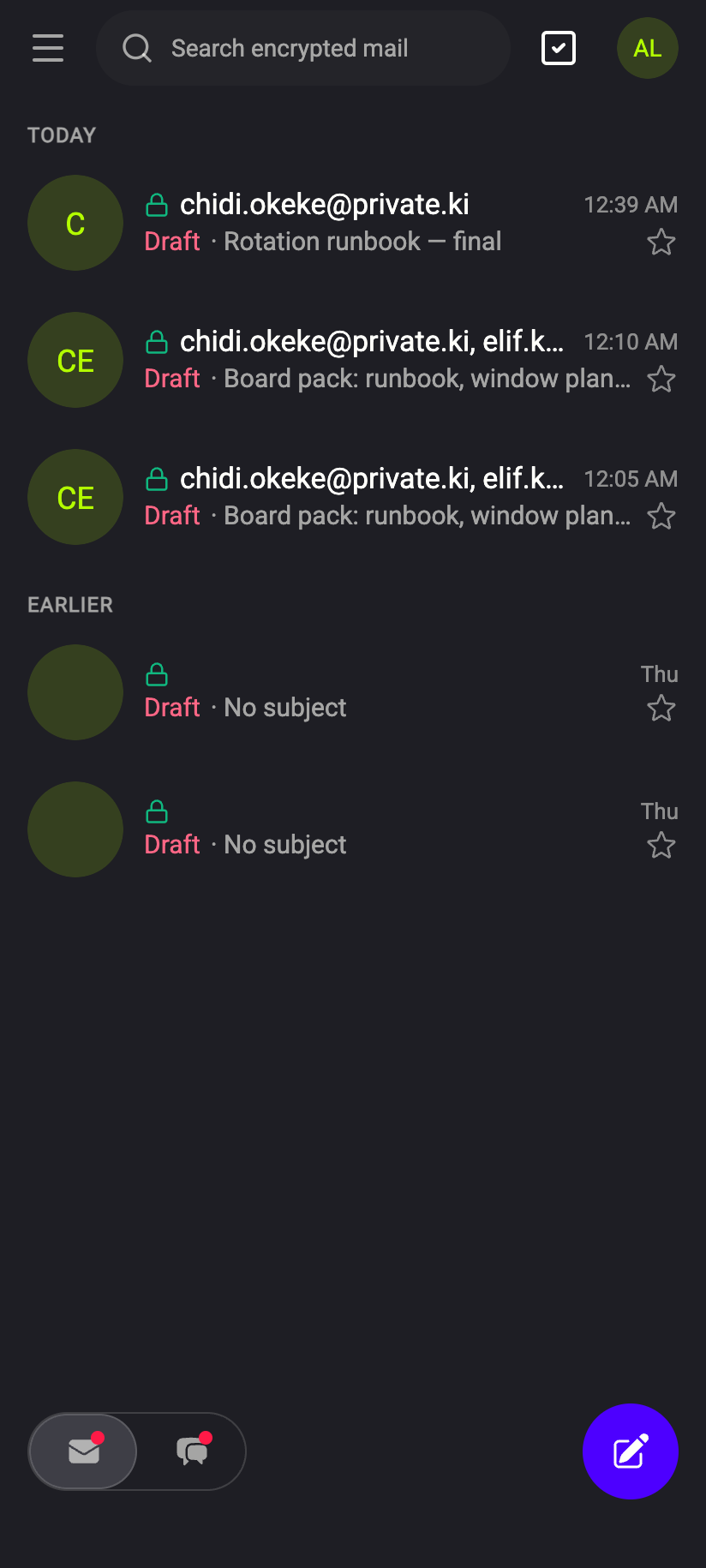 12
121Draft2A draft with no subjectiPhone 121Draft2A draft with no subjectAndroid - Click the draft. It opens in the composer with everything restored — recipients, text, attachments and the Encrypt / Sign settings.
- Continue writing; saving resumes automatically.
A reply you have not sent yet is a draft too, but it stays with its conversation: the thread in Inbox is marked Draft and opening it shows the unfinished reply at the bottom. It is also listed in Drafts.
Drafts are under Drafts in the folder drawer. Tap one to open it full-screen; the Close button in the top bar leaves the draft saved.
Delete a draft
There are two ways, with different results.
| Where | Button | Result |
|---|---|---|
| Inside the composer | trash icon (Delete draft) | Draft moves to Trash. It can be restored (below). |
| In the Drafts list, row menu | Discard draft | Draft is deleted permanently, no confirmation. |
Discard draft from the list removes the draft from the server at once; there is no Trash stop and no undo. Use the composer's Delete draft if you might want it back.
Restore a draft from Trash
- Open Trash and click the draft.
- In the composer, click Restore draft. The draft returns to Drafts and to its thread, if it was a reply.
1Restore draft2Delete draft3Trash — where deleted drafts goWeb & desktop 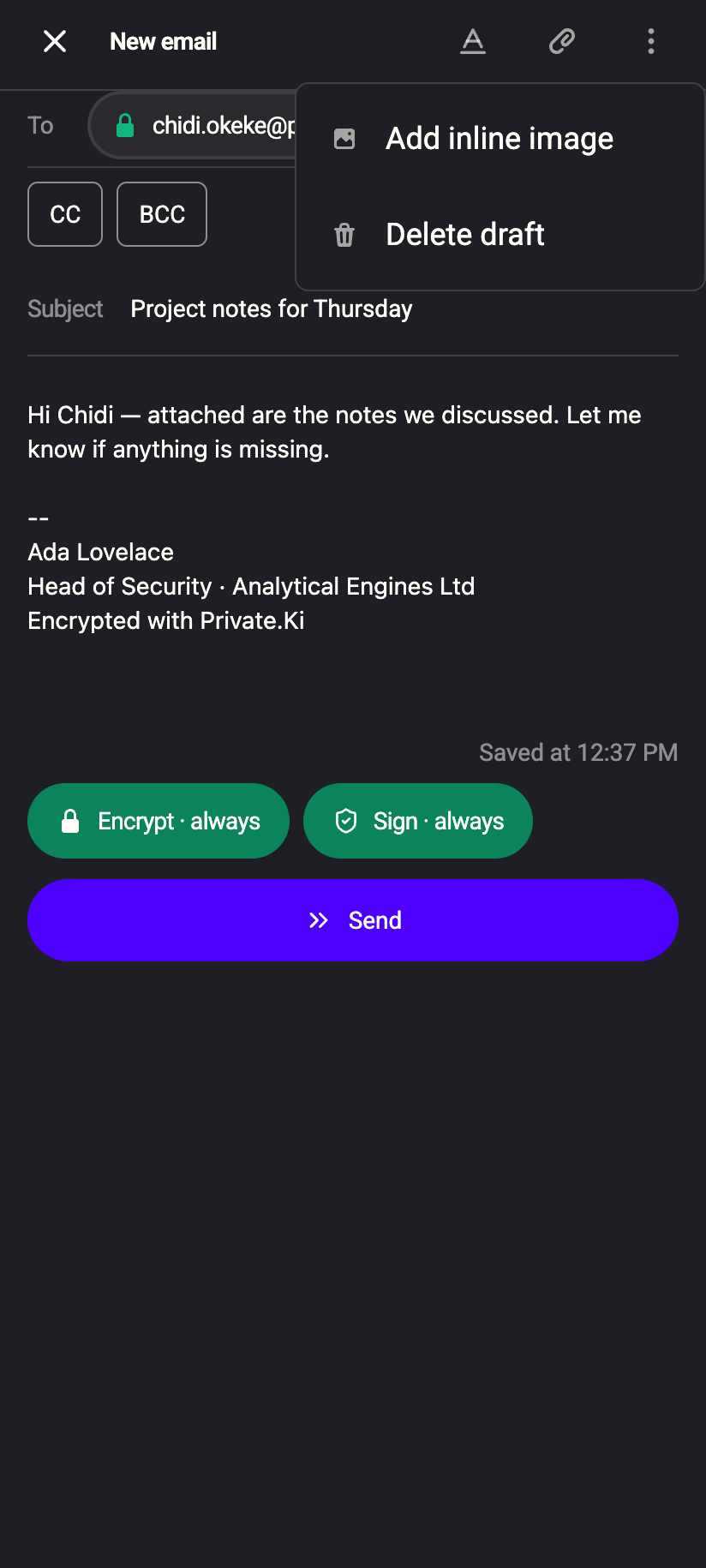 12
121Delete draft2Composer menuiPhone 121Delete draft2Composer menuAndroid
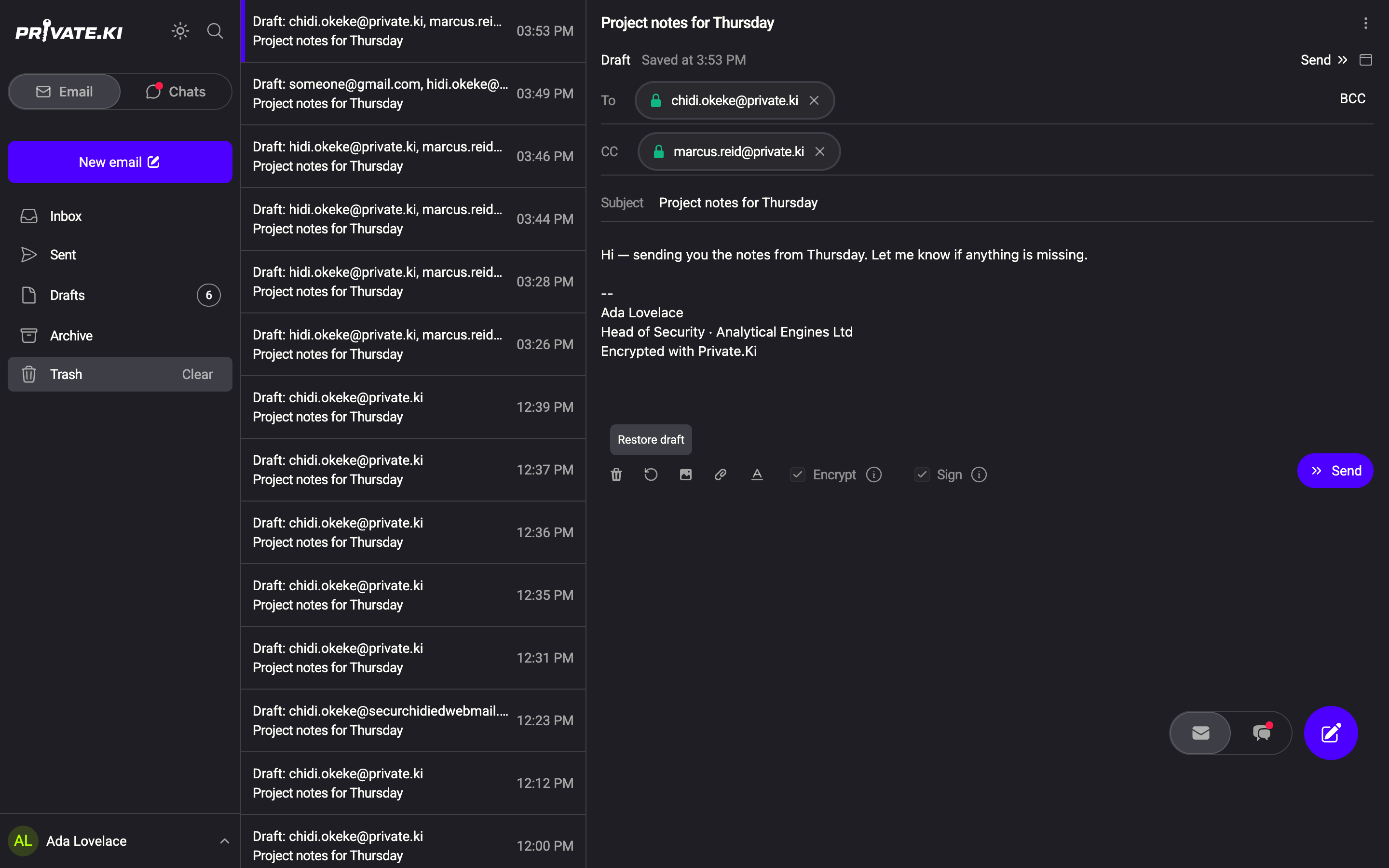
Deleting a draft while it is in Trash (Delete draft again) removes it permanently. Folder behaviour in general: Delete and restore.
How drafts are protected
A draft is not a plain copy waiting on the server. Before every save the composer assembles the message — text, formatting, inline images and attachments — and encrypts it on your device with AES-GCM-256, using a key that only exists once you have unlocked the app with your passphrase. Recipients, subject and the other headers are encrypted the same way. The server stores the result and its size; it cannot read the draft, and neither can anyone who obtains a copy of the database.
Because the key derives from your own master key rather than from the device, a draft saved on your laptop can be decrypted on your phone after you unlock there — that is what makes drafts follow you.
The encrypted draft as a whole is limited to 400 MB, which is more than ten 25 MB attachments need.
Common questions
The draft shows Failed to decrypt content.
The draft was saved under a key this device cannot reproduce — typically after the master key was reset. The text cannot be recovered; delete the draft and write it again.
Where does a message go when I click Undo after sending?
Back to Drafts, reopened in the composer — see Undo send.
Are drafts synced live between open windows?
Each open composer saves its own copy. Do not edit the same draft in two places at once; the later save wins.