System requirements and JavaScript
Any current browser with JavaScript on, or Android 7.0 and newer for the Play app. Why JavaScript is required, and how to turn it back on.
Private.Ki runs in the browser. There is nothing to install on a computer, and the requirements are the ones any modern web app has — with one that matters more here than elsewhere: JavaScript must be enabled, because the encryption runs on your device, not on our server.
What you need
- A current browser. Chrome, Edge, Firefox, Safari, Brave or Samsung Internet, updated within the last year or so. Internet Explorer is not supported.
- JavaScript enabled. Without it the page stays blank: the code that encrypts and decrypts your mail runs on your own device.
- The browser's built-in cryptography (Web Crypto) and WebAssembly. Every mainstream browser has had both for years. Private.Ki uses Web Crypto for local encryption of drafts and cached data, and WebAssembly for the OPAQUE sign-in and key derivation.
- A live connection. The app opens a WebSocket to our server for real-time mail and chat. Networks that block WebSockets show a Connection lost banner; you can still read what is already loaded. See Offline, reconnecting and the 30-minute auto-lock.
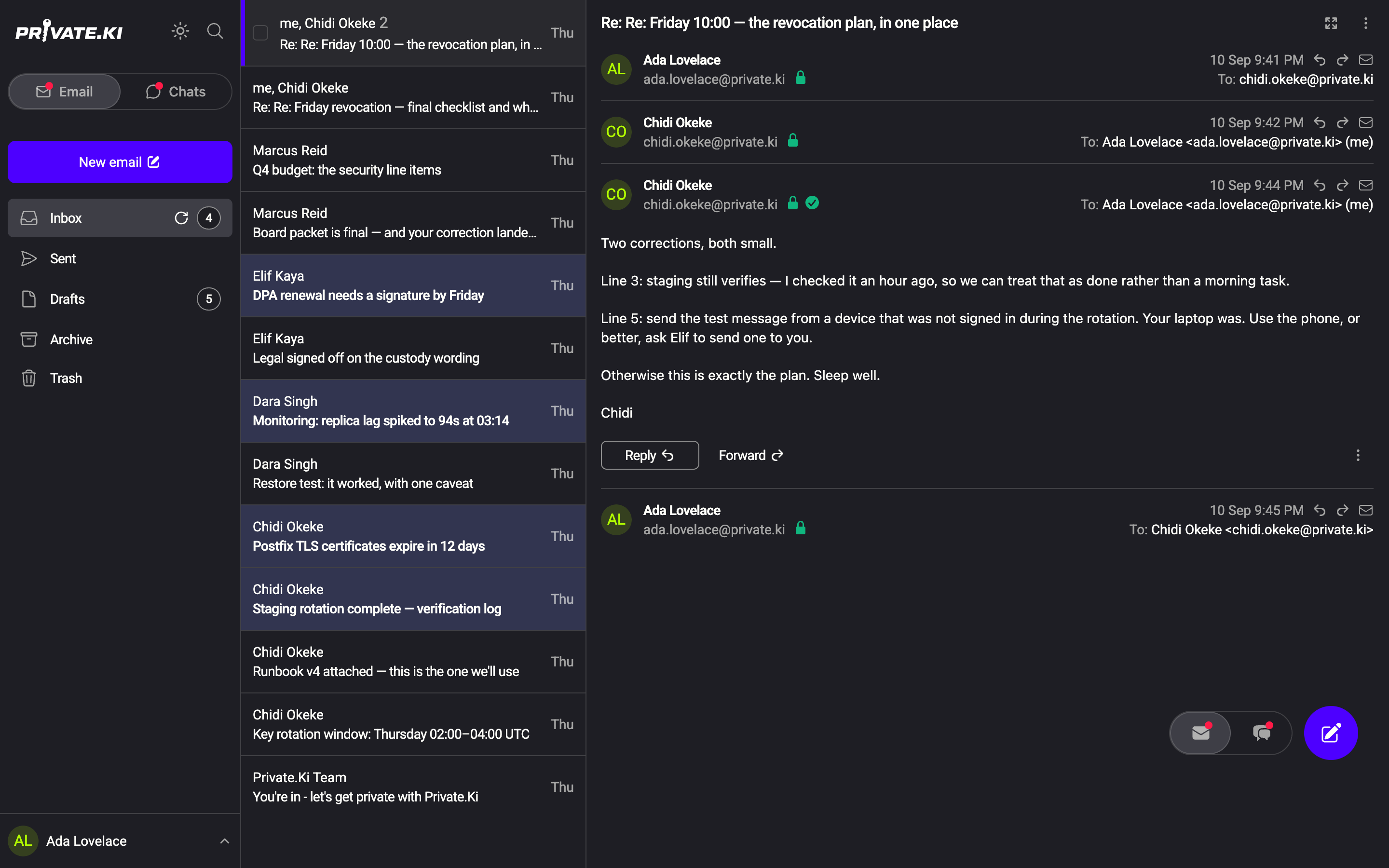
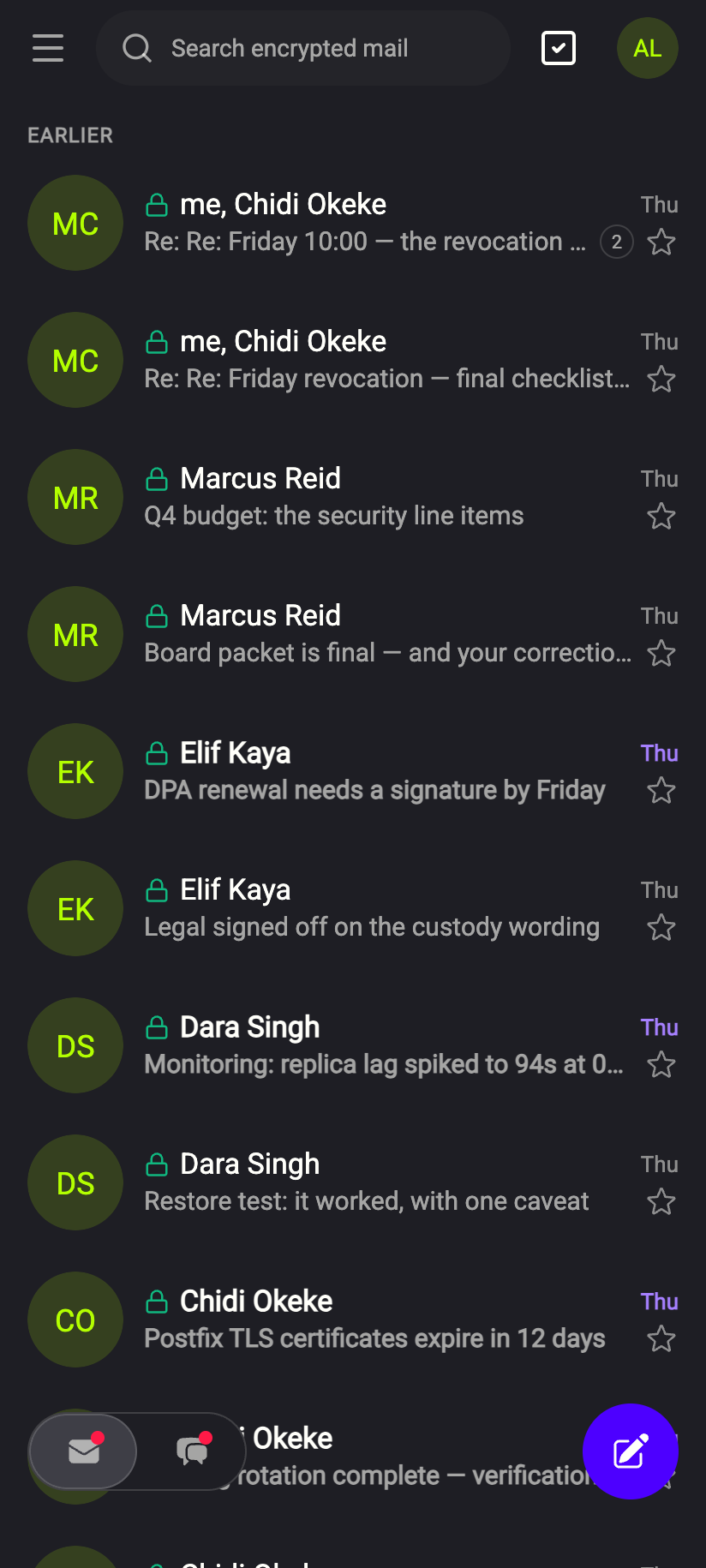
- Screen width. Above roughly 750 px wide you get the desktop layout — sidebar, list and reading pane side by side. Narrower than that, including every phone, you get the single-column layout with a slide-out menu ☰ and the floating Email / Chats switch. The layout changes live when you resize the window or rotate a phone.
Android app
The Private.Ki app on Google Play needs Android 7.0 (Nougat) or newer. Google Play hides the listing on anything older, so if you cannot find the app on an old phone, that is why — use the web app in the phone's browser instead. The app is locked to portrait: rotating the phone does not turn the screen. On a large screen — an unfolded foldable, for instance — it switches to the wider two-pane layout, still upright.
iPhone and iPad. Open Private.Ki in Safari, which meets the requirements above; the iPhone app is coming to the App Store. See Install Private.Ki.
Tor Browser. Works at the Standard security level. The Safest level disables JavaScript and Private.Ki will not load. See Use Private.Ki over Tor.
Why Private.Ki needs JavaScript
Most websites use JavaScript for convenience. Private.Ki uses it for the thing the service is built on:
- Encryption and decryption happen in your browser. When you open an email, JavaScript decrypts it on your device with your private key. When you send one, JavaScript encrypts it with the recipient's public key before anything leaves your device. Turn JavaScript off and there is no code to do that — the server holds only encrypted text and cannot render a readable page for you.
- Your password stays in your browser. Sign-in uses OPAQUE: your browser runs a short protocol with the server that proves you know the password without sending it. That protocol is JavaScript and WebAssembly.
- Your keys are generated in your browser. At sign-up, the PGP key pair is created on your device. The server never sees the private key unencrypted.
- Real-time updates. New mail and chat messages arrive over a WebSocket and are decrypted as they land.
If you normally block scripts to avoid trackers: the Private.Ki web app loads no advertising or analytics scripts. The JavaScript you are allowing is the encryption. The third parties we do use are listed in Third-party services.
Turn JavaScript back on
JavaScript is on by default in every browser. If it is off, either a setting was changed or a script-blocking extension (NoScript, uBlock Origin in advanced mode, Brave Shields) is blocking it. Check the extension first — allow app.privateki.net — then the browser setting.
Chrome and Edge (desktop and Android)
- Open the ⋮ (Chrome) or … (Edge) menu → Settings.
- Chrome: Privacy and security → Site settings → JavaScript. Edge: Cookies and site permissions → JavaScript.
- Make sure Sites can use JavaScript (Chrome) or Allowed (recommended) (Edge) is selected. If
app.privateki.netappears under a Not allowed list, remove it. - Reload Private.Ki.
Firefox (desktop)
Firefox has no JavaScript switch in its normal settings. If it is off, it was done in about:config or by an add-on.
- Type
about:configin the address bar and accept the warning. - Search for
javascript.enabled. - If it says
false, click the toggle so it readstrue. - Reload Private.Ki. If you use NoScript, click its icon and allow the site.
Safari (Mac)
- Safari menu → Settings… (⌘,) → Security.
- Tick Enable JavaScript.
- Reload Private.Ki.
Safari (iPhone and iPad)
- Open the iOS Settings app → Safari (on newer iOS versions: Apps → Safari).
- Scroll to Advanced and make sure JavaScript is on.
- Return to Safari and reload.
Firefox on Android has no toggle; Chrome on iPhone and iPad uses Safari's engine and follows the Safari setting.
What our server sees
Cannot see
- Which browser extensions you use
- Anything you type before you press Send — the composer is on your device
Can see
- The browser and operating system your requests identify themselves as, like any website
- Your IP address for the duration of the connection (not logged), unless you use a VPN or Tor
Common questions
The page is blank or shows a spinner forever
Almost always JavaScript is blocked, or a strict privacy extension is blocking a script. Allow the site and reload. If that does not help, try a private window — a broken cached build is the next most common cause.
Does Private.Ki work in a private / incognito window?
Yes. Nothing readable is stored on disk anyway, so a private window changes little. With Password only unlock the private window forgets your session when you close it, so you sign in again next time.
Can I use it on a Chromebook or Linux?
Yes — any of the browsers above, on any operating system.
Is there a desktop app for Windows or Mac?
No. The web app is the desktop app.