Web app vs the Android app: what differs
Same account and encryption everywhere. The short list of things that exist only in the browser, only in the Android app, or only in a wide window.
Private.Ki is one application built once and run in two places: as a web app in any browser, and as a native app for Android. Your account, your keys, your mail and chats are identical on both, and nearly every function works the same way.
The differences fall into two groups. Some depend on the platform (browser vs Android app). Others depend on the layout: the wide two-pane layout you get in a browser window over about 750 px, versus the single-column layout on every phone and in narrow windows.
Open Private.Ki in Safari. You get the same single-column layout as the Android app, and the iPhone app is coming to the App Store. See Install Private.Ki.
Encryption: same result, different plumbing
On the web, encryption runs in the browser's own JavaScript engine using the OpenPGP.js library, with the browser's built-in Web Crypto for the local layer. In the Android app the very same cryptographic code runs inside a bundled WebView, and the app talks to it through a bridge. The keys, formats and results are identical — a message encrypted on one device decrypts on any other — and in both cases the private key is unlocked on the device and never sent anywhere. See How encryption works.
Only in the Android app
| Feature | Notes |
|---|---|
| Push notifications | New email / New chat message while the app is closed — no sender, no subject, no preview. See Push notifications. |
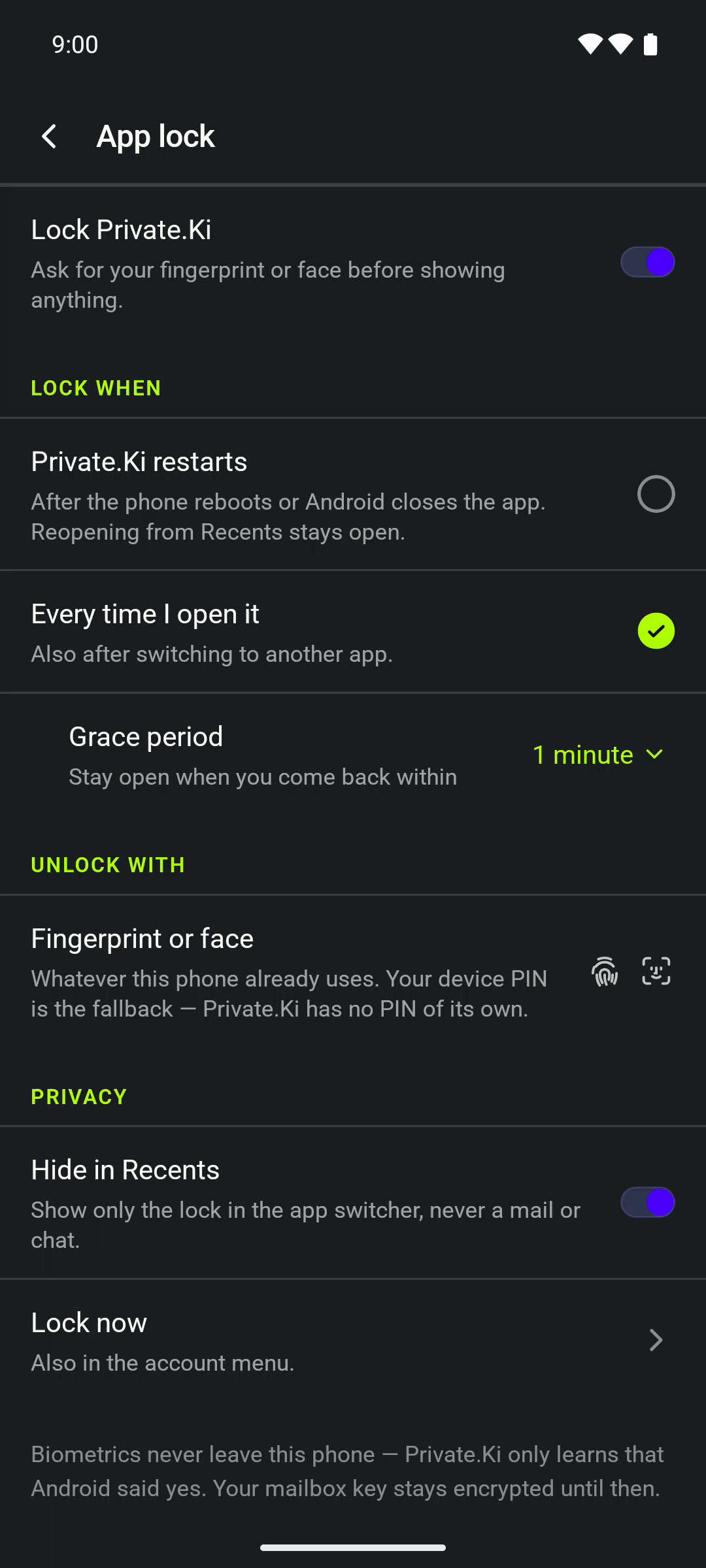
| App lock | The first row of Settings. Lock Private.Ki behind Fingerprint or face or the phone's screen lock, with Lock when (Every time I open it or when Private.Ki restarts) and a grace period. Refuses with Set a screen lock on this phone first if the phone has none. |
| Hide in Recents | A switch inside App lock: Show only the lock in the app switcher, never a mail or chat. The Android app switcher then shows the lock glyph instead of your inbox. |
| Android system pickers and prompts | The Photo Picker, the Files picker, the camera and microphone permission dialogs, and the Android share sheet. The browser asks its own way. |
Where each function lives
| Feature | Notes |
|---|---|
| Recovery key | The 12- or 24-word phrase that resets your password without a recovery email. In the web app. On Android, reset by recovery email. |
| Security keys and passkeys | The second factor you plug in or tap. In the web app. On Android the second factor is the authenticator app. |
| Inline images in the email editor | Dropping or pasting a picture into the body of an email. On Android, attach it instead — attachments work everywhere. See Formatting and inline images. |
| Tor | Private.Ki runs in Tor Browser; Tor and proxy settings are in the web app. See Use Private.Ki over Tor. |
| Keyboard shortcuts | About a dozen — switch workspace, new message, move through lists, Esc Esc to lock. They apply to the web app. See Keyboard shortcuts. |
| Right-click context menus | On mail rows and chat messages. On the phone, long-press does the same. |
| Tab title unread count | (3) Mail - Private.Ki in the browser tab. |
Only in the wide desktop layout (web, window wider than ~750 px)
| Feature | Notes |
|---|---|
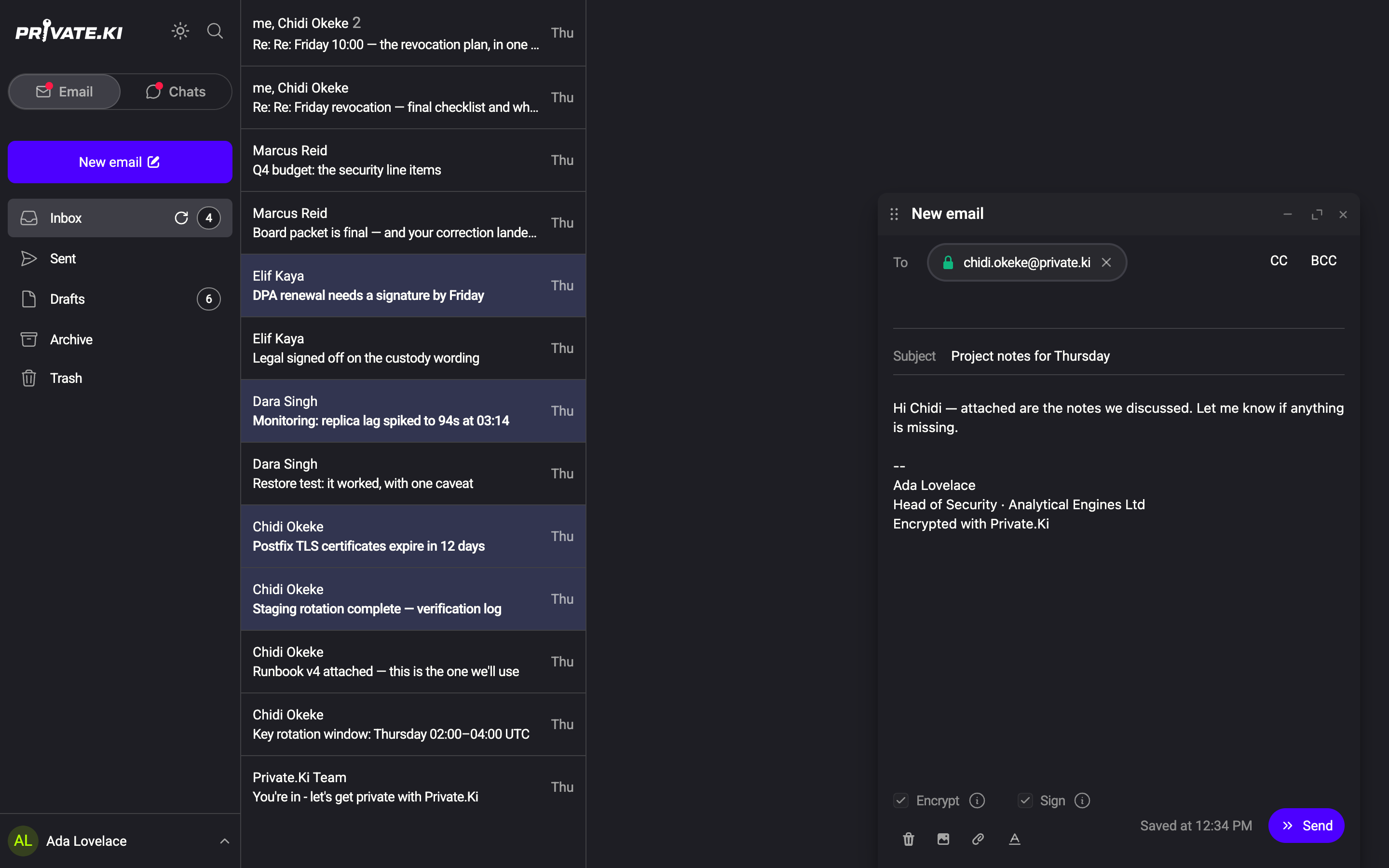
| Multiple composer windows | Each New email opens a floating window you can move, minimise and maximise; several can be open at once. See Multiple composers. |
| Drag an email to a folder | Drag a row from the list onto Inbox, Archive or Trash in the sidebar. See Drag to folder. |
| List and reading pane side by side | And the sidebar with the Email / Chats toggle at the top. |
| Collapsible sidebar in Chats | Hide the sidebar to give the conversation the width. |
| Search from the sidebar | The magnifier in the sidebar, or / and ⌘ + K. |
An unfolded foldable phone is wide enough for the two-pane layout, so the Android app shows it there too.
Only in the single-column layout (phones, the Android app, narrow windows)
| Feature | Notes |
|---|---|
| Swipe to switch workspace | A sideways drag anywhere on a list — on a row or on the space below it — toggles Email ⇄ Chats, in either direction. See Switch between Email and Chats. |
| Long-press row menu | Press and hold a row for the menu a right-click gives on the desktop: Archive, Move to, Move to trash, Delete chat and the rest. Per-row swipe actions were removed in October 2026 — see Bulk selection, and what a swipe does now. |
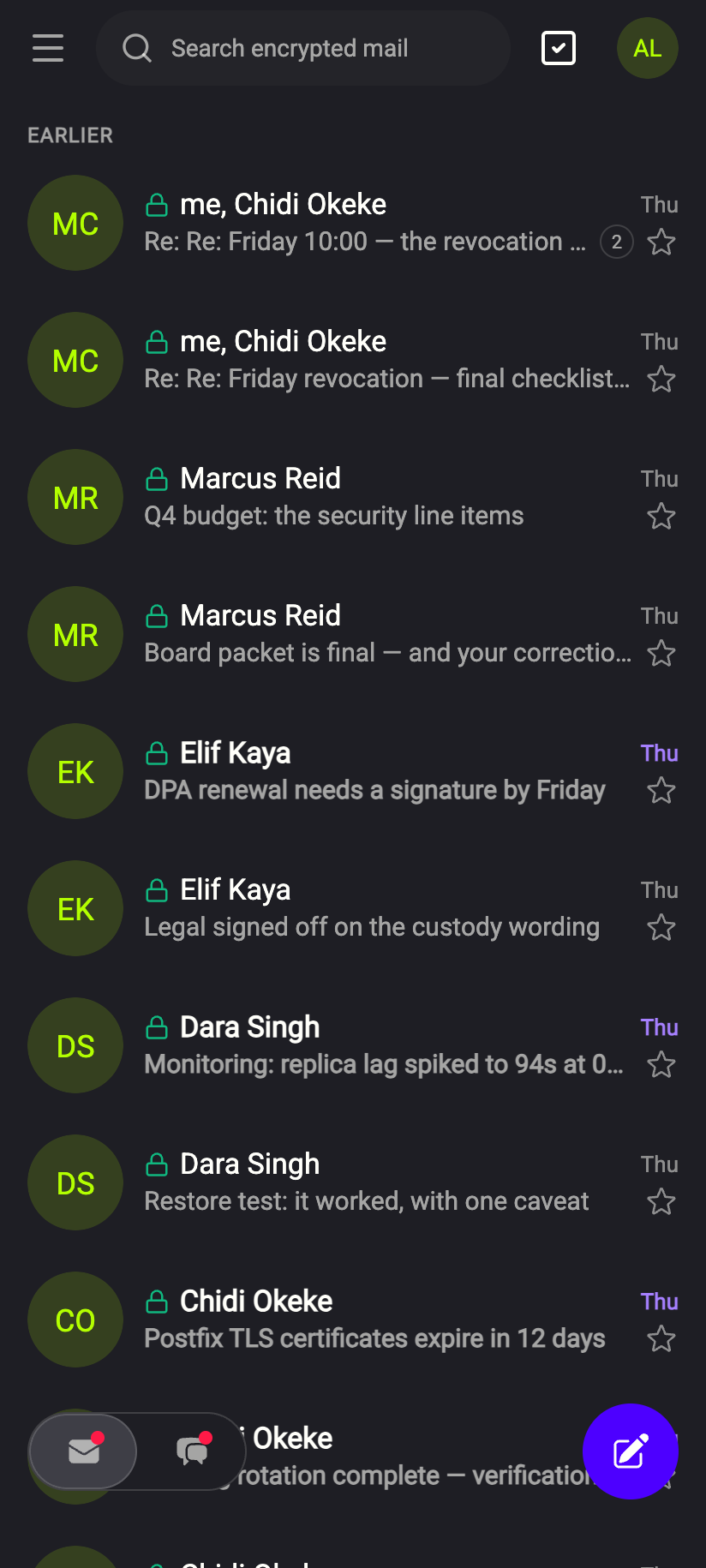
| Bulk selection header | The tick icon at the top of the list selects several emails for one action — the only way into selection mode without a pointer. |
| Full-screen composer | One composer at a time, filling the screen. |
| Search bar at the top | Search encrypted mail above the list instead of the sidebar magnifier. |
| Floating Email / Chats pill | At the bottom of the screen, with the compose button beside it. |
A phone browser gets this layout too, so on a phone the web app and the Android app look and behave almost identically; the Android app adds only the first table above.
Wording that differs
A few Settings rows are worded differently in the Android app and the web app. They are the same screens:
| Android app | Web app |
|---|---|
| Key Management | Encryption keys |
| Recipient Autocomplete | Suggested addresses |
| Security and Privacy | Security and privacy |
The same everywhere
Everything not listed above. That includes, in full: composing and sending, Encrypt and Sign switches, attachments (10 × 25 MB), signatures, undo send, folders, stars, subject-and-people search, external image blocking, tracking protection, show original, importing and exporting keys, 1:1 and group chats, invite links and QR codes, self-destruct timers, unsend and destroy, reactions, voice messages, typing indicators, per-chat mute, voice and video calls, stickers, secure notes, View once photos and voice messages, photos and videos in chat, two-factor authentication with an authenticator app, recovery address, signed-in devices, QR sign-in (scanning and showing a code — a computer with a camera can scan too), the no-sign-up entrance, themes, and the 30-minute offline lock. Getting started links to the article for each.
 123123
What our server sees
Cannot see
- Which platform you are on beyond what any web server sees — the browser or app identifies itself in each request
Can see
- Which of your devices holds a session, and, for the Android app, a push token and the device name
Common questions
Is one platform more secure than another?
No. The same code, the same keys, the same protocol. Choose by convenience: the Android app for notifications and App lock, the desktop browser for the keyboard, drag and drop, several composers, and the recovery key and security keys.
Can I use both at once?
Yes. Sign in on as many devices as you like; pair a phone by QR in seconds. Each device unlocks separately. See Pair a second device.
Why does my desktop browser suddenly look like the phone version?
The window got narrower than about 750 px — for example when you docked it beside another window. Widen it and the two-pane layout comes back.
Can I make calls from the Android app?
Yes. Voice and video calls work in the Android app and in the web app, with the same end-to-end encryption on every frame.
Is there a Windows, Mac or Linux desktop app?
No. The web app is the desktop app.