Pair a second device with "Show a code"
From a signed-in, unlocked device, show a 30-second QR code, scan it with your phone and compare a six-character code — the phone opens with no password.
My devices › Show a code lets a device that already has your unlocked mailbox hand it to a new one — typically your computer handing to your phone. The new device receives your unlocked private key over a channel encrypted between the two devices. It never learns your password or passphrase, and the server relays only ciphertext it cannot read.
This is the "signed-in device shows, new device scans" direction. The reverse — the new device shows and your signed-in device scans — is covered in Sign in on a new device with a QR code.
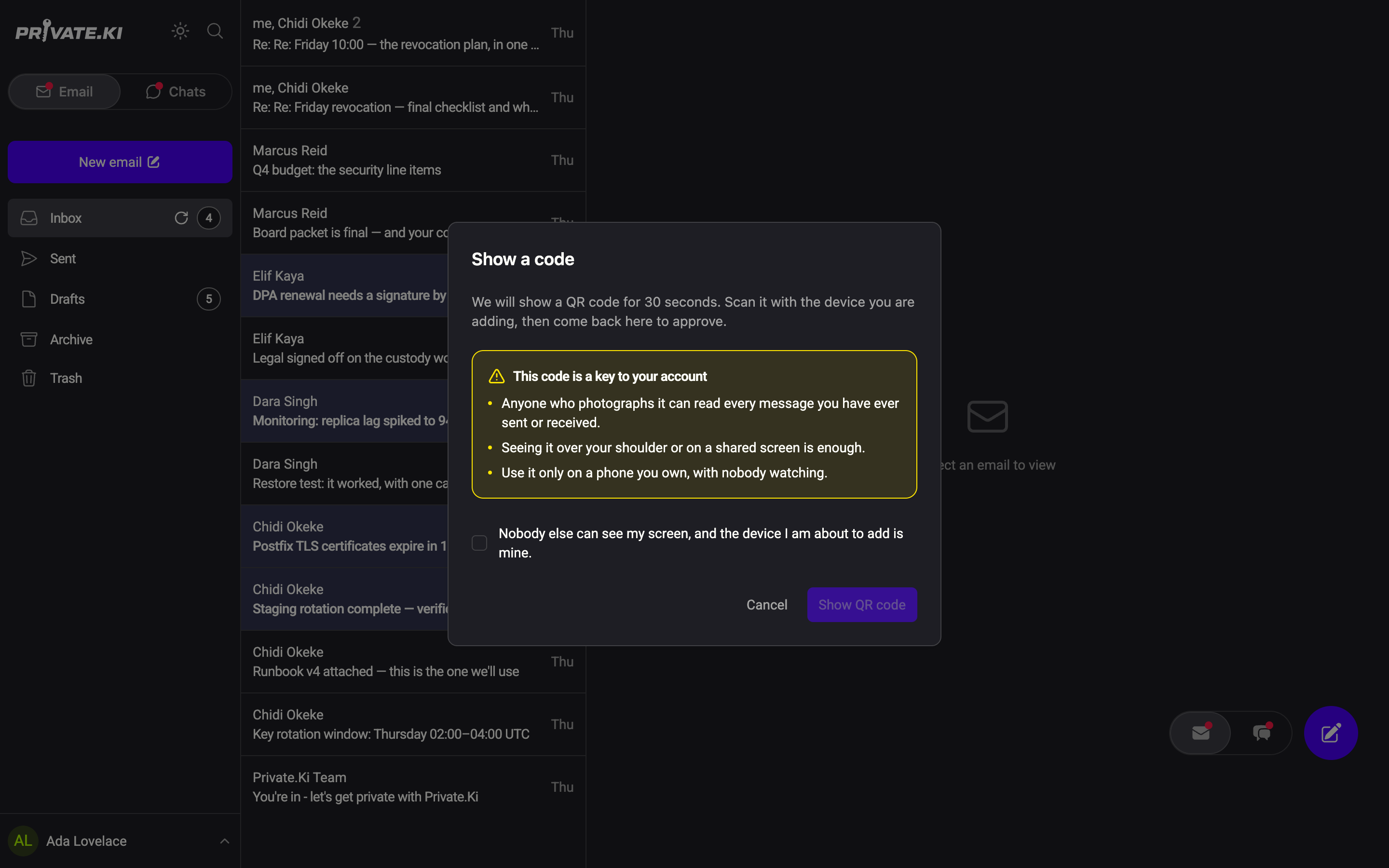
Anyone who photographs it can read every message you have ever sent or received. Seeing it over your shoulder or on a shared screen is enough. Show it only when nobody else can see your screen, on a phone you own.
On the signed-in device
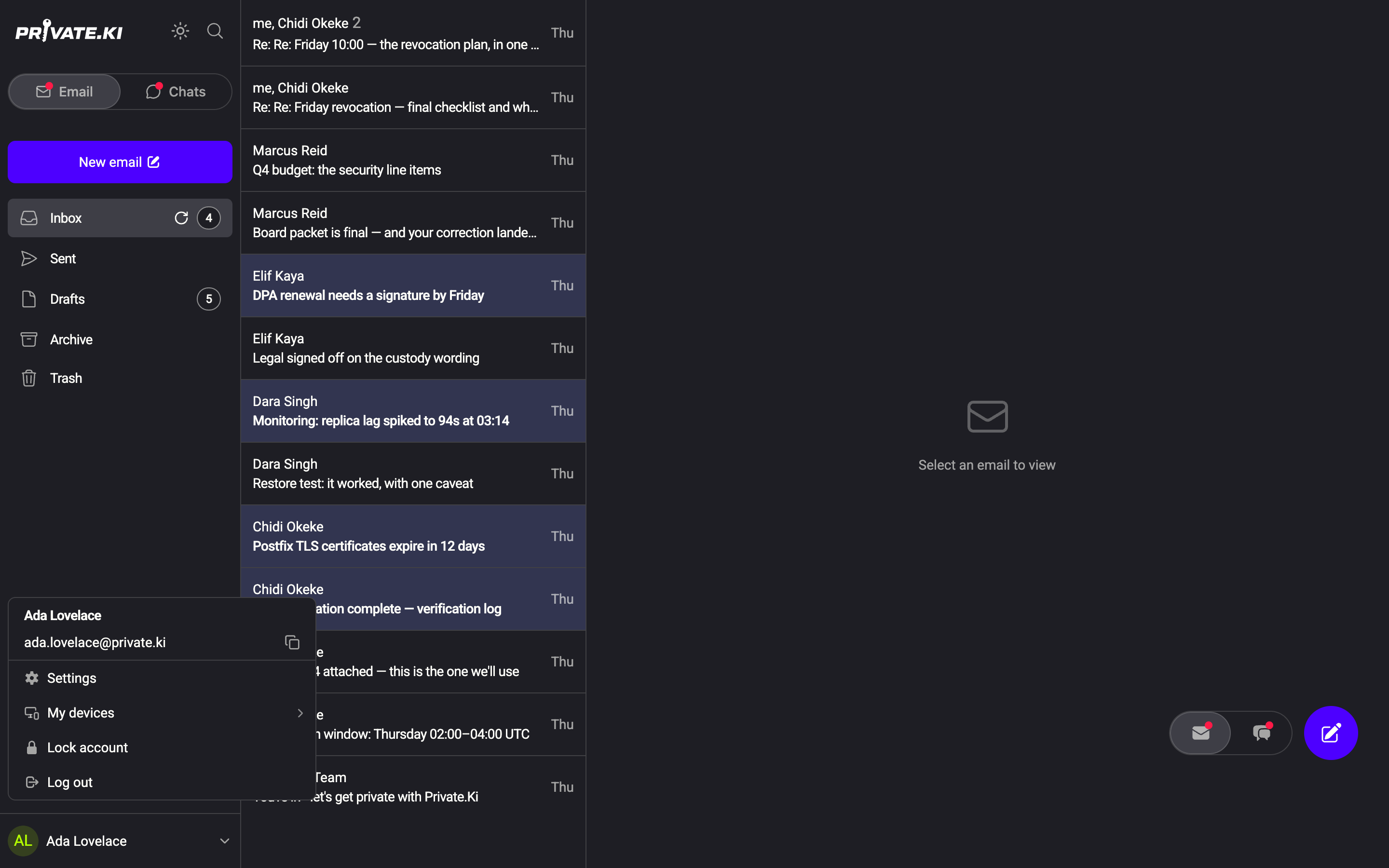
- Click your name at the bottom-left (on a phone, ☰ then your name) and choose My devices. The My devices dialog offers two actions; choose Show a code (The other device scans this screen).
1My devices — Show a code2Your name opens the menuWeb & desktop 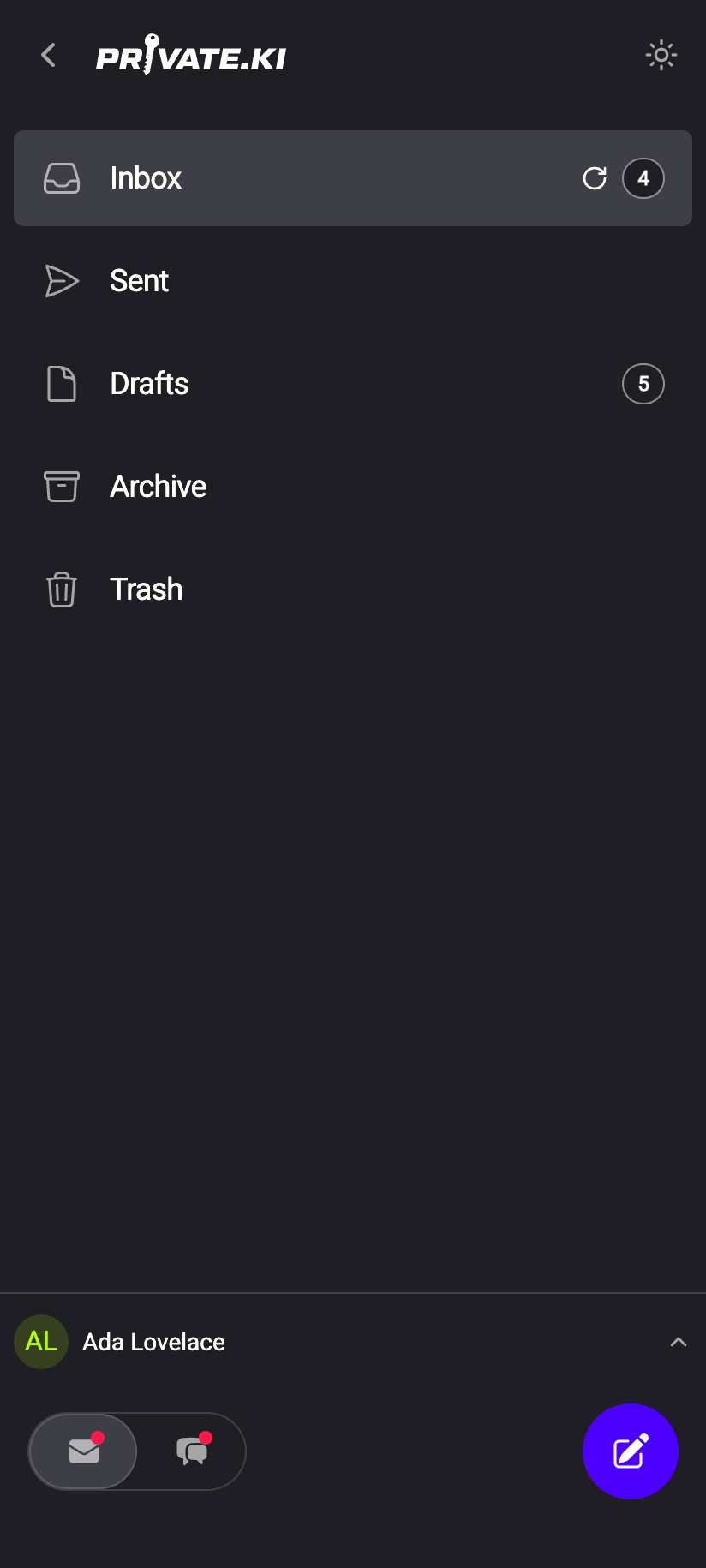 1
11Tap your name for the menuiPhone 11Tap your name for the menuAndroid - Read the Show a code warning — This code is a key to your account. Tick Nobody else can see my screen, and the device I am about to add is mine and click Show QR code.
1Tick to enable the button2Show QR codeWeb & desktop 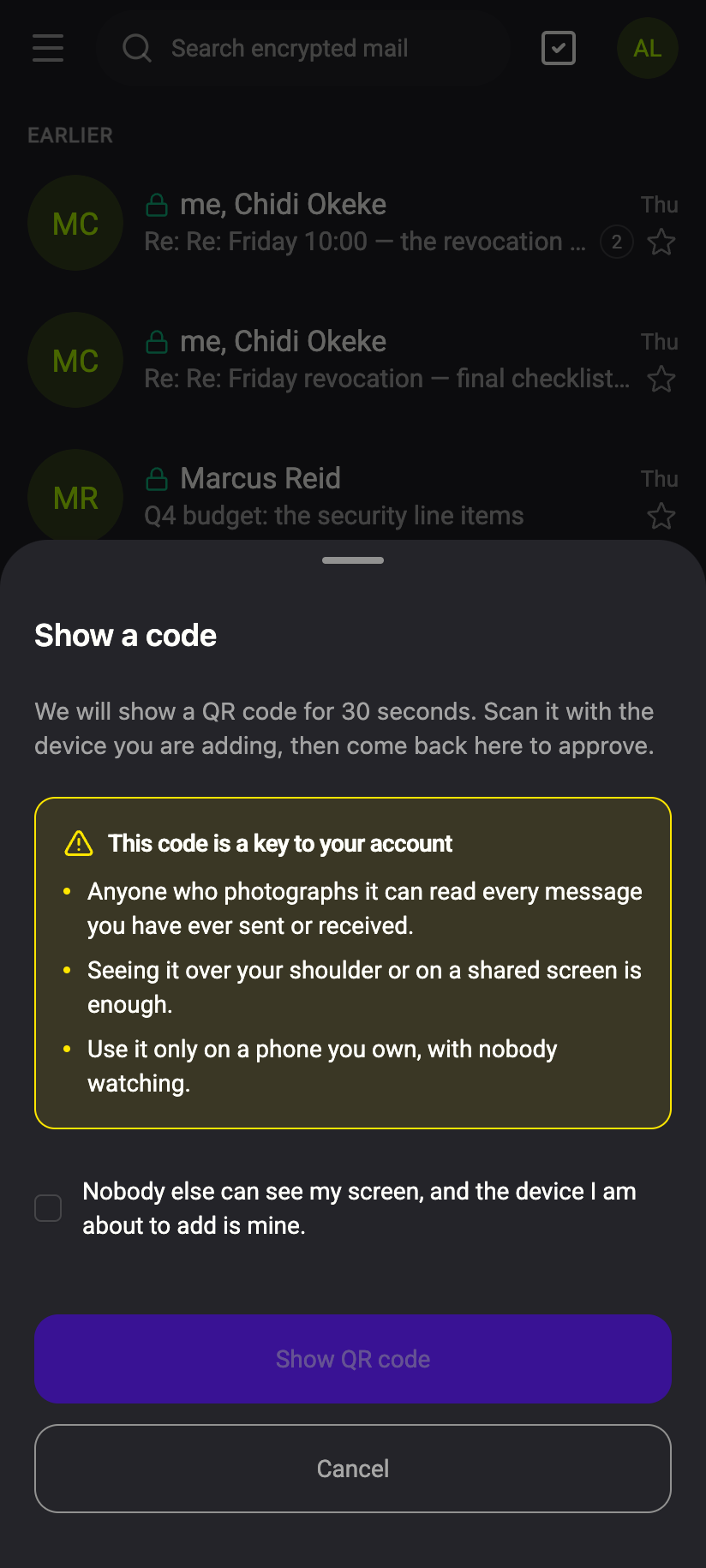 12
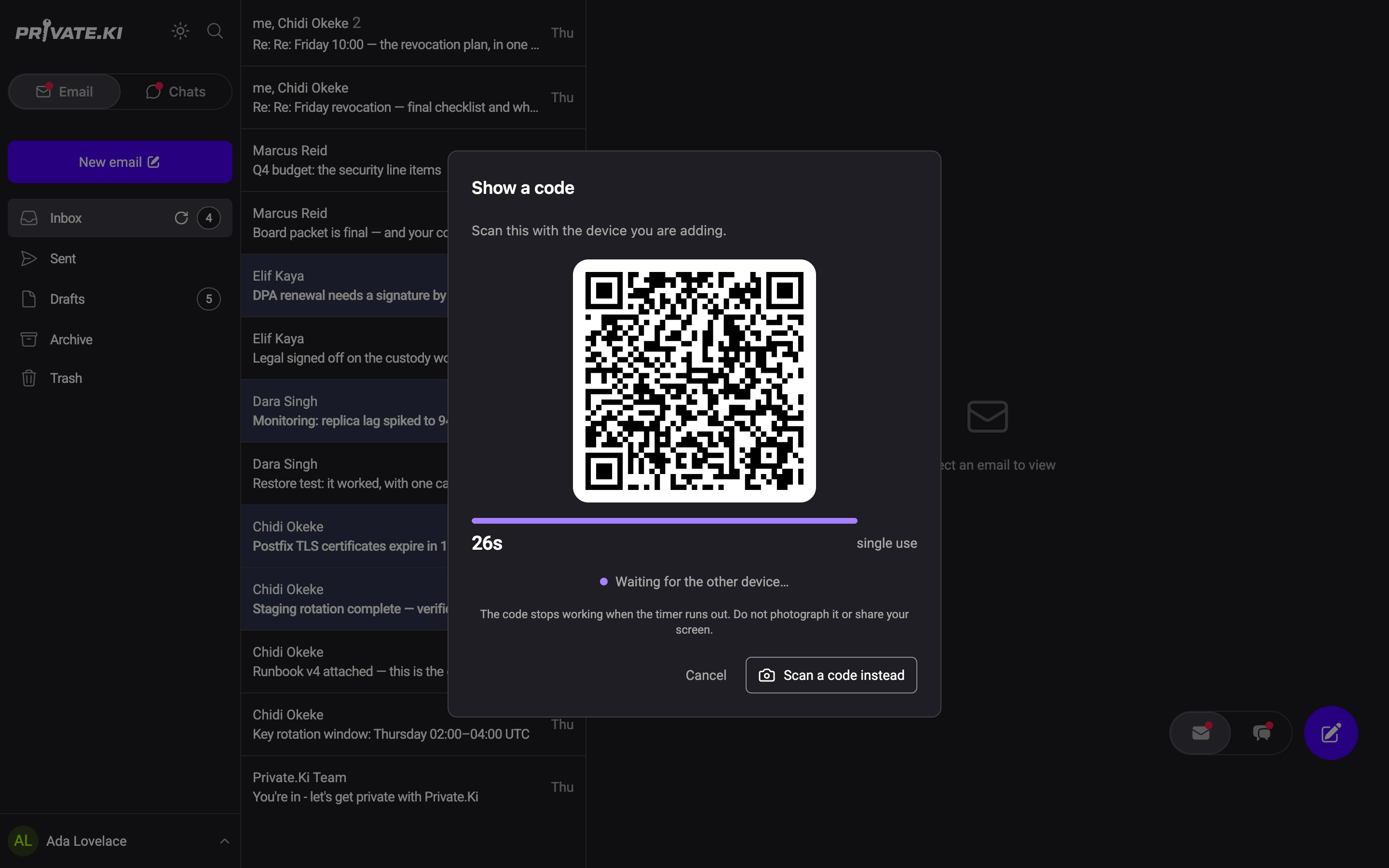
121Tick to enable the button2Show QR codeiPhone 121Tick to enable the button2Show QR codeAndroid - A QR code appears under Scan this with the device you are adding with a 30-second countdown and the words single use. Scan it with the phone (next section) before the timer runs out; if it does, click Show a new code. (Scan a code instead switches direction if you would rather scan from this device.)
1Time left2single use3Point the phone hereWeb & desktop 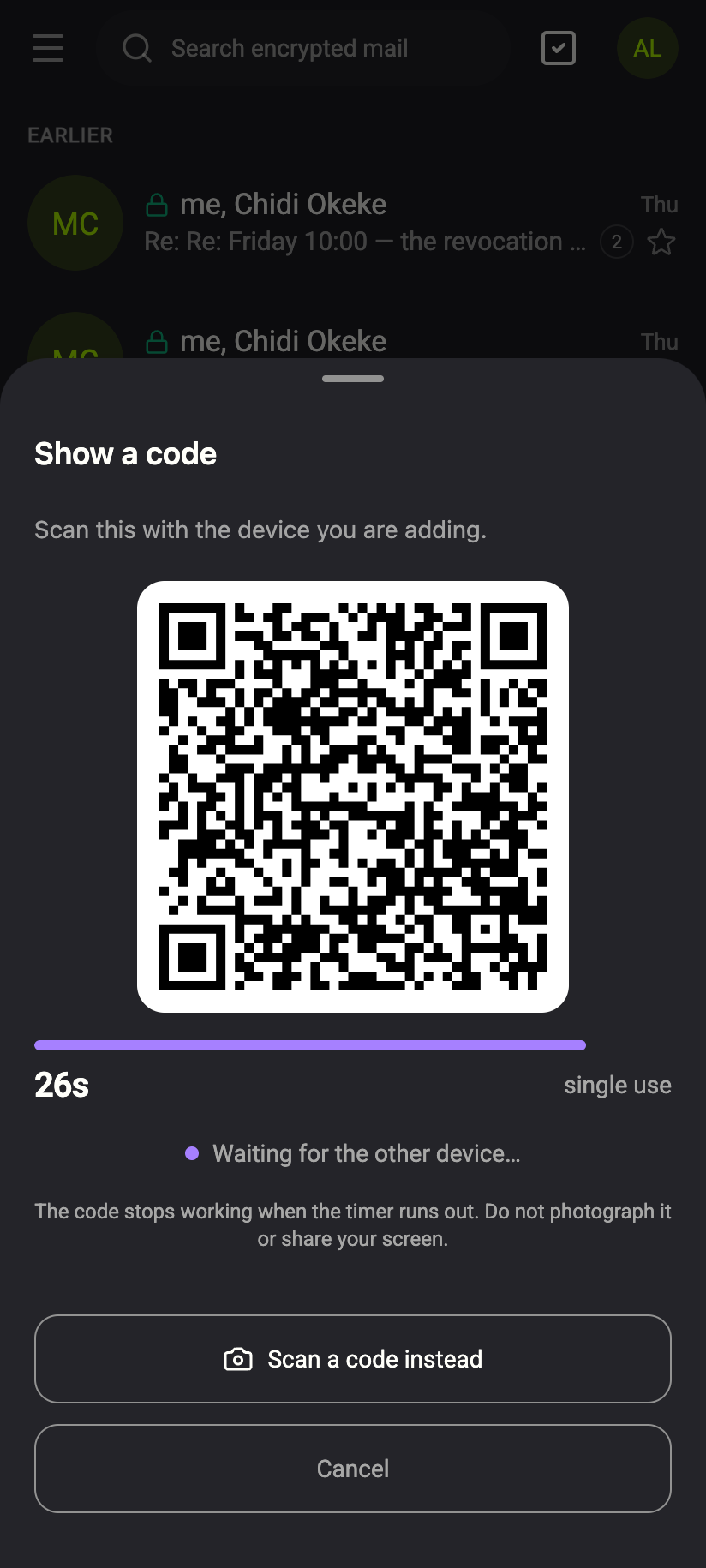 123
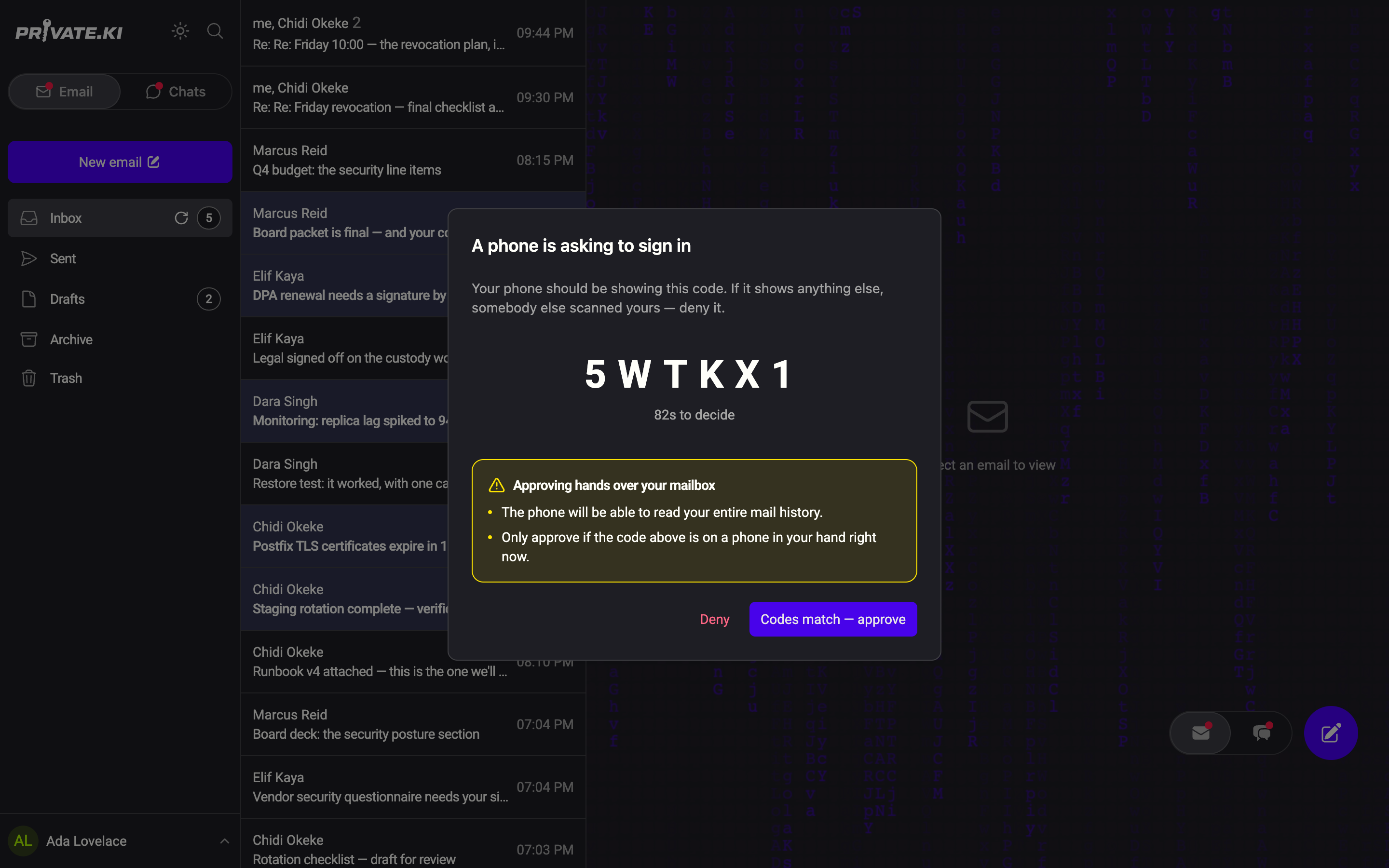
1231Time left2single use3Point the other device hereiPhone 1231Time left2single use3Point the other device hereAndroid - Once the phone has scanned, the dialog changes to A phone is asking to sign in and shows six characters. Compare them with the phone's screen. If they match, click Codes match — approve. If they differ, click Deny. You have 90 seconds.
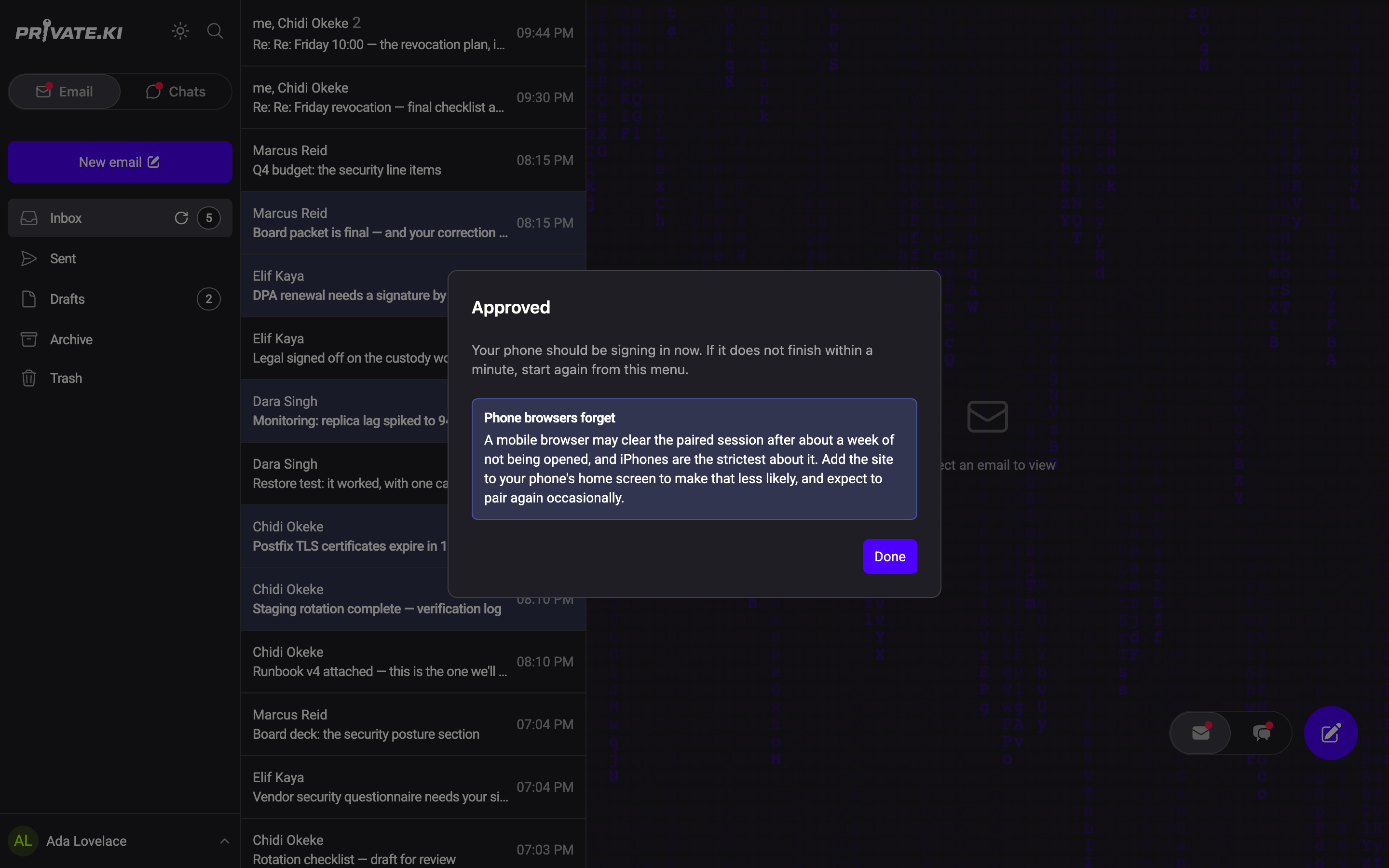
1Must match the phone2Codes match — approve3DenyWeb & desktop - Approved — your phone should be signing in now. Click Done.
1Phone browsers forget2DoneWeb & desktop
On the phone
- With the phone app: on the sign-in screen tap the QR icon, then Scan their code, and point the camera at the computer screen. With a phone browser: point the ordinary camera app at the code; the link it reads opens the web app on the pairing page. No app install is needed.
- The phone shows Check this code with six characters and Approve on the device that showed the QR code. Only approve if this code matches what it shows.
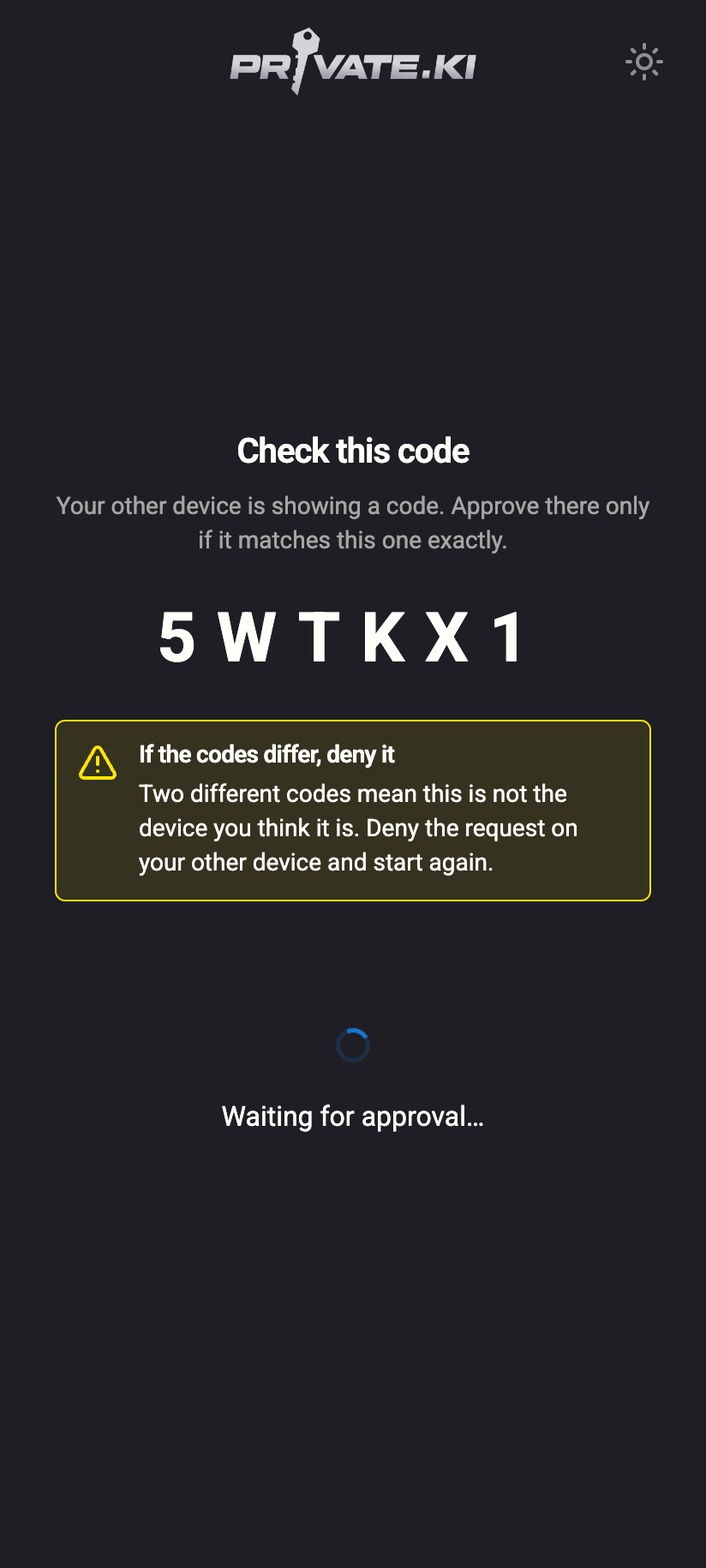 1
11Compare with the computeriPhone 11Compare with the computerAndroid - After you approve on the computer, the phone shows Unlocking your mailbox… and opens straight into your inbox — no password, no passphrase.
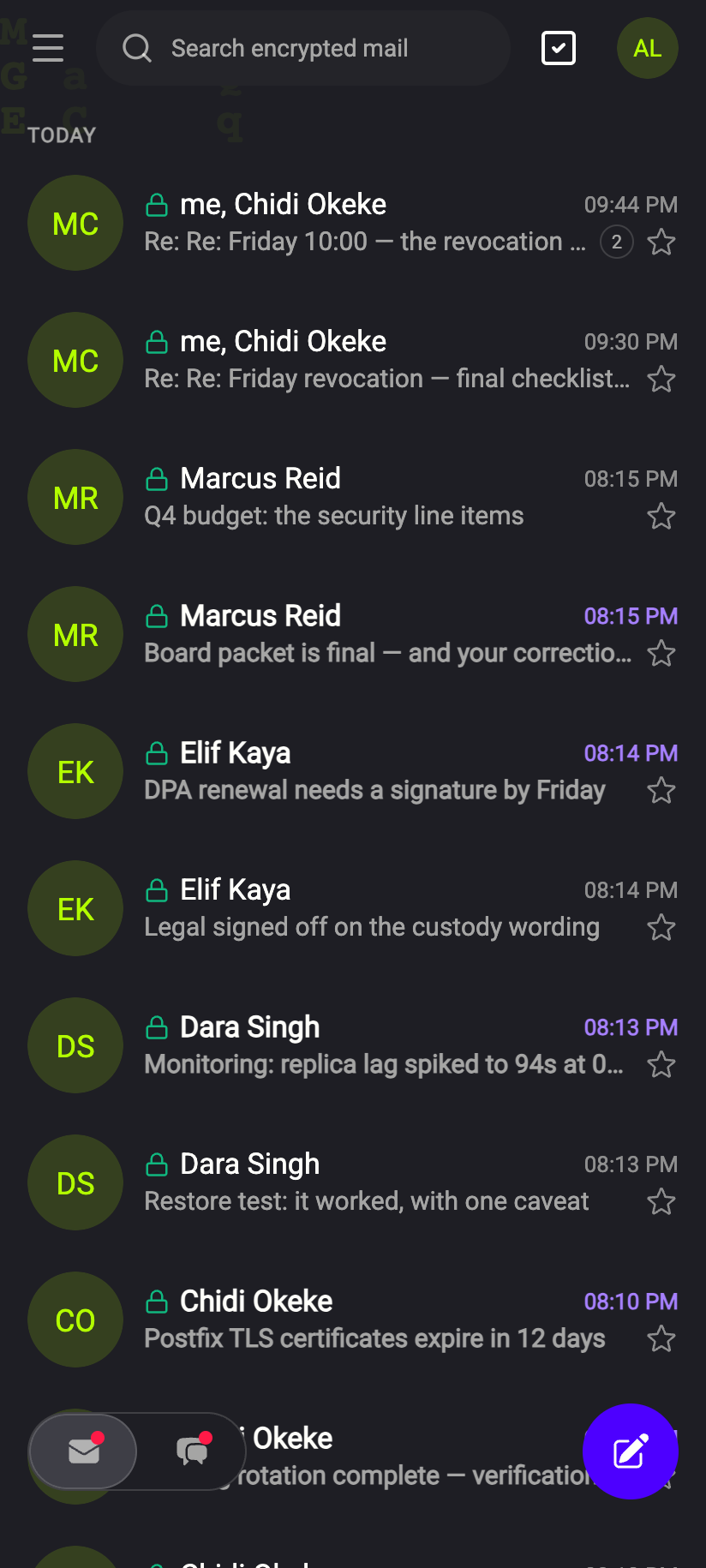
Done — the phone opens the inbox without a password or passphrase.iPhone Done — the phone opens the inbox without a password or passphrase.Android
In the phone apps you are then asked to create a 6-digit PIN, and can turn on Face ID or fingerprint, so that the next time you open the app you do not need anything else.
Good to know
- Two-factor is not asked. The phone takes over your existing signed-in session; your authenticator is not involved. Turning on two-factor authentication protects password sign-ins, not this hand-over.
- Any signed-in device can hand over, including a phone handing to a computer. Only Scan a code (the reverse direction, also under My devices) needs a camera.
- Password only accounts will see the phone listed under Active sessions and can remove it from there.
- Passphrase accounts get the key itself, so the phone never needs the passphrase — but if the phone is later locked out or its storage cleared, it must be paired again or unlocked with the passphrase.
- Phone browsers forget. A mobile browser may clear the paired session after about a week of not being opened; iPhones are the strictest. Add the site to the home screen to make that less likely, or use the app. See Web app vs native app.
- The setup checklist marks Connect your phone as done the first time a pairing completes. See The setup checklist.
What our server sees
Cannot see
- Your private key, password or passphrase — the key travels encrypted with a secret only the two devices derive
- What is on the QR code beyond a one-time channel identifier
Can see
- That a pairing channel was opened, claimed by another device, approved or denied, and when
- The label the phone gives itself (for example the browser and OS), which is shown to you before you approve
Common questions
The codes do not match
Deny. Something is between the two devices, or the phone scanned someone else's code. Start again with a fresh QR. Nothing has been transferred until you approve.
The timer ran out before I could scan
Click Show a new code. Each code works once and only for 30 seconds — that is deliberate. Have the phone's camera ready before you click Show QR code.
I approved but the phone shows "This code has expired"
The approval window is 90 seconds. Start again from My devices › Show a code on the computer and scan promptly.
Can the phone now change my password or pair further devices?
It has your keys and your signed-in session, so it can do anything you could do from that device — including handing over to yet another device. Treat a paired phone the way you treat the computer. If a phone is lost, log out from another device or revoke its session.