Lock the app or log out — what each one does
Lock account clears your keys from memory but keeps you signed in; Log out ends the sign-in and wipes the device. When to use which, and the auto-lock.
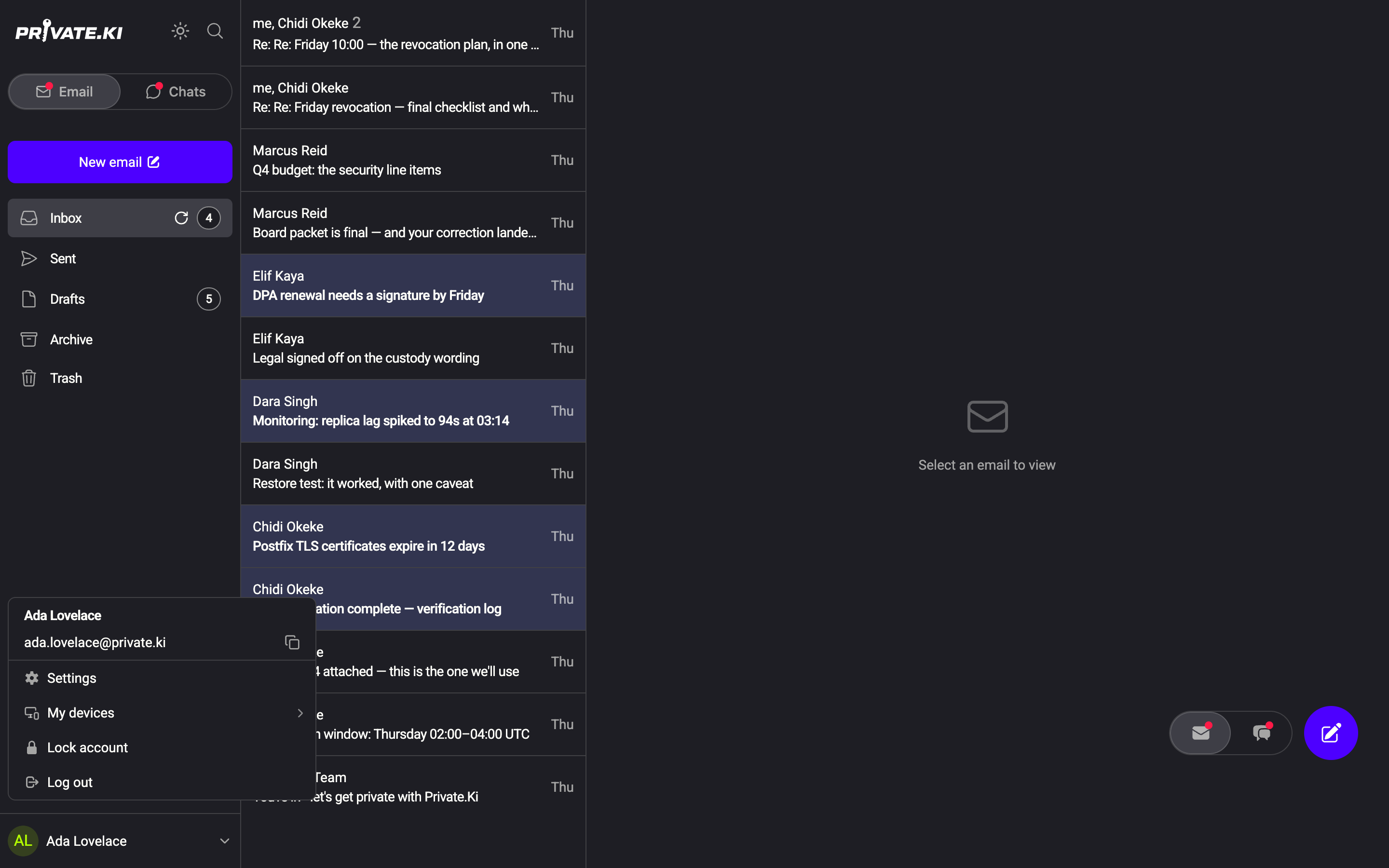
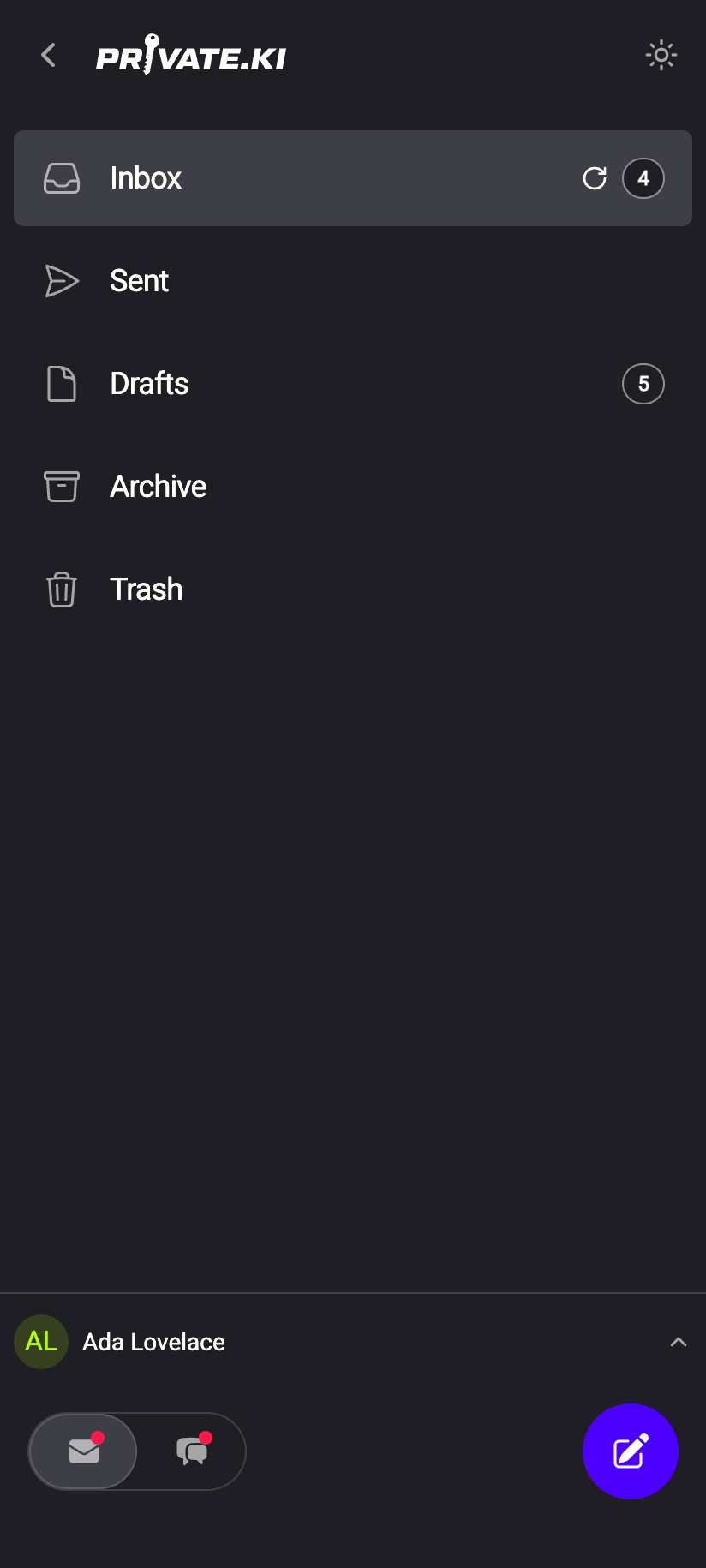
Private.Ki has two ways to stop someone at your screen from reading your mail. Lock account is quick and reversible — your decrypted keys leave memory but you stay signed in. Log out ends the sign-in on this device and removes everything it stored. Both live in the account menu: click your name at the bottom-left, or on a phone open ☰ and tap your name.
 11
11Lock account
- Open the account menu and click Lock account. On the web you can also press Esc twice in quick succession — any open composer windows close as well.
- Your mail disappears and the lock screen appears. The decrypted private key is wiped from memory, and so is the local search index, which holds decrypted subjects and addresses. Your sign-in and cached data remain.
1Passphrase2Unlock3Sign out ends the session insteadWeb & desktop 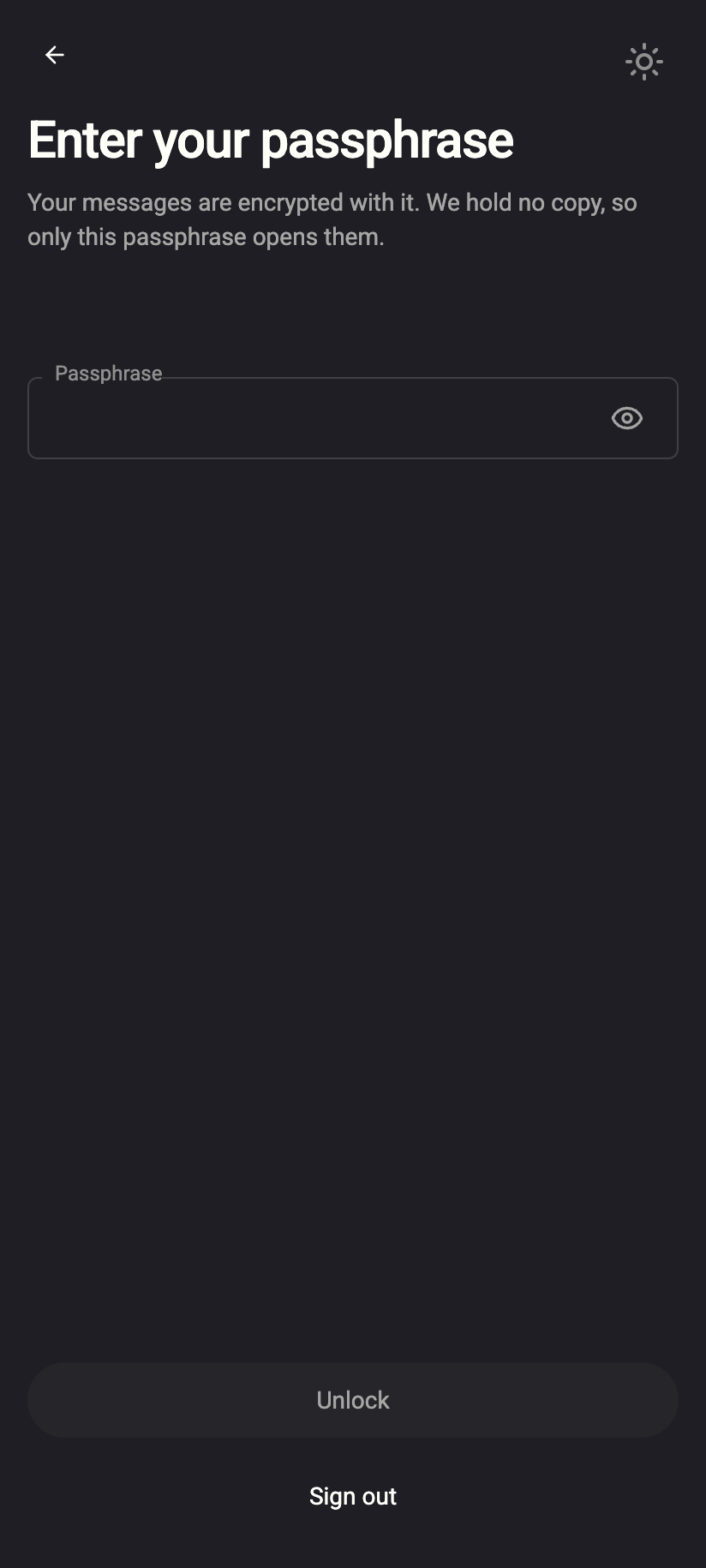 123
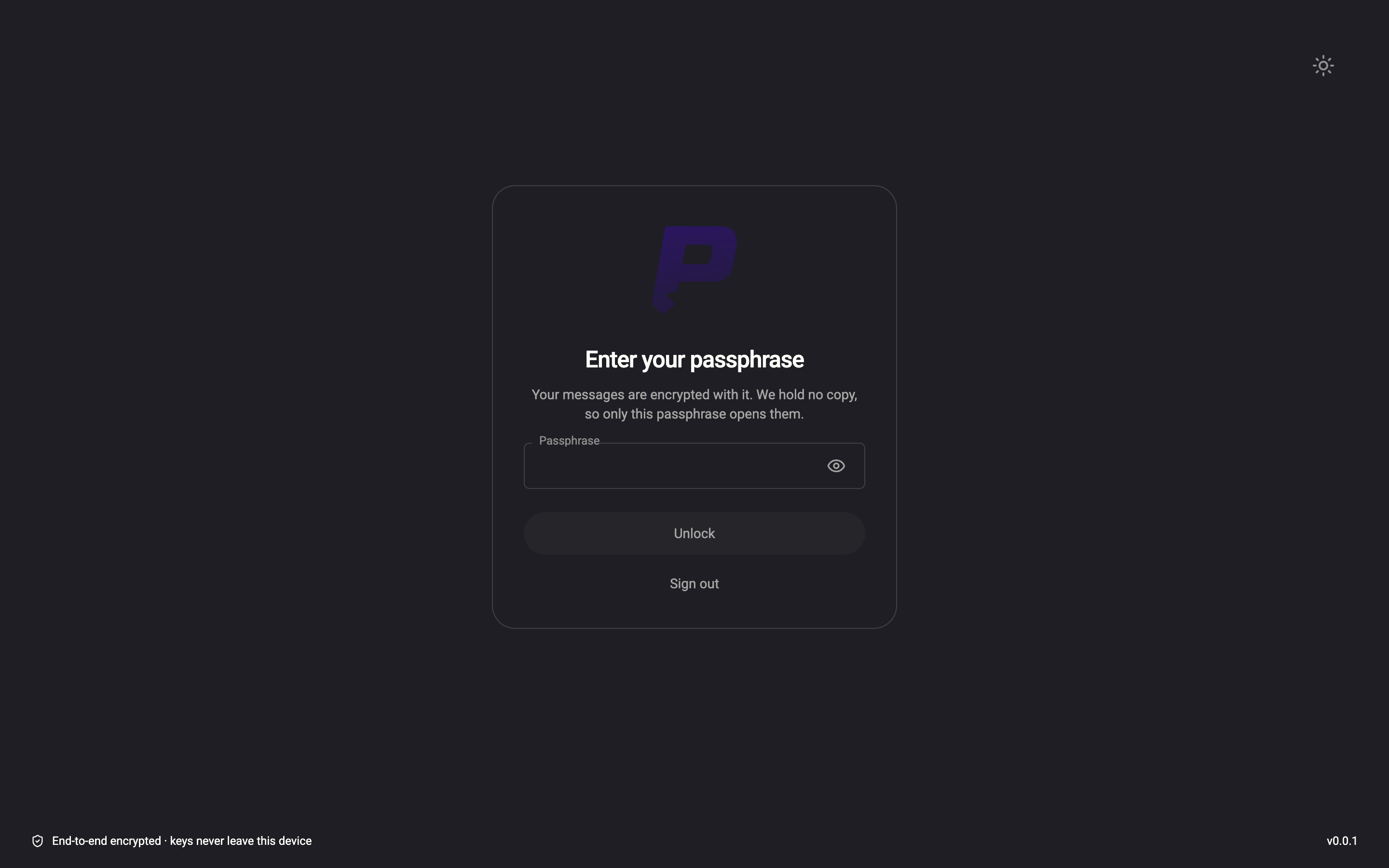
1231Passphrase2Unlock3Sign outiPhone 1231Passphrase2Unlock3Sign outAndroid - To resume, follow the lock screen for your account's unlock method:
- Passphrase: Enter your passphrase — type it and click Unlock.
- Password only: Unlock Private.Ki — Your keys are on this device — tap to open your mailbox. Click Unlock. The keys are re-opened from the encrypted session this device holds, so no password is needed.
With the Password only method, the device's saved session lets anyone who can reach the screen click Unlock and get back in. Locking still protects you against memory inspection and against leaving decrypted mail on screen, but if you are walking away from a shared or unattended computer, use Log out — or lock the computer itself. Passphrase accounts do require the passphrase to unlock.
The automatic lock
If the app loses its connection to the server for 30 minutes, it locks itself in the same way. (A banner about the connection appears after 15 seconds; the lock comes much later.) Reconnecting does not unlock — you use the lock screen as above. See Offline and reconnecting.
Log out
- Open the account menu and click Log out.
- The app removes from this device: your access and refresh tokens, the encrypted unlock session, your saved passphrase (iPhone), your PIN and biometric setting (phone apps), the signing keys that bind your tokens to this device, and every cached message, thread and contact. Push notifications for this device are unregistered.
- You land on the sign-in page. Getting back in means signing in again — or pairing from another device.
When a Password only account logs out, this device asks the server to revoke its unlock session. The server treats that as "sign everything out": every other browser and phone loses its sign-in and shows Session is no longer valid. Please sign in again. Details in Active sessions. Passphrase accounts hold no server-side session, so their log-out affects only the current device.
The lock screens also offer Sign out as a link, for the case where you cannot or do not want to unlock.
Which one should I use?
| Situation | Use |
|---|---|
| Stepping away from your own computer for a while | Lock account (or lock the computer) |
| Leaving a shared, borrowed or public computer | Log out |
| A phone or laptop was lost or stolen | Log out from any other device — with Password only this shuts the lost device out; otherwise revoke its session is the same action |
| You want to switch to a different account | Log out |
| Someone may have seen your screen | Lock account is enough; the content is what they saw, not your keys |
What our server sees
Cannot see
- That you locked — locking is entirely local; nothing is sent
Can see
- That you logged out, if you use Password only — the device asks the server to revoke the session
- That a device's push registration was removed
Common questions
Does Lock account delete anything?
No. Drafts, cached mail and your sign-in survive. Only the in-memory keys and the local search index are cleared; the index is rebuilt after you unlock.
I locked on my phone; why did it not ask for my PIN when I unlocked?
The PIN is asked when the app starts, not after a lock. Locking takes you to the passphrase or Unlock screen instead.
I logged out and my other computer got signed out too
Expected for Password only accounts — see the note above. Sign in again there; its cached data was cleared when the tokens were rejected.
Can I log out a device I no longer have?
Yes, if it is a Password only account: log out from any device you still have, or revoke from Active sessions. For a Passphrase account, the lost device keeps its sign-in until it expires; changing your passphrase stops it from opening newly encrypted keys.