Two-step verification with an authenticator app
Add a second step to sign-in, a six-digit code from an authenticator app — also called two-factor authentication or 2FA. Your password stops being enough.
Two-step verification adds a second check when you sign in: after your username and password, Private.Ki asks for the current six-digit code from an authenticator app on your phone. Someone who knows your password still cannot get in without it. (Other services call this two-factor authentication or 2FA; it is the same thing.)
The app's own words for it are Two-step verification and Authenticator app, and they are what you will see in Settings.
Install an authenticator app if you don't have one — Google Authenticator, Authy, Aegis, 1Password and Bitwarden all work.
An authenticator app is not the only second step. A security key or passkey does the same job, and you can set up several of each: any one of them lets you in.
Turn it on
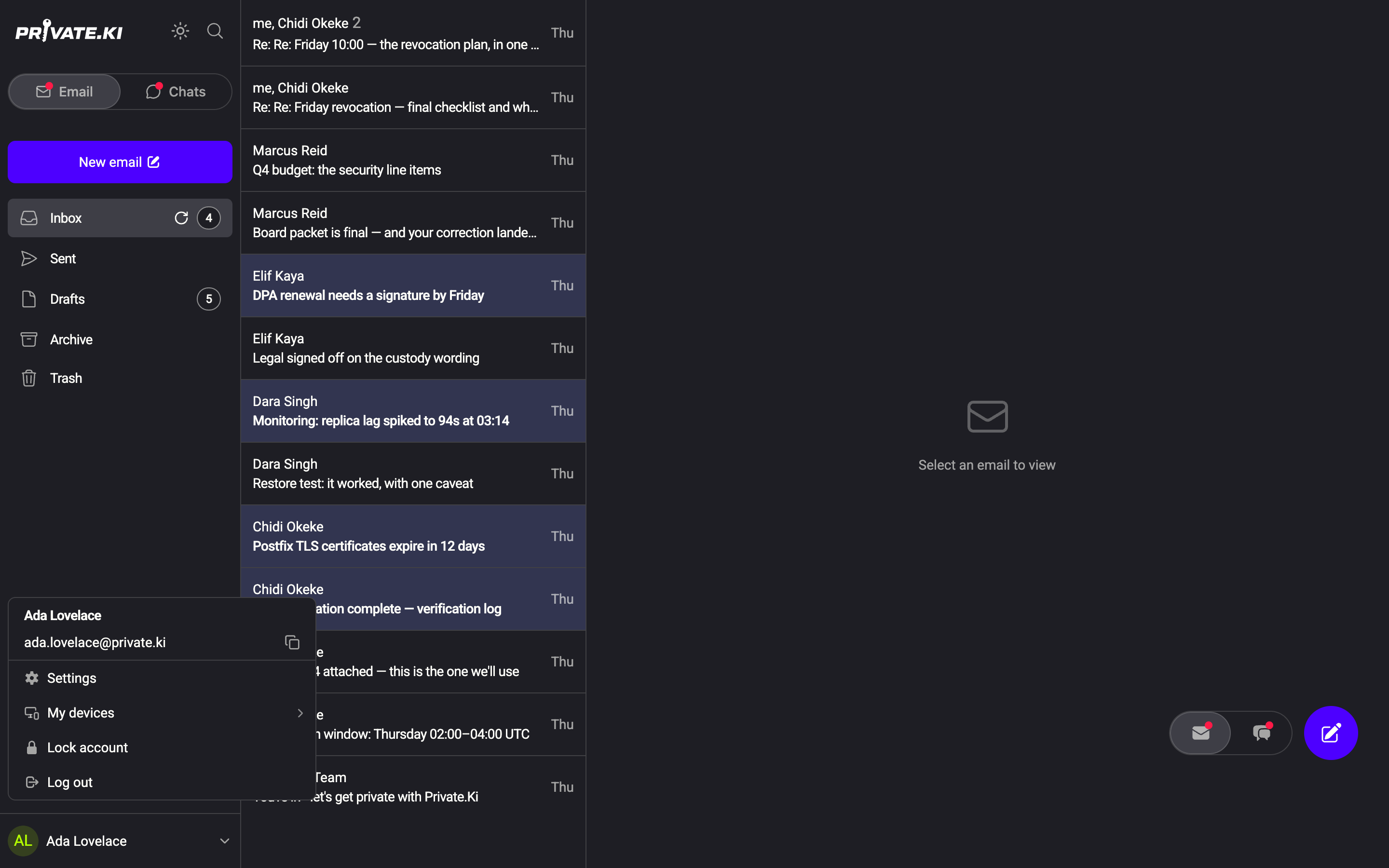
Open Settings. Click your name at the bottom-left, then Settings.
1Settings2Your name opens this menuWeb & desktop 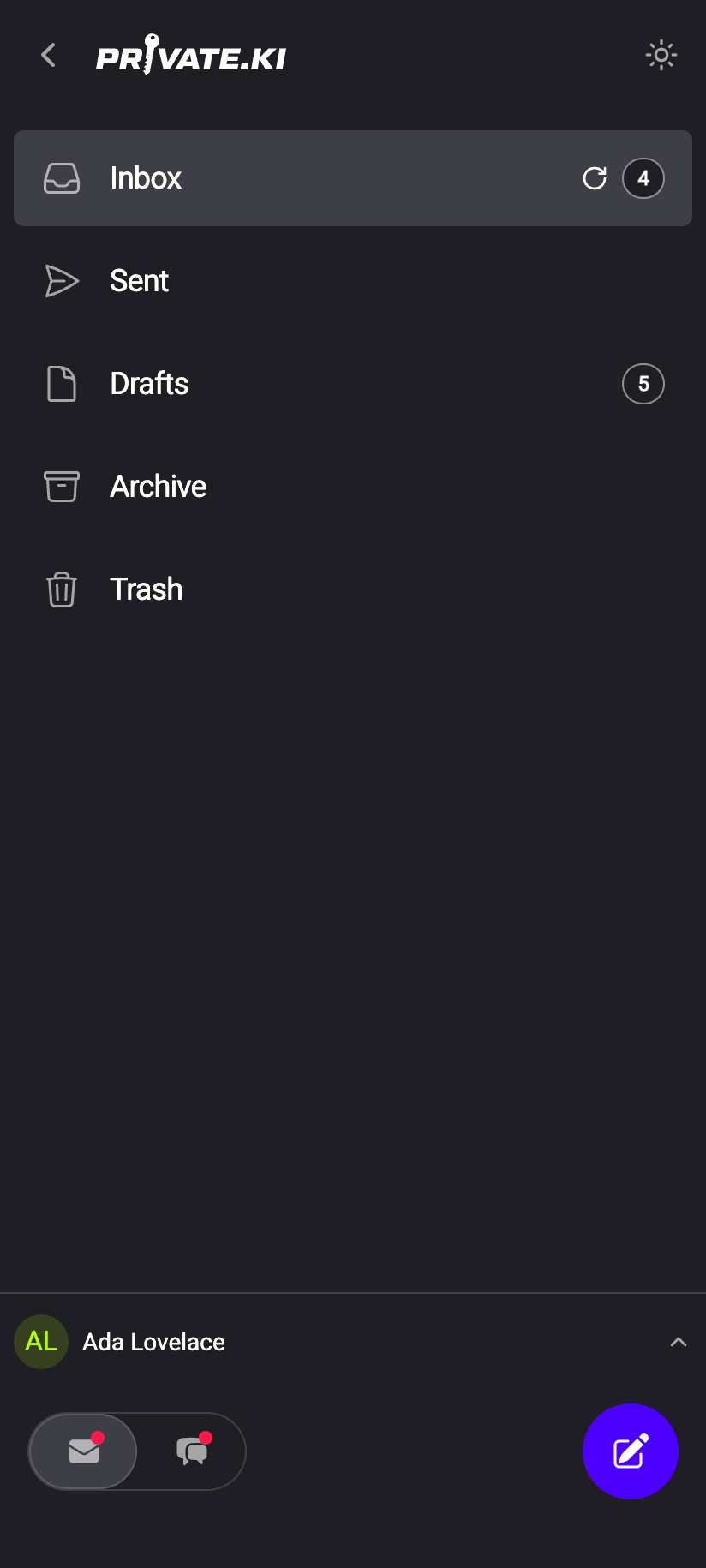 1
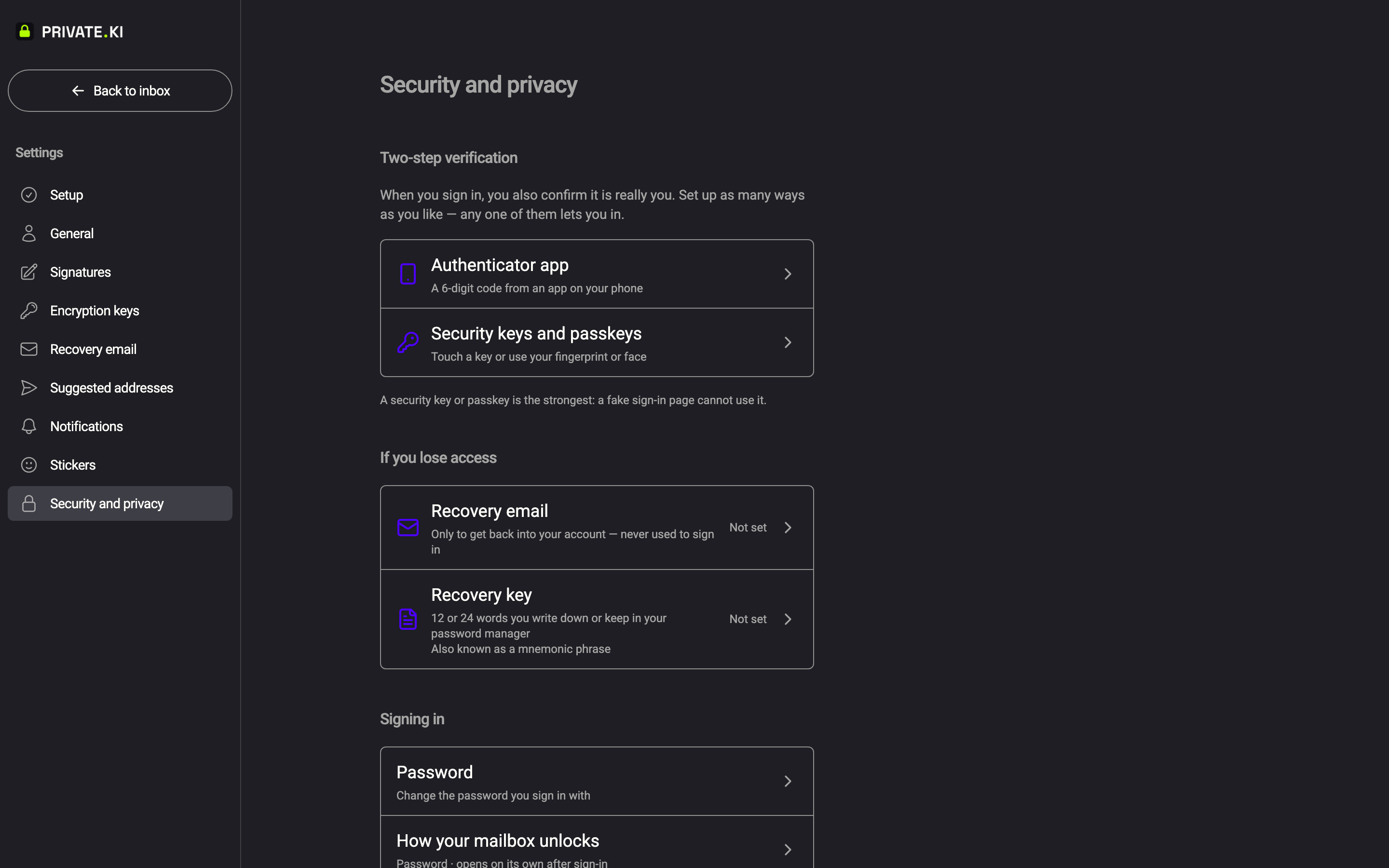
11Tap your name, then SettingsiPhone 11Tap your name, then SettingsAndroid Go to Security and privacy. Under Two-step verification, open Authenticator app and click Turn on two-step verification. (If you already have a security key on the account, the button reads Add an authenticator app instead.)
Security and privacy → Two-step verification → Authenticator app. Android still says Two-Factor Authentication and Enable TOTP.Web & desktop 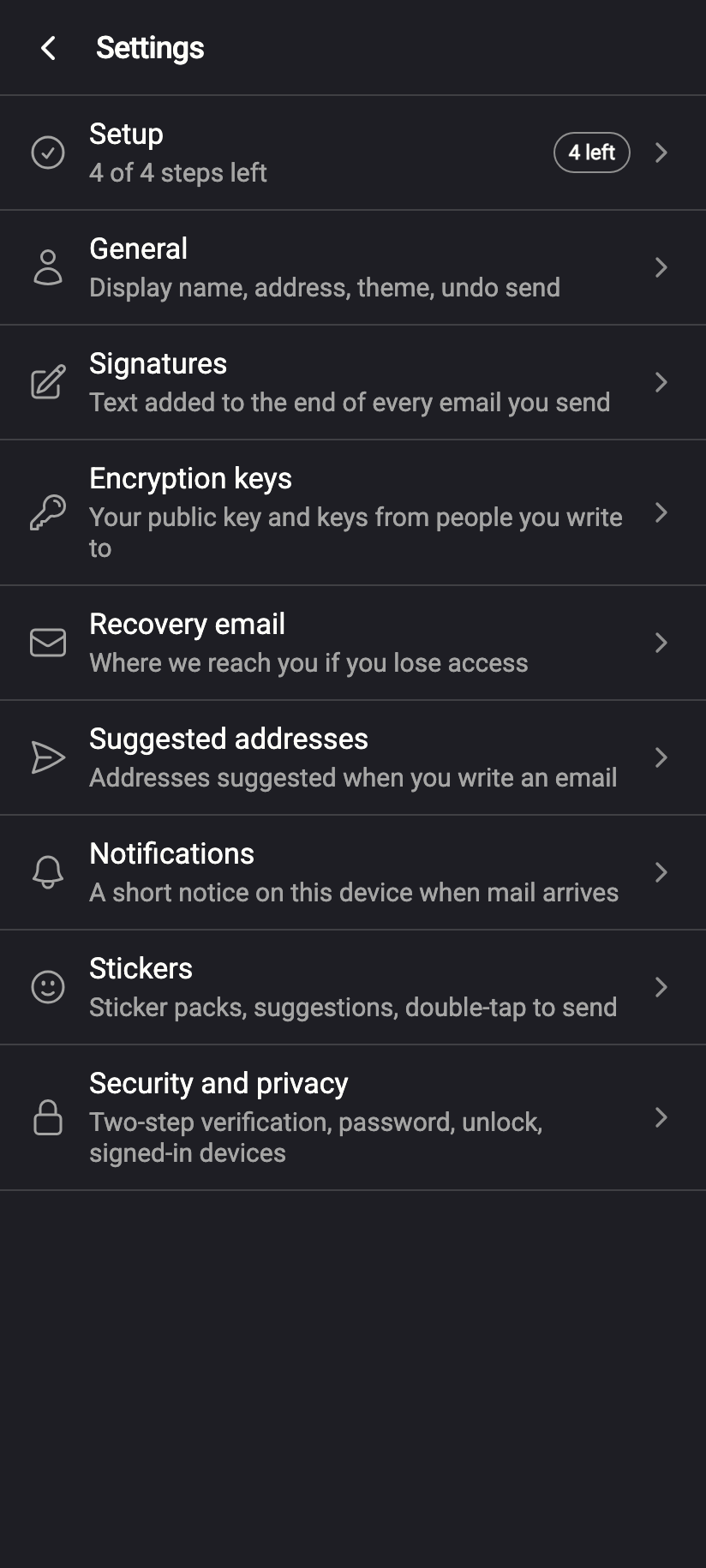
Security and privacy → Two-step verification → Authenticator app. Android still says Two-Factor Authentication and Enable TOTP.iPhone 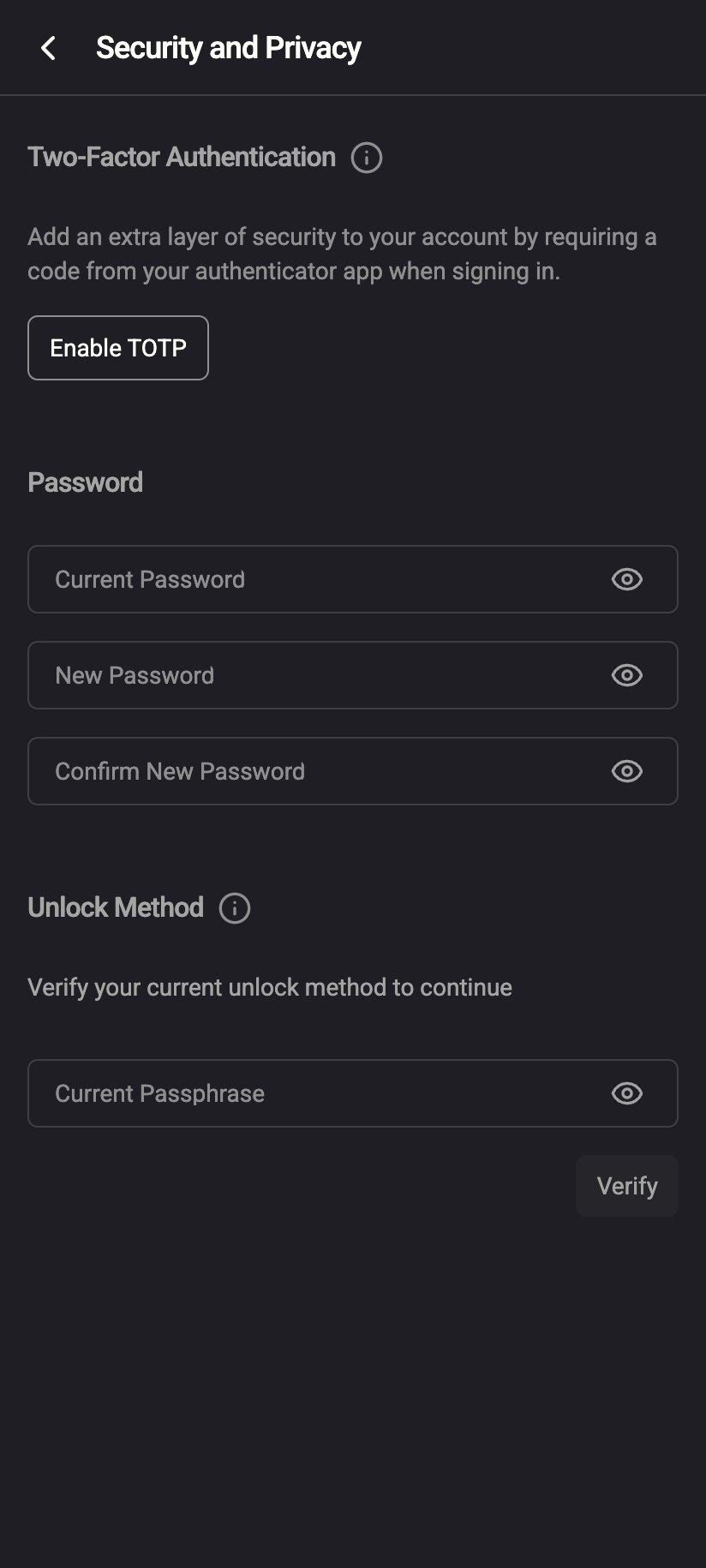 1
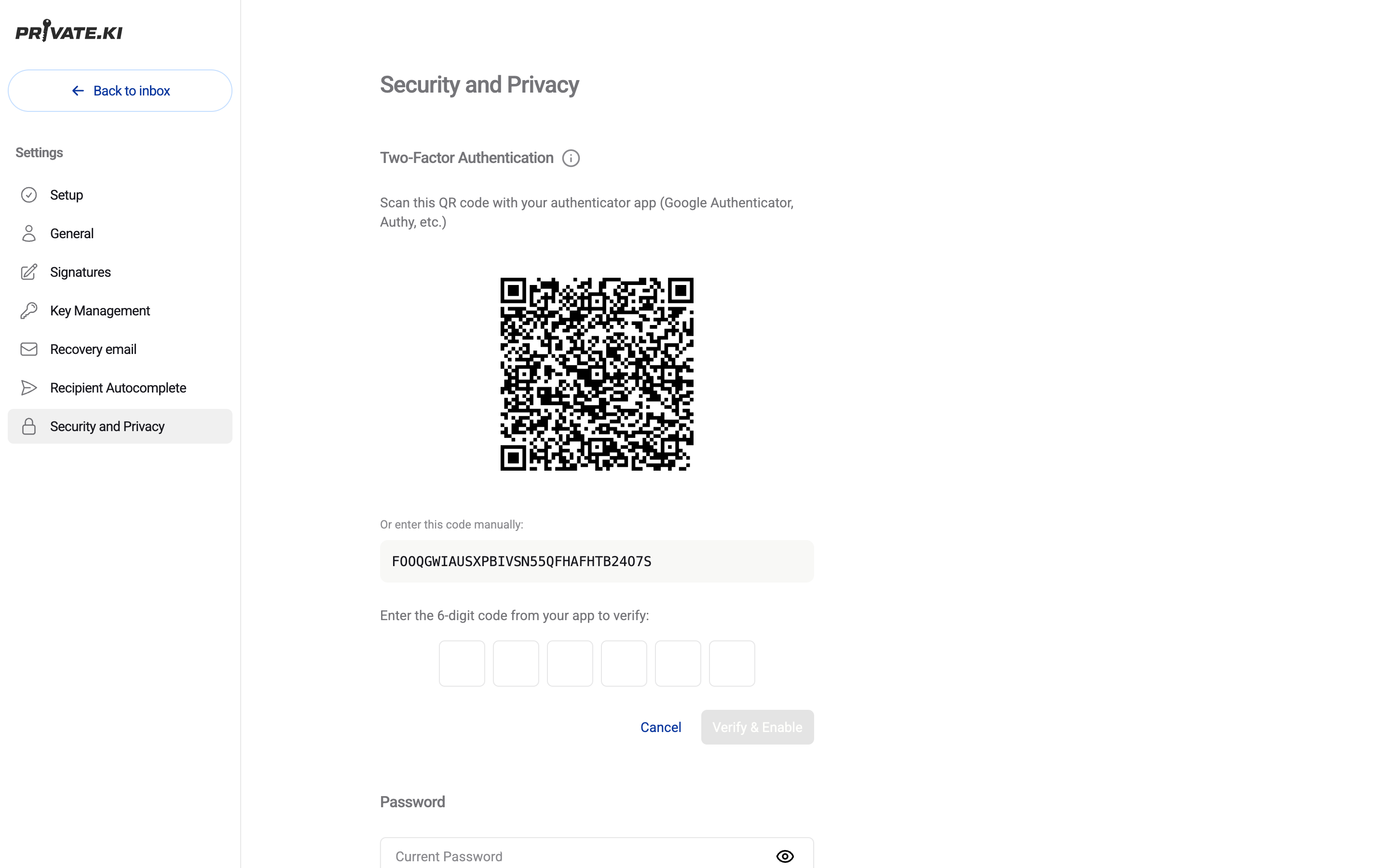
11Enable TOTP (Android's older wording)Android Scan the QR code with your authenticator app. Can't scan? The screen offers Can't scan? Type this key into the app instead: — type that key into the app by hand.
The setup screen: QR code, the key to type by hand, and the six-digit field.Web & desktop 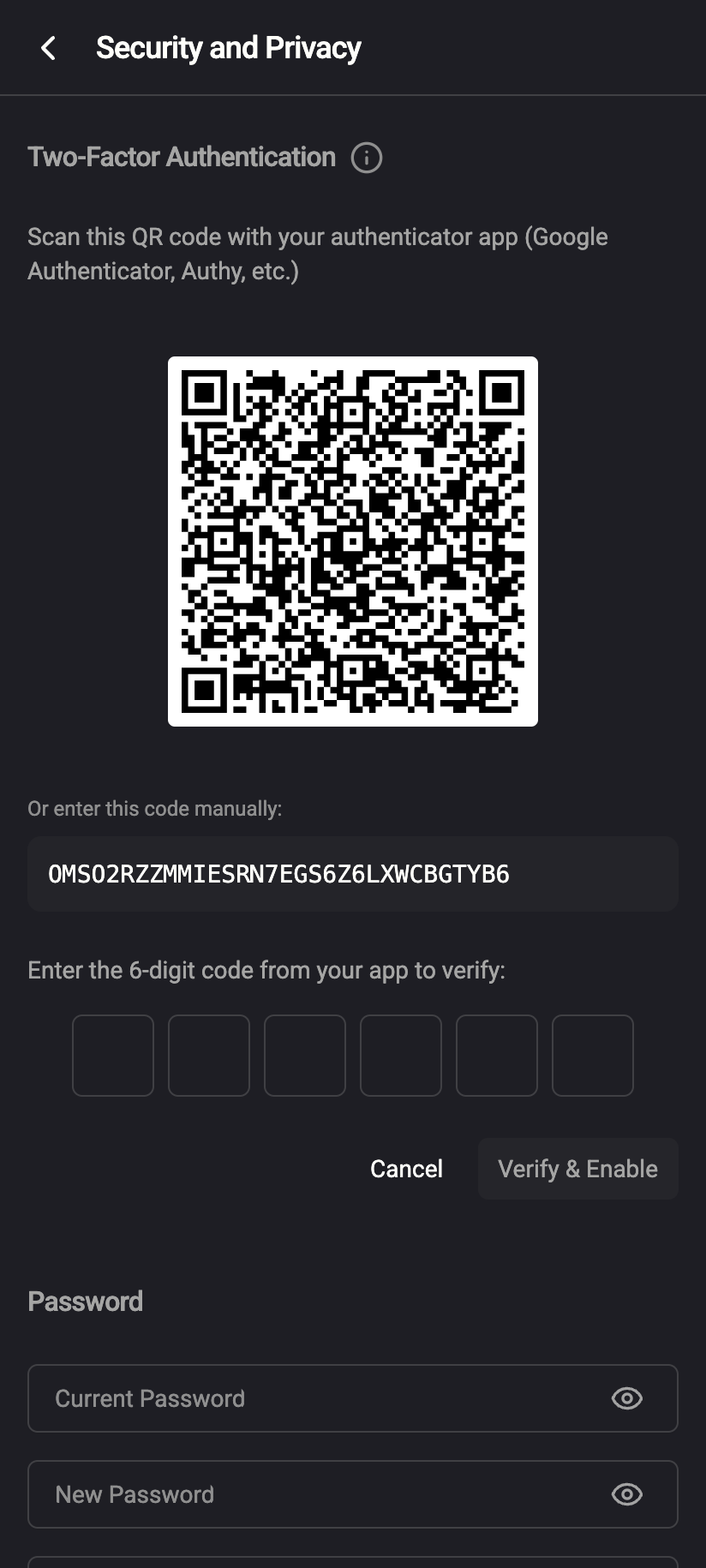
The setup screen: QR code, the key to type by hand, and the six-digit field.iPhone 12341QR code2Manual entry code3Six-digit code4Verify & EnableAndroid Codes expire every 30 secondsIf a code is rejected you see That code is not right. Check your app and try again. Wait for the app to show the next one. Make sure your phone's clock is set automatically — the codes depend on it.
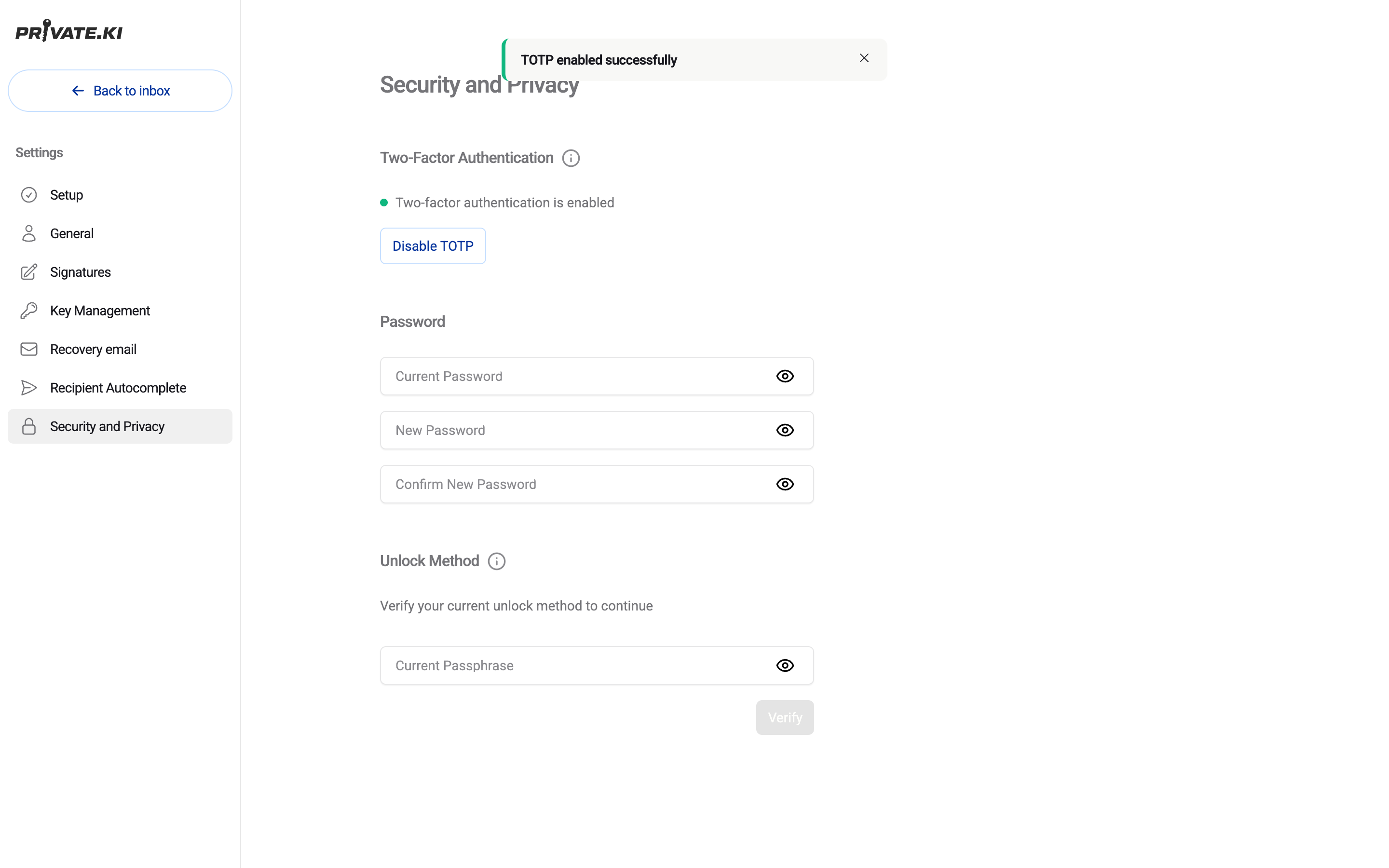
Enter the six-digit code from the app. The form submits by itself when the sixth digit is in. A toast confirms Two-step verification is on, and the button changes to Turn off two-step verification.
Done — two-step verification is on.Web & desktop 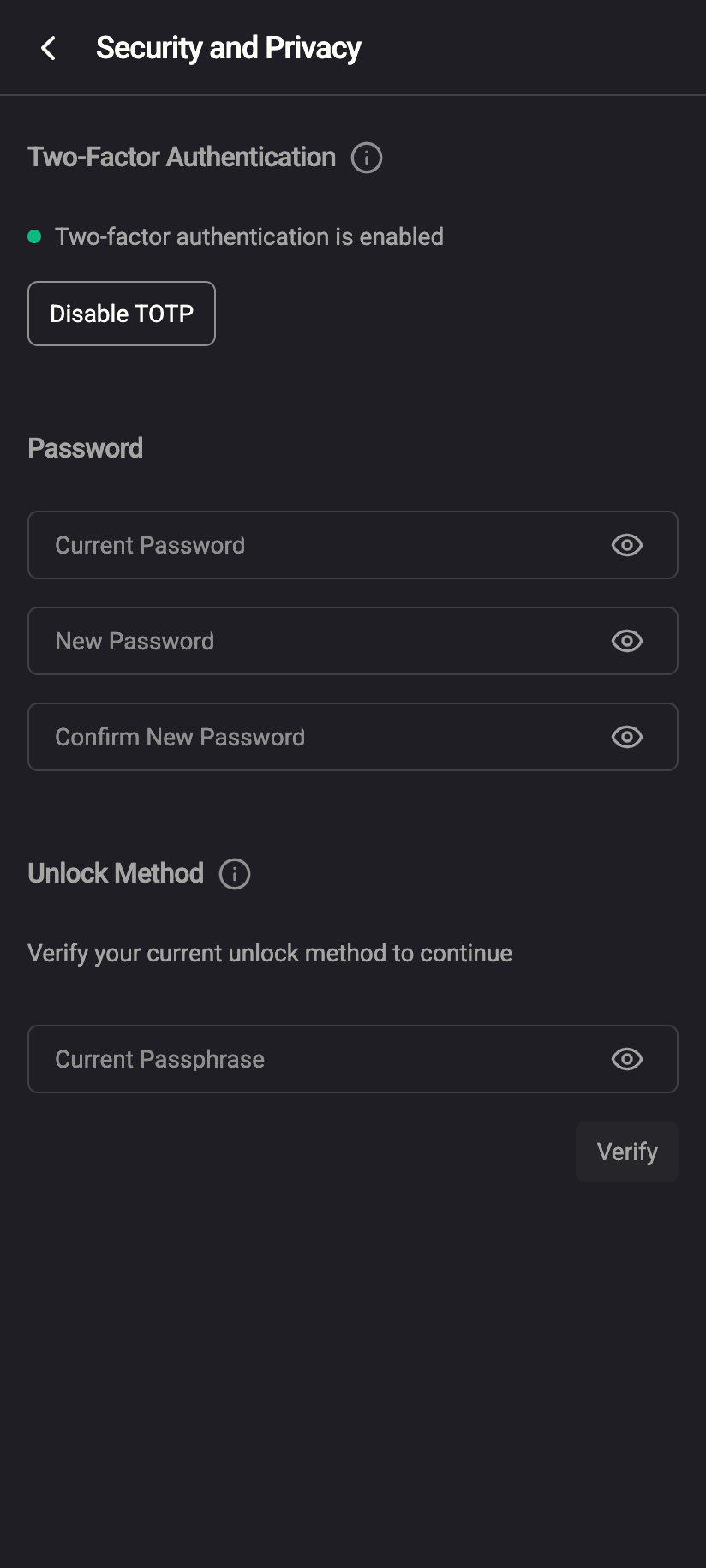
Done — two-step verification is on.iPhone 121Two-factor authentication is enabled (Android's older wording)2Disable TOTPAndroid
On the phone, open the menu ☰ first and tap your name at the bottom of the drawer to reach Settings. The shipping Android app still uses the older wording: the section is Security and Privacy, the heading is Two-Factor Authentication and the buttons are Enable TOTP / Verify & Enable / Disable TOTP. The steps and the codes are identical. Because the authenticator app is usually on the same phone, tap the key to copy it instead of scanning.
What changes at sign-in
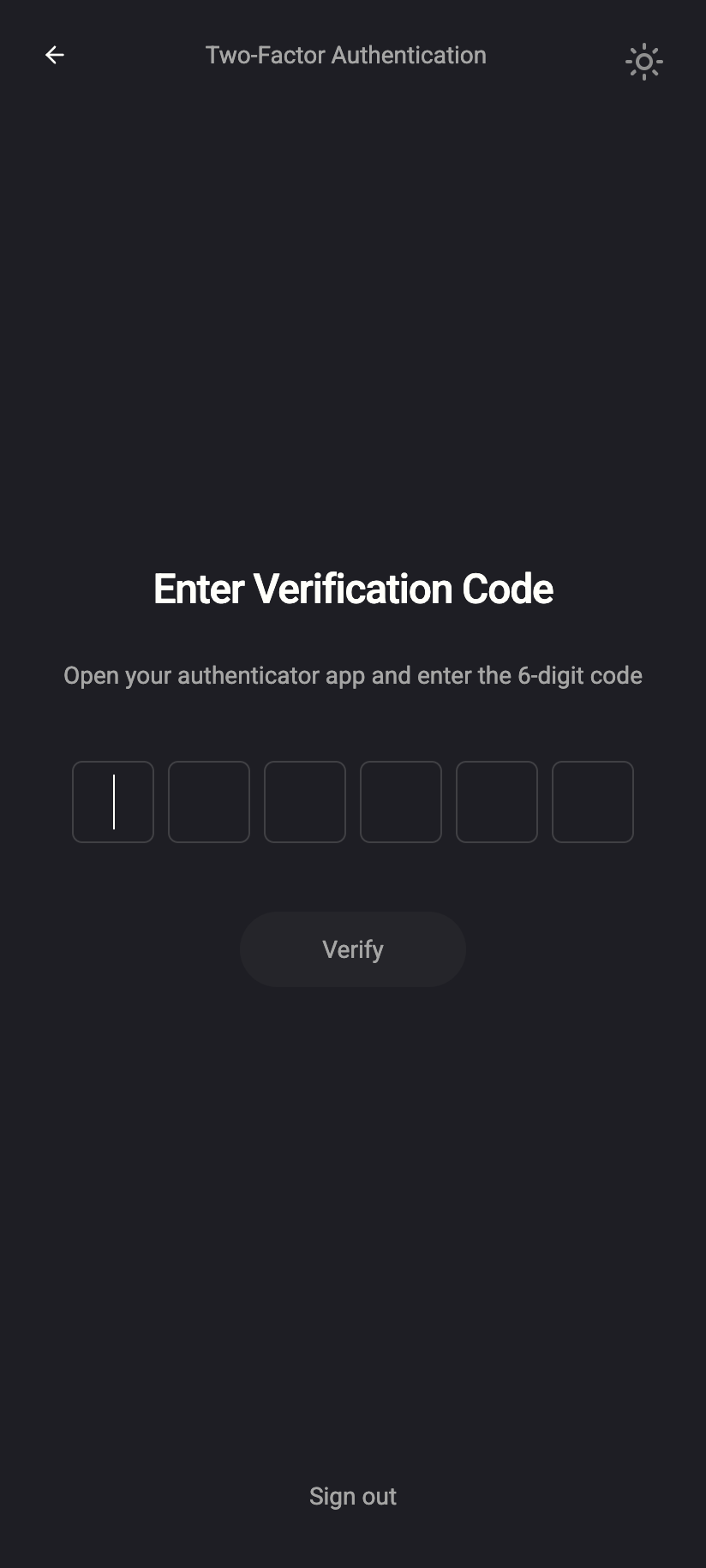
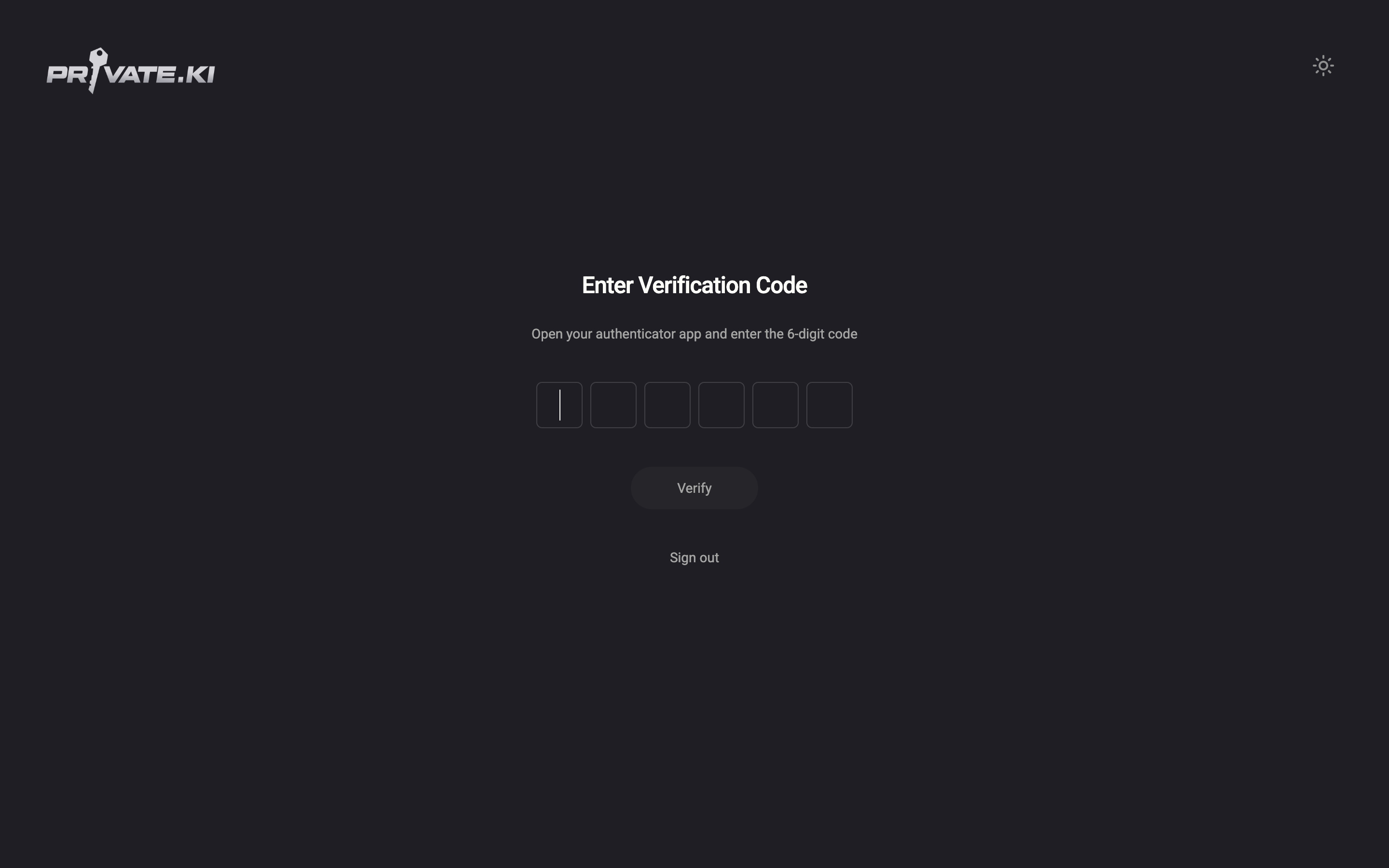
After your username and password, Private.Ki asks for the current code from your authenticator app. A device you add by QR code takes over the signed-in session, so you are not asked twice on that device.
What our server sees
Cannot see
- Your mail, chats or attachments — two-step verification has nothing to do with encryption
- Your passphrase or private key
- Which authenticator app you use
Can see
- That two-step verification is on for your account
- The secret behind your authenticator app — it has to, to check your codes
- Whether a code attempt succeeded or failed
It protects sign-in. Your messages are protected by encryption: even someone who gets past sign-in still needs your passphrase or your unlocked device to read anything. See How encryption works.
Common questions
I lost my phone or the authenticator app
If you are still signed in on another device, go to Security and privacy › Authenticator app, remove it and set it up again on the new phone. If you are signed out everywhere, contact support — we can verify you through your recovery address if you set one. There are no backup codes, and we cannot remove the second step on your word alone.
Can I use a hardware key or a passkey instead?
Yes, in the web app. A security key such as a YubiKey, or a passkey built into your phone or computer, is an equal second step alongside the authenticator app — see Security keys and passkeys. It is a second step, never a sign-in on its own. The shipping Android app does not offer security keys yet; on Android the second step is the authenticator app.
Can I have more than one?
Yes. Add an authenticator app and as many security keys or passkeys as you like. At sign-in, any one of them lets you in, and you only lose the second step when you remove the last one.