The setup checklist: pair your phone, 2FA, recovery
After sign-up, Private.Ki suggests three one-minute tasks — pair your phone, turn on two-factor, add a recovery address. What each does and how to dismiss.
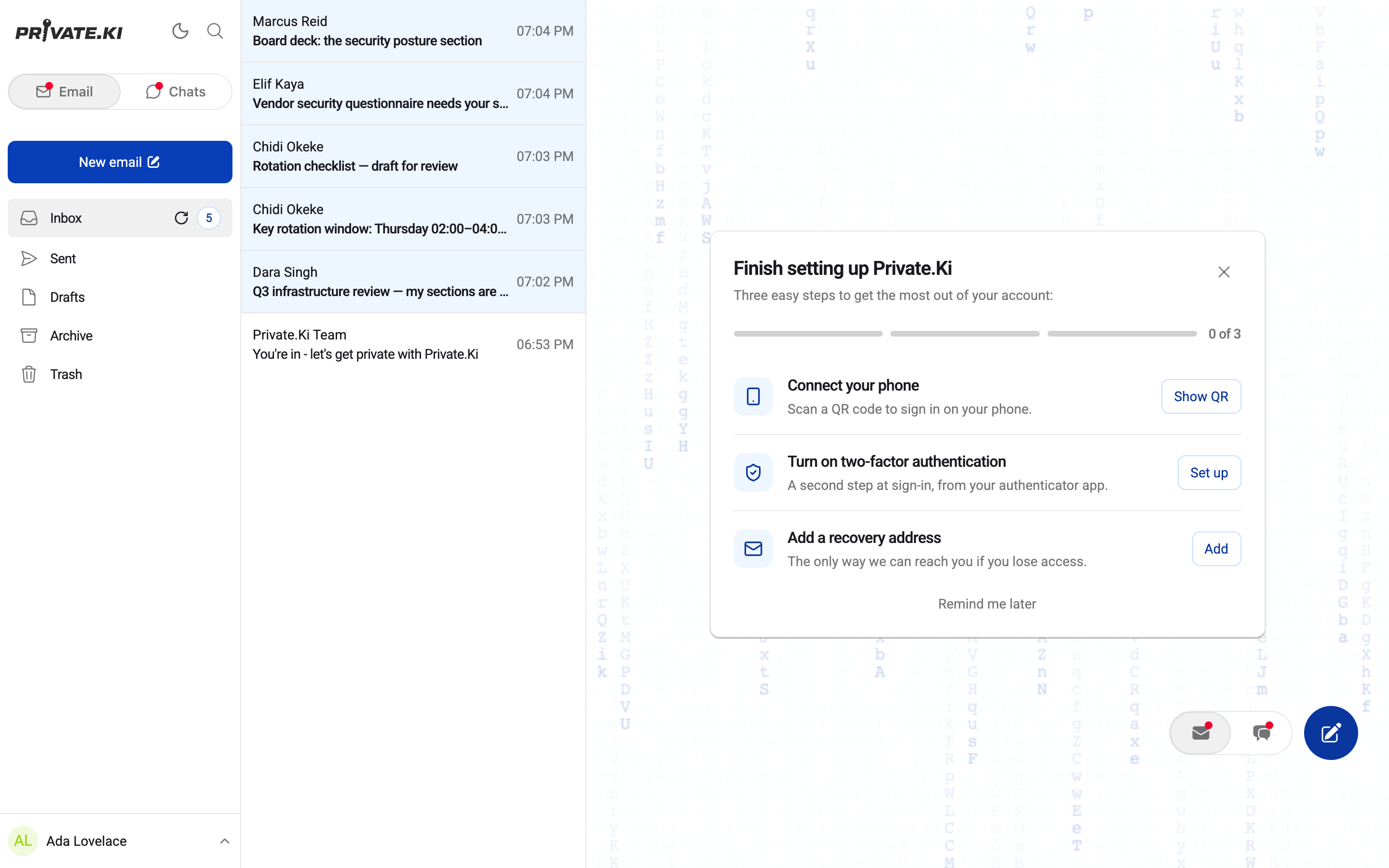
A new account is missing three things that are worth doing once. A few seconds after your inbox first opens, Private.Ki shows a Finish setting up Private.Ki panel listing them. Each takes about a minute. The list is also kept permanently under Settings › Setup, where finished items are marked Done.
The three items
| Item | What it does | Button |
|---|---|---|
| Connect your phone — Scan a QR code to sign in on your phone. | Starts the Show a code flow (the same one as My devices › Show a code in the account menu) so your phone can take over your signed-in, unlocked mailbox. Marked done the first time a phone completes pairing. | Show QR |
| Turn on two-factor authentication — A second step at sign-in, from your authenticator app. | Takes you to Security and Privacy to enable TOTP. Marked done when 2FA is on. | Set up |
| Add a recovery address — The only way we can reach you if you lose access. | Takes you to Recovery email to add a recovery address. Marked done when one is verified. | Add |
Where the list appears
- In the empty reading pane (web). When no email is open, the right-hand pane shows the Finish setting up Private.Ki panel with a progress bar (0 of 3, 1 of 3 …) and one row per unfinished item. It appears about five seconds after your mailbox opens — your mail always comes first.
1Finish setting up Private.Ki2Show QR3Set up4Add5Remind me laterWeb & desktop - In the sidebar (web). While you are reading an email, the panel gives way to a small Finish setting up card above your name at the bottom-left. Collapsed, it shows only the next item; the chevron expands it to everything still outstanding.
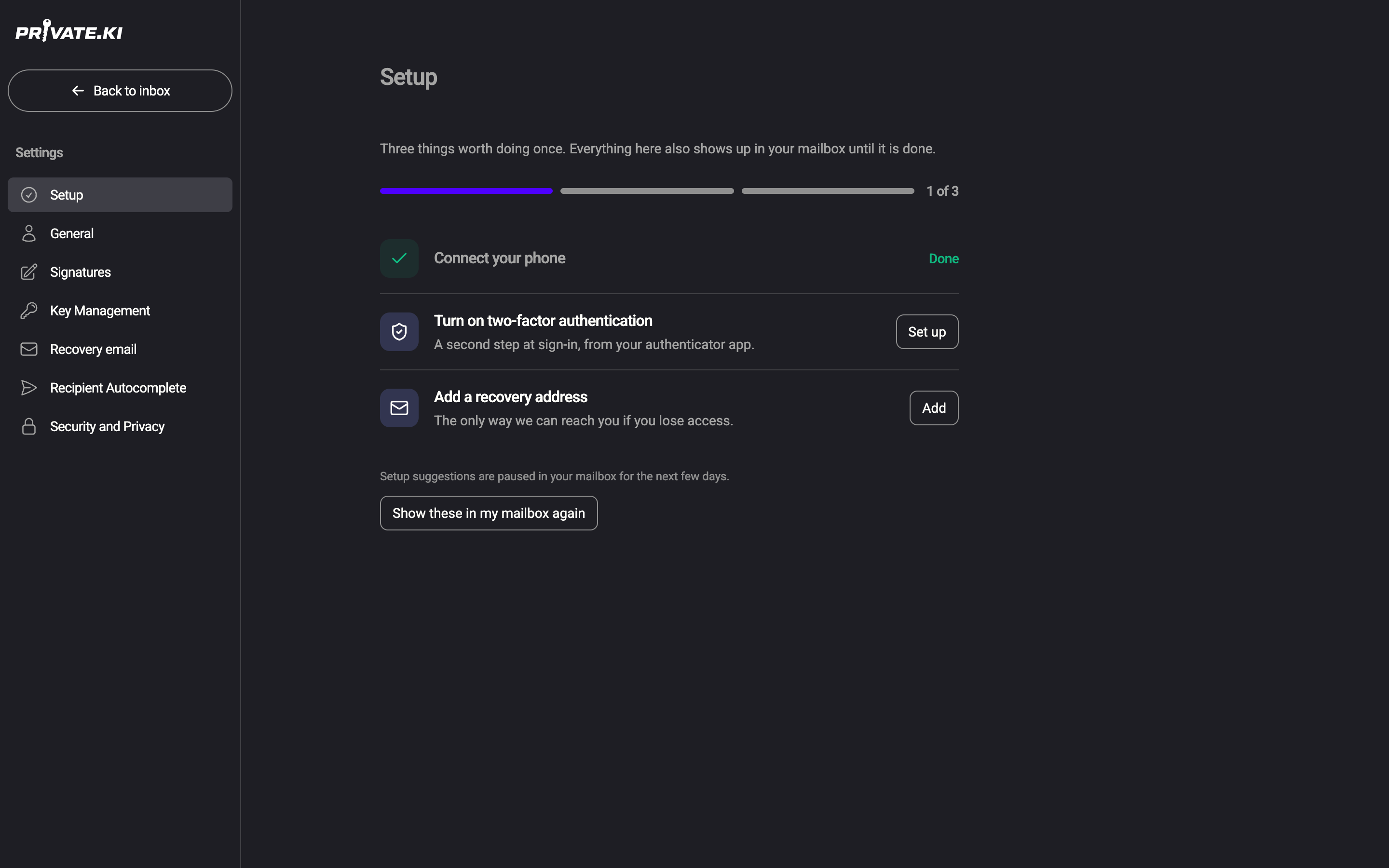
- In Settings, on every platform. Open Settings and choose Setup — it is the first entry. This page keeps finished items on the list with a green Done, so you can always check what you have and have not done. Unfinished rows keep their action button.
1Setup2Done3Set up4Add5Show these in my mailbox againWeb & desktop 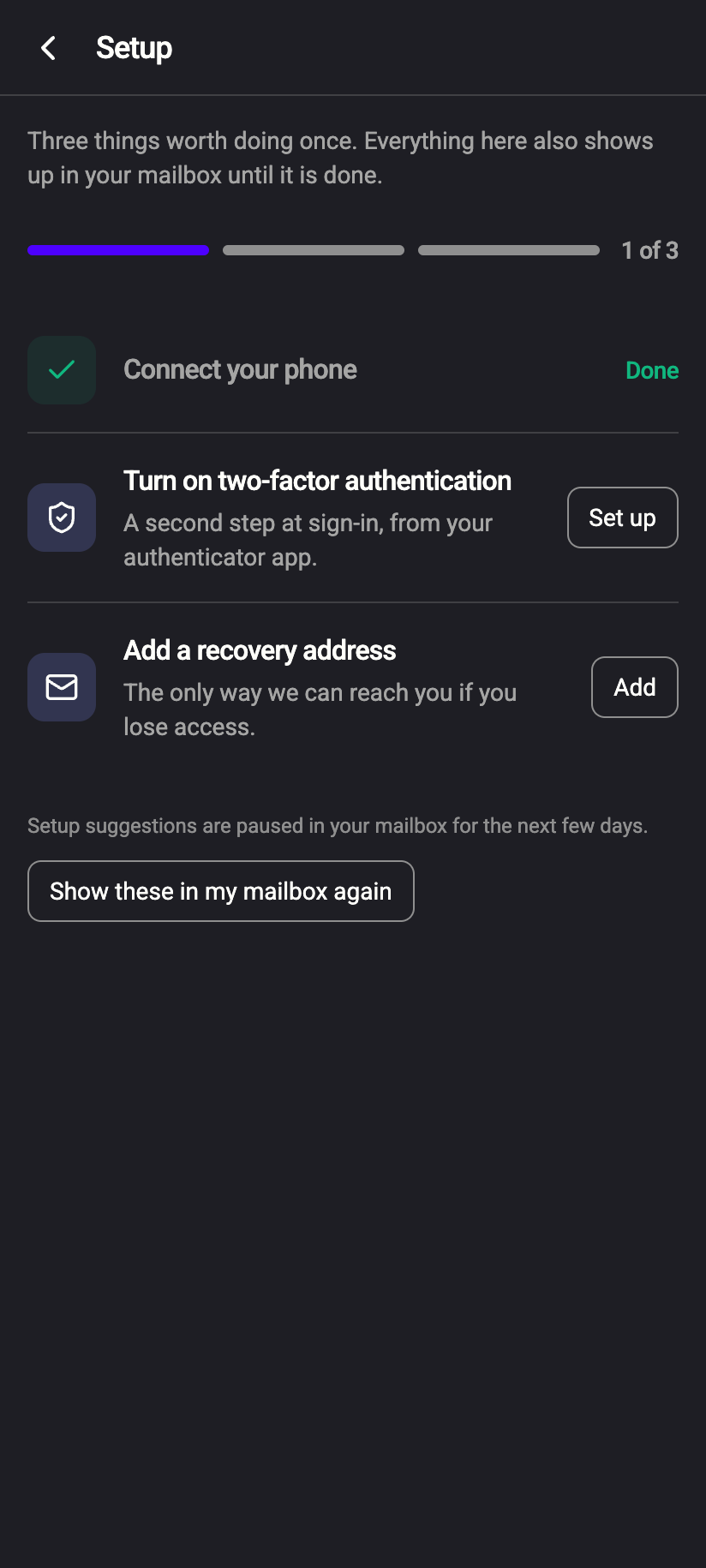 12345
123451Progress2Done3Set up4Add5Show these in my mailbox againiPhone 123451Progress2Done3Set up4Add5Show these in my mailbox againAndroid
The panel and the sidebar card are not shown in the phone apps — a phone suggesting you connect a phone is not useful. The list is still there under ☰ › your name › Settings › Setup, with Show QR, Set up and Add working the same way.
Dismiss it — or bring it back
- Click Remind me later under the panel (or the × in its corner or on the sidebar card). The suggestions disappear from your mailbox for three days.
- You can do this three times. On the third, the link reads Don't show this again and the panel and card stop appearing for good.
- Dismissals are stored on your account, not in your browser, so signing in on another device does not bring the panel back early — and two accounts on one computer do not affect each other.
- To undo a dismissal, open Settings › Setup and click Show these in my mailbox again. The page tells you the current state: Setup suggestions are paused in your mailbox for the next few days or Setup suggestions are no longer shown in your mailbox. This page stays here.
- Finishing all three items also removes the panel — there is nothing left to suggest.
What our server sees
Cannot see
- Your mail, chats or keys — the checklist only reads three yes/no flags on your account
Can see
- Whether a phone has ever completed pairing, whether 2FA is on and whether a recovery address is set
- When you dismissed the suggestions and how many times
Common questions
I paired my phone but the item still shows as not done
The item is ticked when a phone actually completes the hand-over and unlocks your mailbox, not when you open the QR dialog. Pair again and let the phone finish; see Pair a second device.
The panel appeared while I was in the middle of something
It waits five seconds after your mailbox opens and hides as soon as you open an email. Locking the account resets the wait, so it will not be sitting there when you come back from a lock.
Is any of this mandatory?
Normally no. Some sign-up configurations require two-factor authentication or a recovery address before first use; in that case you are asked on a separate screen before the inbox, not through this checklist.