App lock: fingerprint, face and Hide in Recents
The Android app can ask for your phone's fingerprint, face or device PIN before it shows anything. Where the settings live, and why there is no Private.Ki PIN.
App lock puts your phone's own lock in front of Private.Ki. Turn it on and the app asks for your fingerprint, your face or your device PIN before it shows a mailbox, a chat or even a subject line. It is the first row of Settings in the Android app.
Earlier builds asked you to invent a six-digit code for the app. That is gone. The phone's own screen lock is the app's lock now — one secret to remember instead of two, and your fingerprint is enrolled with Android, not with us. App lock is separate from how your mailbox unlocks, which is still your password or your passphrase.
App lock exists only in the Android app. The web app has no equivalent — a browser tab is protected by locking or logging out instead.
Turn it on
You are offered it once on the Home screen after your first sign-in, as a card reading Lock Private.Ki with your fingerprint? — Turn on switches it on straight away, Not now dismisses the card. You can also do it from Settings at any time.
- Tap your avatar in the header, then Settings. App lock is the first row, with the summary Your phone's own lock before anything shows.
- Turn on Lock Private.Ki — Ask for your fingerprint or face before showing anything.
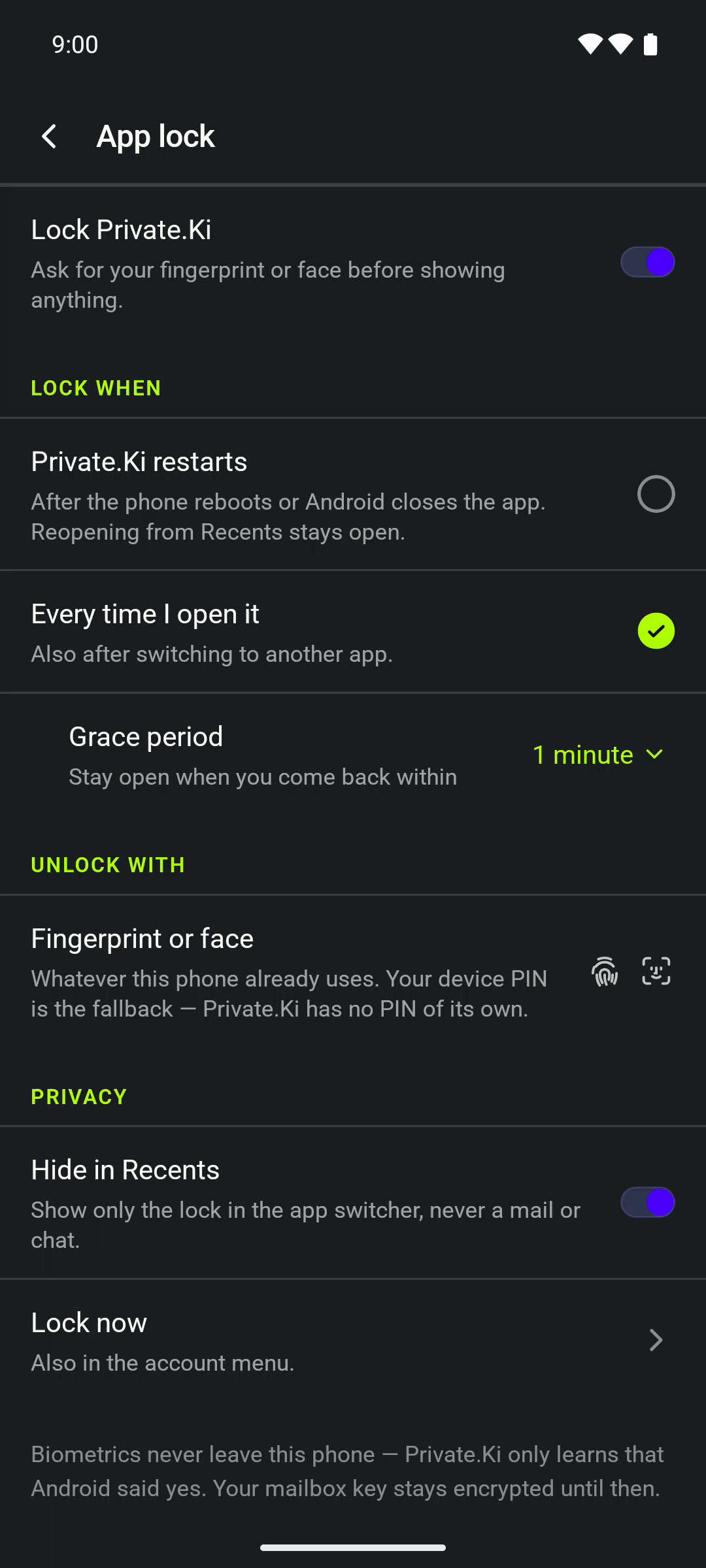
Settings › App lock. Master switch on, Lock when, Grace period, Unlock with, Hide in Recents and Lock now.Android - Choose under Lock when:
- Private.Ki restarts — After the phone reboots or Android closes the app. Reopening from Recents stays open.
- Every time I open it — Also after switching to another app.
- If you chose Every time I open it, set Grace period — Stay open when you come back within — to Immediately, 30 seconds, 1 minute (the default) or 5 minutes. Switch to another app and back inside that window and you are not asked again.
- Optional: turn on Hide in Recents — Show only the lock in the app switcher, never a mail or chat.
If the phone has no PIN, pattern, password or biometric of its own, the Lock Private.Ki switch is off and cannot be turned on, and its summary says exactly that. Set a screen lock in Android's own Settings, then come back.
What you see when it is locked
The lock screen says Private.Ki is locked, and Android's own biometric sheet opens over it by itself.
- With a fingerprint or face enrolled: Touch the fingerprint sensor to open your mailbox.
- Without one: Use your device PIN to open your mailbox.
If you dismiss the sheet, the screen stays. The lime Unlock button opens it again, Use device PIN instead opens the same sheet with Android's Use PIN button on it, and Sign out at the bottom is the way out if you cannot get past the lock at all.
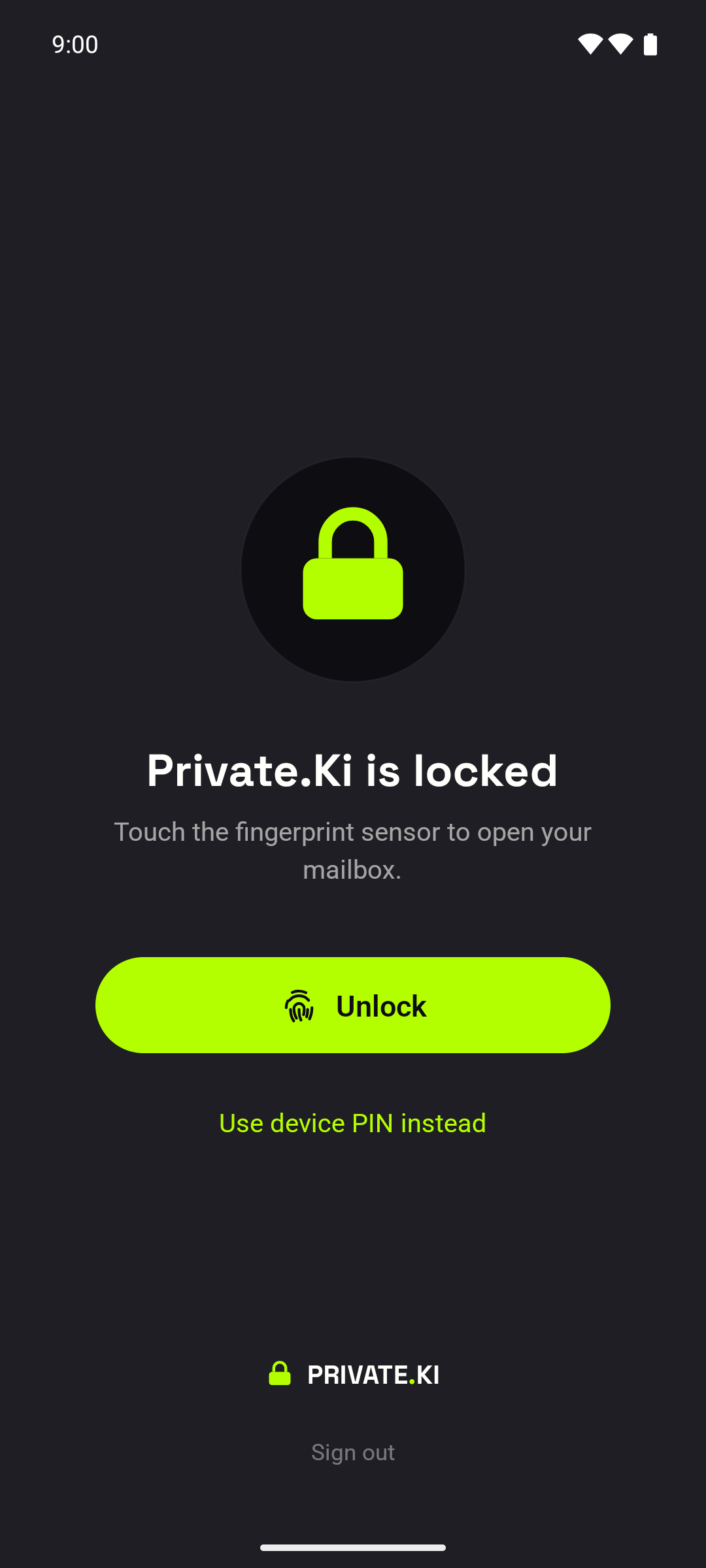
There is no error message of our own here: a wrong finger, a lockout after too many tries, or nothing enrolled — Android's sheet says it, and Android decides how long you wait.
Unlock with, and what it is not
Unlock with shows Fingerprint or face and reads Whatever this phone already uses. Your device PIN is the fallback — Private.Ki has no PIN of its own. It is a statement, not a choice: Android decides which methods the sheet offers.
Hide in Recents
With Hide in Recents on, the app's card in the Android app switcher shows only the Private.Ki lock glyph instead of whatever was on screen. Nobody scrolling through your open apps sees a subject line or a chat preview.
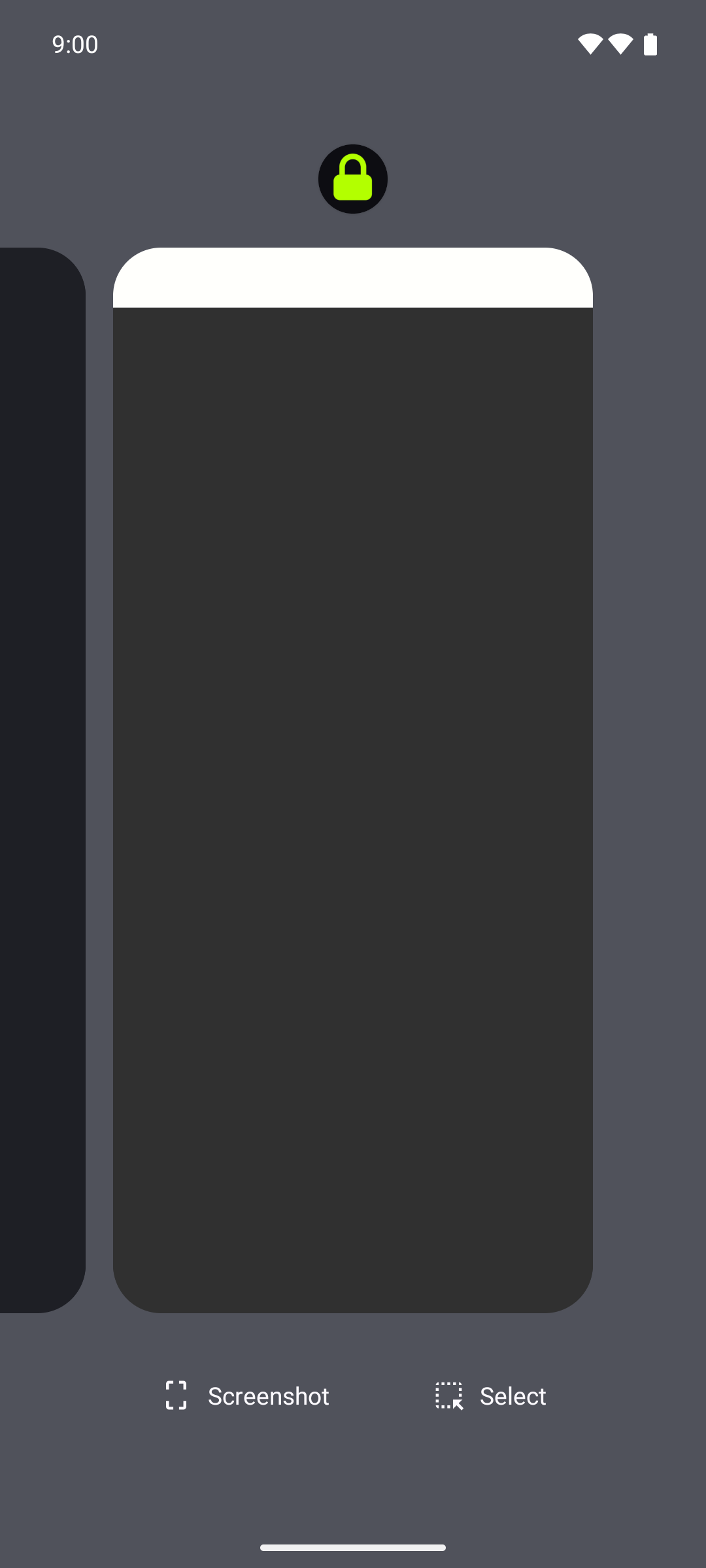
Lock now
Lock now at the foot of the App lock screen locks the app immediately — Also in the account menu, where it sits as Lock account. Use it when you hand the phone to someone for a moment.
What our server sees
Cannot see
- Your fingerprint or face — those are enrolled with Android and never leave the phone
- Whether App lock is on, which mode you chose, or when you unlocked — all of it lives in the phone's secure storage, not in your account
Can see
- The ordinary sync traffic once the app is open
It stops someone holding your unlocked phone from reading your mail. It is not part of your encryption: your mailbox key stays encrypted until Android says yes, but the key itself is still protected by your password or passphrase, and App lock changes nothing about two-step verification or your signed-in devices.
Common questions
Does the app ask again every time I switch apps?
Only with Every time I open it, and only after the grace period has passed. With Private.Ki restarts you are asked after a reboot or when Android has closed the app — coming back from Recents keeps it open.
I forgot my device PIN.
That is between you and Android; we cannot help with it. If you can no longer get past the lock, use Sign out on the lock screen and sign in again with your Private.Ki password.
Is App lock on iPhone or in the browser?
No. It is registered on the Android settings list only. The web app relies on Lock account and Log out.
Does locking the app sign me out?
No. The session stays; only the screen is covered. Signing out is a separate action and clears everything this device kept — see Lock the app or log out.