Set a recovery email address
Add an outside address that can prove you own your account if you forget your password. We store only an Argon2 hash of it, so we cannot read or email it.
Private.Ki never sees your password, so it cannot remind you of it. The only way to reset a forgotten password is to prove you own the account through a recovery email address — any address you control, including another Private.Ki address. Without one, a forgotten password means a lost account.
The address is stored as an Argon2 hash only. We cannot read it, we cannot send you mail to it on our own, and we cannot tell you what it was. When you need it, you type it in again and we check it against the hash.
If you unlock with a passphrase, nothing here can recover it. Write the passphrase down and keep it somewhere safe.
Add a recovery address
- Open Settings. Click your name at the bottom-left, then Settings, and choose Recovery email.
1Recovery email2Type the address here3Add Recovery EmailWeb & desktop 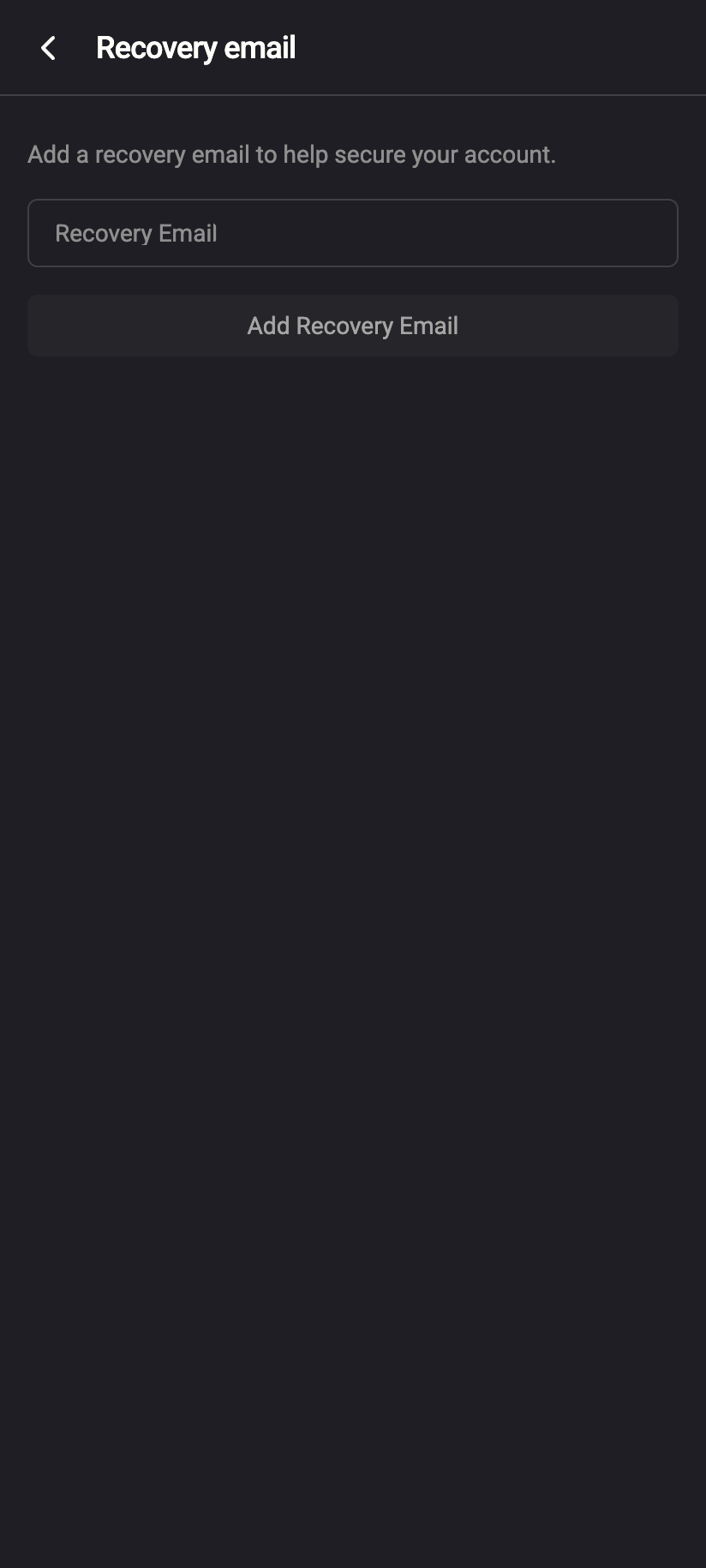 12
121Type the address here2Add Recovery EmailiPhone 121Type the address here2Add Recovery EmailAndroid - Type the address into Recovery Email and click Add Recovery Email. The app solves a short proof-of-work first — you may see a brief pause.
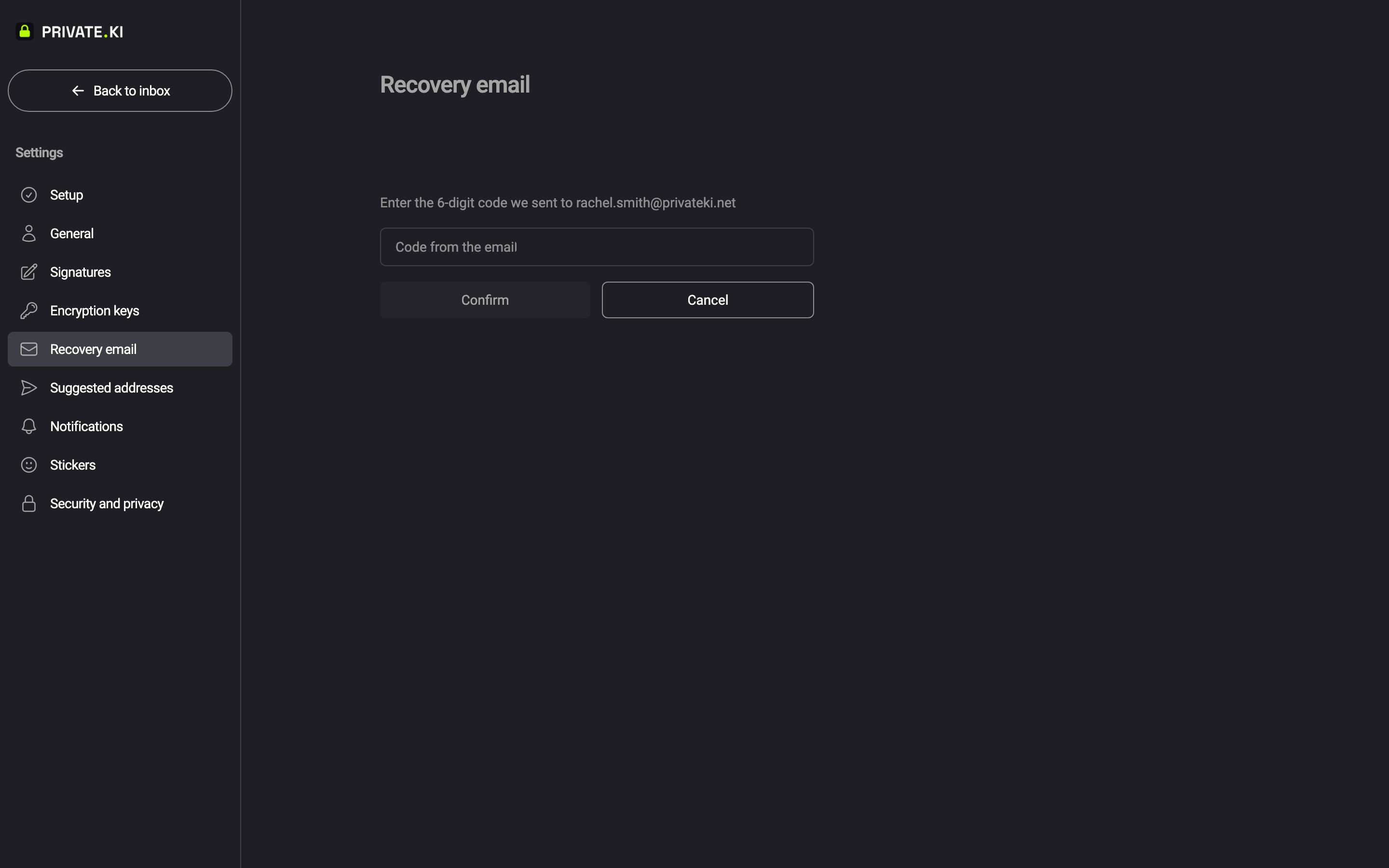
- Check that mailbox. We send a six-digit code to the address you entered. A toast confirms Verification code sent to your recovery email.
- Type the code into Verification Code and click Verify. Cancel discards the attempt.
1Enter the 6-digit code2Confirm3CancelWeb & desktop 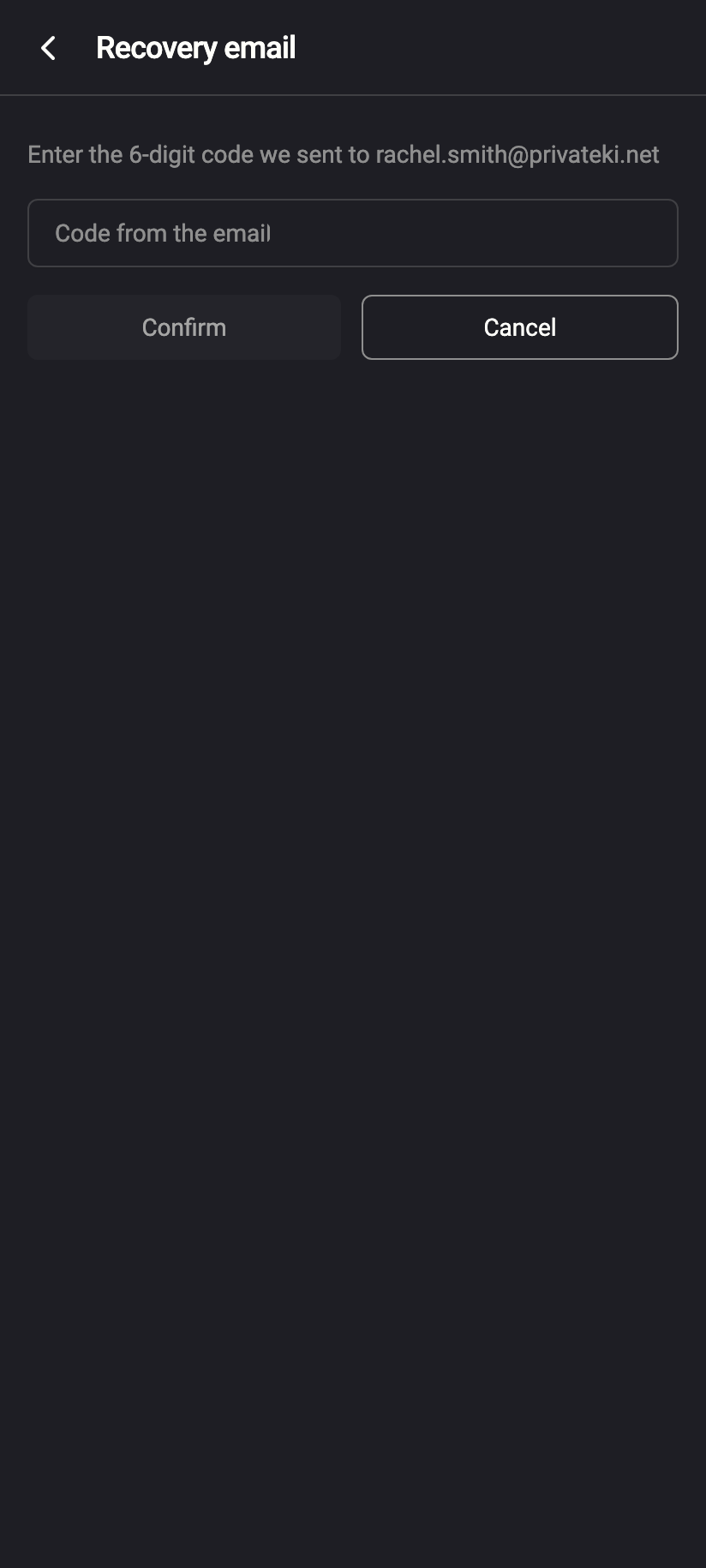 123
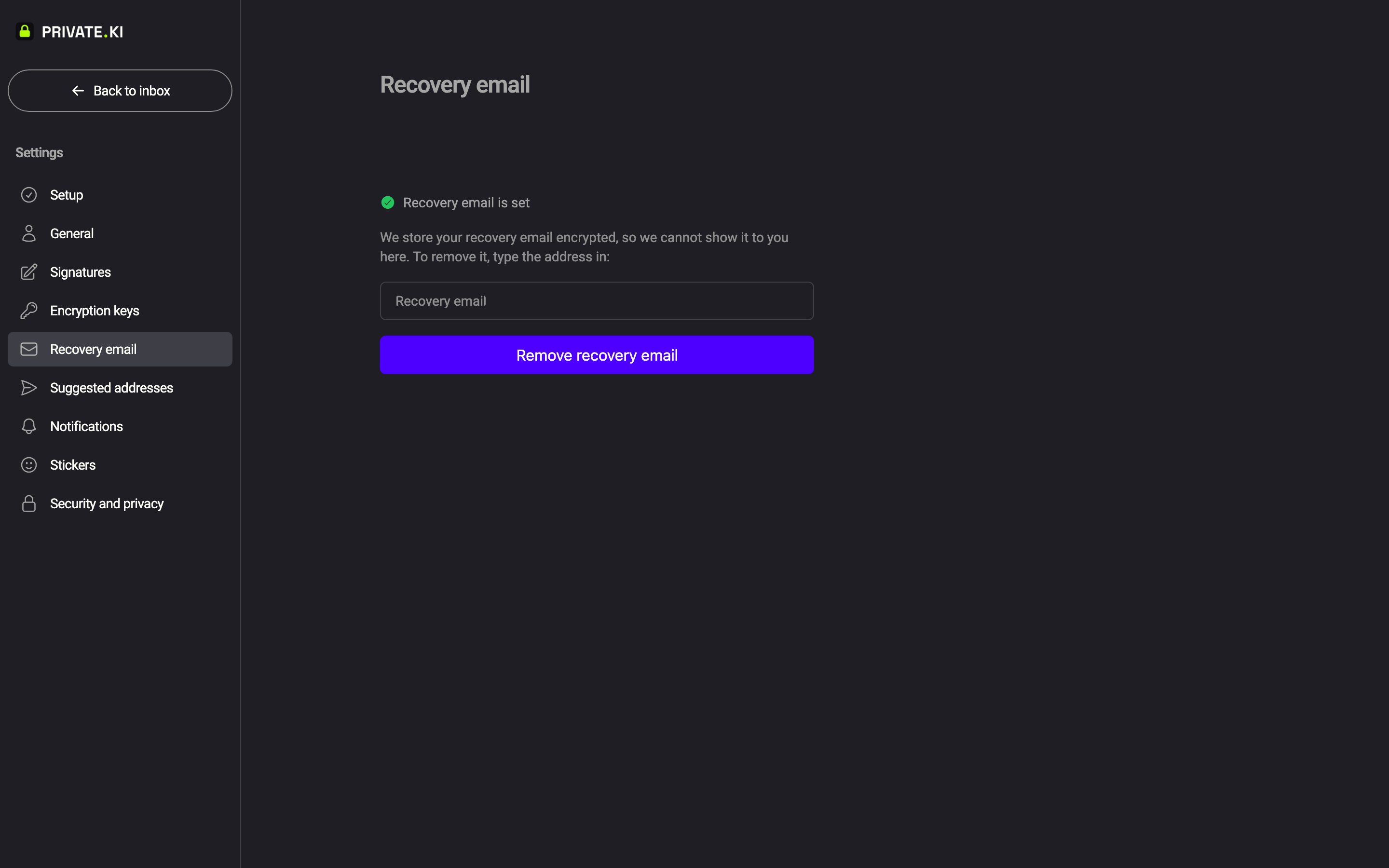
1231Enter the 6-digit code2Confirm3CanceliPhone 1231Enter the 6-digit code2Confirm3CancelAndroid - Done. The page shows Recovery email is set. From now on the section offers Remove Recovery Email instead.
1Recovery email is set2Remove recovery emailWeb & desktop 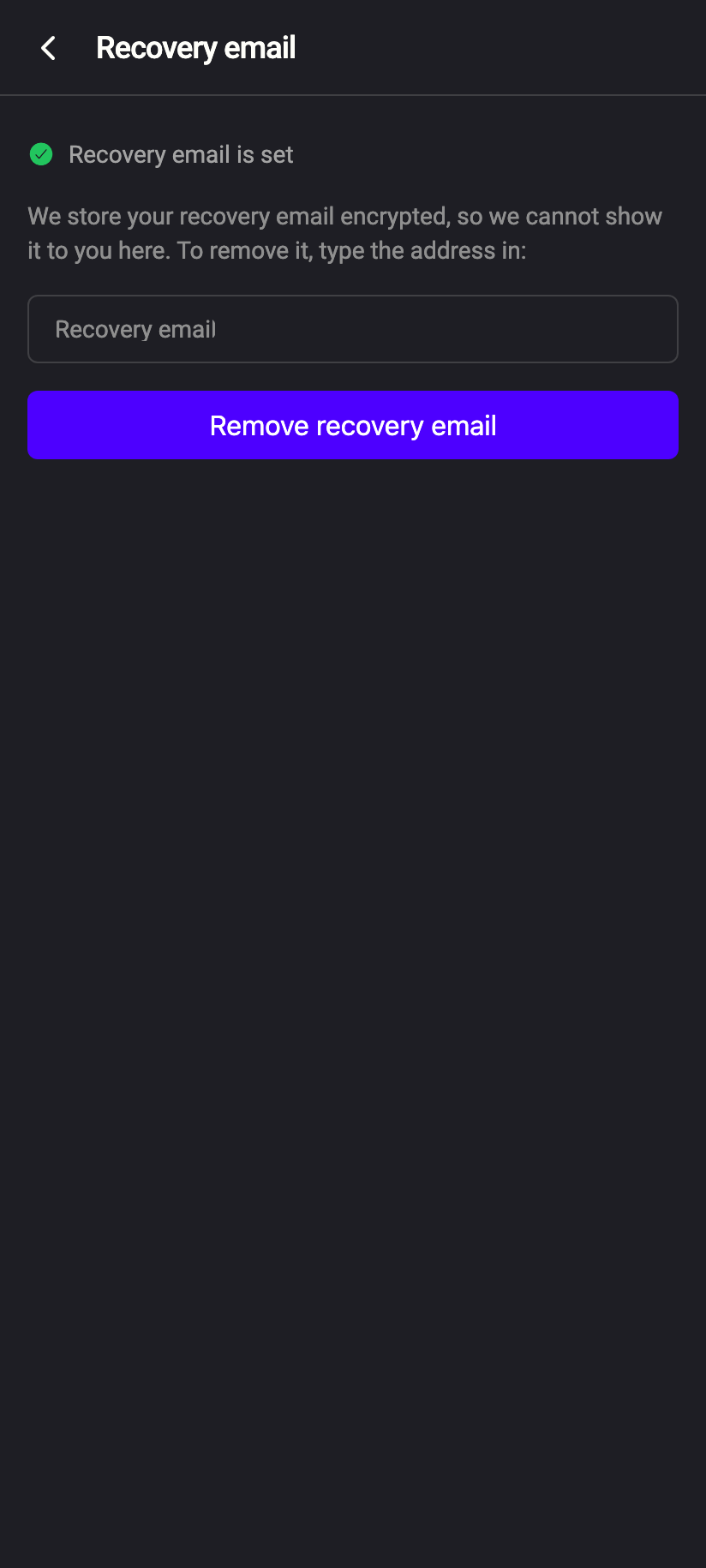 12
121Recovery email is set2Remove recovery emailiPhone 121Recovery email is set2Remove recovery emailAndroid
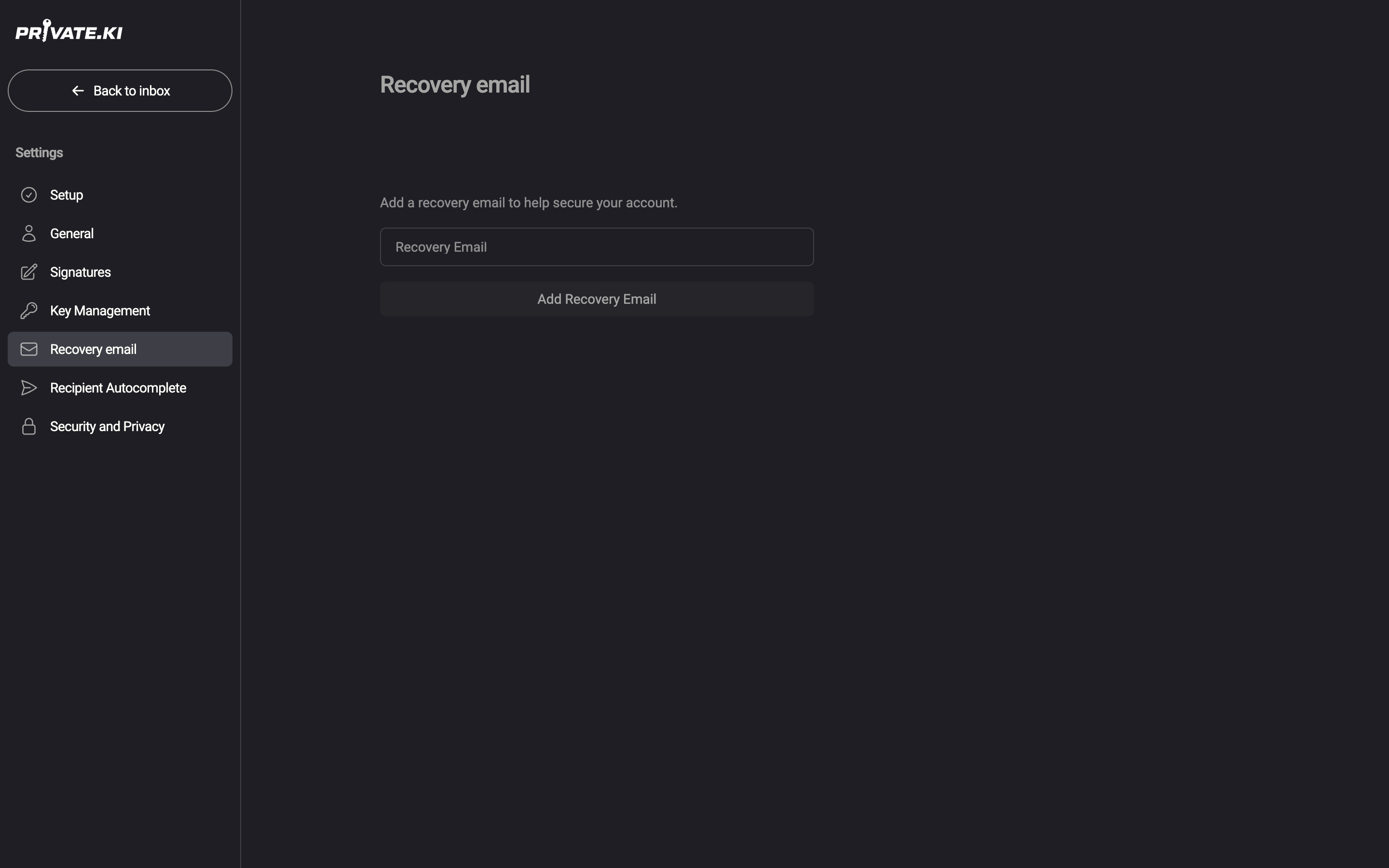
On the phone, open the menu ☰, tap your name at the bottom of the drawer, then Settings › Recovery email. The steps are the same.
What to expect
- The code is valid for 15 minutes. After five wrong entries the code is destroyed — start again from step 2 to get a new one.
- Requesting a new code cancels the previous one.
- Only one recovery address per account. To use a different one, remove the current address first (below), then add the new one.
- Adding a recovery address also clears the finish setting up requirement if your account was created while we required 2FA or recovery for new accounts.
Remove or change the address
Because we hold only a hash, you have to prove you know the address before we let you remove it.
- In Settings › Recovery email, type your current recovery address into Recovery Email and click Remove Recovery Email. If it does not match the hash you see Recovery email does not match.
- Enter the six-digit code we send to that address and click Confirm Remove.
- The section returns to the empty state. Add a new address the same way as above if you want one.
What our server sees
Cannot see
- Your recovery email address in readable form — only its Argon2 hash
- Your password, passphrase or private key
Can see
- That a recovery address is set on your account (a yes/no flag support can see)
- The address in readable form while a verification code is live — at most 15 minutes, in a temporary store that expires with the code
- Your recovery mailbox's provider receives an email from us with the code in it
If the address were stored readably, a copy of our database would tell an attacker exactly which outside mailbox to break into to take over your account. A hash tells them nothing. The price is that you have to remember the address — we cannot look it up for you.
Common questions
Can I use another Private.Ki address as my recovery address?
Yes. Any address you can read mail at works, including a second Private.Ki account. You need to be able to sign in to that second account when the time comes.
I forgot which address I used.
We cannot tell you — we do not have it. Try the addresses you might have used in password reset; the form gives the same neutral answer for a wrong address and a right one, so you will know only by which mailbox receives a code. If none does, contact support.
The code never arrives.
Check the spam folder of the recovery mailbox, and that you typed the address exactly. Codes expire after 15 minutes; click Cancel and request a fresh one. If the code still does not arrive, try a different address.
Do you use the recovery address for anything else?
No. It is used only to send verification codes when you add it, remove it, or reset your password. We cannot use it for newsletters or notices — we cannot read it.
Does the recovery address protect my messages?
No. It protects access to your account. Your messages are protected by encryption, and — if you use one — your passphrase. See Reset a forgotten password for exactly what a reset does and does not change.