Signed-in devices: see them and sign one out
Password only accounts keep an unlock session per device. Where the list is in Settings › Security and privacy, and how to sign one device out.
With the Password only unlock method, each device you sign in on keeps an encrypted session so it can re-open your keys without asking for the password every time. Signed-in devices lists them and lets you cut one off — Devices that open your mailbox without your password. Because the server enforces revocation as a single cut-off time on your account, signing out one device signs out every other one; the device you are using is the only one that survives.
There is no top-level Devices entry in Settings. The list sits inside Settings › Security and privacy, under Signing in, below How your mailbox unlocks. In the shipping Android app the same section is called Active Sessions and sits inside Security and Privacy.
If your unlock method is Passphrase, nothing is stored on the server per device and the section is not shown. Your protection there is the passphrase itself: a device that does not have it cannot open your mail. To shut out a lost device, see the last question below.
See your devices
- Open Settings and choose Security and privacy.
Settings › Security and privacy. Signed-in devices sits under Signing in, below How your mailbox unlocks.Web & desktop 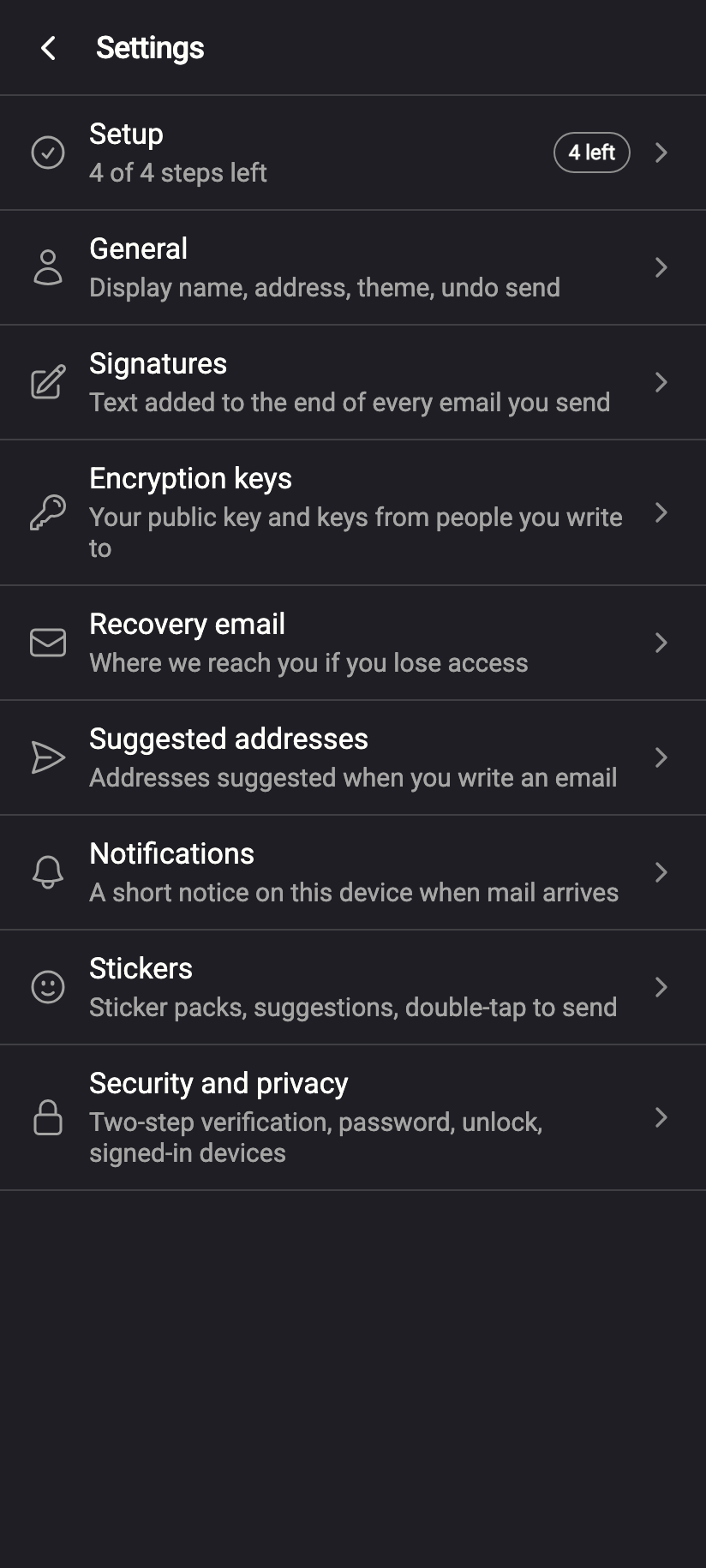
Settings › Security and privacy. Signed-in devices sits under Signing in, below How your mailbox unlocks.iPhone Settings › Security and privacy. Signed-in devices sits under Signing in, below How your mailbox unlocks.Android - Scroll to Signing in and open Signed-in devices. Each card shows the device's name — for example macOS - Chrome 128 or the phone's model name — and three times: Signed in, Last used and Stays signed in until.
Two devices, each with Signed in / Last used / Stays signed in until, and Sign out.Web & desktop
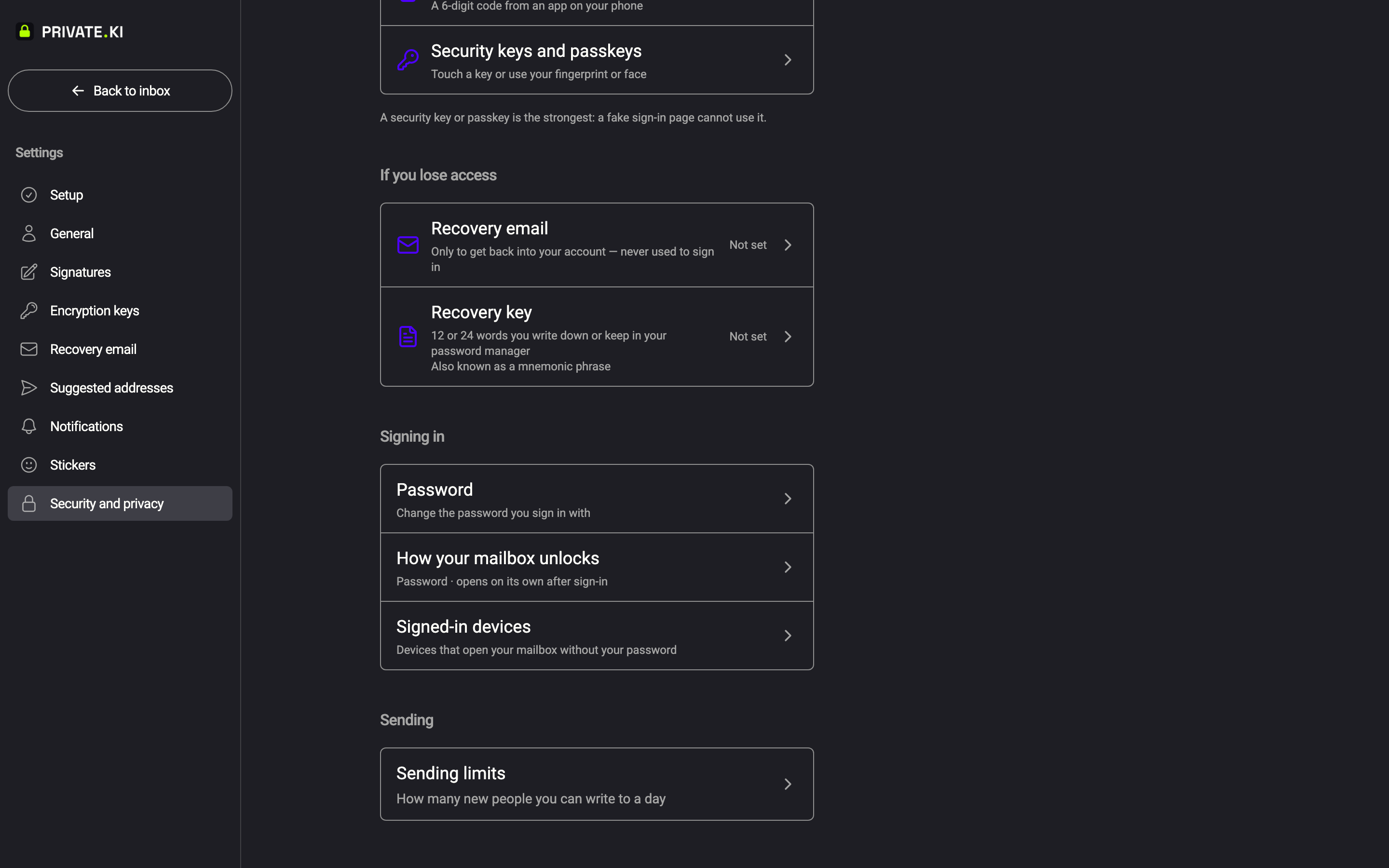
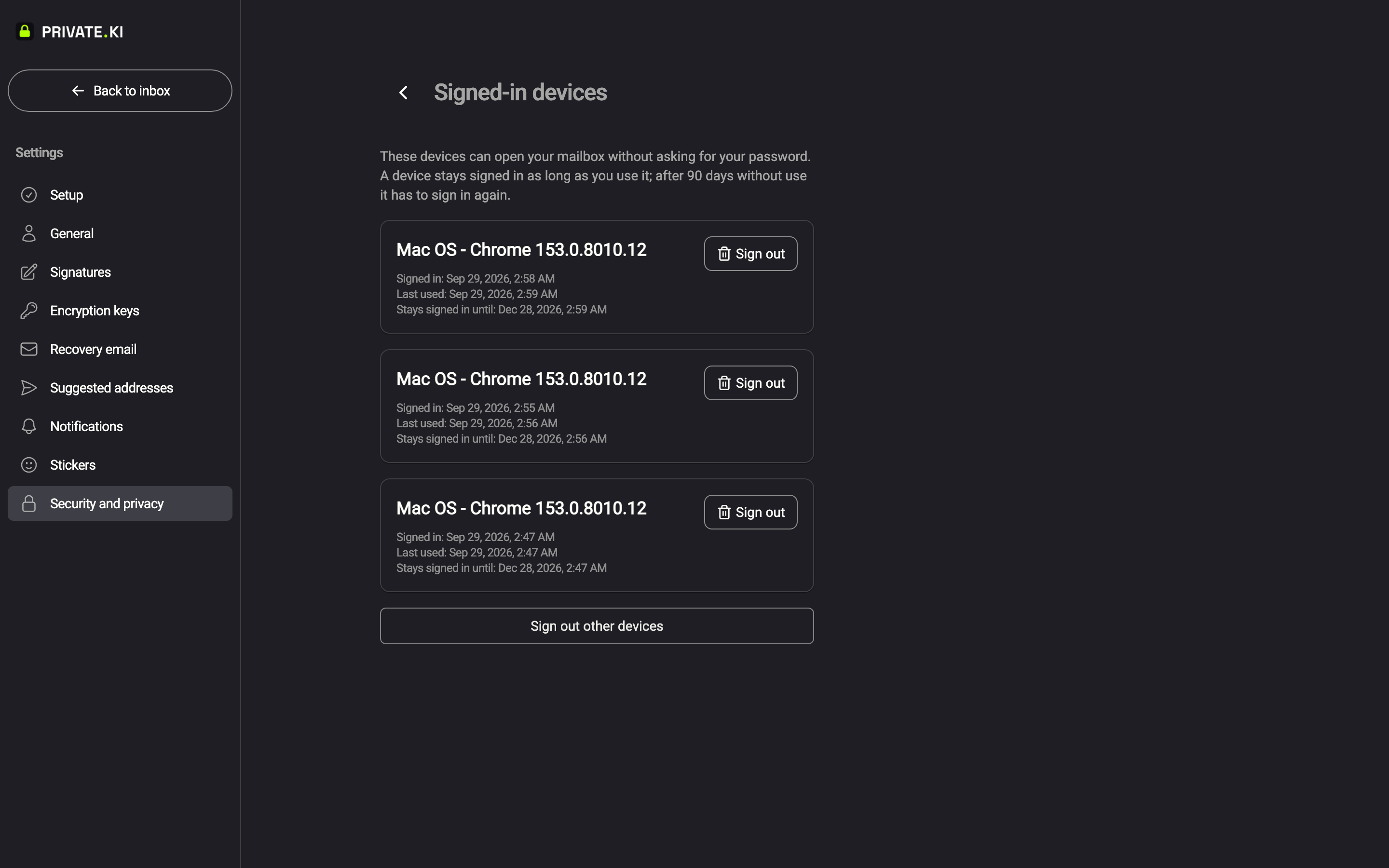
The device name is chosen by the device itself and stored encrypted with your master key, so the server holds it but cannot read it; only your unlocked devices can. If a session was created without a name it is listed as Device 1, Device 2, and so on. With nothing to list, the screen says No signed-in devices.
The shipping Android app uses the older wording: the section is Active Sessions, the three lines are Created, Last used and Expires, and the buttons are Revoke and Revoke All Other Sessions. Same list, same effect.
Sign a device out
- Click Sign out on the card you want to end.
- Read the confirmation — Sign out "…"? Every other device is signed out at the same time, so you will need to sign in again on all of them. The device you are using now stays signed in. — and click Sign out.
- Every other browser and phone on the account loses its sign-in immediately. The next thing they do — refresh, open a message, receive a live update — fails with Session is no longer valid. Please sign in again. and they are returned to the sign-in page. Their cached mail is cleared with the sign-in.
When two or more devices are listed, a Sign out other devices button appears underneath. It has the same effect on other devices, and additionally removes this device's quick-unlock session too: you stay signed in for now, but the next time this device has to re-open your keys — after a lock, a reload or a restart — you sign in with your password again.
Signing it out kills its tokens, so it can no longer fetch mail, send, or open a live connection. It does not reach into the device: anything already decrypted and on screen there stays visible until the app notices, and anything the device had downloaded earlier may remain in its browser storage until the sign-in is cleared. For a lost device, sign it out first, then change your password so the old one is useless if it was seen.
How long a device stays signed in
A device that keeps being used never expires. The app says it plainly above the list: A device stays signed in as long as you use it; after 90 days without use it has to sign in again.
- The session is stamped with 90 days when it is created and again every time that device successfully unlocks. Daily use keeps pushing the date out; Stays signed in until is always 90 days after the last unlock, not 90 days after the first.
- Only three things end a session: you sign out on that device, you sign it out from this list, or the device goes 90 days without opening Private.Ki at all. After that it is signed out and you sign in with your password again, which creates a fresh session.
- The tokens behind a session follow the same clock: an access token lasts 30 minutes and is refreshed automatically, and the refresh lifetime is the same 90 days. Signing the device out cuts everything off at once.
- Log out on a Password only device ends its session the same way, so logging out anywhere signs out everywhere. See Lock the app or log out.
Earlier versions did expire a device's unlock session seven days after it was created, whether you used it or not. That was a bug, and it is fixed: nothing in Private.Ki expires a device you are actually using.
What our server sees
Cannot see
- The device names in readable form — they are encrypted with your master key
- Your keys or password — the server stores one half of a session secret; the other half never leaves the device
Can see
- How many devices are signed in, when each signed in, when it last unlocked and when it would expire
- The moment you signed a device out, which is the cut-off applied to every other device
Common questions
Why did signing out one phone sign out my laptop as well?
It is a single timestamp on your account: every token issued before it is refused. The server cannot spare one device except the one that made the request, which it hands fresh tokens. Sign in again on the laptop; its session is recreated.
I don't see the list in Security and privacy
It appears only for accounts using the Password only method that have a password set. Passphrase accounts, and accounts created from a chat invitation that have not yet set a password, do not have it. See Choose your unlock method.
Can I rename a device?
No. The name is generated when the session is created — operating system and browser on the web, the device's own name in the apps.
A device I use every week still shows a date three months away. Is that wrong?
No, that is the point. The date is 90 days after the last time that device unlocked, and it moves forward every time you use it.
My account uses Passphrase and a device was lost
The device cannot open your mail without the passphrase, unless it was already unlocked — a paired device holds the key itself. Log out is not possible remotely for Passphrase accounts, so change your passphrase — the lost device's copy stops working — and ask support if you need the device's sign-in ended as well.