Sign in with an email code (OTP)
Accounts created by accepting a chat invitation have no password at first. They sign in with a six-digit code sent to the email address the invitation went to.
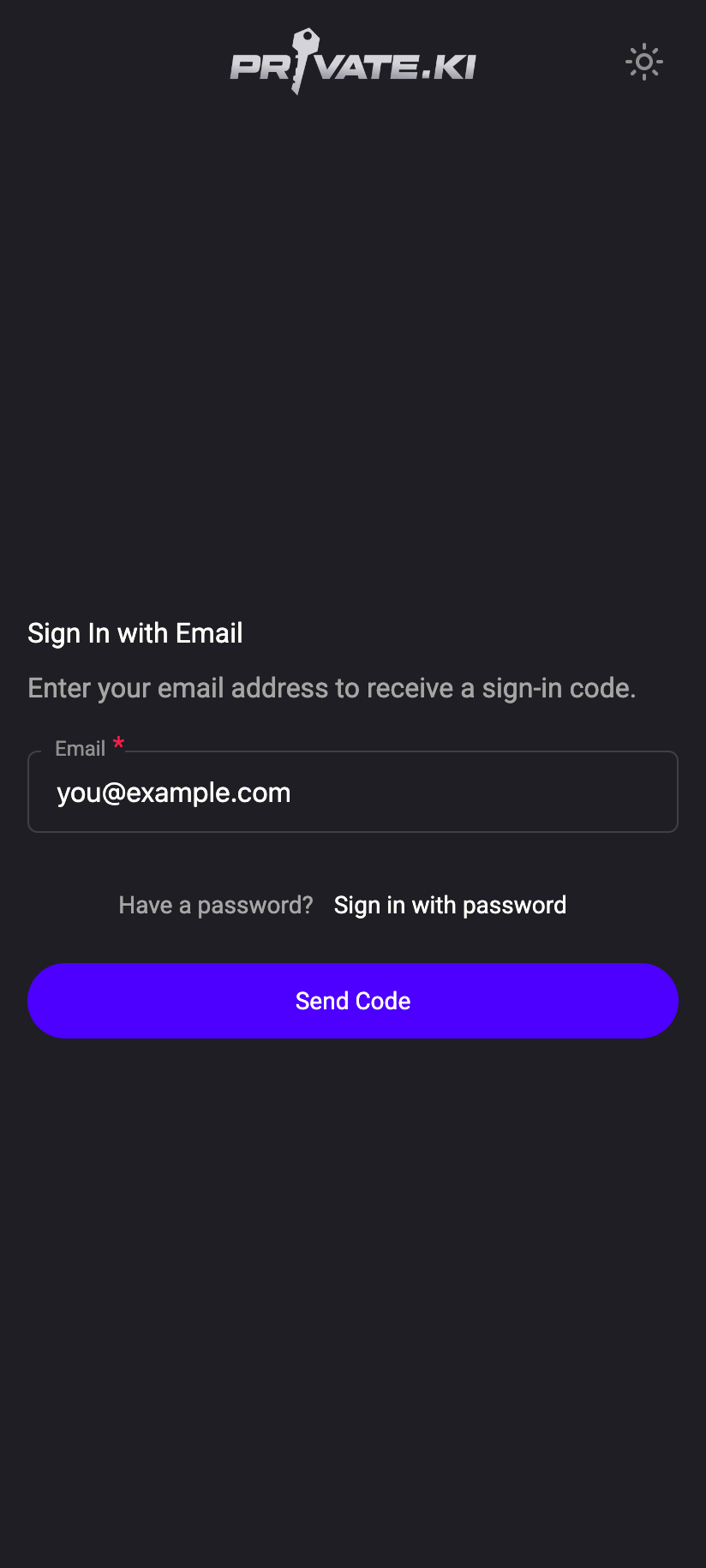
When someone on Private.Ki invites you to chat at your ordinary email address and you accept, an account is created for you without a password. To get back into that account you use Sign In with Email: we send a six-digit code to the address the invitation went to, and the code signs you in.
Email-code sign-in only works for accounts that were created from a chat invitation and still carry that email address. If you created your account with a username and password, no code will arrive — use Sign in with username and password. The screen looks the same either way; it never reveals whether an address is known.
Sign in with a code
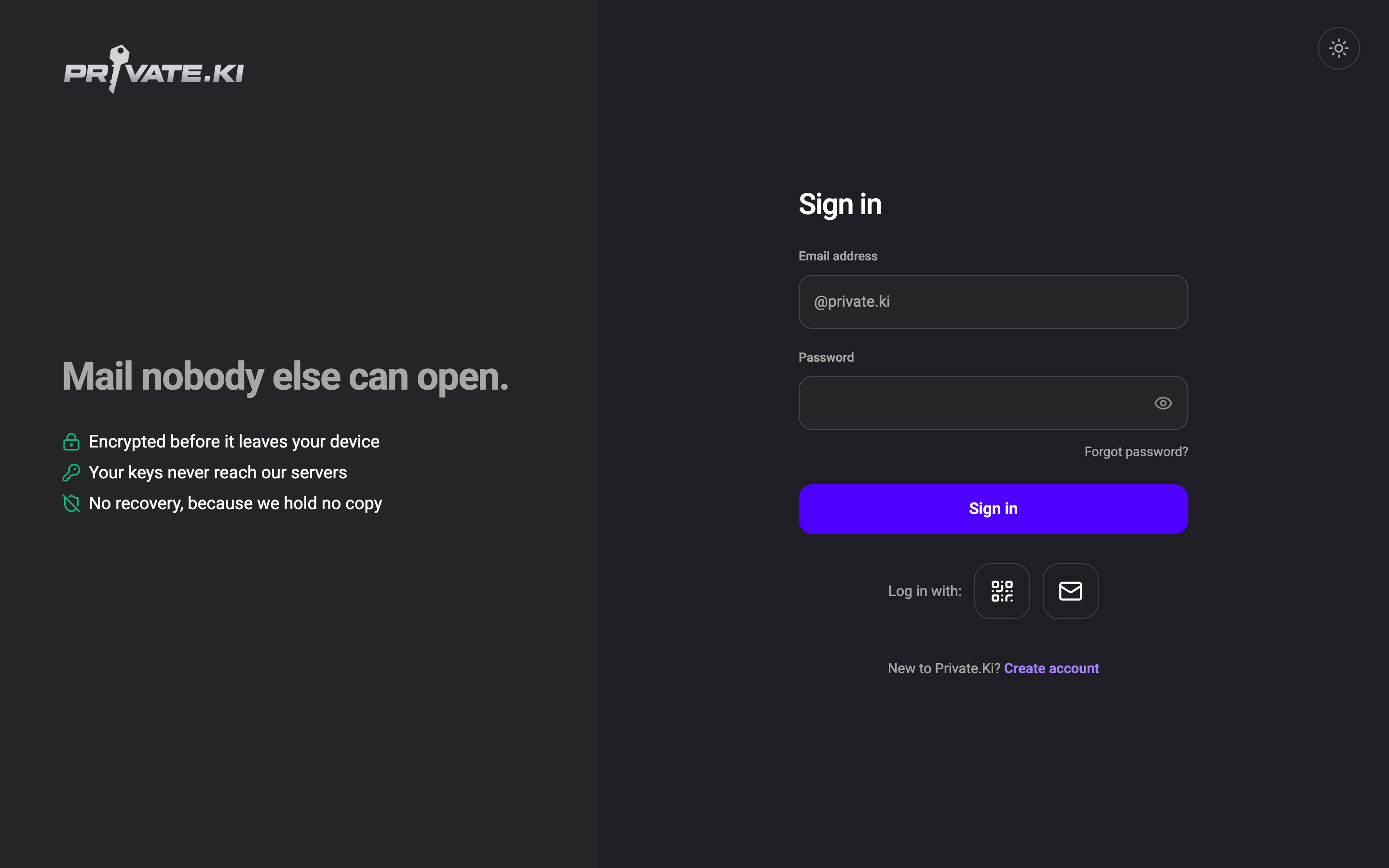
- On the sign-in page, under Log in with:, click the envelope icon (Sign in with an email code).
1Sign in with an email codeWeb & desktop 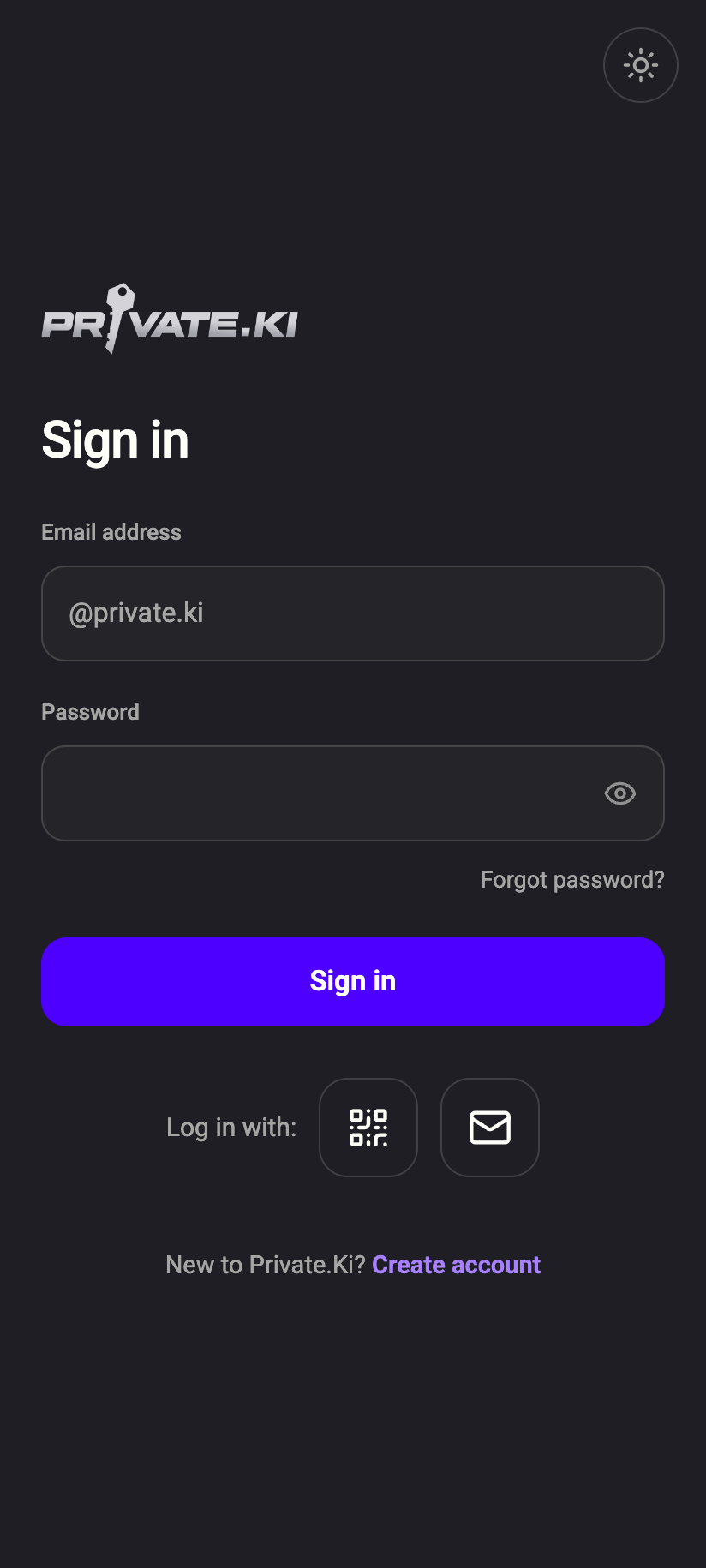 1
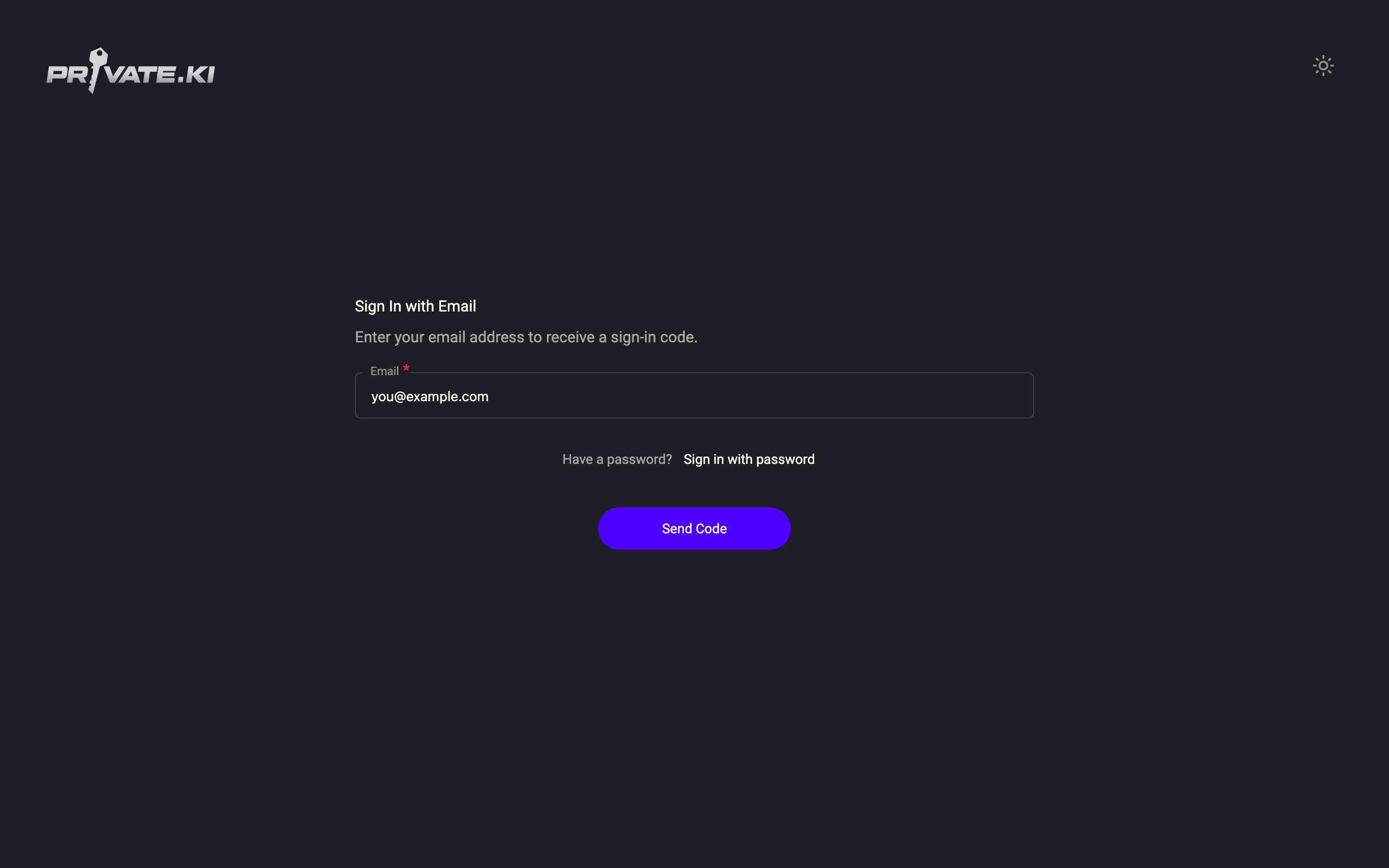
11Sign in with an email codeiPhone 11Sign in with an email codeAndroid - On Sign In with Email, type the address the invitation was sent to in Email and click Send Code.
- Check your inbox at that address. The code is six digits and is valid for 5 minutes.
- On Enter Code, type the digits into Verification Code and click Verify. You have 5 attempts; after that the code is cancelled and you request a new one.
1Six-digit code2Resend code3Verify4Use different emailWeb & desktop 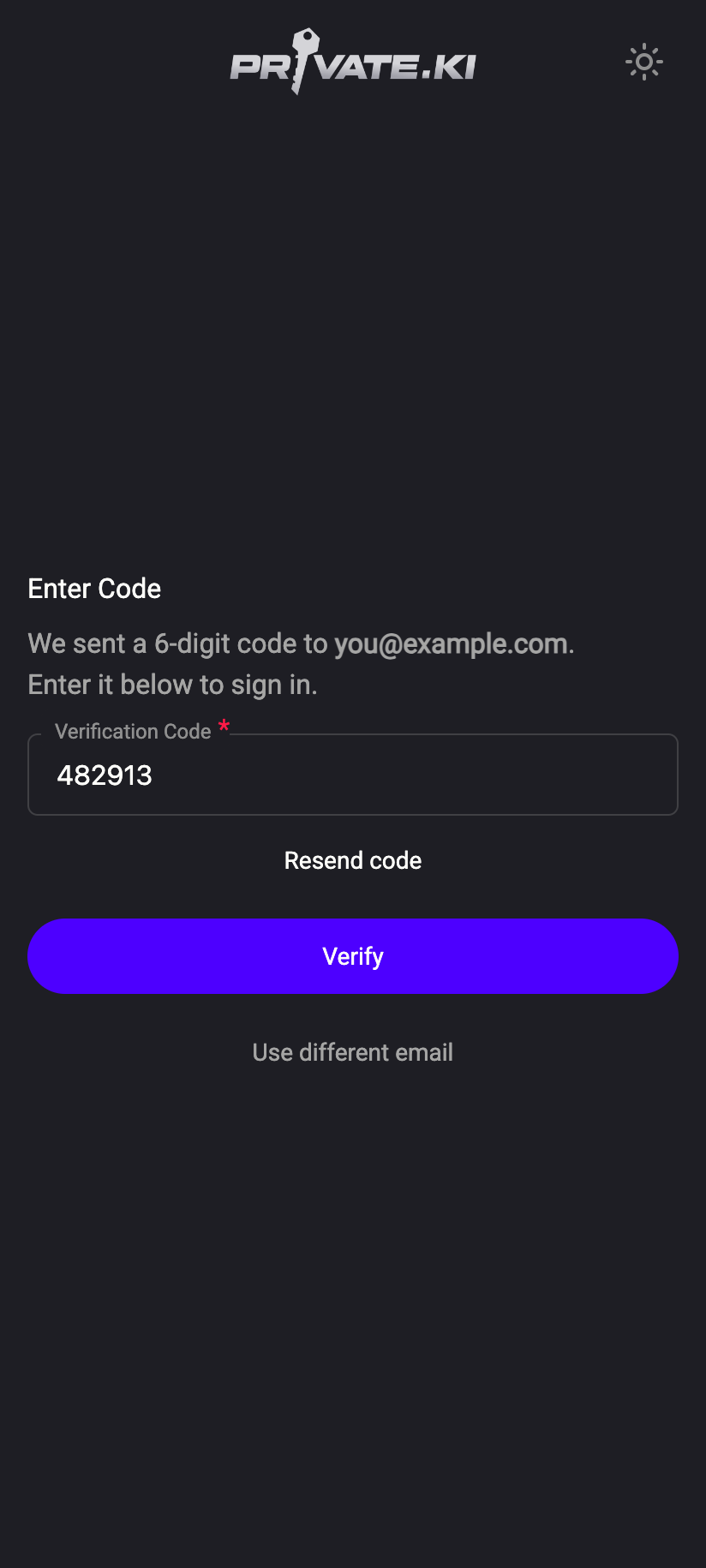 1234
12341Six-digit code2Resend code3Verify4Use different emailiPhone 12341Six-digit code2Resend code3Verify4Use different emailAndroid - If two-factor authentication is on for the account, enter your authenticator code next. Then your mailbox unlocks.
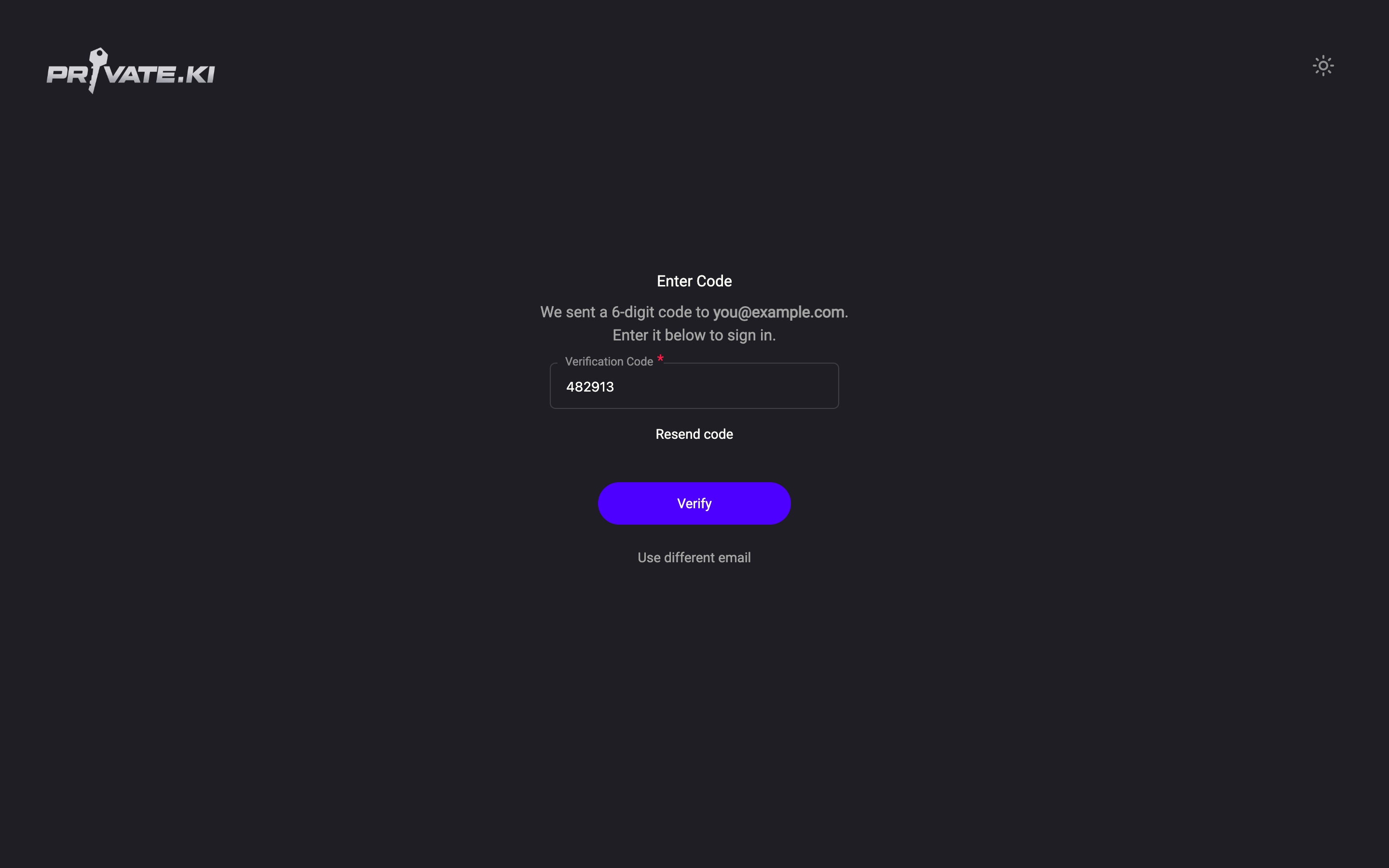
Didn't get the code? Click Resend code. Wrong address? Click Use different email. Code requests are limited to five per minute from one network address.
What happens after the code
- No password yet, no other device open. The app generates fresh keys for the account on this device and opens your inbox. You see Setting up your account… for a moment. Because the account has no password, its keys live only in the browser or app you are using; clearing that browser's data means starting again with fresh keys. Set a password in Settings › Security and Privacy to change that.
- No password yet, but you are signed in elsewhere. You see Active Session Detected — You're currently signed in on another device or browser. Please continue using that session, or sign out there first. This protects the keys held by the other device. Use that device, or log out there and try again.
- You have set a password. The code signs you in, but your keys are encrypted with your password, so you see Password Required with a Sign in with password button. Use it — the email code alone cannot unlock a password-protected mailbox.
Set a password so you don't depend on the code
Open Settings › Security and Privacy. Accounts without a password see a Set Password section: enter a password twice and save. From then on you can sign in with username and password, your keys are protected by that password, and the account can use the Password only unlock method. Details in Change your password.
What our server sees
Cannot see
- Your mail or chats — the code proves you control the email address, nothing more
- The email address itself in readable form — it is stored as a keyed hash so we can match it, not read it
Can see
- That a code was requested and whether it was accepted
- The code while it is valid (it is kept for 5 minutes on the server so it can be checked)
- The network address the request came from, for rate limiting
Anyone who can read your ordinary mailbox can request and use a code. Set a password as soon as you can, and turn on two-factor authentication — the code sign-in still asks for your authenticator code.
Common questions
I entered my @privateki.net address and no code arrived
The code goes to the external address the chat invitation was sent to (for example your Gmail address), not to your Private.Ki address. Private.Ki cannot email a code to itself.
The screen said the code was sent but nothing arrives
For privacy the screen always says We sent a 6-digit code — even for an address that has no account, so nobody can probe which addresses are registered. Check spam, confirm the address matches the invitation exactly, and use Resend code. If you created your account with a password, use that instead.
"Invalid code. 3 attempts remaining."
The digits did not match. Check for a newer email — a resend cancels the previous code — and type the latest one. After five misses you must request a new code.