Invite someone who isn't on Private.Ki
Three ways to bring an outsider into an encrypted chat — an invitation link or QR code, an emailed invitation, or your own reusable “chat with me” link.
A chat needs a key at both ends, so you cannot chat with an ordinary email address. What you can do is invite the person: they get a Private.Ki account in a few seconds, without a sign-up form, and the chat with you opens the moment they arrive. There are three ways to hand the invitation over, and they are not interchangeable — one of them is a secret, the other two are not.
- An invitation link or QR code — when you do not have (or do not want to use) their email address. You pass the link on yourself, by whatever channel you like. The link is a secret, and on the free plan it is for one person only.
- An emailed invitation — when you have their address. Private.Ki emails them the link for you.
- Your own "chat with me" link —
…/start?to=<your handle>, which is just your address in link form. Not a secret, may be posted anywhere, works any number of times. See Your own link and QR code below.
Invite with a link or QR code
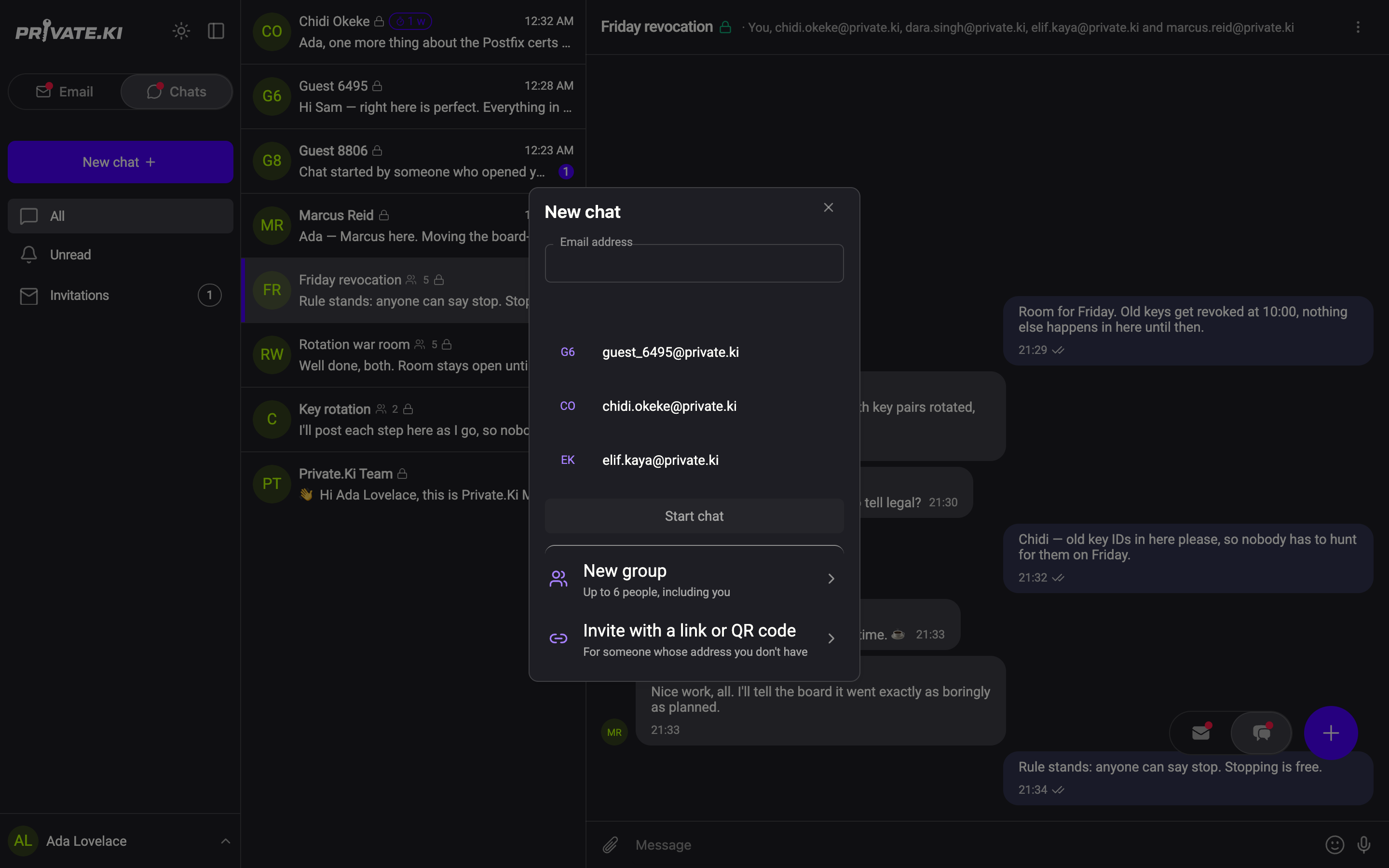
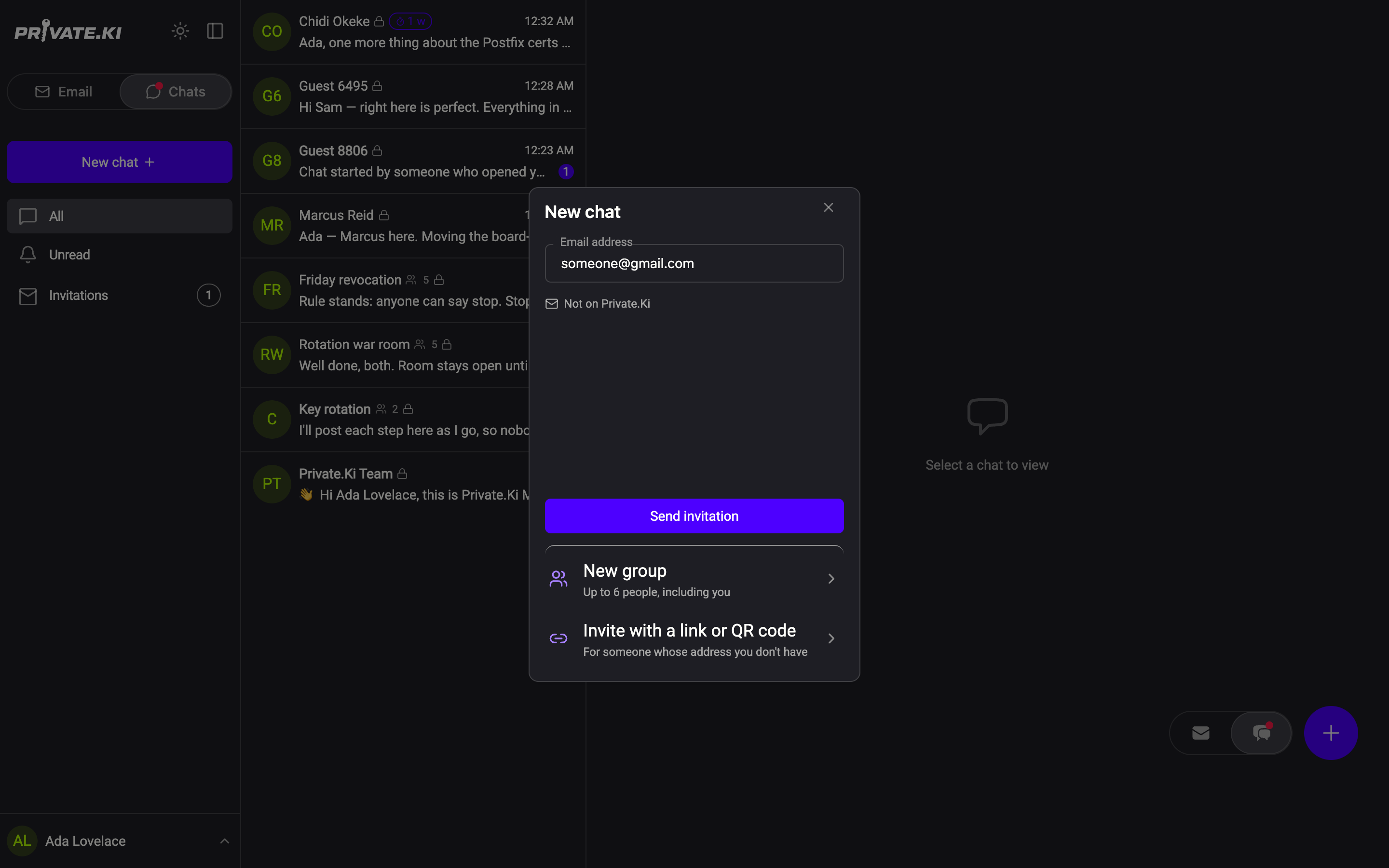
- Click New chat and choose Invite with a link or QR code at the bottom of the dialog.
1Invite with a link or QR codeWeb & desktop 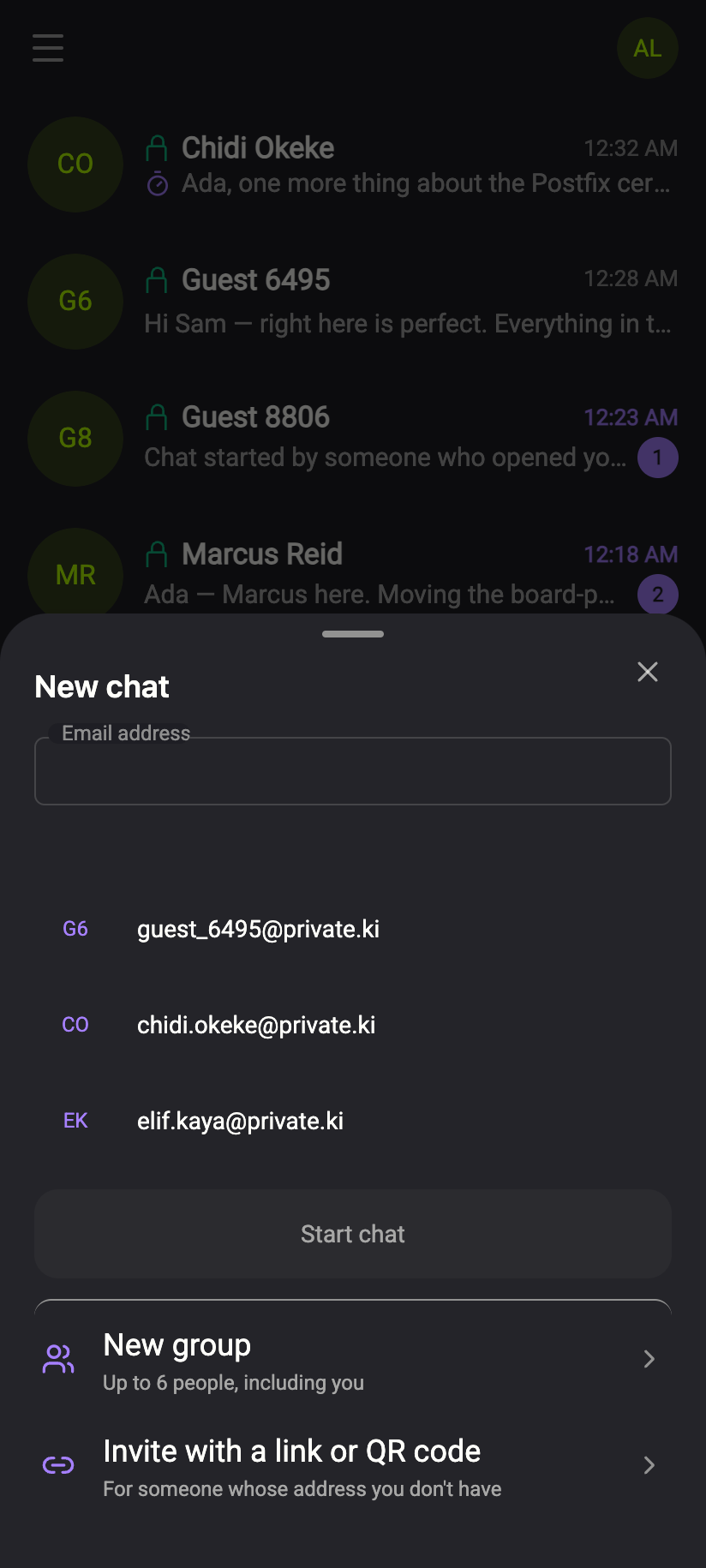 1
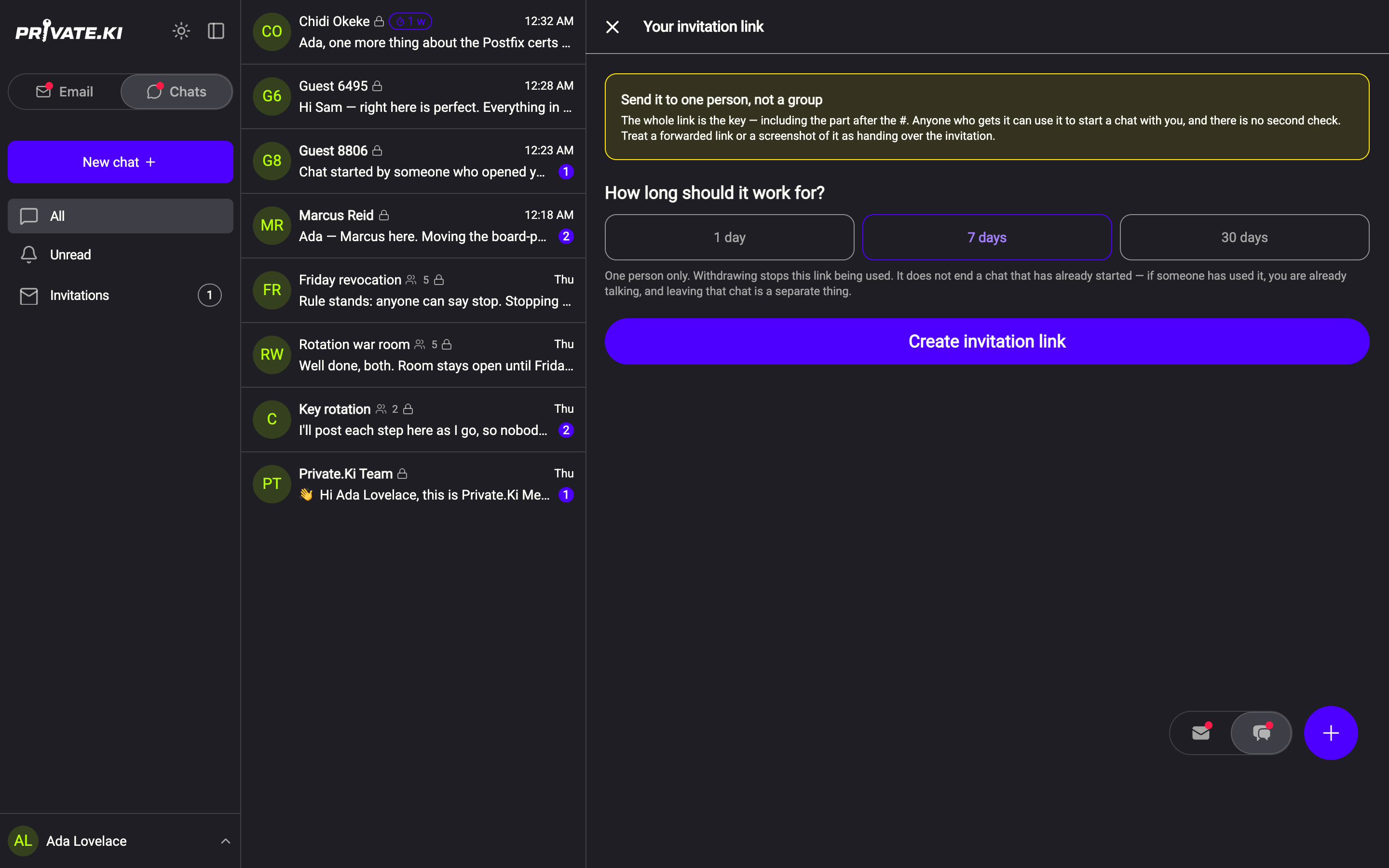
11Invite with a link or QR codeiPhone 11Invite with a link or QR codeAndroid - Choose how long the link should work: 1 day, 7 days, 30 days, 3 months or 1 year. Seven days is selected by default, and 30 days is the longest on the free plan — the last two chips need a Plus subscription and open the Plus panel if you do not have one. Read the note above the choice — it is the one thing that matters about these links.
17 days is the default2Create invitation link3Send it to one person, not a groupWeb & desktop 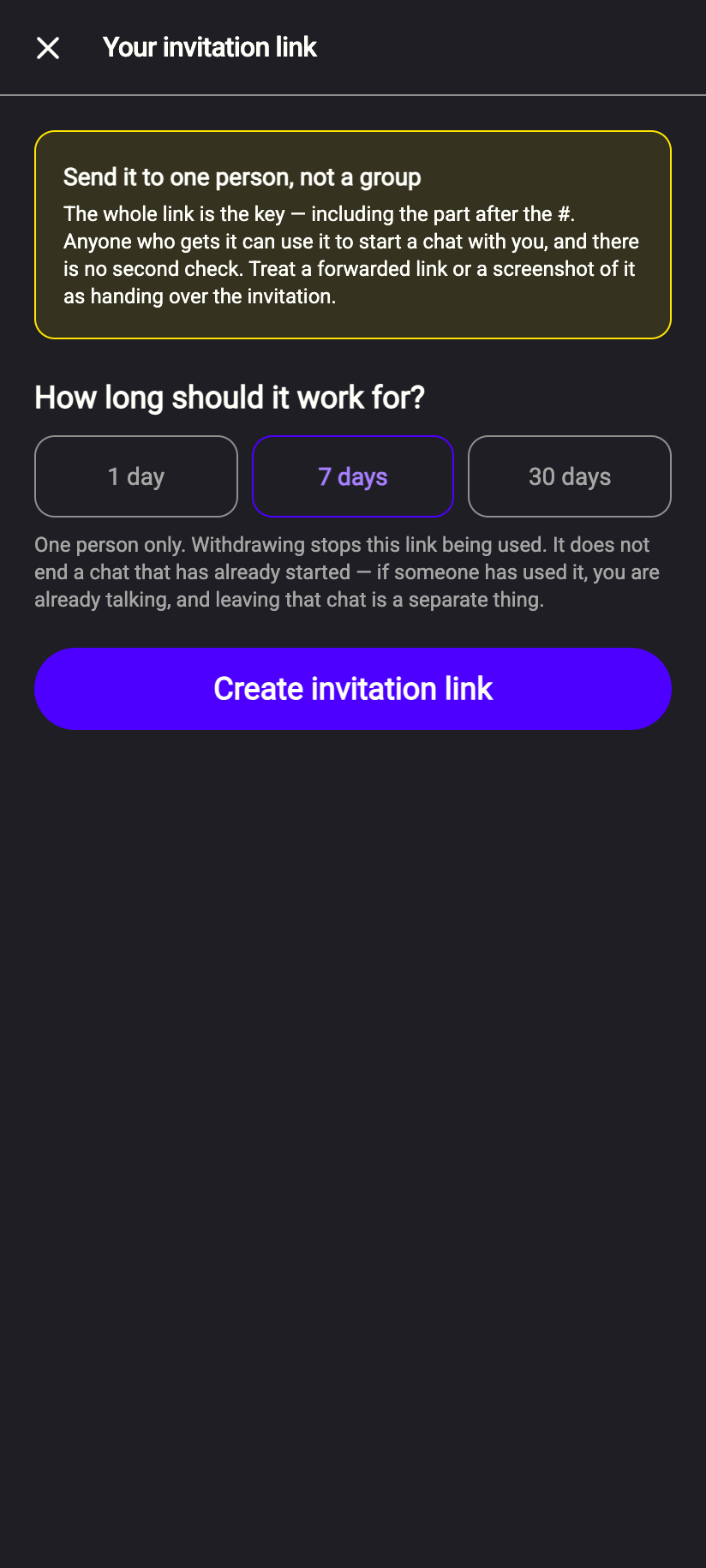 123
12317 days is the default2Create invitation link3Send it to one person, not a groupiPhone 12317 days is the default2Create invitation link3Send it to one person, not a groupAndroid - Under Uses, leave 1 person — or, with Plus, choose Up to 10 or Unlimited. The note under the chips changes with the choice: Every person who opens the link gets their own key handshake; the link itself is never a key. You see each use below and can stop the link at any time.
- Click Create invitation link.
- On the Link tab, click Copy link and paste it wherever you are talking to the person. On a phone, and in browsers that support it, a Share button opens the system share sheet instead.
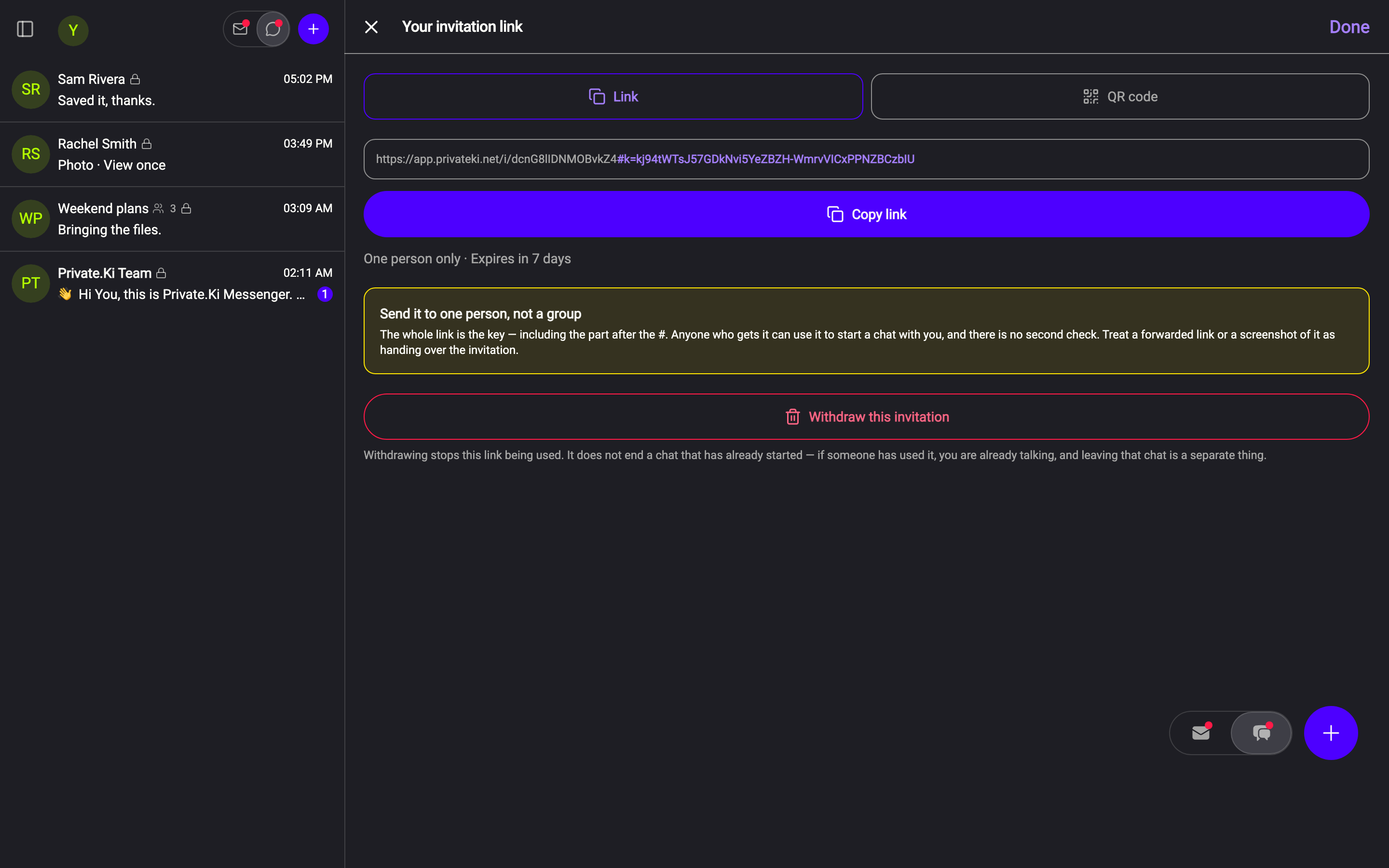
1Copy link2QR code tab3One person only · Expires in 7 days4Withdraw this invitationWeb & desktop 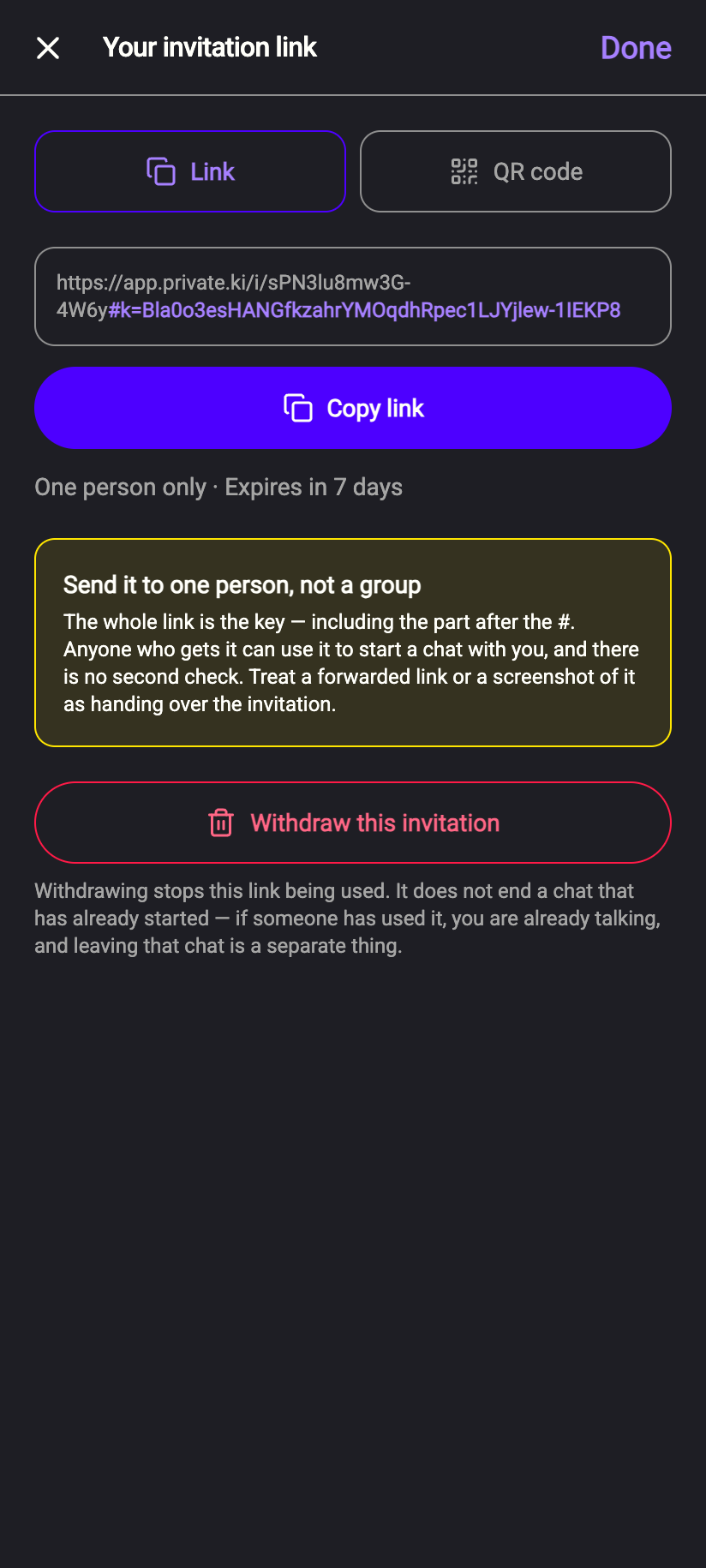 1234
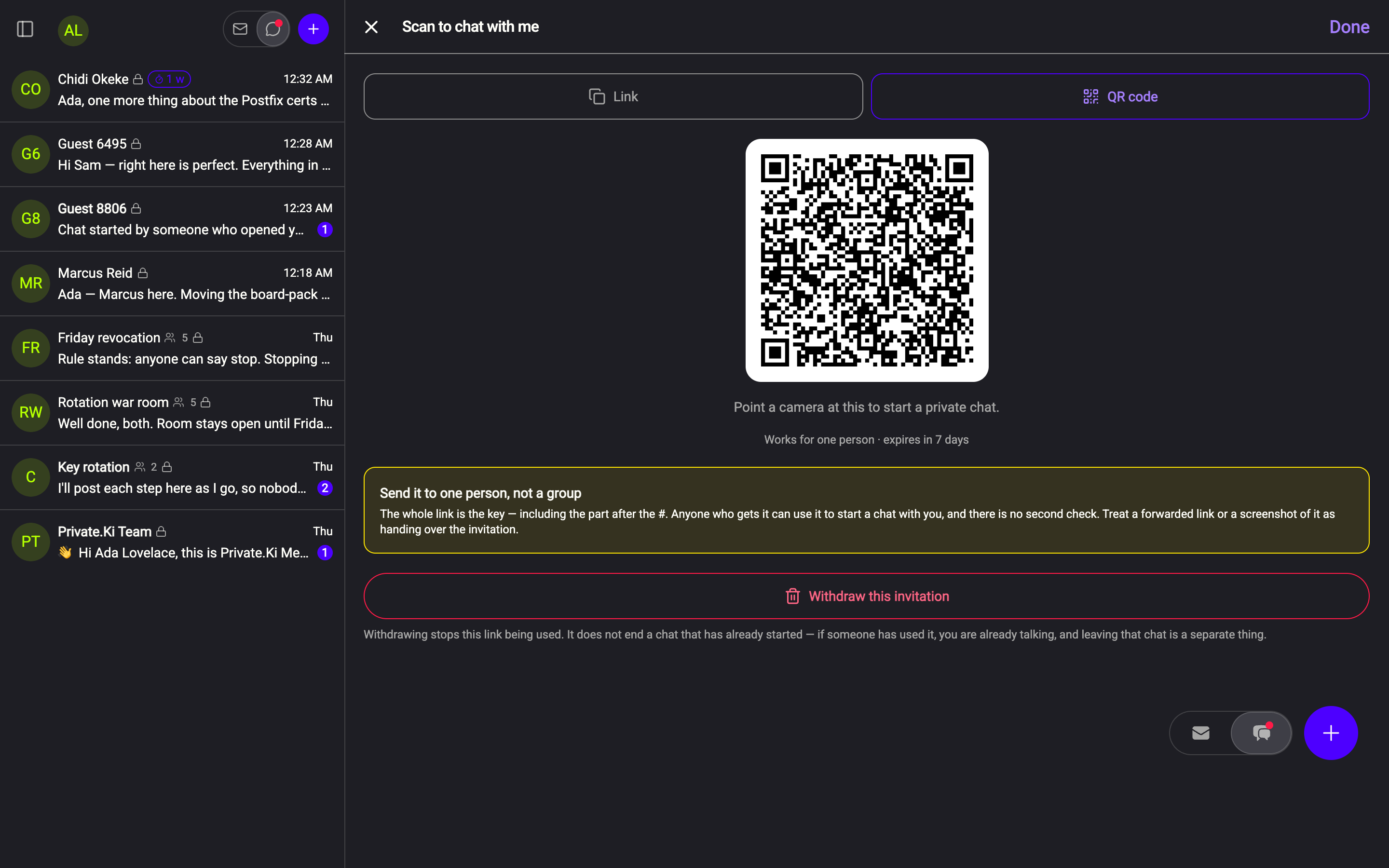
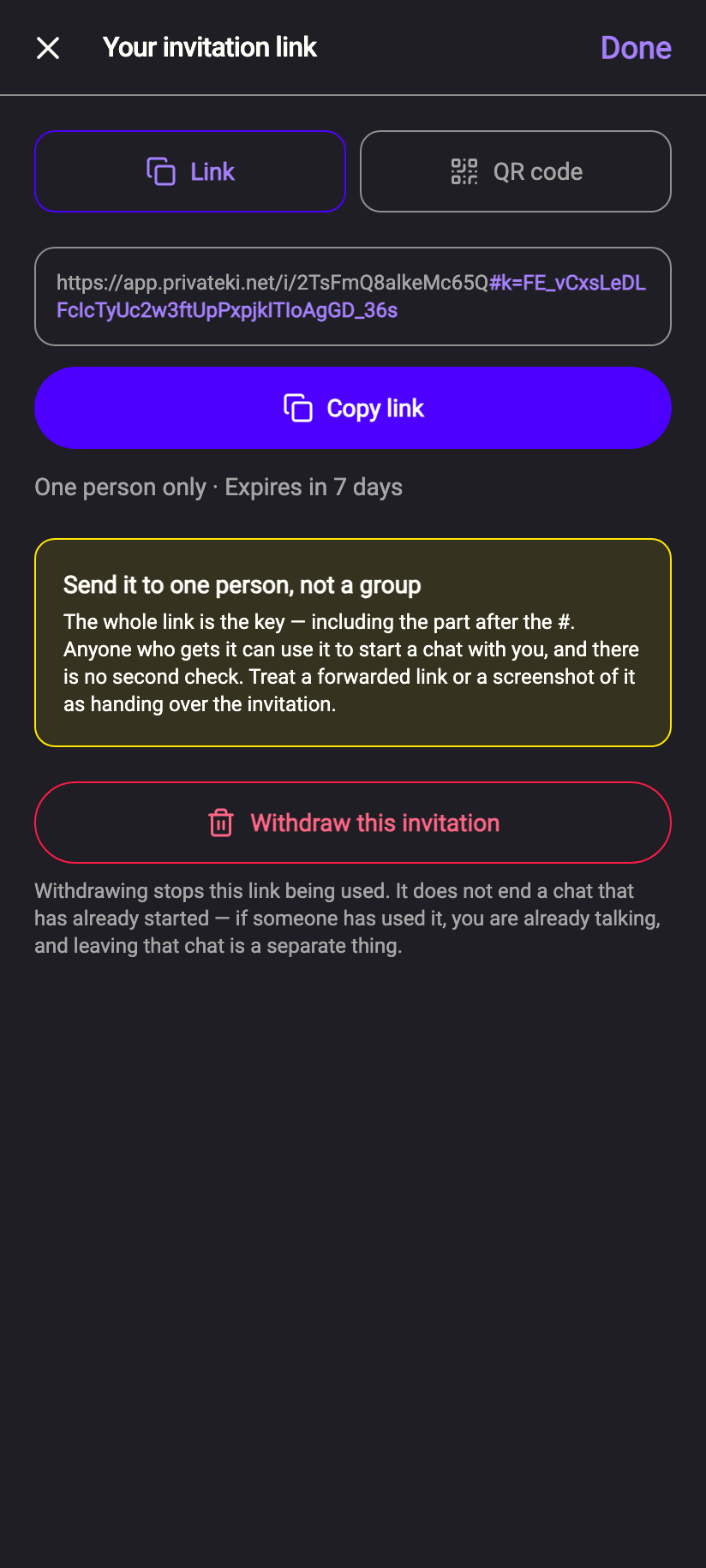
12341Copy link2QR code tab3One person only · Expires in 7 days4Withdraw this invitationiPhone 12341Copy link2QR code tab3One person only · Expires in 7 days4Withdraw this invitationAndroid - Or switch to the QR code tab and let them point their phone camera at the screen. The page is titled Scan to chat with me, with the hint Point a camera at this to start a private chat. and, under the code, both facts on one line: Works for one person · expires in 7 days.
1QR code tab2Scan with a phone cameraWeb & desktop 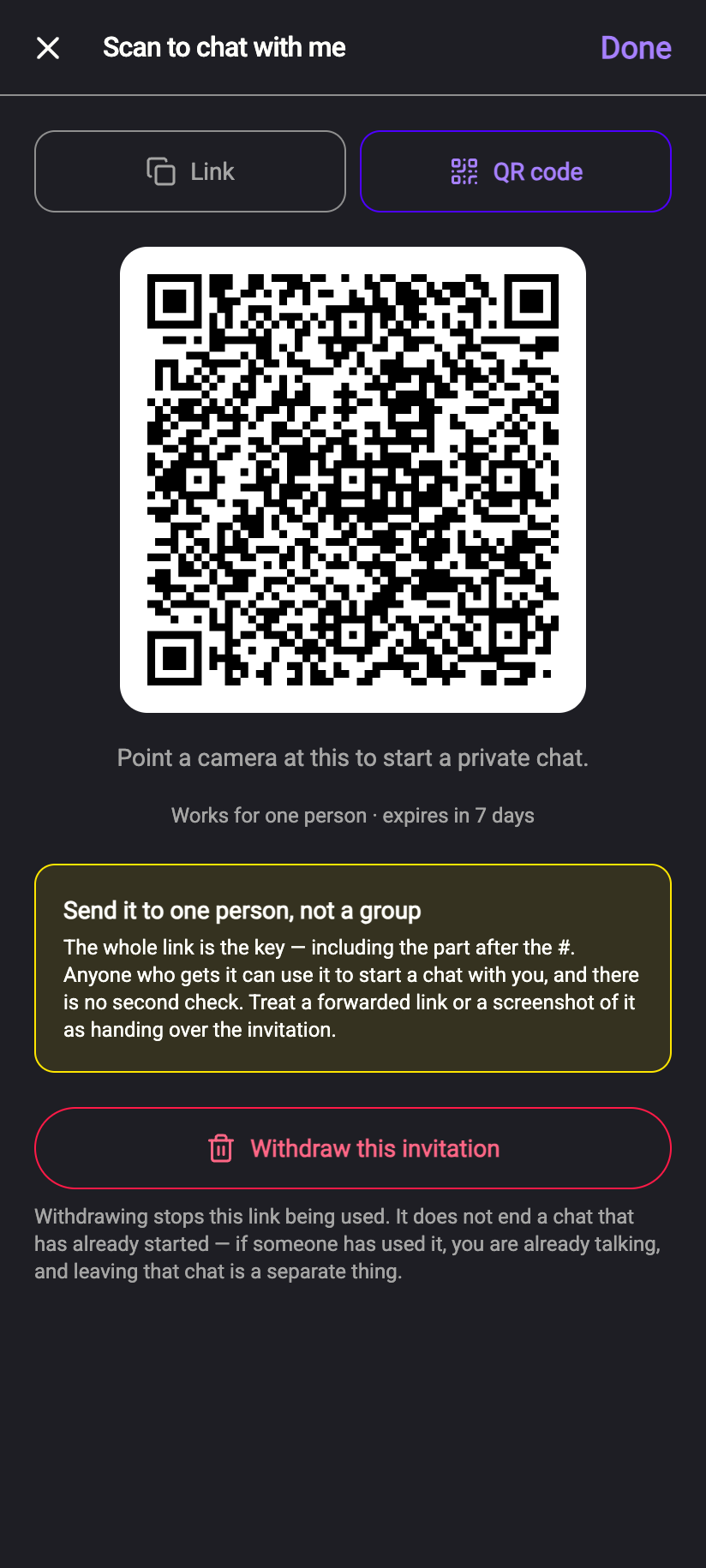 12
121QR code tab2Scan with a phone cameraiPhone 121QR code tab2Scan with a phone cameraAndroid - Click Done. The link keeps working until it is used, withdrawn or expires.
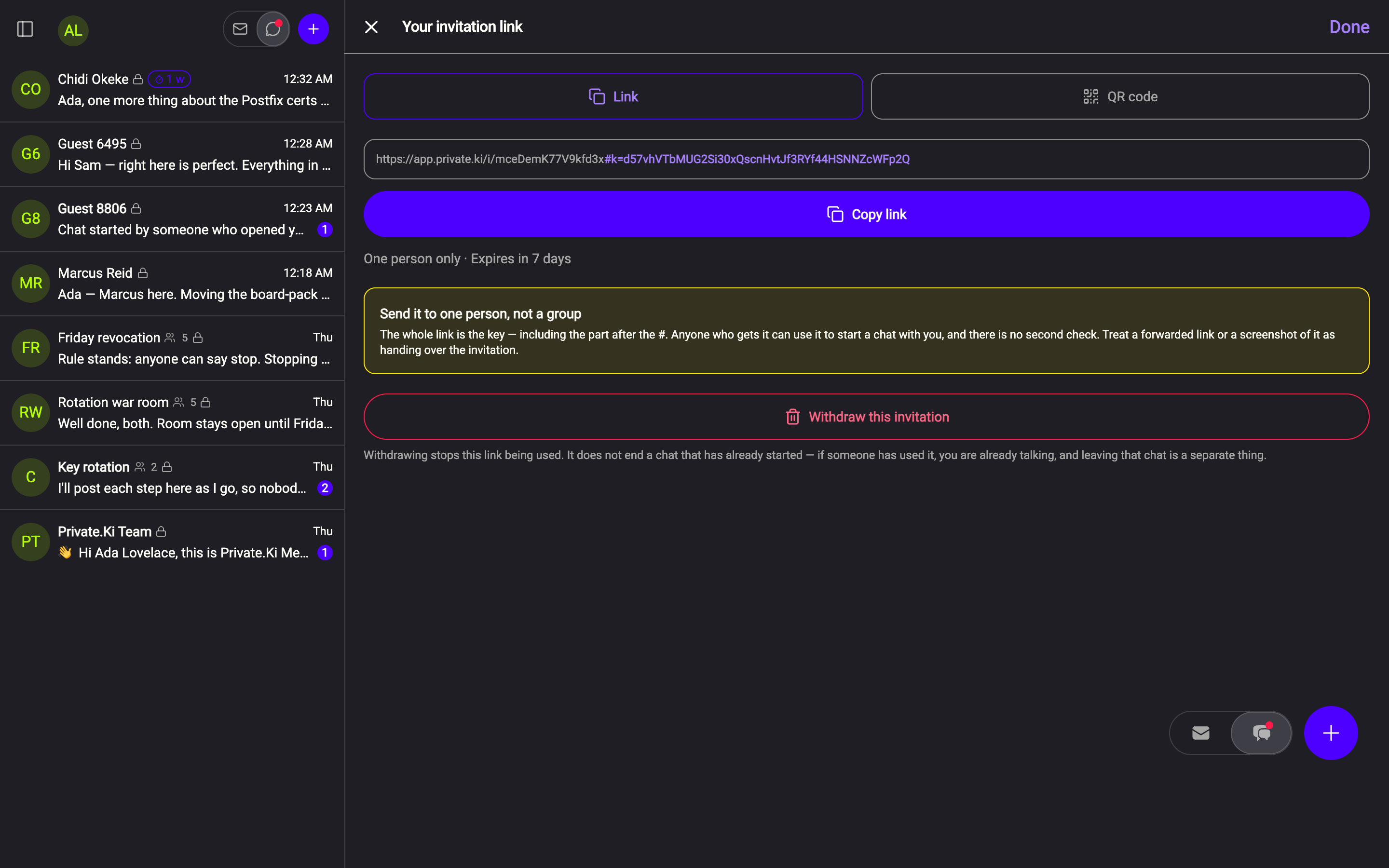
Beside the link the app marks how many people it is for — One person only, Up to 10 people or Any number of people — and says when it expires, Expires in 7 days. On the free plan a link is always for one person; a link for more than one is part of a Plus subscription. Under the button, Live links lists the links still in force on either plan, each with how many may take it, how many have, who, and when it expires — with a Stop button and no way to see the link again, because its key left with the screen.
An invitation link is a bearer token. The secret that lets the other person's device set up an encrypted conversation with you travels inside the link, after the #k=, and never touches our server. That has two consequences. First, anyone who gets the link can use it, and there is no second check — treat a forwarded link or a screenshot of it as handing over the invitation. Second, send a one-person link to one person, not a group: it works exactly once, for whoever opens it first. A link made for several people does not change that property — every person who opens it does their own key handshake, and the link is still never a key — so it is still a secret, now shared with everybody you give it to.
Withdrawing a link. Below the link is Withdraw this invitation. Use it if you sent the link to the wrong place. The app states exactly what it does: Withdrawing stops this link being used. It does not end a chat that has already started — if someone has used it, you are already talking, and leaving that chat is a separate thing. A withdrawn link then answers This invitation can no longer be used. Once you press Done the link no longer appears anywhere in the app, so withdraw before you close the screen if you have doubts. You can have up to 20 live invitation links at a time, or 200 with Plus; the Live links heading keeps the count against whichever applies.
 1212
1212Invite by email
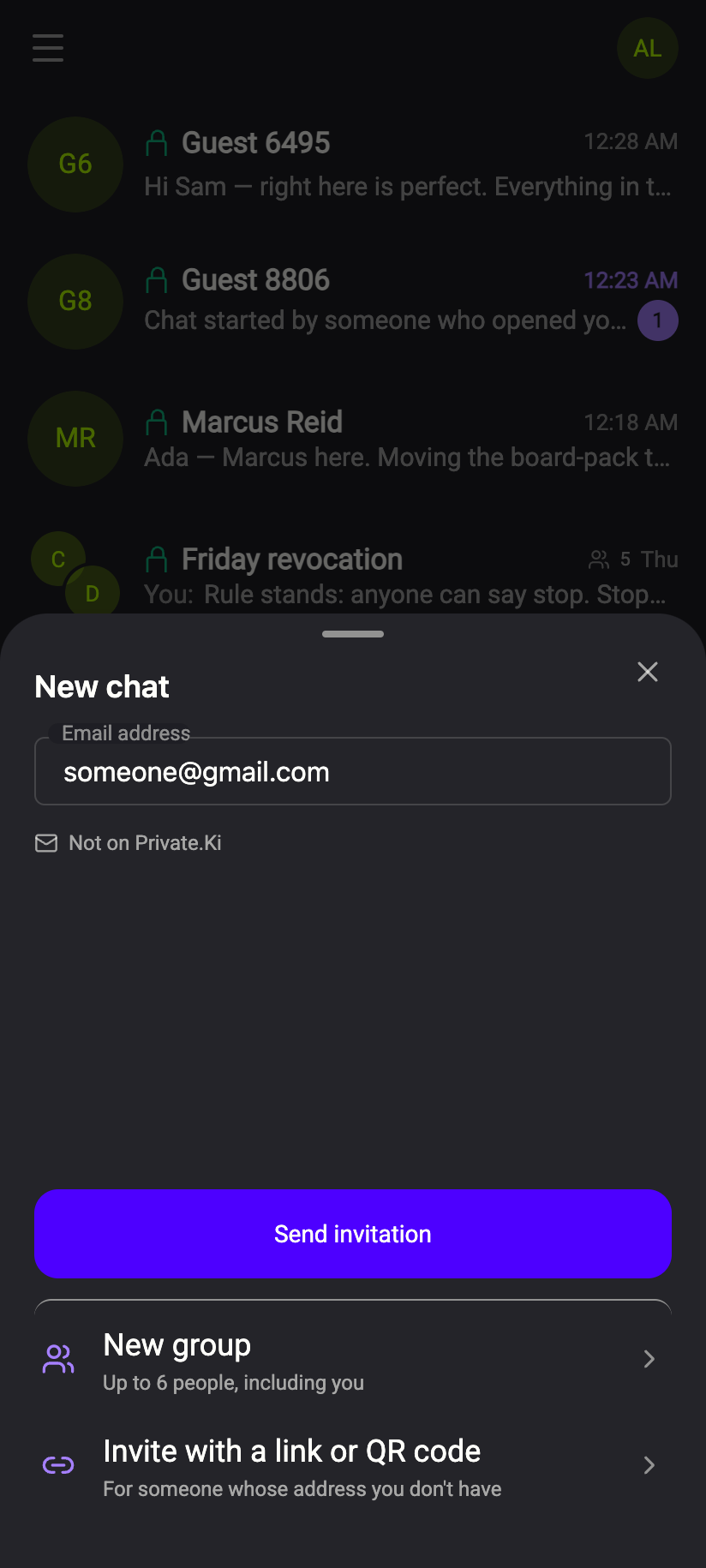
Type the person's address into New chat. When the hint under the field reads Not on Private.Ki, the button becomes Send invitation. Press it and Private.Ki emails them a message titled "
 123123
Your own link and QR code
The third way is not an invitation at all — it is your address written as a link:
https://app.privateki.net/start?to=<your handle>
Whoever opens it lands straight in a chat with you. If they already have a Private.Ki account they are simply taken to that conversation; if they have none, they get an anonymous identity in a few seconds and the chat opens with that. Because the link is only your handle, it is not a secret: it may be printed on a card, put in a mail signature or posted in public, and it works for everybody who opens it, any number of times.
Where to find it: on an anonymous identity's home screen the controls are Share link and Show QR (on a desktop, Copy my link). Both open the same panel, Let someone chat with you, which holds the QR code, your address under it, the link itself as a row you tap to copy, and one button — Share where the device has a system share sheet, Copy link where it does not. The sentence under the code is the whole idea: Whoever opens it lands straight in a chat with you — anonymously too if they have no account.
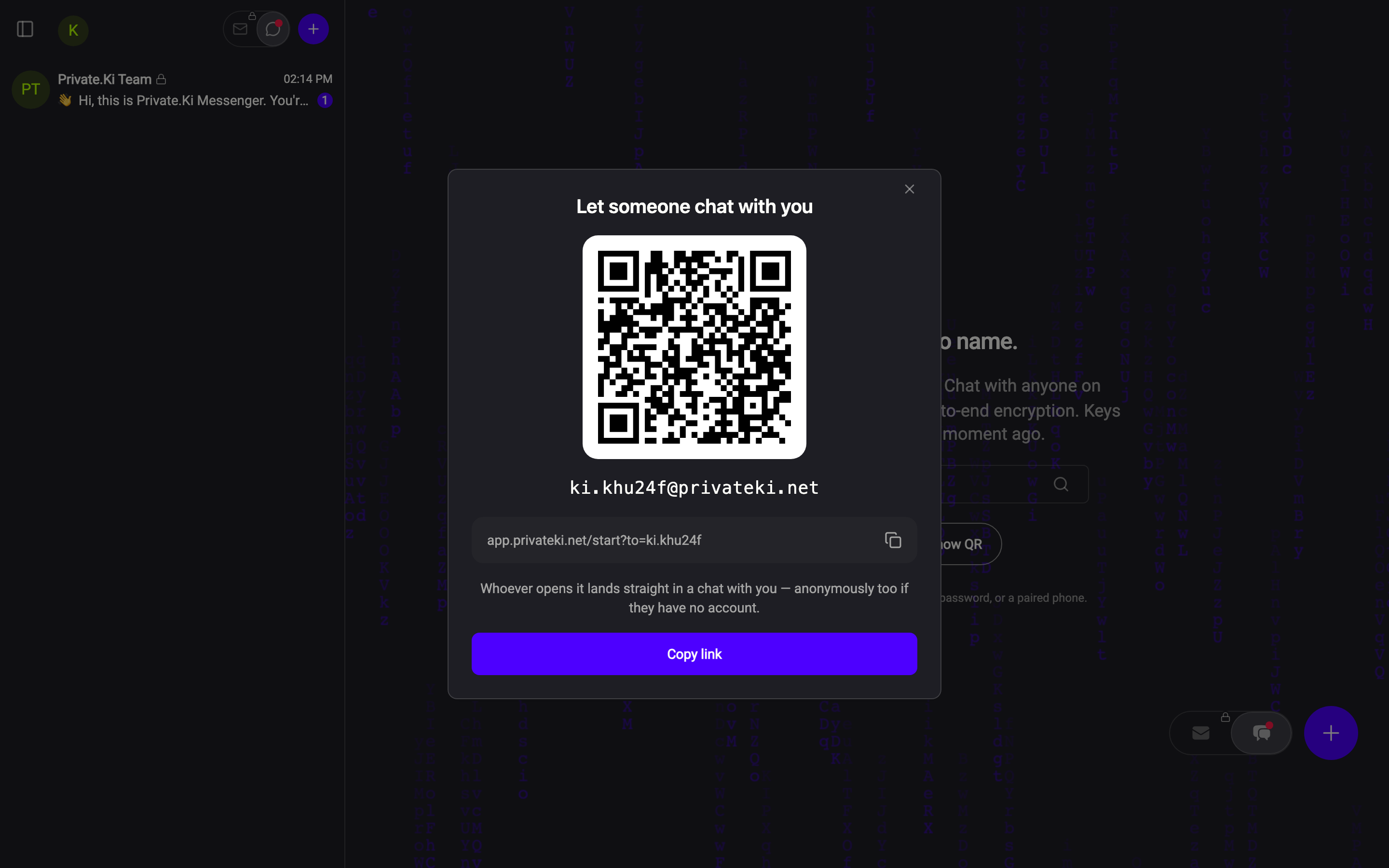
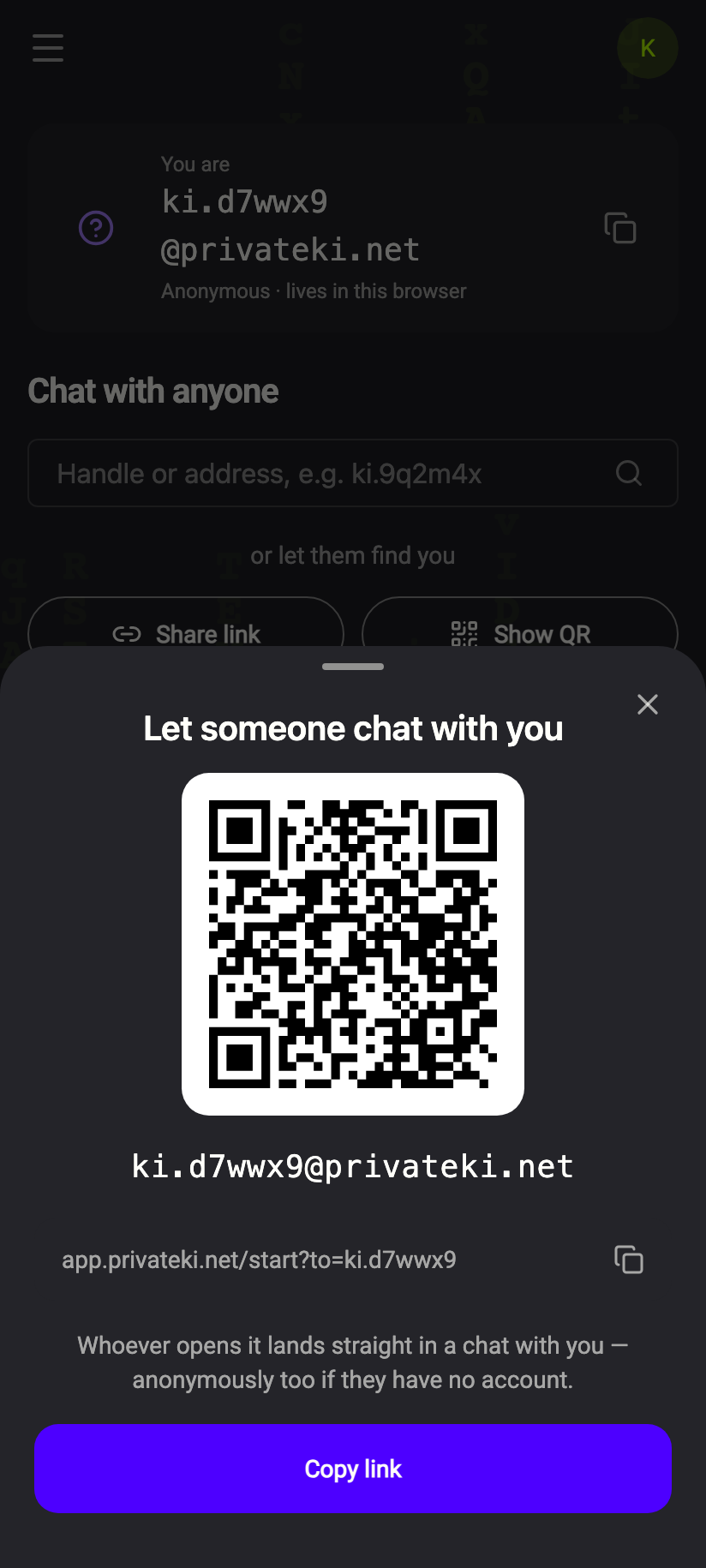 1212
1212With a saved account the link has exactly the same shape; write it out with your own handle, or just give people your address and let them use New chat. Keeping an identity you started anonymously is Keep your anonymous identity.
The two kinds of link, side by side
| Invitation link or QR code | Your own /start?to= link |
|
|---|---|---|
| Secret? | Yes — the key is in the #k= part |
No. It is your address in link form |
| How many people | One on the free plan — it stops working after the first. With Plus, up to 10 or unlimited | Anybody, any number of times |
| Expires | 1, 7 or 30 days; up to 1 year with Plus | Never |
| Can be withdrawn | Yes, Withdraw this invitation | No — as with your address, there is nothing to take back |
| What the other person gets | A guest account created for them (Guest NNNN) | An account of their own if they have none, anonymous until they save it |
| Needs a saved account to create | Yes | No — an anonymous identity has its own link |
What the invitee sees
Whichever way the link reached them, the person opens it in a web browser and:
- Sees Setting up your account... with your name: "Ada invited you to a private conversation on Private.Ki. We're creating your encrypted mailbox and the keys for it here on this device — nowhere else." Their key pair is generated in their browser.
- Lands on a short Welcome to Private.Ki screen, then the chat with you opens — empty, encrypted, ready.
What the other person sees: their account and keys are made in their browser, then a short welcome.Web & desktop 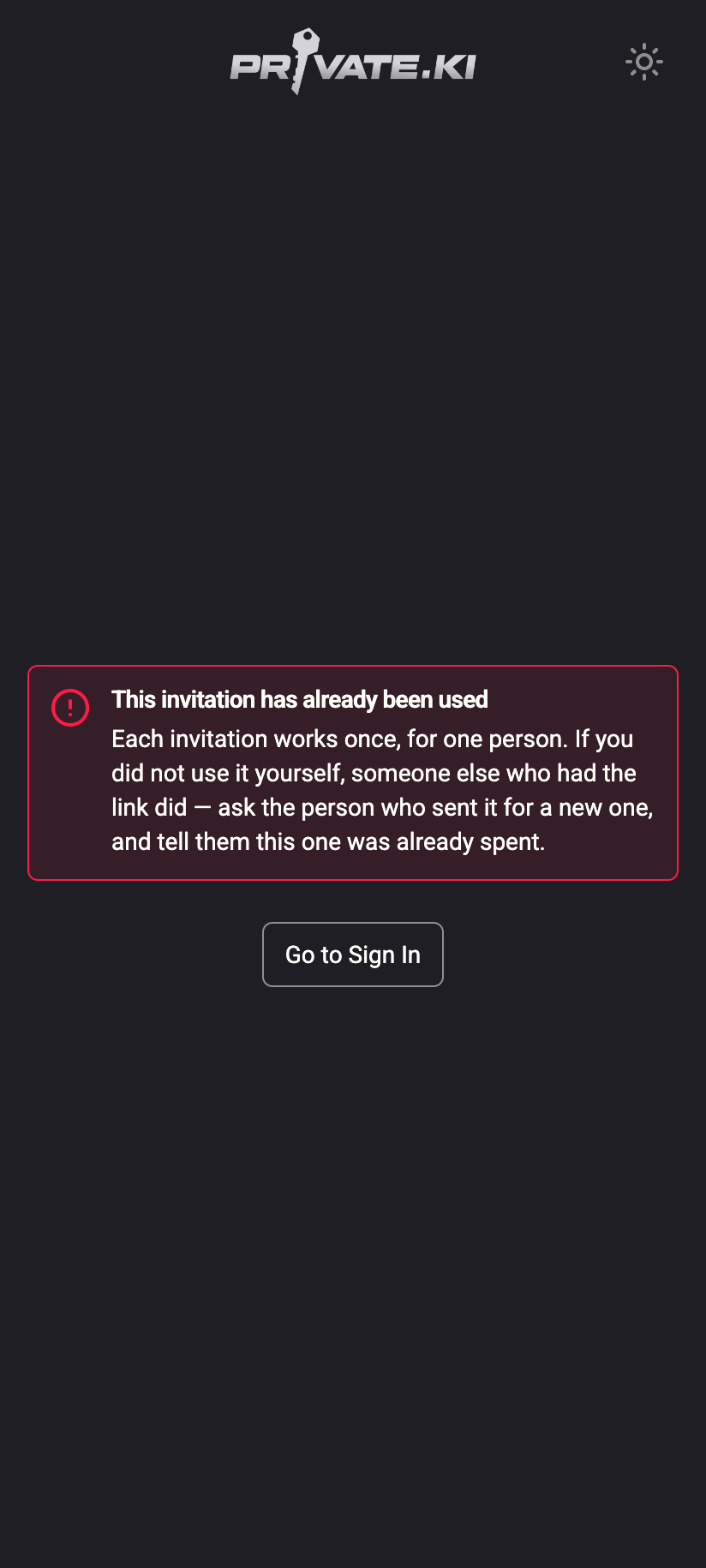
What the other person sees: their account and keys are made in their browser, then a short welcome.iPhone What the other person sees: their account and keys are made in their browser, then a short welcome.Android - Gets a Private.Ki identity without filling anything in. From a link or QR code that is a guest: Guest NNNN, with an address like
guest_NNNN@…on our domain and no password. From an emailed invitation the address is derived from their own —[email protected]becomessam@…on our domain — and their email address stays attached to the account, so they can sign back in with a code sent to it.
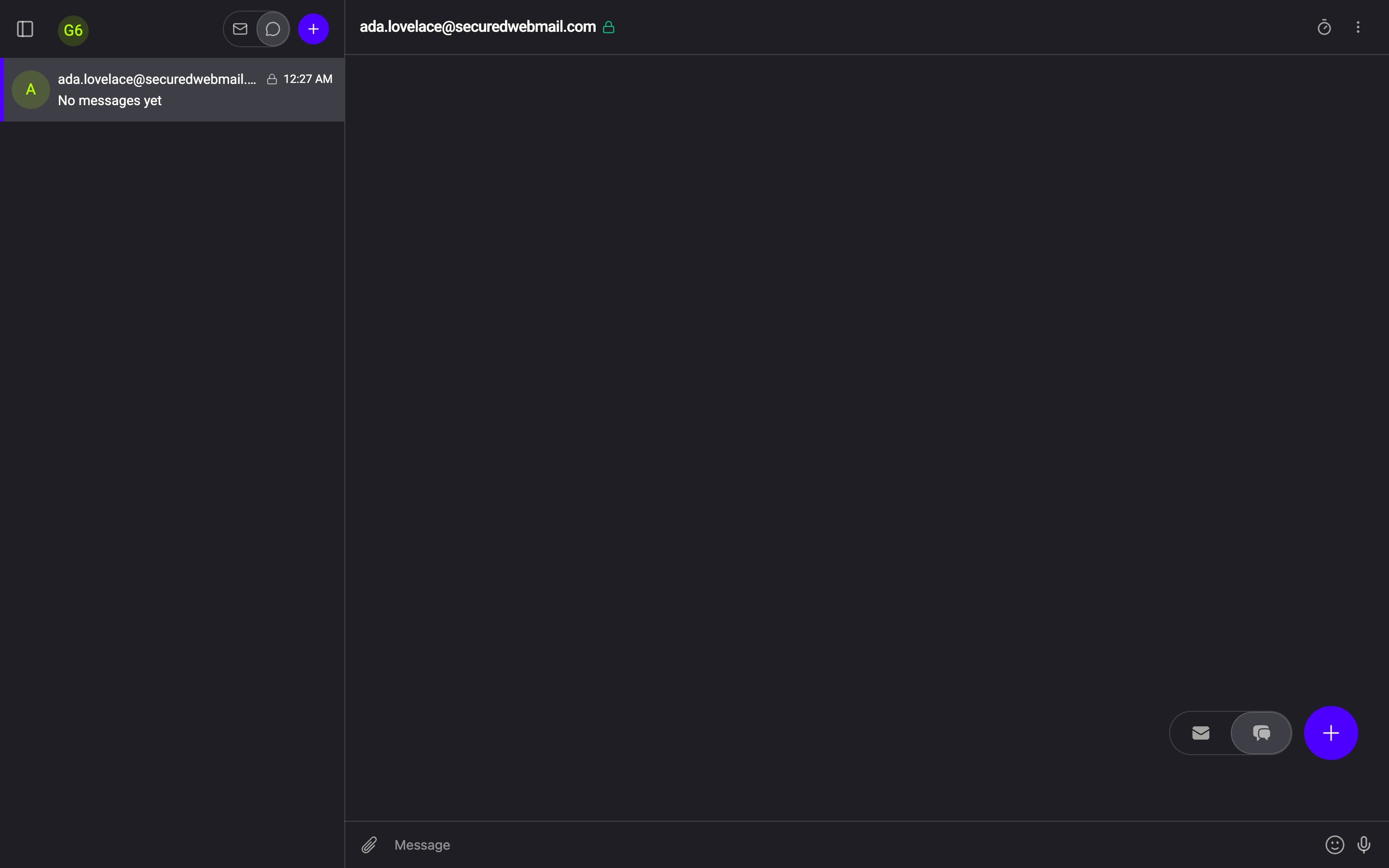
On your side a new conversation appears. For a link it is with Guest NNNN and opens with a system message: "Chat started by someone who opened your invitation link. Verify their identity by asking something only they would know." Do that — the link proves someone had the link, not who they are. For an emailed invitation the chat is with the address you invited.
Someone who arrived by link is told, above their first messages: the account exists only in that browser or on that phone, with no password and no email address. If they clear the browser or lose the phone, the chat goes with it. They can press Set a password to keep it — and until they do they cannot email people outside Private.Ki. Emailed invitees see a milder version of the same prompt: their messages are temporary until they set a password.
The invitee has to open the link in a browser, not in the installed app: phones do not pass the part after the # to apps, and without it the invitation cannot be read. If they tap the link and the app opens instead, they see Open this invitation in a browser with instructions. Once the account exists they can sign in to the app normally.
If the link does not work for them
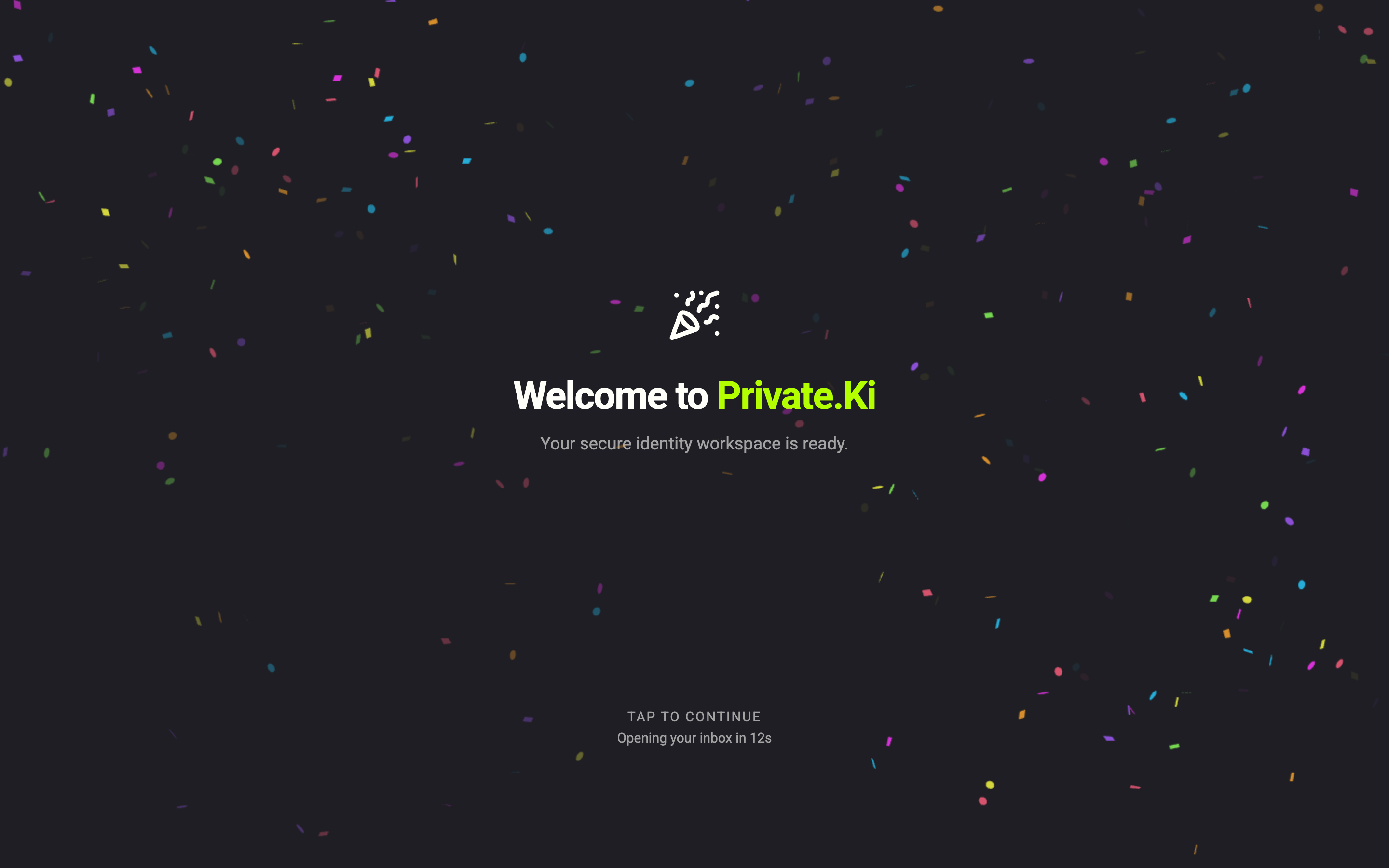
The page tells them plainly which case it is: This invitation has expired, This invitation has already been used (someone else with the link got there first), This invitation was withdrawn, We don't recognise this invitation or This link is incomplete (the #… part was cut off, often by an app shortening the link). In every case the fix is the same: send a fresh link, by a channel only they can read.
What our server sees
Cannot see
- The key inside the link — the part after
#k=stays in the two browsers - The content of the conversation that follows
Can see
- That you created an invitation, how long it is valid for, and when it was redeemed
- For an emailed invitation, the address you sent it to