Start an encrypted chat
Open a one-to-one chat with anyone on Private.Ki — type their address, press Start chat, write. Every message is encrypted on your device before it leaves.
Chats are the second half of Private.Ki, next to email. A chat is a running conversation with one other Private.Ki user, encrypted end to end with the same keys your email uses. You need nothing but their Private.Ki address — no phone number, no contact list, no separate account.
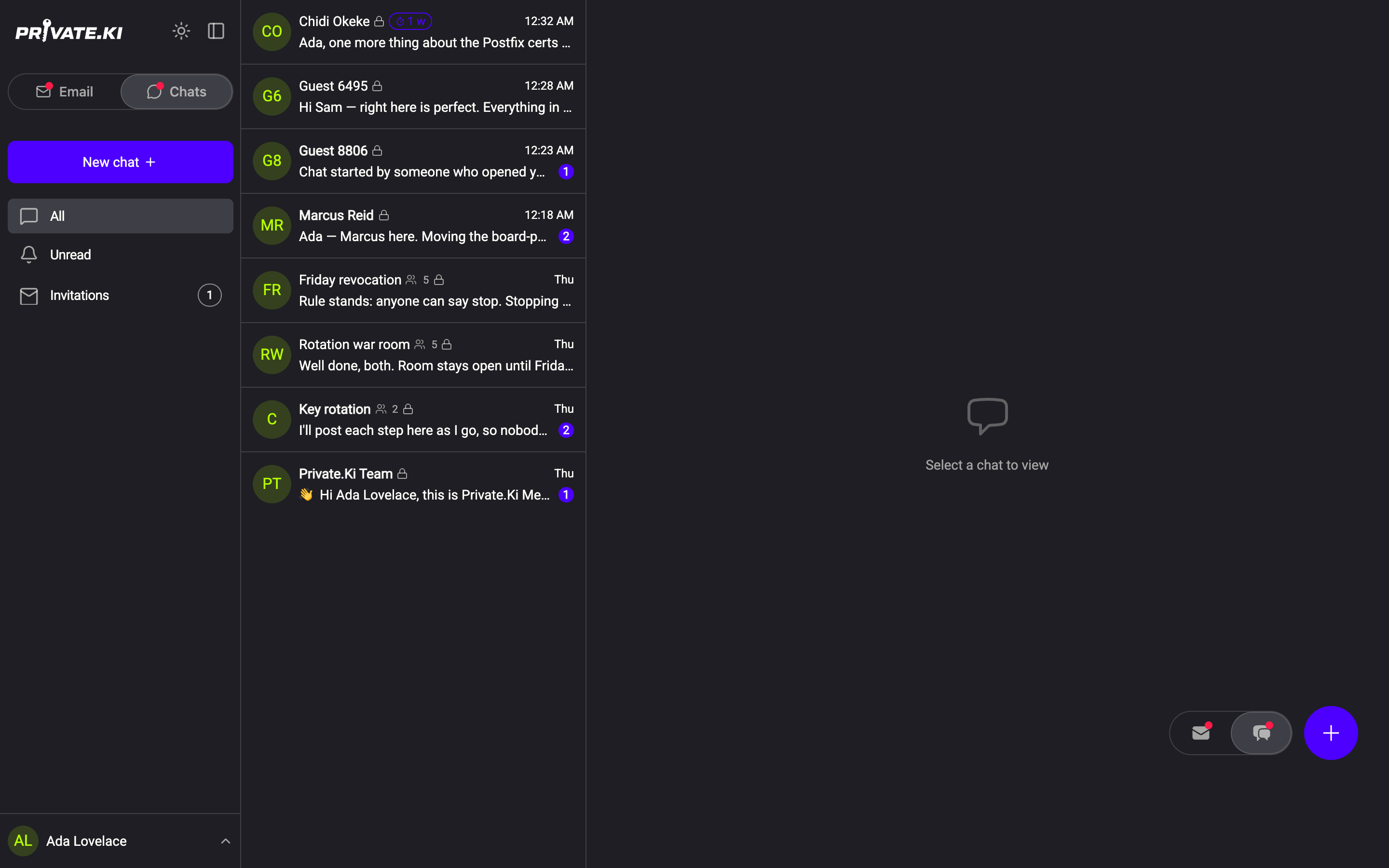
The app shows one of the two at a time. Switch with the Email / Chats control at the top of the sidebar, or the floating pill (envelope and speech bubble) in the bottom-right corner. See Switch between Email and Chat.
Start a chat
Open the chat side and click New chat at the top of the sidebar, or the round
+button in the bottom-right corner. Both open the same dialog.1New chat2Same dialog from the + buttonWeb & desktop 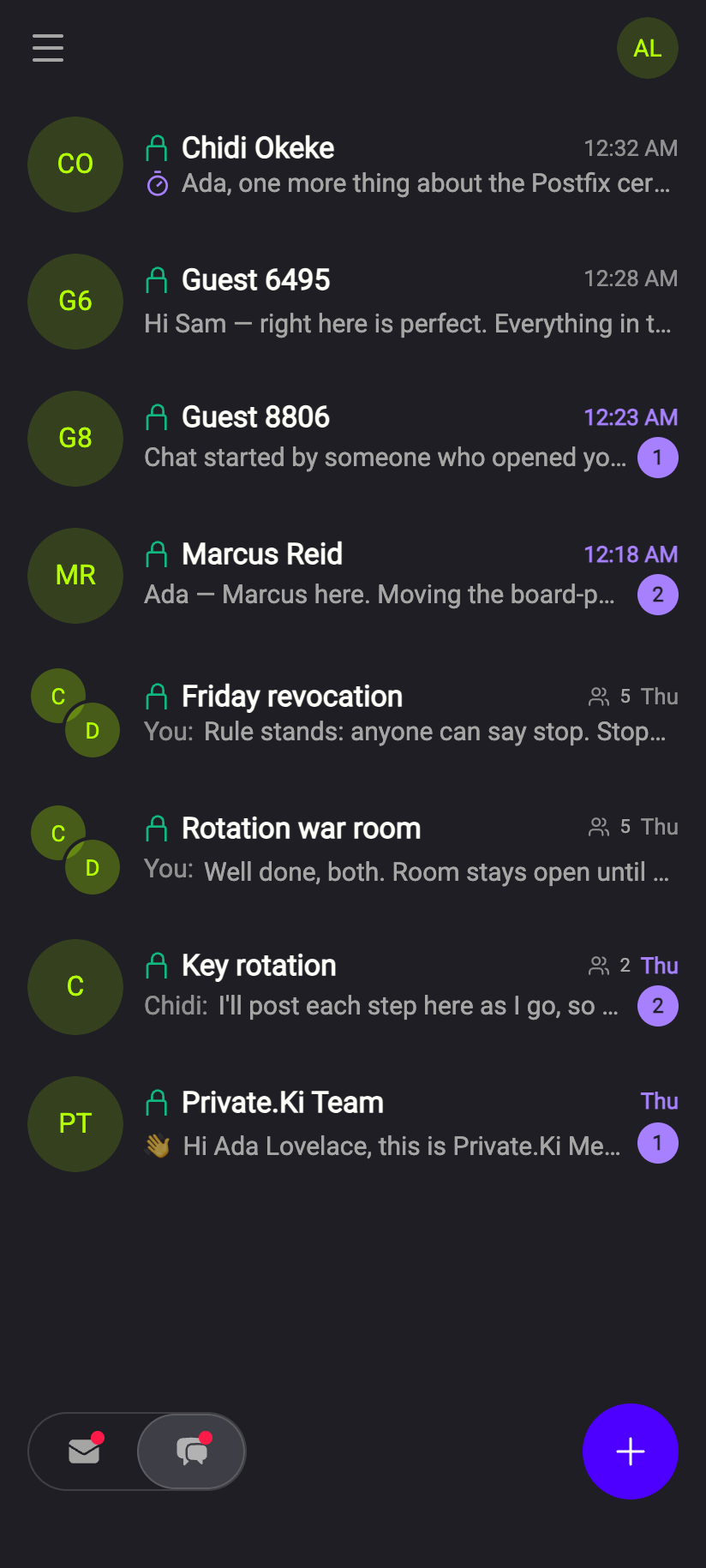 1
11Tap + to start a chatiPhone 11Tap + to start a chatAndroid Type the person's address into Email address. As you type, the addresses you have written to before are listed underneath — click one to open the chat straight away. Under the field a small line tells you what kind of address it is: On Private.Ki for an address on this service, Not on Private.Ki for anything else.
1Email address2Start chat3Addresses you have written toWeb & desktop 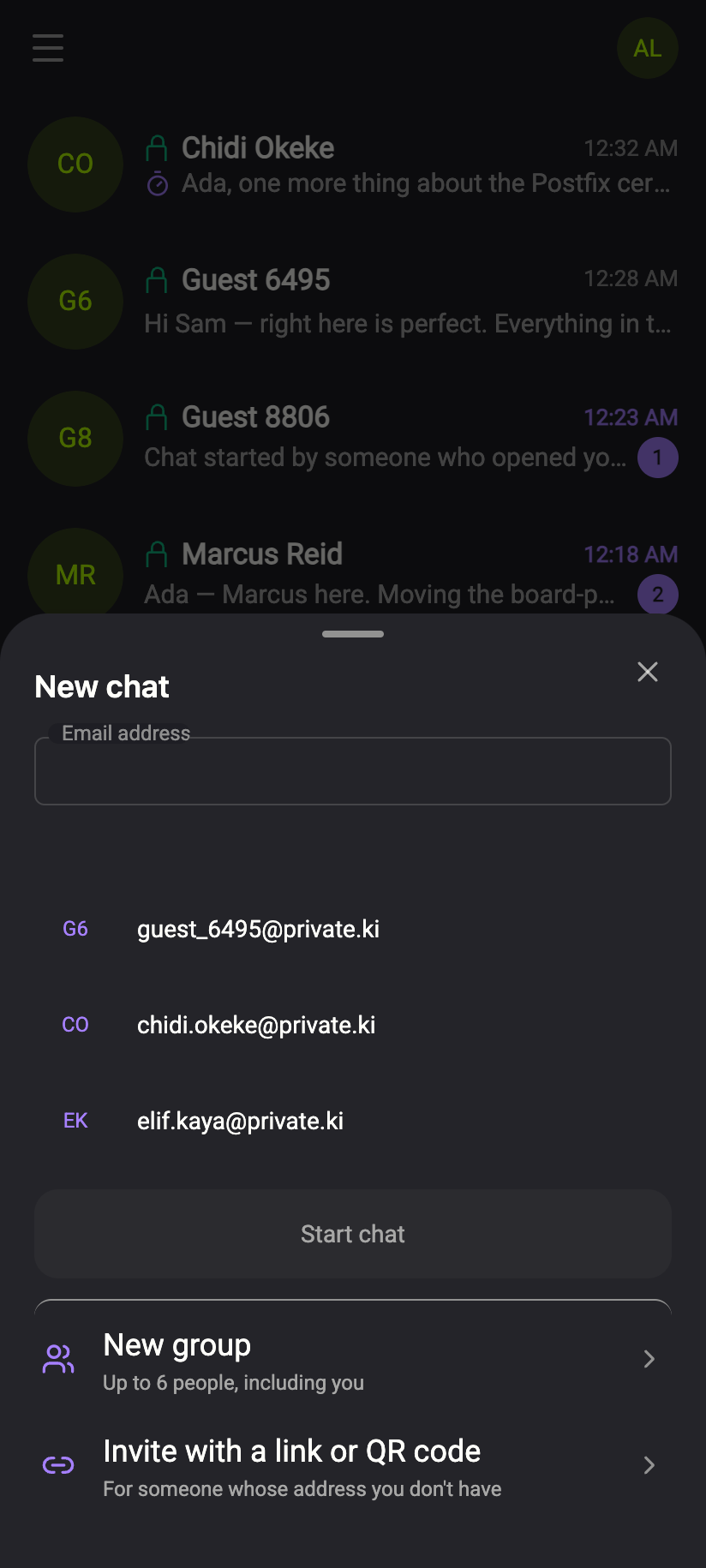 123
1231Email address2Start chat3Addresses you have written toiPhone 1231Email address2Start chat3Addresses you have written toAndroid The dialog does not check whether the account existsThe hint only reads the domain of what you typed. Private.Ki deliberately never confirms whether an address belongs to a real account, so nobody can use the app to test who has one. Read the address carefully.
Click Start chat (or press Enter). The conversation opens with the person's name and a green padlock in the header.
Write your first message in the Message field and press Enter or the send button. A message can be up to 1000 characters. Use Shift+Enter for a line break.
1Encrypted conversation2MessageWeb & desktop 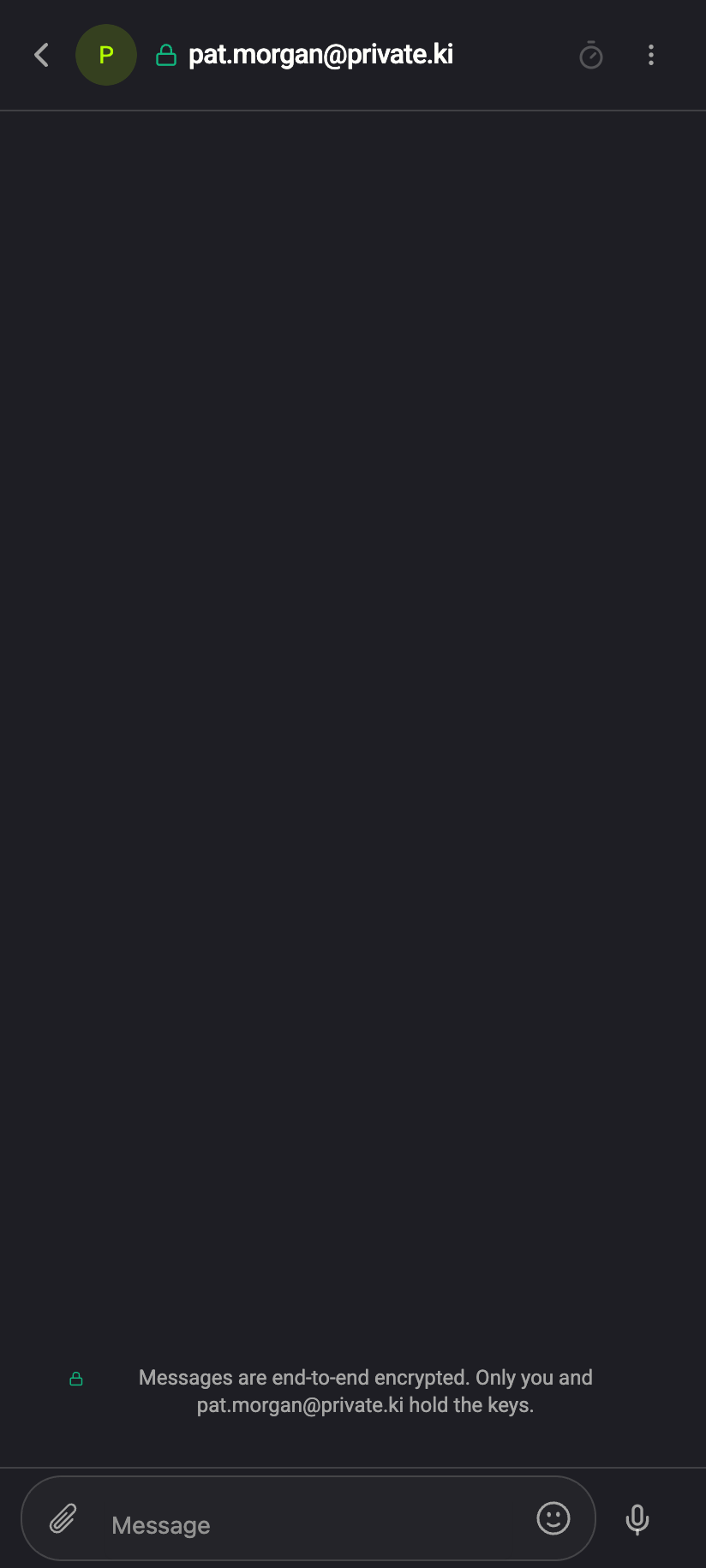 1234
12341Padlock next to the name2End-to-end encrypted3Message4Mic until you type; then SendiPhone 12341Padlock next to the name2End-to-end encrypted3Message4Mic until you type; then SendAndroid
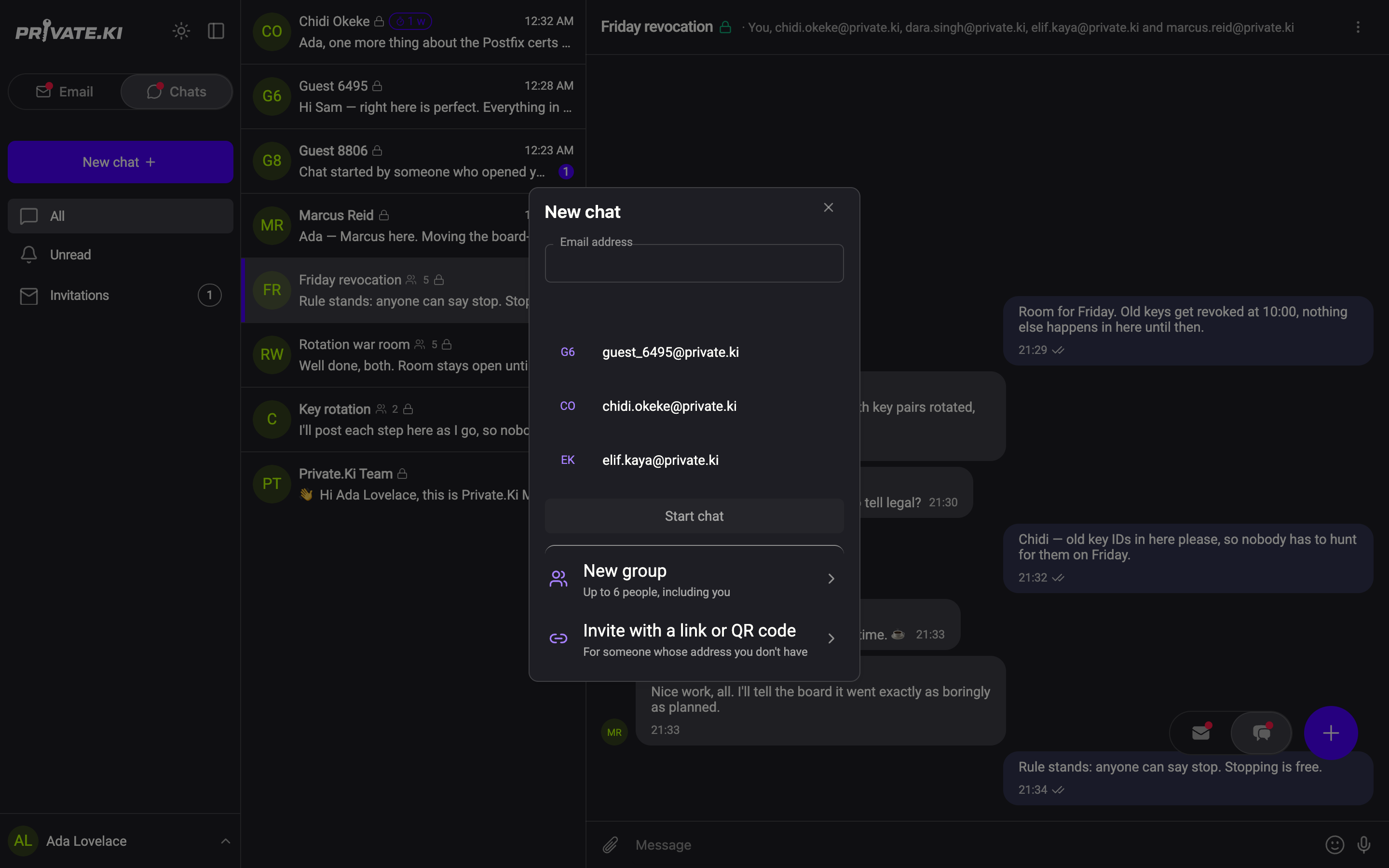
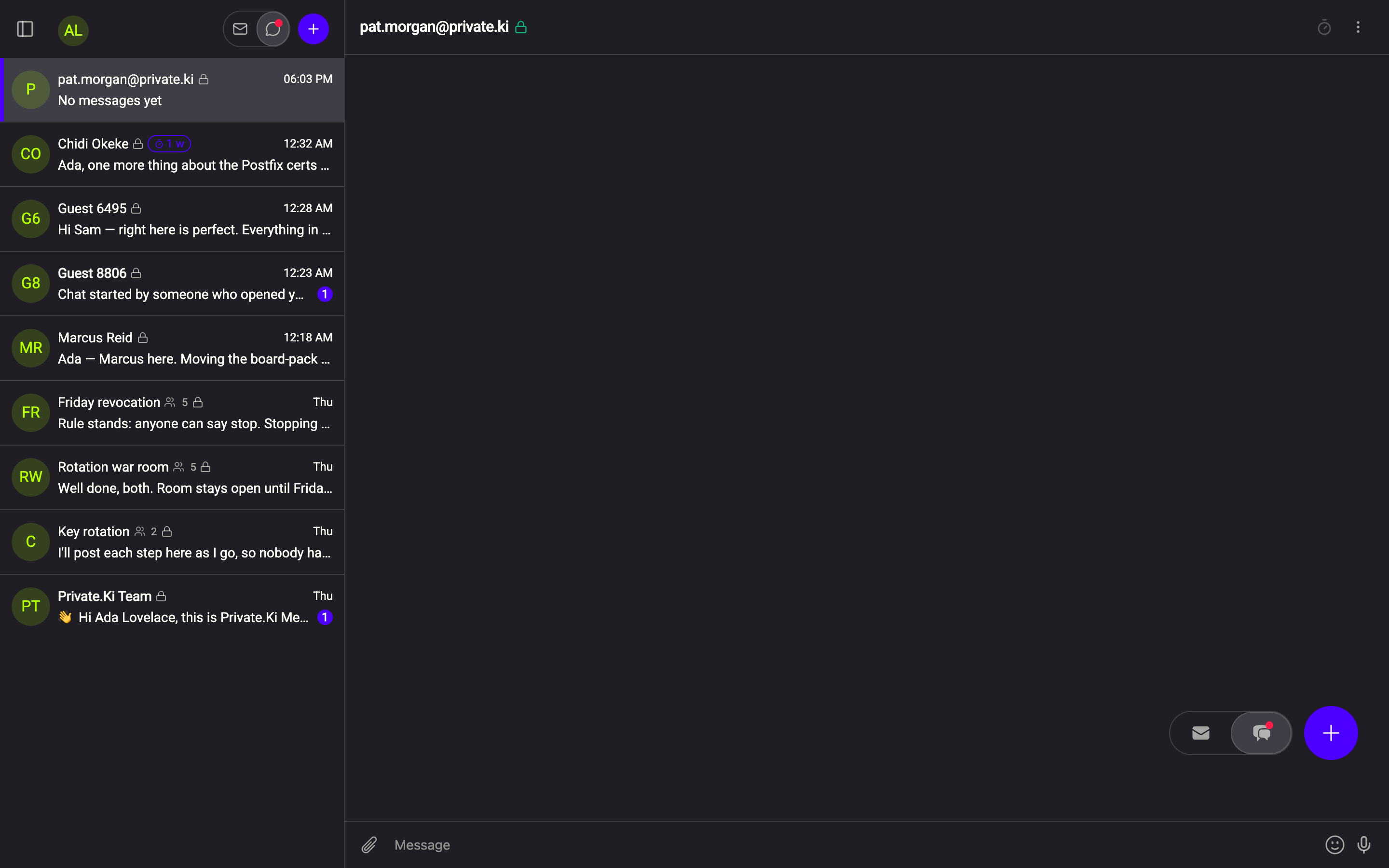
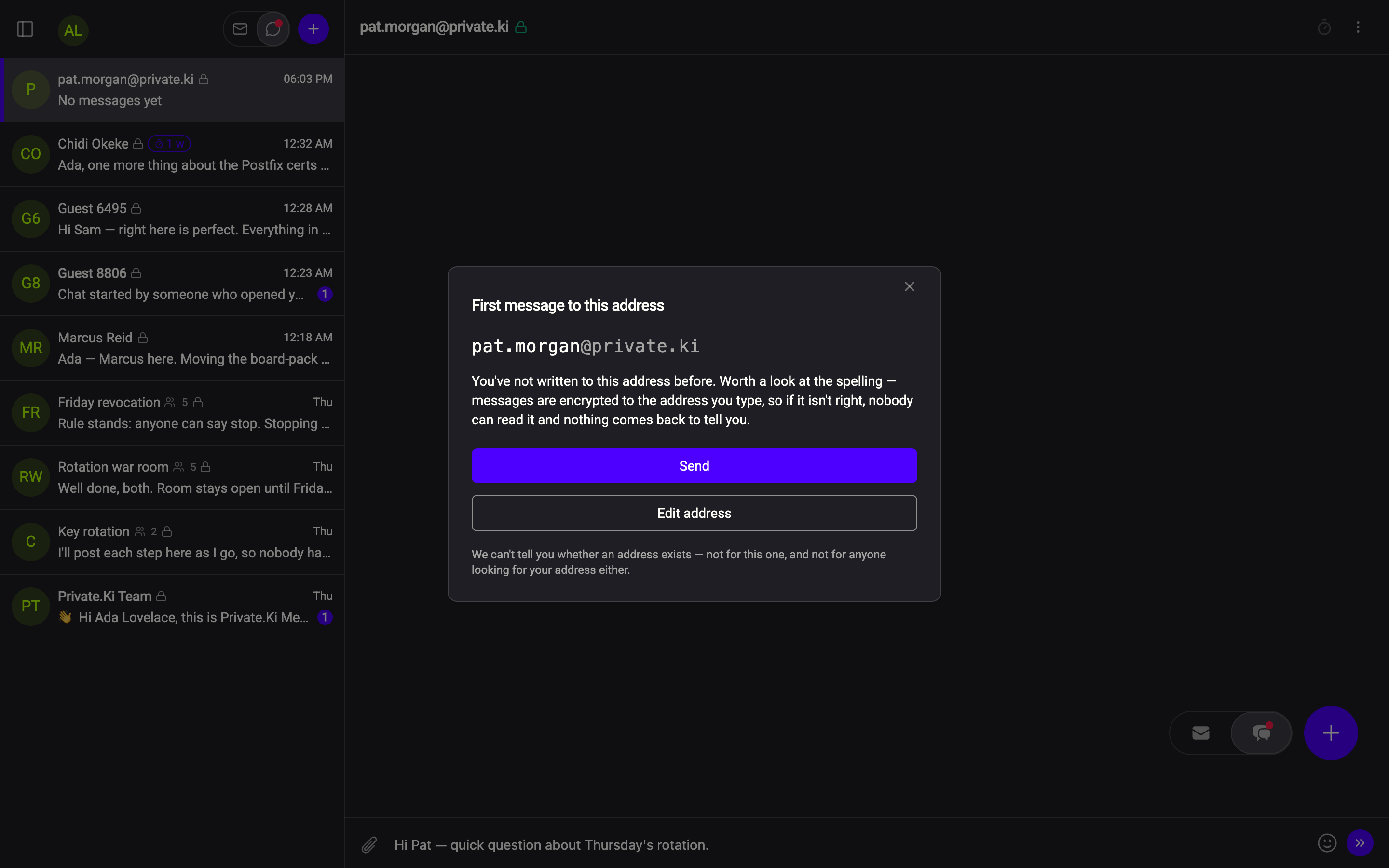
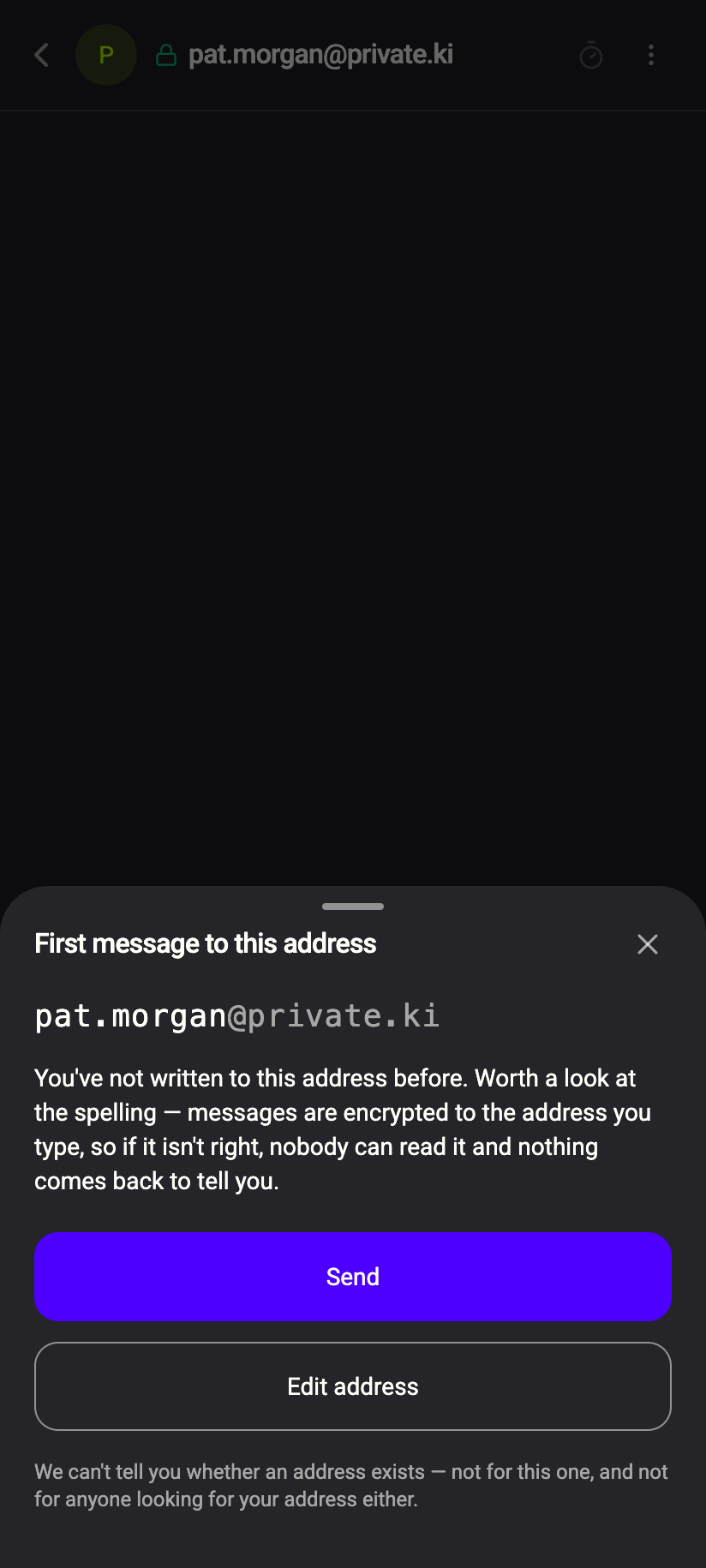
The first time you write to a Private.Ki address you have never used before, a confirmation titled First message to this address appears with the address in large type. Check the spelling and press Send, or Edit address to go back. It is explained in The 'key changed' and first-message warnings.
 123123
On the phone, tap the + button in the bottom-right corner while you are on Chats. The same New chat panel slides up from the bottom. Tap an address from the list, or type one and tap Start chat.
If the address is not on Private.Ki
The button changes to Send invitation. Private.Ki cannot chat with an ordinary email address directly, because there is no key to encrypt to — instead it emails the person an invitation, and when they accept they get a Private.Ki account and the chat opens. The same dialog also offers Invite with a link or QR code for someone whose address you do not have. Both are described in Invite someone who isn't on Private.Ki.
What is encrypted
Every chat message is encrypted on your device to the other person's public key (and to your own, so you can read your copy) before it is sent, and signed with your key. Attachments, photos and voice messages inside a chat are encrypted the same way. The green padlock next to the name means exactly that: this conversation is end to end encrypted. There is no unencrypted mode for chats.
What our server sees
Cannot see
- The text of your messages, attachments or voice notes
- Reactions, or which message was unsent
Can see
- That an account of yours has a conversation with another account, and when messages pass between them
- The size of each encrypted message
Common questions
Can I chat with someone who uses ordinary email?
Not directly. Send them an invitation instead — see Invite someone who isn't on Private.Ki. Once they accept, you chat with them like any other Private.Ki user.
Is there a contact list or address book?
No. The addresses offered under the field are simply the ones you have written to before, from your own encrypted history. Nothing is looked up on the server.
Can I search my chats?
The chat list is ordered by most recent message, so the conversation you want is usually at the top.
Can I chat with myself?
You can open a chat with your own address, for example to move a note between devices. Typing indicators and the self-destruct timer are switched off in that conversation.