The "key changed" and first-message warnings
Why Private.Ki asks you to look twice before your first message to a new address, what the "Encryption key changed" dialog means, and what to do in each case.
Everything you send on Private.Ki is encrypted to a specific public key. Two warnings exist to make sure it is the right key: one the first time you write to an address, and one if the key behind an address you already know is suddenly different. Neither is an error. Both are moments where the app cannot decide for you.
"First message to this address"
 12341234
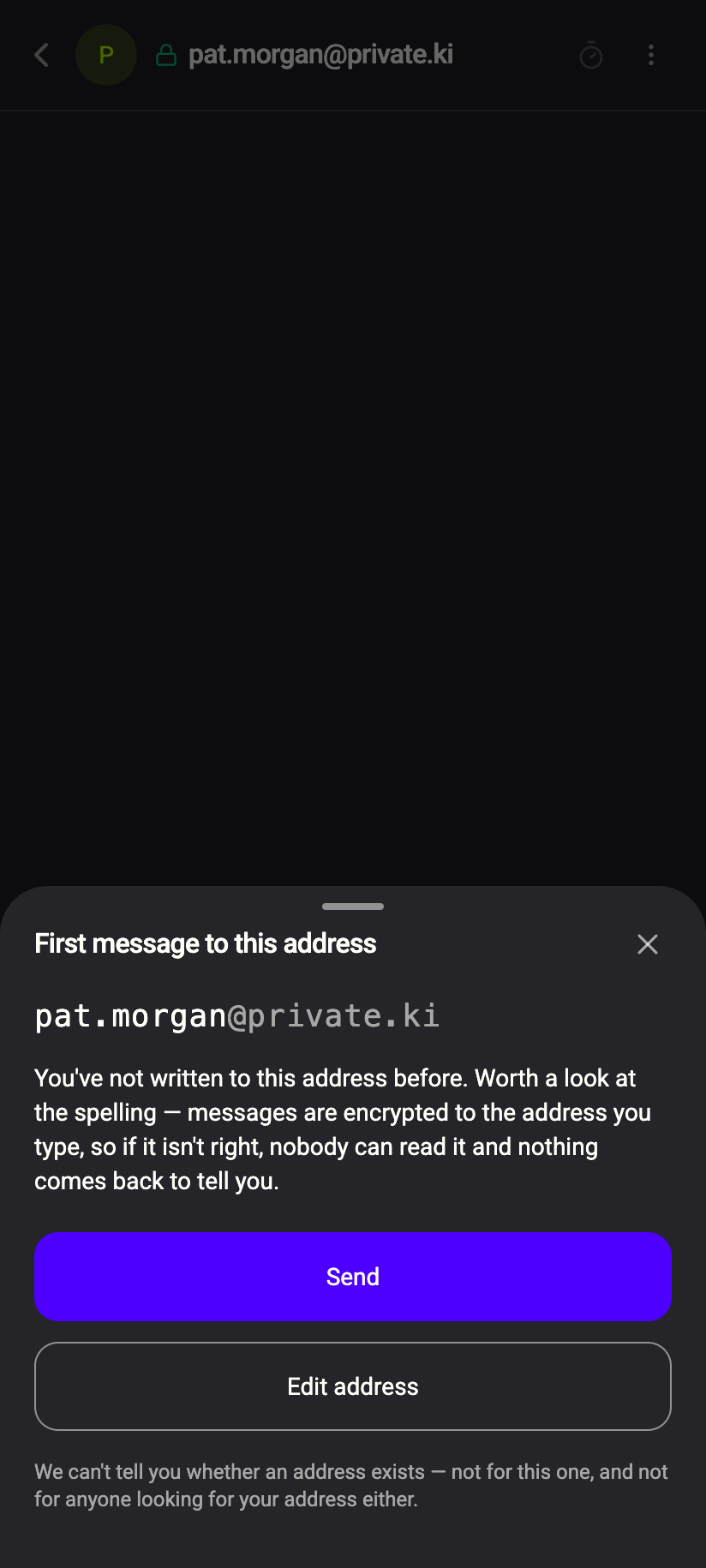
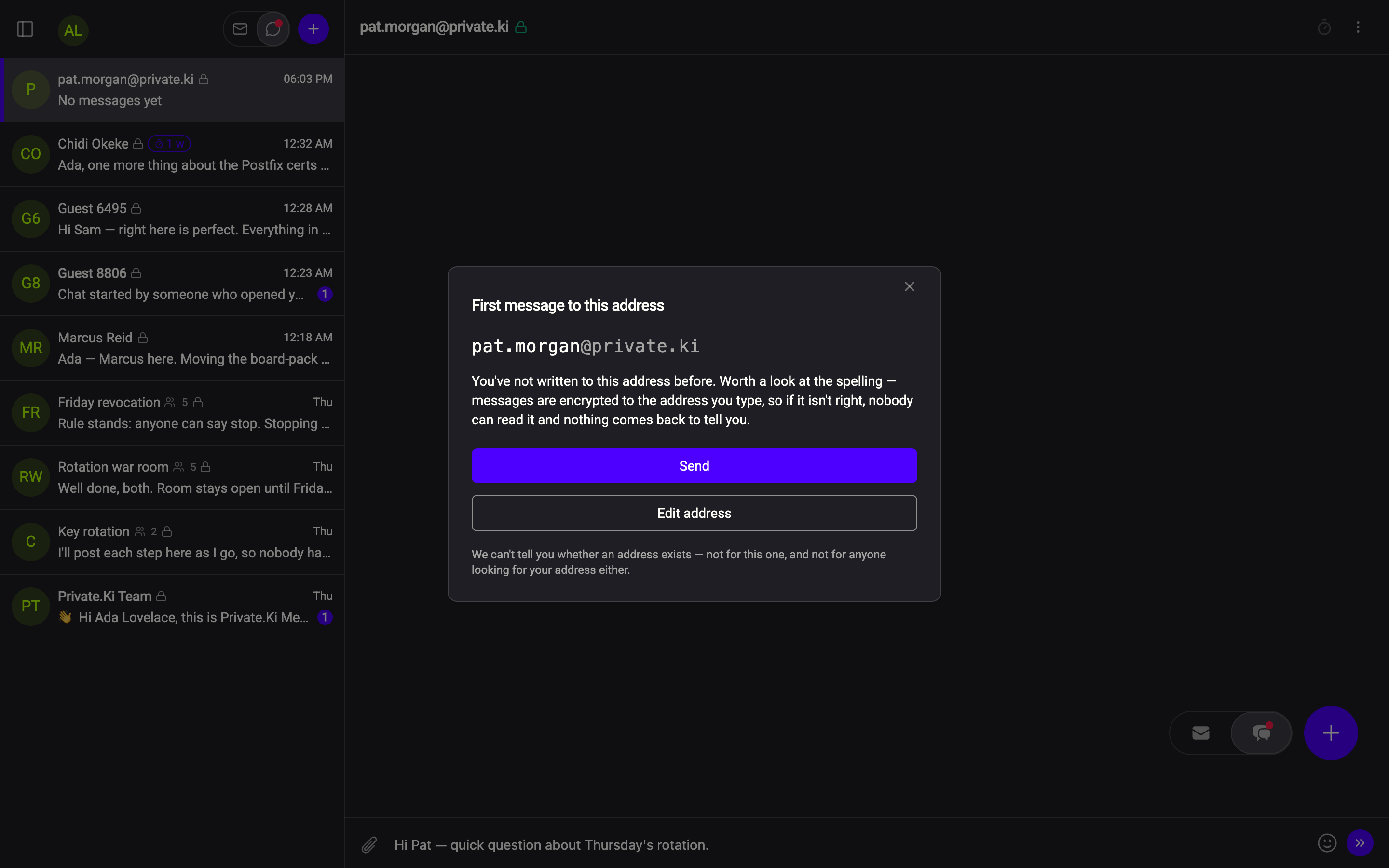
The first time you send a chat message to a Private.Ki address you have never written to — by chat or by email — a confirmation appears with the address in large type:
You've not written to this address before. Worth a look at the spelling — messages are encrypted to the address you type, so if it isn't right, nobody can read it and nothing comes back to tell you.
Check the spelling and press Send, or Edit address to go back.
Why it exists. Private.Ki never tells you whether an address belongs to a real account — not for this address, and not for anyone looking yours up. That protects everyone from being enumerated, but it also means a typo does not bounce: a message to alic@… instead of alice@… is encrypted to a key nobody holds, and silently goes nowhere. The dialog's footnote says exactly this: We can't tell you whether an address exists — not for this one, and not for anyone looking for your address either.
You see it once per address. It does not appear for addresses outside Private.Ki (those go by email), in groups, or when the other person wrote to you first.
"Encryption key changed"
After your first successful message to someone, your device remembers their public key — it pins it. Every later message is checked against the pin. If the key on offer for that address is ever different, you see:
Encryption key changed The encryption key for address is not the one your messages to them have used until now.
Below it, under Why this matters, are the two possibilities:
- They may have set up a new device or regenerated their keys — in which case they can confirm it, and the new fingerprint below will match theirs.
- If they did not, someone between you may be trying to read this conversation. Do not accept until you have checked with them another way.
Two fingerprints follow, Previously used and Now offered, and two buttons: Cancel and Accept new key.
What to do
- Do not press Accept new key yet. Nothing is lost by waiting; your message has not been sent.
- Ask them, by another route — a call, in person, a different app — whether they regenerated their keys or set up Private.Ki again. If they did, ask them to read out the Fingerprint shown when they view their public key under Settings → Key Management — see Key management.
- Compare it with the Now offered fingerprint on your screen. If it matches, press Accept new key; the new key is pinned and your message goes out encrypted to it.
- If they did not change anything, or the fingerprints differ, press Cancel and do not send. Use the other channel to work out what is going on, and see Contact support.
The pin is the only thing that ties an address to a person rather than to whoever controls the server. If you accept every change without checking, a substituted key would be accepted too, and messages from then on could be read by whoever holds it. The dialog is deliberately not a one-click "OK".
When a key changes for honest reasons
Whenever the person behind an address ends up with a new key pair, every one of their correspondents sees the warning on their next message — that is expected, and it is the fingerprint check that settles it. One case is built into Private.Ki itself: you wrote to an address before the person had finished signing up. Private.Ki hands out a stand-in key for not-yet-registered addresses so that unknown and unregistered addresses look the same to an outsider; once the real account exists, you see the warning exactly once, and their real fingerprint is the one to accept.
Where the warnings appear
The first-message check appears in chats. The Encryption key changed dialog appears when you email the address from the composer. The pin itself is shared between chat and email — it is stored in your encrypted recipient history, so it follows your account to every device — and accepting the new key in one place accepts it for both.
If the key behind a chat partner's address changes, your chat message does not go out. To see the two fingerprints and decide, open the email composer, address a message to them, and the Encryption key changed dialog appears. Accepting the new key there accepts it for the chat as well.
Where to see a pinned fingerprint
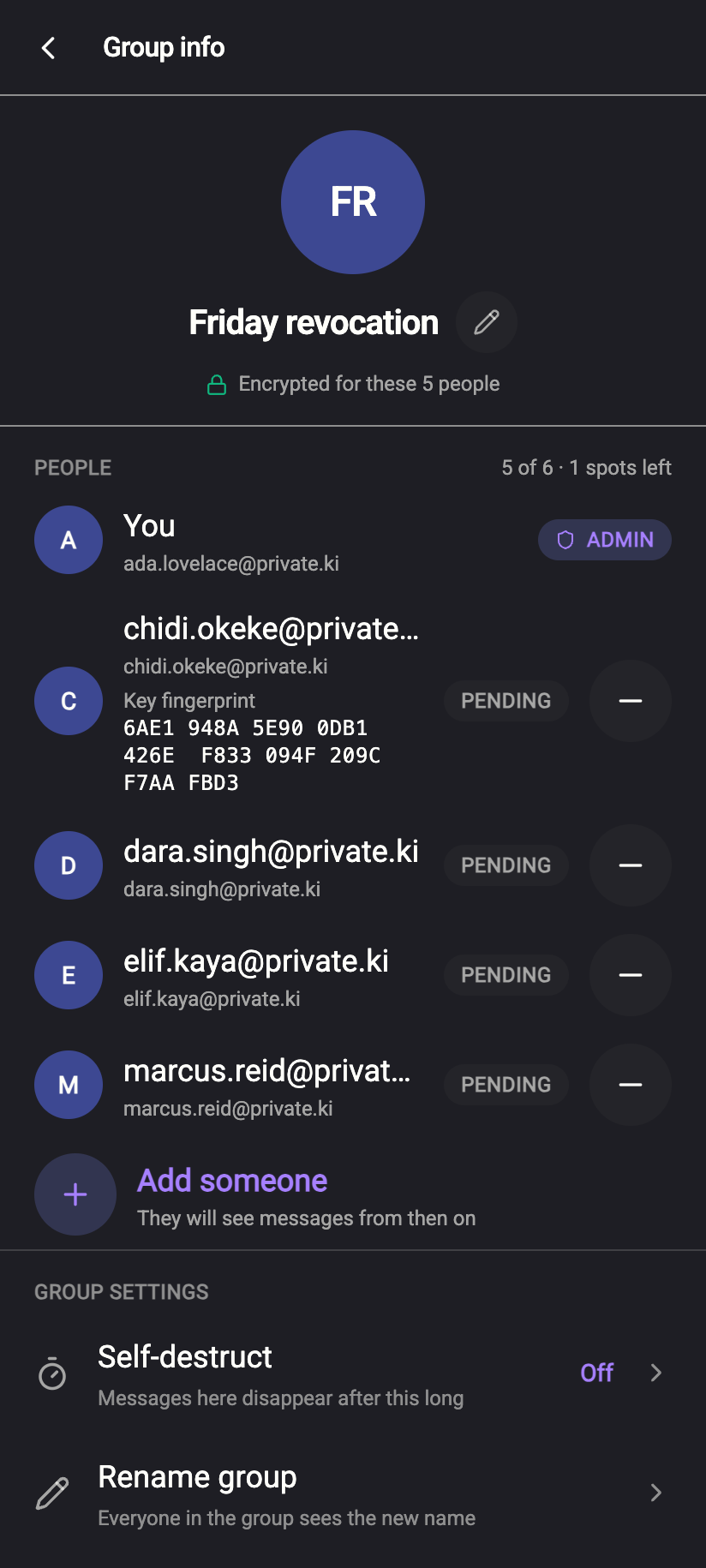
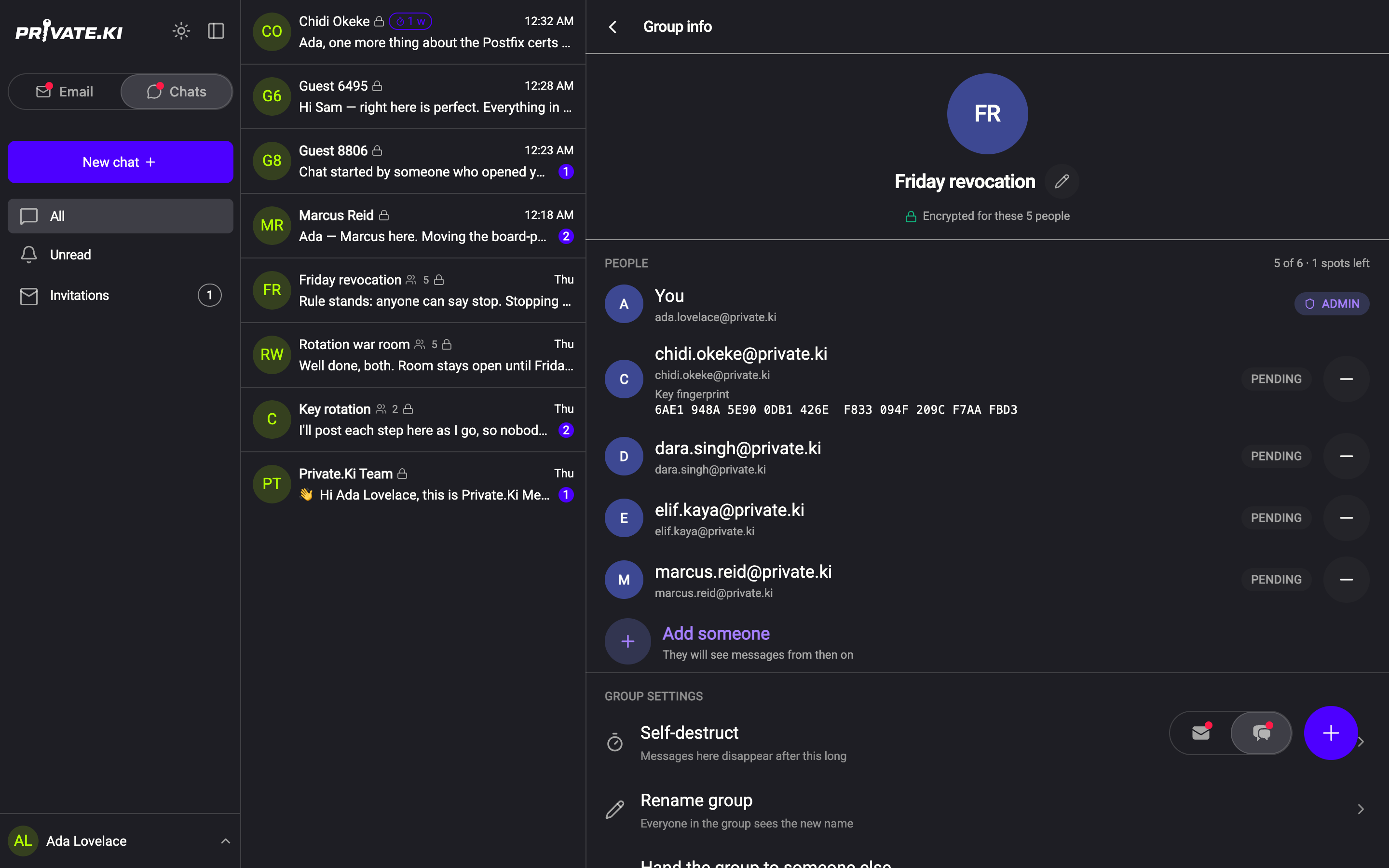
In a group, Group info shows each member's Key fingerprint once one is pinned. Your own is shown as Fingerprint when you view your public key under Settings → Key Management.
Common questions
I pressed Accept new key by mistake
Your messages from now on are encrypted to the new key. If you later learn the change was not legitimate, stop writing to that address and get in touch with the person another way. There is no button to un-accept; the next genuine key change will prompt you again.
Does the other person see anything when I get this warning?
No. The check happens on your device, against your own pin. Nothing is sent unless you accept.
Can our server trigger this to read my messages?
Only by offering a different key — which is precisely what the warning catches. The pin lives in your encrypted history, where the server cannot alter it. That is why the answer to the dialog has to come from the other person, not from us.