Key management: your keys and imported keys
The Settings › Key Management screen — your public key and fingerprint, the keys you imported for external contacts, and how to preview or delete one.
Key Management is the one screen where PGP keys are visible. It has two parts: Your Public Key — the half of your key pair you can hand to others — and External Public Keys, the keys you have imported so you can encrypt to people outside Private.Ki. Keys of other Private.Ki users are not listed here; they are fetched automatically when you address a message.
Open Key Management
- Click your name at the bottom-left, then Settings.
- Choose Key Management in the settings list.
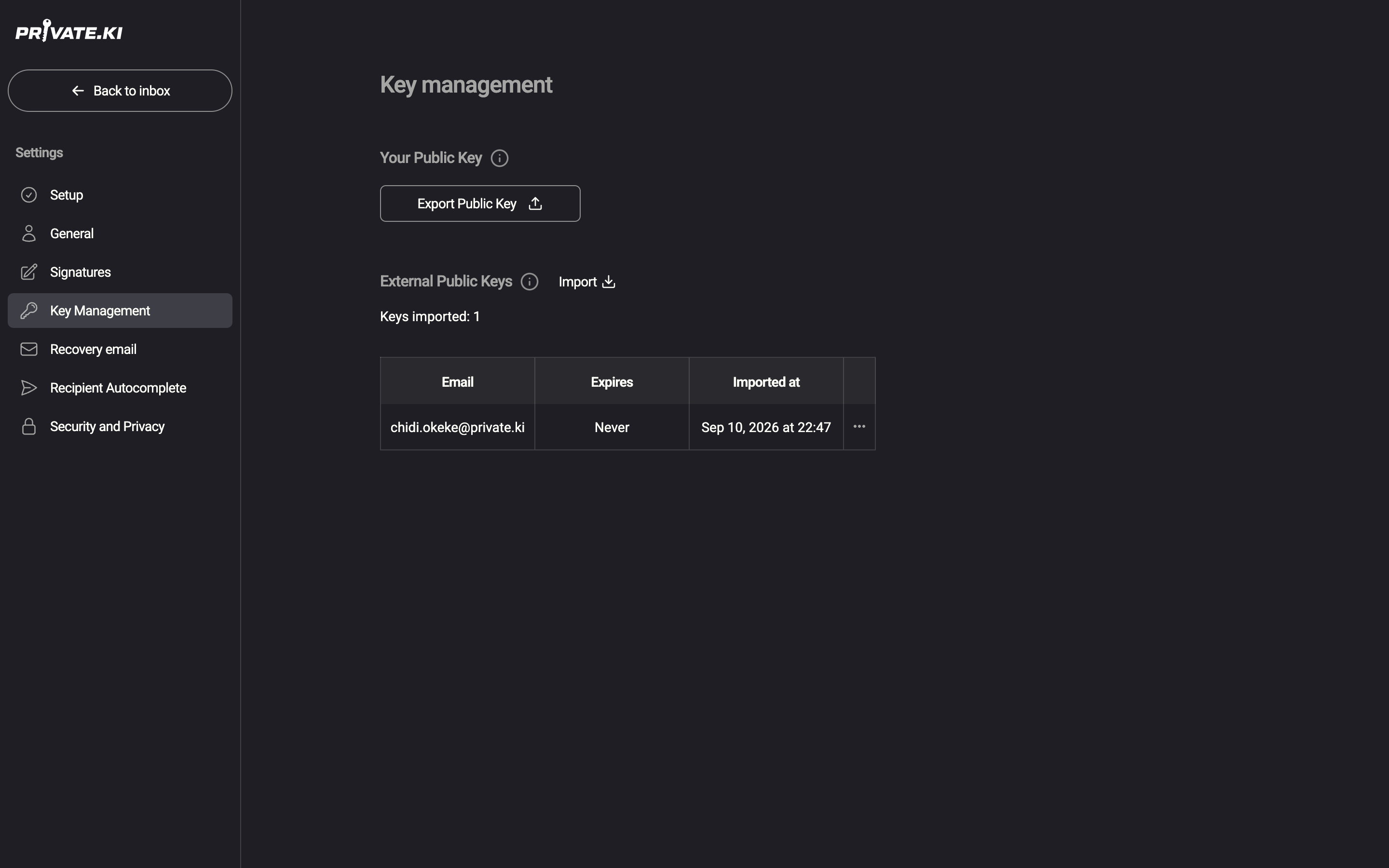
1Key Management2Export Public Key3ImportWeb & desktop 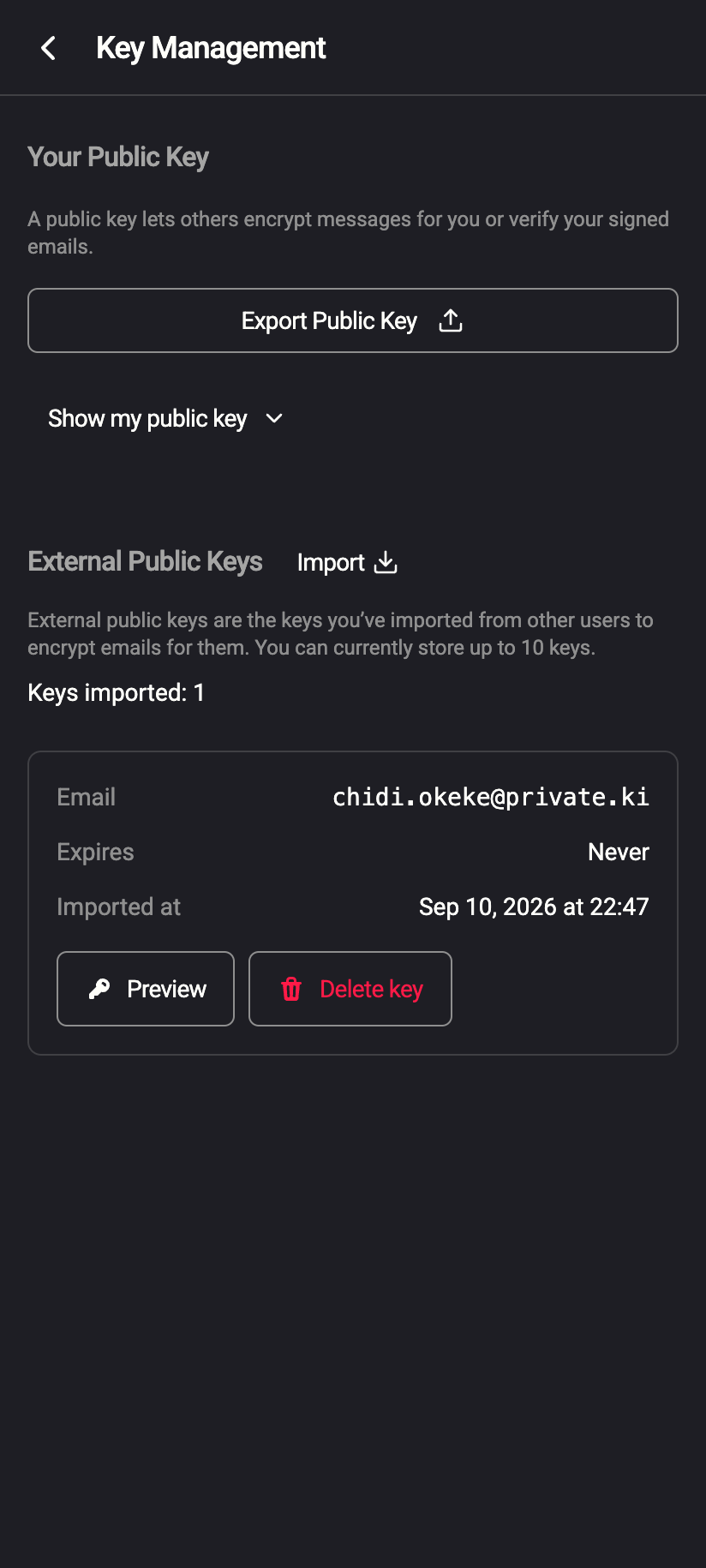 123
1231Export Public Key2Show my public key3ImportiPhone 1231Export Public Key2Show my public key3ImportAndroid
Open the menu ☰, tap your name at the bottom of the drawer, then Settings › Key Management. Imported keys appear as cards rather than a table; each card has the same Preview and Delete key actions.
Your Public Key
- Export Public Key downloads your key as an
.ascfile — see Export or share your public key. - On the phone there is also Show my public key, which displays your fingerprint and the armored key on screen with a Copy public key button. The fingerprint is read from the key itself, so it is exactly the key that would be exported.
- Your public key cannot be regenerated or replaced. See How to use PGP on Private.Ki.
The desktop layout offers the download only. Open the exported .asc file in any PGP tool, or open Key Management on your phone, to read the fingerprint.
External Public Keys
The list shows every key you have imported, with the counter Keys imported: N above it. Each row shows:
| Column | Meaning |
|---|---|
| The address inside the key. It is the address the key will be used for — a message to this address gets Encrypt turned on automatically | |
| Expires | The key's own expiry date, or Never |
| Imported at | When you imported (or last replaced) it |
| ⋯ | Preview and Delete key |
12341234Import a key with Import — paste, upload or drag a file — see Import someone's public key. A key that arrives as an email attachment can be imported from the message itself; see Import a key from an email.
Preview a key
Click ⋯ on the row, then Preview. The Key Details dialog shows the fingerprint, algorithm, creation and expiry dates, the user IDs (names and addresses) inside the key, and its capabilities (sign, encrypt, certify). Compare the fingerprint with one the contact gave you over another channel if you want to be sure you hold the right key.
Delete a key
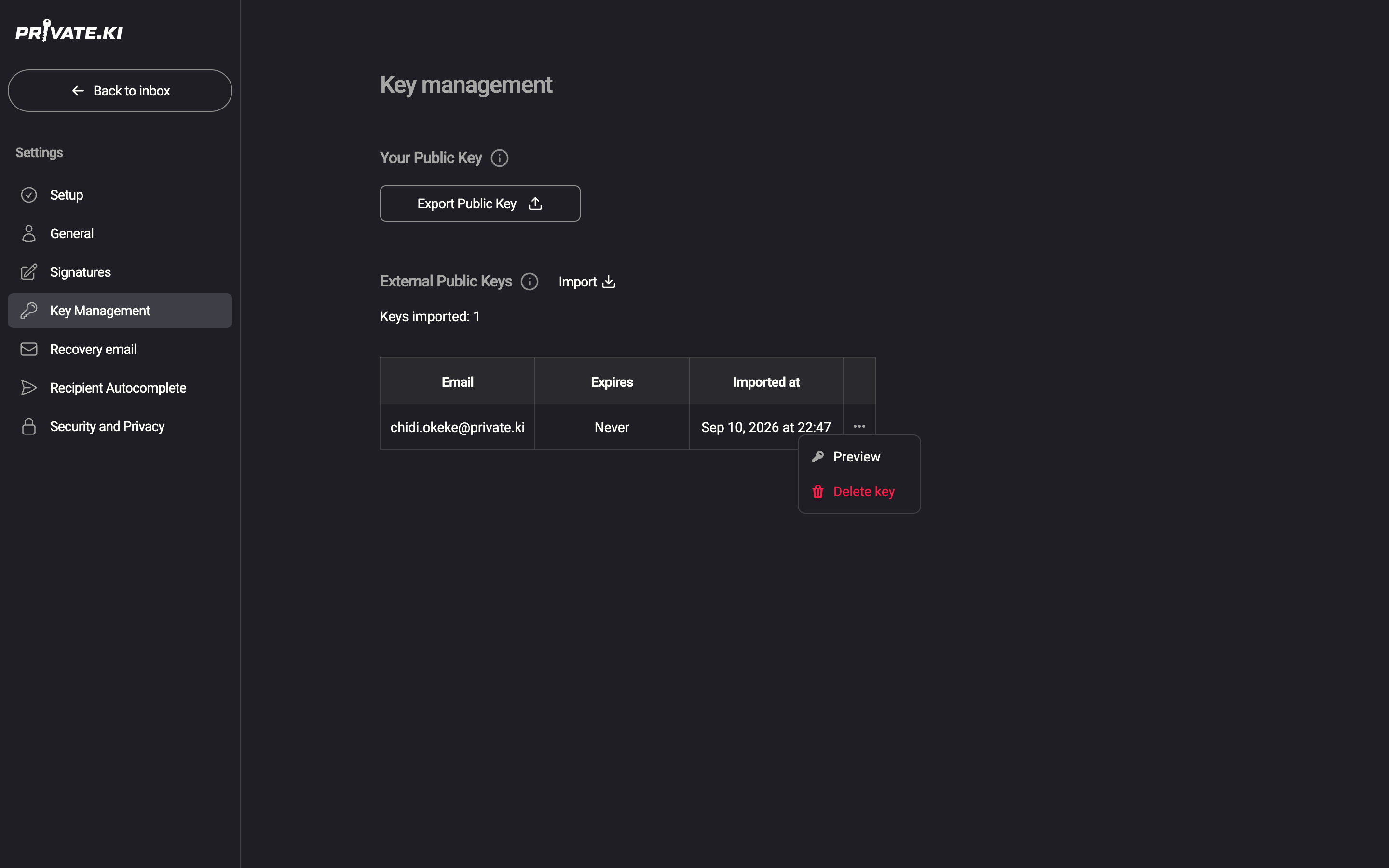
Click ⋯ on the row, then Delete key. The Delete External Key dialog says The key for "…" will be permanently deleted; click Delete. From then on, messages to that address go out unencrypted (with the warning described in Encrypted email with external contacts), and signatures from that address can no longer be verified. Deleting a key does not affect messages you have already received or sent.
 1212
1212Limits and replacement
- You can store up to 1000 external keys. At the limit, an import for a new address is refused with Limit reached. 1000 external keys maximum.
- Importing a key for an address you already hold replaces the old key, even at the limit. The Imported at date updates.
- There is one key per address. A contact with two keys for the same address can only have one of them imported at a time.
What our server sees
Cannot see
- The imported keys themselves — they are stored AES-encrypted under your master key
- Whose keys they are — the address is stored only as an HMAC-derived identifier your device computes
- Your fingerprint being looked at, previews, or comparisons
Can see
- How many external keys you hold, and when each row was created or updated
- Your own public key
Common questions
Why is a Private.Ki contact not in the list?
Because keys of Private.Ki users never need importing. They are fetched from the server when you type the address and pinned on first use. The list is only for addresses at other providers.
The key I imported has expired. What happens?
The row shows the expiry date. Encryption to an expired key may be refused by the recipient's software; ask the contact for a current key and import it — it replaces the old one.
Can I export an imported key?
Not from this screen. Preview shows its details; to pass the key on, ask the owner to share it themselves.