Import someone's public key
Add an external contact's PGP public key — by paste, file or drag-and-drop in Key Management, or from the banner on an email — so mail to them is secure.
To send encrypted email to someone who is not on Private.Ki, you need their PGP public key. Once it is imported, two things change: messages to that address get Encrypt turned on automatically, and signed messages from that address show a verified signature. You only ever import keys for external addresses — Private.Ki users' keys are fetched for you.
Many external addresses publish their key, and those are found for you without any import — see Automatic key discovery. Add the address in the composer and look at the chip: a lock means the key was found already and there is nothing to do here.
Import in Key Management
Use this when you have the key as a file (usually .asc) or as text.
- Click your name at the bottom-left, then Settings › Key Management.
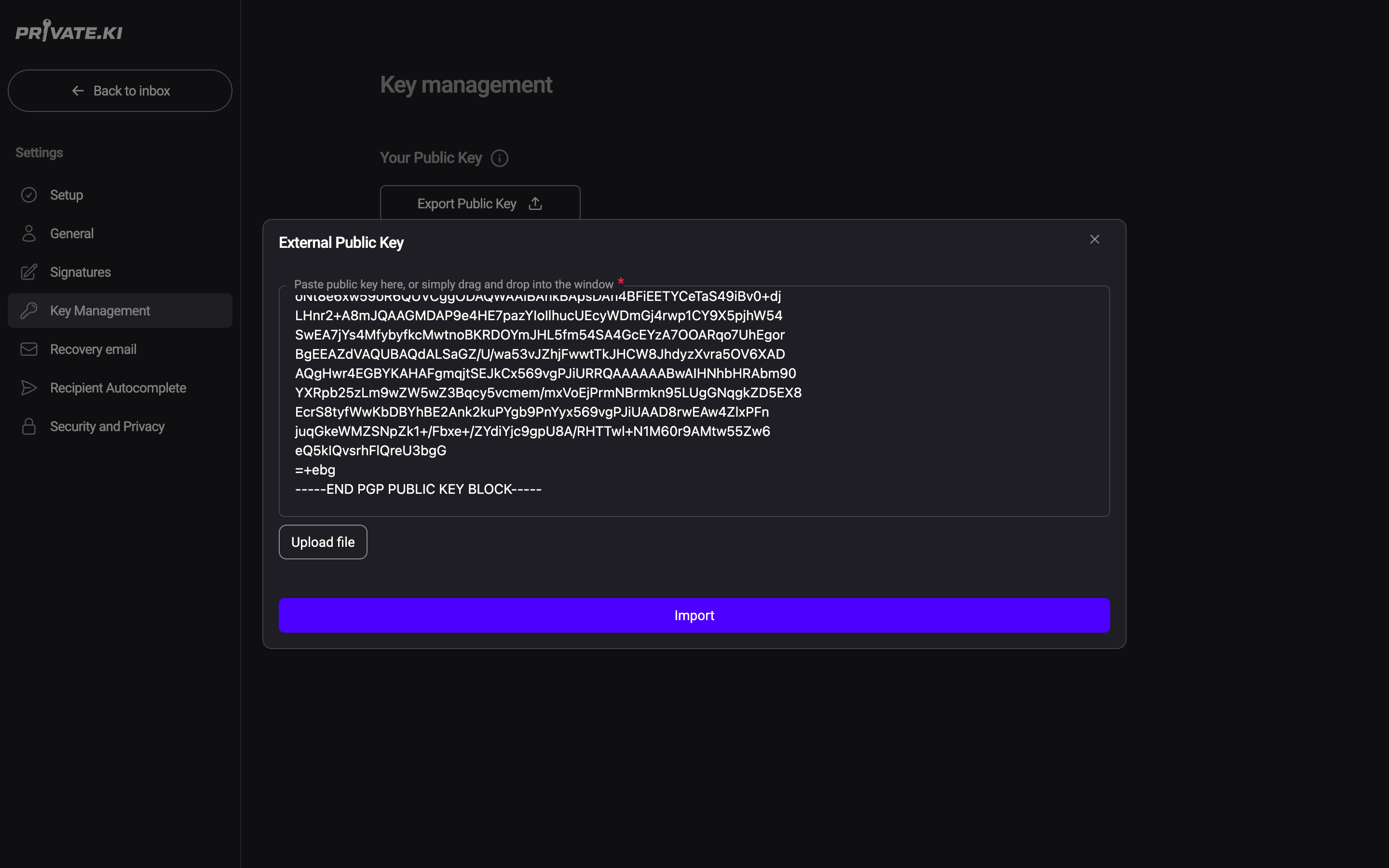
- Next to External Public Keys, click Import. The External Public Key dialog opens.
- Get the key into the box in any of three ways: paste the text (from
-----BEGIN PGP PUBLIC KEY BLOCK-----to-----END PGP PUBLIC KEY BLOCK-----), click Upload file and pick the file, or drag the file onto the dialog — a Drop here overlay appears.1Pasted key2Upload file3ImportWeb & desktop 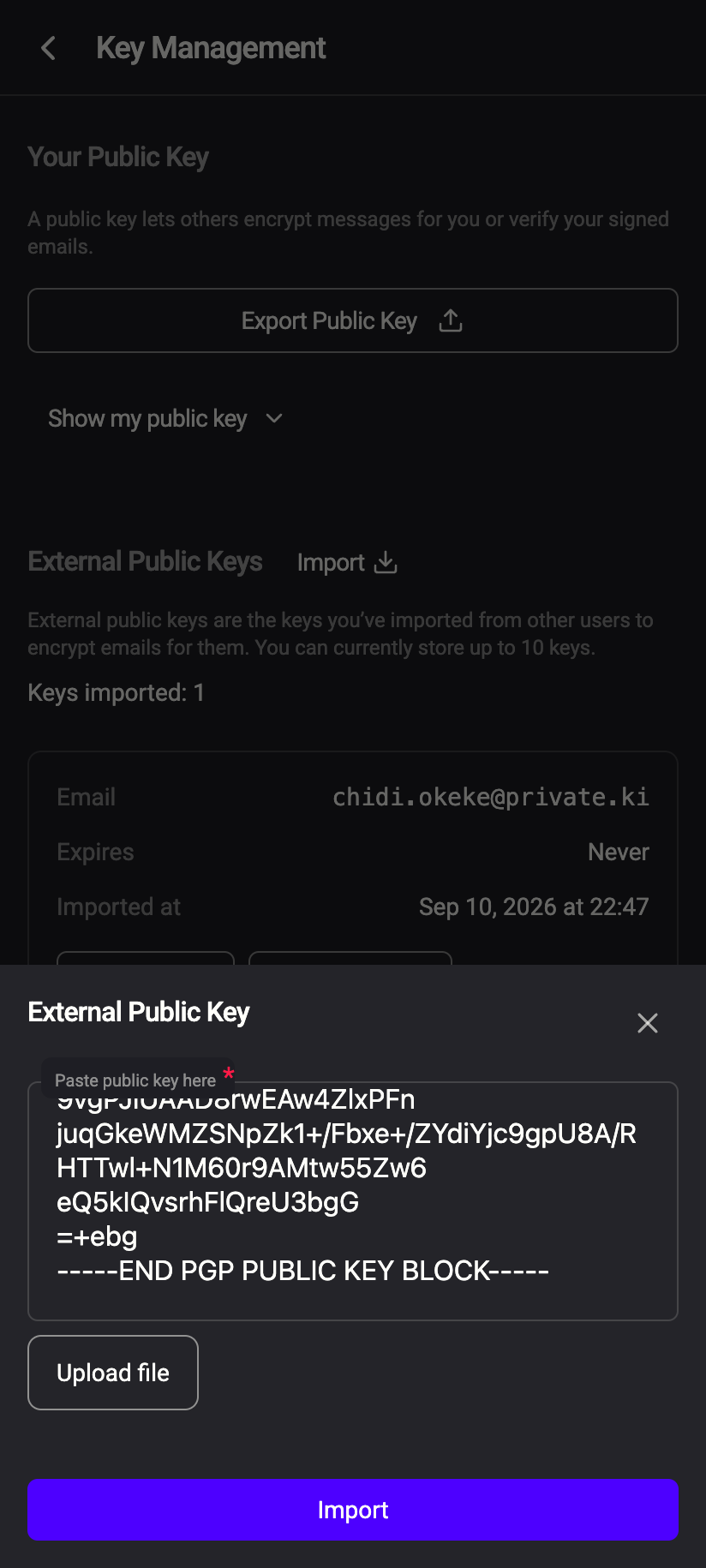 123
1231Pasted public key2Upload file3ImportiPhone 1231Pasted public key2Upload file3ImportAndroid - Click Import. The app reads the address out of the key, checks it, and confirms Public key imported successfully. The new row appears in the list.
1Public key imported successfully2New rowWeb & desktop 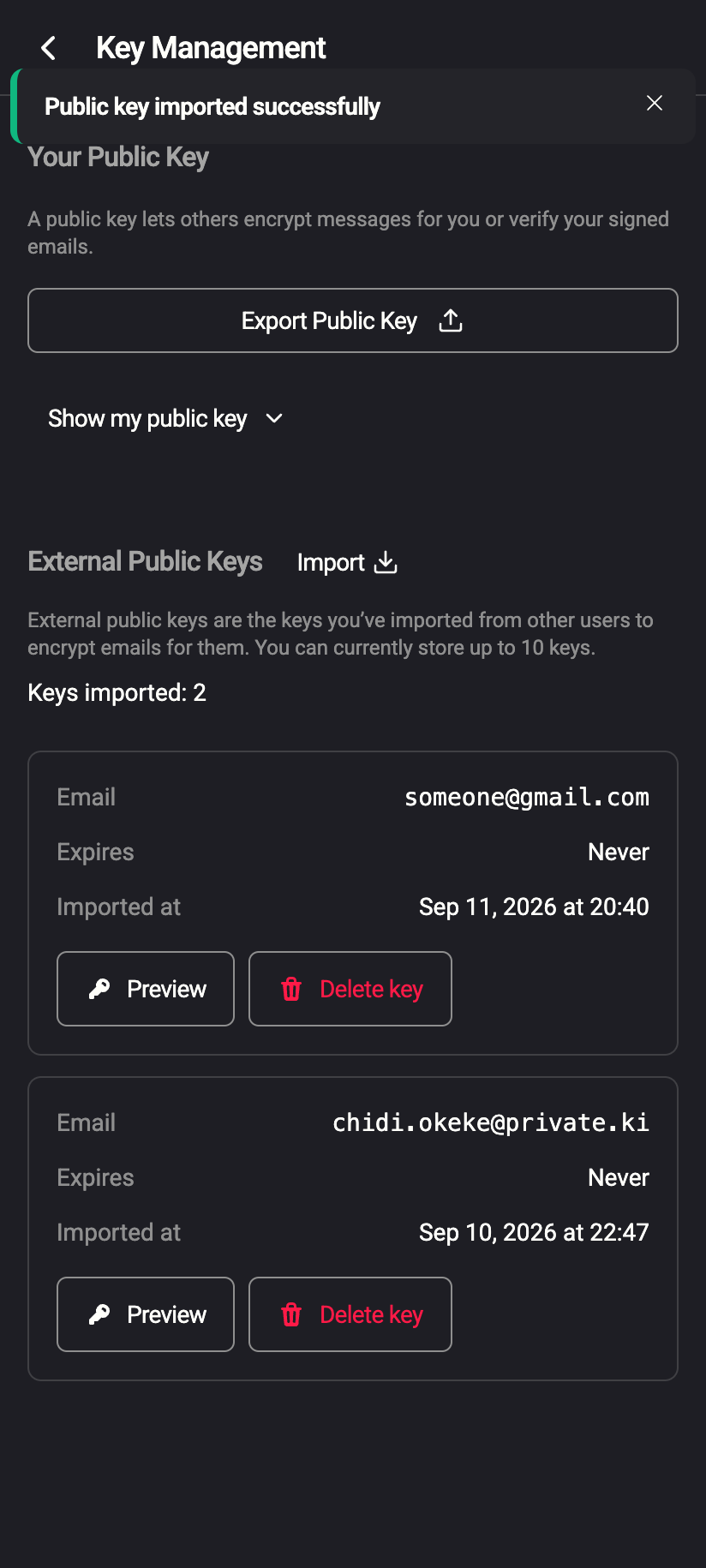 12
121Public key imported successfully2New key cardiPhone 121Public key imported successfully2New key cardAndroid
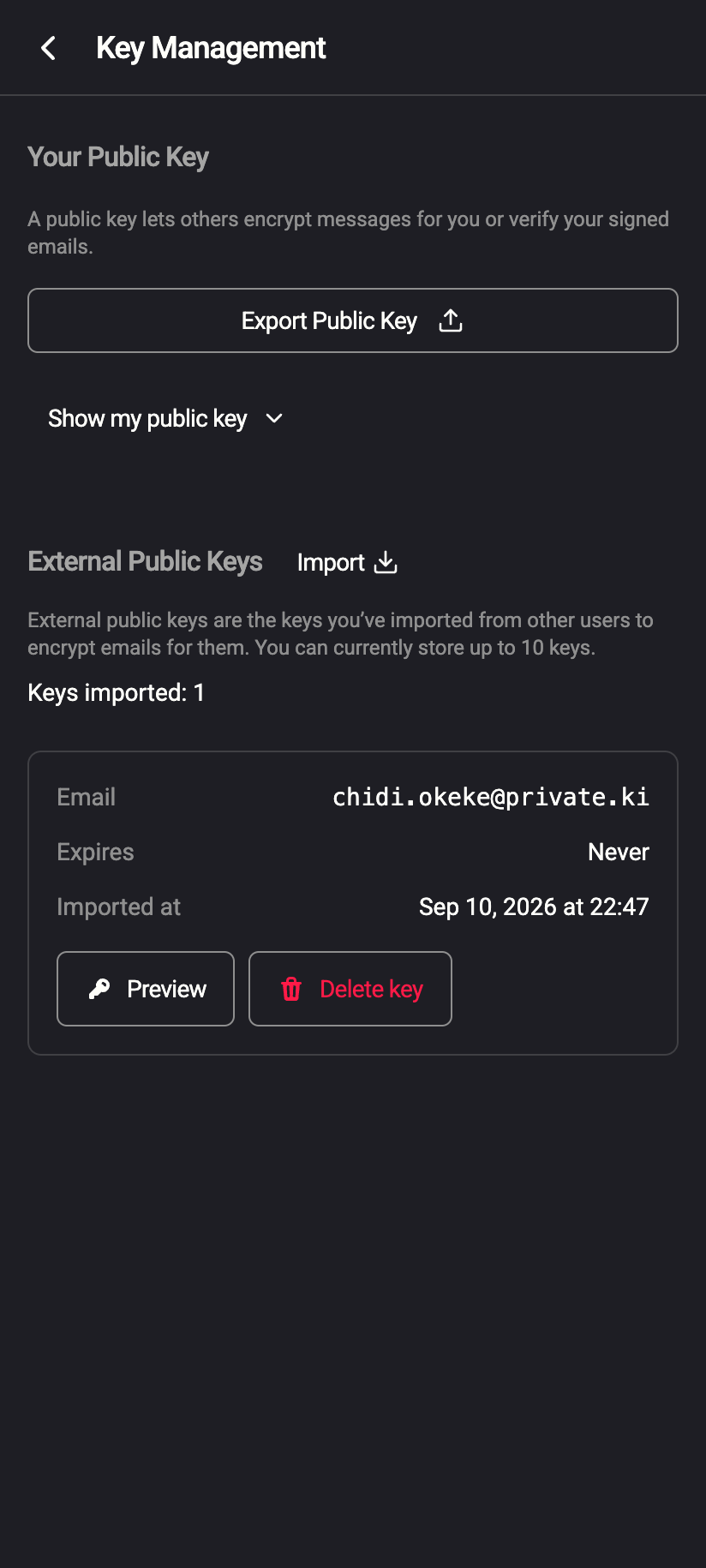
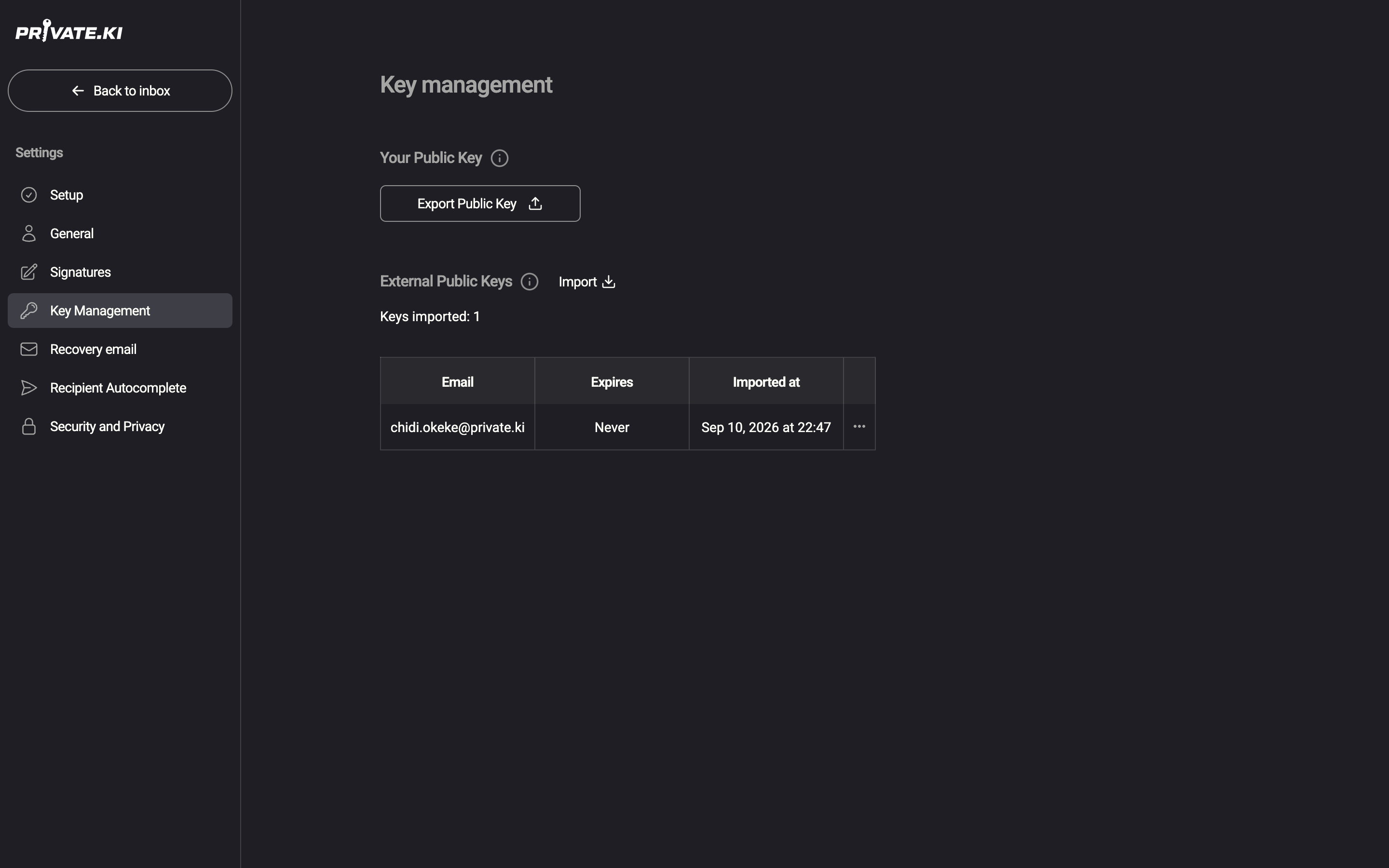
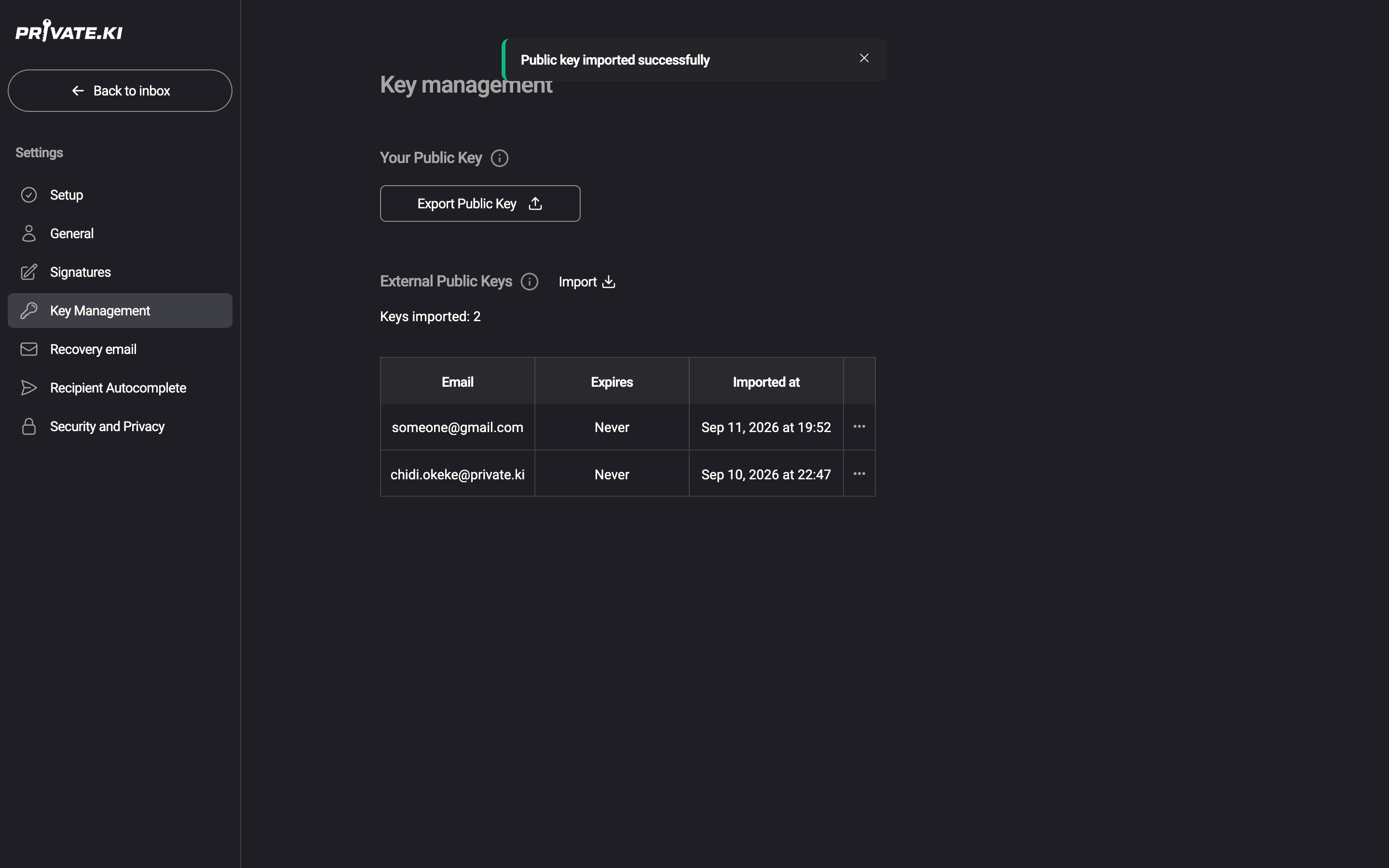
You do not type the contact's address: it is taken from the key's user ID. If the key holds more than one address, the first one is used.
Open the menu ☰, tap your name at the bottom of the drawer, then Settings › Key Management › Import. The dialog fills the screen; paste into Enter the public key or tap Upload file. There is no drag-and-drop on the phone.
Import from an email
When an email arrives with a public key attached, the message shows a Public key is attached banner with an Import button. Click it; the banner changes to Imported ✓. If you already hold that key, the banner says so without a button. Details, including what the attachment looks like, are in Import a key from an email.
What the app checks
The Import button stays disabled until the text is a valid key. You may see:
| Message | Meaning |
|---|---|
| Invalid OpenPGP Public Key | The text is not a PGP key, or is incomplete — make sure both the BEGIN and END lines are included |
| This is not a public key | You pasted a private key. Never share a private key; ask the contact for their public key instead |
| Public key does not contain an email address | The key has no address in its user ID, so the app cannot tell whom it belongs to |
| Limit reached. 1000 external keys maximum | You hold 1000 keys already; delete one first. Re-importing a key for an address you already hold is always allowed |
What changes after importing
- Composer: as soon as you add that address, its chip shows a green padlock and Encrypt is on. See Encrypted email with external contacts.
- Received mail: signed messages from that address are checked against the key. A green check (a shield on the phone) with the tooltip Signature verified means the message really came from the holder of that key and was not altered. Before the import, the same messages showed Signature exists, but cannot check because public key of sender is missing. See Signing and verifying messages.
- Pinning: the key's fingerprint is remembered. If you later import a different key for the same address, the next send shows Encryption key changed and waits for you to confirm — see Key changed warning.
The green check means "signed by the key I imported". It does not, by itself, prove who owns that key. If it matters, compare the fingerprint (Preview in Key management) with one the contact gave you in person or over another channel.
What our server sees
Cannot see
- The key you imported — it is stored AES-encrypted under your master key
- Whose key it is — the address is stored only as an HMAC-derived identifier
Can see
- That an external key was added to your account, and when
Common questions
Where do I get someone's public key?
Ask them. Most PGP users can attach it to an email (that gives you the banner route), or publish it on their website or a key server. Private.Ki does not look keys up on key servers for you.
Can I import several keys at once?
No, one at a time. Each import is one key for one address.
I imported the wrong key
Import the right one — it replaces the previous key for that address — or delete it under Key Management › ⋯ › Delete key.