How to use PGP on Private.Ki
You mostly don't have to. Your key pair is created once at sign-up and mail between Private.Ki users is encrypted automatically. What is still manual.
Private.Ki is built on OpenPGP, the same standard used by Thunderbird, GnuPG and other encrypted-mail tools. You do not need to know how PGP works to use it: the app makes the keys, finds the right key for each recipient, encrypts, signs and verifies without asking.
What happens automatically
- Your key pair is created at sign-up, on your device, in the step after you choose your unlock method. The private half is wrapped with your passphrase (or a secret derived from your password) before it is stored; the public half is published to your account so other Private.Ki users can encrypt to you. See Your passphrase.
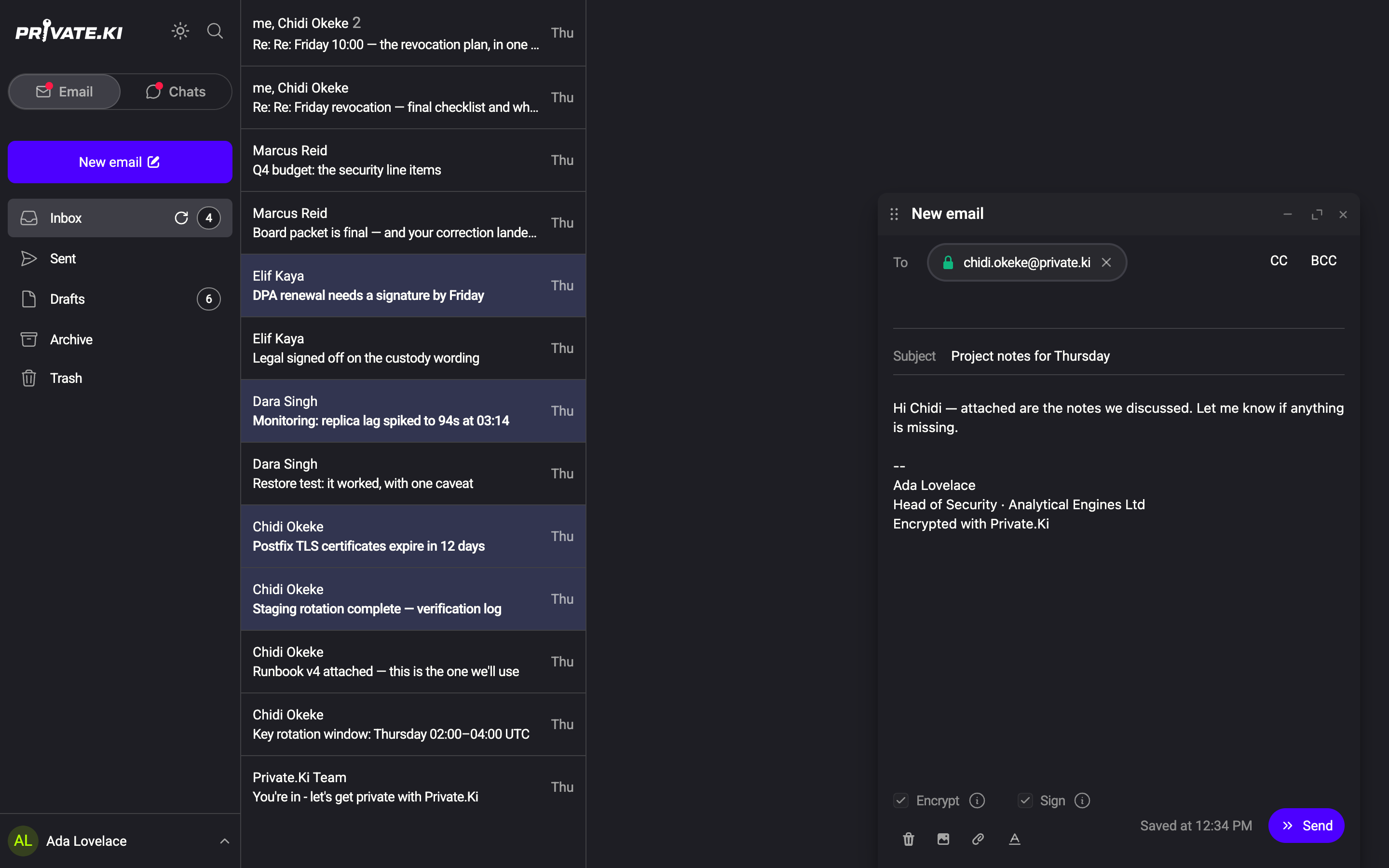
- Email and chat to Private.Ki users is always encrypted and signed. When you add a recipient at a Private.Ki address, the app fetches their public key and turns on both Encrypt and Sign; you cannot turn them off. See Encrypted email between Private.Ki users.
1Padlock: key found2Encrypt3SignWeb & desktop 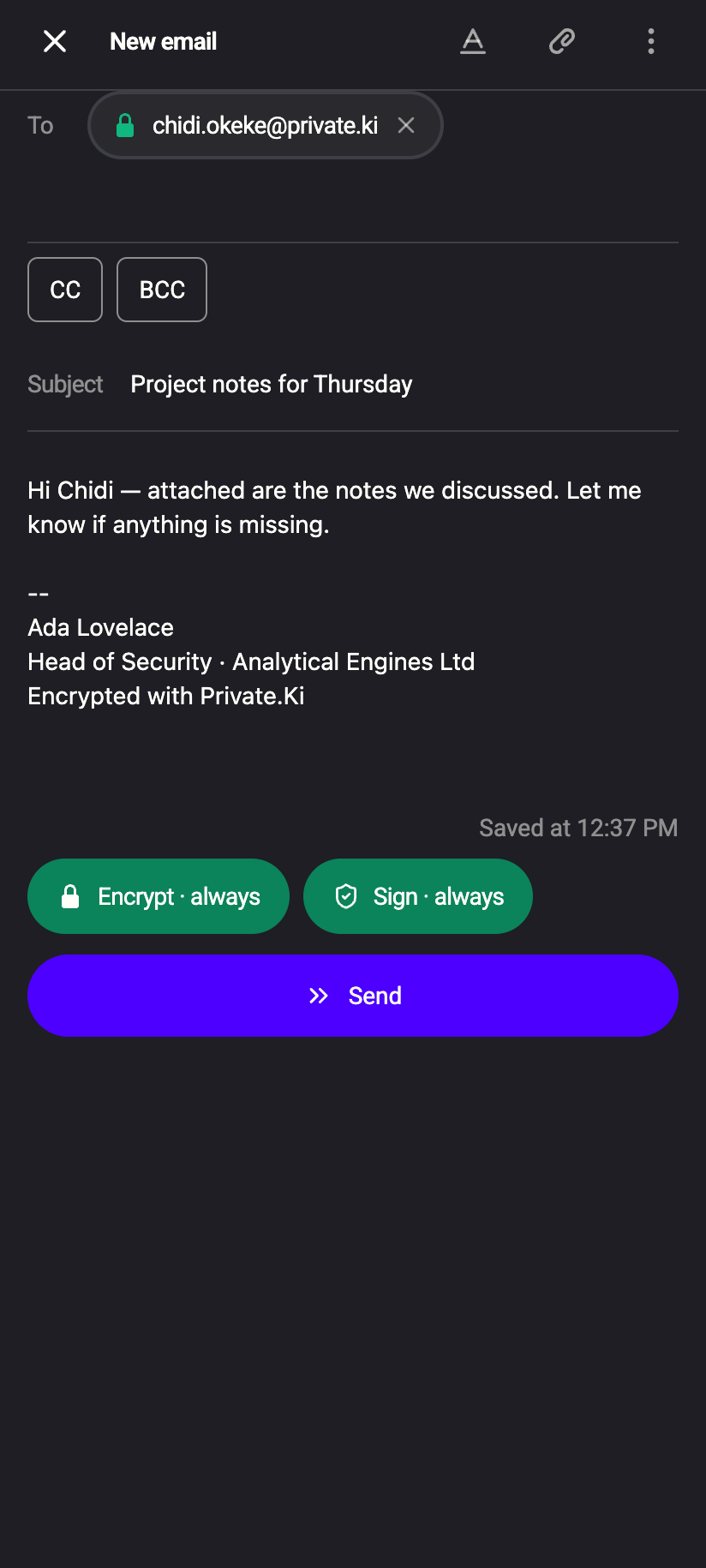 123
1231Padlock: key found2Encrypt · always3Sign · alwaysiPhone 1231Padlock: key found2Encrypt · always3Sign · alwaysAndroid - Incoming signatures are verified on your device against the sender's key, and the result is shown as an icon beside the sender. See Signing and verifying messages.
- Keys are pinned. The first time your device sees a recipient's key it remembers the fingerprint (encrypted, in your account). If that key later changes, the app stops and shows Encryption key changed before sending anything. See Key changed warning.
- Public keys that arrive as an attachment are recognised. A Public key is attached banner offers Import. See Import a key from an email.
What is fixed
- One key pair per account, created once. You cannot generate a second pair, and you cannot import a key pair of your own to replace it — the server refuses a second key creation for an account that already has keys. The only thing you can change about your key is its wrapping, by changing your passphrase or your unlock method.
- Key type. Keys are Ed25519 (ECC). You cannot pick RSA or a different curve.
- Your key's identity is your Private.Ki address. That is the only personal detail your public key contains.
Your existing key stays where it is. Private.Ki keys are made for this account, and the two do not have to match. Contacts who want to reach both addresses encrypted simply hold both public keys.
What you can do by hand
Everything manual lives under Settings › Key Management and in the composer:
| Task | Where | Article |
|---|---|---|
| See your fingerprint and armored public key, copy it | Key Management › Your Public Key (phone: Show my public key) | Key management |
Download your public key as an .asc file |
Key Management › Export Public Key | Export or share your public key |
| Attach your public key to an email | Composer › ⋯ › Attach public key | Attach your public key |
| Import someone's public key by paste, file or drag-and-drop | Key Management › Import | Import someone's public key |
| Preview an imported key (fingerprint, algorithm, expiry, user IDs, capabilities) or delete it | Key Management › ⋯ on the key's row | Key management |
| Send encrypted or signed mail to an external PGP user | Composer › Encrypt / Sign | Encrypted email with external contacts |
| View the original MIME of a received message, signature parts included | Message menu › Show original | Show original |
What our server sees
Cannot see
- Your private key in usable form, or your passphrase
- Which external public keys you have imported, or whose they are
Can see
- Your public key (it is meant to be public)
- That your account has created its keys, and when its wrapped key was last updated
Common questions
Do I need to exchange keys with other Private.Ki users?
No. Their public key is fetched from the server when you type their address. The green padlock on the recipient chip tells you it was found.
Can I verify a Private.Ki user's fingerprint out of band?
You can read your own fingerprint under Key Management and read theirs when you preview an imported key. Internal keys are fetched automatically and pinned on first use; there is no screen that shows another Private.Ki user's fingerprint before the first message.
What if I lose my device?
Your keys are not tied to a device. Sign in on another one, unlock with your passphrase or password, and everything is there. Revoke the lost device under Active sessions.