Self-destructing messages (30 s to 1 month, 1 year with Plus)
Turn on a timer so every message in a chat disappears a set time after it is sent — how to set it, what both sides see, and why there is no "after read" option.
A self-destruct timer is a setting on a conversation, not on a single message. Once it is on, every message sent from then on — text, photos, files, voice notes — is deleted from both sides when its time is up. Messages sent before you turned it on are not affected.
Turn it on
- Open the chat. In the header, next to the ⋮ menu, is a small timer icon. Click it. (The ⋮ menu also has Self-destruct timer; it opens the same picker.)
1Timer chip2Banner: what is on, who set it3ChangeWeb & desktop 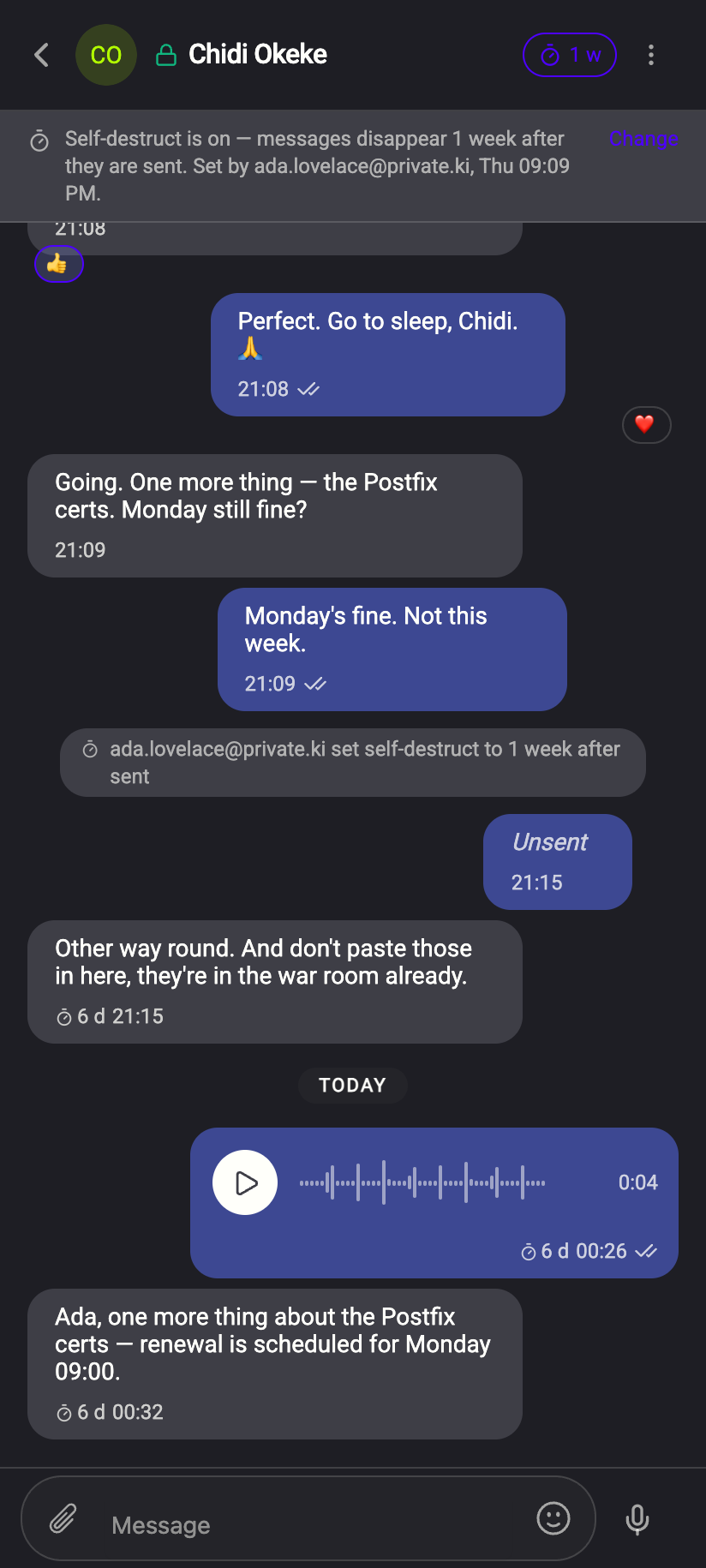 123
1231Timer chip2Banner: what is on, who set it3ChangeiPhone 1231Timer chip2Banner: what is on, who set it3ChangeAndroid - The Self-destruct timer picker opens with two tabs. After sent is the one that works; After read is greyed out, because Private.Ki has no read receipts for such a timer to start from.
- Choose a duration: 30 seconds, 1 minute, 10 minutes, 1 hour, 1 day, 1 week or 1 month. Off is at the top. The list ends with 3 months, 6 months and 1 year, which need a Plus subscription — they look like every other row, and on the free plan pressing one opens the Plus panel instead of setting the timer.
1After read2After sent3Off41 monthWeb & desktop 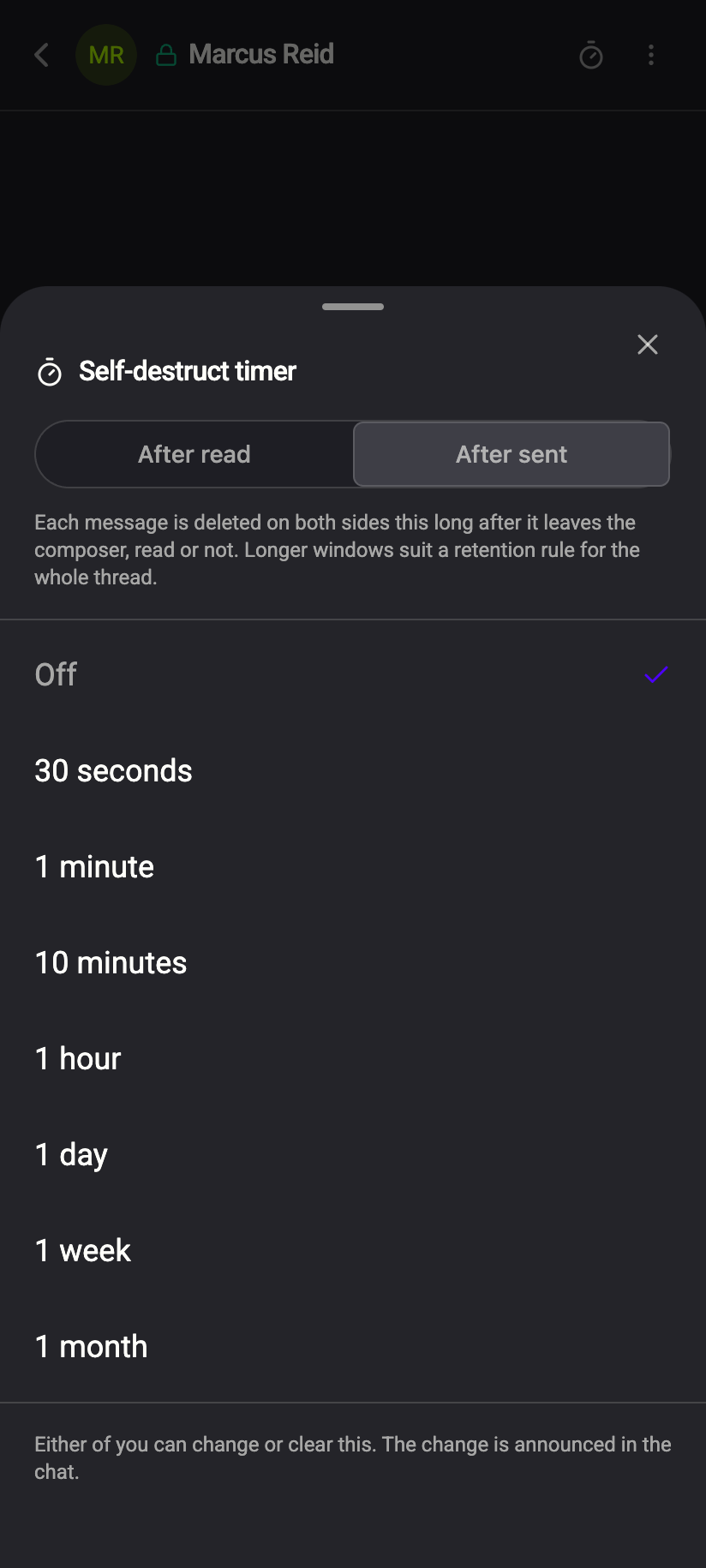 1234
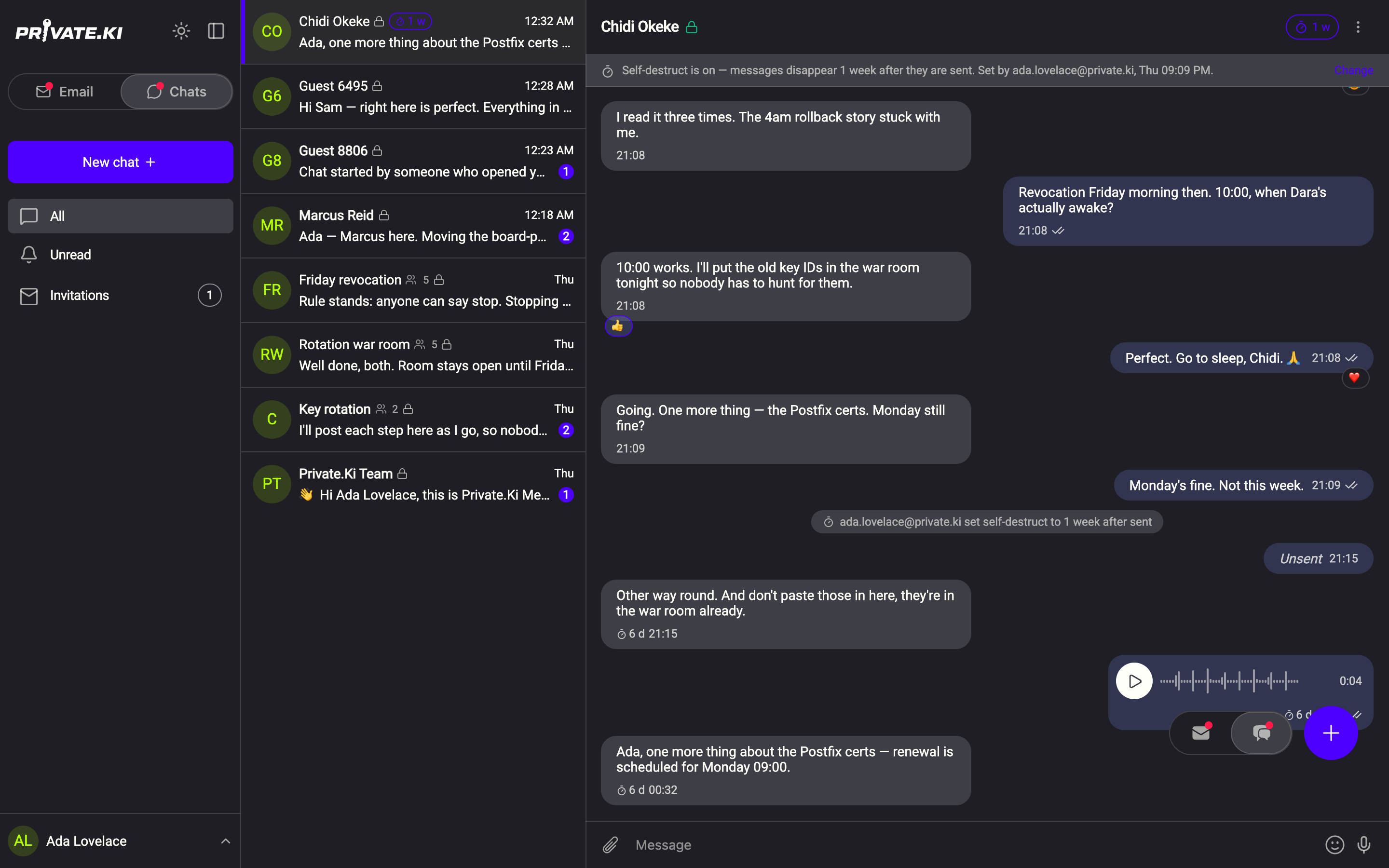
12341After read2After sent3Off41 monthiPhone 12341After read2After sent3Off41 monthAndroid - The picker closes. Three things change at once: a chip in the header shows the duration (1 w, 1 d, 10 m…), a banner appears under the header — Self-destruct is on — messages disappear 1 week after they are sent. Set by , Thu 09:09 PM. — and a system line is added to the conversation: set self-destruct to 1 week after sent.
1Countdown: 6 d2System line: who set itWeb & desktop 121Countdown: 6 d2System line: who set itiPhone 121Countdown: 6 d2System line: who set itAndroid
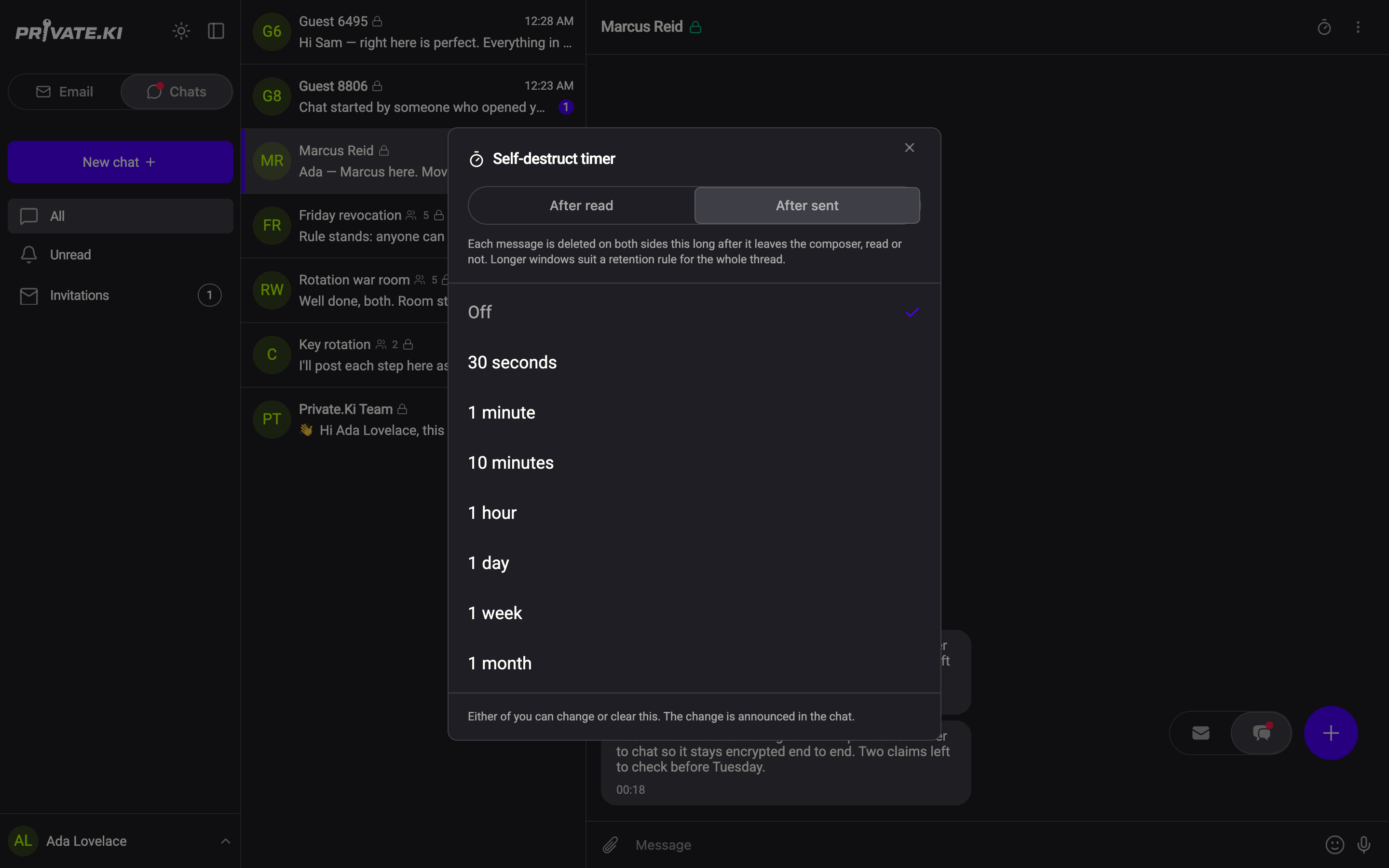
The picker's footer says the rest: Either of you can change or clear this. The change is announced in the chat. There is no admin in a one-to-one chat — the other person can change or turn off the timer just as you can, and you will see the system line when they do.
What a timed message looks like
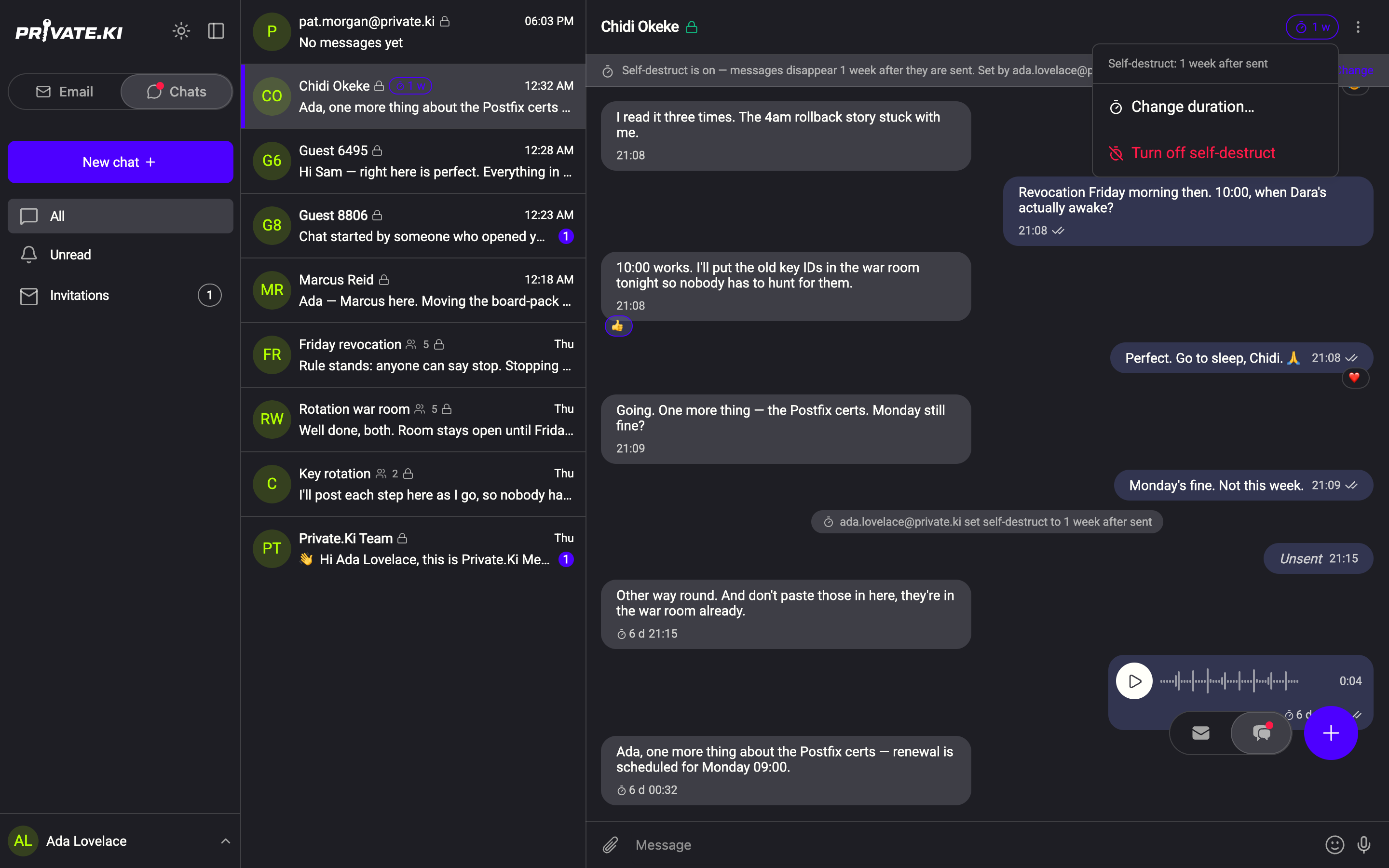
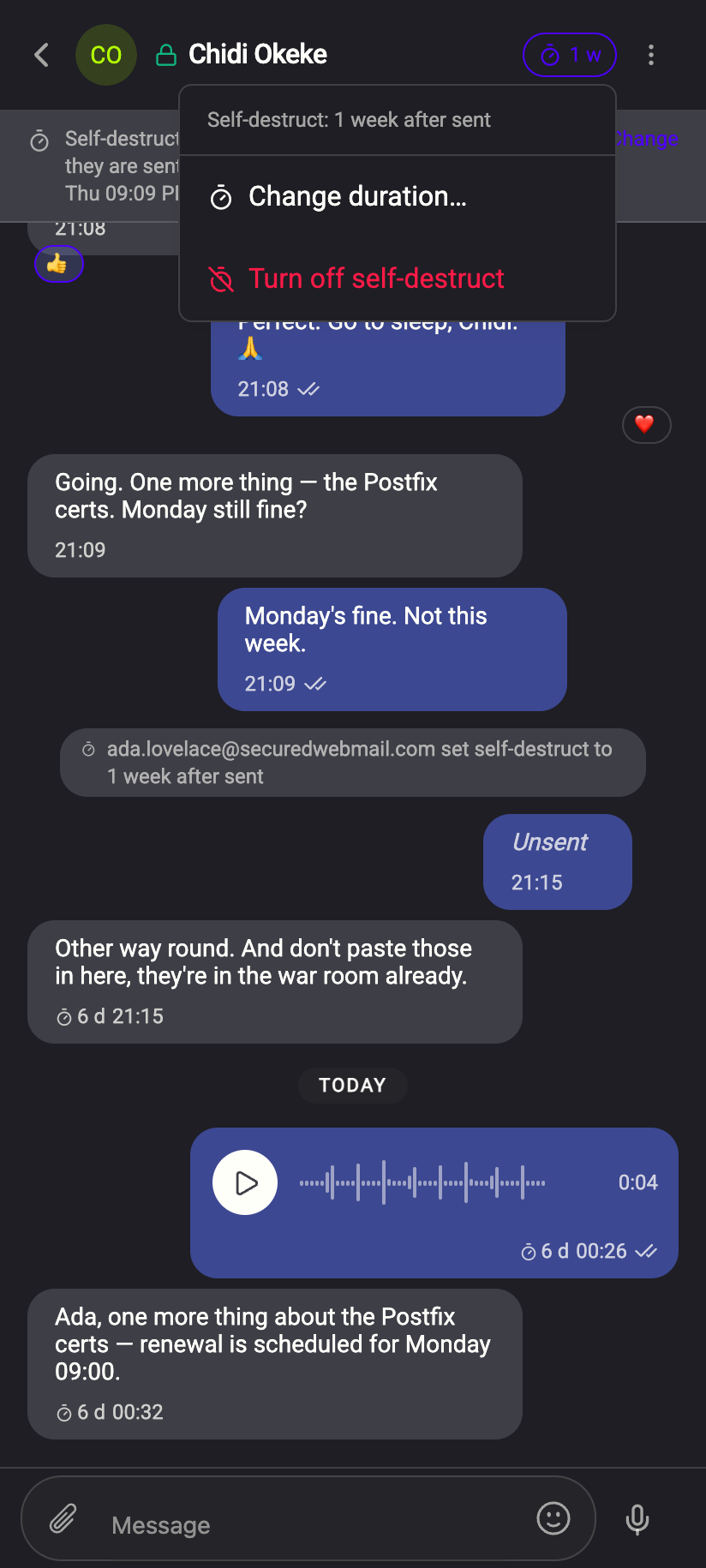
Each message sent under the timer carries a small timer icon and a countdown in its footer — 6 d, 1 h, 45 s — instead of just the time. When the countdown reaches zero the message vanishes from the conversation on your screen. The other person's copy is deleted on the same schedule, a few seconds later at most.
The header shows the same chip. Tap it for a small menu: the current setting (Self-destruct: 1 week after sent), Change duration… and Turn off self-destruct. On the banner, Change does the same.
 1212
1212Change or turn it off
Click the chip in the header. On the desktop this opens a popover with Change duration… and Turn off self-destruct; the Change link at the right end of the banner also opens the picker. Turning it off adds the line turned off self-destruct. Messages already counting down keep their timer — the change applies to what is sent from now on.
The "After read" tab
The After read tab is disabled with this explanation: Not available yet. Private.Ki has no read receipts — nothing tells the sender that a message was opened — so this timer would have nothing to start from. Use "After sent" for now. Timers therefore start the moment a message is sent. See Delivery ticks, typing indicator — and no read receipts.
How the deletion happens
Cannot see
- The content of the messages it deletes
Can see
- The timer value for the conversation, and the deadline of each message — the server needs both to delete the copies on time
The countdown you see is local; the deletion behind it is done by the server, which sweeps every minute and removes each participant's encrypted copy when its deadline passes. If a device is offline when a message expires, the message is gone from the account anyway and simply will not appear when it reconnects.
A message with a timer is a normal message until it expires. The other person can copy the text, take a screenshot, save a photo or download a voice note in that time, and nothing stops or reports that. Use the timer to keep conversations tidy and short-lived — not as protection against someone you do not trust.
In groups
A group's timer is set by the admin from Group info → Self-destruct, with the same durations, and applies to all members. Members see the current value but cannot change it. See Manage a group.
Common questions
Can I set a timer on one message only?
No. The timer belongs to the conversation. For one message, use Unsend within an hour instead — see Unsend or destroy a message.
The other person turned my timer off — can I stop that?
No. In a one-to-one chat both people have the same control, and every change is announced in the conversation so it cannot happen quietly.
What is the shortest and longest time?
30 seconds and 1 month on the free plan. With Plus the longest is 1 year (Free and Plus, side by side).