Voice messages
Record and send an encrypted voice message of up to five minutes, twenty with Plus — click to record on the desktop, hold to record on a phone.
A voice message is a short recording sent inside a chat. It is encrypted on your device before it goes anywhere, exactly like a text message or a photo, and the other person plays it back inside the conversation. The limit is five minutes per message, or twenty minutes with a Plus subscription.
Record on the desktop
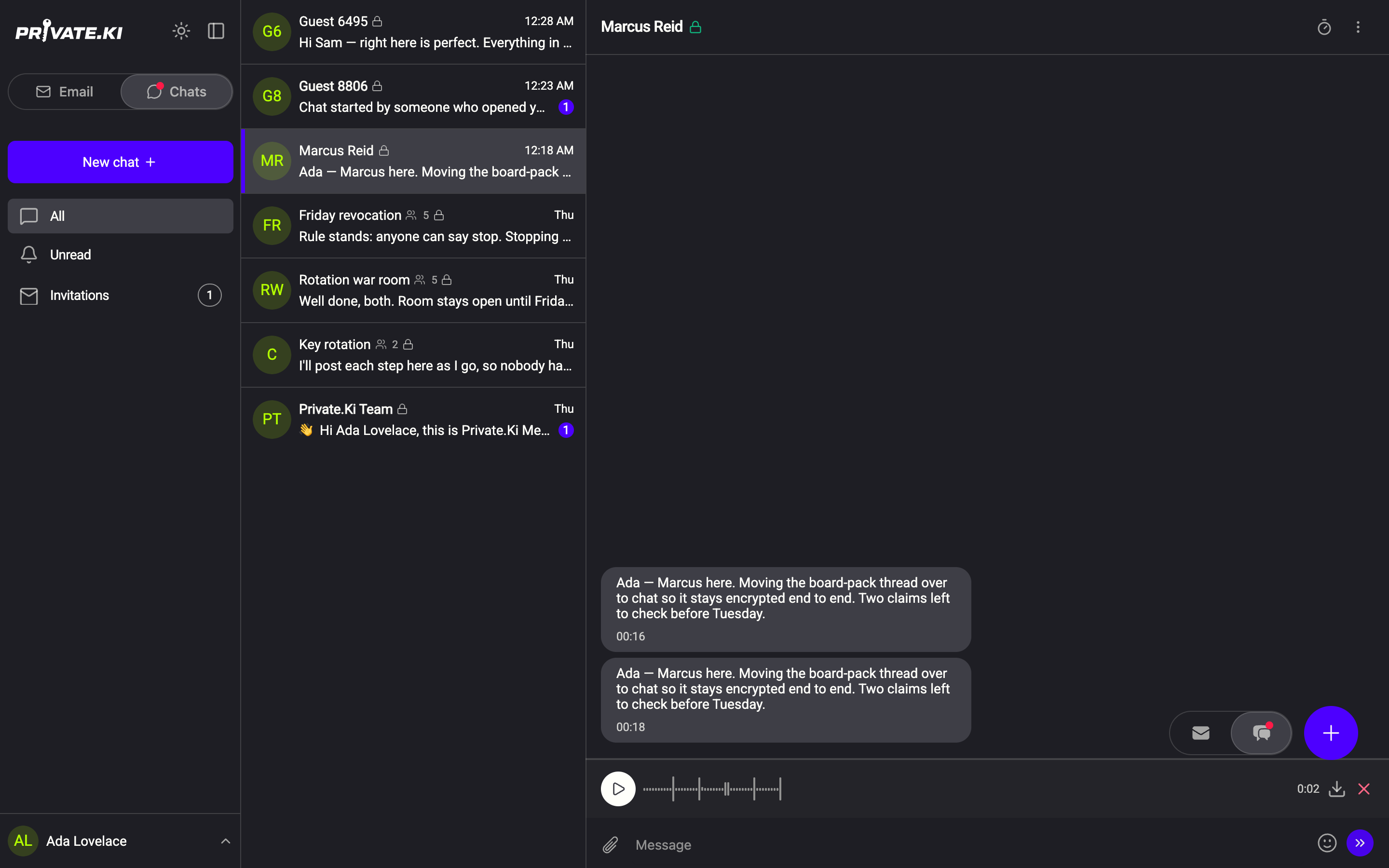
- With the Message field empty, the microphone icon sits at its right end. Click it — the button's label is Record a voice message. The first time, your browser asks for microphone permission.
1Record a voice messageWeb & desktop 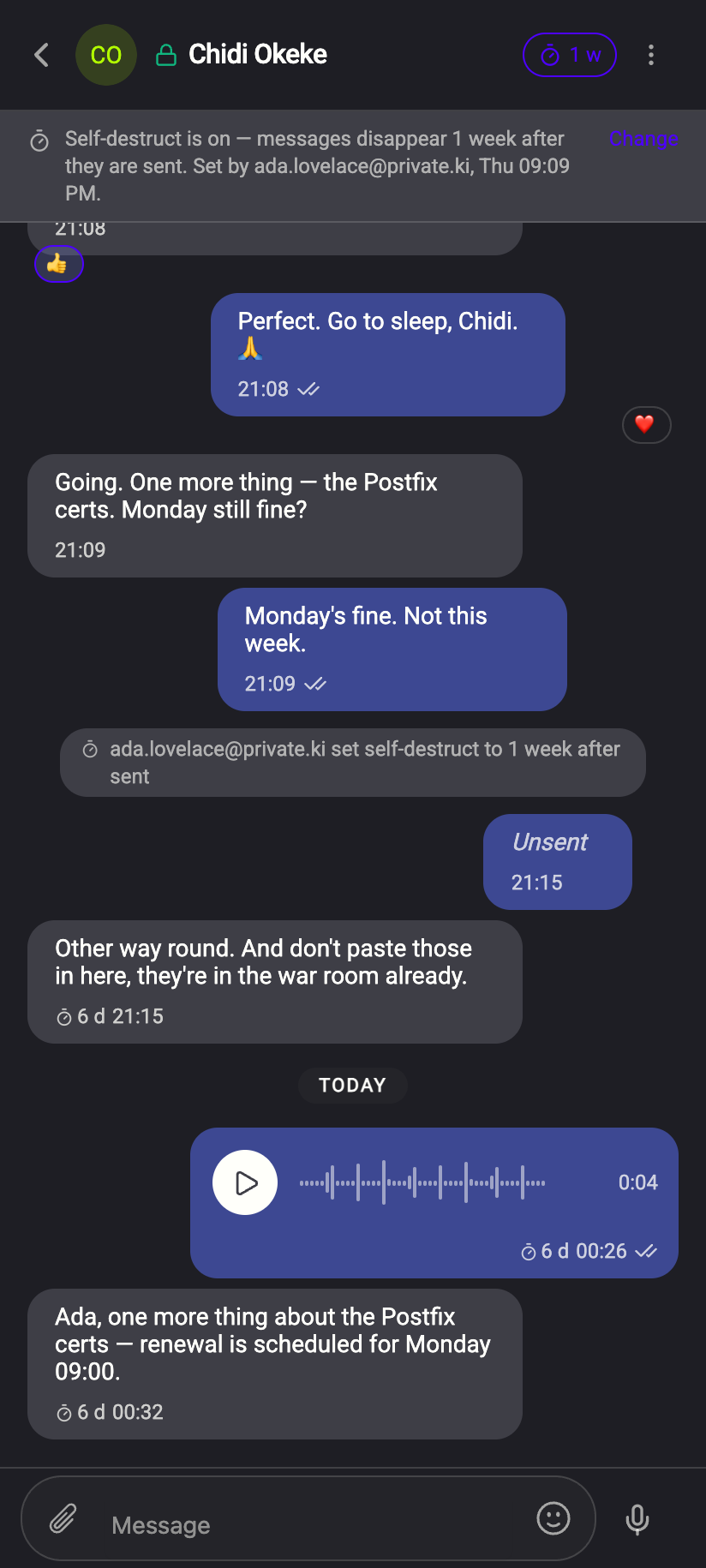 1
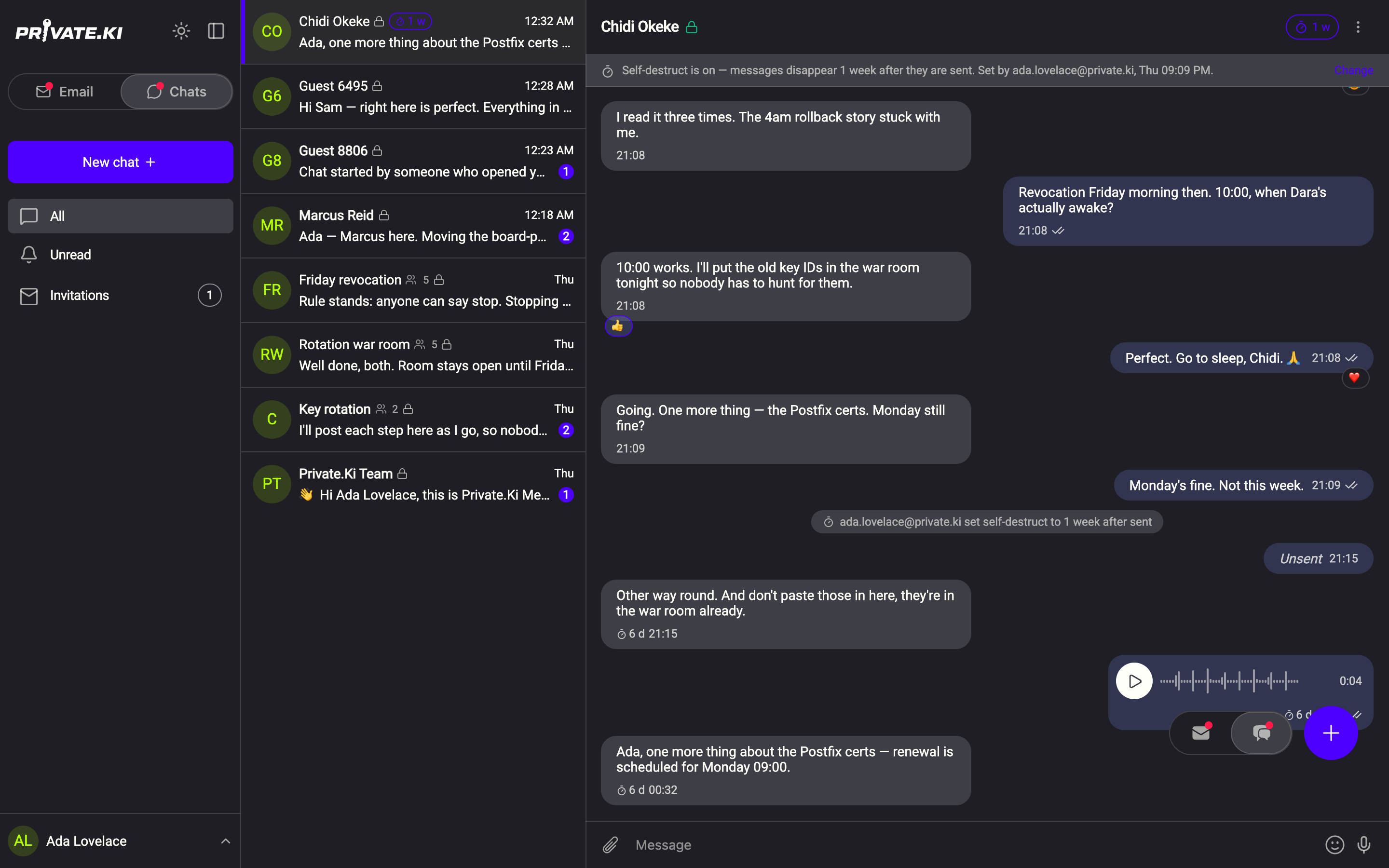
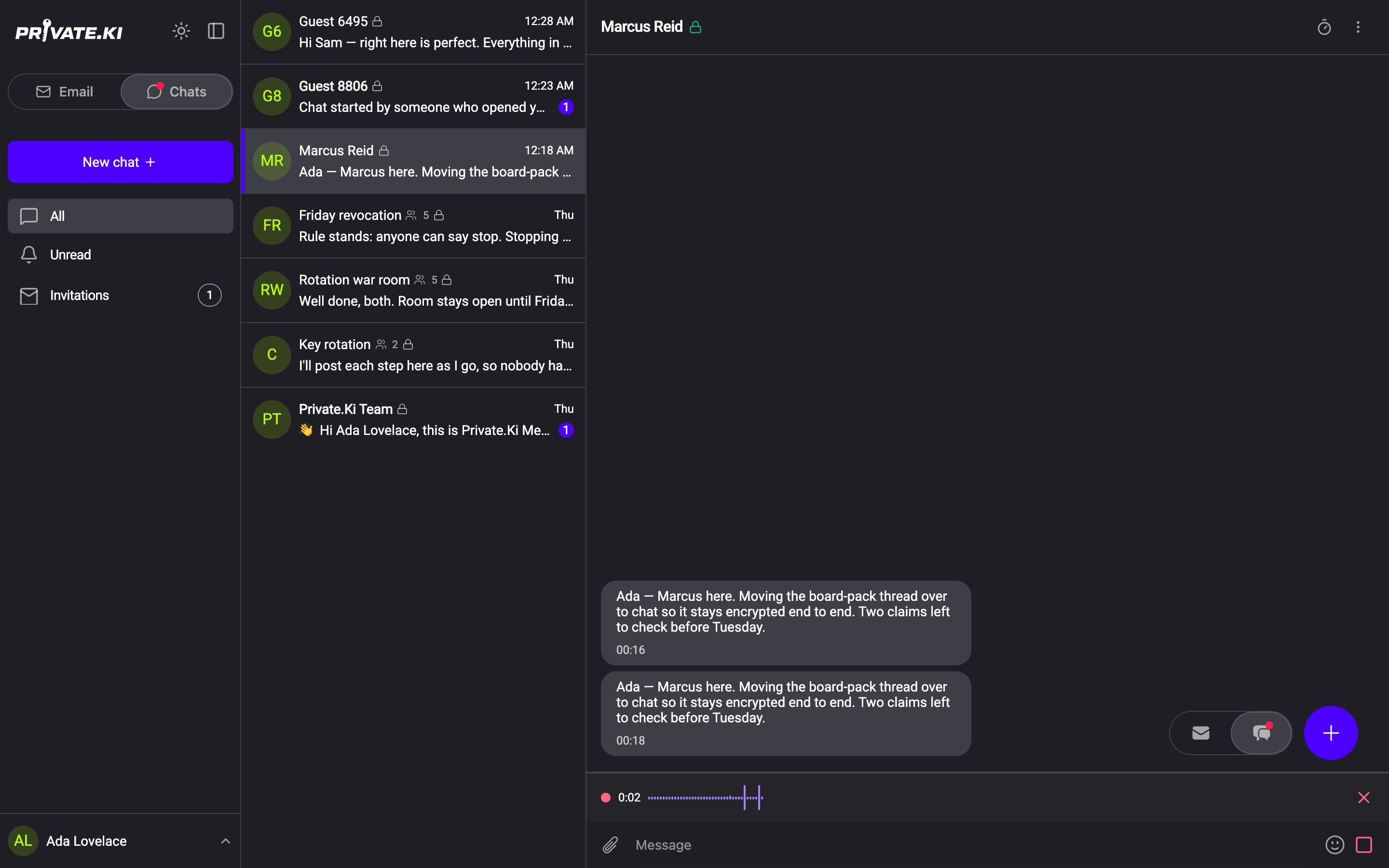
11Press and hold to recordiPhone 11Press and hold to recordAndroid - Speak. A red dot, the elapsed time and a live waveform replace the field. Fifteen seconds before the limit the timer warns you; at the limit recording stops by itself and what you have recorded is kept, ready to send.
1Recording · timer2Live waveform3Cancel4StopWeb & desktop - Click the same button — now Stop recording — when you are done.
- Review. The tray shows a play button, the waveform and the length. Listen back with Play the recording back; drop it with the ✕ (Discard the recording).
1Play2Length3Save audio4Discard5SendWeb & desktop 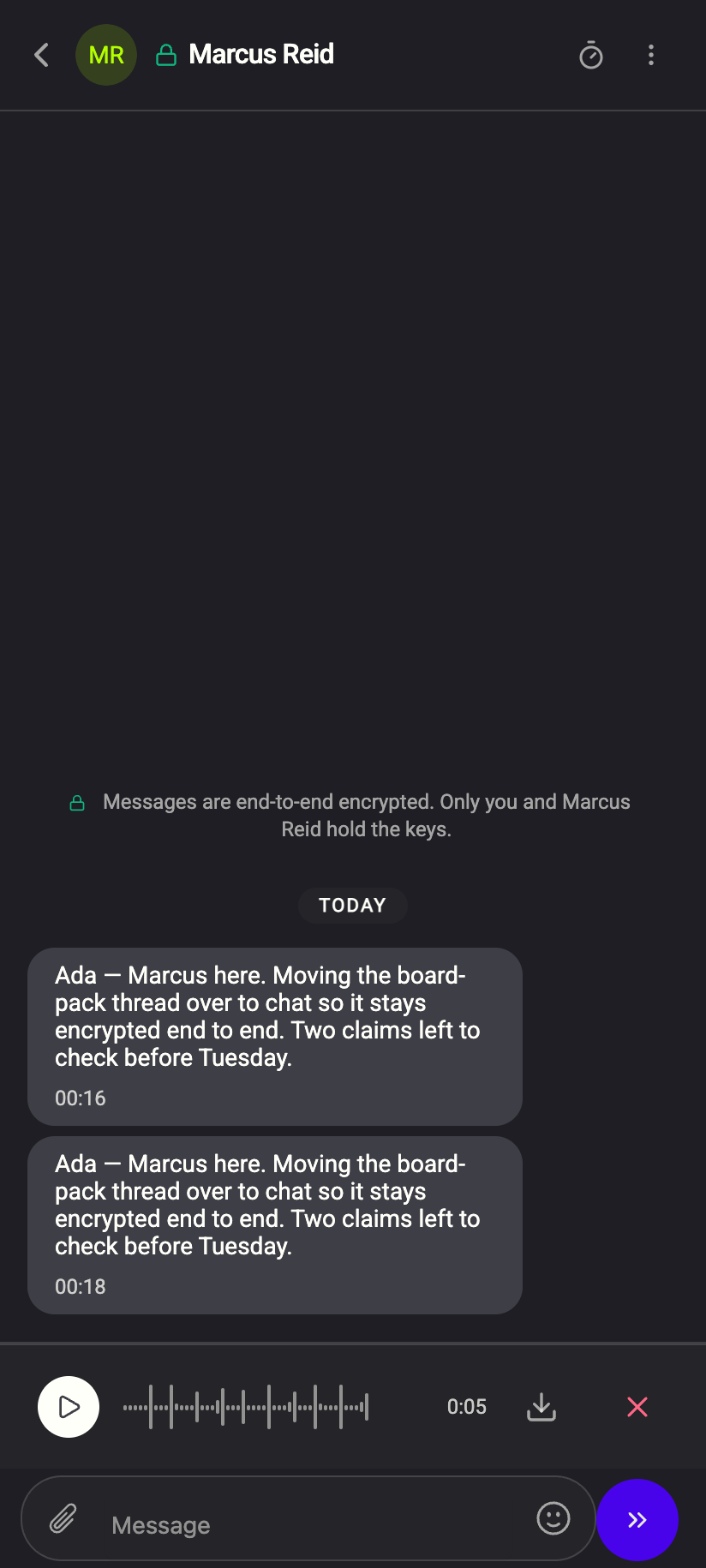 12345
123451Play2Length3Save audio4Discard5SendiPhone 123451Play2Length3Save audio4Discard5SendAndroid - Click the send button. The message goes out as a voice bubble.
A recording shorter than half a second is not sent — you see Hold for a moment longer to record.
Record on a phone
On iOS and Android recording is a hold gesture, the way most messaging apps do it. The steps below apply to the phone only.
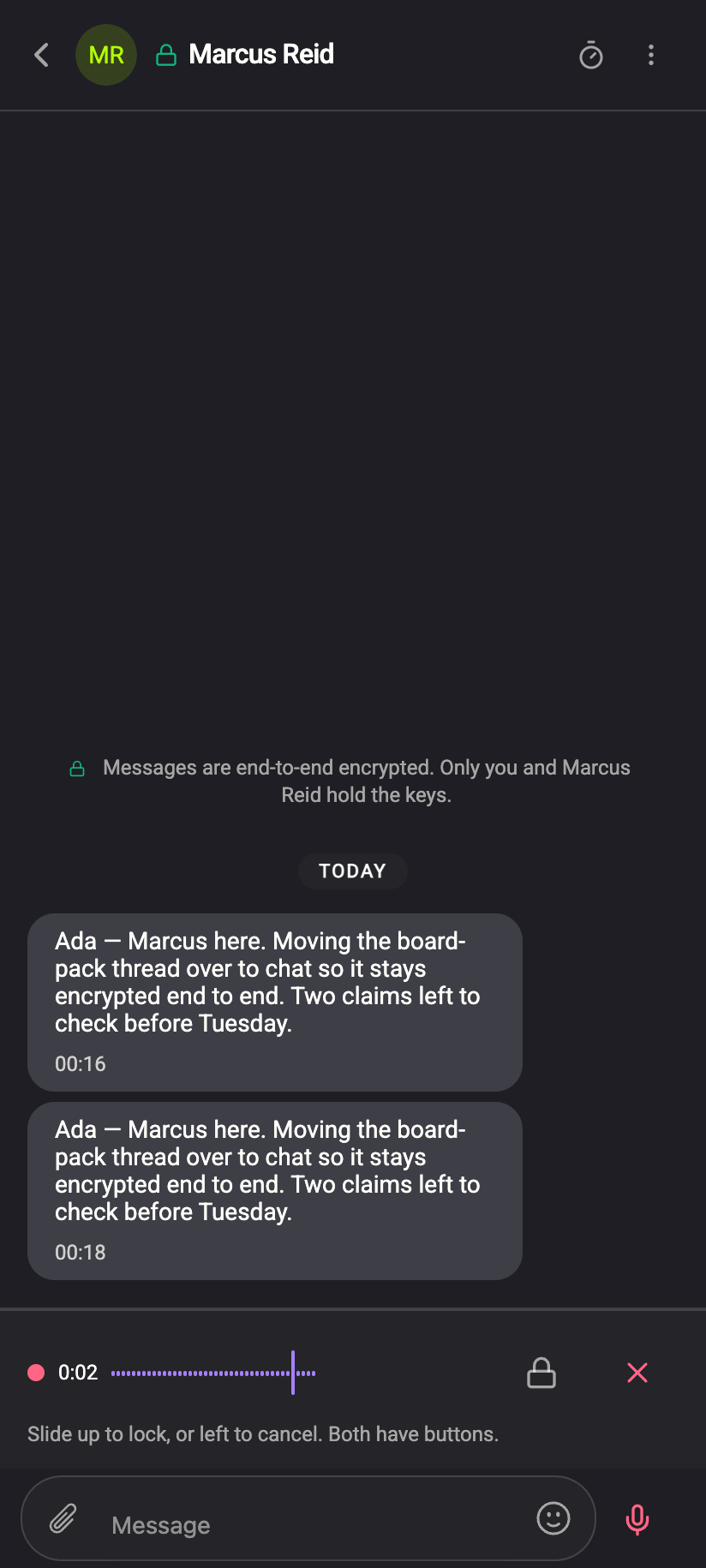
- Press and hold the microphone button next to the Message field. Recording starts while you hold; the field is replaced by the red dot, timer and waveform, with the hint Slide up to lock, or left to cancel. Both have buttons.
 12345
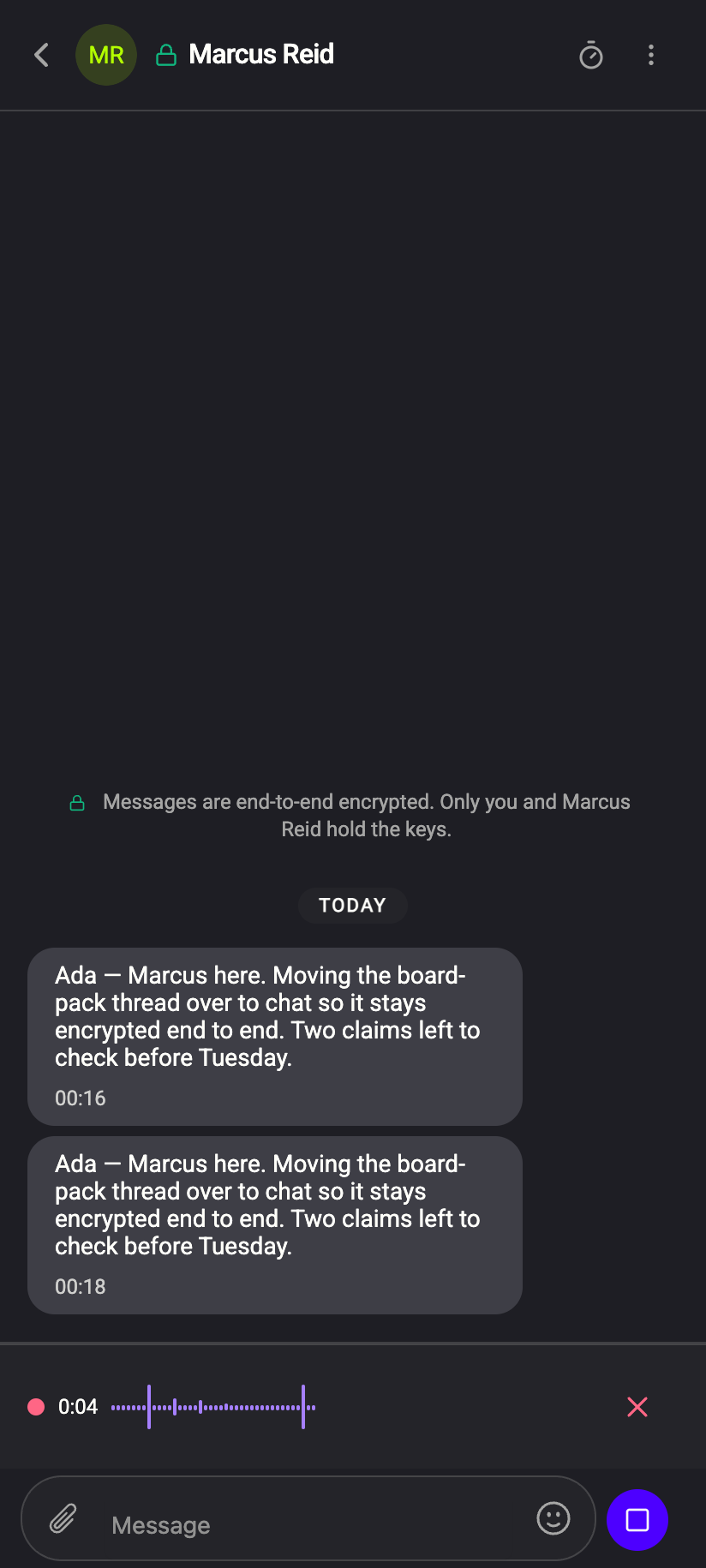
123451Timer2Live waveform3Slide up to lock4Slide left to cancel5Hold to recordiPhone 123451Timer2Live waveform3Slide up to lock4Slide left to cancel5Hold to recordAndroid - Let go to stop and go to the review tray. Or, while still holding: slide up (or tap the padlock) to lock the recording so you can keep talking without holding — the mic button becomes a square stop button; slide left (or tap ✕) to cancel and throw the recording away.
 123
1231Timer2Cancel3StopiPhone 1231Timer2Cancel3StopAndroid - Tap the send button to send, or ✕ to discard.
What the other person sees
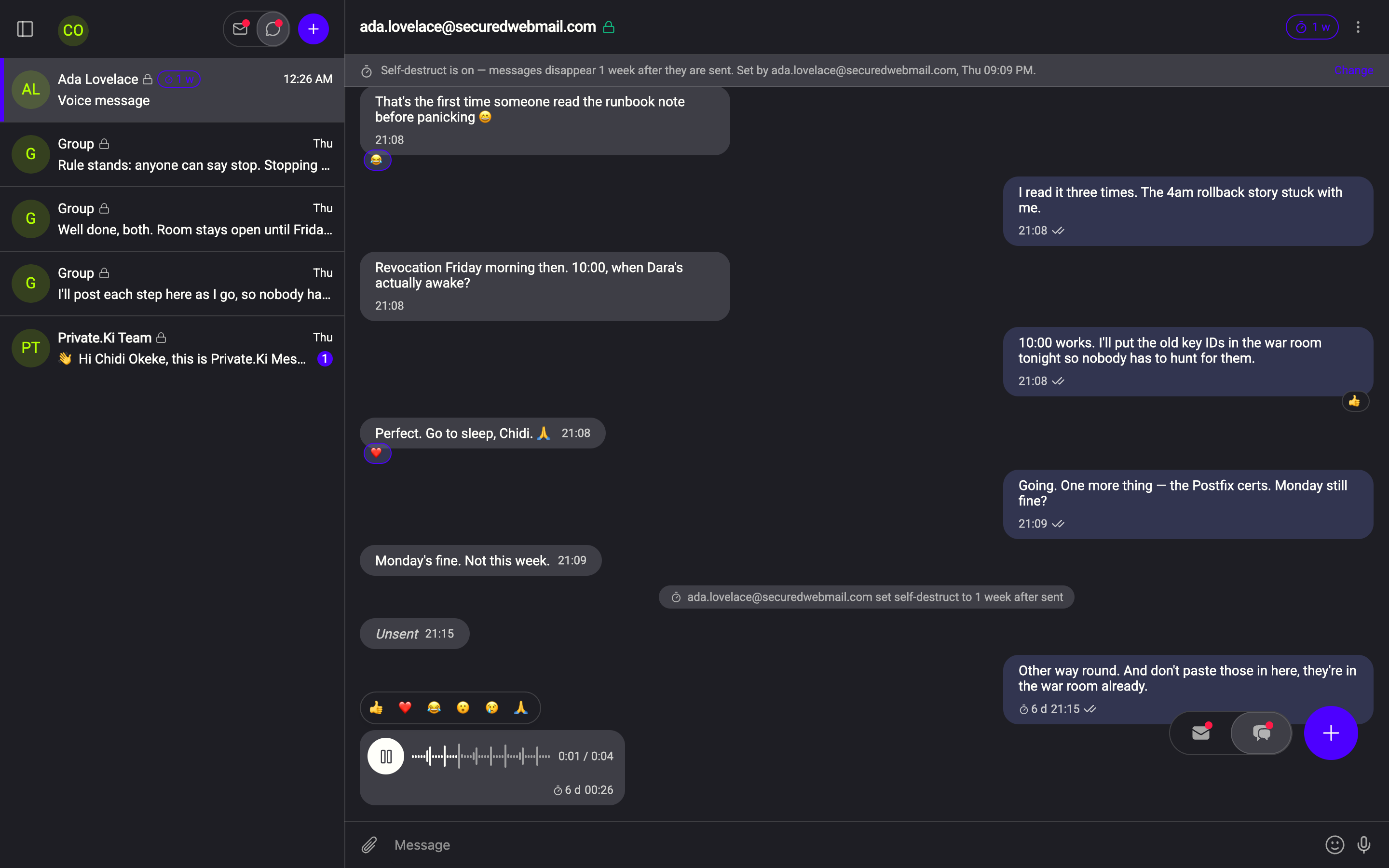
The voice message arrives as a bubble with a play button, a waveform and the length (0:04). A small dot marks one you have not played yet (Not played yet). Tap to play and again to pause; the time shows 0:01 / 0:04 as it runs. In the chat list the row's preview says Voice message.
 123123
Voice messages follow every rule of the conversation they are in: a self-destruct timer deletes them on schedule, Unsend takes them back within the hour, and in a group they are encrypted for each member.
Limits and format
- Up to 5 minutes per message, with a warning at 15 seconds remaining. With Plus it is 20 minutes (Free and Plus, side by side). On the free plan a recording that reaches five minutes stops there, is kept so you can still send it, and the Plus panel opens.
- Minimum half a second.
- Recorded in mono at 16 kHz — good for speech, small to send.
- Playback is in the chat. The review tray's Save audio button is greyed with Not available yet.
If the microphone does not work
Microphone access was denied. — your browser or phone blocked the permission. Allow the microphone for Private.Ki in the browser's site settings (or the phone's app settings) and try again.
No microphone was found. — no input device is available. Plug one in, or check that another app is not holding it.
What our server sees
Cannot see
- The audio, its length as spoken, or the waveform
Can see
- An encrypted attachment of a certain size passed between two accounts at a certain time
Common questions
Can I send a voice message in a group?
Yes. It is encrypted separately for every member, like any group message.
Can I forward a voice message, or save it?
A voice message plays inside the chat it was sent in.
Can the other person tell whether I listened?
No. The Not played yet dot is on your device only, for you. Private.Ki has no read or listen receipts.