Dark mode, light mode and accent colour
Choose System, Light or Dark in Settings › Appearance, flip it with the sun/moon button — and pick one of eight accent colours for your account.
Private.Ki has a light and a dark theme, and eight accent colours. You can pin a theme, or let the app follow your device's setting. There are still no font-size and no density options.
Both controls live in one place: Settings › Appearance. The theme used to sit under General; it moved.
Choose a theme
- Open Settings. Click your name at the bottom-left, then Settings › Appearance.
- Under Theme, pick one of:
- System — follow the device. Switch your phone or computer to dark mode and Private.Ki follows.
- Light — always light.
- Dark — always dark.
- The change applies immediately. There is no Save button.
On the phone, open the menu ☰, tap your name at the bottom of the drawer, then Settings › Appearance. The same three-way Theme control is there.
The quick switch
You do not have to open Settings to flip the theme:
- Web and desktop: the sun/moon button at the top of the sidebar (next to the search icon). Its label is Switch to dark mode or Switch to light mode, depending on what you are looking at.
- Phone: the same button in the drawer, and a Switch to dark mode / Switch to light mode row in the account menu.
- Sign-in and lock screens: a sun/moon button in the top-right corner, so you can read the screen comfortably before you are signed in.
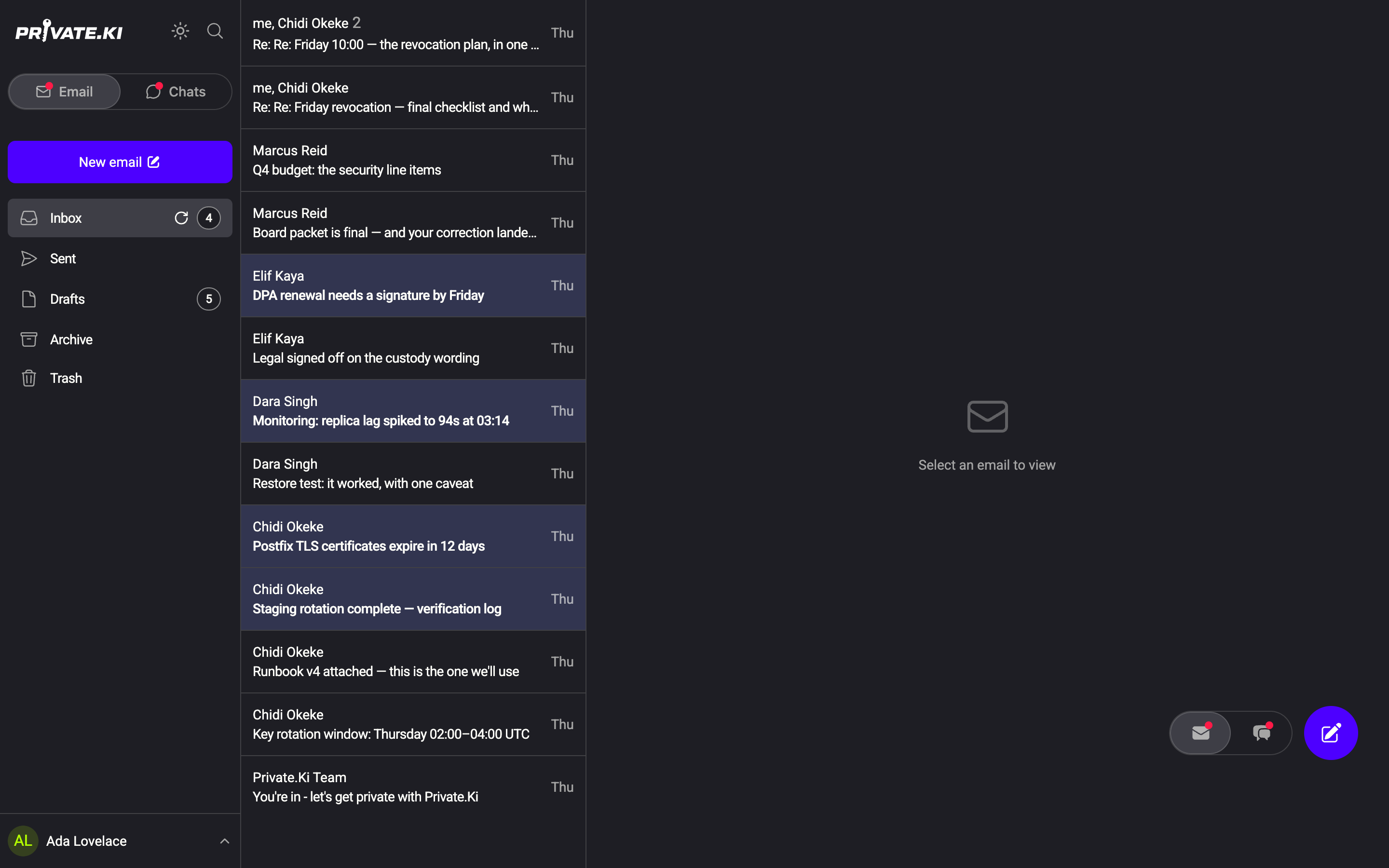
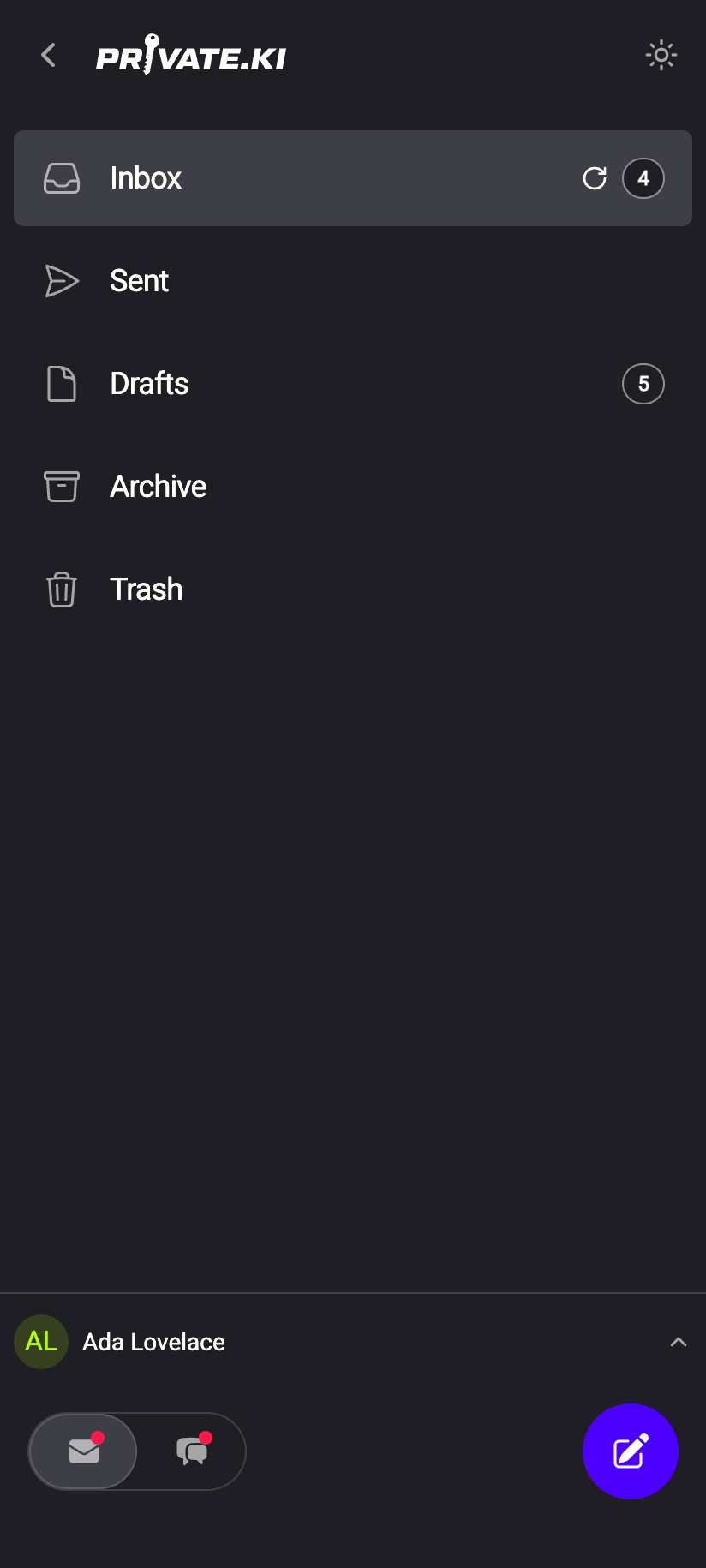 11
11The quick switch always sets an explicit Light or Dark. If you were on System, using it takes you off System; go back to Settings › Appearance to follow the device again.
Accent colour
The accent is the colour of buttons, links and the marks the app uses to point at things. Under Accent colour in the same screen there are eight:
| Colour | Plan |
|---|---|
| Violet | Free — the default, and what every account has had so far |
| Blue, Teal, Green, Amber, Coral, Rose, Graphite | Private.Ki Plus |
Violet stays free and stays the default; nothing changes for an account that never touches this. The other seven are part of a Plus subscription — on the free plan the swatch is not hidden or greyed, it simply opens the Plus sheet when you press it.
Each colour keeps a readable shade in both themes, so the accent and the theme are independent: pick any colour and still switch between light and dark.
What to expect
- The theme is per device. It is saved in the browser or app on that device. Your phone and your laptop can be on different themes; a new browser starts on System.
- Per browser profile, not per account. On the web, two accounts used in the same browser share the theme setting.
- The accent colour is per account. It follows you to every device you are signed in on.
- Survives sign-out. Signing out or locking the account does not reset either one.
What our server sees
Cannot see
- Your theme choice — it never leaves the device
Can see
- Which accent colour you picked — one word stored on your account, so every device you sign in on uses it
Common questions
Is there an automatic schedule, e.g. dark at night?
Not inside Private.Ki. Choose System and use your operating system's schedule; the app follows it.
Can I change the font size?
Not in the app. On the web, use your browser's zoom (Ctrl / ⌘ and + or −). On the phone, the app respects the system text size.
Is there a density or compact-list setting?
No. The list spacing is fixed.
Emails look different in dark mode.
Your own interface is dark; the content of an email is rendered as the sender formatted it. Emails with a fixed white background stay white.
Does the theme sync to my other devices?
No. Set the theme on each device. The accent colour does sync — it is stored on the account.
I used to set the theme in General and it is not there.
It moved to Settings › Appearance, next to the accent colour. Nothing else about it changed.