Change your display name
Your display name is the name people see next to your address — in the From line of your emails and in chats. Change it any time in Settings › General.
Your display name is the human-readable name attached to your address. You chose one when you created your account; it can be anything and does not have to be your real name. Change it as often as you like — it is a label, not an identity, and changing it does not touch your address, your keys or your sign-in.
Change it
- Open Settings. Click your name at the bottom-left, then Settings. On the desktop, Settings opens on General; otherwise choose it in the list.
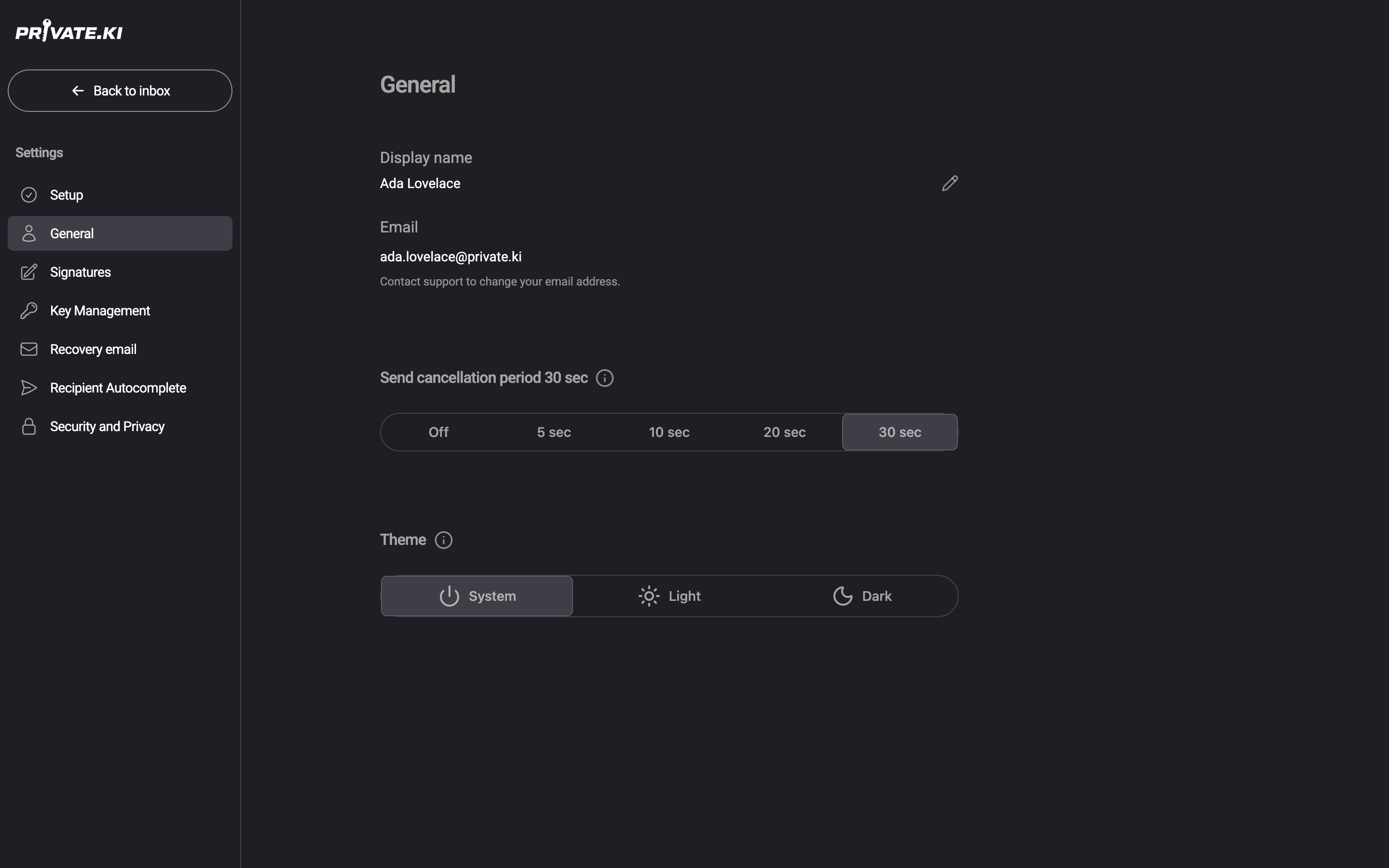
1General2Display name3Pencil — editWeb & desktop 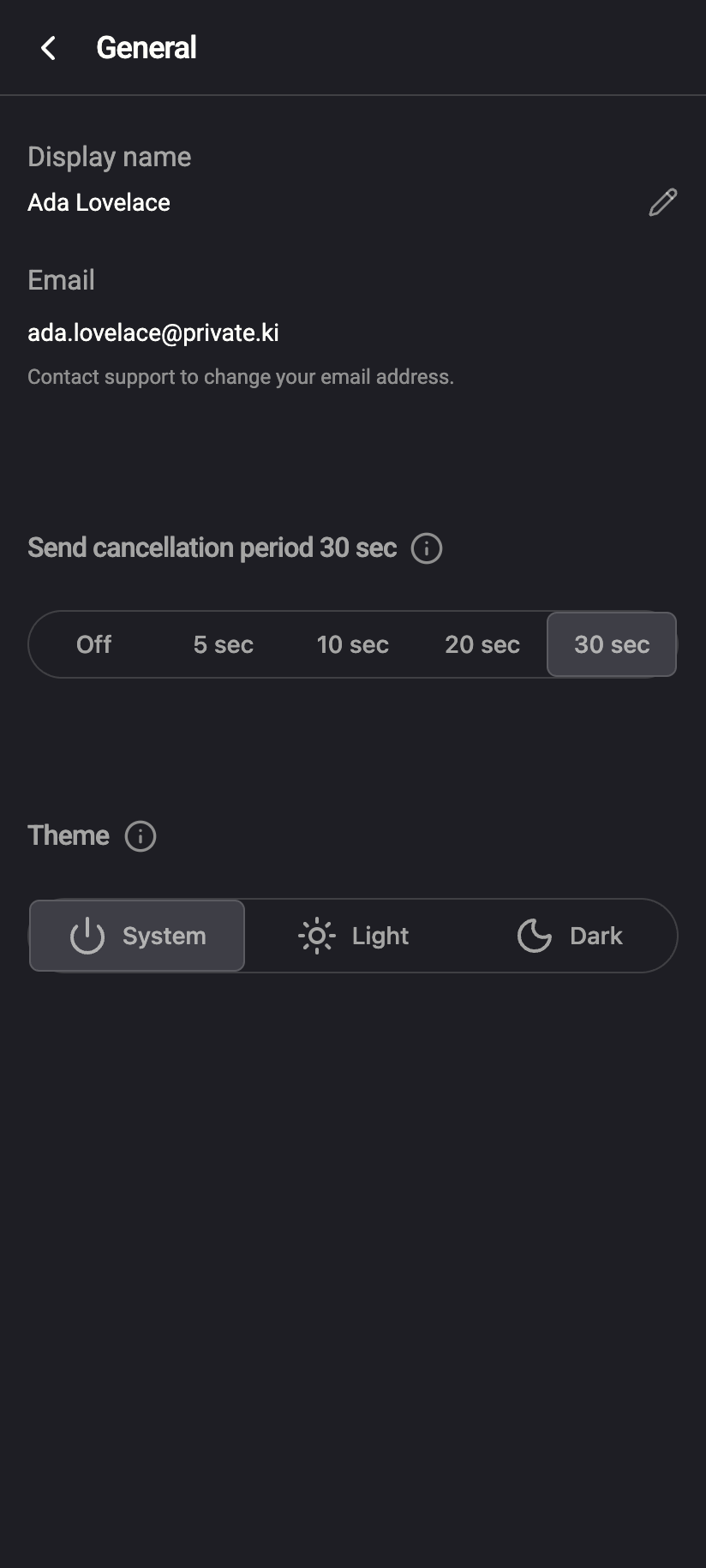 12
121Display name2Pencil — editiPhone 121Display name2Pencil — editAndroid - Next to Display name, click the pencil icon.
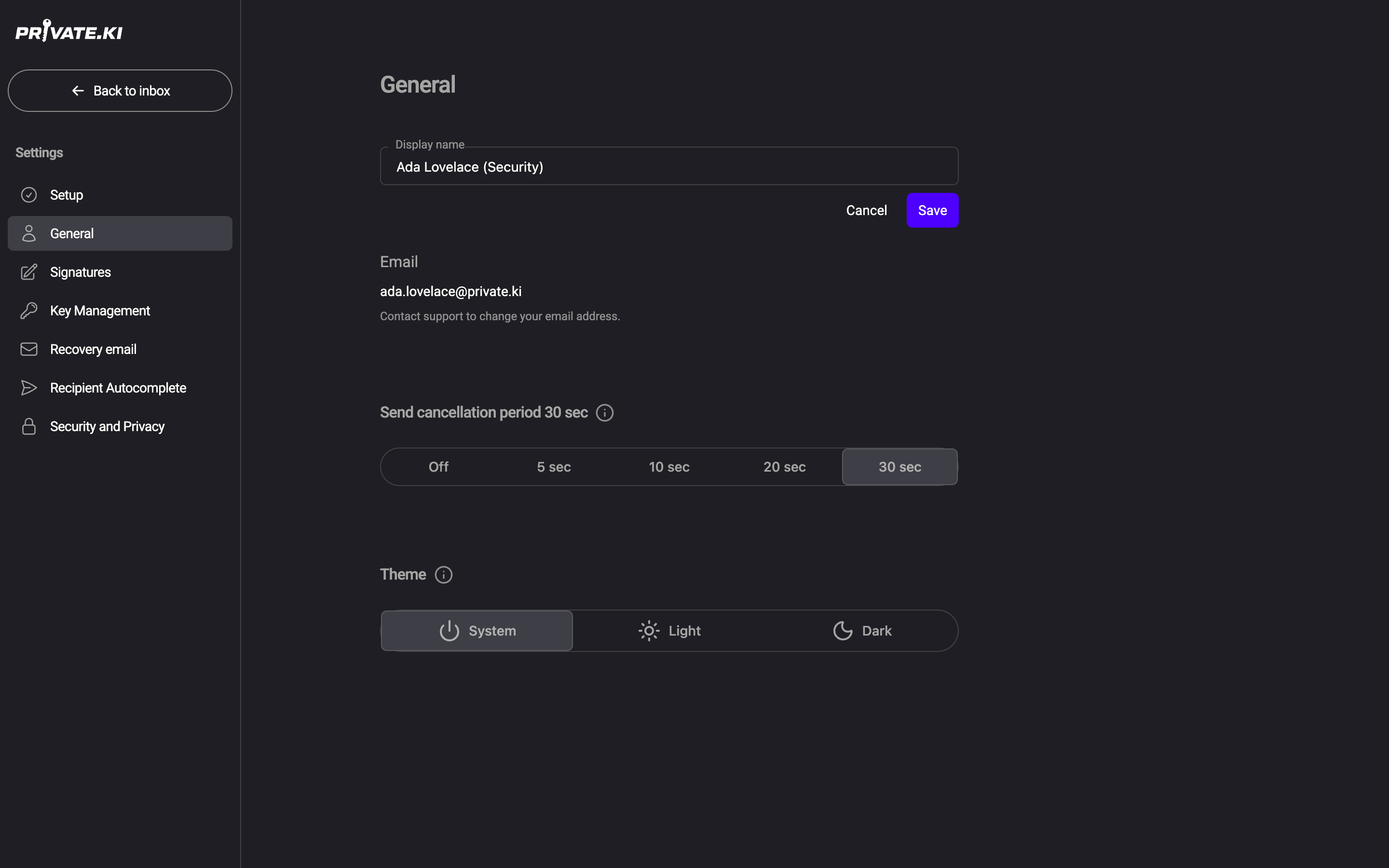
- Edit the Display name field and click Save (or press Enter). Cancel keeps the old name. An empty name is not saved.
1New name2Cancel3SaveWeb & desktop 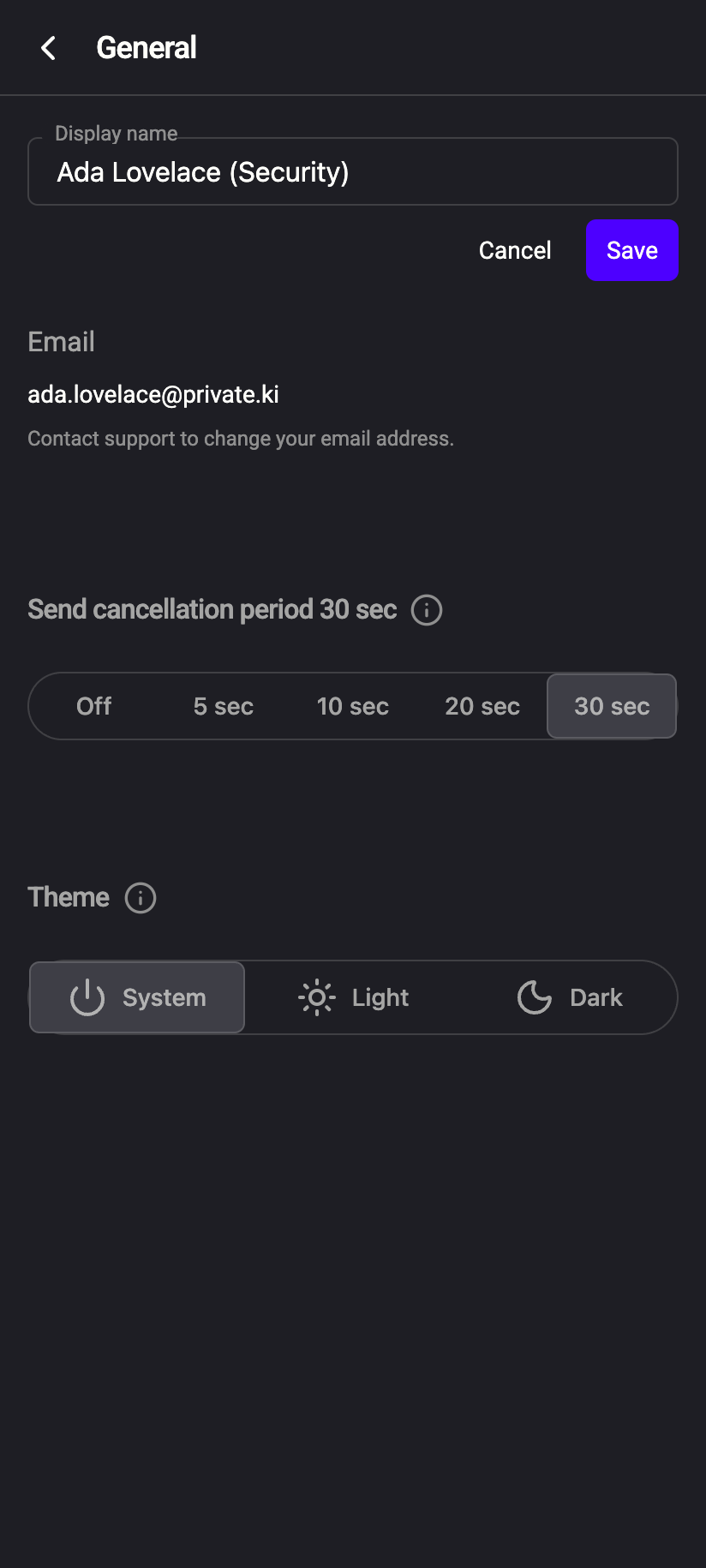 123
1231New name2Cancel3SaveiPhone 1231New name2Cancel3SaveAndroid - The new name shows immediately in the row and at the bottom of the sidebar.
On the phone, open the menu ☰, tap your name at the bottom of the drawer, then Settings › General. Tap the pencil next to Display name, edit, and tap Save.
Where it shows
- Email you send. The From header reads
Display Name <you@…>, so recipients — inside Private.Ki and outside — see both. Mail you already sent keeps the name it was sent with; only new mail uses the new one. - Chats. Your name in chat headers and lists, and the initials next to your messages in group chats and in group member lists.
- Invitations. When you invite someone by link or QR code, they see your display name before they accept.
- Your own app. The account row at the bottom of the sidebar and the account menu.
It is not used for signing in — that is your username — and it is not part of your encryption key.
What our server sees
Cannot see
Can see
- Your display name, in readable form. It travels in email headers and is shown to the people you chat with, so it cannot be encrypted the way message bodies are.
Because the display name is visible to everyone you write to and to our server, do not put anything in it you would not put on an envelope.
Common questions
Can two people have the same display name?
Yes. Only usernames are unique. If a contact has two people with the same display name, the address underneath tells them apart — which is one reason we always show the address next to the name.
Does changing it notify my contacts?
No. They simply see the new name on the next message you send.
Is there a length limit?
Yes — 255 characters, so a normal name or a name plus a title fits comfortably. Very long names are cut off in narrow lists.
Can I use emoji or non-Latin characters?
Yes. The name is stored and sent as Unicode text. Some external mail clients display emoji in From lines poorly, so keep it plain if you write to many outside addresses.