Sign in on a new device with a QR code
No password, no passphrase — a device you are already signed in on hands its unlocked keys to the new one through a QR code and a six-character check.
If you are already signed in on one device, you can sign in on a second without typing anything. The new device and the signed-in device exchange a QR code, show the same six-character code so you can confirm nothing sat in between, and then the signed-in device hands over your unlocked private key — not your password and not your passphrase. The new device opens straight into your mailbox.
Either device can show the code and the other scans it. Which way round you go depends on which device has a camera you can point.
Whoever completes this flow can read every message you have ever sent or received. Never scan a code somebody sent you, and never approve a request you did not start yourself.
Start on the new device
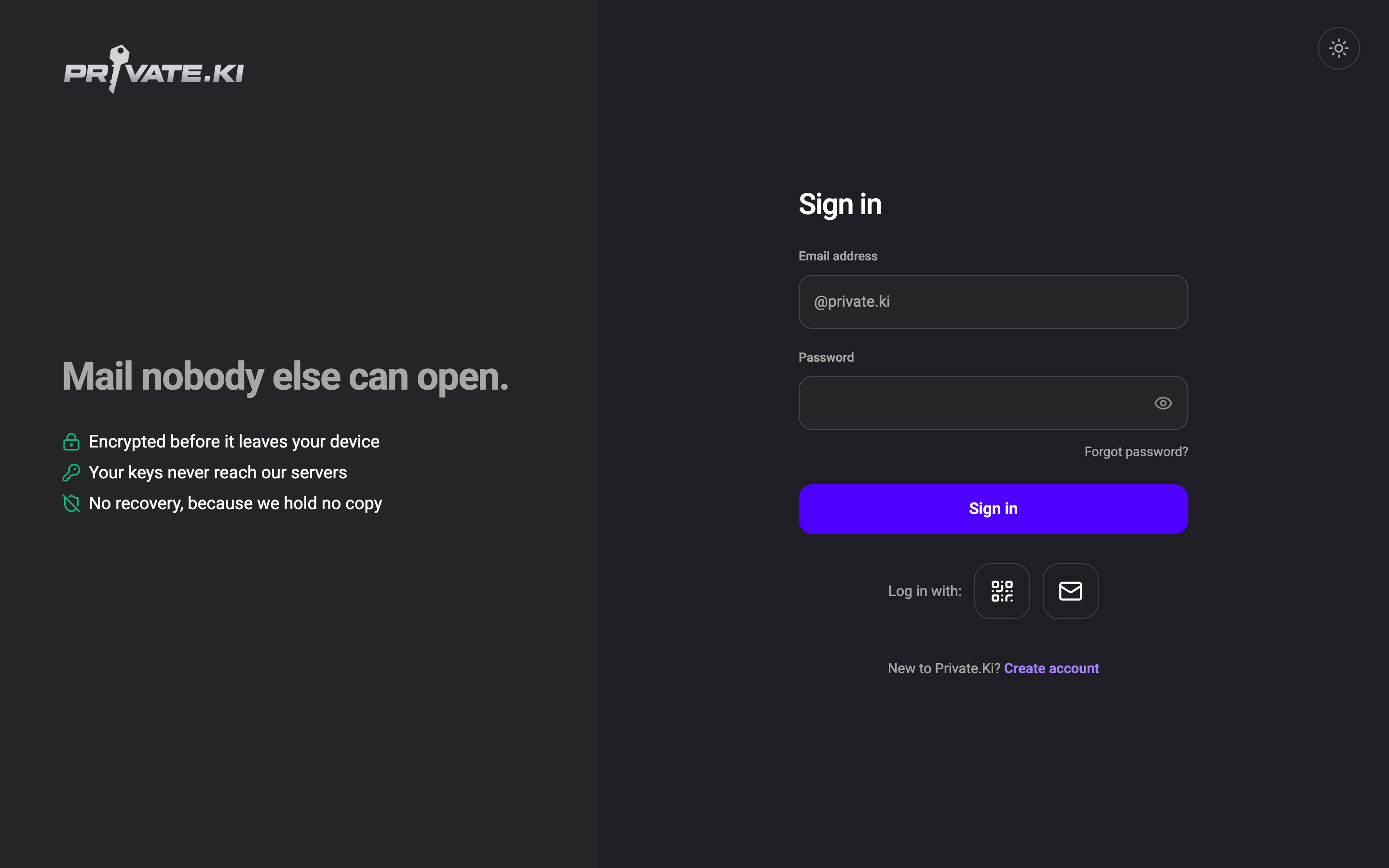
- On the sign-in page of the new device, under Log in with:, click the QR icon (Sign in with a QR code).
1Sign in with a QR codeWeb & desktop 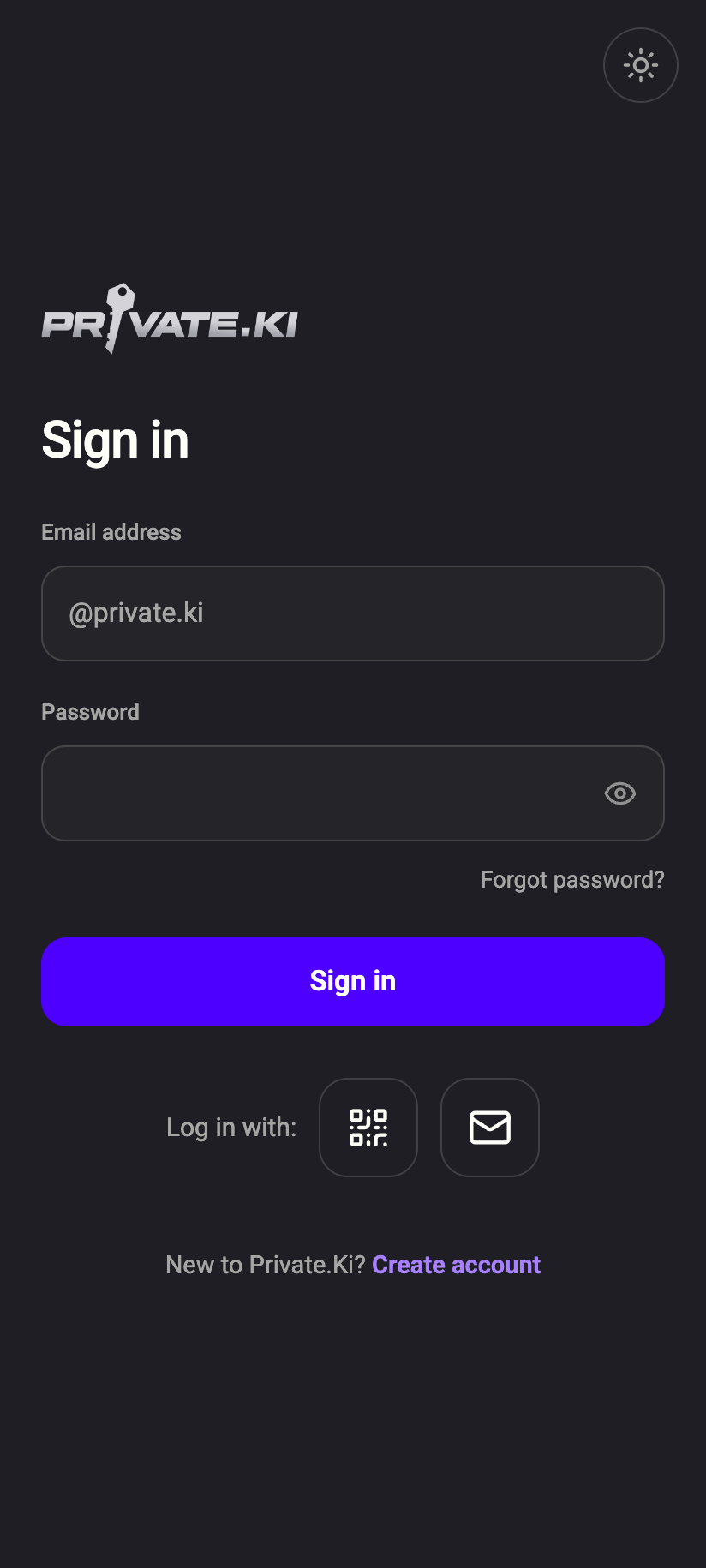 1
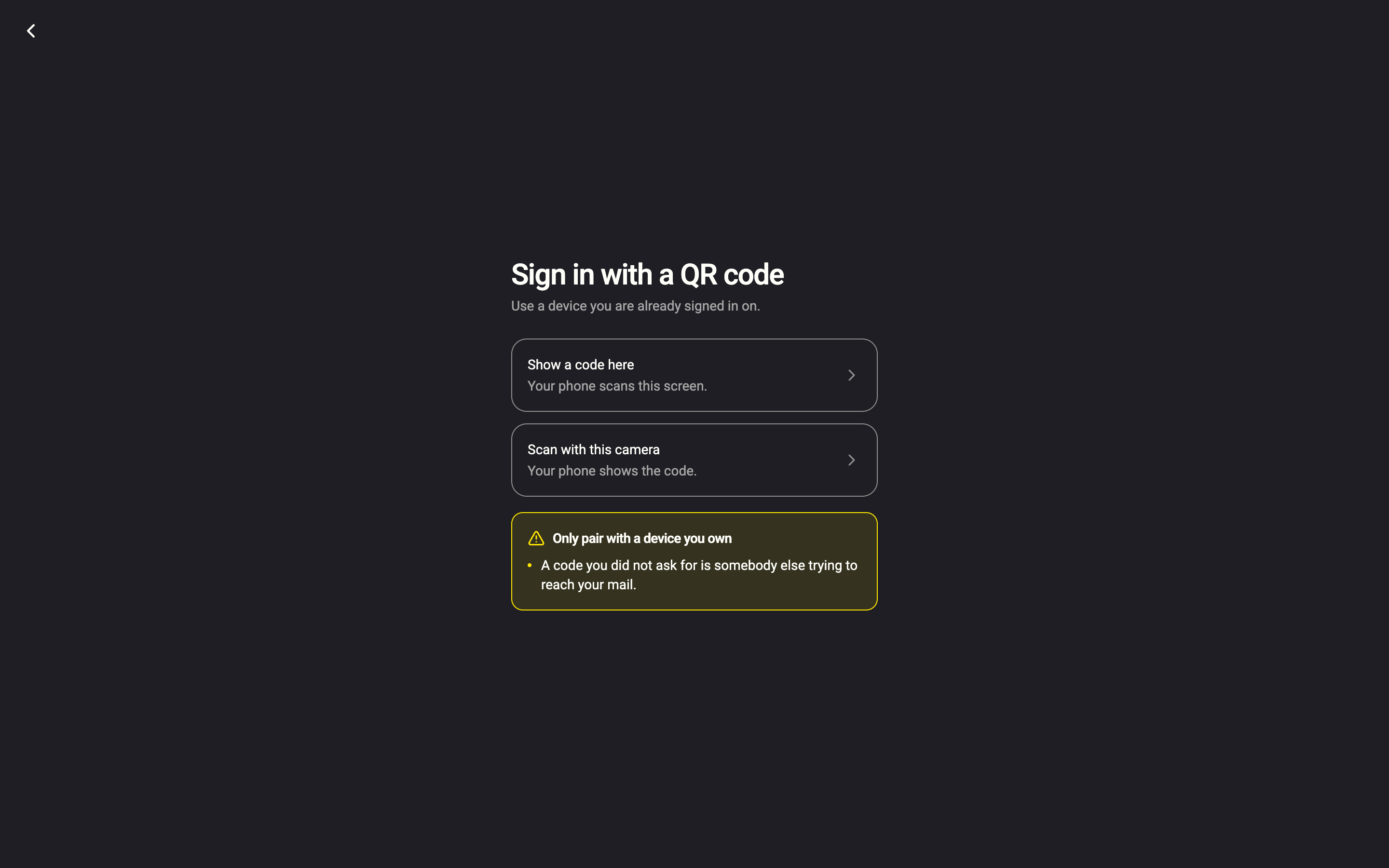
11Sign in with a QR codeiPhone 11Sign in with a QR codeAndroid - On Sign in with a QR code — Use a device you are already signed in on, choose a direction:
- Desktop or laptop: Show a code here (Your phone scans this screen) or Scan with this camera (Your phone shows the code).
- Phone: Scan their code (Point this phone at their screen) or Show my code (Let them scan this phone instead).
1Show a code here2Scan with this cameraWeb & desktop 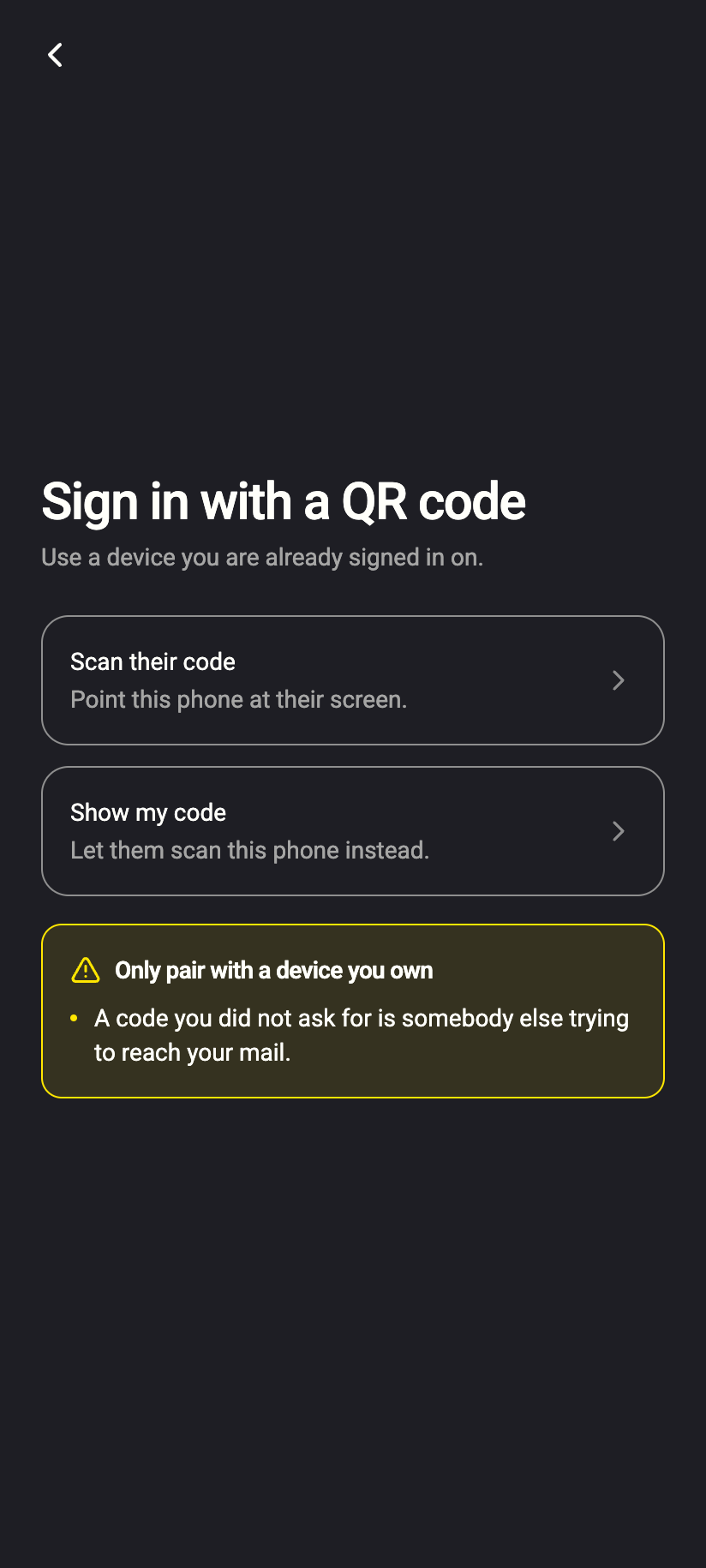 12
121Scan their code2Show my codeiPhone 121Scan their code2Show my codeAndroid
Every screen in the flow has a button to switch direction — for example Show a code here instead or Scan their code instead — in case a camera is covered, missing or refused.
Direction A — the new device shows a code
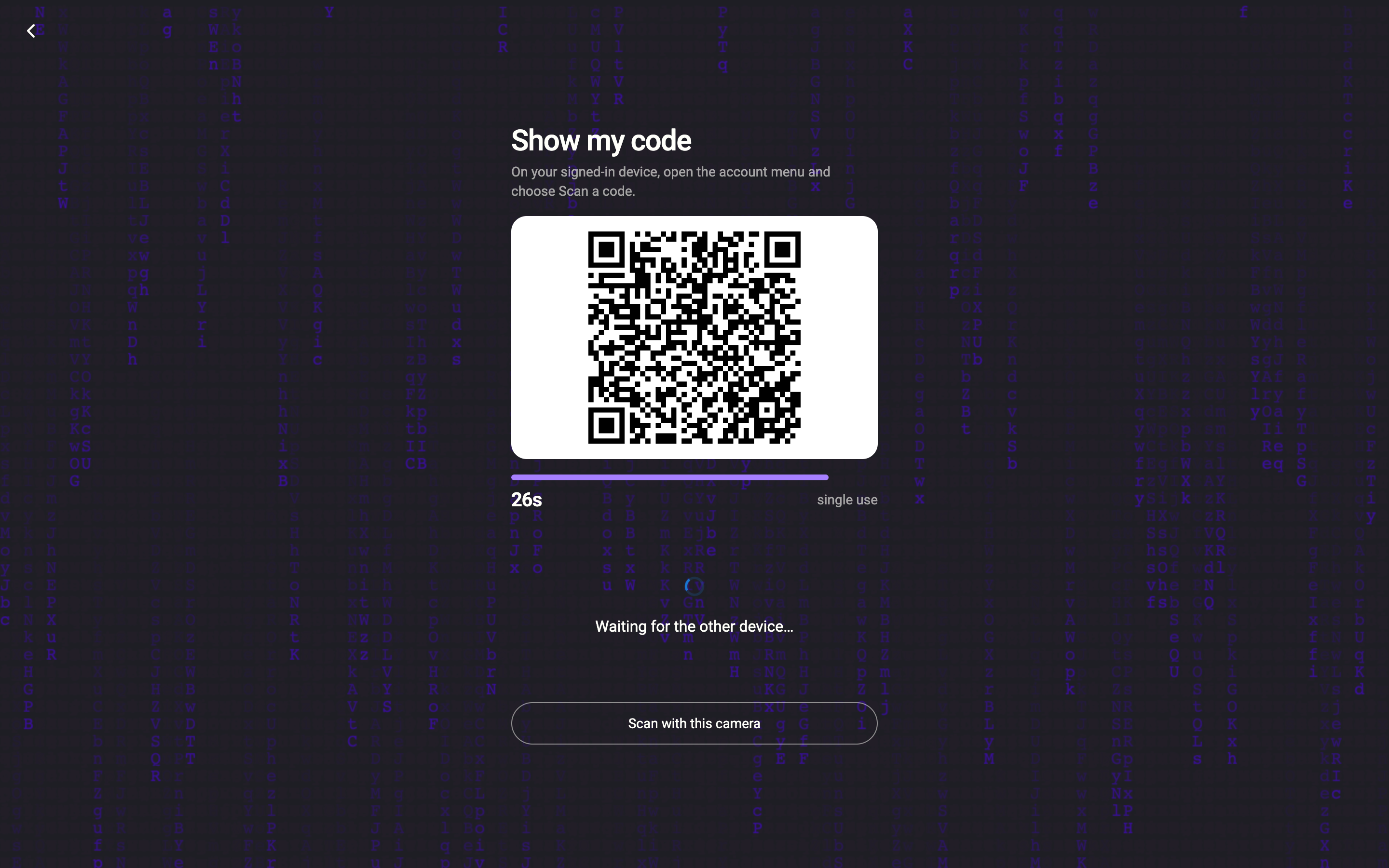
- The new device shows Show my code with a QR code and a countdown. The code is single use and expires when the bar runs out.
1Scan this with the signed-in device2Time left — single use3Switch directionWeb & desktop 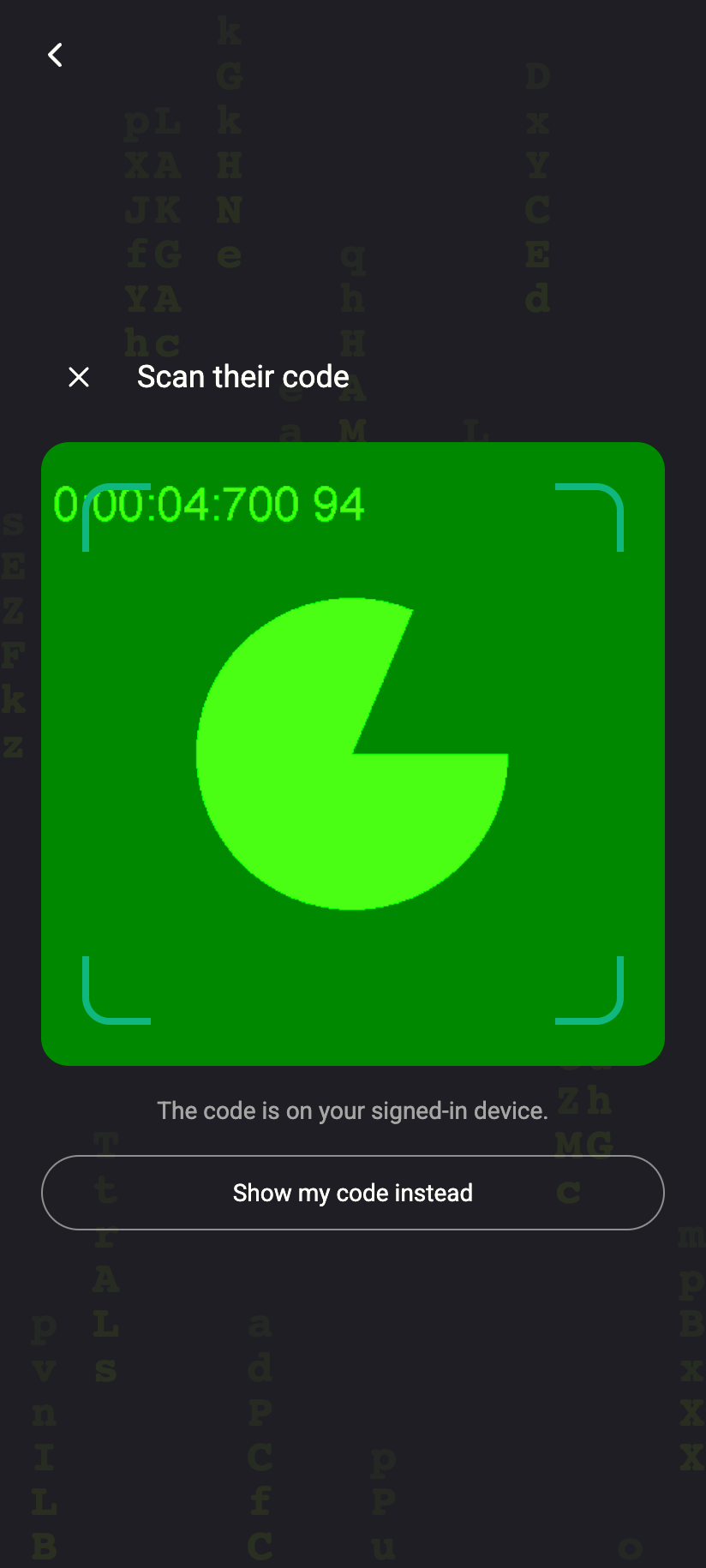
The new device showing its single-use code, waiting to be scanned.iPhone The new device showing its single-use code, waiting to be scanned.Android - On the signed-in device, open the account menu (your name at the bottom-left; on a phone ☰ then your name), choose My devices, then Scan a code (Point this camera at the other device). This needs a camera. Point it at the new device's screen.
- The signed-in device asks Sign in another device? and names the account: The device that showed this code will be signed in as [email protected] and will be able to read your entire mail history. Click Continue as [email protected].
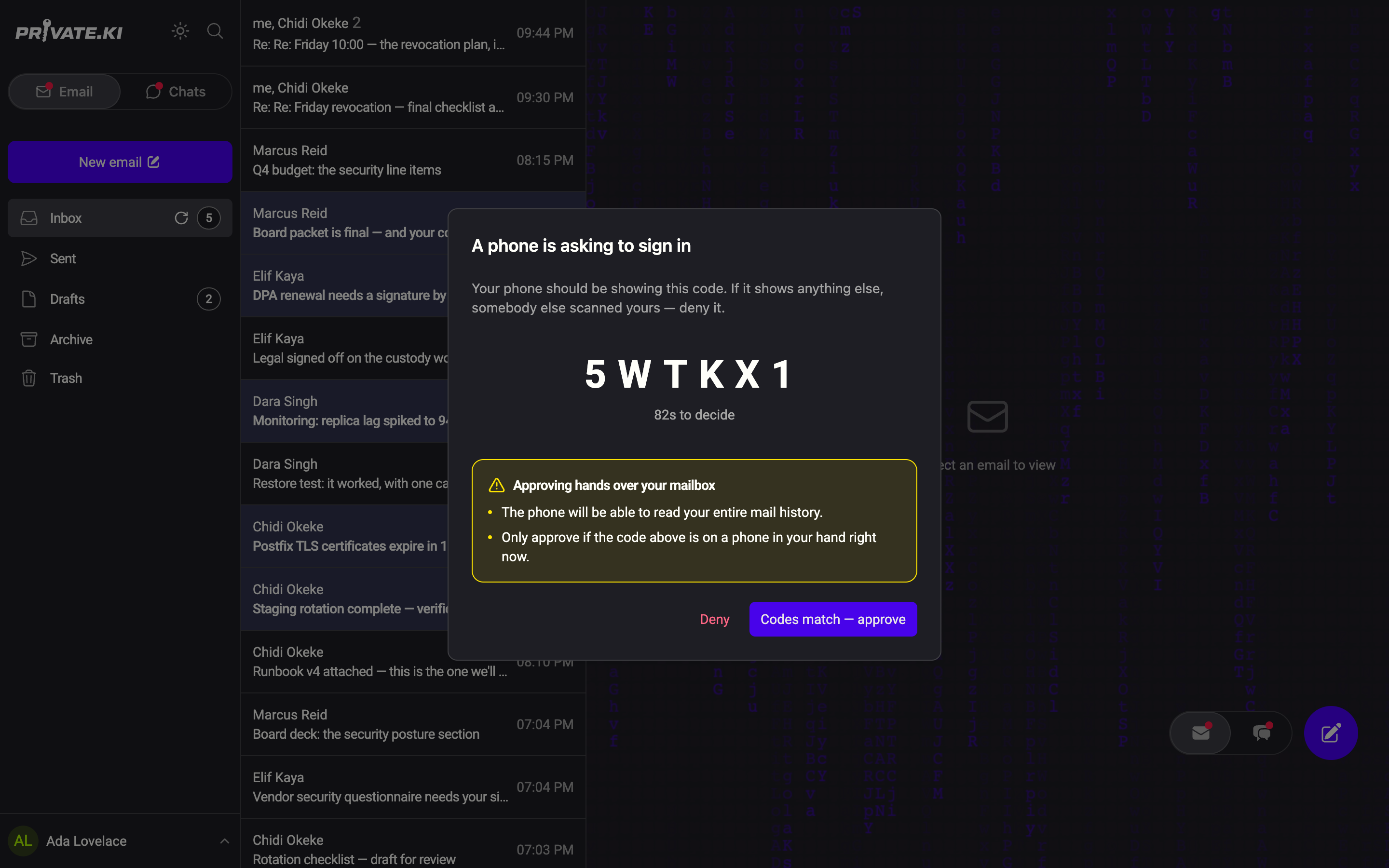
- Both devices now show the same six-character code. Compare them. On the signed-in device click Codes match — approve — or Deny if they differ.
1Must match the other device2Codes match — approve3DenyWeb & desktop 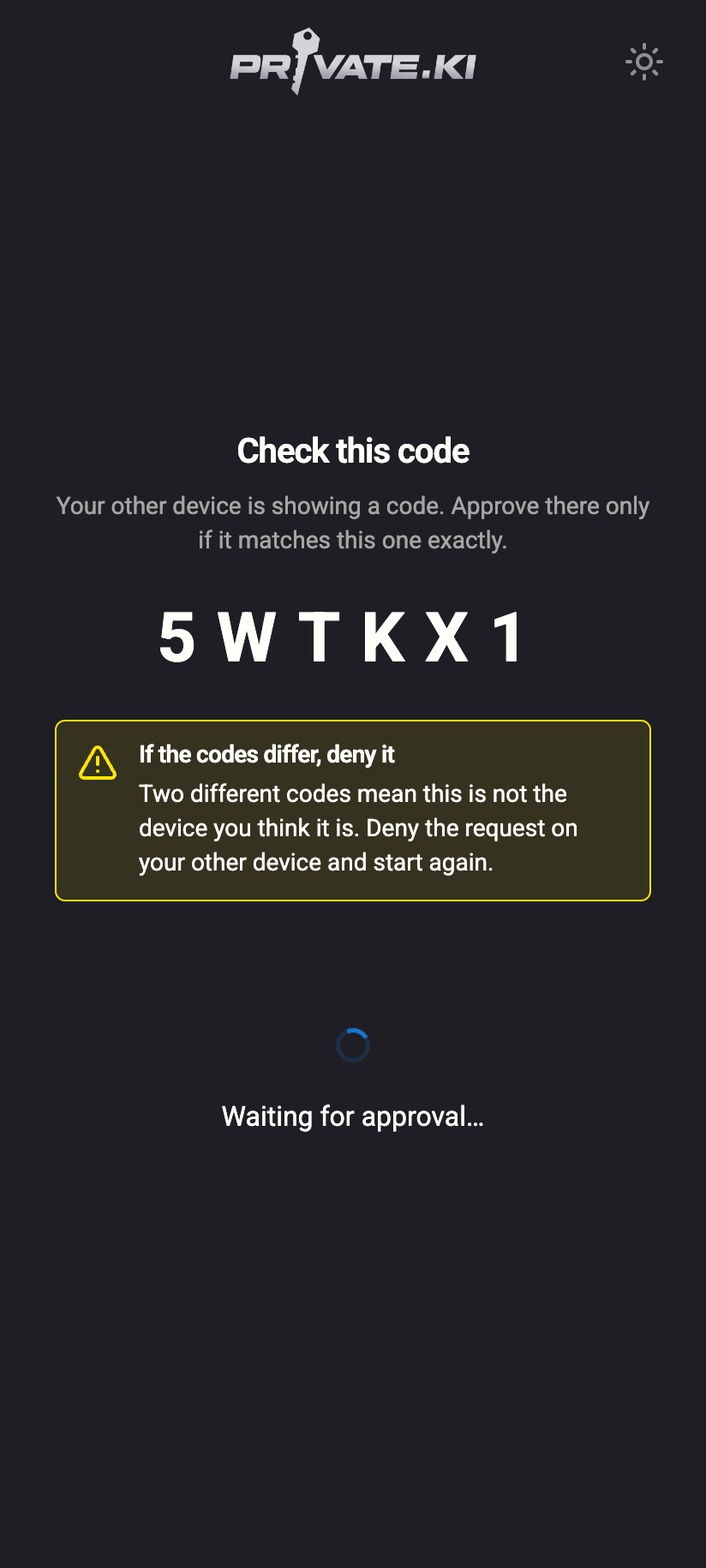 1
11Compare with the other deviceiPhone 11Compare with the other deviceAndroid - The new device shows Unlocking your mailbox… and opens your inbox.
A signed-in phone can also scan the new device's code with the phone's ordinary camera app. The link it reads opens Private.Ki straight on the Sign in another device? confirmation.
Direction B — the signed-in device shows a code
- On the signed-in device, open the account menu, choose My devices, then Show a code. Read the warning (This code is a key to your account), tick Nobody else can see my screen, and the device I am about to add is mine and click Show QR code. The code is valid for 30 seconds and single use.
- On the new device, choose Scan their code / Scan with this camera and point the camera at the code. (A phone can also just use its camera app — the link opens the pairing page.)
- The new device shows Check this code with six characters; the signed-in device shows A phone is asking to sign in with its own six characters and 90 seconds to decide.
- If they match, click Codes match — approve on the signed-in device. The new device shows Unlocking your mailbox… and opens your inbox.
This direction is described step by step, with screenshots of both screens, in Pair a second device (Show a code).
What is — and isn't — transferred
- Transferred: your unlocked private key, encrypted end-to-end between the two devices with a key derived from the QR exchange. The server relays ciphertext it cannot open.
- Not transferred: your password, your passphrase, your two-factor secret. The new device cannot change your password or sign in elsewhere from scratch.
- Two-factor: the new device takes over a signed-in session, so it is not asked for a code during pairing.
- Sessions: with the Password only method, the new device appears in Active sessions and can be revoked from there.
What our server sees
Cannot see
- Your private key — it travels encrypted with a key only the two devices know
- Your password or passphrase — neither is involved
Can see
- That a pairing channel was opened, claimed, approved or denied, and when
- Your account, which the new device now holds a sign-in for
Common questions
The six characters are different on the two devices
Someone or something intercepted the exchange. Click Deny on the signed-in device and start again. Nothing was transferred.
"That code has expired"
Codes are short-lived by design — 30 seconds while the QR is showing, 90 seconds for the approval. Show a new code and try again; each code works once.
My laptop has no camera
Choose Show a code here and let your phone do the scanning. Showing a code needs no camera at all.
The camera view says "This browser is not letting us use the camera"
Allow camera access in the address bar, or switch direction with Show a code here instead. Browsers only give the camera to pages served over HTTPS.
Does the new device stay signed in?
On a computer, yes — until you log out or revoke it. Mobile browsers may clear the paired session after about a week of not being opened; iPhones are the strictest. Add the site to your home screen to make that less likely, or use the phone app.